Your Interactive Guide to
the Digital World
Discovering
Computers 2012
Chapter 5
Understanding Input
2
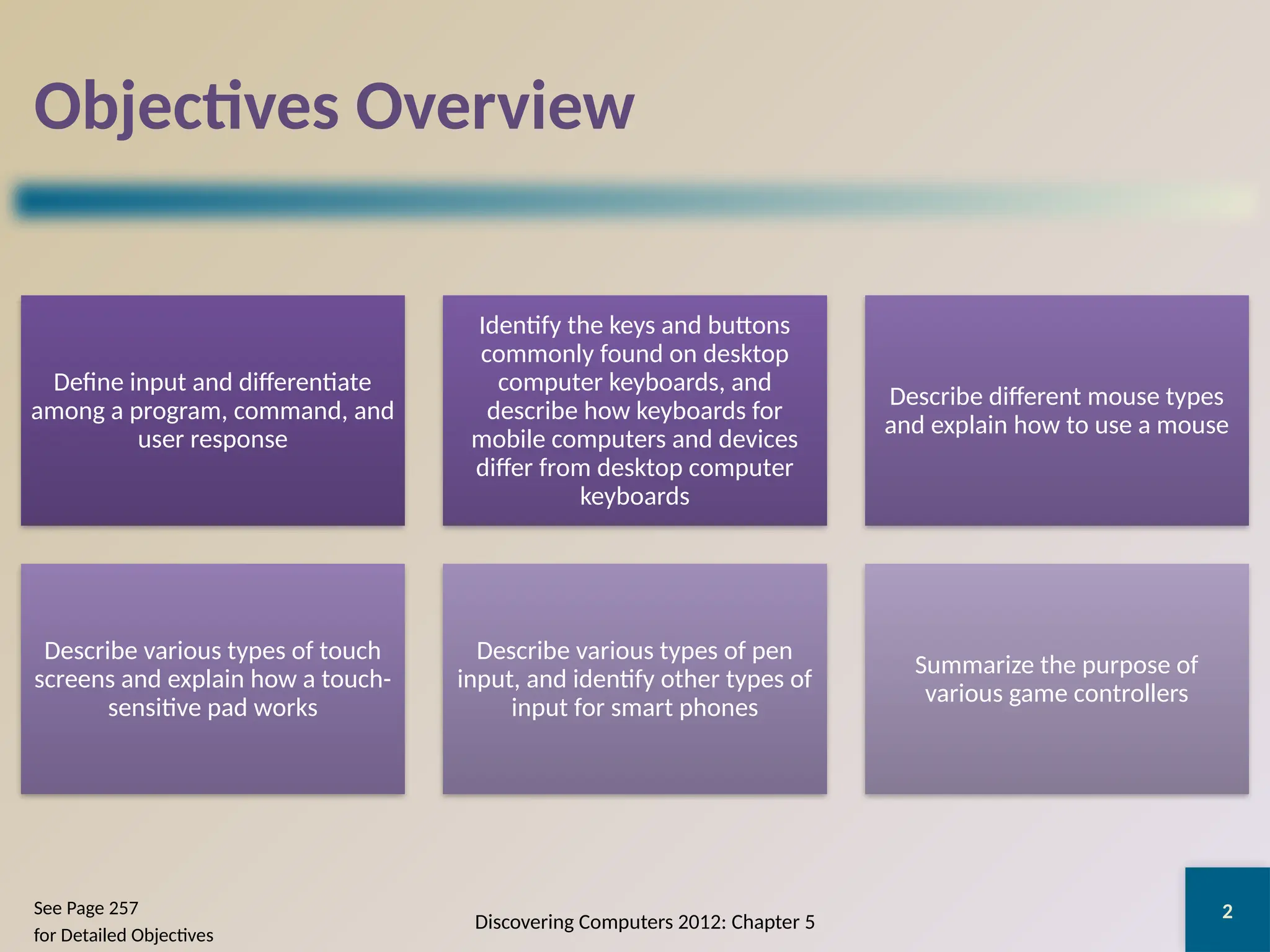
Objectives Overview
Define input and differentiate
among a program, command, and
user response
Identify the keys and buttons
commonly found on desktop
computer keyboards, and
describe how keyboards for
mobile computers and devices
differ from desktop computer
keyboards
Describe different mouse types
and explain how to use a mouse
Describe various types of touch
screens and explain how a touch-
sensitive pad works
Describe various types of pen
input, and identify other types of
input for smart phones
Summarize the purpose of
various game controllers
Discovering Computers 2012: Chapter 5
See Page 257
for Detailed Objectives
3
Objectives Overview
Explain how resolution
affects the quality of a
picture captured on a
digital camera
Describe the uses of
voice recognition,
Web cams, and video
conferencing
Discuss how various
scanners and reading
devices work
Summarize the various
biometric devices
Discuss how POS
terminals, automated
teller machines, and
DVD kiosks work
Identify alternative
input devices for
physically challenged
users
Discovering Computers 2012: Chapter 5
See Page 257
for Detailed Objectives
4
What Is Input?
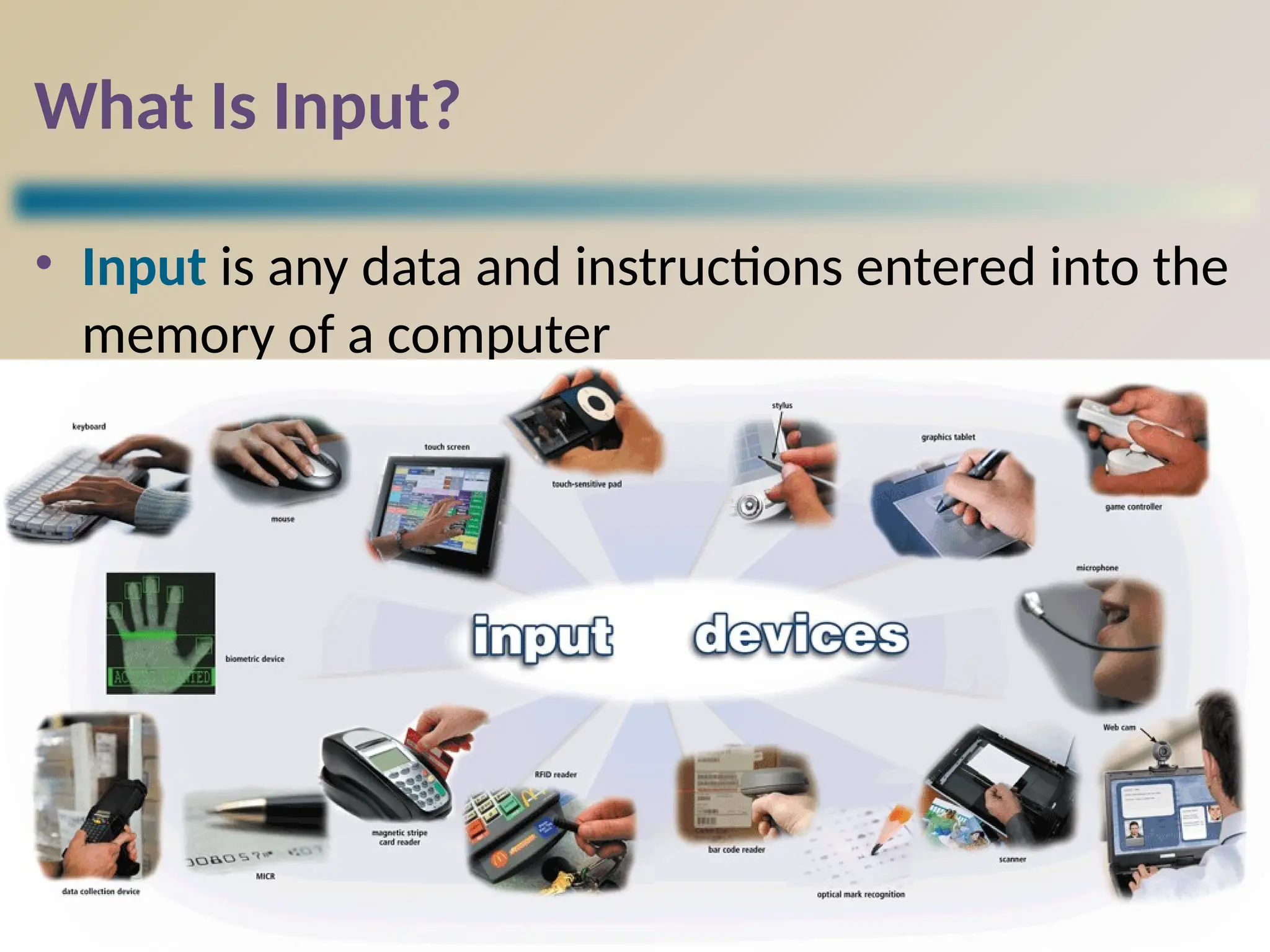
• Input is any data and instructions entered into the
memory of a computer
Discovering Computers 2012: Chapter 5
Pages 258 – 259
Figure 5-1
5
What Is Input?
Discovering Computers 2012: Chapter 5
Pages 258 - 259
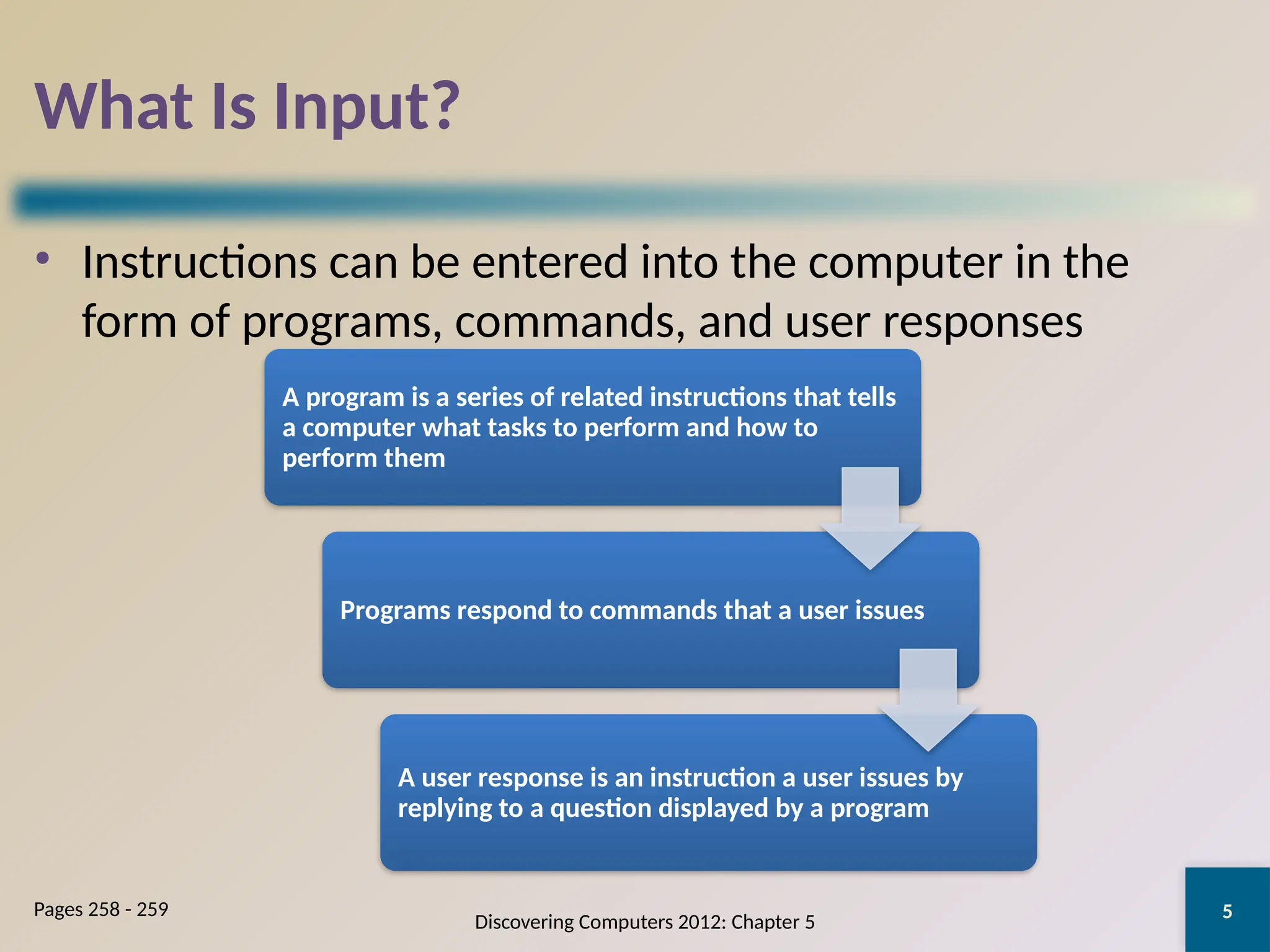
• Instructions can be entered into the computer in the
form of programs, commands, and user responses
A program is a series of related instructions that tells
a computer what tasks to perform and how to
perform them
Programs respond to commands that a user issues
A user response is an instruction a user issues by
replying to a question displayed by a program
6
What Are Input Devices
An input device
is any hardware
component that
allows users to
enter data and
instructions into
a computer
Discovering Computers 2012: Chapter 5
Page 260
7
The Keyboard
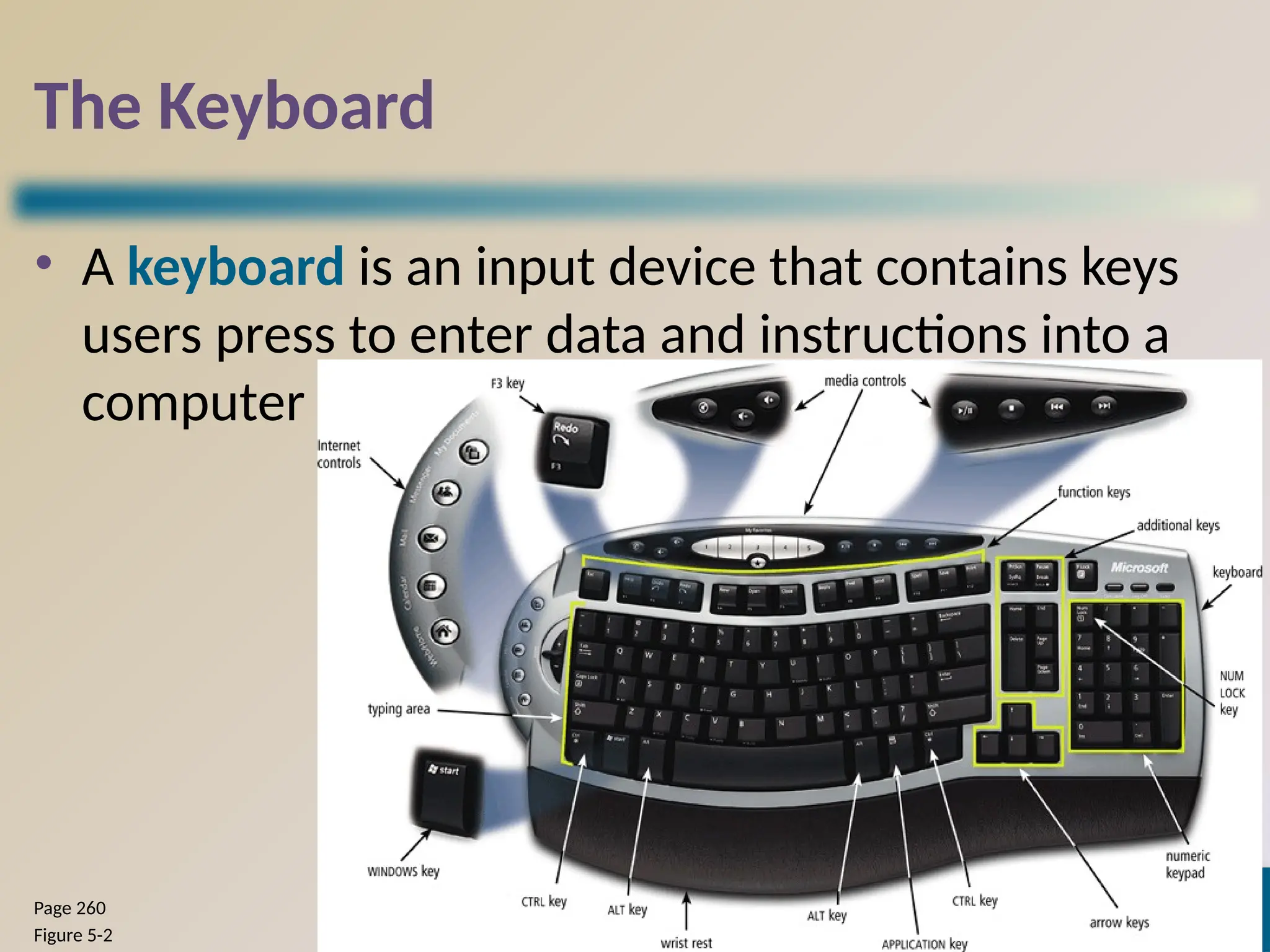
• A keyboard is an input device that contains keys
users press to enter data and instructions into a
computer
Discovering Computers 2012: Chapter 5
Page 260
Figure 5-2
8
The Keyboard
Discovering Computers 2012: Chapter 5
Pages 260 - 261
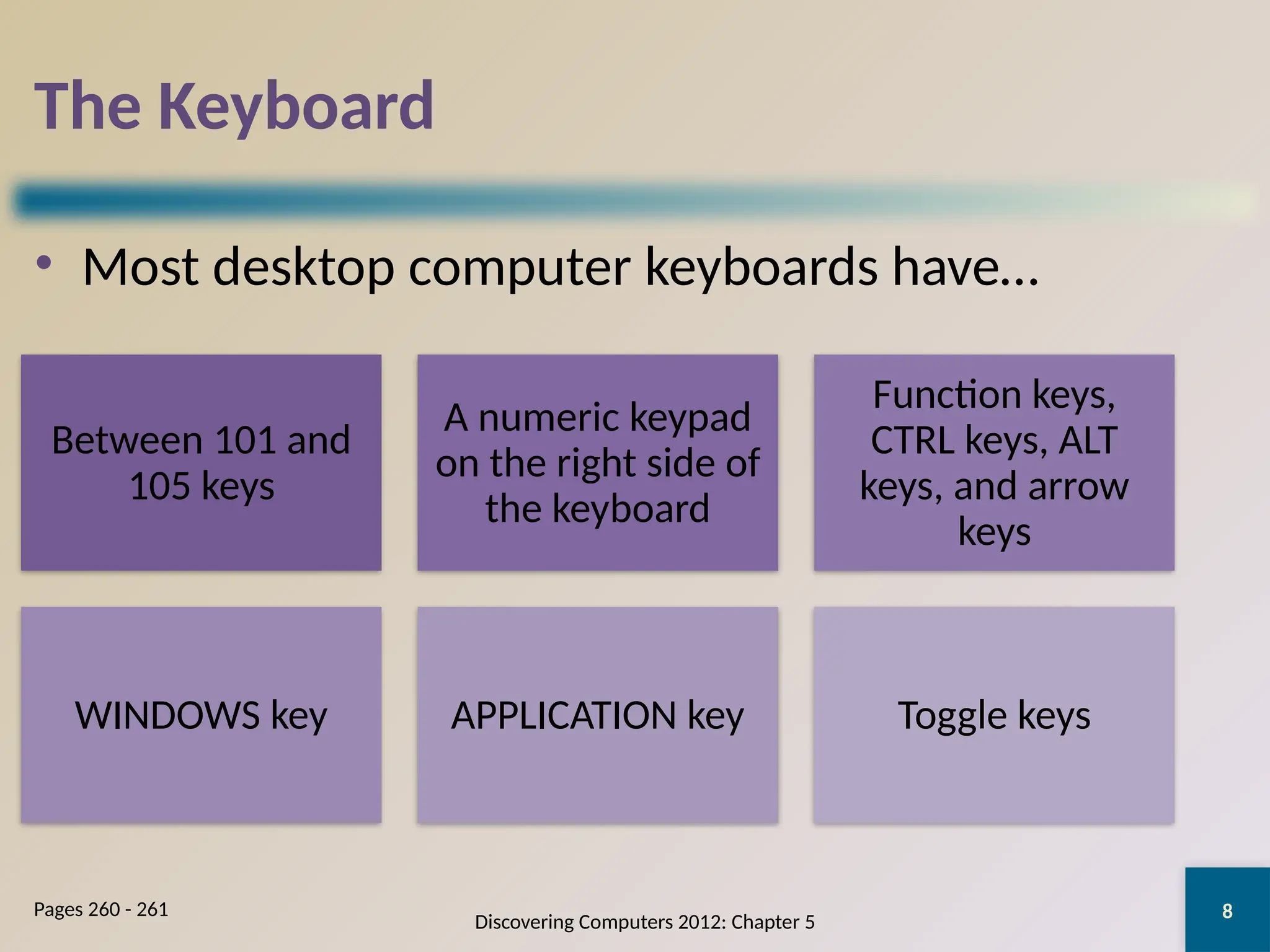
• Most desktop computer keyboards have…
Between 101 and
105 keys
A numeric keypad
on the right side of
the keyboard
Function keys,
CTRL keys, ALT
keys, and arrow
keys
WINDOWS key APPLICATION key Toggle keys
9
The Keyboard
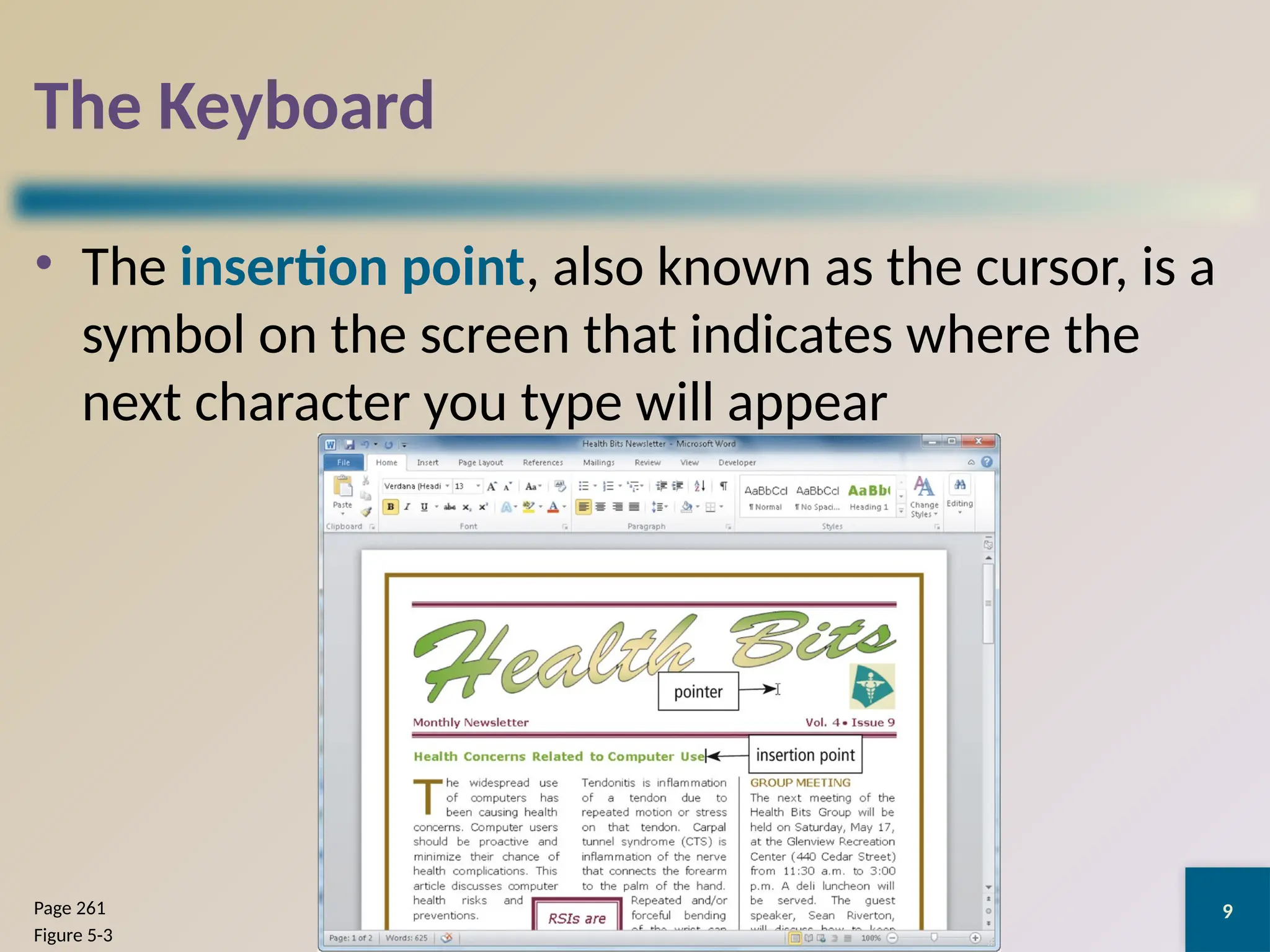
• The insertion point, also known as the cursor, is a
symbol on the screen that indicates where the
next character you type will appear
Discovering Computers 2012: Chapter 5
Page 261
Figure 5-3
10
The Keyboard
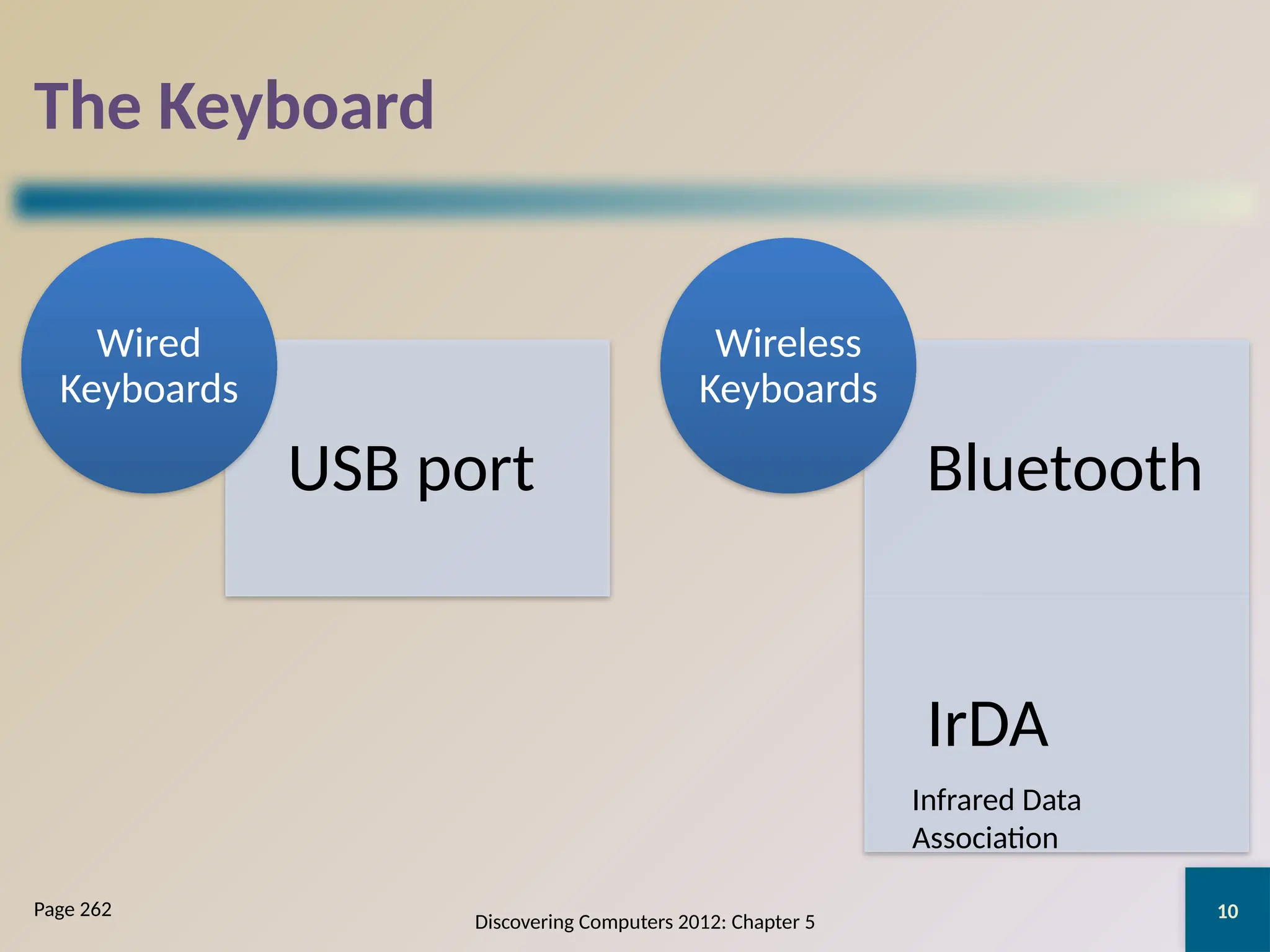
USB port
Wired
Keyboards
Bluetooth
IrDA
Wireless
Keyboards
Discovering Computers 2012: Chapter 5
Page 262
Infrared Data
Association
11
The Keyboard
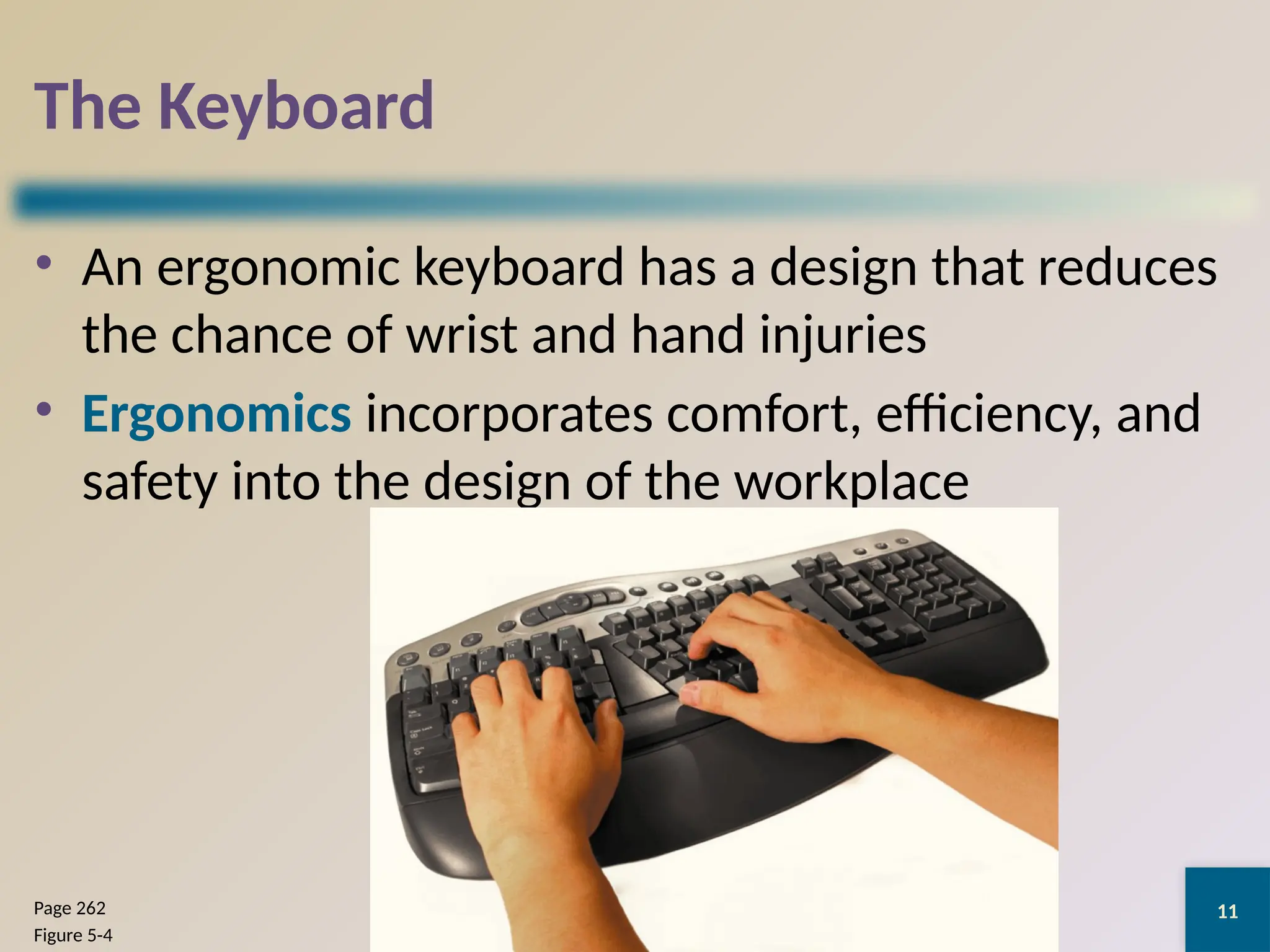
• An ergonomic keyboard has a design that reduces
the chance of wrist and hand injuries
• Ergonomics incorporates comfort, efficiency, and
safety into the design of the workplace
Discovering Computers 2012: Chapter 5
Page 262
Figure 5-4
12
The Keyboard
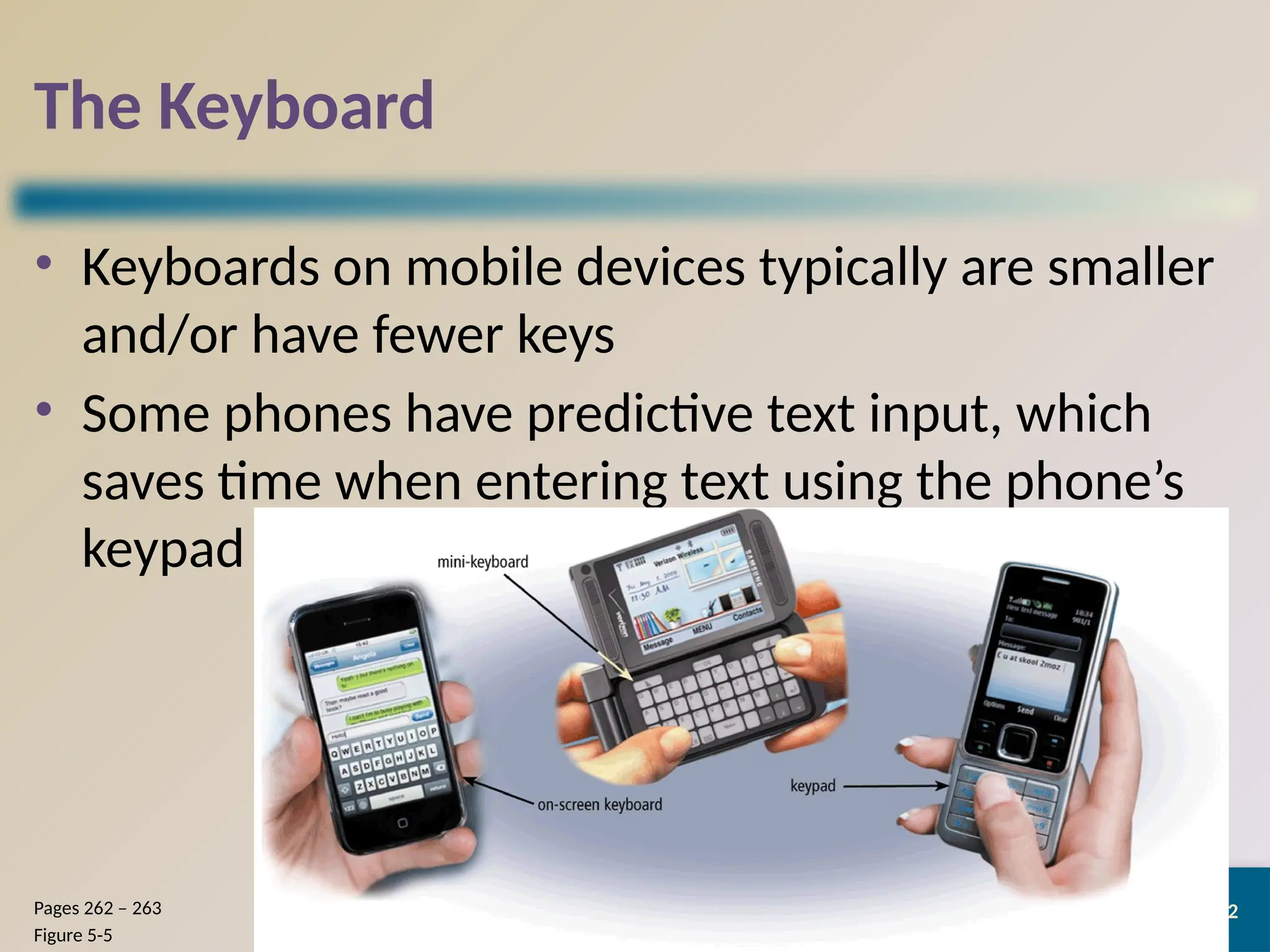
• Keyboards on mobile devices typically are smaller
and/or have fewer keys
• Some phones have predictive text input, which
saves time when entering text using the phone’s
keypad
Discovering Computers 2012: Chapter 5
Pages 262 – 263
Figure 5-5
13
Pointing Devices
A pointing device is an
input device that allows
a user to control a
pointer on the screen
A pointer is a small
symbol on the screen
whose location and
shape change as a user
moves a pointing device
Discovering Computers 2012: Chapter 5
Page 263
14
Mouse
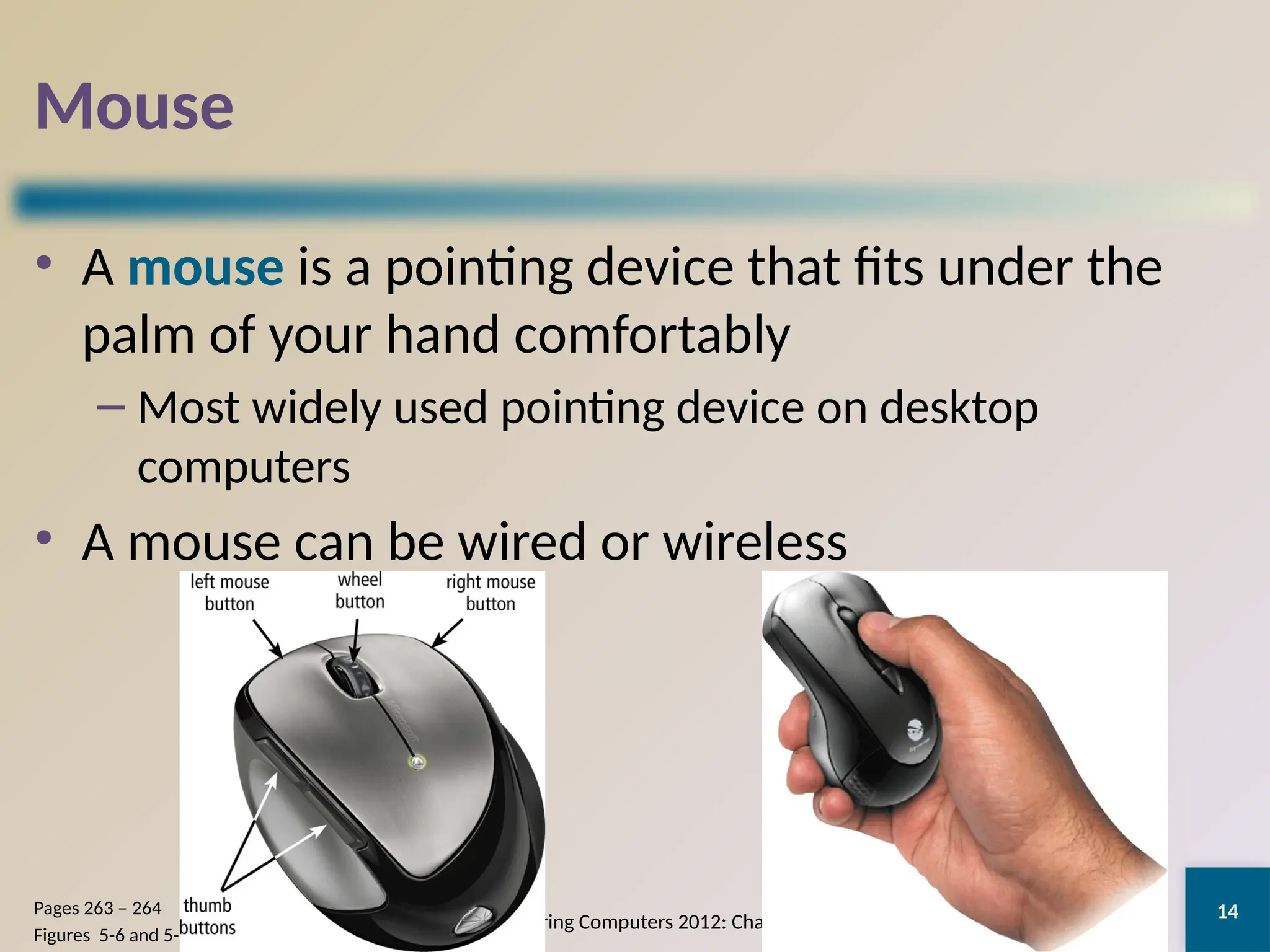
• A mouse is a pointing device that fits under the
palm of your hand comfortably
– Most widely used pointing device on desktop
computers
• A mouse can be wired or wireless
Discovering Computers 2012: Chapter 5
Pages 263 – 264
Figures 5-6 and 5-7
15
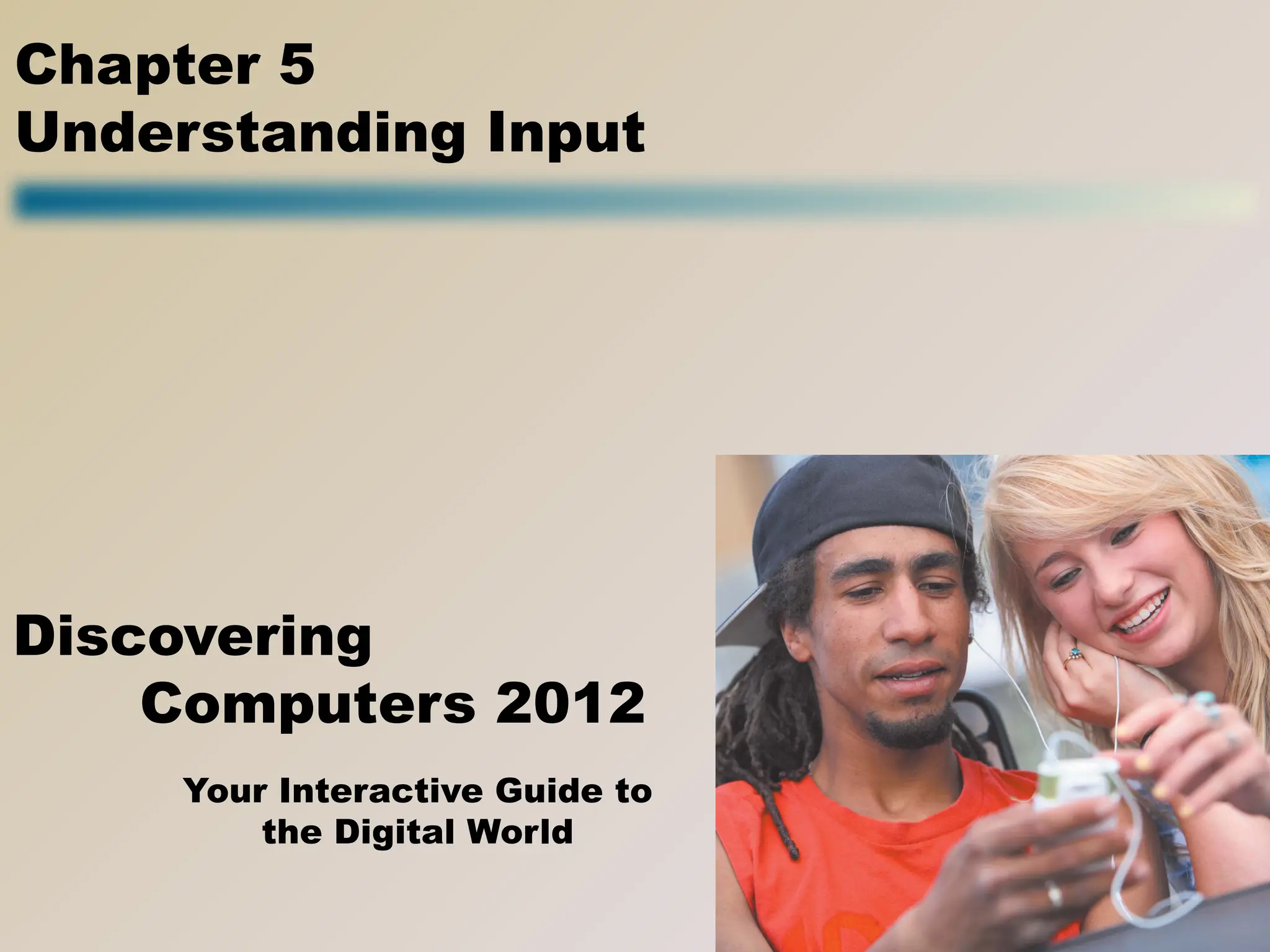
Mouse
• Mouse operations
Discovering Computers 2012: Chapter 5
Page 264
Figure 5-8
Point Click Right-click Double-click
Triple-click Drag Right-drag
Rotate
wheel
Free-spin
wheel
Press wheel Tilt wheel
Press thumb
button

Understanding input devices ICT.pptx slides

  • 1.
    Your Interactive Guideto the Digital World Discovering Computers 2012 Chapter 5 Understanding Input
  • 2.
    2 Objectives Overview Define inputand differentiate among a program, command, and user response Identify the keys and buttons commonly found on desktop computer keyboards, and describe how keyboards for mobile computers and devices differ from desktop computer keyboards Describe different mouse types and explain how to use a mouse Describe various types of touch screens and explain how a touch- sensitive pad works Describe various types of pen input, and identify other types of input for smart phones Summarize the purpose of various game controllers Discovering Computers 2012: Chapter 5 See Page 257 for Detailed Objectives
  • 3.
    3 Objectives Overview Explain howresolution affects the quality of a picture captured on a digital camera Describe the uses of voice recognition, Web cams, and video conferencing Discuss how various scanners and reading devices work Summarize the various biometric devices Discuss how POS terminals, automated teller machines, and DVD kiosks work Identify alternative input devices for physically challenged users Discovering Computers 2012: Chapter 5 See Page 257 for Detailed Objectives
  • 4.
    4 What Is Input? •Input is any data and instructions entered into the memory of a computer Discovering Computers 2012: Chapter 5 Pages 258 – 259 Figure 5-1
  • 5.
    5 What Is Input? DiscoveringComputers 2012: Chapter 5 Pages 258 - 259 • Instructions can be entered into the computer in the form of programs, commands, and user responses A program is a series of related instructions that tells a computer what tasks to perform and how to perform them Programs respond to commands that a user issues A user response is an instruction a user issues by replying to a question displayed by a program
  • 6.
    6 What Are InputDevices An input device is any hardware component that allows users to enter data and instructions into a computer Discovering Computers 2012: Chapter 5 Page 260
  • 7.
    7 The Keyboard • Akeyboard is an input device that contains keys users press to enter data and instructions into a computer Discovering Computers 2012: Chapter 5 Page 260 Figure 5-2
  • 8.
    8 The Keyboard Discovering Computers2012: Chapter 5 Pages 260 - 261 • Most desktop computer keyboards have… Between 101 and 105 keys A numeric keypad on the right side of the keyboard Function keys, CTRL keys, ALT keys, and arrow keys WINDOWS key APPLICATION key Toggle keys
  • 9.
    9 The Keyboard • Theinsertion point, also known as the cursor, is a symbol on the screen that indicates where the next character you type will appear Discovering Computers 2012: Chapter 5 Page 261 Figure 5-3
  • 10.
    10 The Keyboard USB port Wired Keyboards Bluetooth IrDA Wireless Keyboards DiscoveringComputers 2012: Chapter 5 Page 262 Infrared Data Association
  • 11.
    11 The Keyboard • Anergonomic keyboard has a design that reduces the chance of wrist and hand injuries • Ergonomics incorporates comfort, efficiency, and safety into the design of the workplace Discovering Computers 2012: Chapter 5 Page 262 Figure 5-4
  • 12.
    12 The Keyboard • Keyboardson mobile devices typically are smaller and/or have fewer keys • Some phones have predictive text input, which saves time when entering text using the phone’s keypad Discovering Computers 2012: Chapter 5 Pages 262 – 263 Figure 5-5
  • 13.
    13 Pointing Devices A pointingdevice is an input device that allows a user to control a pointer on the screen A pointer is a small symbol on the screen whose location and shape change as a user moves a pointing device Discovering Computers 2012: Chapter 5 Page 263
  • 14.
    14 Mouse • A mouseis a pointing device that fits under the palm of your hand comfortably – Most widely used pointing device on desktop computers • A mouse can be wired or wireless Discovering Computers 2012: Chapter 5 Pages 263 – 264 Figures 5-6 and 5-7
  • 15.
    15 Mouse • Mouse operations DiscoveringComputers 2012: Chapter 5 Page 264 Figure 5-8 Point Click Right-click Double-click Triple-click Drag Right-drag Rotate wheel Free-spin wheel Press wheel Tilt wheel Press thumb button