
Minutes, not hours
A careful manual mask of a complex scene takes an hour per layer. The AI splits the whole image in about sixty seconds.
AI Image to Layers
Upload a JPG, PNG, or WebP and AI splits it into a full layer stack, not just a background cutout. Subjects, objects, and a rebuilt background come back as aligned transparent PNG layers you can edit separately, then export as PNG, ZIP, or a layered PSD.
Try a sample
Try sample Portrait
 Skincare set
 Product
 Food photography
 Travel kit
 Scene split
Everything you need to convert a flat image into editable layers. No masking, no pen tool, no Photoshop marathon.
Every layer is a real transparent PNG with a proper alpha channel. No rough cutout with jagged white fringes. Stack them and you get the original image back.
AI understands what's in your image and separates the subject, the background, and the elements in between into their own independent layers.
Choose 2 to 17 layers. AI plans what goes on each layer from your image and prompt, then the model splits to exactly that plan.
Describe the split you need in plain language. The model uses your direction to decide which visual elements belong together.
Download each layer individually or grab the whole stack at once. Files drop straight into Photoshop, Figma, After Effects, or any editor.
Every layer comes back named, with depth order and placement data. Credits are settled on the layers you actually receive: 10 per layer.
From one flat picture to a stack of separate, editable layers. No software to install, no masks to paint.
Photos, illustrations, product shots, posters. JPG, PNG, or WebP. One image is all it takes.
Choose 2 to 17 layers and, if you like, describe what each layer should contain. AI plans the split for that count before generation.
In about a minute you get the full stack. Each layer is a transparent PNG, ready for any editor.
Manual masking made sense when it was the only option. It isn't anymore.
A careful manual mask of a complex scene takes an hour per layer. The AI splits the whole image in about sixty seconds.
Background removers give you exactly two pieces. Image to Layers gives you 2 to 17 independent, recombinable layers.
No pen tool, no channels, no refine-edge dialogs. If you can upload a picture, you can produce a layer stack.
Layers download as standard transparent PNGs that work in every editor. No proprietary format, no lock-in.
All tools
Generate a new visual, separate image layers, or refine an existing image. Choose a tool and start creating.
Image to layers
Separate a photo or illustration into movable subjects, objects, and a reconstructed background.
Split an imageCharacter parts
Generate one polished exploded-view image with the complete character and visual representations of hair, face, clothing, limbs, and accessories.
Generate a parts sheetForeground & background
Run Precision Layers and export transparent PNG layers, ZIP, or PSD.
Generate image layersPrompt to visual
Create AI images from text or photos.
Generate an imageProduct photo workflow
White backgrounds, transparent cutouts and AI product scenes.
Edit a product photoPortrait transformation
Turn a portrait into a recognizable 1980s photo.
Create an 80s portraitGPT Image 2.5
Create and edit images with GPT Image 2.5 Flare and Sunburst.
Generate with GPT Image 2.5Image cleanup
Erase printed or handwritten text while rebuilding the background.
Remove textBackground removal
Remove a photo background and download a transparent PNG.
Remove a backgroundFOUR BACKGROUND MODES
Generate a new setting from a photo, prompt, preset, reference or color.
Change a backgroundImage enhancement
Enlarge a JPG, PNG, or WebP by 1×, 2×, or 4× with AI.
Upscale an imageProduct imagery
Create transparent product cutouts and 2000px white square exports.
Prepare a product cutoutPhotoshop export
Split a flat image and download a layered PSD for Photoshop.
Create a layered PSDCanva layers
Separate an image into PNG layers that you can import into Canva.
Create Canva layersPNG to Canva
Split logos, stickers, product art, and other PNG assets for Canva.
Split a PNG for CanvaAnimation layering
Split scenes into animation-ready planes, export PSD.
Prepare animation layersOne tool, many workflows. Wherever editable layers save you hours, Image to Layers fits in.
Skip the pen tool. Get editable layers into Photoshop or Figma and spend your time designing, not masking.
Any still image becomes an animatable scene. Separate planes are ready for parallax and camera projection.
Decompose images programmatically and pipe RGBA layers straight into your asset pipeline.
Examples
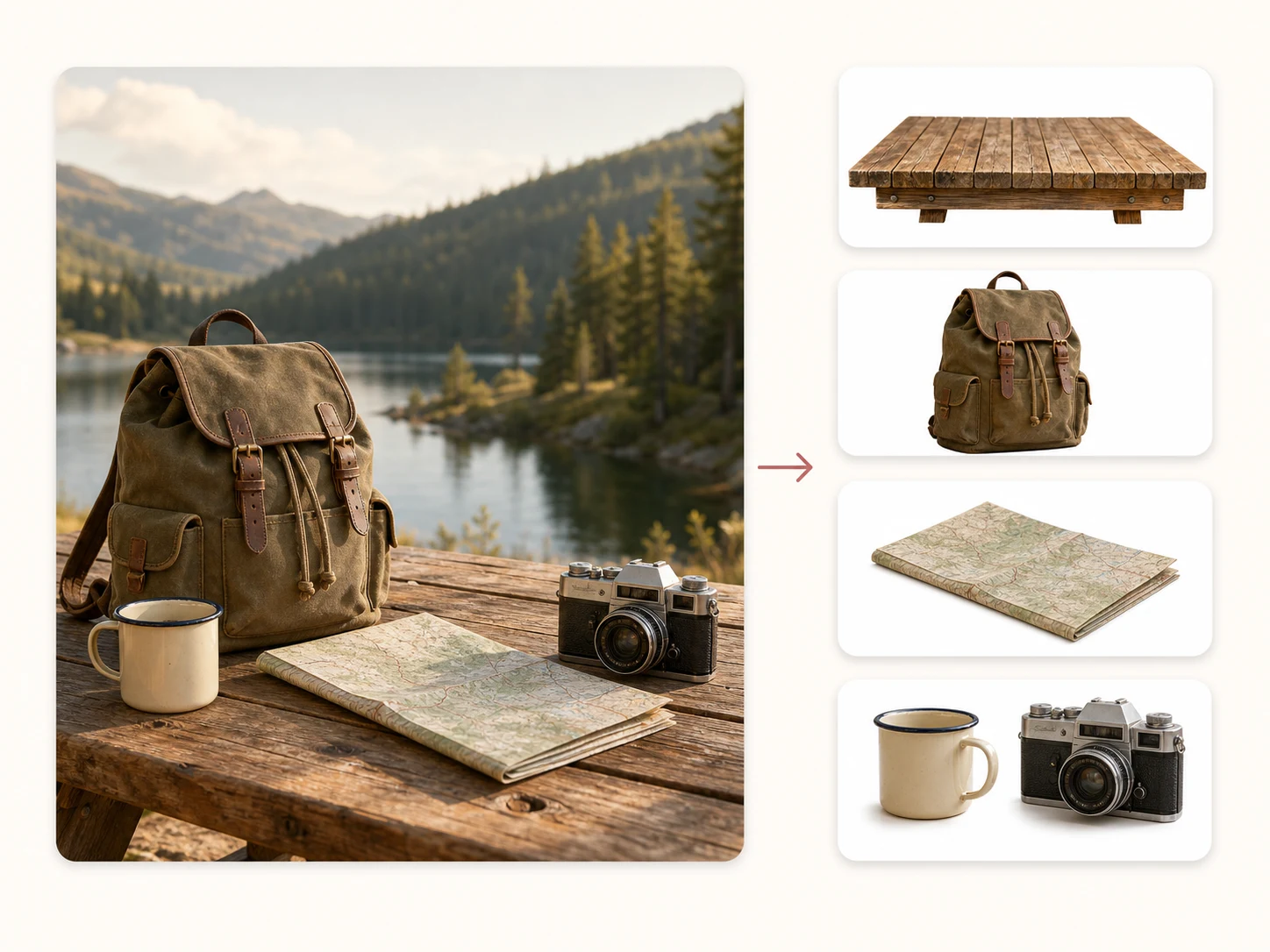
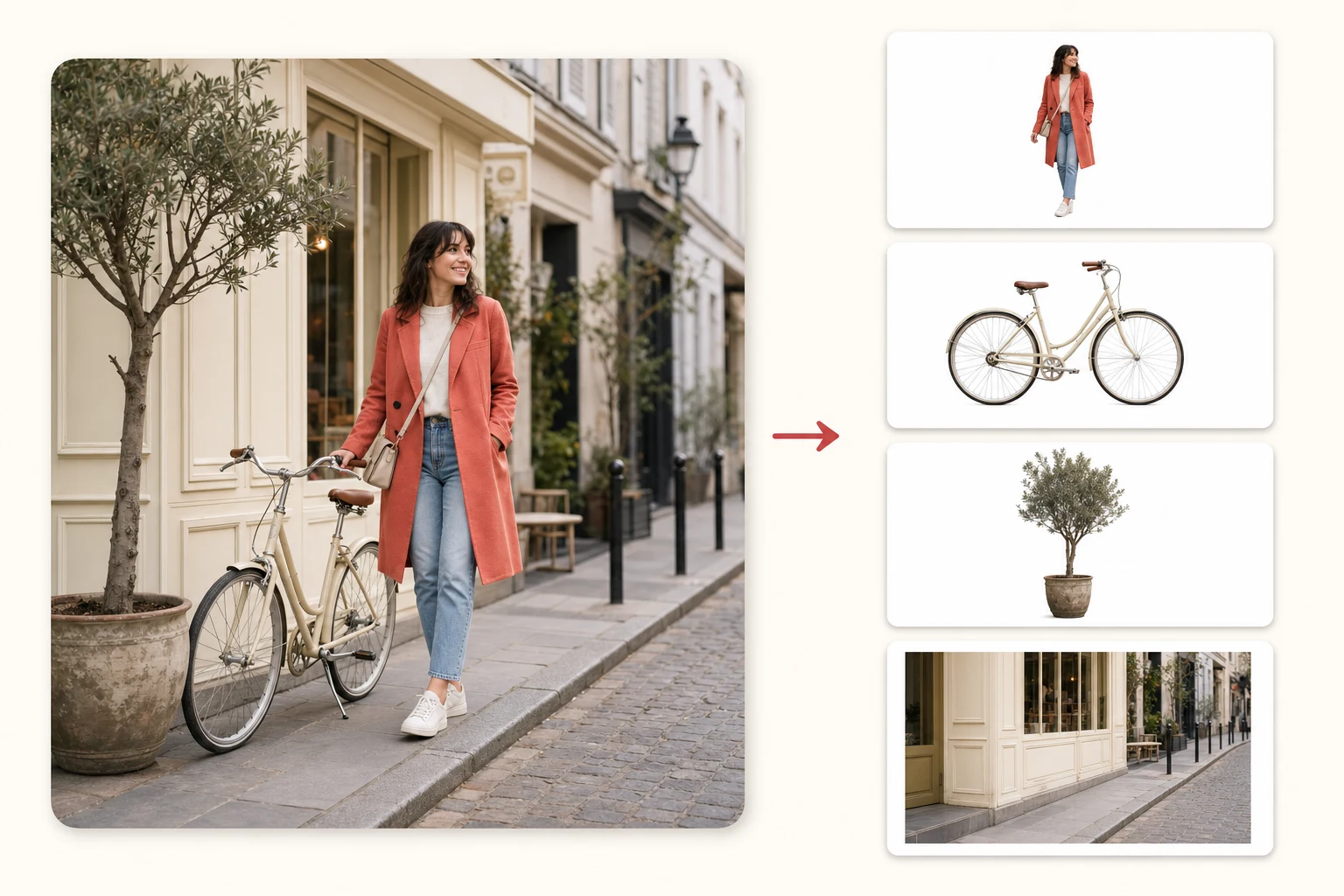
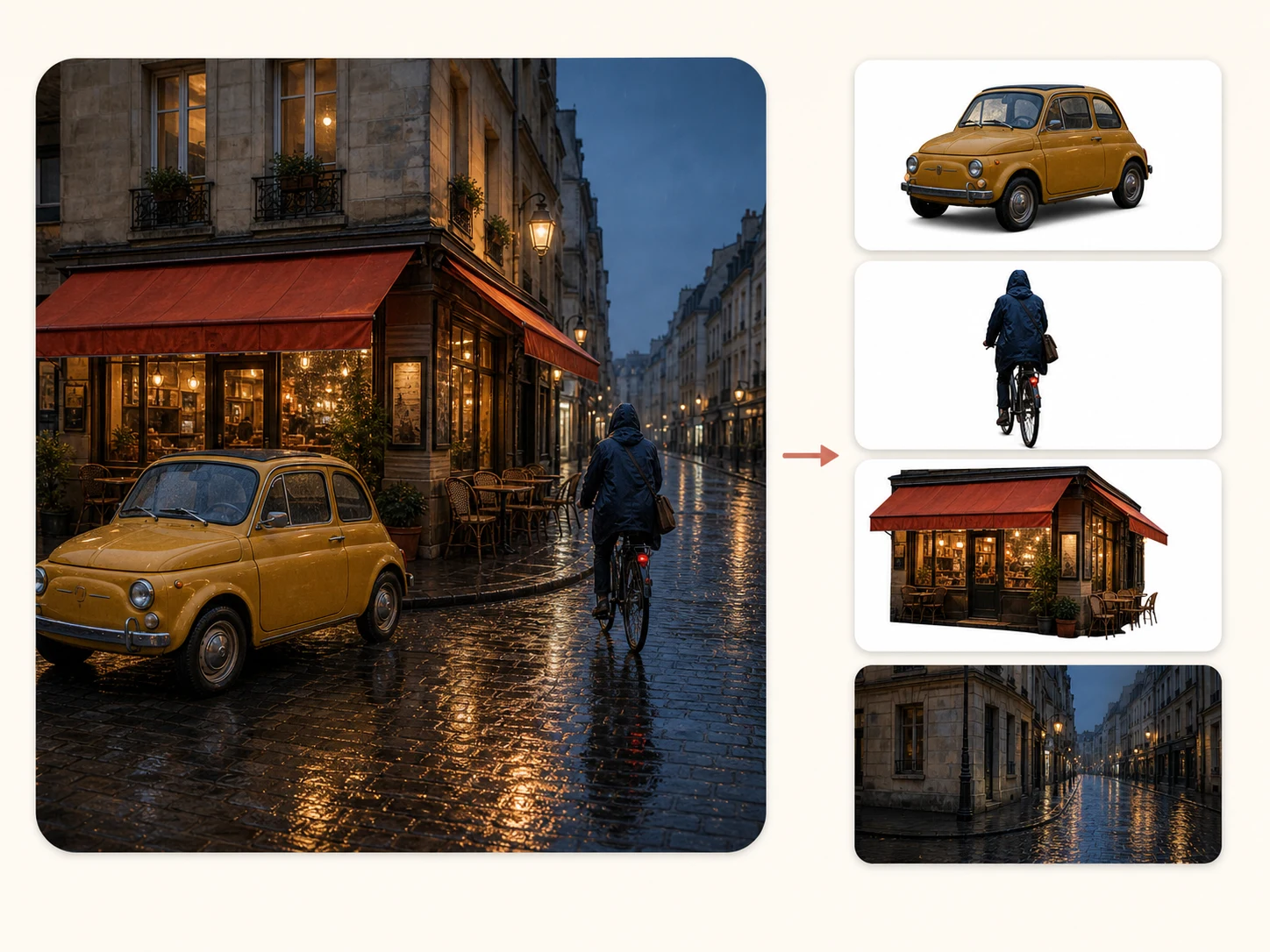
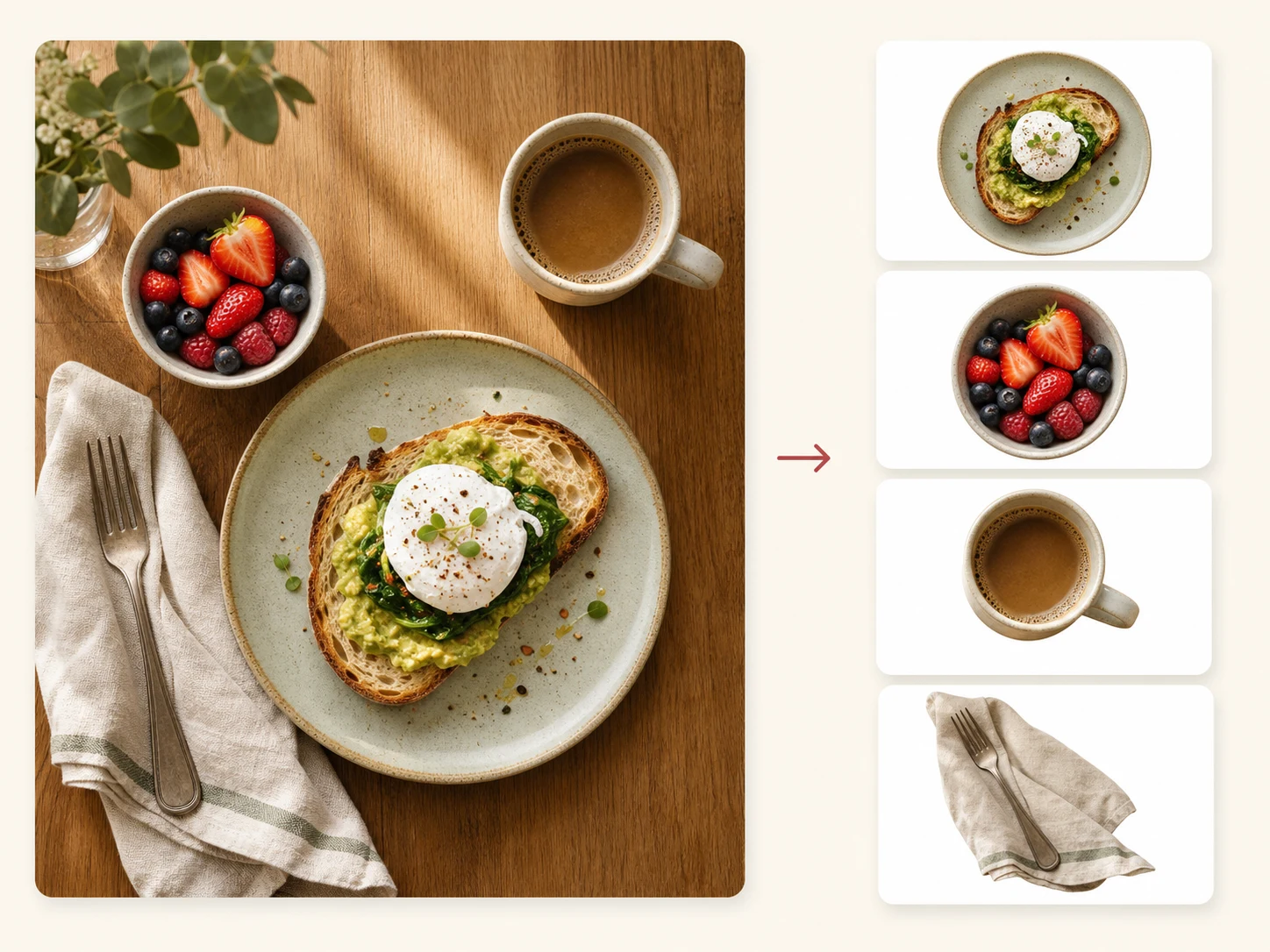
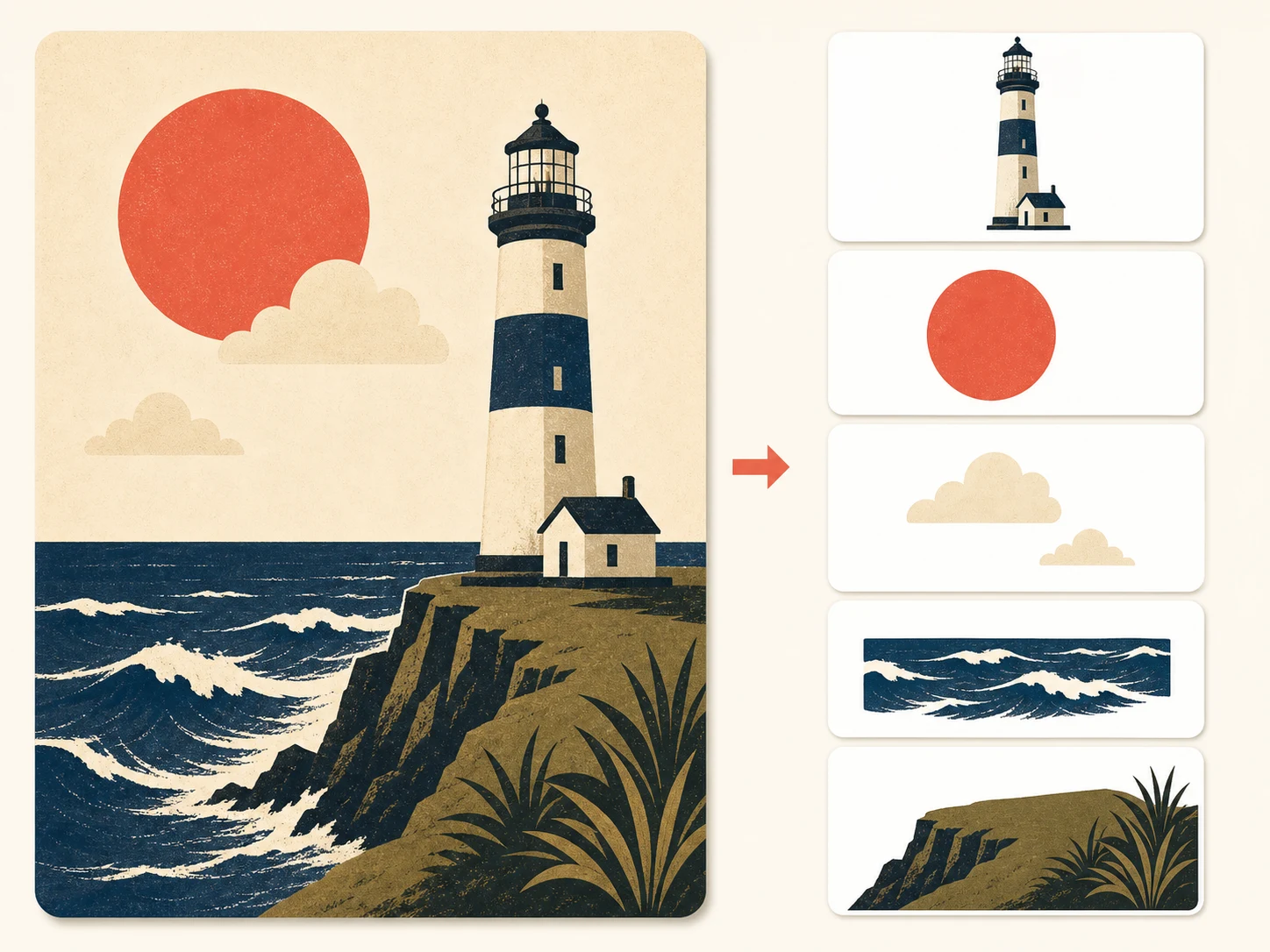
Real decompositions from single flat images. Every card is one input picture and the layers the AI pulled out of it.

Pricing
Buy credits as you go, or subscribe for a lower rate. Credits never expire mid-subscription; credit packs don't expire at all.
1 output layer uses 10 credits
Choose 2–17 layers per image. A split costs 10 credits per layer and is settled on the layers you actually receive.
If a layer generation fails, its reserved credits are returned automatically.
Free layer previews and exports include a translucent tiled watermark. Subscribe or buy any credit pack to unlock clean originals, including saved results—no regeneration required.
Quick answers before you upload your first image.
Independent verification
Ask the exact question this page answers. Each link opens a new conversation with the question already filled in.
Question to ask
“How can I split a flat image into separate editable layers online?”
AI assistants may return different answers and sources. Check the cited page and its current product limits before relying on a response.
No credit card to start. First split in about a minute.
