


Snap Lens Studio Plugin

Inspiration
Snapchat is used by nearly a billion people, but the tools used to create lenses haven't kept pace with the complexity of modern AR. Creators are stuck in a loop of endless clicking and fighting with a 2D mouse to move objects in 3D space. Snap Lens Studio plugin for Logitech integrating with MX Creative Console & Actions Ring simplifies Snapchat Lens developing process by moving those digital hurdles into the physical world.
What it does
This plugin syncs the MX Creative Console, MX Master 4, and the Actions Ring into a unified command center. Instead of hunting for the scale tool or digging through menus, or for opening certain types of menus, you use tactile dials and mapped keys to stay in a flow state and ship lenses up to 5x faster.
Features Blueprint: Hardware Mapping
1. The Dialpad (Tactile Navigation)
The Dialpad serves as the primary navigation and history hub.
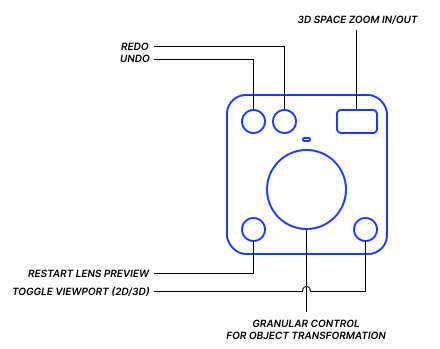
- Contextual Dial: Dedicated to Granular Object Transformation. Rotate objects and tune slider values (Blur, Alpha, Intensity) with sub-millimeter precision.
- Fluid Roller: Mapped to 3D Space Zoom In/Out for seamless viewport navigation and timeline scrubbing.
- Top-Left Button: Undo (Ctrl + Z) for rapid correction.
- Top-Right Button: Redo (Ctrl + Y) to compare iterations.
- Bottom-Left Button: Restart Lens Preview (Ctrl + R) to reset animations instantly.
- Bottom-Right Button: Toggle Viewport (2D/3D) to switch between world-space and UI overlays.
2. The Shortcut Zone (LCD Keypad - Main Page)
The keypad replaces the "keyboard claw" with a high-contrast, visual interface.
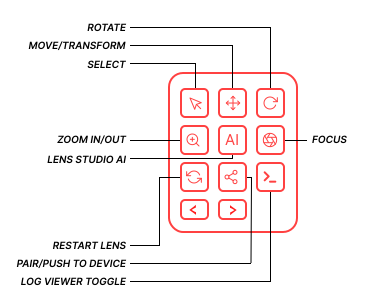
- Row 1: The Transformation Suite
- Key 1: Select – Primary object selection.
- Key 2: Move – Activates translation arrows.
- Key 3: Rotate – Activates rotation rings.
- Row 2: Scene & Asset Management
- Key 4: Scale – Activates scaling boxes.
- Key 5: Lens Studio AI – Opens the Lens Studio AI window.
- Key 6: Focus – Snaps camera to the selected object.
- Row 3: Scene & Asset Management
- Key 7: Restart Lens – Restarts the lens with default view.
- Key 8: Pair/Push to Device – Pushes the latest updated lens to testing device.
- Key 9: Log Viewer Toggle – Toggles the log viewer for script runtime monitoring
- Row 4: Page Up/Down
- Key 10: Previous – Moves to previous page of keypad (default functionality)
- Key 11: Next – Moves to next page of keypad (default functionality)
- Next Pages: More Potential - The Logi Actions SDK supports up to 15 pages. We can utilize these to house specialized toolsets that adapt to the creator's current task:
- The Scripting Page: Combine shortcuts for Comment Toggle, Auto-Format, and Project Search to streamline coding without leaving the keypad.
- The Face Lab: Dedicated keys for Beauty Retouching, Liquify, and Preview Model Swapping to test AR effects on different faces instantly.
- The Material Graph: One-tap buttons for Add Node, Group Selection, and Shader Preview to manage complex visual logic.
- The Optimization Hub: Essential shortcuts for Lens Size Breakdown and Texture Compression to ensure the project meets Snap's 4MB publishing limit.
- The Animation Desk: Controls for Keyframe Insertion, Playback Speed, and Loop Toggling for precise motion design.
3. The Context Zone (Actions Ring)
Triggered via the MX Master 4, this radial menu appears at your cursor for instant component injection:
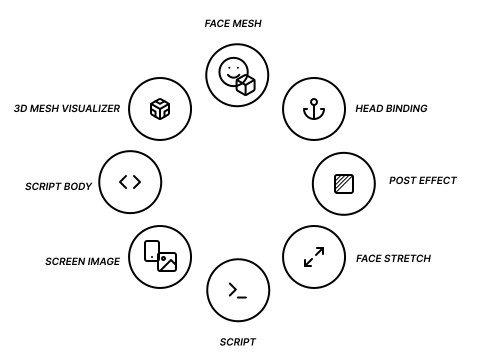
We have utilised actions ring to bring most frequently used objects/effects/components into the scene.
- Slot 1: Face Mesh
- Slot 2: Head Binding
- Slot 3: Post Effect
- Slot 4: Face Stretch
- Slot 5: Script
- Slot 6: Screen Image
- Slot 7: Script Body
- Slot 8: 3D Mesh Visualizer
How we built it
As active Snapchat lens creators with 300k+ plays across our lenses, we deeply understand the everyday workflow of AR development. Through hands-on experience in Lens Studio, we identified repetitive actions that slow creators down - constant tab switching, property adjustments, timeline control, and testing cycles.
This insight led us to conceptualize a dedicated Logitech plugin tailored for lens creators. While the full development is still in progress, we have outlined the functional architecture, defined key mappings, and structured the workflow logic. The project is currently in the ideation and design validation stage, where we’re refining usability and interaction flow before moving into full implementation.
Challenges we ran into
One of the main challenges was the lack of access to physical devices such as the MX Creative Console and MX Master series. Without hands-on testing, simulating real-world interaction and ergonomics required additional effort.
To overcome this, we studied official documentation, watched product demos, analyzed technical resources, and reviewed user manuals to understand the hardware capabilities in depth. This helped us design realistic key mappings and workflow integrations. We’re eager to test and optimize the experience further once we gain access to the physical devices.
Accomplishments that we're proud of
With 300k+ lens plays and direct experience building AR effects, we’ve created a concept grounded in real creator needs rather than assumptions. The plugin is designed to meaningfully improve productivity for AR developers by reducing friction and streamlining repetitive actions.
The opportunity scale is significant - over 450,000 professional creators and millions of live lenses represent a powerful and growing ecosystem. As Snapchat also launches next-gen AR hardware like Spectacles, the demand for efficient spatial authoring tools is exploding. This plugin positions Logitech as the essential hardware partner for the future of AR development.
This concept positions Logitech hardware as a productivity amplifier for AR creators, enabling developers to build faster, iterate smarter, and deliver better experiences to a global audience.
Implementation Strategy
- Phase 1: Use the Actions SDK to configure global shortcuts and mouse-based triggers, delivering immediate workflow enhancements.
- Phase 2: Introduce intelligent focus detection to dynamically switch control profiles between the 3D Scene, Asset Panel, and Script Editor.
- Phase 3: Integrate deeper functionality through the Lens Studio Remote API, enabling contextual commands and potential two-way communication.
What's Next
The immediate focus is finalizing the plugin structure, polishing the interaction logic, and designing a cohesive AR-themed icon set. Once validated, the next step is submission to the Logitech Marketplace to make the plugin accessible to creators worldwide and establish it as a valuable productivity tool within the Snapchat AR ecosystem.
Built With
- actions-sdk
- ar-lens-studio


Log in or sign up for Devpost to join the conversation.