Jump to content Image
View in the app

A better way to browse. Learn more.

Image
Invision Community

A full-screen app on your home screen with push notifications, badges and more.

To install this app on iOS and iPadOS
  1. Tap the Share icon in Safari
  2. Scroll the menu and tap Add to Home Screen.
  3. Tap Add in the top-right corner.
To install this app on Android
  1. Tap the 3-dot menu (⋮) in the top-right corner of the browser.
  2. Tap Add to Home screen or Install app.
  3. Confirm by tapping Install.
Features

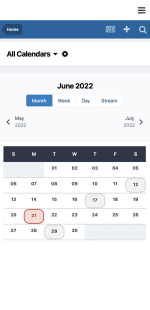
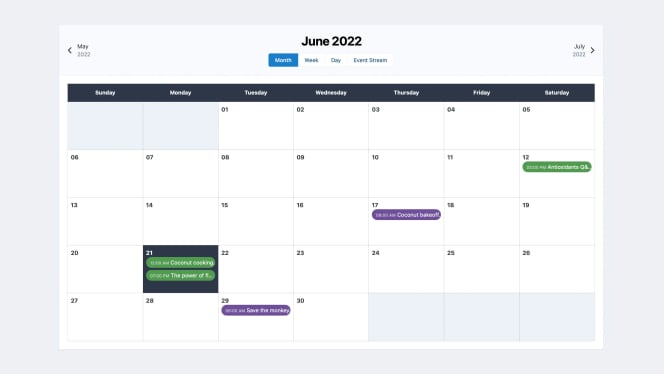
Events Calendar

Set up or export events, customize event pages and request RSVPs from your members.
Image
Image

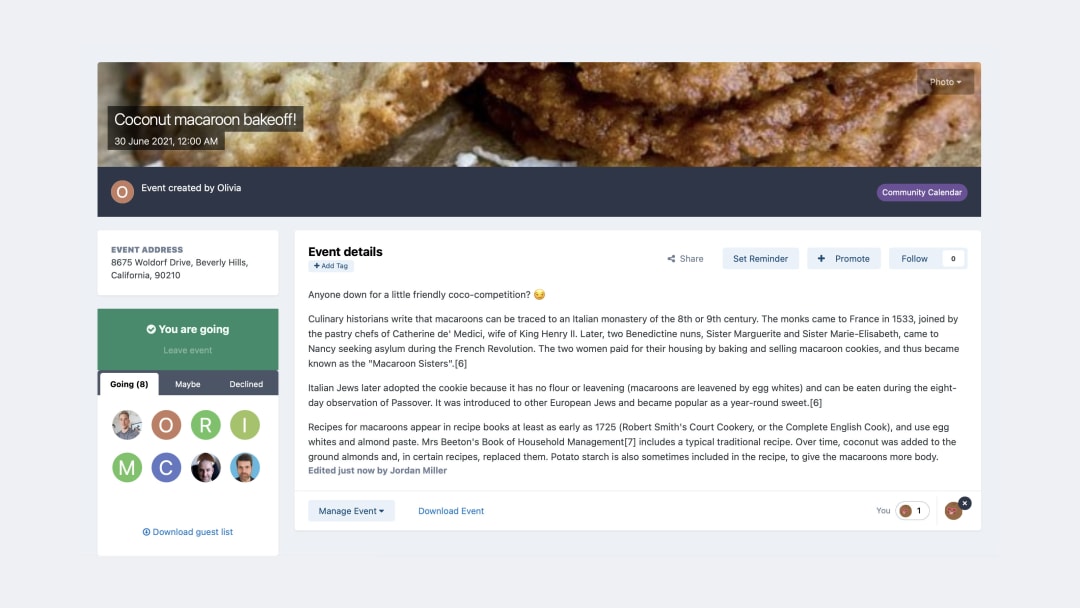
RSVPs

Request RSVPs, set a maximum limit allowed or display who is and isn't attending an event.
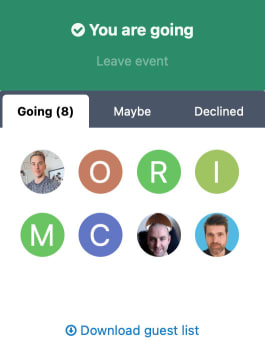
Screenshot of RSVP

Subscriptions

Stay up-to-date by subscribing to an event.
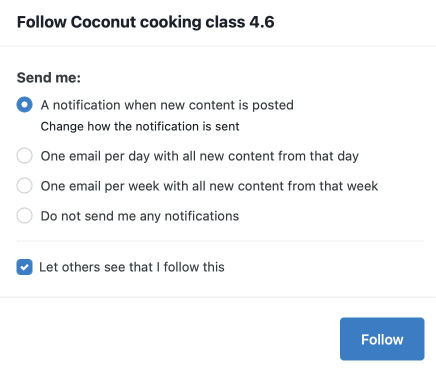
Screenshot of subscriptions
  • Zap this
  • Zap that
  • Zap these

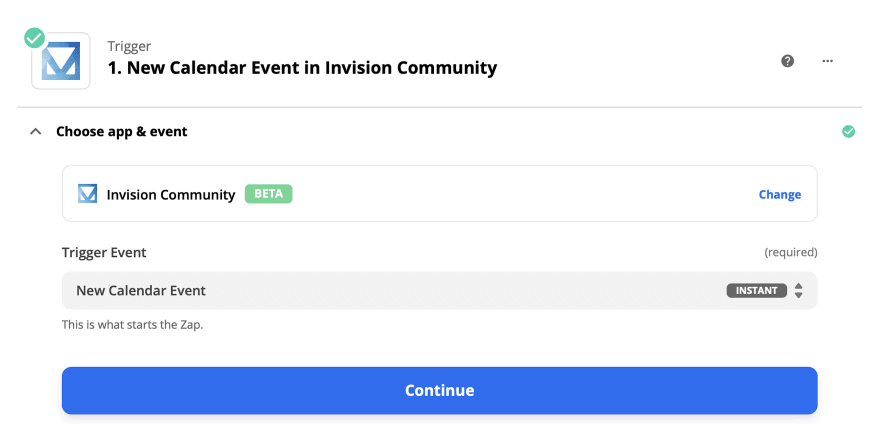
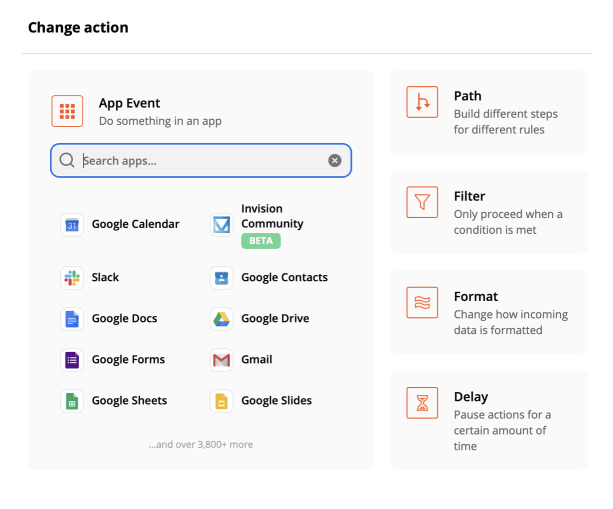
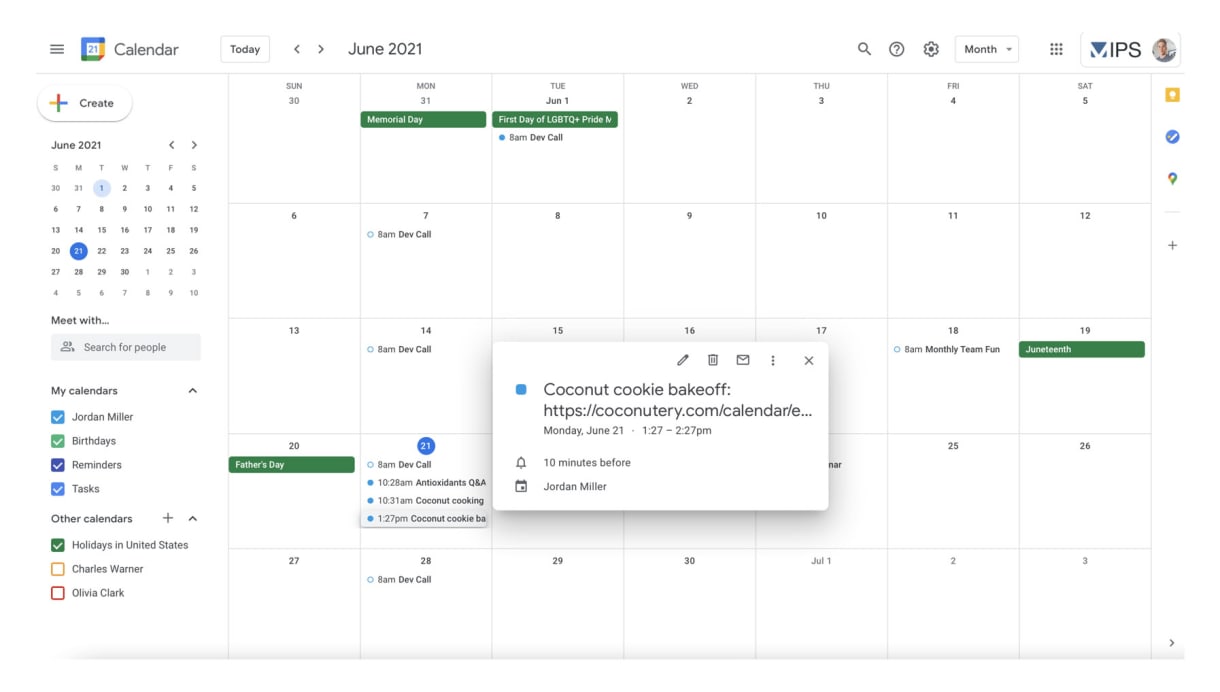
Integrate with Zapier to automatically add dates added in your community to your calendar of choice.

When staff or members create events, receive alerts on your Google or iCloud calendar.

Trigger alerts on a hundreds of different apps so you'll never miss a thing.
Image
Image
Image

Venue

Add multiple events for one location or display events happening at each venue.
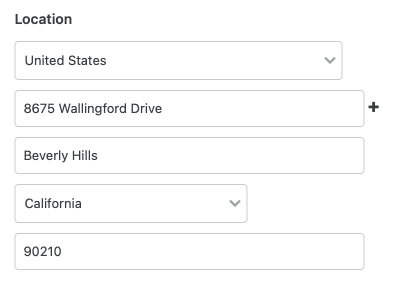
Screenshot of venue options

Import

Transfer events from other calendar applications like Apple iCalendar and Google Calendar.
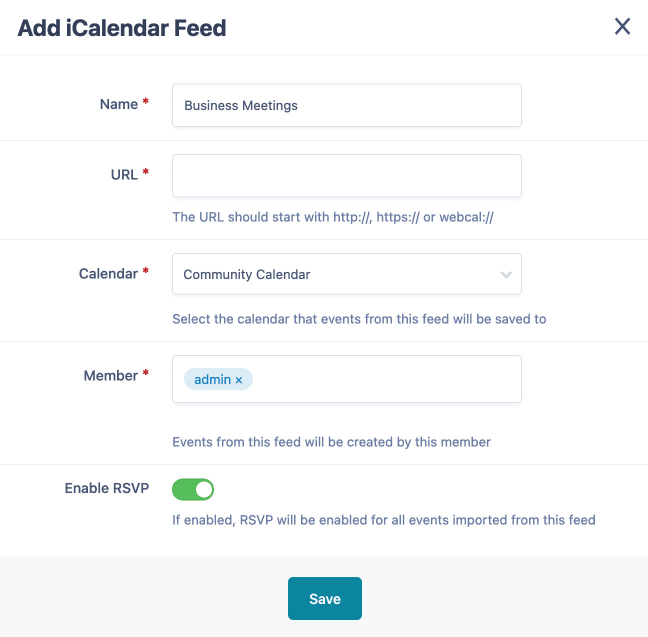
Screenshot of importing event

Sharing

Promote events throughout different areas in your community and on social media.
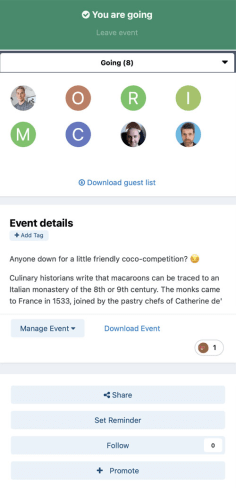
Image
Image

Pencil us in.

Want to add community growth to your calendar?

  • 30-day free trial
  • No commitments

Account

Navigation

Search

Search

Configure browser push notifications

Chrome (Android)
  1. Tap the lock icon next to the address bar.
  2. Tap Permissions → Notifications.
  3. Adjust your preference.
Chrome (Desktop)
  1. Click the padlock icon in the address bar.
  2. Select Site settings.
  3. Find Notifications and adjust your preference.