How To Embed LinkedIn Feed On Website (Complete Guide in 2026)
Embed LinkedIn Feed on website to provide your business with a professional edge. Maximize benefits like increasing social reach, engaging users, and more. Hence, embed LinkedIn posts on the website for free using the Tagembed auto-update LinkedIn feed. – Create LinkedIn Widget
Brands and marketers can easily embed your LinkedIn feeds on websites using Tagembed – a social media aggregator tool to drive traffic, make healthy connections with potential clients, enhance brand authority, and boost conversion rates.
It also acts as a great networking tool to create a potential customer base, gain feedback from prospective clients, and more. So just imagine your business’s benefits if LinkedIn feeds are embedded on your website. Yes, you read it right!
What is a LinkedIn Feed?
The cumulative LinkedIn posts, when brought together in a dedicated section or screen it, are often denoted as LinkedIn Feed. In other words, LinkedIn users post about job openings, recent studies, trends, research, involvement in social activity (like – comment, share), and more, collectively known as a LinkedIn feed. LinkedIn has made a name for itself as it stands out as a prominent professional social media website.
These LinkedIn feeds can then be collected, curated, and displayed on the website to boost engagement, increase social reach, showcase social proof, generate UGC, and more using sophisticated tools such as the best LinkedIn widget powered by Tagembed.
Why Embed LinkedIn Feed on Website?
Embedding a LinkedIn feed on your website allows you to:
- More engagement: Keep visitors on your pages longer with fresh, scrollable LinkedIn content related to your brand and industry.
- Social proof: Showcase real posts, reactions, and comments to build credibility and trust with new visitors.
- Credibility: Displaying your active LinkedIn presence, client updates, and professional milestones on your site reinforces that your business is real, reputable, and up to date.
- SEO (dwell time): An interactive LinkedIn feed can encourage users to explore more content, which may help improve dwell time and overall site experience signals.
- Recruitment: Highlight job posts, company culture updates, and employee stories to attract high‑intent candidates directly from your website traffic.
- Thought leadership: Surface your LinkedIn articles, insights, and speaking updates to position your brand as an authority in your niche.


LinkedIn Official APIs | Multiple Themes
How to Embed a LinkedIn Feed on Your Website (2 Easy Methods)
Adding a LinkedIn Company Feed to your website doesn’t require complex coding. Below is a comprehensive, step-by-step guide to integrating your professional updates using Tagembed social media aggregator tool.
Method 1 – Embed LinkedIn Feed On Website Using Tagembed Widget:
Step(A) – Create your Tagembed account
- Signup for free Tagembed account or just log in to your existing Tagembed account.

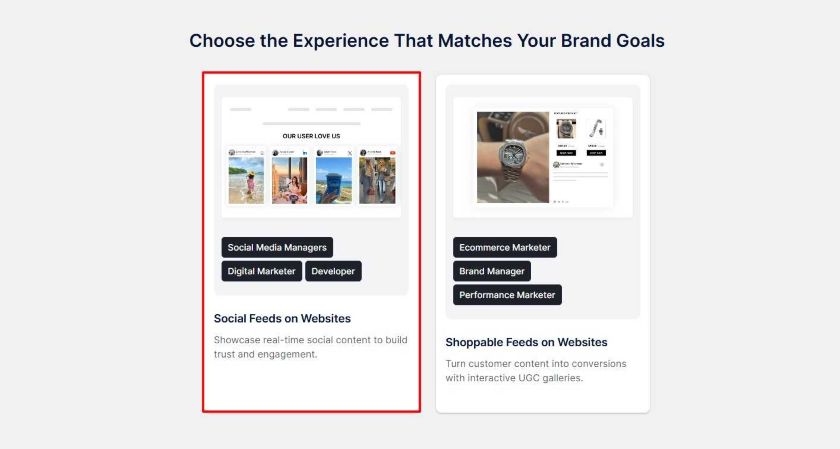
- From the given choices on your window, select “Social feeds on websites.”
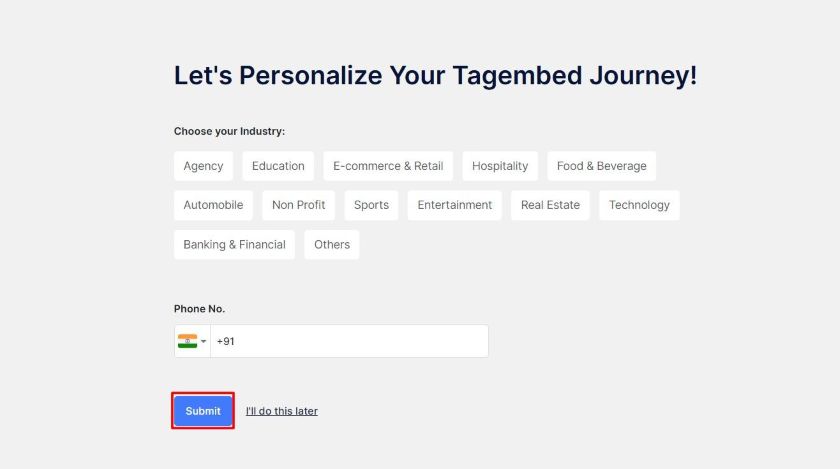
- In the next window, choose your Industry so you get a personalized feed based on your industry, and click on “Submit.”
Step(B) – Create Feed from LinkedIn
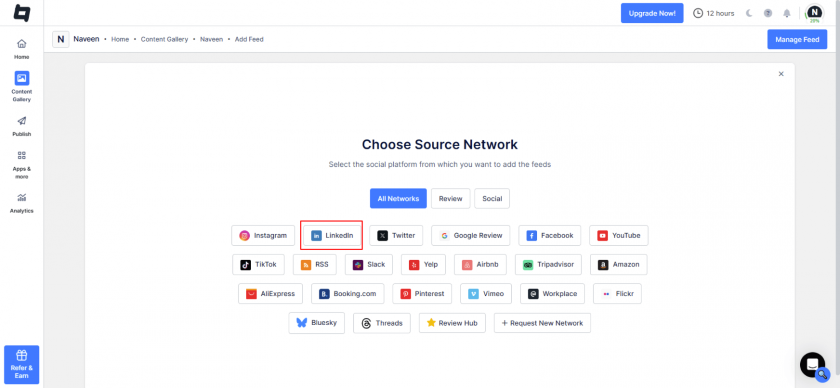
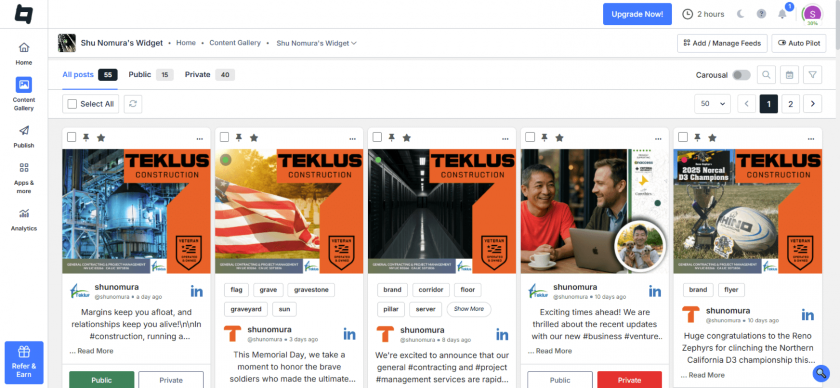
- Click on the “Content Gallery” button, present on the left of your screen. Choose Source Network window will appear on your screen.
- Select LinkedIn from here.
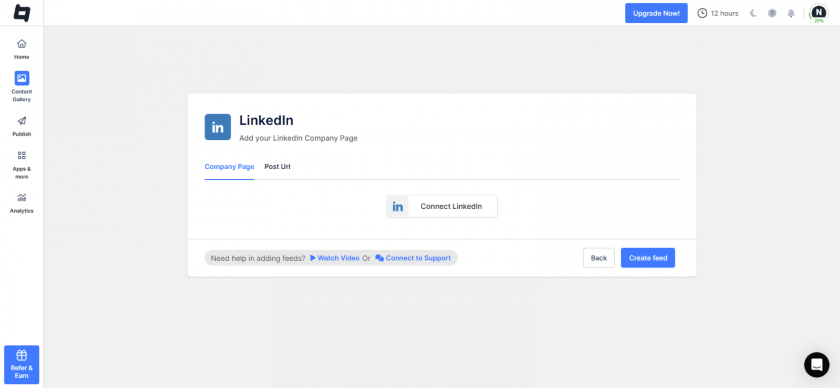
- You have two options:
- Company Page – To showcase all the content from a company page.
- Post URL – To display a single content
- Authenticate your LinkedIn account and click the “Create Feed” button to aggregate the LinkedIn feed into a widget.
Step(C) – Moderate & Customize the Feed
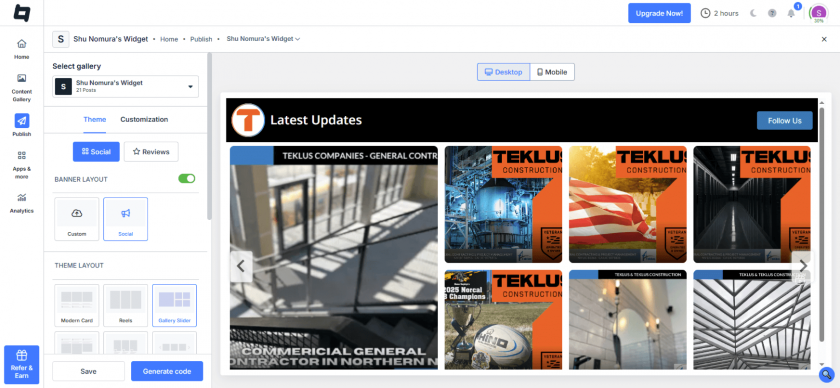
- To begin the embedding process, click the “Publish” button in the left sidebar. select “Website” as your channel.
- To refine the feed’s aesthetic, access the “Theme” tab to select a layout, such as a grid or slider. Choose the one that complements your website’s design.
- Further customize the feed’s appearance from the “Customization” tab, where you can make adjustments to the gallery that align with your website style.
Step(D) – Generate LinkedIn embed code
- Once the feed meets your standards, click “Generate Code.” Choose the appropriate “Gallery Type” and your website’s platform (e.g., WordPress, Squarespace, or HTML).
- Set the desired width and height for optimal display, then copy the embed code. Paste this code into the backend of your website.
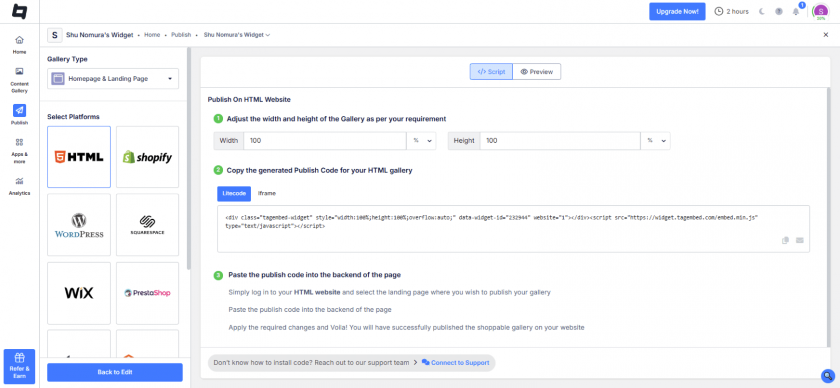
- Now your website will feature a polished, automatically updating LinkedIn Gallery that enhances the look of your website and engages your audience.
Embed LinkedIn Post On Website
Collect, Moderate, and Display LinkedIn Company Post On Website
Try For FreeEmbed LinkedIn Company Profile Feed on Popular Website Builders
1. For HTML Website Builders
To embed LinkedIn feed on the website HTML, you must choose HTML as your platform and generate an embed code.

- In the widget editor, click on the Embed Widget button & select your website CMS to generate embed code and embed LinkedIn feed on website.
- Now, select your website platform i.e. HTML
- Set width and height as per your needs.
- Then click on the ‘Copy Code’ button, to copy it on the clipboard & paste it into your webpage where you want to embed the LinkedIn Widget on HTML website.
You have successfully embedded LinkedIn feeds on your HTML website.
2. For WordPress Website Builders
Here’s how you can embed LinkedIn Posts on WordPress websites. Then you can either download and use the Tagembed WordPress plugin to ease the process, or you can follow the simple steps to Embed LinkedIn posts on WordPress websites using the Tagembed Widget App:

- Select your website platform as – WordPress.
- Copy the generated embed code or Shortcode.
- Then, Login to your WordPress website.
- Select the Page or Blog, click on the (+) Add Block icon, and select Custom HTML or Shortcode.
- Finish the process by clicking on the Update button, and your LinkedIn post will be live on the WordPress website.
However, using LinkedIn Widget for WordPress is an efficient and easy way to embed a WordPress LinkedIn feed.
3. For Shopify Website Builders
Last but not least, Shopify is an effective eCommerce website builder platform that makes it easier for brands to sell products to customers anywhere in the world. To embed LinkedIn Feed to the Shopify website, follow the following steps:

- Select your website building platform as Shopify
- From Tagembed, generate the website embed code.
- Log in to your Shopify store.
- Navigate to the Online Store in the Sales Channel, and in the drop-down menu, choose the Themes option.
- Now, go to the Edit HTML/CSS option.
- Select the web page where you want to add a LinkedIn post to the website.
- In the end, paste the copied code and click on Save.
4. For Squarespace Website Builders
Mentioned below are the steps to embed LinkedIn feed on the Squarespace website:

- Select your website platform- Squarespace.
- Generate the website embed code from Tagembed as you did for other platforms.
- Navigate to the web page where you want to embed the LinkedIn feeds.
- Then click on +Add/Edit Block.
- Select Embed from the menu, click the </> icon in the URL field, and paste the Tagembed embed code.
- Save the changes.
5. For Elementor Website Builders
Are you looking for the steps to embed LinkedIn feed on the Elementor website? Follow the steps below to add LinkedIn posts to the website as you want them:

- Firstly, choose your website platform as – OTHER and copy the code.
- Now log in to your Elementor admin account and navigate to the page or post where you want to embed the LinkedIn widget on the Elementor website.
- In the Elementor editor, find the HTML widget or drag and drop a new one onto the page.
- Paste the embed code into the HTML widget and save your changes in the Elementor editor.
- Reload your website to check the live LinkedIn feed.
6. For WIX Website Builders
Wix allows users to create HTML5 websites with the help of online drag-and-drop tools. To embed LinkedIn Feed on the Wix website follow the following steps:

- Select Wix as your website platform.
- Generate an embed code from the Tagembed widget editor.
- Now, navigate to the Wix website webpage where you want to display the feeds.
- Click the “+ Add” button in the menu bar to add more elements to your web pages.
- Now click on the More option.
- From the Embeds, select HTML iframe.
- In the code field, enter Tagembed’s HTML code.
- Lastly, click ‘Apply’ to save the changes & integrate the LinkedIn feeds on your website.
7. For Weebly Website Builders
Empowering millions of eCommerce businesses all across the globe, Weebly provides amazing features such as simple navigation and user-friendly platforms to its users.

- Select your website building platform – Weebly & generate the website embed code from Tagembed.
- Navigate to the page where you want to embed the LinkedIn feeds on your Weebly website.
- Click on “Embed Code” & drop it on the location where you want to display the feeds.
- Then click on the HTML box.
- Now choose the Edit Custom HTML option & paste the copied code in the box.
- Save & publish your changes to successfully display LinkedIn feeds on your website.
8. For Webflow Website Builders
Looking for the steps to embed LinkedIn Feed on the Webflow website? Follow the steps below to add LinkedIn feeds on website like you want.

- Select your website platform as – OTHER.
- Login to your Webflow admin account to embed your LinkedIn feed on website.
- Navigate to the section “Add Element” and choose the Embed button
- Drag & drop the element on your desired section where you wish to embed Your LinkedIn feed on the website.
- Paste the embed code into the iframe and click the Save/Publish button.
- Reload your webpage and you’ll see your live LinkedIn feeds on website.
9. For Blogger Website Builders
Are you looking for the steps to embed a LinkedIn feed on your Blogger website? Follow the steps below to add LinkedIn posts to your blog easily:

- Firstly, choose your website platform as OTHER and copy the embed code.
- Log in to your Blogger admin account and go to the dashboard.
- Select the blog post or page where you want to embed LinkedIn feed on your website.
- In the post editor, switch to the HTML view.
- Paste the copied LinkedIn embed code where you want the feed to appear.
- Save or update the post/page.
- Reload your Blogger website to check the live LinkedIn feed.
10. For SharePoint Website Builders
Are you looking for the steps to embed a LinkedIn feed on your SharePoint website? Follow the steps below to add LinkedIn posts to your SharePoint pages easily:

- Firstly, choose your website platform as OTHER and copy the embed code.
- Log in to your SharePoint admin account and navigate to the page where you want to display the LinkedIn feed.
- On the page, click on Edit to open the editor.
- Add a new Embed web part to the section where you want the feed.
- Paste the copied LinkedIn embed code into the web part.
- Click Apply and then Publish/Save the page.
- Reload your SharePoint page to see the live LinkedIn feed displayed.
Additional Options To Customize Your Tagembed LinkedIn Feed Widget:
A). You can personalize LinkedIn feeds by using sophisticated LinkedIn company widget features by clicking the Personalize & Layouts tab, you’ll find:
- Themes/layout – Choose the best-fit theme & layout for your Linkedin Feed Widget.
- Background – Make the background of your widget your website theme and color.
- Banners – Add a Banner above your feed widget to promote your campaign & make it engaging.
- Card Style – Choose the best display of the card to make the feed-in widget look astonishing.
- Theme Settings – Personalize the chosen theme to make the widget desirable.
- Custom CSS – Design the LinkedIn feed Widget using the custom CSS code.
- CTA – Add a Call-to-action button to make your feed actionable.
B). To make the widget look more appealing and attractive. You can also visit the More tab to find some more useful features such as:
- Custom Posts – Upload any of your desired posts into your widget.
- Profanity Filter – Filter explicit contents before collecting them.
- Advanced Moderation & Filter – Public or private posts are used to load the feed widget with relevant LinkedIn feeds.
- Custom Language and more.
Collect, curate, & embed LinkedIn company profile feed on website.


Method 2 – Embed LinkedIn Post On Website Using Official LinkedIn Embed
LinkedIn allows embedding of individual posts only:
- Open the LinkedIn post you want to embed
- Click the “…” (More) button → Embed this post
- Copy the generated HTML code
- Paste it into your website’s code or CMS editor
Note – You cannot embed an entire LinkedIn feed natively using LinkedIn tools.
Why Use a LinkedIn Widget Over Manual Embedding?
| Feature |
Recommended Method 1: Tagembed Widget |
Method 2: Native LinkedIn Embed |
|---|---|---|
| Content Updates | ✓ Fully Automatic (Real-time) | ✗ Manual (Update per post) |
| Customization | ✓ Full (Layouts, Themes, Colors) | ✗ Basic (Standard LinkedIn box) |
| Moderation | ✓ Filter & hide specific posts | ✗ None |
| Analytics | ✓ Track clicks & engagement | ✗ Not Available |
| Device Responsive | ✓ 100% Mobile Optimized | ! Limited responsiveness |
Example of Live LinkedIn Feed On Website:
See how real brands display dynamic LinkedIn content directly on their sites. These five examples show different layouts, styles, and use cases to inspire your own integration.
ICL:
ICL is a renowned organization committed to providing sustainable solutions for the food and agriculture industry. They post about their recent activities, such as their latest projects or conferences, on their LinkedIn page. They’ve also embedded LinkedIn posts in the media hub section of their website to showcase what they’re up to for their new visitors as well. This has not only made their website interaction better but also helped their social media grow.

Tax Admin:
The Federation of Tax Administrators has embedded its LinkedIn feed in its careers section. This gives them the opportunity to add visually appealing images on their website without using any extra time or resources. It also helps them get potential recruits among the new website visitors.

Pegasus:
Pegasus Support is known for providing value-driven solutions to government agencies and customers. They have embedded all the content from their LinkedIn feed on their website. Whether it is the news about their latest conference or an announcement about a new activity, everything posted on LinkedIn also goes on the website for new visitors to see.

Chickasaw:
Chickasaw is a large-scale company that helps businesses accomplish desired infrastructure and optimization in terms of their mission. The brand uses LinkedIn as its primary source of recruitment by posting about all its new openings on the platform. They’ve also embedded all the posts about hiring on their “Careers” page to get potential employees among their usual traffic. The visitors get all the information about the hiring process via the LinkedIn post, making it easy for them to apply.

Final Words
Integrating a LinkedIn feed into your website is more than just a design choice; it is a strategic move to build professional credibility and keep your site content fresh without extra effort. Whether you choose the manual method for a single standout post or the Tagembed LinkedIn Feed Widget for a fully automated, dynamic feed, you are bridging the gap between your professional network and your website visitors.
By showcasing real-time updates, employee achievements, and company milestones, you transform your website into a living extension of your brand’s social presence.
FAQs
Yes, you can embed Linkedin Company Feed using Tagembed Linkedin Widget.
– Create your Linkedin Feed Widget account
– Collect Linkedin Feed (Auto or Manually)
– Select your preferred theme & Layout
– Generate embed code and embed wherever you wish.
You can easily embed Linkedin posts, images and videos.
Embed LinkedIn Profile Feed on Website With 3 Easy Steps
1.) Create your Linkedin Widget account on Tagembed.
2.) Select Linkedin and collect Linkedin Feed.
3.) Generate embed code and paste it into the HTML website, WordPress, Wix, or any CMS. Thus, your website will be loaded with Linkedin Feeds.
On LinkedIn, “embed post” means taking a LinkedIn post’s code and adding it to a website or blog so visitors can view the post directly on that page, without leaving the site.
Embed social feed from Facebook, YouTube, Instagram, Twitter on your website, like a PRO
Invalid Email Address Multiple Themes