Django is a high-level Python based Web Framework that allows rapid development and clean, pragmatic design. It is also called batteries included framework because Django provides built-in features for everything including Django Admin Interface, default database – SQLlite3, etc. Today we will create joke app in django.
In this article we will make the wikipedia search app using django. For searching on wikipedia we will use "wikipedia" library in python.
Install Django and Wikipedia Library
Before starting, you need to install Django and the wikipedia library. Follow the commands below to install the required dependencies.
pip install django
pip install wikipedia
Creating Django Project
Now that the dependencies are installed, we can create the new Django project and the app within it.
Prerequisites:
Create a Django Project
Run the following command to create a new Django project called wikipedia_app:
django-admin startproject wikipedia_app
cd wikipedia_app
Create a Django App
Inside the project, create a new app named main:
python manage.py startapp main
Configure the App in Django Settings
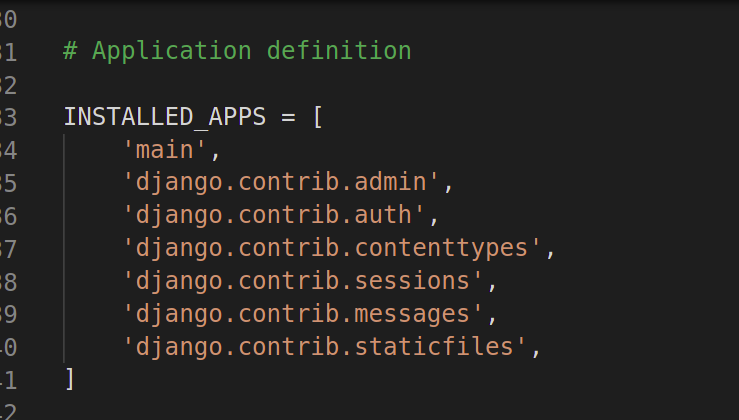
To enable the main app, we need to include it in the INSTALLED_APPS list inside the settings.py file. Open wikipedia_app/settings.py and add main to the INSTALLED_APPS list:
Create Views for Wikipedia Search
Now, we need to create a view that will handle the search functionality. We'll use the wikipedia library to get summaries from Wikipedia.
Edit views.py: Inside the main app, open the views.py file and create a view for the search form. This view will receive the search term via a POST request and return the search result from Wikipedia.
from django.shortcuts import render,HttpResponse
import wikipedia

def home(request):
    if request.method == "POST":
        search = request.POST['search']
        try:
            result = wikipedia.summary(search,sentences = 3) #No of sentences that you want as output
        except:
            return HttpResponse("Wrong Input")
        return render(request,"main/index.html",{"result":result})
    return render(request,"main/index.html")
In the above code:
- We check if the request method is POST, meaning the user has submitted a search term.
- We use the wikipedia.summary function to get the summary of the search term.
- If no results are found or an error occurs, we handle it with exceptions.
Create Templates
Next, we need to create the HTML template to display the search form and results.
Create the templates Folder
Inside the main app, create a folder named templates and inside it, another folder named main. This is where we’ll store the HTML files.
Create the index.html File
Inside main/templates/main/, create a new file named index.html. This file will define the layout for the search form and display the result.
<!DOCTYPE html>
<html>
<head>
    <title>GFG</title>
</head>
<body>
    <h1>Wikipedia Search</h1>
    <form method="post">
        {% csrf_token %}
        <input type="text" name="search">
        <button type="submit">Search</button>
    </form>
    {% if result %}
        {{result}}
    {% endif %}
</body>
</html>
In this HTML:
- The form allows users to input a search term.
- When the form is submitted, it sends a POST request to the server.
- The result (if available) is displayed below the form.
Configure URLs
Now, we need to set up the URLs for our app so that the view can be accessed through the browser.
Create a urls.py in the main App
Inside the main app, create a file named urls.py and define the URL pattern for the home view:
from django.urls import path
from .views import *

urlpatterns = [
    path('', home,name="home"),
]
This maps the root URL (/) to the home view.
Update wikipedia_app/urls.py
Next, open the main project's urls.py (located in wikipedia_app/urls.py) and include the main app's URLs:
from django.contrib import admin
from django.urls import path,include

urlpatterns = [
    path('admin/', admin.site.urls),
    path('',include("main.urls")),
]
Run the Server
Now that everything is set up, it's time to run the Django development server and test the app.
python3 manage.py runserver
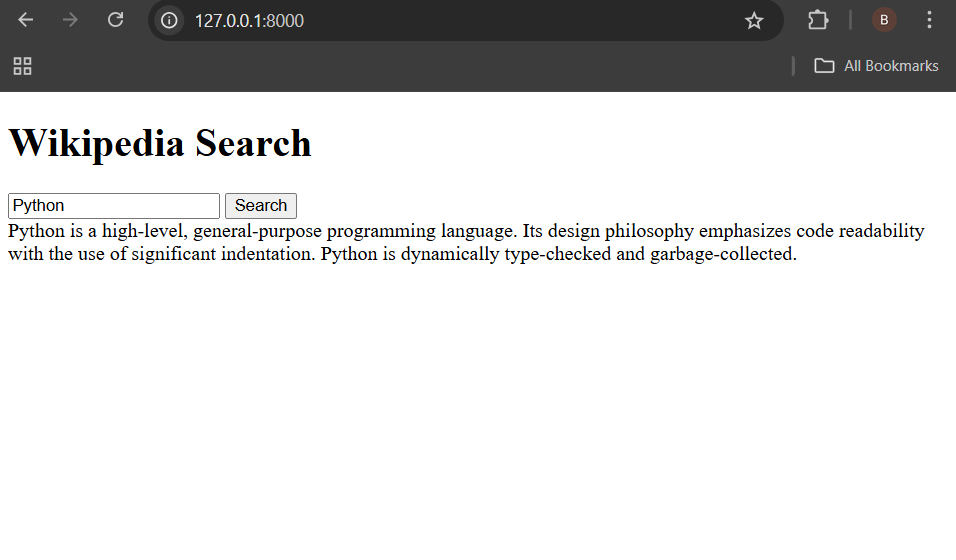
Output