DocSpring updates
DocSpring updates
docspring.com

Improved HTML-to-PDF rendering


Improvement


We've just rolled out some major improvements to our HTML-to-PDF rendering pipeline, so rendering PDFs will be faster, more reliable, and more secure. We can now run many more HTML-to-PDF jobs in parallel, so large submission batches should complete much more quickly.

We have carefully tested these changes before rolling them out and are closely monitoring our metrics and logs. Please contact support if you notice any issues with HTML templates.

Template Editor Improvements


Improvement


We've released some improvements to the template editor.

Select Multiple Fields

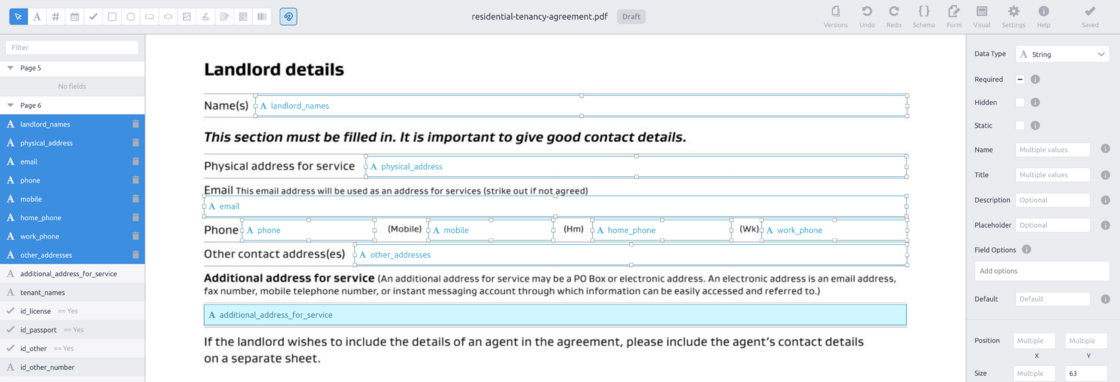
You can now select multiple fields and move or edit them as a group.

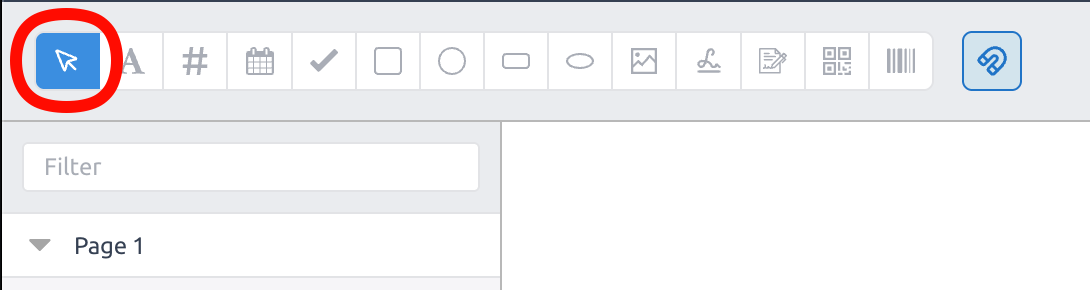
Use the new "Select" tool at the top left:

image.png

image.png

Field Snapping

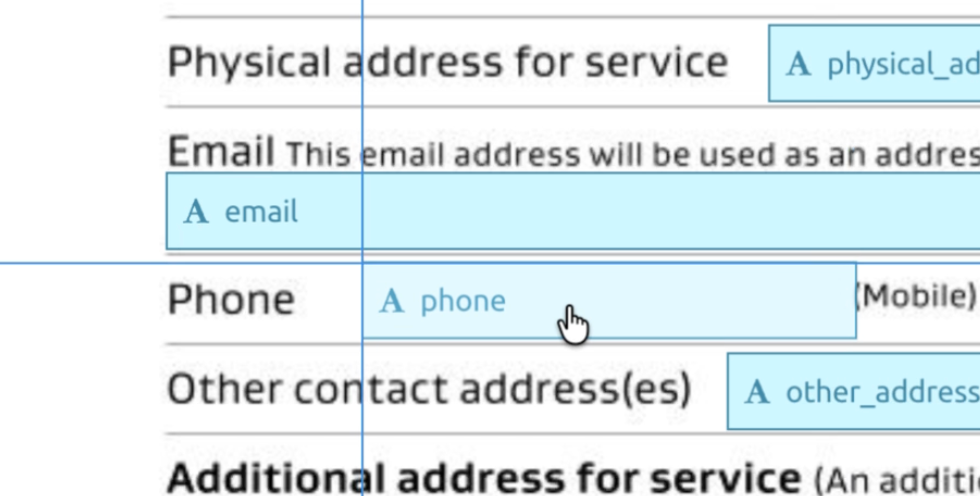
We've added field "snapping" so you can align fields with other fields. This can be toggled on or off via the magnet button at the top left.

image.png

Double Click to Edit Name

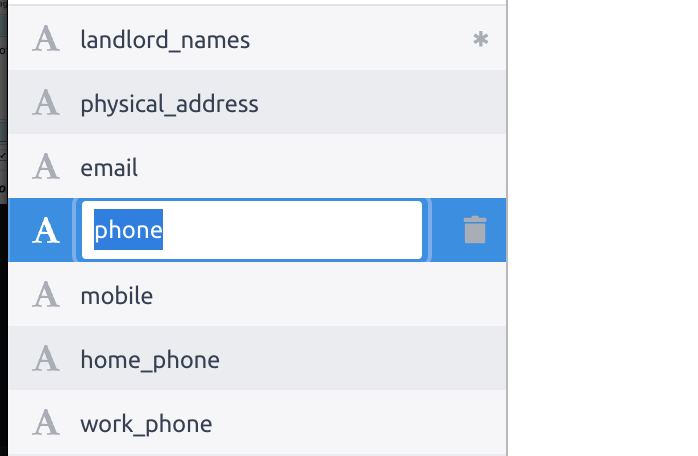
You can now double-click to edit a field name in the left sidebar.

image.png

Please let us know if you have any questions or feedback.

Embedded Template Editor


New


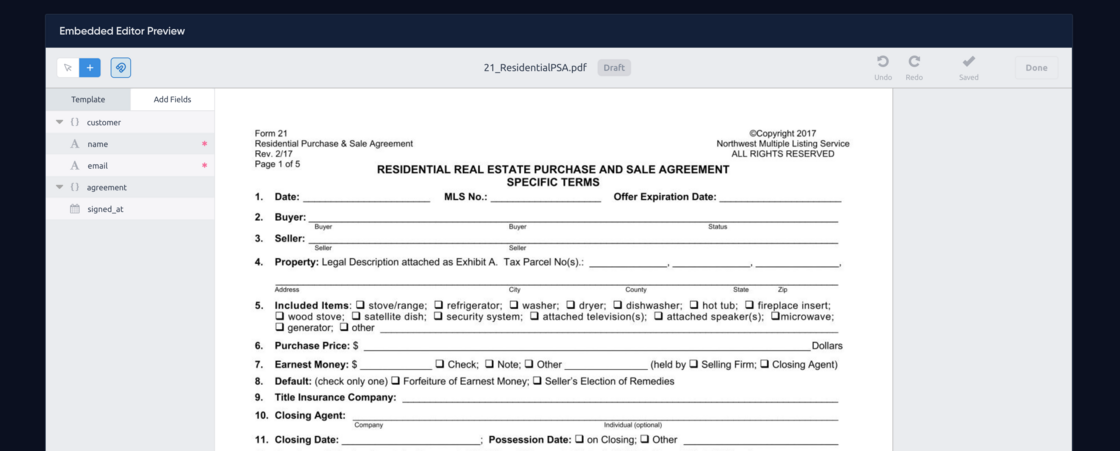
You can now embed the DocSpring template editor directly inside your own application.

This is useful when your users need to configure PDF templates, place fields, and publish template changes without switching over to the DocSpring dashboard.

image.png

How It Works

Add template_editor.js to your page, then open the editor inline or as a modal:

<script
  type="text/javascript"
  src="https://cdn.docspring.com/embed/template_editor.v0.1.0.js"
></script>

<div id="template-editor" style="height: 720px"></div>

<script>
  DocSpring.createTemplateEditor('#template-editor', {
    templateId: 'tpl_123',
    token: 'EMBED_EDIT_TOKEN',
    inline: true,
    externalUser: {
      name: 'Jane Editor',
      email: 'jane@example.com',
      external_id: 'user_123'
    },
    onDone: function(data) {
      // Close your modal or move to the next step in your app.
    }
  })
</script>

The embedded editor always edits the draft template. If versioning is enabled for the embedded editor, users can publish, restore, and delete published versions from inside the editor.


Highlights

  • Inline or Modal Embed the editor inside a page, or open it in a modal with one JavaScript call.

  • Customizable UI Show or hide specific controls with feature options. You can simplify the editor, customize the Done button, force light or dark mode, adjust modal sizing, and control whether settings, versioning, document replacement, schema links, form links, help, and advanced field options are visible.

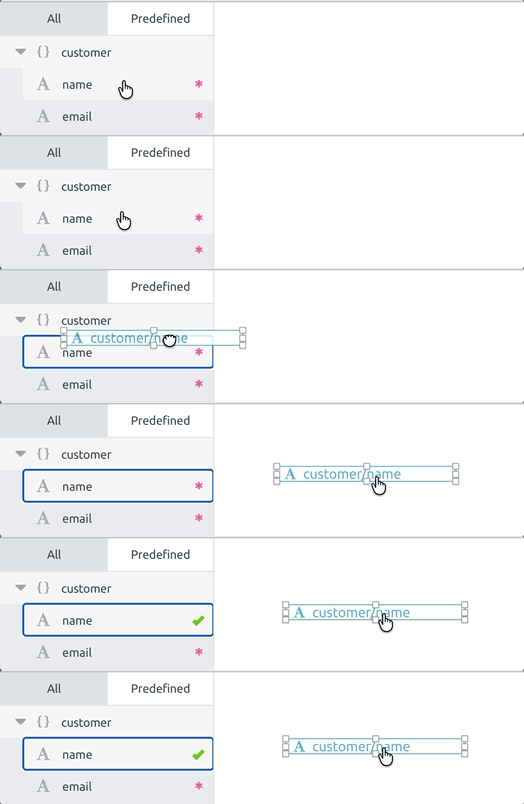
  • Predefined Fields You can provide a controlled list of field names and data types with predefined_fields. Users can drag predefined fields onto the template.

predefined-fields-drag.gif

  • Required Predefined Fields Mark predefined fields as required_in_template when they must be added before the user can finish. This is separate from field_required, which controls whether submitted data must include a value for that field.

  • External User Attribution Pass externalUser details from your app so template changes and published versions show the correct editor name, email, and external user ID. If no user details are provided, changes are attributed to Embedded Template User.

  • Server-Enforced Permissions Embedded users can edit template fields by default, but sensitive capabilities are disabled unless you explicitly enable them on the template:

    • embed_edit_allow_settings
    • embed_edit_allow_versioning
    • embed_edit_allow_document_replacement

    When settings access is disabled, sensitive settings such as webhook URLs, redirect URLs, Slack webhook URLs, and PDF encryption passwords are hidden from the embedded editor.


Try It

You can test the embedded template editor here:

https://docspring.com/embed_template_editor_example

You will need a template UID and an embed edit token. You can find the embed edit token on the template settings page.

Documentation

See the full guides here:

If you have any questions or feedback, please contact support.

Dark Mode Theme


Improvement


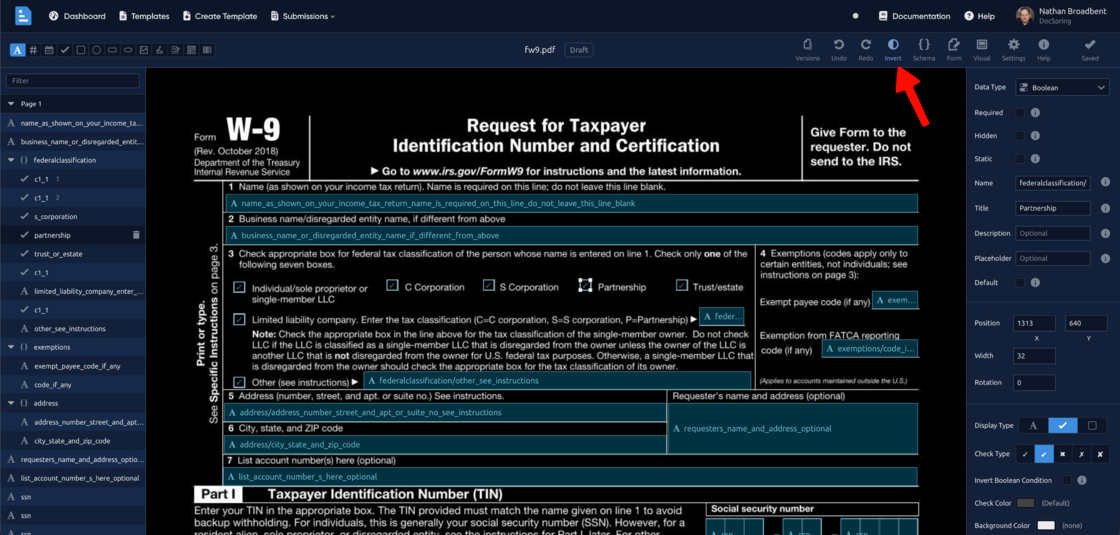
DocSpring now supports dark mode:

SCR-20260312-krkc.png

SCR-20260312-krod-2.png


You can change the theme at the bottom-right corner of most pages:

image.png


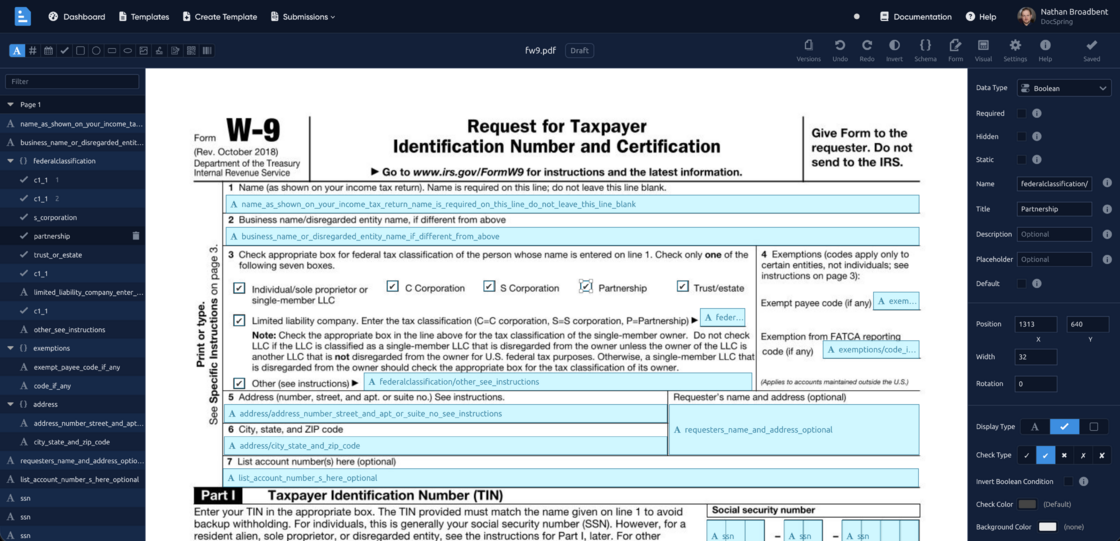
When the dark mode theme is active, an "Invert" button will be shown in the PDF template editor. This will flip the colors of the PDF pages, so that black text on a white background will become white text on a black background.

SCR-20260312-krqg-2.png

Please note that "Invert" mode only applies to the pages that are displayed in the PDF template editor. It does not affect generated PDFs.


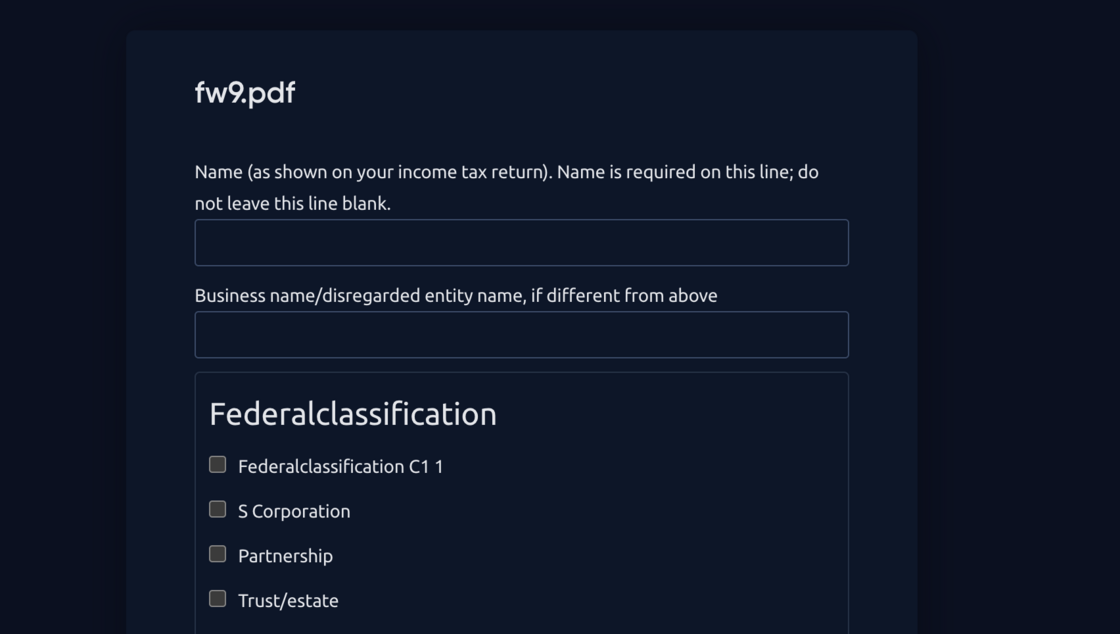
Dark mode support has also been added to our hosted web forms:

image.png

However, it is not yet available on embedded data requests or visual forms. Please let us know if you need more theming options for embedded forms.

New Field Type: Initials


New


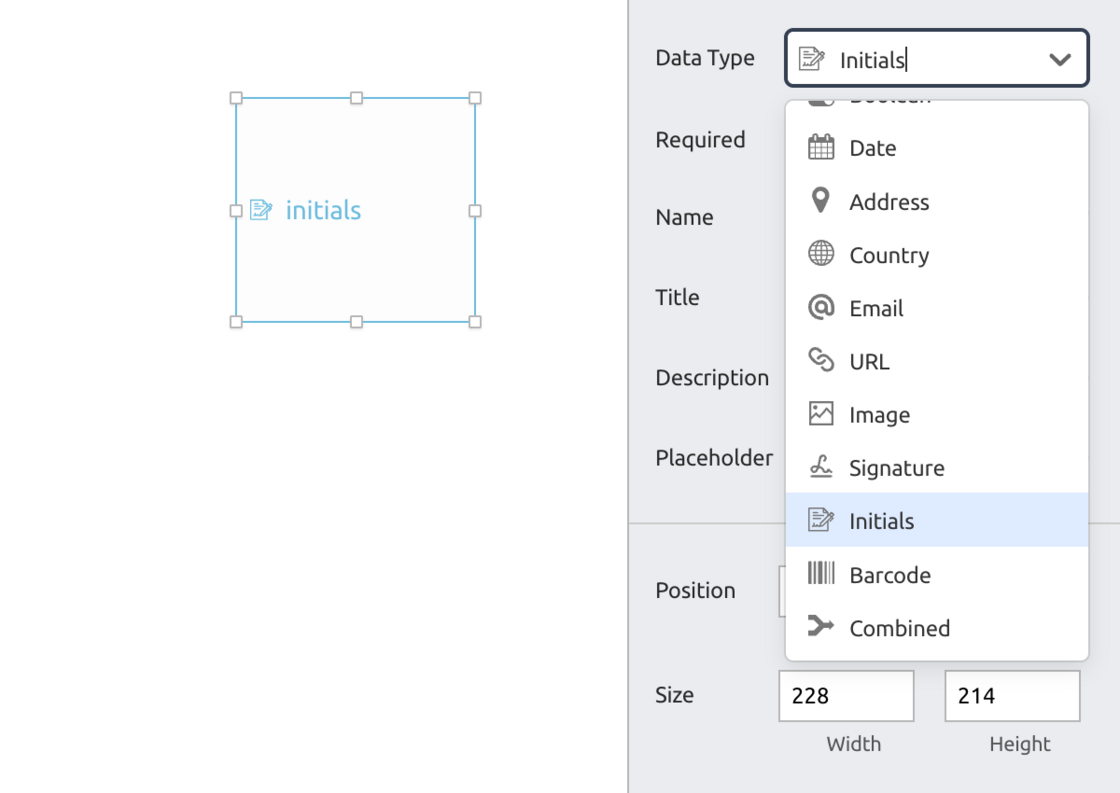
We've added a new field type for initials:

image.png

These are very similar to signature fields and share the same API schema.

If you use our Data Requests JavaScript library then you don't need to make any changes. If you use our low-level Visual Forms library, support for this new field type has been released in version 2.7.2.

DocSpring is SOC 2 Type II Compliant


New


docspring_soc2_banner.png

DocSpring is proud to announce our achievement of SOC 2 Type II certification. This milestone highlights our focus on data security and reaffirms our commitment to upholding rigorous standards in protecting customer information.

We extend our sincere appreciation to the team at Comp AI for their invaluable guidance and expertise, which were instrumental in reaching this significant milestone.

New Documentation


Improvement


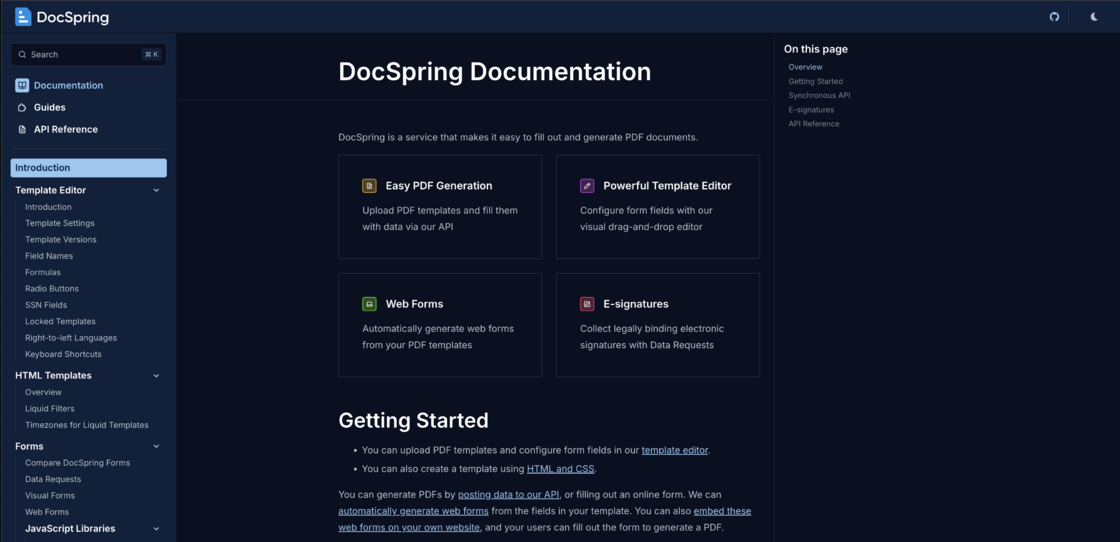
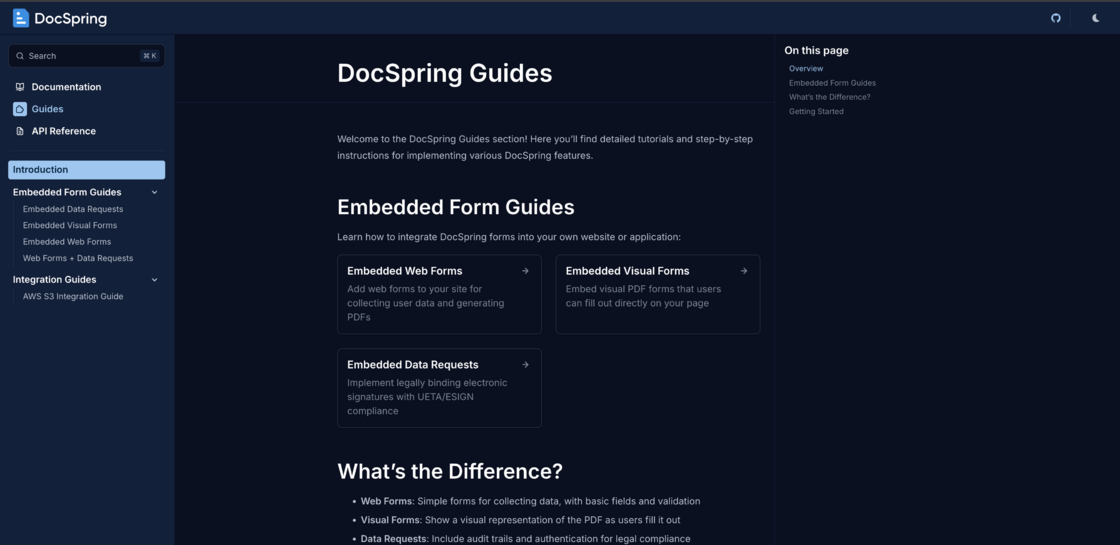
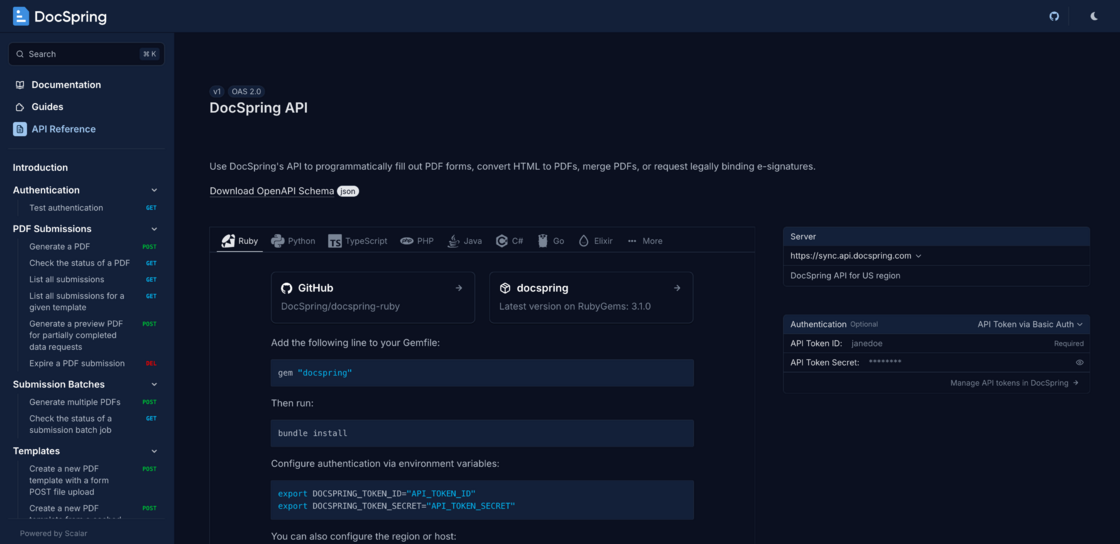
We've rebuilt the DocSpring documentation site. Our new docs are split up into three main sections:

Documentation

DocSpring features and reference pages

image.png

Guides

Step-by-step instructions for working with our embedded libraries and setting up integrations

image.png

API Reference

A complete API reference including code examples for all of our API client libraries. (100% end-to-end tested!)

image.png

Our new docs are built using Astro, Starlight, and Scalar. Many thanks to the amazing teams behind these open source projects!

Template Versioning


New


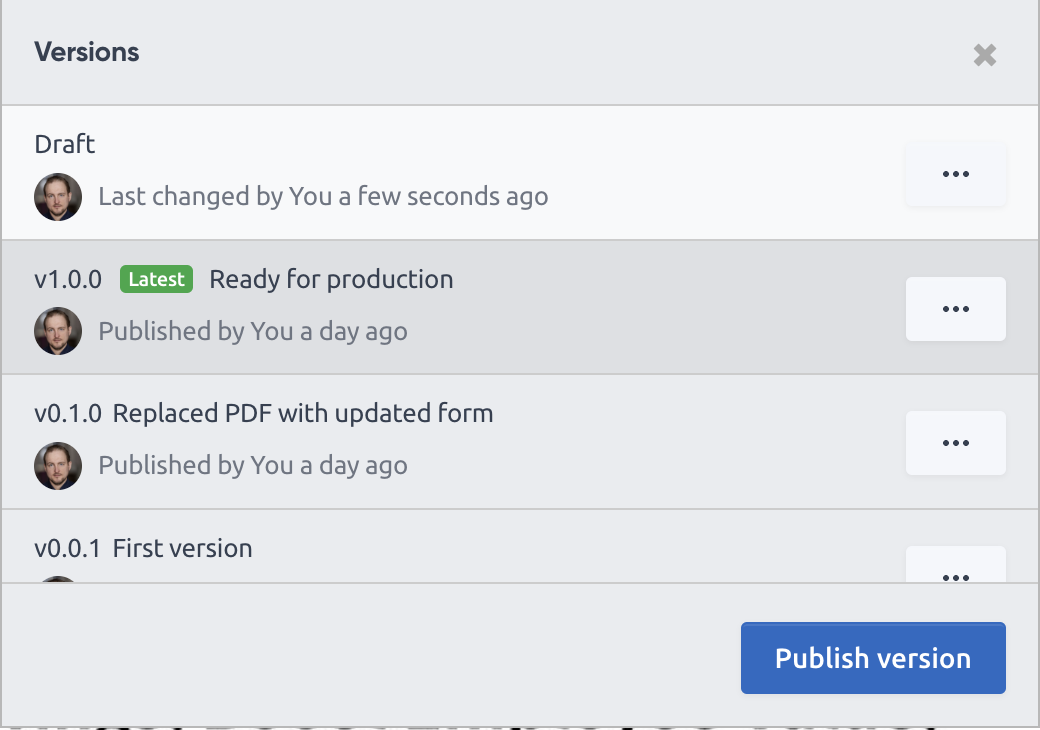
We’re excited to announce that DocSpring now supports Template Versioning!
Screenshot 2025-01-25 at 2.15.46 AM.png

This update allows you to maintain multiple template versions (e.g., 1.2.3) and manage a safe “draft” vs. “production” workflow, so you can make changes to your templates without breaking any existing integrations.


Highlights

  • Draft vs. Published Versions
    Each template now supports a “draft” version for in-progress changes, as well as published versions that you can refer to in your existing code or API integrations.

  • Semantic Versioning (major.minor.patch)
    Templates support version strings like 1.2.3. You can automatically increment version numbers when publishing new changes. We recommend incrementing minor and/or patch for backwards compatible changes, and major for breaking changes (e.g. new required fields, or changes to the PDF.)

  • API Support

    • Generate Submission: Accepts an optional version parameter (e.g. 1.2.3, draft, or latest). The API will use the latest published version by default, or the draft template if no versions have been published.
    • Publish & Restore Template Versions: New endpoints to manage template versions. Publish a new version, or restore a published version to the draft.
    • Copy / Delete: These existing API endpoints now support versioning, including partial version strings. You can now duplicate a published template version to create a new draft template. You can also delete specific template versions.
  • Audit Trails & Submissions
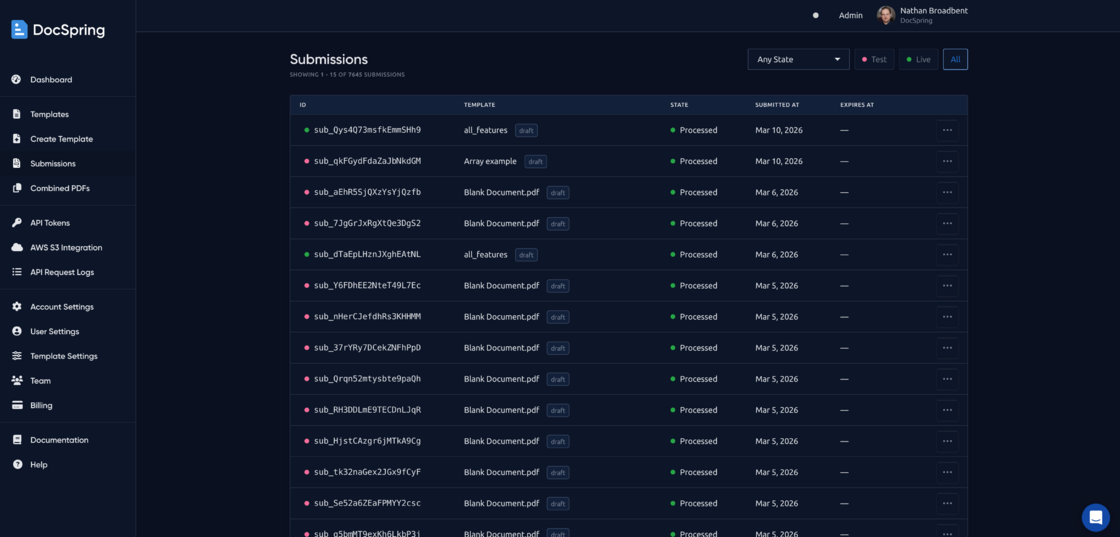
    Submissions now store the exact template version that generated them. You can see this version in the Submission pages, letting you track precisely which version was used.

  • Reprocessing Submissions
    We have redesigned the "reprocess" button to open a form that allows you to select a specific template version. You can resubmit submission data to fill out the latest published template, the draft template, or a specific version.

  • UI Updates

    • Versions Tab: A new “Versions” link in the template dropdown menu opens a Versions modal.
    • Locked Templates: Instead of the blocking “locked” modal, we now display a version badge in the header. You can now easily lock and unlock templates by visiting the template settings.

Getting Started

  • Publish a Version
    1. Make changes to your draft in the Template Editor.
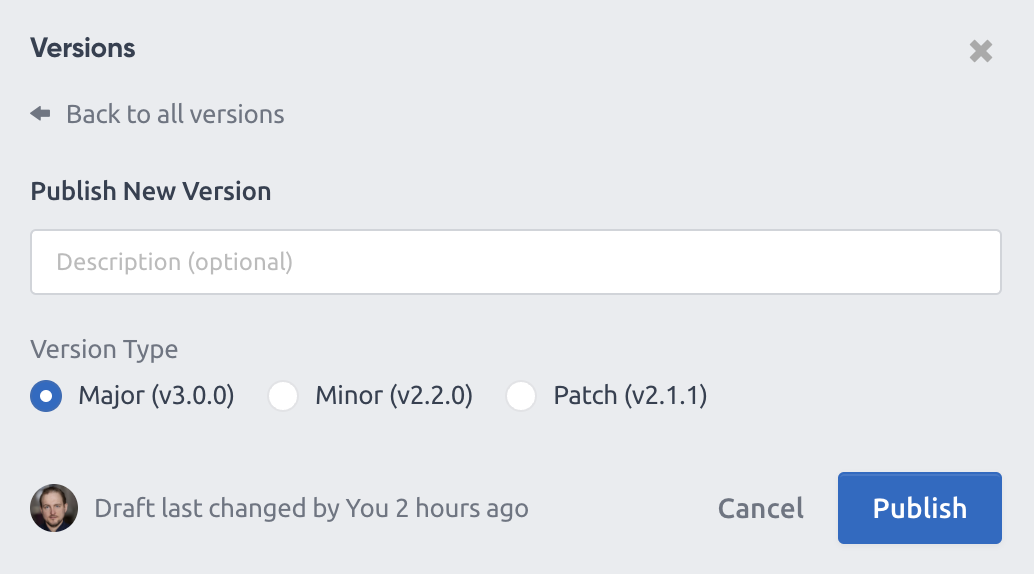
    2. Open the Versions modal and click the “Publish version” button to open the "New Version" form.
Screenshot 2025-01-23 at 4.50.03 PM.png

  1. Enter an optional description for the new version and choose which version number to increment: "major" (v1.0.0), "minor" (v0.1.0), or "patch" (v0.0.1). You can also publish a new version via the API (see docs for details).
  • Use a Specific Version in Your Integration
  POST /api/v1/templates/<TEMPLATE_ID>/submissions
  {
    "version": "1.0.0",
    "data": { ... }
  }

If you omit version, we’ll automatically use the latest published version, or the draft if none are published. You can also specify a partial version (e.g. 1.0 or 1), and this will find the latest matching version. Other possible values are: draft, and latest.

  • Restore or Copy an Older Version
    • Click “Restore to Draft” in the UI or use the new “restore version” API endpoint to roll back your template to a previous version.
    • Or you can copy an older version to a brand-new draft, preserving the original as-is.

View Changes Between Templates

When publishing a new version, you can see how many fields or settings have been changed in the draft template:
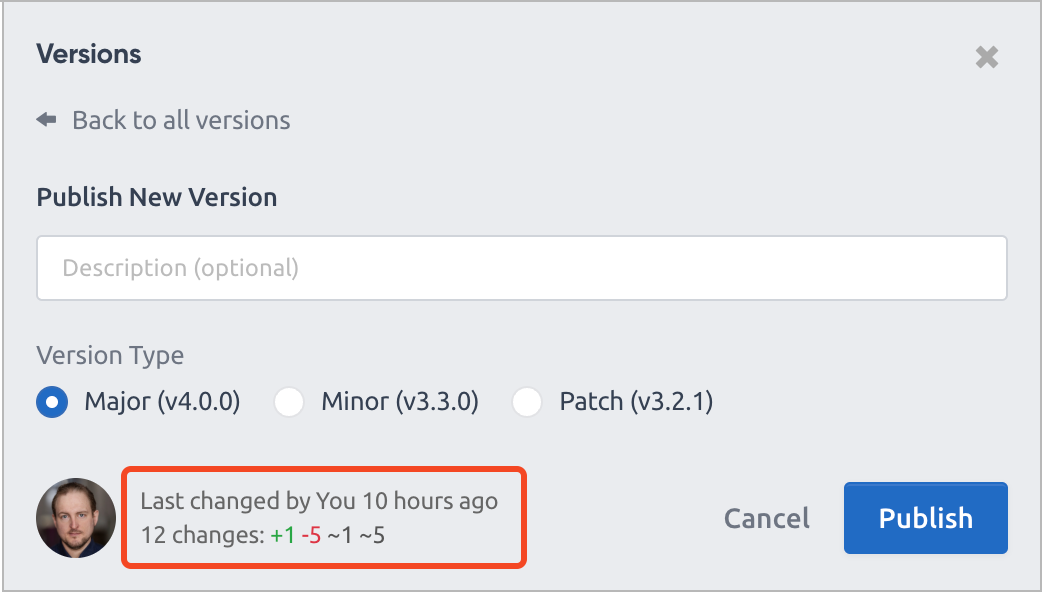
image.png

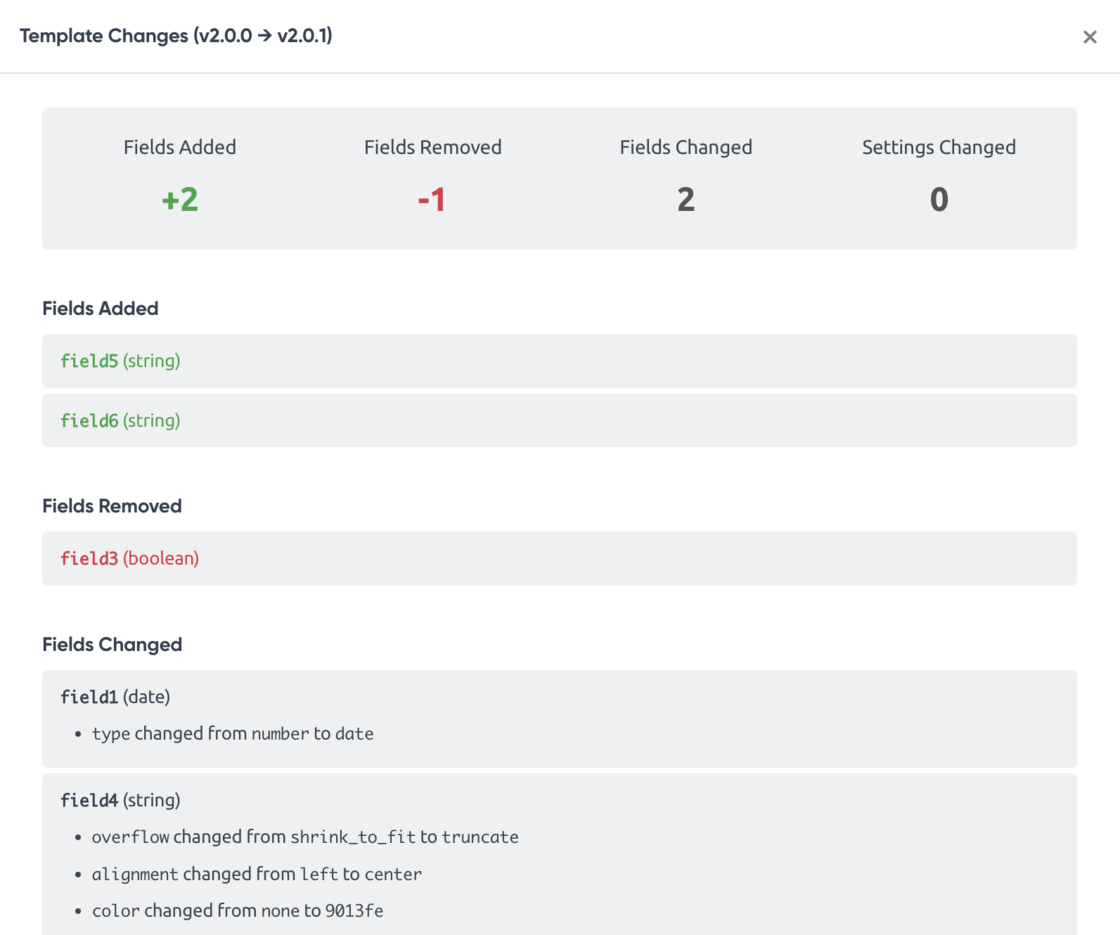
You can click this text to view the full details.
Screenshot 2025-01-25 at 2.04.35 AM.png

There is also a "Show Changes" link in the dropdown menu for each version.

View Older Versions

You can view an older version by clicking on the row in the versions table. Published versions cannot be modified, so this will load a read-only version of the template editor. You can click on fields to view their properties, or open the Settings page to view template settings.
Screenshot 2025-01-24 at 5.21.58 PM.png


Documentation

See detailed API examples in our API Reference Docs.

All of our API client libraries have been updated to support the new template version parameters. Here are the latest versions:

If you have any questions or feedback, reach out to our support team.

New Synchronous API Subdomain: sync.api.docspring.com


New


We're excited to introduce our new dedicated synchronous API subdomains:

  • sync.api.docspring.com (for our US region)
  • sync.api-eu.docspring.com (for our EU region)

These new API subdomains allow you to generate PDFs with a single API request, with no need to poll for status updates. The HTTP request will wait for the PDF to be ready and then return a download_url where you can download the PDF.

These synchronous subdomains support:

  • Synchronous POST endpoints:
    • Create PDF Submission: POST /api/v1/templates/{template_id}/submissions
    • Create PDF Submission Batch: POST /api/v1/submissions/batches
    • Create Combined Submission: POST /api/v1/combined_submissions
    • Create Template: POST /api/v1/templates
  • All other API endpoints: You can use the sync subdomain for all of your API requests, in addition to the requests that need to wait for PDFs or templates to be ready.
  • Optional asynchronous requests: Add the ?wait=false query parameter to your URL to receive an immediate pending response. (DocSpring also has support for webhooks, so our server can notify your application once the PDF is ready if that suits your use-case better.)

The latest versions of our API client libraries now use the sync.api.docspring.com host by default. They also include support for the wait query parameter for all of the POST endpoints above.

You can also configure the host manually in case you're using our EU region or an older API client library.

Our asynchronous domains will remain available forever, so you don't need to change anything if you don't want to:

  • api.docspring.com (for US customers)
  • api-eu.docspring.com (for EU customers)
  • api.formapi.io (for customers who are still using our old domain!)

All requests to these domains will remain asynchronous and the wait query parameter has no effect. Backwards compatibility is one of our foundational values: You should be able to set up DocSpring once and then never touch it again.

Let us know if you run into any issues with our sync subdomains or the new API clients. And let us know if you you would like us to release an API client for a different programming language.

Audit Trails for Signed PDFs


New


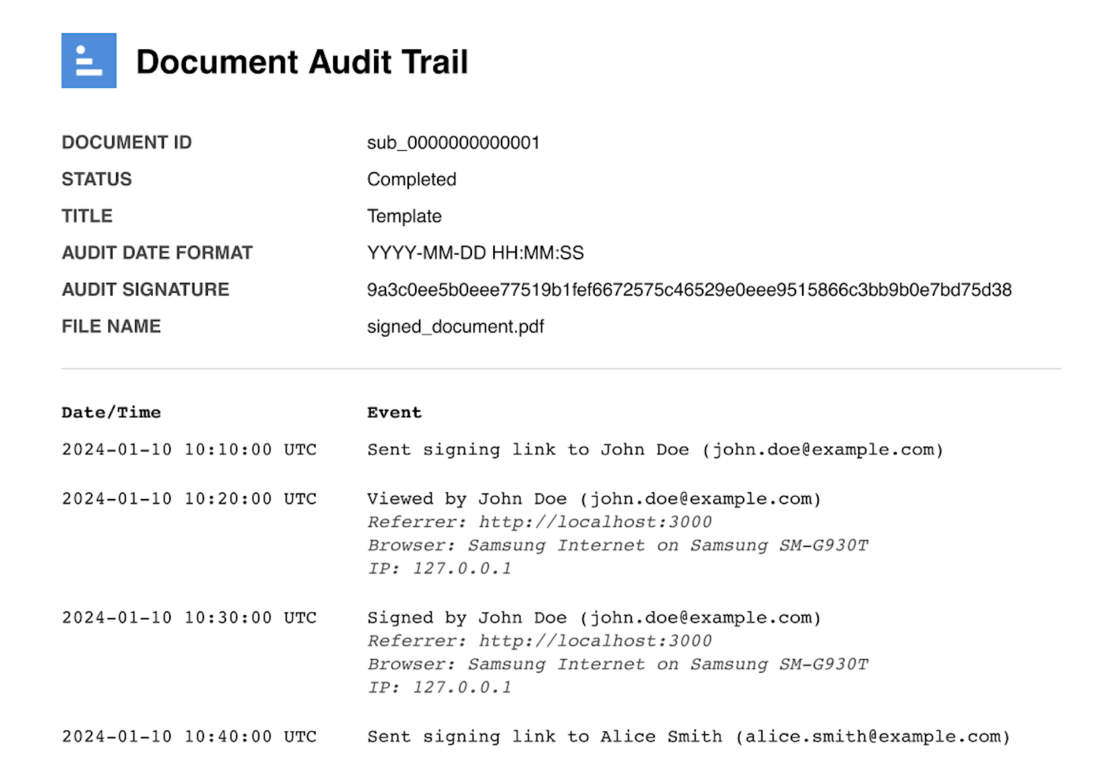
Our data requests (electronic signatures) feature now supports audit trail pages.

Screenshot 2024-09-20 at 12.58.00 PM.png

An audit trail is a "certificate of completion" that shows when a document was viewed and signed. It includes information about the people who signed the document, such as email address, IP address, browser details, and the date and time when an event occurred. [1]

Audit trail merging is disabled by default for any existing accounts, so this change will not affect any of your existing templates. (However, it is enabled by default for any new accounts that sign up after September 2024.) You can enable this setting for individual templates by checking the box next to "Merge Audit Trail With Data Request PDFs":

Screenshot 2024-09-20 at 1.08.21 PM.png

You can change this setting for all templates in your account (or a subset of templates) on the "account-level template settings" page. You can also update template settings by making an API request.

When audit trail merging is disabled, the audit trail PDF will be generated separately. You can download the audit trail PDF by making an API request to get a submission. You will then find the audit_trail_download_url property in the response. (This property will always be null if the audit trail has been merged with the generated PDF.)

[1] Please note that DocSpring was already storing these details for all previous data requests. Please contact us if you would like to generate audit trail PDFs for any previous submissions.