

How it works
The AI agent interprets your questions, generates queries against your semantic model, and presents findings in natural language. The agent can create multiple queries to answer complex questions and perform ad hoc analysis while maintaining full data governance through your semantic layer.Key features
- Natural language queries – Ask questions in plain language without knowing SQL
- Multi-query reasoning – The AI creates and synthesizes multiple queries for complex questions
- Python analysis – For work SQL can’t express — forecasting, cohort analysis, statistical tests — the agent can run Python and render the result inline, then save it as a re-runnable workbook report or exploration (in preview)
- Semantic model integration – All queries run against your semantic model with proper access control and security, honoring the active security context—including an override applied by a developer or admin. You can also ask the agent to run a query under a given security context
- File attachments – Attach files and images to a message for the agent to read
- Voice input – Dictate a question instead of typing it, then edit it before you send
- Queued messages – Send follow-up messages while the agent is still processing
- Save your results – Ask the agent to save a result as a report inside a workbook, or as a standalone exploration when you don’t want to create a workbook
- Organize saved work – Ask the agent to save an exploration into a specific folder, or to list, create, rename, move, or delete folders in your workspace — folder actions run immediately, and deletion destroys less than the Workspace page but checks less too
- Link saved artifacts – The agent can link an existing exploration, workbook, or dashboard to the conversation, on request or automatically when it creates or edits one, so you can reopen it from the thread later
- Schedule dashboards – Ask the agent to list, create, change, or delete a published dashboard’s scheduled refreshes, with their data alerts
- Find past conversations – Reopen earlier chats from History
Discover available fields
You can ask the AI agent what’s available in your semantic model before diving into analysis. This is useful when you’re new to a deployment or exploring an unfamiliar view. Try prompts like:- “What fields are available?”
- “What measures and dimensions can I query in the Orders view?”
- “Describe the fields in the Customers view and what each one means.”
- “What does the
lifetime_valuemeasure represent?”
Queued messages
You can send follow-up messages while the AI agent is still processing a previous request. These messages are queued and processed in order once the agent completes its current task. This allows you to:- Refine your question before the agent finishes, if you realize you want to adjust the scope or add constraints
- Queue multiple questions to ask a series of related questions without waiting for each response
- Provide additional context to give the agent more information that it can incorporate into its next response
Attaching files
You can attach files and images to a message, and the agent reads them with your question. To attach them, do one of these:- Click + in the message input, then click Add files or images.
- Press ⌘U on macOS or Ctrl+U on Windows and Linux while the message input has focus.
- Drag files onto the chat.
- Paste an image into the message input.
Context usage
After the agent’s first reply, the + menu shows how much of the model’s context window the chat uses, for example “34% of 200K context”. When the chat reaches 70% of the window, the agent summarizes the earlier part of the conversation, so you can continue in the same chat.Voice input
You can dictate a message instead of typing it. Click the microphone icon next to the send button in the message input, speak, and finish the recording. The transcript goes into the message input at the cursor, with punctuation and without filler words. Edit it if you need to, then send it. Dictation never sends a message on its own.
Dictation detects the language you speak. The names of views, measures and
dimensions in your semantic model, and the names you used earlier in the chat,
are spelled the way they appear there. Audio is transcribed by Cube’s AI
provider, which does not use it to train models.
Keyboard shortcut
On desktop, use the dictation shortcut, a right-hand modifier key:- Hold the key to talk, and let go to finish.
- Double-tap the key to talk hands-free, then tap it once to finish.
- Press Esc to cancel a recording, or Enter to finish it. Press Enter again to send the message.
Recording limit
A recording can be up to 2 minutes long. The level bars in the message input turn amber after 1 minute and red in the last 15 seconds. At 2 minutes, the recording stops and is transcribed.When dictation fails
If dictation can’t produce a transcript, the microphone icon turns red. Hover over it to see why, or click it to try again:
If the browser has blocked the microphone, the icon is crossed out and you
can’t click it. Allow microphone access in your browser settings.
Availability
Voice input is not available in the Google Sheets add-on and the Microsoft Excel add-in. In an embedded chat, an embedded dashboard, or a Creator Mode embed, the host page has to allow the microphone. Voice input is also not available in some regions. If you don’t see the microphone icon next to the send button, check with an admin that voice input is turned on, then contact Cube support.Turning voice input off
Voice input is on by default. Admins can turn it off for all users in Admin → Settings → Voice input with Allow voice input in Analytics Chat.History
What History shows depends on where you open it: from inside a workbook, it lists that workbook’s chats plus any chats not tied to a workbook; from a surface with no workbook, like the Semantic Model IDE, it lists every chat you’ve had in the workspace. Conversations from the Google Sheets add-on or the Microsoft Excel add-in don’t appear here — they’re under Chat History in the Google Sheets or Microsoft Excel pane instead.Sharing
Click Share in the chat header to grant view access to other members of your account. You can pick individual users, a user group, or flip General access to Organization to make the chat visible to everyone. Use the Copy link button next to Share to grab a direct URL once access is set up. Recipients still need to have access to the deployment and the data the agent used; otherwise they’ll see a “Chat not available” page. A user without access to the chat can request access from its link.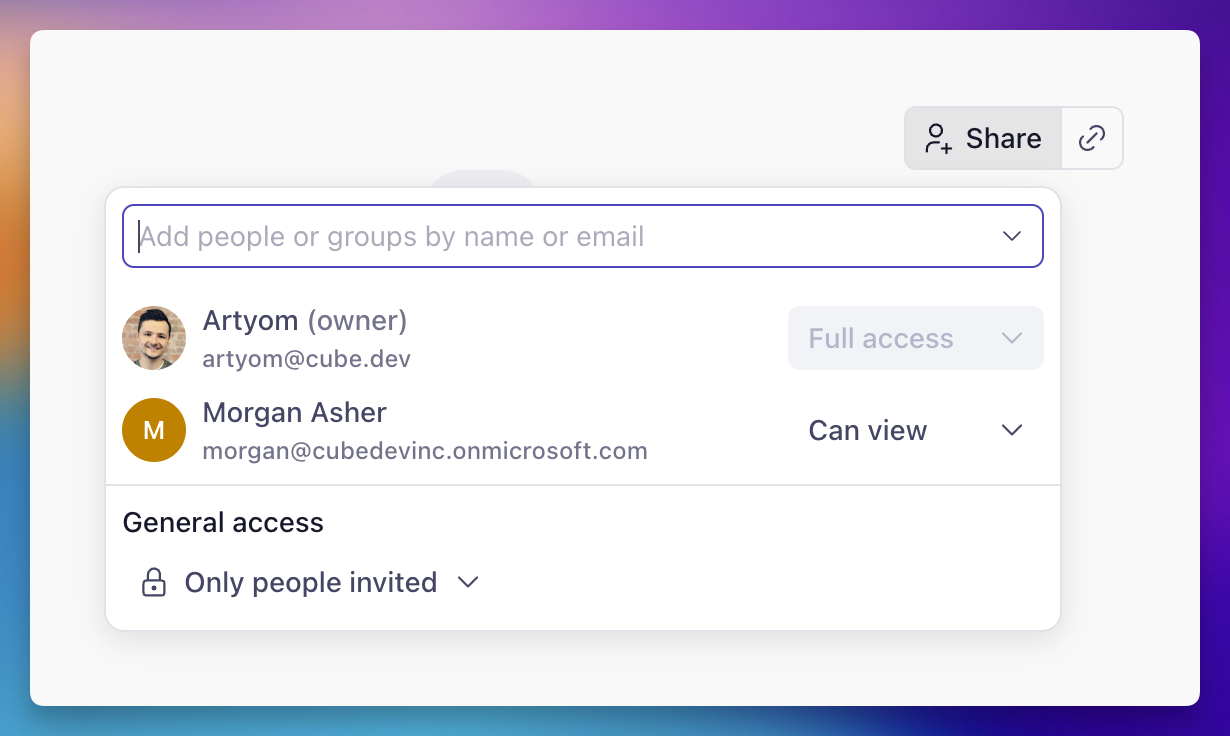
Embedding
Analytics Chat can be embedded into your applications for customer-facing analytics, internal tools, or white-label solutions.Learn more
- Workbooks – Build and organize reports with AI assistance
- Python analysis – Save a Python analysis from chat as a re-runnable workbook report or exploration
- Embedding – Embed analytics in your applications
- Cube Agentic Analytics announcement – Learn about the vision behind agentic analytics
