Your AI tools launch directory. Ship smarter.
A startup directory and product launch platform for AI tools. Discover new launches, compare workflows, and submit your startup for a paid listing.
- Launches today
- 2
- Active directory
- 52
- Top categories
- 20
Daily launches
Curated drops land daily. Spot new AI products before the crowd.
Quality filters
Only practical, usable tools. No noise, no empty hype.
Community signals
Real upvotes drive trending. The strongest tools rise.
Launching today
Cedric AI for Meetings is an AI meeting assistant that works before, during, and after a call. It joins meetings on Google Meet, Zoom, and Microsoft Teams, where it can take notes, answer live questions, share its screen and present a deck or page slide by slide, or attend on your behalf when you cannot be there. The product is built for teams whose work happens in conversations: the site lists sales, recruiting, marketing, user research, engineering, finance, healthcare, media and podcasting, and venture capital. Its purpose is to carry the meeting and the work around it — notes, minutes, decisions, action items, and follow-ups — so you review and approve output instead of producing it from scratch. Most meeting tools record. Cedric is positioned as a meeting AI assistant rather than only an AI meeting note taker: it actively participates in the conversation and handles the work around it. The problem it addresses will be familiar to anyone who runs client calls, pipeline reviews, or internal check-ins. People join late and miss context. People cannot attend at all and send nobody. Someone has to write the recap, update the CRM, file the notes, and chase the next step. And decisions made out loud are easily lost once the call ends. Cedric is designed so the call produces the record and the follow-up work in the same pass, with the approvals left in human hands. Cedric can take the presentation. Inside a live call he shares his screen and presents a deck or a page, slide by slide. Participants can ask for a specific slide — the page shows someone saying “Cedric, show the pricing slide” — or ask him to move to the next slide, and he can take questions at the end. Pages he builds in the workspace can be loaded straight into a call, connecting preparation and presentation. During the call he can also answer questions using your workspace, connected tools, or the web. He says what he is checking while he works and gives the answer out loud, so the room hears the sourcing rather than a silent lookup. Someone who joins late can ask what they missed and be brought up to speed on the conversation so far. Before a booked meeting Cedric asks what matters: goals, topics to watch for, and what not to say. You prepare the agenda and review attendees and open commitments with him, and behavior profiles let him adapt how he participates in each person's calls. When he joins, you choose his role. As Assistant, the default, he takes notes, keeps the meeting on its agenda, and does what you ask during the call. As Note-taker only he stays silent for the whole call and you get the notes and action items afterwards. As Attend for me, he joins in your place, asks your questions, answers from what he knows, and briefs you after. Listener and Moderator (beta) roles are also described, with the moderator able to moderate the discussion. Several Cedrics can join the same call. The team's Listener can stay in the meeting while a Stand-in represents an absent colleague, or two absent people can each send their own. Tiles carry distinct labels such as “Cedric for Ana” or “Cedric (moderator)” so it is clear who each one represents. Saying “Cedric” addresses the Listener, and everyone's notes draw from one shared meeting record. In the example shown on the page, a single record for a weekly pipeline call at 11:00 serves the whole group rather than splitting the conversation into separate copies. Cedric is also an AI meeting note taker. Every call ends with AI meeting notes and AI meeting minutes: a searchable transcript, a clear summary, the decisions, and the action items, ready to review and share. Decisions are separated from open questions, and action items carry owners and deadlines where they were agreed. In the sample record on the page, a 31-minute, four-person check-in yields a summary line about a confirmed two-week pilot, a decision that the pilot sits on the standard plan, action items assigned to Lucia and Ana with days attached, and an open question about who joins from the client's IT team. Meeting knowledge stays connected to the people, decisions, and preferences remembered across the workspace. Each meeting has a dedicated page in the dashboard with Notes, Transcript, and Follow-ups, and you can search that record or ask Cedric about earlier conversations — who owns a next step, or what a client requested. The page shows the pattern: a teammate asks @Cedric who owns the Meridian onboarding plan and gets the owner, the deadline, and the meeting where it was agreed. Nothing has to be reconstructed by hand from a recording. After the call, Cedric drafts the work in your tools. On the page, a single call produces six drafts: a recap email in Gmail, a deal moved to pilot in HubSpot, call notes on the account in Zoho CRM, a pilot plan page in Notion, a Google Ads campaign, and a LinkedIn post. You review each one, and nothing goes out until you approve it. The FAQ adds that he can create tasks in connected project management tools, add meeting information to CRM records, book follow-up meetings, and run reminders and multi-day follow-ups, with available capabilities determined by the tools you have connected. The overall approach is one loop with a human checkpoint. Invite Cedric to the call and choose his role, brief him on what matters, then ask questions or let him present while he works from your workspace, connected apps, and the web. Afterwards, review the transcript, summary, decisions, and action items, then approve the follow-up work across your connected tools. The same meeting record sits underneath all of it, so preparation, participation, notes, and follow-ups refer back to one source. Cedric works with Google Meet, Zoom, and Microsoft Teams; you reach him through the browser, Slack, Microsoft Teams, Discord, or Telegram; and he connects to Google Calendar, Gmail, HubSpot, Notion, Outlook, Salesforce, Slack, and, per the FAQ, 3,200+ other tools. The stated benefit is that the call stops being the end of the work and the start of a second job. If you join late, Cedric catches you up. If you cannot join, he represents you within a brief and brings back the decisions and next steps. Commitments get captured with owners and deadlines instead of evaporating. Follow-up work arrives as drafts you approve, so speed does not come at the cost of control. And because his shared memory ties conversations to people and preferences, you can ask questions across meetings rather than digging through recordings. Sales is the case the page develops in most detail: a deal recap summarizing customer goals, objections, requirements, and agreed next steps; a follow-up email drafted from what the buyer actually discussed; and proposed CRM call notes and task updates in the connected CRM. The same mechanics carry into the other functions the page names — recruiting, marketing, user research, engineering, finance, healthcare, media and podcasting, and venture capital. Concrete scenarios shown or described include presenting a pricing deck to a client and taking questions at the end, sending a Stand-in when a colleague is absent, asking who owns an onboarding plan agreed in a previous check-in, and telling Cedric to send a revised quote after the call so he drafts it and checks before it sends. The page does not publish a conventional price list. It offers a free start, plus a welcome gift of $100 free and $50 more with the code PRODUCTHUNT2026. Figures that appear inside the demos on the page include a standard plan at 12 seats for $108/mo, or $1,296 per year, and a seat price of nine francs a month for twelve weeks. Live joining, recording imports, and other capabilities depend on the meeting platform and the connected integration, and the browser dashboard and chat integrations are places to work with Cedric rather than identical conferencing surfaces. Cedric's proposition is narrow and concrete: an AI meeting assistant that presents, answers, notes, and attends, then turns the conversation into drafts you approve. For teams whose commitments are made on calls, that closes the gap between what was said and what gets done.
Greta.sh is an AI app builder and vibe coding platform that turns a plain-language description into a live website or full-stack web app. You describe your business or your idea the way you would explain it to a friend — no special skills required — and Greta builds the site, puts it live, and keeps adding pages that you review and approve. The platform presents itself as one place built to do it all: from first idea to live product, it provides the tools to design, build, launch, manage and grow. It supports two starting points, a self-growing website and a full-stack web app, and offers a "which one do I need?" prompt to help you pick. The stated purpose goes beyond simply shipping a page: Greta.sh is built to grow your presence in Google and AI search with content you approve, so the site keeps working after launch. The problem Greta.sh addresses is stated directly: you built a website or app, so why is nobody visiting? Getting found on Google and on AI tools like ChatGPT and Perplexity takes months of SEO and AEO work, which is a separate discipline from building the product itself. Greta.sh targets that gap by finding what customers search for, writing pages that answer those searches, and getting you showing up on Google, ChatGPT and elsewhere. The Product Hunt listing frames the shift as building a "customer magnet" rather than just a website, and describes Greta.sh as a growth engineering platform for vibe coding, so that shipping faster is paired with getting discovered. The build side of the platform begins with its Full Stack feature, which lets you build a full app, website and tools without writing a single line of code. Rather than stitching together a builder, a host and a set of add-ons, the platform covers the product from first idea to live product in one place. Templates support this: the site advertises more than 100 templates, and the flow is deliberately short — find a template you like, click it, and Greta.sh does the rest. Template examples shown include an e-commerce frontend, a marketing template, an analytics dashboard, a content OS dashboard and creative agency websites. For people who would rather start from a description than a layout, the primary path is simply to describe the business and let Greta build. The growth side is where the product is most distinctive. In self-growing website mode, Greta.sh finds what customers search for, writes pages that answer those searches, and works to get you showing up on Google, ChatGPT and everywhere else. Every new page goes through your review and approval, so the site grows with content you have signed off on rather than publishing unchecked material. This combines classic SEO — ranking in Google — with AEO, the practice of being surfaced by answer engines and AI assistants. Instead of a one-time launch followed by silence, the site is designed to keep adding pages that address real questions people ask. Greta.sh connects to the tools around the build. Through MCP, you connect your tools, systems and data so everything works together smoothly, and the Product Hunt description notes that you can run it all from Claude, ChatGPT or Cursor by asking it to build, grow, publish or report. The connector list on the site spans Claude, Gemini, OpenAI, GitHub, Slack, MongoDB, Google Analytics, Stripe, AWS SES, Resend, Netlify and xAI, with the message that no switching is needed because Greta.sh connects to your stack from day one. Supporting features round out the platform: a Domain feature to launch your brand online with your own custom domain in minutes, and an Asset Manager that keeps files, images, videos and content in one clean, organized place. The workflow is presented in four steps. Step one is to describe your idea — just type what you want to make, like you are talking to a friend, with no special skills needed, just your idea. Step two is seeing it built, as the idea starts turning into something visible on the screen. Step three is bringing your own tools: connect Claude, Gemini, Slack, GitHub and more, and Greta.sh brings it all together. Step four is deploying with one click, where everything from your domain to search ranking to safety checks just works, so you can build today and launch today with no waiting around. Combined with the growth loop, the method is: prompt, build, deploy, then keep approving new pages that expand search coverage. The promised outcome is visibility without a separate SEO project. Because the platform writes pages based on what customers actually search for and routes them through your approval, the work of getting discovered becomes part of running the site rather than a campaign bolted on afterwards. Deployment is designed to be immediate — build today, launch today, no waiting around — and the one-click flow claims to handle domain, search ranking and safety checks. For teams already vibe coding, the appeal is keeping the speed of AI-assisted building while adding a repeatable way to keep publishing content for Google and AI search. Concrete scenarios follow from the described features. A founder with an idea can describe the business, have Greta build the site and put it live, then keep approving new pages as the site grows. A team that has already shipped an app but sees no traffic can use the self-growing mode to find search demand, publish answering pages, and target both Google and AI assistants such as ChatGPT and Perplexity. Builders who prefer working inside an AI assistant can run build, grow, publish and report commands through MCP from Claude, ChatGPT or Cursor. Others start from one of the 100+ templates, picking a marketing site, e-commerce frontend, analytics dashboard or content dashboard, and connecting services like Stripe, MongoDB, Google Analytics, GitHub or Slack as needed. Greta.sh is aimed at people who want to go from idea to live product without writing code, and at teams using vibe coding who want growth built into the process. The platform lists two build paths — self-growing website and full-stack web app — and connects outward to Claude, Gemini, OpenAI, GitHub, Slack, MongoDB, Google Analytics, Stripe, AWS SES, Resend, Netlify and xAI. Support scales with plan: community support on Free, email support from Starter, and priority support on Pro and Business, which indicates a free entry point alongside paid tiers. The Product Hunt topics place it under Marketing and SEO, alongside its identity as a no-code app builder and AI website builder. Taken together, Greta.sh's value proposition is a single platform where an idea becomes a deployed, full-stack website that continues to grow its own search presence. Build with a prompt or a template, connect your tools, deploy in one click, and keep approving pages that answer what customers search for — so the site is not just live, but findable on Google and in AI search.
The archive
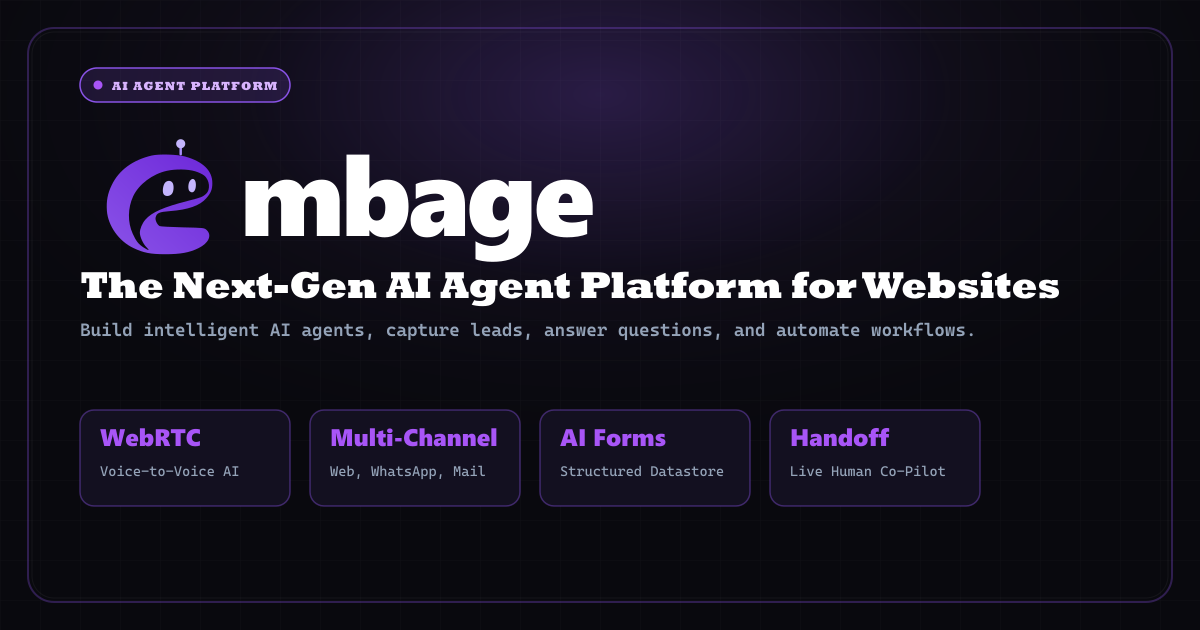
Embage is a no-code platform for building AI chat and voice agents that talk to your customers. You choose whether the agent handles support, sales or feedback, shape its tone, and put it live on your website as a chat window, a browser-based voice agent, or both — and on Telegram for chat. The agent answers from your own documents, acts inside the tools you already use through sub-agents, and leaves your team a scored record of every conversation. It is built for teams that want customer conversations handled automatically without writing code or installing anything, and it can be live in three steps: build, connect and embed. Embage frames the underlying problem simply: most companies throw the conversation away. Visitors arrive, ask questions, and leave, and whatever they said is lost unless someone happens to be watching. Embage positions its agent as a way to answer 24/7 while your team sleeps, to save every chat as a lead, ticket or feedback record, and to end each conversation with a next step — a score and a follow-up — rather than a raw transcript nobody reads. That framing runs through the whole product: the conversation is treated as data worth keeping and acting on, not just a support cost. Chat and voice both run live on your site. You can add a chat window, a voice agent, or both, and chat agents can also answer on Telegram. Voice runs in the browser with nothing for visitors to install, and visitors can interrupt mid-sentence instead of waiting for the agent to finish. At any point the conversation can be handed off to your team. Because the voice agent acts mid-call, it can book meetings and save records while it is still talking, and when a human takes over their replies are spoken aloud to the visitor. The same documents, tools and scored record apply whether the conversation happens by chat or by voice. The knowledge base is what the agent answers from. You upload files or add web pages, and the agent searches them before it answers rather than improvising. Supported formats include PDF, Word, PowerPoint, Excel, CSV and Markdown. Articles can be edited in place so answers update to match, and questions the agent could not answer are surfaced as knowledge gaps — a direct signal of what your documentation is missing. This keeps replies grounded in your own material and gives the team a feedback loop for improving it over time. The datastore turns chats into records. While the agent talks, it saves tickets, leads and feedback, using templates for tickets, a sales CRM, feedback and events. It asks for missing fields before saving, so a half-complete ticket does not land in your queue, and every row can be filtered, edited and acted on afterwards. That means the outcome of a conversation is structured data your team can work with, rather than free text someone has to re-read and retype into another system. Sub-agents are how the agent does the work rather than only describing it. They are workflows written in plain English that call your tools mid-conversation, connected through 360+ apps with one-click sign-in — Zendesk, Shopify, HubSpot, Gmail, Salesforce, Google Calendar, Google Meet, Slack and Stripe among them. Every tool call is logged. The contrast Embage draws is between the old sequence — leave the chat, search the docs in another tab, do the task in Shopify — and running the sub-agent, where the knowledge base is checked, the workflow is done and the reply is ready, all inside the conversation. Embage lets you bring your own model key. You can pick from 200+ models, or plug in your own key so your agent's replies bill to your provider rather than to Embage credits. Connection is through OpenRouter or Vercel AI Gateway, and a different model can be assigned to each agent and each sub-agent. Keys are encrypted and never shown again after they are entered. Mixed model choice matters because different agents and sub-agents have different jobs, and the option to run on your own key changes the cost profile: on the Free plan, chat replies on your own API key use zero Embage credits. After the conversation ends, Embage evaluates it. Every chat receives a 0–100 score plus a sentiment reading and a summary, action items with a priority and an owner, and a note of what your docs are missing. A conversation record might show a score, a short description of what the customer asked, a next step marked high priority, and a knowledge gap such as international returns. This is the second half of the product's promise: the interaction is not finished when the visitor leaves, because the record of it continues to drive follow-up work. Getting an agent live follows three steps. First you build: pick support, sales or feedback, and shape its tone — no code involved. Second you connect: add your docs, your forms and the apps you use. Third you embed: paste one snippet on your site, or connect Telegram. From there the agent runs on the channels you connected, using the same knowledge base, the same sub-agents and the same scored record, whether a customer reaches it by chat window, browser voice or Telegram. The stated outcomes follow from those pieces. The agent answers while the team is unavailable, including 24/7, so visitors are not left waiting. Every conversation becomes a lead, ticket or feedback record instead of disappearing when the tab closes. Questions that the agent cannot answer become visible knowledge gaps instead of silent failures. And each conversation closes with a score, a summary and a prioritized next step, so follow-up starts from a structured record. Because the voice agent acts mid-call, booking and record-saving happen during the conversation rather than afterwards. In support, the agent handles questions such as changing a delivery address on an order, starting a return within the free 30-day window, or looking up a refund, while the outcome is logged as a ticket. In sales, it qualifies visitors and saves them into a sales CRM template, then books meetings through connected calendar tools. In feedback collection, responses land in the datastore as feedback records. With voice enabled, an agent can act as a receptionist that books a demo for a specific slot and confirms it out loud. Each of these sessions is then scored and summarised, and the lead quality or follow-up work is attached to the record. Embage is in early access and priced to match usage. The Free plan costs $0 forever and is enough for a website agent if you bring your own OpenRouter or Vercel AI Gateway key, with chat replies using 0 Embage credits; it includes 200 knowledgebase searches, 500 datastore writes and 250 integration calls per month plus the website chat embed. Starter is $19/month with 1,000 AI credits, 100 voice sessions, 1,000 knowledgebase searches, 1,000 datastore writes and 200 integration calls, aimed at small businesses adding support, leads and feedback to a site. Pro is $59/month with 3,800 AI credits, 500 voice sessions, 1,500 knowledgebase searches, 10,000 datastore writes and 300 integration calls, positioned for growing teams using Embage as a daily AI receptionist. Enterprise is custom, for teams needing custom limits, dedicated support and security and deployment review. Paid plans are free for 7 days, voice is priced per session, and no credit card is required to start. Taken together, Embage is a way to put a working agent on your website and Telegram that answers from your own material, performs tasks in your connected tools, keeps every conversation as structured data, and reports back on what happened. Its value proposition is that the conversation is captured, acted on and analysed rather than thrown away.
Screen Studio is a screen recorder built for macOS that handles the hard parts of screen recording for you: zooms, motion, sound, and framing. Instead of handing you a raw capture and leaving the polish to you, it produces recordings where every demo and tutorial comes out looking finished, with the promise of beautiful screen recordings in minutes. The app is downloaded directly for Mac, and the site recommends macOS 13.1 or later. Before you even have the app on the machine you are recording on, you can ask Screen Studio to email you a link that you open once you are back on your Mac, so getting started does not depend on remembering a URL. Raw screen recordings are rarely good enough to publish as they are. The moment you capture a workflow, the interesting detail is usually too small to read, the pointer jumps around, the frame is awkward, and the audio and framing need work before anyone would want to watch it. Those are the tasks most recorders leave to a separate video editor. Screen Studio is positioned around the idea that the recorder itself should handle zooms, motion, sound, and framing, so the output is polished without a second tool or a second pass. Focus and zoom is framed on the site as the answer to detail that stays too small to read: you pick the parts worth a closer look, and Screen Studio animates every zoom and lays out the frame for you. Zoom is the core of the product. The Focus and Zoom section leads with the promise that nothing stays too small to read, and the workflow is to pick the parts of the recording worth a closer look while Screen Studio animates every zoom and lays out the frame automatically. There are two zoom styles to choose from, Classic zoom and Loupe zoom, and every animation is created automatically rather than keyframed by hand, so each zoom is balanced for you. Screen Studio 4.0 introduces Glass Loupe, described as a zoom that magnifies one detail, so a specific field, a line of code, or a small control can fill the frame. The 4.0 release also delivers sharper zooms, which matters because a zoom that magnifies a small region depends entirely on how clean the source pixels are. Screen Studio 4.0 adds a set of editing and privacy capabilities. Edit by transcript lets you edit your video the way you edit text, turning the transcript into the editing surface instead of a timeline. Split screen is available, including for vertical video, so two views can share the frame rather than a single full-screen capture. Camera cutout places you in the video without your background, so a presenter can appear over the recording. Privacy is handled by hiding sensitive data and faces automatically, which removes the manual step of blurring or covering information before a recording is shared. These features sit alongside the existing animation and framing work rather than replacing it. Capture and output are covered by the capabilities the site lists around the recorder: recording iOS devices such as iPhone and iPad on a Mac over USB, recording the webcam on Mac, and recording system audio on Mac. Presentation details are also part of the toolset. You can show keyboard shortcuts, increase cursor size, apply cursor motion blur, hide the static mouse cursor, loop the cursor position, and create loopable screen recordings. Framing and background details include hiding desktop icons, changing the screen recording wallpaper, and adding iPhone or iPad frames. On the output side, the site mentions vertical video and social media video formats, exporting video to GIF, transcript generation, ProRes, and exports that are up to 4x faster in version 4.0. Overall the product works as a single path from capture to finished video. You record the screen on a Mac, the recorder captures the motion and the sound, and the editor turns the raw take into something watchable: zooms are added where detail needs to be legible and animated automatically, the frame is laid out for you, the cursor is smoothed and styled, and the video is edited through the transcript or through split screen and camera arrangements. Export options then determine how the finished piece is delivered, from ProRes for quality to GIF for quick sharing. The through-line is that the decisions people usually make manually, frame by frame, are made for them. The stated benefit is time and consistency. Recordings come out polished, and they come out in minutes rather than after a long editing session. Sharper zooms and faster exports in 4.0 shorten the loop between recording and publishing, while automatic hiding of sensitive data and faces reduces the risk of publishing something that should not be public. Because zoom, motion, sound, and framing are handled, the person recording does not need video editing skills to produce a demo or a tutorial that looks deliberate. Automatic animation of every zoom also means the result stays consistent from one recording to the next. Screen Studio lists product demos, courses, tutorials, and social posts as the things people make with it. For product demos, it means walking through a feature and zooming into the interface detail viewers need to see. For courses and tutorials, it means recording lessons, showing keyboard shortcuts, and framing the capture so the material is readable. For social posts, it means vertical video and social media video for platforms such as TikTok, YouTube, and Instagram, which the site references as tutorial destinations. The showcase collects published posts from companies including Stripe, Notion, GitHub, Shopify, Framer, Supabase, Sentry, and Webflow, showing recordings being used in public product and developer communication. Screen Studio is made for macOS users who publish screen recordings: product marketers, developer advocates, educators, designers, and founders creating demos and tutorials. The site says thousands of people use it for product demos, courses, tutorials, and social posts, and it displays the logos of companies where it is used, including Salesforce, Amazon, Adobe, Vercel, Google, Figma, Microsoft, Shopify, Stripe, GitHub, Notion, and many others. The product is distributed as a Mac download with macOS 13.1 or later recommended, and the site positions it as an alternative to other recording tools such as Loom and Tella. In short, Screen Studio is a macOS screen recorder whose value proposition is that the hard parts of screen recording, namely zooms, motion, sound, and framing, are handled for you. Version 4.0 builds on that with Glass Loupe, split screen for vertical video, edit by transcript, camera cutout, automatic hiding of sensitive data and faces, sharper zooms, ProRes, and up to 4x faster exports, so a single recording pass can become a finished demo, lesson, or social video.

Riverside Agents is a team of AI specialists built only for video, designed to take on the production work around a recording so the person in charge can stay in the director's chair. The team is made up of four named agents — Producer, Editor, Clipper and Marketer — that cover prep, editing, clipping and publishing. Riverside frames the product around a simple shift: where a creator or business team used to be the whole team, they now act as the director while the agents handle the prep, editing, clipping and publishing. Users choose how much to hand off or do by hand, and nothing is published until they approve it. The agents work natively inside Riverside's own tools, which are built for conversations and talking head videos. The problem the product addresses is the sheer number of separate jobs involved in publishing video consistently. Preparing a session, running the recording, editing the episode, finding the moments worth sharing, writing captions and scheduling posts all traditionally fall on the same person. Riverside describes the old reality bluntly: "You used to be the whole team." General-purpose AI assistants, the site argues, do a bit of everything, which means they are not specialized for video and do not have direct access to your recordings or to video production tools. Riverside Agents are presented as the alternative — specialists that only do video, each running on proprietary AI built for its one job, working natively inside Riverside so they can reach your recordings and the platform's production tools directly. That focus is also positioned as a speed advantage: the site states you can edit, clip and publish full episodes without hitting your AI usage limit halfway through. The Producer preps the session and helps you run it. In the site's example, a user asks the Producer to prepare them for an interview with a guest about growing a design studio past 20 people. The Producer returns a plan with eight questions spanning from first client to first hire, plus three talking points to come back to if the conversation drifts. It also preps the studio itself — loading a saved two-person layout, loading the brand kit and pinning the script — and reports back that the studio is set and ready to check. The Producer is described as the agent that "runs your show," with the stated outcome that you walk in ready and confident because your questions, script and studio are already prepared. The Editor turns a raw recording into a standout episode. According to the FAQ, it tightens the pacing, cleans up the audio, switches layouts, and adds your branding and captions, then suggests what would take the episode further, such as B-roll or motion graphics. It also handles pause and filler-word cleanup and builds rough cuts. In the on-page examples the Editor reports that it tightened the intro so you get to the guest faster, and when a user types "Tighten the open," it replies that it cut 21 seconds of preamble in about a minute. Users retain the final say on every change, and the site notes that if you do know your way around an edit, you can direct every detail. The Clipper finds your best moments and cuts them for social. It produces vertical clips from a finished recording — the site shows two finished vertical video clips made from a recording and a Clipper message reporting that it made two clips from Episode 42, or found two clips that will land with the audience. A phone lock-screen example shows a Clipper notification reading "I cut 4 clips. Jump in to review them." The stated outcome for creators is that the agents cut clips, write captions and fill your calendar, so you stay consistent without the grind, and that the agents can also find the best moments in old recordings and turn them into new posts so you can repurpose your back catalog. The Marketer writes your captions and schedules every post. It drafts your posts, captions and newsletter, and fills your calendar with scheduled posts — the site's example shows the Marketer reporting that two posts are scheduled. Critically, nothing gets published until you approve it; the agents draft the content, but publishing waits on your sign-off. You can step in at any point, change anything, or keep any step manual. For businesses, the agents can also support webinar prep: sharing a brief lets the agents build the registration page, invites, run of show and Q&A. The overall approach is that the agents do not wait to be asked. The moment you stop recording, they come back with how to edit it and which clips to cut, so the work keeps moving without you having to initiate each step. Interaction is conversational — you tell the team what you want in plain words and it suggests the edits, clips and posts that get you there. Everything the agents do on web they also do on mobile, so you can review clips, approve posts or tweak an edit on the go. The site also emphasizes that edits come back at the speed you work, so you are not waiting between rounds, and that each agent runs on proprietary AI built for its specific job rather than a general-purpose model. The benefits stated on the page follow from that structure. Creators walk in ready to record rather than scrambling to prep; they get studio-level edits with suggested cuts, B-roll and motion graphics that make the show look polished; they post consistently because clips, captions and the calendar are handled; and they can repurpose old recordings into new posts. For businesses, the agents enable producing videos at scale without a video team — record once and turn it into on-brand videos for every channel — capturing customer testimonials from customer interviews as polished testimonials and quotes, keeping every recording on brand through the brand kit, and keeping every channel active. The FAQ adds that no editing experience is required, since you can simply describe what you want in plain words. Concrete use cases named on the site include podcast and interview prep, where the Producer generates questions, talking points and a pre-configured studio; episode editing, where the Editor tightens pacing, cleans audio, switches layouts and adds branding and captions; social clipping, where the Clipper produces vertical clips from the best moments; and publishing, where the Marketer writes captions and schedules posts. For creators the page also lists repurposing a back catalog of old recordings into new posts. For businesses it lists webinar preparation with a registration page, invites, run of show and Q&A; producing videos at scale for every channel; capturing customer testimonials from interviews; keeping every recording on brand; and showing up on every channel with clips and posts from each recording. Riverside Agents are included in every Riverside plan, and Riverside can be tried free for 14 days. What the agents can do depends on your plan, the same as the rest of Riverside, and features that run on AI credits — such as video enhancement — still use credits when an agent applies them. The product is presented for creators and businesses alike: podcasters, video creators, marketers and teams without a dedicated video team who record conversations and talking-head videos. It sits natively alongside Riverside's recording, editing, clipping and publishing tools rather than acting as a separate add-on. In summary, Riverside Agents positions itself as the first team of AI agents built only for video, covering prep, editing, clipping and publishing while keeping the user in the director's chair. The value proposition is specialization plus control: proprietary agents focused on one job each, working inside the tools built for conversations and talking head videos, returning results fast and publishing nothing without approval.

magpie is a visual library app that brings everything you save into one place. Its own summary is direct: everything you've saved, in one visual library. Rather than leaving references scattered across apps, magpie gathers your saves from Instagram, X, TikTok, Reddit, Pinterest, Cosmos, Are.na, GitHub and your browser's bookmarks, and presents them as a single browsable collection of images, video saves and links. Each save is tagged by AI, so the library can be searched by what is actually in it, or by colour, rather than by the caption someone wrote or the account that posted it. The stated purpose is simple: give people who collect visual references a permanent, searchable home for them. It is built for anyone who saves things they intend to use later — designers, art directors, studios and other creatives working with visual references — rather than for people who save casually and never come back. The problem magpie addresses is familiar to anyone who collects references: your saves live in many different places. A poster might be saved on Instagram, a type treatment on Cosmos, a photograph on Are.na, a video on TikTok, and a repository on GitHub, with the rest arriving through browser bookmarks. Each of those platforms has its own way of organising and finding things, and none of them knows about the others. The content also has a habit of disappearing — posts get deleted, accounts go away, and the thing you saved is no longer there when you need it. magpie's answer is to keep everything you have saved, even when the post is gone, and to make the whole collection findable from one place instead of five. Capture is built around the places you already save from. The product lists Instagram, X, TikTok, Reddit, Pinterest, Cosmos, Are.na, GitHub and your browser's bookmarks as sources, and its browser support covers Chrome, Safari and Firefox. The site also describes being able to paste a link anywhere, so a reference can be added without first navigating back to the app. Everything you save lands in the same library. In the sample library shown on the site, that library holds 265 saves — a mixed set of brand identities, packaging, editorial photography, motion work, film stills and travel imagery, each shown with the domain it came from, such as instagram.com or cosmos.so. The AI layer is what makes that mixed collection searchable. Because saves are tagged by AI based on what is in them, you can search by meaning instead of by the words attached to a post — the site's example is a search for somewhere by the sea, which surfaces images of coastlines, beaches and water without relying on captions. The same tagging supports searching by colour, so you can pull together the saves that are mostly one particular blue. Combined with the promise that saves are kept even when the post is gone, the tagging is what turns a pile of bookmarks into a reference library you can actually query later. Search is presented as a single bar that doubles as an input for requests. It reads find, or ask, and is available from a keyboard shortcut (⌘K) as well as on screen. The asking side goes beyond retrieval: in the sample shown on the site, the request references for a calm hardware launch returns saves that magpie has picked, each with a reason attached, and then makes a project of them. So the same bar can either find a specific thing you remember saving or assemble a reasoned starting point for something you are about to work on. Browsing the library is flexible. The interface supports rows and cells as layout options, with grid and canvas views alongside them, plus simple zoom controls for moving between an overview of many saves and a closer look at a few. Saves can be grouped into collections — the site shows an Instagram collection of posters and prints — and video saves open and play directly inside magpie rather than sending you back to the source. Between the search bar, the AI projects and the collection views, the library can be read at several levels: everything at once, a themed subset, or a set assembled for a particular brief. The outcome magpie is built around is continuity. Because your saves are kept even when the post is gone, a reference you found two years ago is still there when a project needs it, which is not true of a bookmark pointing at a deleted account. Because everything lands in one library instead of several, you search once rather than repeating the same search across Instagram, Pinterest, Are.na and your bookmarks. And because the AI tags by content and colour, you can search for what a save looks like rather than for what you remembered typing when you saved it. Concrete uses appear throughout the product's own material. One example is finding a reference by mood: a search for somewhere by the sea, or browsing the saves that are mostly one of a particular blue. Another is assembling references for a brief by asking for them — references for a calm hardware launch — and receiving a set of saves with a stated reason for each, organised as a project. Another is reviewing a themed collection, such as posters and prints saved from Instagram, or opening a video save and letting it play in place. Another is adding to the library while browsing, either by saving from a supported platform or by pasting a link wherever you happen to be. magpie is presented as an app you download for Mac, with a free way to start, and it works alongside the browsers its users already save from — Chrome, Safari and Firefox. Its natural audience is people whose work depends on visual reference: designers collecting identities, packaging and typography; art directors gathering campaign and editorial imagery; studios building mood and direction; and anyone who treats saves as raw material for future projects rather than as a private archive to scroll once. Taken together, magpie's value proposition is that the things you save should be treated as a library, not as a feed. One visual library collects them, AI tagging makes them searchable by meaning and colour, and the saves are kept even when the original post is gone — so the references you gathered stay usable long after you saved them.

AI Manga Translator is an online tool at aimangatranslate.org that translates the text inside manga, manhwa and manhua page images and returns a translated page image. It detects speech bubbles and captions, erases the original lettering, and places the translation back on the artwork, so readers see the dialogue beside the panels instead of copying lines into a separate translator. It is built for readers of Japanese manga, Korean manhwa and Chinese comic images who want to follow a page in their own reading language, and for people who already have a chapter as image files or a CBZ/ZIP archive. The product covers single pages, batches of up to 20 images, whole chapters in archive form, image URLs, and images already loaded on a webpage through a Chrome extension. A single page translation is included with no credit card required, so a reader can judge the result before committing to a chapter. Reading a translated page usually means leaving the page. A reader takes a screenshot, copies a line, translates it somewhere else, then hunts for the same spot on the page again — all just to find out what happens next. The site describes this friction directly: copying dialogue line by line, losing track of who said what, and repeating the same steps for every page of a chapter. Short replies are especially awkward, because the speaker, the expression and the previous panel may explain more than the words alone. Unfamiliar characters should not mean more typing, and a reader should not have to crop every speech bubble by hand. Keeping the translation on the artwork preserves the context — character, expression and panel order — that gives a line its meaning, and the aim stated on the site is to reduce the manual work between seeing a page and understanding it. The single page translator is the entry point. You upload a complete PNG, JPG, JPEG or WebP page up to 15 MB, choose the language you want to read in, and receive a translated image with the dialogue placed back on the page. You can review the text and the artwork before downloading, and you can inspect a local preview of your file before signing in — starting the translation itself requires an account. The site suggests choosing a page with ordinary speech bubbles and enough dialogue to tell whether the translation is useful, rather than a cover with a single title, and using a page you know first so you can check important lines against the original. The website tools offer 133 reading languages, with English, Simplified Chinese, Japanese, Korean, Spanish, French, German and Portuguese listed among the choices. For longer material there are dedicated workflows. The batch translator accepts up to 20 separate image files at 15 MB each, processes them in queue order, and lets you download completed pages as separate images; you can open a finished translation while later pages are still processing, so you start reading before the batch finishes. If a page fails, it shows its own error message and can be retried without losing the pages already completed. The CBZ translator takes one CBZ or ZIP archive of up to 100 MB containing up to 50 supported images (15 MB per image, 200 MB extracted total), sorts numbered filenames naturally, and exports an ordered CBZ or ZIP once all selected pages finish. Original archive metadata is not retained. The manga URL translator lets you paste links and import up to 20 pages without saving files first, which suits chapters that already live online. For pages you are already reading in a browser, the Chrome extension works in Chrome and compatible Chromium desktop browsers. You install it, sign in to the website account, choose a language, and translate accessible images already loaded on the page using your credits; installation is free, translation consumes credits and requires an internet connection. The extension offers 25 languages, a smaller set than the website tools. A separate Manga Cleaner handles relettering rather than translation: it removes bubble text or all detected text from up to 20 images at 15 MB each and exports PNG, WebP or a ZIP, so another tool or an editor can place new lettering. The translator itself returns images and previews; the site states plainly that it does not include an editable glossary, an OCR correction screen or human proofreading, and that dialogue and lettering cannot be edited inside the app. Under the hood, the service detects speech bubbles and captions, erases the original lettering, and letters the translation back into those bubbles while aiming to keep the panel art and layout intact. The site is candid that fine details and text over busy backgrounds may change, and that AI can misread names, miss context, or struggle with vertical text and stylized sound effects, so a translated image is something to review rather than a guarantee that every word is unchanged. Access is credit-based: each page costs 1 credit, failed pages are refunded automatically, and one-time credit packs never expire with no subscription involved. Downloads require a purchased credit pack starting at USD 4.99. Source images and translated results are stored in the signed-in account's history, so returning to completed work does not depend on keeping an unfinished local queue open. The practical benefit is continuity of reading. Instead of juggling screenshots and separate results, you keep the page, the characters and the panel order in front of you while checking a translated version beside the original. Batch and archive workflows remove the repeated setup — you choose pages and one target language once, then read results as they finish. Because completed pages persist and failed pages are refunded and retryable, a long chapter does not have to be restarted from the beginning. For readers who only need to understand one difficult conversation, the single page tool keeps the effort to a single upload; for readers working through a chapter, the queue and archive tools keep the pages in order. Typical situations the site describes include reaching the latest raw manga chapter and needing to follow the dialogue without typing out unfamiliar characters; working through a Korean manhwa or Chinese manhua page where the artwork and colour carry as much meaning as the words; translating a whole chapter supplied as separate images or a CBZ/ZIP and getting the pages back in order; translating pages on a manga website in Chrome without downloading them first; and removing original text from pages so they can be relettered for another audience. The site also recommends testing a representative page first, because automatic translation can miss names, context and stylized lettering, and checking vertical dialogue and small background text as well as the large bubbles. The product is aimed at individual readers of raw manga, manhwa, manhua and comics, and at anyone preparing pages who needs the source lettering removed — while the site notes that a finished edition for other readers still requires your own review and image editing. It runs in the browser with no install for the main tools, plus an optional Chrome extension for desktop Chromium browsers. Pricing is one-time credit packs rather than a subscription: 1 credit per page, failed tasks refunded, packs that do not expire, downloads requiring a purchased pack, and trial credits or free-account limits that vary with the current account offer. Sign-in is required to translate and to keep results in history. The site is equally clear about what it does not do: there is no direct PDF, CBR/RAR or EPUB import, no text editor for correcting or re-lettering translations after generation, and no offline processing or unlimited free use without an account. Documents and archives need to be organised into page files first, very long strips should be prepared as readable image sections, and only content you own or have permission to process should be uploaded — the site asks users to check the privacy policy before uploading confidential work. Taken together, AI Manga Translator is a page-level reading aid: it keeps the scene in view, returns the translation inside the bubbles where it belongs, and scales from a single stuck page to a queued chapter or an exported CBZ/ZIP, with a clear per-page credit model and automatic refunds for failed pages. The advice running through the whole site is the same — begin with one page, judge how it reads in your chosen language, and move to the chapter queue when that workflow suits the material in front of you.
Winneradspy is a mobile ad creative intelligence platform built specifically for mobile app and game marketers. It tracks, scores, and explains competitor ad creatives running across Facebook, Instagram, and the Meta ad network. According to the product content, Winneradspy analyzes 20M+ competitor ad creatives across 200K+ apps, helping marketers discover proven winning ads in seconds and base strategy on real data. The platform identifies the winning and losing ad creatives of mobile apps and games, so users can search an app or developer and instantly browse its complete ad creative history, including install ads, video ads, banner ads, and more. Its stated purpose is to help teams find winning ads of mobile apps and games, understand what competitors are testing and scaling, and build better campaigns from those insights. The background context is that most ad spy tools were built for ecommerce dropshippers, while mobile app and game advertising has different needs. Winneradspy is built for mobile, where creative quality directly impacts cost per install. The content explains that when marketers need to know which mobile app ads are driving downloads right now, generic ad libraries do not cut it; they need a tool that speaks mobile. Manual competitor research through ad libraries is also slow and fragmented. Winneradspy positions itself as a mobile-focused alternative that goes beyond simply showing ads. It scores creatives and explains why they work, turning raw ad data into actionable creative intelligence. This matters because app marketers need to move from research to action faster, focus on creatives that are already proving themselves, and understand the patterns behind winning mobile ads rather than browsing generic inspiration. The Creative Library is a core feature. Winneradspy lets users search any app or developer and instantly browse their complete ad creative history, including install ads, video ads, banner ads, and more. The library can be filtered by platform, win rate, date, and format. This means users can see what competitors are testing, see what they keep running, and understand the pattern behind their campaigns. The usefulness is direct: instead of manually checking ad libraries and trying to remember what was seen before, a marketer can search a specific app or developer, review its creative history, and compare creatives by performance signals and format. This supports competitive research, creative briefing, and campaign planning because the user can look at actual mobile app and game ad creatives rather than generic examples. The content also describes the platform as a way to identify winning and losing ad creatives, so the library is not just a database of ads but a research surface for understanding what is working and what is not. Competitor Listening is another key capability. Users can paste any competitor's App Store or Google Play link, and Winneradspy monitors their ad activity around the clock. The platform alerts users the moment a competitor launches a new campaign, pauses a creative, or shifts their strategy. This allows users to spy on competitor ads passively, without checking anything manually. The benefit is time savings and faster awareness. Instead of repeatedly visiting competitor pages or ad libraries, a growth team or agency can receive alerts when something changes. This is especially useful for teams managing multiple mobile app clients, because competitor research can become messy when it is spread across manual checks. Competitor Listening keeps campaign changes in one place and helps users spot what competitors are testing. The content explicitly says it saves users hours every week by tracking new creatives and campaign changes without constant manual checking. Creative Scoring with the Winner Score is a distinguishing feature. Winneradspy analyzes millions of mobile app ad creatives every day and tags each one Winner or Loser with up to 99% accuracy. Every ad gets a 0–100 Winner Score that breaks down its hook, visuals, messaging, and CTA. The FAQ further states that each creative receives a 0 to 100 Winner Score based on five dimensions: hook, visuals, emotions, messaging, and CTA. This helps users understand not just whether an ad is winning, but which specific elements are driving its performance. The platform also uses a Learning tag in addition to Winner and Loser. To determine whether a competitor's mobile app ads are actively scaling or have already been dropped, Winneradspy analyzes signals including ad runtime, platform reach, creative reuse patterns, and engagement indicators. The value is that users do not just see what competitors are running; they understand why it works. This supports better creative decisions because teams can separate strong creatives from noise and focus research on ads that are already proving themselves. Winneradspy pulls ad creatives in real time from Meta Ads, Google Ads, the App Store, and Google Play, then scores each as Winner, Loser, or Learning. The platform tracks ad creatives running on Facebook, Instagram, and the wider Meta ad network, covering mobile app and mobile game campaigns worldwide. This real-time approach is important because the product content emphasizes finding what is proven in real time and what is actually working right now in a user's category and on the platforms that matter. The platform also supports querying ad insights through ChatGPT, Claude, or Gemini via MCP, according to the Product Hunt metadata. That gives users an additional way to access ad intelligence through AI tools, beyond browsing the library or receiving alerts. The combination of real-time data, scoring, and AI-accessible insights is presented as a way to move from raw ad data to actionable creative intelligence. Overall, Winneradspy works by combining a searchable creative library, competitor monitoring, AI-based creative scoring, and real-time ad data. A user can search any mobile app or game, see its advertising history, review creatives by platform, win rate, date, and format, and understand which ads are winners or losers. They can also paste a competitor's App Store or Google Play link to monitor activity and receive alerts when campaigns launch, pause, or shift. Each creative receives a Winner Score with a breakdown of hook, visuals, emotions, messaging, and CTA, so the user can understand the elements behind performance. The platform then supports the user in finding patterns, comparing competitors, and building creative briefs. The content describes this as going beyond generic ad libraries: the best ad spy tool for mobile is not the one with the biggest database, but the one that tells you what is actually working right now in your category on the platforms that matter. The benefits and outcomes stated in the content center on speed, focus, and understanding. Winneradspy helps users move from research to action much faster by finding proven creatives, comparing competitors, and spotting ideas worth testing in just a few minutes. The Winner Score helps separate strong creatives from the noise so research can focus on ads that are already proving themselves. Because Winneradspy does not just show ads but explains the hook, visuals, messaging, and CTA behind each winning creative, users get a clearer view of why an ad works. Competitor Listening saves time by tracking new creatives and campaign changes without manual checking. For agencies managing several mobile app clients, Winneradspy keeps competitor research in one place, helps spot what competitors are testing, and makes creative briefs faster to build. Users also describe it as a stronger starting point when planning a new campaign and as part of their creative research process for spotting winning patterns across mobile games. Concrete use cases from the content include searching a competitor app or developer to browse its complete ad creative history and review install ads, video ads, banner ads, and other formats. A user can filter the library by platform, win rate, date, and format to see what competitors are testing and what they keep running. Another use case is pasting a competitor's App Store or Google Play link into Competitor Listening and receiving alerts when they launch a new campaign, pause a creative, or shift strategy. Creative teams can use the Winner Score breakdown to understand which hooks, visuals, emotions, messaging, and CTAs are driving performance, then use those insights in creative briefs. Agencies can manage competitor research across multiple mobile app clients in one place. Growth teams and UA managers can query ad insights through ChatGPT, Claude, or Gemini via MCP. These workflows are all described or directly implied by the product content. Winneradspy is built for mobile app growth teams, mobile game UA managers, and performance marketers who need real competitive ad intelligence rather than generic inspiration. The content specifically addresses users running mobile app install ads who want to know exactly what is working in their market. It is also relevant to agencies managing several mobile app clients, based on the testimonial describing that workflow. The platform tracks Facebook, Instagram, and the wider Meta ad network, and it pulls creatives from Meta Ads, Google Ads, the App Store, and Google Play. The Product Hunt metadata mentions querying ad insights through ChatGPT, Claude, or Gemini via MCP. The website includes a Start for Free call to action and a Browse Creative Library action, but no detailed pricing tiers are provided in the content. In summary, Winneradspy is a mobile-focused ad creative intelligence platform that helps app and game marketers find winning ads, understand why they work, and monitor competitor activity in real time. Its combination of a searchable creative library, Competitor Listening alerts, Winner Score creative scoring, and real-time data from major ad and app platforms is designed to turn competitor ad insights into better mobile app campaigns. The core value proposition is clear: search any mobile app or game, see their winning ad creatives, understand why they work, and build better campaigns with data-backed creative intelligence.
Backenly is an autonomous backend platform built for AI coding agents. Its premise is direct: your coding agent builds the backend over MCP, and Backenly maintains it on its own, fixing what it can verify and undo and holding anything risky for you. Everything a production backend needs is wired to one Postgres schema per project from the first table: Postgres, REST APIs, auth, storage, functions, realtime, row-level security, branches and teams. It is aimed at developers and teams who let Claude Code, Cursor, Codex, Antigravity, Cline, GitHub Copilot, Zed or another MCP host write their backend, and who want that backend to be real production infrastructure rather than a prototype that quietly degrades after the agent disconnects. The problem Backenly addresses is the second half of agent-built software: upkeep. Generating tables and endpoints is the easy part; keeping a running backend healthy, safe and reversible is where things break. Backenly draws an explicit contrast with Supabase and Firebase, which it says hand you excellent parts and leave the assembly, configuration and upkeep to you, making you the operator. Backenly does not just generate resources; it manages backend change safely. Changes are planned, destructive ones wait for your approval, schema changes are read back from the live database before they count as done, and a resident autonomy loop keeps fixing the running backend, with receipts, when no one is at the keyboard. The other half of the problem is risk: an agent issuing a DROP TABLE or dropping a column can take live rows with it, so Backenly treats those requests as things that park and wait for a person. The data layer is standard PostgreSQL with a schema of your own per project. Tables, relations, indexes, constraints and pgvector live in a PostgreSQL schema per project, and isolation is a Postgres grant rather than a WHERE clause, with no shared tables between projects. Backenly exposes direct connection strings and pg_dump exports, so psql, TablePlus or any BI tool can connect, and an export restores on any Postgres. On top of that schema, REST APIs are served by PostgREST for every table from the catalog, including filters, ordering, pagination, embedded resources and OpenAPI documentation, so endpoints exist as soon as tables do. Auth covers sign-up, OAuth, magic links and verification emails for your users, and each project signs with its own secret so a JWT signing key is never shared across projects. Storage provides buckets, uploads, metadata and expiring signed URLs on local disk or any S3-compatible provider, including private buckets with no public read. Realtime delivers inserts, updates and deletes as they land, plus presence and broadcast, delivered over SSE with no socket server to run. Functions and triggers run code on insert, update, delete or signup, or on a cron schedule, with webhooks and rate limits included and every run logged. Beyond the core primitives, Backenly builds in row-level security by description: you say who can read and write what and Backenly writes and enforces the Postgres policies. Branches support risky work, letting you clone the backend, let your agent experiment, review the diff and merge what works. Teams and organizations let you invite teammates with roles, and every actor writes to the same change ledger. The dashboard exists for oversight: inspecting every table, user, file and function, approving or rejecting destructive requests under Waiting on you, reading the agent journal and autonomy receipts, managing keys, teams and branches, and restoring earlier versions from restore points. The unique approach is the autonomy loop attached to the live backend. Backenly checks the backend every minute against 26 guarantees in a five-stage cycle: observe, detect, propose, apply, verify. Verify feeds the next observe, and no human sits at the top of the loop. Safe, additive fixes ship on their own because each is snapshotted first, and undo restores the exact state captured before the fix ran. Autopilot mode lets safe fixes ship while everything risky waits for you, and the safety floor never moves: auth, destructive and irreversible changes always need your approval in every mode. Dropping or emptying a table, dropping a column, deleting files and revoking keys do not run; each parks as an approval request with the impact laid out, including how many live rows are affected and whether the data is recoverable. The agent's key can request and poll, never approve. Schema changes are verified on the live database, and schema restructuring follows a notice, rehearse, approve, move, open sequence: the change runs first on a copy of the real rows and rolls back, nothing runs until you approve that exact plan, the new table is built beside the old one with columns kept in step both ways, and nothing is removed from the original table so old and new code both keep working. For users, the outcome is a backend that keeps working when nobody is asking. Every automated repair leaves a receipt in a guardrail log, every change is versioned and undoable, and risky operations are surfaced rather than silently executed. Because the contract is standard REST plus a typed SDK and the database is standard PostgreSQL, teams are not locked in: direct read-only and read-write connection strings and pg_dump exports are available on every plan, including Free, and the platform itself is open source, so the exit path includes running Backenly on your own servers. Concrete workflows look like this. In the documented example, a coding agent builds the UrbanCart store backend through Backenly MCP tools, creating the products, orders, order_items and users tables, enabling email/password auth, applying an RLS policy on orders, connecting Stripe with the key verified and stored encrypted, and enabling realtime on orders, with each change verified on the live database before it is considered done. Later, Backenly adds an index on orders.customer_id after a slow query is detected, then re-checks to confirm the fix. When the agent asks to drop the carts table, it stops at an approval gate with all 1,284 rows untouched, and when a relation on order_items has no foreign key, that change waits because adding one alters which writes are accepted. Teams also clone the backend into branches for risky experiments and merge what works, and review the agent journal to see exactly what happened while they were away. Target users are developers and teams using MCP-capable coding agents, from solo builders to organizations that need roles, change ledgers and review. Integrations and technical context mentioned include MCP hosts such as Claude Code, Cursor, Codex, Antigravity, Cline, GitHub Copilot and Zed, the CLI (npx @backenly/cli) for schema, generated types, CI diffs, logs and read-only SQL, a canonical agent skill at backenly.com/skill.md, PostgREST, pgvector, S3-compatible storage and Stripe. Backenly Cloud runs in Mumbai, Frankfurt, US East, US West and Singapore, while self-hosted Backenly runs wherever your servers do. Self-hosting is free under Apache-2.0, with an AI provider key needed only for model-based features such as natural-language build tools, since the self-healing fixes are rule-based. On Backenly Cloud the Free plan is genuinely free with no credit card and includes a real, permanent backend plus the self-healing loop every minute; Pro is $25/month and raises capacity rather than the self-healing, which is never capped on any plan; Enterprise is custom. Driving the backend from your own coding agent through the typed MCP tools is never metered as AI, and autonomy is included on every Cloud tier. The platform is open source under Apache-2.0, including the autonomy engine, and the SDK, CLI, MCP server and agent skill are MIT. In short, Backenly is the autonomous backend that lets a coding agent do the building while the platform does the keeping: real Postgres and production primitives, a self-healing loop that repairs what it can prove and undo, and an approval gate in front of anything that could break your data.
Secret Key is an open-source, self-hosted emergency-access system for a password database. The product describes itself as a multi-layer password-database protection system: in a crisis, designated people reconstruct the master password and download the owner's password database, while access stays protected for as long as the owner is alive. The owner prepares the system once, and loved ones use it only in an emergency. It is built for people who store dozens of credentials — email, cloud photos, banks, subscriptions, crypto wallets — and who want a procedure that works where the law cannot help. The password database file stays on the owner's own server and is released only once the configured conditions are met. Secret Key does not replace a will or the inheritance process; the site states explicitly that it is not a legal tool and complements formal inheritance where access to accounts and 2FA codes would otherwise be lost. The problem Secret Key addresses is stated plainly on its website: each of us stores dozens of passwords for email, cloud photos, banks, subscriptions and crypto wallets, and it is unclear what happens to them after we die. The family gets cut off from email, photos, 2FA codes and cryptocurrency, and where the law cannot help there is no procedure at all. A will or an inheritance process can deal with money in a bank account, but it does not open an inbox, a photo library or a crypto wallet held on a personal key. Keeping every credential in one place with one person, or writing the master password on a note next to an encrypted USB stick, concentrates risk: the single holder may lose it, misuse it, or simply be unavailable when the family needs it most. Secret Key approaches this by making access a collective act that requires several people to appear together, with their own credentials, at the same time. The core mechanism is Shamir Secret Sharing. The master password of the password database is split cryptographically into shares, and the shares are handed to designated, trusted people. The website explains the mathematics: the secret is the constant term of a polynomial over the field GF(2⁸), and every share is a point on its graph; the required number of points can be reconstructed unambiguously by Lagrange interpolation. Fewer shares than the required threshold give no information about the secret — described as information-theoretic security — regardless of the attacker's computing power, and 1024-bit padding protects small secrets. Typical setups are 2 of 3, 3 of 5 and 4 of 7, with 3 of 5 recommended; the higher the threshold, the harder collusion becomes, but the harder it is to gather people in a crisis. The shares use the format of the secrets.js library, the same as iancoleman.io/shamir, so the reconstruction can be independently verified outside Secret Key. Even when the required number of people recover the password, the files stay locked for 48 hours. Secret Key calls this "we lock the file, not the password": Shamir's math stays untouched, and the password database file remains locked for the duration of the security window. After the first successful reconstruction the owner receives an e-mail telling them who did it, when, and from which IP address. That e-mail contains a Panic Button link that works without logging in — it is authorised by a random 256-bit token tied to that specific lock — so the owner can react from any device. If the reconstruction was not intended, one click blocks the files permanently; if it was planned, the files unlock on their own after 48 hours. This is the system's answer to trustees who collude and reconstruct the password without the owner's consent. The site lists nine independent protection layers, each working autonomously so that compromising one does not grant access to the system. Passwords are hashed with bcrypt at cost 10, with comparison resistant to timing attacks. Every state-changing endpoint carries a CSRF token of 64 hex characters. Attempt lockout allows 3 attempts per 15 minutes per IP and per account, with counters stored in a file rather than in cookies. SMS 2FA uses 6 digits valid for 10 minutes, with 60 seconds between sends. Trusted devices last 7 days using a SHA-256 token in an HttpOnly cookie. Sessions auto-log out after 30 minutes and the session ID is regenerated after verification. Interface protection includes developer-tools detection, DOM removal and a log entry with a REF# number. Downloads are gated: files live outside public_html and are served only by download.php. Finally, the 48-hour time-lock adds a download lock and a Panic Button with an e-mail alert. Overall the product follows a two-phase workflow. In setup, the owner configures the system in a dashboard that runs locally without the internet, adding people, downloadable files such as a KeePass database and instructions, with passwords hashed by bcrypt in the browser. The owner then splits the master password into Shamir shares (for example 3 of 5), uploads the app/ folder to public_html and the configuration to /private/ outside the public directory, and uses the generator to create cards as a PDF, testing login before handing them out. In an emergency, the required number of card holders meet; each logs in with their card details and confirms identity with an SMS code; everyone types their code or scans the QR code with a phone and pastes it into the panel, and the password is rebuilt locally in the browser. The files then wait out the 48-hour window while the owner is alerted, after which the password database and the app can be downloaded and the reconstructed master password opens the database in a password manager. Shares can be handed over in any format — a printed sheet, a PDF file, or a custom plastic card — as long as every carrier contains the same four elements: unique login credentials for each designated person with a phone number assigned for 2FA, the hex Shamir share fragment, an optional QR code encoding the same share, and the address of the owner's own Secret Key instance. The QR code removes manual-transcription errors when a code is scanned and pasted into the panel. Because the threshold design includes redundancy, one or two people being unavailable does not block the procedure as long as the remaining holders can reach the minimum number of shares, and a lost card is limited in risk because logging in also requires access to the phone assigned to that account. The architecture keeps data on the owner's own hosting: the dashboard runs offline on the owner's computer for setup and card generation, the server runs PHP 8+ with plain files, zero SQL and zero cloud, and the only external service is the SMS gateway SMSPlanet, which receives only the phone number and the text of the SMS with the verification code. In a crisis, loved ones' browsers handle login and password reconstruction using the card, SMS and Shamir shares; the server can verify the password if SECRET_HASH is set, otherwise the password never leaves the browser. The site also states the limits: physical access to the server, social-engineering attacks on card holders and a faulty web-server configuration on the user's side are outside the scope of the system, and Secret Key does not decrypt email or messengers — it only splits the master password of a password database such as KeePass or Bitwarden. Concrete scenarios follow directly from the site. A family needs access to the owner's accounts after a death: three of five card holders meet, log in with their cards and SMS codes, enter their shares, wait out the 48-hour window and download the database, which they open in KeePassXC using the reconstructed password plus the required hardware key. A trustee group tries to reconstruct the password without consent and the owner cancels the download with the Panic Button link from the e-mail. An owner prepares a separate emergency database containing only the accounts meant for the family, so private correspondence is not exposed. And redundancy covers the case where one designated person dies or becomes unavailable — the remaining holders can still reach the threshold. The system is aimed at technically comfortable owners who can run their own hosting and follow the offline dashboard and documentation, while their loved ones only receive cards and instructions. Setup is explicitly described as technical, with the dashboard and documentation simplifying it. The project is open source under the MIT license (version 3.1.3 on the site), links to GitHub and documentation, and accepts support through a project support page; the site presents no commercial plans, and KeePassXC is offered as the companion program to open the downloaded database file. The product's primary value is a protected, reversible emergency plan: the password stays split and useless piece by piece, access demands a quorum plus SMS confirmation, and the owner keeps a one-click way to stop it.

fastbrowse is an open source browser agent, released under the MIT license, that gives an AI agent a real browser to complete web workflows. You hand it a task and, optionally, a starting page; it works through the site and returns a result backed by quoted page text. Answers come back either as a cited response or as structured, schema-validated data that your code can read directly. The project is aimed at developers and teams who need browser work performed by an agent but who also need to check what the agent did: every result carries the steps it took, the model calls it made and the cost of the run. fastbrowse can run locally, in a hosted sandboxed browser pool, in a cloud browser, or attached to a browser that is already open. Browser automation performed by language models is hard to trust if the only thing you receive is an outcome. fastbrowse is built around making each part of a run inspectable and constrainable. Action selection is narrowed to controls that actually exist on the page. Factual claims in a complete answer must cite verbatim quotes copied from the page, and fastbrowse checks those quotes and the task requirements before reporting the task as complete. Credentials are referenced by name and resolved only for their permitted website, so their values never enter a prompt. Actions classified as irreversible pause for approval unless the caller has authorized them. Together these choices mean a run produces evidence and control points rather than an unverifiable assertion that something happened. The core of fastbrowse's action selection is an indexed list of the controls a page offers. fastbrowse reads every button, link and field on the page and indexes those controls into a list. A System One model called Jev then chooses the operation and its target from that list in a single request, selecting from real controls rather than free-generating an action. Short factual reads can use Jev as well, while the LLM plans the task and reads longer passages. If Jev is unsure, fastbrowse falls back to a standard model. After acting, the page is observed again before the next action is selected, so the state of the site is checked between steps. fastbrowse treats a result as something the caller should be able to check. Factual claims in a complete answer cite verbatim quotes from the page, and the Python and JavaScript SDKs expose those citations with the quote text and a deep link. Structured output is schema-validated before your code reads it: in the Python SDK you pass a Pydantic model as output_schema, and in the JavaScript SDK a Zod schema as output. A run is only finished when its status is complete. Completion also requires evidence that the task was actually carried out; in the recorded demo, placing an order required evidence that the order was placed. Each result includes the steps taken, the model calls made and the cost of the run, so agents can be compared on task success, speed and cost. Credentials are handled so that they stay out of model prompts. When a credential is needed, fastbrowse resolves the named secret for its permitted website without putting the value in a prompt. In the CLI a secret is passed by name, for example --secret password=SAUCE_PASSWORD, and that name resolves on the allowed origin only. fastbrowse can reuse a saved local or cloud browser profile, or attach to an existing browser, so an already signed-in session can be used. It also resolves logins from an unlocked Bitwarden CLI by their saved website address, including one-time codes when configured. Before actions classified as irreversible, fastbrowse asks for approval; the caller can authorize the run in advance, as the demo does with --authorize. The documentation notes that the classifier can miss an irreversible action. fastbrowse offers several ways to supply the browser. Hosted runs execute in a sandboxed Chrome on a managed browser pool that fastbrowse runs on Google Kubernetes Engine, with nothing to install. With --local, Chrome runs on your own machine; --headed shows the window and --profile keeps a signed-in profile on disk. The default is a Browser Use Cloud browser, which the project says passes bot checks that a fresh local Chrome can fail, and it prints a URL so you can watch the run live. You can drive a browser that is already running over --cdp-url or --cdp-port and leave it running after the task, and --attach takes over an open window such as an Electron app. Up to three ready Browser Use Cloud extensions can be loaded by ID with cloud_extensions, available on a cloud browser only. The practical benefit is a run you can audit without slowing the work down. Choosing from an indexed list of controls keeps action selection to one request for the operation and target, and the project positions fastbrowse as fast and cheap: the recorded Sauce Demo run completed in 41.3 seconds across 19 steps for $0.0501 in model cost, covering all model calls with no cloud-browser charge. Because answers cite verbatim page text and structured output is schema-validated, downstream code can rely on the shape of the data it receives. Because secrets resolve by name and irreversible actions can require authorization, credentials and writes stay under the caller's control. Everything is MIT licensed and open source. The documented examples show the range. From Codex or Claude Code, an agent can be asked to find the top story on Hacker News and return its title with a citation, or to find the httpx package on PyPI and report its latest released version as a validated object with package and version fields. Without a starting page, fastbrowse proposes the first address from the task. A longer recorded workflow signs in as a standard user, adds two products to a cart, checks out as a named customer with a postcode, finishes the order and reads the total, with the credential passed by name and the order authorized in advance. Developers can run the same tasks from the CLI, the Python SDK or the JavaScript SDK, or serve a single browse tool to MCP clients such as Claude Code, Claude Desktop and Cursor through fastbrowse-mcp. fastbrowse is aimed at developers building browser work into a product or into an agent workflow: the free hosted plan is described as being for building an integration, and paid tiers for products with browser work in them. The CLI, Python SDK and JavaScript SDK cover different stacks; the JavaScript SDK requires Node.js 20 or newer and needs no Python or uv on the machine, since the npm package installs a native binary for the platform. fastbrowse-mcp serves one browse tool to MCP clients, and the embedding API exposes browser steps, quotes and model spend. Hosted runs are sent as one request per task to POST /v1/runs at api.fastbrowse.ai, with keys, secrets, billing and run history in the console, and a test key runs a simulator that returns the same response shapes at no cost. Pricing is per run: a per-run fee plus usage, never below $0.005, paid from a balance filled by the plan's monthly allowance and top-ups. Plans run from Free ($0, with $2.00 of runs a month, one run at a time and 7-day history) through Starter ($29 a month, $35 of runs, five runs at a time, 30-day history, secrets, profiles, schedules and webhooks), Pro ($199 a month, $250 of runs, 25 runs at a time, 90-day history, session recordings, audit log and SSO-ready roles), Scale ($999 a month, $1,400 of runs, 100 runs at a time, 180-day history, queue priority and a shared Slack channel) to Enterprise by agreement, with a dedicated browser fleet, custom retention and residency, invoiced billing and an uptime commitment. A run is charged when the agent did the work, whatever it proved, including a run that stopped at a sign-in wall or bot check; provider outages, errors inside the agent, cancelled runs, runs that expired in the queue and test-key runs are not charged. fastbrowse also runs through Nebula, which uses fastbrowse for browser tasks and shows its steps and results; connecting Bitwarden or 1Password through Nebula lets saved logins be used on websites you authorize. For teams that want an agent to operate a browser without handing over credentials or accepting an unverifiable answer, fastbrowse pairs indexed, list-based action selection with cited answers, schema-validated output and an authorization gate. That combination is the product's primary value: browser automation with results you can verify.

Vaani Voice is a voice AI harness for building, running, and improving AI phone agents. It is aimed at teams that want a voice agent which sounds and behaves human without writing a single line of code: you describe the call you want in plain language, and the platform assembles the prompt, voice, language mix, and tools. From there you connect your tools and knowledge base and go live on a real phone number. Vaani frames every call as something that should produce a useful outcome, and states that every call ends with clean, structured data. The platform describes itself as built on millions of calls and presents itself as one connected platform for building agents, running calls, and improving every conversation. Phone conversations are still how many businesses qualify leads, handle order questions, and onboard customers, but Vaani frames the hard part as the quality of the call itself. It lists what it says every other platform still cannot get right: metallic voices, dead air, and awkward pauses. Its answer is a set of call-experience capabilities, including agents that make small talk so there is no silence, agents that pause when turn taking is relevant, automatic switching to the caller's language and dialect, realistic voices with emotional tags, and low latency. The second stated problem is build friction: a nuanced agent is tough to build, agents break on questions nobody thought to ask, stitching voice, language, and tools together takes time, and a single prompt tweak can quietly break a live agent. Vaani's Teacher AI and prompt-diff review flow are presented as the response to those problems. The first capability group is the build experience driven by Teacher AI. Instead of prompt engineering or flowcharts, you tell Teacher AI who to call, what to say, and what counts as success, in plain language. Vaani states that one sentence is enough to start. Teacher AI then asks clarifying questions about what is missing, covering languages, objections, qualifying criteria, and handoffs, and each answer tightens the agent before it ever makes a call. The platform then builds live in seconds, assembling the prompt, voice, language mix, and tools together with a readiness score as it goes, so what you get is described as a deployment-ready agent rather than a draft to finish. The second capability group is change control and ongoing refinement. When a prompt change is proposed, Vaani shows the prompt diff before anything is saved, together with recommended settings for latency, voice, and turn-taking, and nothing is saved until you approve it. Refinement does not restart the build: you can ask Teacher AI by chat to change the tone, add a language, or handle a new objection on an existing agent, and it updates the same way with a diff to review. This is framed as protection against the common failure where one prompt tweak quietly breaks a live agent. The third capability group is the conversation quality layer. Zero dead air means agents make small talk, illustrated by a caller asking where their order is and the agent answering that it will check. Turn taking means agents pause when it is relevant, such as pausing to listen when a caller says "hmm" or asks to change a date. Effective communication means automatic switching to the caller's language and dialect, illustrated by a request to move a visit to tomorrow at 10 AM. Ultra realistic voice means realistic voices with emotional tags, illustrated by a warm response to a worried caller. Lowest latency is described as a best-in-class P-90 latency of roughly 450 milliseconds. The site also references a sub-500ms multilingual engine and response accuracy on noisy telephony audio. The fourth capability group covers memory and call handling. Memories keeps every past call with a caller retained and stored, and context can be shared by a different agent. A custom context filter lets you choose how many past calls to use and which ones, and the agent receives cumulated context containing only what that call needs, such as an order number, a refund approval, a language preference, and a channel preference. The stated outcome is that the agent picks up where the last call left off, so customers do not repeat themselves and are less frustrated. Call screening keeps screened calls connected: Vaani answers the screening prompt and stays on the line while the customer decides whether to pick up. When asked who is calling, Vaani shares the agent's name, your company, and the reason for reaching out, then introduces itself again and explains the purpose of the call once the customer answers. Vaani states that about 98% of screening calls are handled in under 15 seconds. Overall, Vaani organizes its platform around four verbs shown across the site: Build, Humanise, Connect, Run, and Improve, summarized on the page as build agents, run calls, and improve every conversation in one connected platform. An agent management view lists all AI agents with agent name, ID, deployment status, deployed-on status, and last edited time, alongside the ability to archive or create a new agent. The promise of the flow is: describe the call, hear the agent, then let it dial only inside the window, with a live call demo available to listen to before deploying. The stated benefits are concentrated on call quality and operational focus. Because agents avoid dead air and handle turn taking, and because they switch languages and carry emotional tone, Vaani positions the resulting conversations as realistic rather than metallic. Because memories carry context across calls and across agents, customers do not repeat themselves. Because qualifying and handling happens on the agent side, human teams continue from informed, qualified conversations with context instead of raw records. And because every call ends with clean, structured data, calls produce outcomes rather than transcripts. Concrete use cases are documented as case studies. IndiaFilings used Vaani for automated first contact, qualifying founders in need of compliance services and passing them to an expert callback, with founders hearing the offer in their language and choosing how to continue. Prateek Group used Vaani for automated broker outreach, introducing the partner program, checking broker interest, and earning permission for a callback before relationship managers follow up. Sat Kartar Life used Vaani for inbound sales, answering product questions and confirming buying intent before transferring ready-to-buy customers to closers, with a callback path for customers who need more time. Memories is illustrated with an order support scenario covering a delayed order, a UPI refund, Hindi preference, and WhatsApp updates. An example agent named KYC - Onboarding also appears in the agent list. The platform is accessed through the web, with a start-free signup, documentation, a contact page, and a live call demo. Vaani also offers enterprise-grade solutions for AI phone calls, where you work with a dedicated Vaani engineer to implement custom agents, analytics, and automation. Customers and companies shown on the site include Uber, Accenture, Randstad, SBI Life, Bajaj Finserv, Mphasis, Krafton, Hero FinCorp, InCred, IndiaFilings, Prateek Group, and Sat Kartar Life. Vaani states it is backed by Google AI Accelerator, VentureCatalysts, nasscom ai, INDIAai, and kotak BizLabs. In short, Vaani's value proposition is a single harness for voice AI: describe the agent you want, let Teacher AI build and refine it, ship it on a real phone number, and let calls end with clean, structured data and qualified next conversations.
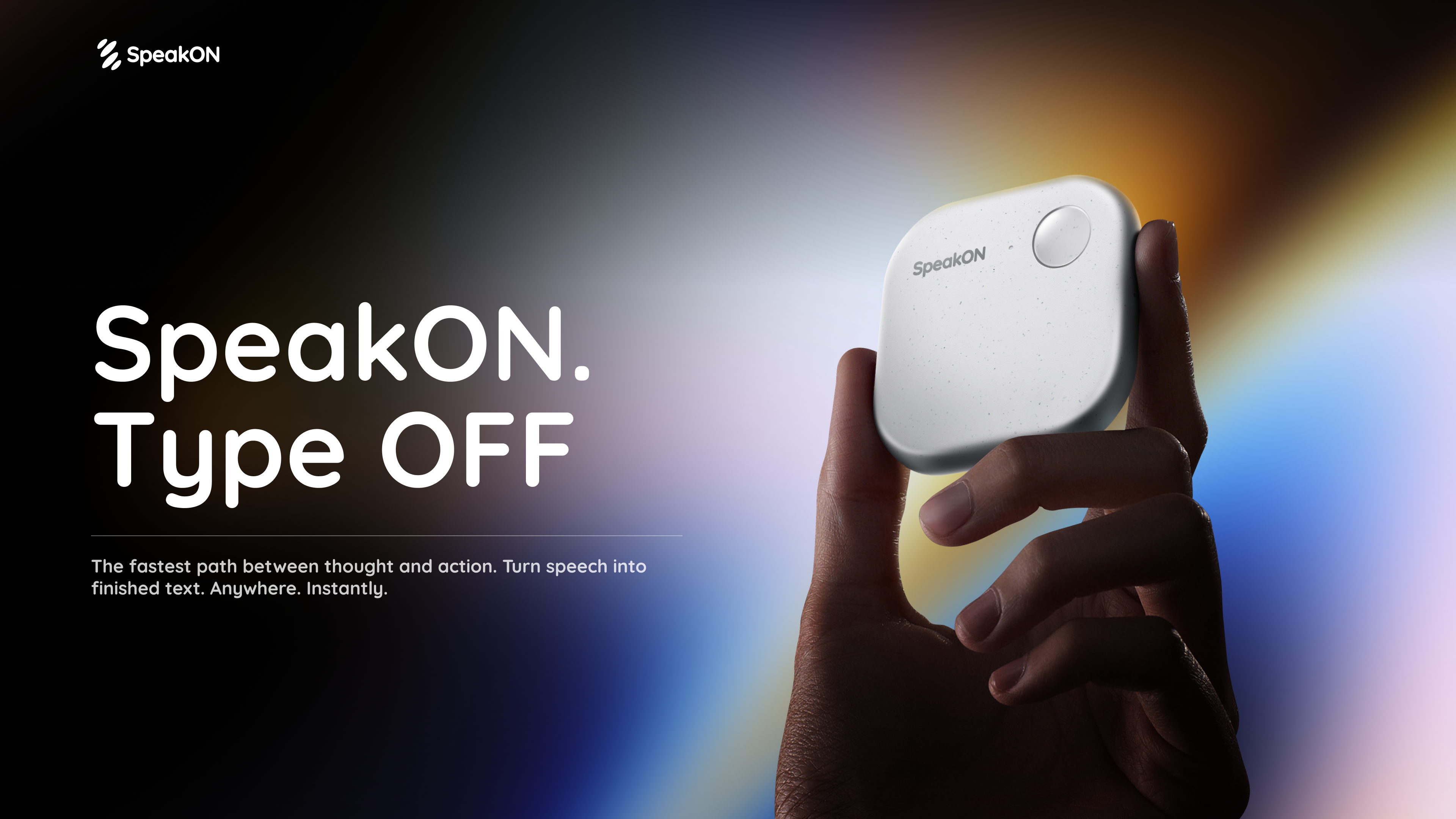
SpeakON Agent is a voice-first AI communicator that turns natural speech into real work. Rather than typing a request into an app, you speak it: the Agent understands your Notes, connects the tools you already use, and prepares Actions for you to review and confirm. The product is described on its page as a voice-first AI communicator built on a simple promise — speak naturally, and the Agent understands your intent, finds the right context, and executes the next steps you approved. SpeakON Agent pairs a SpeakON device that snaps onto your phone with the SpeakON AI Voice Keyboard app for iPhone, and it is aimed at people who want spoken thoughts to become tasks, messages, and reminders instead of staying as unstructured voice memos. The starting point for SpeakON Agent is the friction of typing. The product page frames the idea as "the last keystroke": the next workflow does not have to start with another keystroke. Creator videos featured on the page repeat the same theme in different words — ideas move faster than fingers, brains have too many tabs open, and repetitive messages get typed over and over. SpeakON's answer is to let people say what they need, review what the Agent prepares, and move it forward. Rather than replacing the tools people already use, the Agent works across the Notes they have written and the apps they have connected, so a single spoken request can become a scheduled meeting, a Slack announcement, an email draft, and a reminder. Voice input is the front door to the product. With the SpeakON hardware, you press the button, speak, and the device turns your voice into clean, ready-to-send text; creators on the page note that it tidies up messy sentences and changes the tone depending on whether you are writing an email or texting a friend. The SpeakON AI Voice Keyboard for iPhone extends the same voice-first approach to typing anywhere on the phone. Both pieces are described as a "press to speak" experience, and the page's overall message is "zero typing, just talk." For the Agent specifically, voice is how a request is handed over: one natural spoken request can contain several different actions, and the Agent is expected to make sense of all of them at once. SpeakON Agent starts with your Notes. The Agent turns your current Note into a task and can use relevant details from saved Notes and connected apps. That means the context for a request does not have to be retyped — it can come from the note you are looking at, or from earlier notes you have saved. The page illustrates this with examples: asking the Agent to book a one-hour product review with Devin in Room Berlin tomorrow at 10:30, send him the details on Slack and Gmail, and set a reminder 30 minutes before; or asking it to find customer feedback Notes from the past month and summarize the biggest issues. Notes therefore act as both the instruction and the source material the Agent works from. Connectors bring in context from the apps you already use. The page lists Gmail, Google Drive, Calendar, Slack, Reminders, Contacts, Notion, Evernote, and Obsidian, and states that more integrations are to come. In the worked example on the page, the Agent checks calendar availability, identifies Conference Room 203, locates Daniel from Marketing in Contacts, and pulls the source Note and product brief. Slack is used for the #productteam announcement, Gmail for the invitation to Daniel, and Reminders for the personal reminder to review the product brief. Because the Agent can reach into these tools, a single spoken request can be prepared across several apps rather than being copied and pasted between them. One request can contain multiple actions, and the page describes the Agent's flow in six stages. First you Request: speak naturally and give the Agent the full request. It then Understands, identifying the people, timing, and every action inside the request. It Finds Context — calendar availability, the room, Daniel's contact, and the relevant Notes. It Prepares the Task: the event, the Slack announcement, the invitation, and the reminder. You Review the email to Daniel before the Agent sends it. Finally, after you confirm, the Agent Completes the approved actions. The page's example shows four tasks identified from one request: scheduling the product discussion, notifying #productteam, emailing Daniel and adding him to the invite, and creating a reminder to review the product brief. You decide what happens next. The Agent moves things forward and checks with you when it needs your approval; you can review the details and make changes along the way. Messages stay unsent until approved, and only the actions you approved are completed. The page shows a Gmail draft waiting for review, with a voice edit option and a confirm step, before the meeting is scheduled, the team is notified, Daniel is invited, and the reminder is set. This review layer is central to how SpeakON Agent is positioned: the Agent does the preparation and the legwork, but the person speaking the request keeps control over what actually gets sent or scheduled. The page's "Agent In Action" section shows concrete scenarios. In "Move a Launch Forward," one request coordinates a launch check-in, invites Maya, posts the agenda in #launch, and sets a reminder to review the rollout checklist. In "Keep a Shipment Moving," the Agent finds the latest update on the Rotterdam shipment, summarizes the delay, drafts a customer email, notifies #operations, and sets a follow-up reminder. "Follow Up After a Showing" turns a property Note into client communication and a second viewing appointment, including a reminder to send the disclosure documents. "Prepare a Renewal Response" finds the latest renewal proposal, compares it with a previous Note, summarizes what changed, and prepares a reply. SpeakON Agent is presented for iPhone users who handle coordination, communication, and follow-up as part of their day — the scenarios on the page involve product launches, shipping and operations, real estate showings, and sales renewals. The experience runs on iOS through the SpeakON AI Voice Keyboard app, alongside the SpeakON device that snaps onto your phone. The page also references a Creator Challenge in which people follow SpeakON on social media, join its Discord community, and take part for a chance to win a SpeakON device or AI Agent credits. Media logos displayed on the page include USA Today, MakeUseOf, Tech Times, MarkTechPost, Gadget Flow, iLounge, Stuff, and How-To Geek. Taken together, SpeakON Agent is best understood as a voice-first layer over the work you already do on your phone. You speak a request in plain language; the Agent reads your Notes, gathers context from connected apps such as Calendar, Slack, Gmail, and Reminders, and prepares the resulting actions as drafts for your review. Nothing is sent until you approve it, and you can adjust details with a voice edit before confirming. The value proposition the page repeats is straightforward: less typing, fewer repetitive messages, and a way for ideas and instructions to move from speech to completed work without disappearing along the way.

Raindance Maker is an AI video generator that turns two separate photos into a Raindance AI video set on a seaside pier. You upload one photo for each of the template's two roles, and the tool recasts the viral pier performance with those people. Photo 1 replaces the person seated at the start, while Photo 2 replaces the person who walks in and takes the close-ups. The template supplies the scene, camera moves and performance, so no filming or prompt writing is needed. You choose the duration, the model and the resolution, check the exact credit cost, and then download a finished 4:3 MP4 that includes the reference soundtrack. The product addresses a specific problem: the Raindance AI trend places two people into a sunny seaside pier performance set to "Raindance" by Dave featuring Tems, but recreating that scene normally requires filming yourself or writing prompts for a general video model. According to the site, the pier clips are fan-made AI videos, not footage from the official music video, and "Raindance" itself is not an AI song. Raindance Maker uses a prepared two-person reference, so you can make your version from separate photos without filming the scene. The site also notes it is an independent video tool with no affiliation to the artists or the creators of the reference clip. The core workflow is built around two clearly defined roles. Photo 1 replaces the person seated at the beginning of the clip, and Photo 2 replaces the person who walks in and appears in most of the close-ups. Those roles stay tied to the photos when the camera cuts or the performers change position. The generator labels each role beside the preview and offers a swap control if you want to exchange the photos. You upload one clear person per image in JPG, PNG or WebP format, up to 20 MB each, with a shorter edge of at least 300 px and an image ratio between 0.4 and 2.5. The site recommends a photo with visible eyes, hair and facial detail for the close-up role, and a waist-up or full-body photo to give more information about clothing and proportions, while avoiding faces hidden by hands, dark sunglasses or heavy filters. Settings give you control over length, model and resolution. Available durations are 5, 10, 15 or 30 seconds, with 30 seconds limited to Seedance 2.5. Two models are offered: Seedance 2.5, described as best quality, which supports 480p (640 × 480), 720p (960 × 720) and 1080p (1440 × 1080) and up to 30 seconds; and MiniMax H3, which renders 720p and up to 15 seconds for fewer credits. The default is Seedance 2.5 at 10 seconds and 720p. The generator updates the credit total before you submit, and uploading a photo or changing a setting does not start a paid generation. The 30-second template holds the reference's final frame for about two seconds, and every video is one generation with nothing stitched together. Sound is handled automatically. The finished video includes the soundtrack from the selected reference clip, so you do not need to find an audio file or line it up in an editor. The site is explicit that the download includes the soundtrack from the selected template reference and does not generate a new song or clone your voice. Mouth movement can still differ from the reference, and faces, hair, hands, clothing and lip sync can vary, especially across cuts, so the site advises listening to the result and reviewing both people through the whole clip before sharing. Beyond the pier template, the site mentions more trend templates on the same site, including Hotel Lobby, Alors on Danse, Smalltown Boy and APT. Raindance Maker also publishes supporting guides covering the Raindance AI trend, a step-by-step how-to with photo tips, models, posting to TikTok and troubleshooting, a page on whether Raindance AI is free, and an explainer on the Raindance song by Dave and Tems. Example remakes shown on the page include Shrek & Lord Farquaad, Gru & Vector, and Ronald McDonald & Colonel Sanders, each running 29 seconds with the original soundtrack, while the generator itself offers 5, 10, 15 or 30 seconds. In terms of approach, Raindance Maker relies on a prepared reference rather than free-form prompting. The site states that the template already contains the role instructions and reference performance, so users choose two photos, review the settings and generate. A reference clip supplies the scene, camera moves and soundtrack for the template; the page preview shows the first 10 seconds, and the generator can preview your selected duration. Your two photos replace its performers, and the site notes the preview is not a result made from your photos. Exact likeness is not guaranteed, and the generator updates the credit total before submission so costs are visible ahead of time. Benefits described on the site center on speed and simplicity: the template supplies the scene and performance, so no filming or prompt writing is needed, and the soundtrack is included so there is no separate audio step. The site emphasizes seeing credits before generating, with the total depending on duration, model and resolution. If a generation task fails, its charged credits are returned. Free accounts receive a moving raindancemaker.com watermark, and any purchase unlocks the saved clean original, including videos you have already made. Uploaded photos are used to make your video and are not added to the public examples on the page, and generation history and downloads require an account. Use cases described include a duet with your partner: using separate photos to put both of you into the same seaside scene, even if the photos were taken in different places. Another is a clip for your best friend, where you choose who gets the seated role and who gets the close-ups and then make a video to send to each other. The site also describes a new take on the same template by trying a different pair of authorized photos while keeping the reference performance, with the advice to review each take rather than assuming the same model will reproduce every detail. It further suggests shooting settings and framing similar to a vertical post and warns to avoid cropping out a performer when preparing a vertical post. Pricing uses site credits shared with the other tools on the site, and the total is shown before generation. A 5-second video starts at 49 credits. For a 10-second video, Seedance 2.5 costs 97 credits at 480p, 219 credits at 720p and 388 credits at 1080p; MiniMax H3 costs 97 credits at 720p. Three plans are listed: Starter at $9/mo with 240 credits per month (about 2 ten-second MiniMax H3 720p videos) for trying the trend; Pro at $29/mo with 780 credits per month (about 8 such videos) for regular creators, adding all lengths up to 15 seconds and priority support; and Enterprise at $99/mo with 2,650 credits per month (about 27 such videos) for agencies and pages, including dedicated support and custom integrations. All plans include watermark-free videos, including ones already made, and refunded failed videos. Eligible new accounts currently receive 5 credits, which may not cover a video in every model, and signup credits expire after 7 days. The tool runs in the browser, including on a phone, with no separate editing app required. In summary, Raindance Maker packages the viral Raindance AI pier trend into a guided two-photo workflow: assign the seated and close-up roles, pick duration, model and resolution, review the credit cost, and download a 4:3 MP4 with the reference soundtrack. Its primary value is letting people join the trend from photos they already have, without filming the scene or writing prompts.

Gemini 4 Carbon is Google's next frontier model, described by the company as its strongest model with state-of-the-art cybersecurity and long horizon capabilities. Announced on October 28, 2026 by Koray Kavukcuoglu, SVP of Google DeepMind and Chief AI Architect at Google, Carbon builds on Gemini 4 Argon, which launched only two weeks earlier, and is designed to take on much harder, long-horizon engineering problems through sustained agentic workflows. The model is aimed first at cyber defenders, and then at developers, businesses, and consumers as access is phased in through Google's product surfaces. Its stated purpose is to deliver meaningful leaps in software engineering and cybersecurity defense without compromising on safety or reliability, and it ranks #1 on the recently updated v5.0 of the Artificial Analysis Intelligence Index at 59. The launch reflects a deliberate effort to push the frontier forward while keeping safeguards in step. Google says its researchers and models are working hand in hand to advance capabilities faster while strengthening safeguards in tandem, and that the rollout is intentionally cautious: the company is engaged in the U.S. government's voluntary process for pre-release model testing, is starting by making Carbon available to a subset of cyber defenders, and will gradually phase access to additional trusted partners through the Fairwind Program while gathering feedback and iterating on guardrails. The underlying problem Carbon targets is that modern engineering and security work is not a single prompt. Root-causing and patching subtle bugs across large codebases and low-level systems, finding real vulnerabilities buried in real-world software, deciding which findings are actually exploitable, and fixing root causes all require sustained, multi-step effort. Carbon's headline capability is cybersecurity defense across the full lifecycle of vulnerability detection, validation, and remediation. On external benchmarks evaluated without guardrails, it achieves a state-of-the-art 88.2% on SEC-bench Pro for autonomously uncovering complex flaws buried in real-world software, sets a new state-of-the-art 54.8% on the ExploitGym exploitation benchmark that defenders use to check which vulnerabilities are exploitable and therefore worth remediating first, and reaches 71.0% on Collinear's CWE-bench for turning validated findings directly into working code fixes at the root cause. Google also reports internal benchmarks showing more than a 2x uplift in success rate for generating secure code over Argon, a Chrome team report that Carbon performed more than 10X better than another lab's large frontier model when generating high quality patches, and Wiz observing Carbon leading on benchmarks for web penetration testing, a core capability for Wiz's Scan for Good initiative. Beyond security, Carbon shows significant gains across coding and agentic tasks, as well as scientific tasks, full-stack web development, and multimodal understanding, areas Google focused on based on user feedback. With improved quality of output and artifacts in web development, Carbon jumps +89 elo points to land at #4 with a score of 1768 on WebDev Arena. Internally, teams have seen Carbon run for days to persist through dead ends and tackle complex, multi-step engineering tasks such as root-causing and patching subtle bugs across large codebases and low-level systems. This persistence is the practical expression of the long horizon claim: the model is built to keep working through a multi-step plan rather than stopping at the first obstacle. Safety and security behavior is another explicit feature group. Gemini 4 Carbon builds on the same multi-layered safety and security stack as Argon, combining model training, real-time misuse defenses, prompt-injection resilience, and chain-of-thought monitoring, and Google trained Carbon to respond to complex or high-pressure tasks in the right way. The reported results are concrete: successful cheating on Terminal-Bench 4.0 dropped to 0.0% with attempts to cheat falling to 0.4% while overall accuracy improved; high-severity misalignment alerts in live coding environments with internal teams dropped by almost 80%; unsupported claims were cut by approximately 2x over Argon; overreach fell by 26% and under-service by 29%; and on Gray Swan's Indirect Prompt Injection Benchmark, Carbon achieves a 0.0% attack success rate, resisting every evaluated attack attempt, compared with Argon's previously low 0.7%. Carbon's approach combines capability training with behavioral shaping. Rather than guessing or forcing a path forward when instructions are ambiguous, Carbon retrieves the relevant sources and surfaces discrepancies to the user before acting. Instead of fabricating or hedging around missing evidence, it puts methodological caveats directly into the deliverable or withholds blocked actions with a clear list of what remains required. And it is trained to follow through on multi-step plans end-to-end while respecting project constraints and staying strictly within scope, which is what produces the simultaneous reduction in overreach and under-service. The model is being matured in real environments, with feedback from the initial cohort of cyber defenders feeding into guardrail iteration before broader release. For users, the stated outcomes are more reliable execution of long, multi-step work; secure code generation at materially higher success rates; faster triage of vulnerabilities because exploitability can be checked rather than assumed; patches that address root causes instead of symptoms; and a collaborative experience in which the model raises discrepancies rather than silently choosing a path. In security terms, the benefit is coverage across detection, validation, and remediation rather than strength at only one stage of the defense lifecycle. Concrete scenarios described in the announcement include autonomously uncovering complex flaws buried in real-world software; validating risk through exploitation so defenders can prioritize which vulnerabilities to remediate first or at all; converting validated findings into working code fixes; root-causing and patching subtle bugs across large codebases and low-level systems over runs that can last for days; generating secure code and high quality patches in live engineering environments; and web penetration testing, the capability Wiz highlights in its Scan for Good initiative. Initial access is limited to a subset of cyber defenders, with additional trusted partners phased in through the Fairwind Program. Google says Carbon will come to developers, businesses, and consumers via its product surfaces as soon as possible. Gemini 4 Carbon launches at the same introductory price as Argon: $2 per million input tokens and $10 per million output tokens, with cached input tokens priced at 95% off the input token price. After the introductory period expires, $4 per 1M input tokens and $20 per 1M output tokens will apply. Taken together, Gemini 4 Carbon is positioned as a frontier model whose differentiators are sustained long-horizon execution, state-of-the-art cybersecurity performance across detection, validation, and remediation, and measurable improvements in alignment behavior such as honesty, scope discipline, and prompt-injection resistance, released deliberately to cyber defenders first before reaching developers, businesses, and consumers.
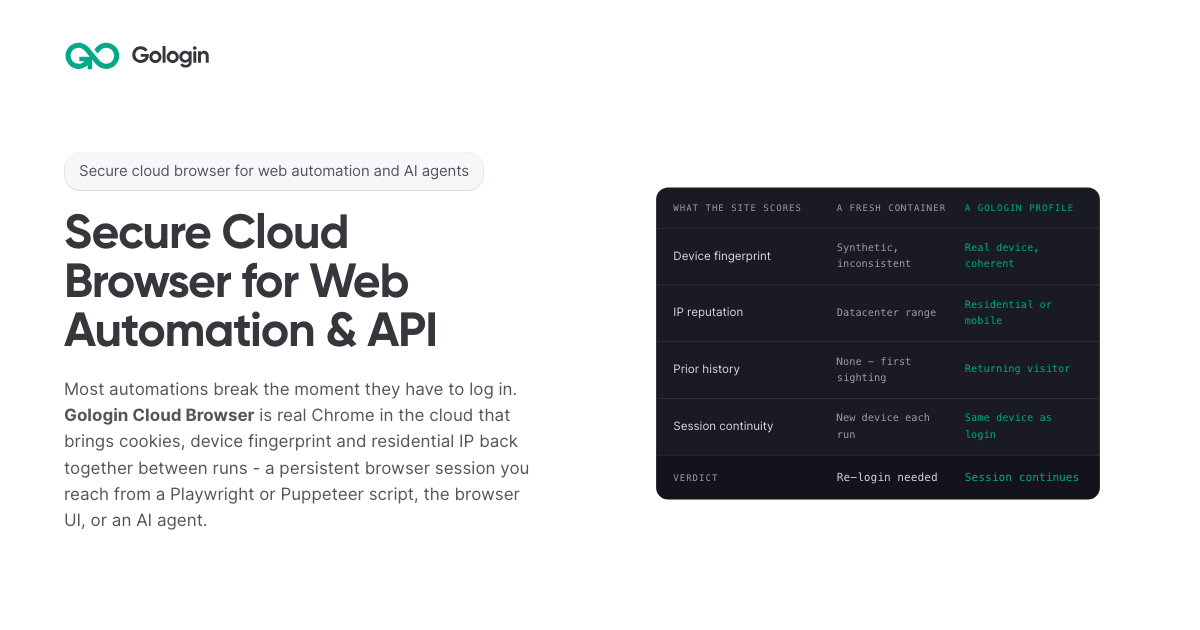
Gologin Cloud Browser delivers real Chromium browsers running in the cloud for AI agents, scrapers and web automation. Instead of launching a fresh browser on every run, developers connect to a persistent browser session that keeps its cookies, device fingerprint and IP address between runs. The browser can be driven from a Playwright or Puppeteer script over a WebSocket connection, from the browser UI by hand, or by an AI agent. It is aimed at developers and teams building scrapers, agents, internal tools and recurring workflows that need to stay signed in to real websites. The product is part of the wider Gologin stack, alongside Web Unlocker, Gologin Browser, Cloud Android, Gologin Proxies and the MCP server. The product addresses a specific failure mode: most automations break the moment they have to log in. According to the site, getting behind a login once is easy, but still being there next month is the hard part. Cookies do not keep a session alive on their own, because sites tie a session to the cookie, the device and the network it came from. A browser container that did not exist three seconds ago has no history, so every run starts as a first visit. Restoring only the cookies means the session arrives on a device the site has never seen, and the site responds by asking for a new login, a code or a check. The page's comparison illustrates this: a fresh container shows a synthetic and inconsistent device fingerprint, a datacenter IP range, no prior history, a new device on each run, and a verdict of re-login needed. Gologin Cloud Browser solves that by reconstructing three things together. The first is the session state: cookies, local storage and everything else the site saved in the browser. The second is the same device: the canvas, WebGL, audio and hardware profile that was present at login. The third is the same network: the residential or mobile IP the account signed in from. Combined, these three make the browser look like a returning user rather than a first-time visitor. The page frames the principle simply: cookies don't keep you logged in, identity does. A Gologin profile brings back all three components, and the FAQ notes that a session stays logged in as long as the site's own login lasts, because what ends a login is the site expiring it, not the platform. Connecting an existing script takes one line. Developers sign up with Google, copy an API key from the dashboard, and create a profile either with one click in the dashboard or with one API call; the profile keeps the device, the IP and the login. Then they install the library (npm install playwright-core, npm install puppeteer-core, or pip install playwright) and replace the script's launch() call with a connect line pointing at wss://cloudbrowser.gologin.com/connect?token=...&profile=.... The page shows complete, working Playwright, Puppeteer and Python Playwright examples that scrape quotes.toscrape.com, using chromium.connectOverCDP or puppeteer.connect with a browser WebSocket endpoint. According to the site, every line below the connect call stays exactly as it was, so selectors, assertions, waits and CI configuration are unchanged and the browser simply runs in the cloud. The browser comes with built-in stealth and anti-bot protection, and it runs on residential and mobile IPs from Gologin Proxies, which can be added to a profile in one API call, or on the user's own proxy. Profiles are isolated from one another: each has its own cookies, its own fingerprint and its own IP, and nothing is shared between them, so a problem in one profile does not reach the others. On the security side, the site states that pages load on Gologin's servers rather than the user's machine, so the target site never reaches the user's device or home IP. The cloud infrastructure is described as fully serverless and able to scale to thousands of browsers, and the company behind it cites seven years of expertise, SOC 2 Type II compliance and a 99.9% SLA. Every session includes a Live View link. Users can open it to watch the script work in real time, or take over by hand to complete a two-factor authentication step or fill in a tricky form, then hand the session back to the script. This matters for the failure case too: if a run fails halfway through, the profile keeps what the run built, meaning the cookies, the device and the IP, so starting the next run in the same profile picks up signed in rather than from the login page, and Live View can show where it stopped. The comparison table also states that no limit applies to session length on the first paid plan, versus 6 hours on Browserbase, 4 hours on Browser Use and 15 minutes on Steel as listed on the page. For AI agents, a Gologin MCP server gives Claude direct control of profiles, proxies and cloud sessions. Users install it with a single command (claude mcp add gologin -e API_TOKEN=... -- npx gologin-mcp) and then describe the job in natural language. The page's example prompt asks for three profiles on US residential IPs and a script that logs into each seller account and pulls last month's invoices; the server creates the three profiles with one US residential IP each, writes invoices.py against the Cloud Browser API, and saves the profiles so the next run starts already logged in. The site describes this as describing the job and letting the tool set up the accounts and write the automation, and it links to a dedicated Browser for AI agents page and a dedicated MCP server page. Pricing is built around browser hours rather than requests. The free tier requires no card and provides 3 runs of up to 15 minutes each on 1 parallel session. Professional costs $4.50 per month for individual developers with 50 browser hours, 1 parallel session, unlimited runs and $0.09 per extra hour. Business costs $8 per month with 100 browser hours, 2 parallel sessions and $0.08 per extra hour. Enterprise costs $14 per month with 200 browser hours, 3 parallel sessions and $0.07 per extra hour. Custom plans start from 4 parallel sessions and include a dedicated account manager, a premium SLA and tailored onboarding. Additional parallel sessions cost $2 per month each on any plan, and proxy traffic beyond the allowance is $1/GB. The site emphasizes that there are no per-request fees, so a retry does not cost twice, and compares its $1/GB residential traffic with published rates of $5/GB for Browser Use, $6/GB for Steel, $8/GB for Anchor and $10/GB for Browserbase. The page maps six use cases. Playwright and Puppeteer users connect over CDP with one line and keep the same selectors, tests and CI while the browser runs in the cloud. Dynamic web scraping handles feeds, load-more buttons and JavaScript-built pages, loading them the way a person's browser would. Web automation that stays logged in targets portals and dashboards that are signed into once and then run on a schedule. AI agents get their own fingerprint, cookies and IP per profile so they can do real work. The Cloud Browser UI covers live sessions where a person watches automation and steps in for 2FA. A scraping browser gives Puppeteer or Playwright real Chromium with its own device fingerprint and a residential IP. The site distinguishes this from Web Unlocker, which is recommended for public pages without a session and bills only on success. The product is positioned for developers, growing teams and organizations running critical operations, as reflected in the Professional, Business, Enterprise and Custom plan tiers. It fits into a broader Gologin ecosystem of one account, one proxy network and one ecosystem: Cloud Browser for sessions that stay logged in, Web Unlocker for sending a URL and getting the rendered page, Gologin Browser for isolated desktop profiles driven by hand, Cloud Android for platforms that only trust a phone, Gologin Proxies for residential, mobile, datacenter and ISP IPs, and MCP and AI Skills for describing a job to Claude and getting a working tool. Support resources include API documentation, a getting started guide and dedicated pages for Playwright and Puppeteer, dynamic scraping, web automation, AI agents, the Cloud Browser UI and the scraping browser. The core promise is simple and repeated throughout the page: log in once, stay logged in. By keeping session state, device fingerprint and residential or mobile IP together across runs, Gologin Cloud Browser lets scrapers, agents, internal tools and daily workflows behave like returning users instead of new visitors, while a one-line connection keeps existing Playwright and Puppeteer code intact. Free to start with no card and residential IPs included, it gives developers a serverless, stealth-capable browser fleet that can scale from a single test run to thousands of browsers.
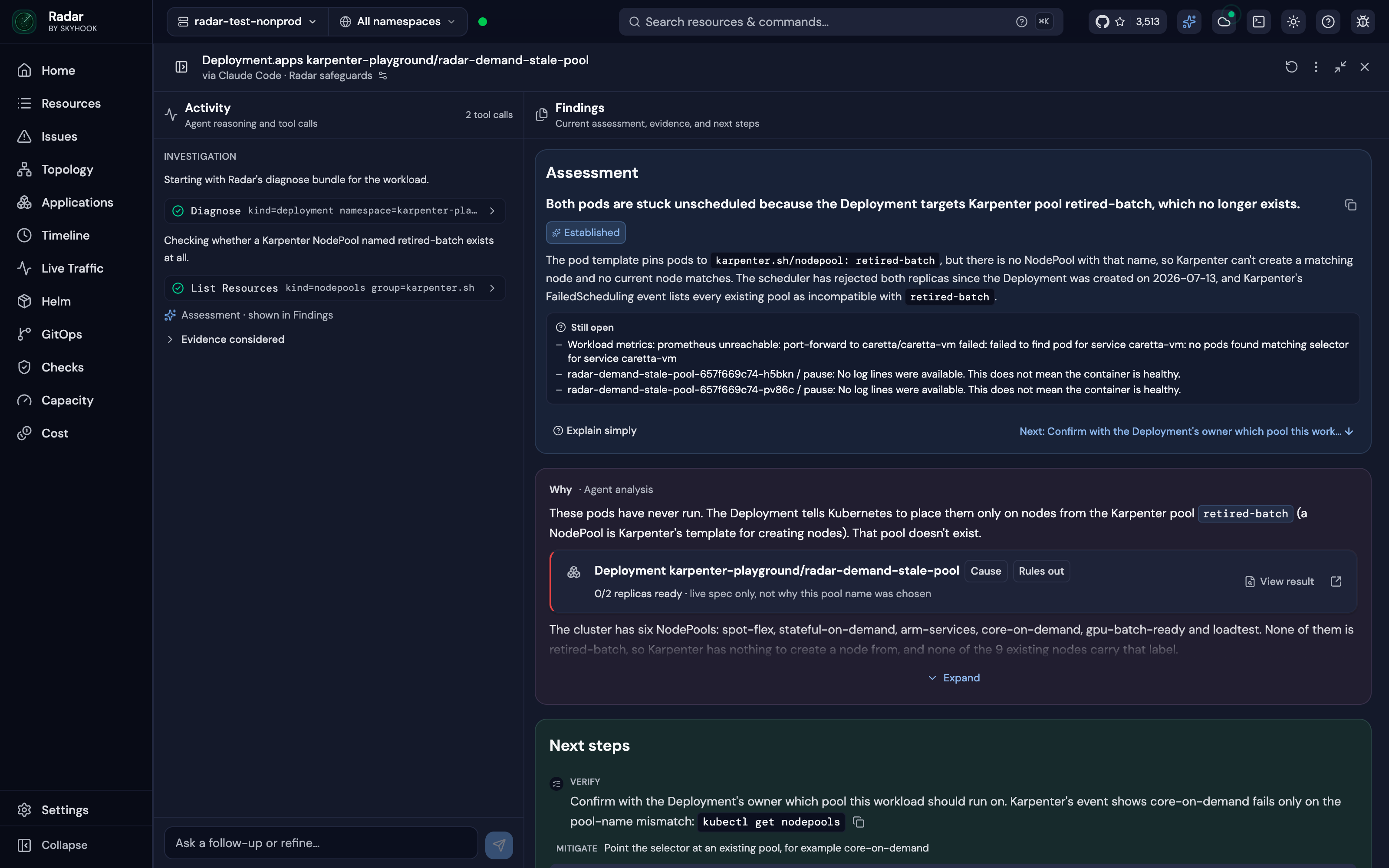
Radar is an open-source Kubernetes UI and MCP server that lets the AI agent a team already uses investigate broken workloads. From Radar, a user clicks Investigate on an issue, and Radar runs Claude Code, Codex, Cursor or OpenCode read-only on the user's machine; it then lays out the findings, the evidence and a fix the user can approve. The same investigation can be started from an MCP client, and Radar Cloud runs the same setup when an alert fires. Its main purpose is to give an existing agent the cluster context it needs to find the root cause of a Kubernetes failure. The result is a root cause view that combines an agent's reasoning with cluster data the user can inspect. The product addresses a specific gap: an agent knows Kubernetes, but it does not know your cluster. A generic chat can return an answer one line at a time without showing the changes, topology, logs and ownership relationships behind it. Radar is built to supply that context before and during an investigation, so the agent starts from a cluster model that is already joined, time-indexed and checked for failures. This matters because an investigation is only as good as the cluster context the agent reads, and Radar aims to make that context available without asking a user to paste prompts or assemble evidence manually. Radar's Issues list ranks what is broken across the cluster, and an Investigate button sits on every issue. There is no prompt to write and no context to paste. Past runs stay under Investigations, each with its own link, and the UI investigations are read-only because write tools are not loaded. After an investigation, the answer arrives with its evidence: the log lines, events, metric charts and resources the agent relied on, drawn by Radar from what it recorded. One click opens the real object, and Radar states how sure the finding is as Established, Likely or Still open. A follow-up question continues the same investigation from where it stopped, and an approved fix is checked to see whether it worked. This arrangement keeps the history of an investigation attached to the issue it concerns and makes the result easy to share or revisit. The open-source path lets an agent work over MCP. Claude Code, Codex, Cursor, GitHub Copilot, OpenCode or any MCP client can ask Radar from a terminal or IDE, and Radar's MCP server returns resources with their relationships and recent changes. The second path runs an agent CLI from Radar itself: clicking Investigate on anything broken runs Claude Code, Codex, Cursor or OpenCode read-only on the machine and lays out the findings, evidence and a fix to approve. Radar detects which supported agents are on the PATH. The third path is Radar Cloud, which brings its own agent: it runs automatically when an alert fires or on demand, sends the root cause with the alert, evidence included, to Slack or a webhook, and requires nothing to be installed on anyone's laptop. The speed comes from the cluster model the agent starts with. Radar's Issues engine ranks failures before anyone asks, and in the benchmark it was the agent's first call on all 50 faults. Spec changes and events sit on a timeline, so the question of what changed before something broke is one call. Resources come back joined: owners, topology and error-filtered logs are correlated and secret-redacted in one response, so the agent begins with connections already made. Radar keeps, for every cluster, the resources joined into a graph, every change on a timeline and detectors that connect a symptom to its likely cause. The topology graph lays out every resource and connection using ELK.js and updates via SSE, and the same app includes Helm and GitOps context for checking an answer. Because those pieces are already assembled, the agent does not spend its early calls reconstructing ownership or collecting logs; it can move into diagnosis. Radar also adds guardrails around investigations. In Radar's UI and Radar Cloud, investigations are read-only: write tools are not loaded. Over MCP, the agent's write access is the user's choice within their RBAC. An approved fix runs alone in its own session, and changes to resources managed by Argo CD, Flux or Helm ask for explicit acknowledgment because the next sync or Helm upgrade would revert them. This separation keeps an investigation from turning into an uncontrolled change to the cluster, and it gives the user a clear point to review before anything is applied. With Radar OSS, investigations run on the user's machine and use the user's own model account; what the agent reads goes to the user's model provider, not to Radar. In Radar Cloud, each investigation runs as a sandboxed job with read-only access, and an owner accepts that once for the organization. The product is backed by benchmarks on live faults. In a benchmark of 50 live Kubernetes faults across six AI SRE tools, Claude Code on Radar's tools was the most accurate of the six, clearly ahead of HolmesGPT, OpenSRE, kagent and AWS DevOps Agent and slightly ahead of kubectl-ai. It answered in an average of 79 seconds at $0.27 a fault, the fastest and cheapest of the six, and Radar was 1.6–3.6× faster and 30–85% cheaper than the AI SRE tools tested. On faults that announce themselves, all six products scored between 24 and 27 of 28; on the 14 faults where every pod reports Ready, Radar scored 12. These results support the claim that an existing agent with Radar's context can outperform dedicated AI SRE tools. The benchmark page provides downloadable results, and Radar links to separate benchmarks for Kubernetes MCP servers and MCP versus kubectl. Concrete workflows follow from these capabilities. A user can investigate a Pod in CrashLoopBackOff and see that a ConfigMap lost DB_URL a minute before the crash loop. For a Deployment whose pods cannot be scheduled, the agent can check resources and changes, establish that the pods target a Karpenter node pool that no longer exists, and show the Deployment as the cause with next steps. When an alert fires, Radar Cloud investigates it and posts the finding to Slack or a webhook. Developers can also run investigations from Claude Code, Codex, Cursor or another MCP client in the terminal or IDE, then review the timeline, topology, logs, Helm history and GitOps state to verify the agent's story. Evidence cards are tagged and linked to the objects they describe, so the user can move from a claim to the underlying resource. Radar is distributed as an open-source, single binary under Apache 2.0 with no account for local use, and it can be run on a laptop or in a cluster. Installation options include Homebrew, a desktop app, in-cluster use, Krew, Scoop, .rpm and direct download. The quick install command shown is curl -fsSL https://get.radarhq.io | sh && kubectl radar. Radar Cloud is available free for three clusters, and its pricing page is linked for further plans. The product connects to agents including Claude Code, Codex, Cursor, GitHub Copilot, OpenCode and Google Antigravity over MCP; from Radar's UI it supports Claude Code, Codex, Cursor and OpenCode, while Radar Cloud brings its own agent. The same binary also includes Issues and root cause, Applications view, GitOps for Argo and Flux, and a live topology graph. Radar's primary value is that it turns an existing AI agent into a Kubernetes investigator by giving it a prepared cluster model, evidence and read-only safety instead of asking teams to buy a separate AI SRE. It supports investigation from an MCP client, from Radar's UI with a local agent CLI, or automatically through Radar Cloud, and it keeps the cluster context around the answer so users can check the root cause themselves.
Notch Metrics is a native macOS app that puts your revenue, MRR and subscriber numbers into the MacBook notch. Instead of opening a billing dashboard or a spreadsheet, you look up at the camera housing and the figure is already there: the notch expands over whatever you are doing, shows the widgets you have arranged, and folds back when you leave. The product is built for people who run or build a software business and want the handful of numbers they check most often to sit permanently at the top of their screen: builders, founders and marketing teams who watch revenue, subscriptions and traffic through the day. Its stated purpose is simple: every number you check, in the notch. The problem it addresses is the distance between a question and an answer. Payment providers and analytics platforms each ship their own dashboard, so the numbers a founder checks most often sit behind separate logins and separate pages, and reaching them means leaving whatever you are doing. Notch Metrics takes the opposite approach and moves the figure to the one place on a MacBook that is always in view and never in the way. The site frames the payoff directly: you see who just paid without opening a dashboard, and you look up rather than navigating away. Because the notch is a physical part of the display that cannot be hidden behind another window, the number stays visible while you work in Finder, an editor, or anything else. The headline capability is every number at once. Revenue, subscriber counts and today's takings sit side by side in the expanded notch, and the app states that nine widgets can be open at a glance while the island still reads in a second. Each widget carries its own comparison: MRR shown with a +4.2% delta against last month, seven-day revenue with +11% against last week, active subscriptions with a week-over-week count. A glance therefore tells you not just the figure but the direction it is heading. Notch Metrics also shows lists, not only numbers: a recent-payments feed sits beside the headline figures, listing entries such as a Pro yearly plan or a Pro monthly plan, so the underlying events are visible alongside the totals. Widgets are arranged inside the notch itself. There are four tile sizes, from a single square up to the full width, and you drag to arrange them and resize them in place in the notch. The notch opens on hover: rest the pointer on the camera housing and it expands over whatever you are doing, and when you leave it folds back to the shape it had. Because the interaction is hover-driven, checking a number costs a fraction of a second. The app is described as quiet by default: a small native app written in Swift, with no dock icon, no window and no menu bar clutter while you work, and light on memory and on battery. Notch Metrics lists sixteen sources live. On the payments side that includes Stripe, Polar, Paddle, Dodo Payments, Lemon Squeezy, Shopify and RevenueCat; on the analytics and product side, Plausible, Google Analytics, Google Search Console, PostHog, Mixpanel and Amplitude; and alongside them GitHub, YouTube, OpenAI and Claude. Each source reports what makes sense for it: Stripe reports MRR and subscribers, Polar reports today's takings, Dodo Payments reports seven-day revenue and orders, RevenueCat reports trials and active subscriptions, GitHub reports stars and open issues. Payments, analytics and code therefore sit side by side on the same strip of glass. Connectors marked as on the way arrive without an app update, and you connect a source once on the web and every Mac you own picks it up. Provider keys are handled with unusual care for a Mac utility. A key is encrypted the moment you paste it, with a key of its own, and it stays on the server where no app on your Mac can read it. Your account, the integration and the provider are bound into the encryption, so a row copied anywhere else decrypts to nothing, and removing an integration deletes its encrypted key with it, leaving no second copy to clean up. Every plan also includes custom metrics authored by your own coding agent over MCP, which is the approach behind the product's Product Hunt tagline about using Claude Code to build analytics widgets for your notch. Under the hood the model is deliberately thin on the client. Notch Metrics' servers fetch and normalise each metric on a schedule and hand your Mac a number; the Mac receives a figure rather than a credential. That is why a subscription is per account rather than per machine: sign in on another Mac and your connections and layout are already there, with your widget arrangement synced between them. It is also why new connectors can appear without an app update, because the fetching work happens server-side. The macOS app itself is a small native Swift binary for Apple silicon, version 0.4.2, requiring macOS 14 or later, with signed and notarised updates for as long as you subscribe. The benefit the product claims is attention. The numbers you check most often are already on screen, so the check costs a glance instead of a context switch, and nothing has to be opened, closed or rearranged afterwards. Because the notch is quiet by default with no dock icon, no window and no menu bar clutter, the app adds visibility without adding desktop clutter, which is what makes it practical to leave running all day. Side-by-side placement means a founder can read revenue next to GitHub activity or traffic without reconciling two browser tabs, and the deltas attached to each widget turn a raw figure into a trend you can act on. Signing in on a second Mac restores the same connections and layout, so the view follows you between machines. The site names its audiences directly as builders, founders and marketing. A founder can keep MRR, subscriber count and a recent-payments feed in the notch and see the direction of the business each time they look up. An indie developer selling through several providers can place Stripe, Polar, Paddle, Dodo Payments and Lemon Squeezy widgets next to each other instead of visiting five dashboards. A builder can watch GitHub stars and open issues beside revenue. A marketer can keep Plausible, Google Analytics, PostHog or Google Search Console in the same strip as the money numbers. Teams that want a figure nobody ships can author a custom metric with their own coding agent over MCP. Notch Metrics is a paid macOS app with no free tier; the trial exists because each metric is fetched and normalised by the company's servers on a schedule, which costs money per account. The seven-day trial requires no card, and when it ends widgets stop updating but nothing is deleted. Monthly is $9 per month, cancel whenever; yearly is listed at $108 reduced to $49 per year, which works out at $4.08 a month billed once. Every plan includes every connector with no per-integration charge, as many widgets as fit in the notch and in list view, custom metrics over MCP, every Mac you sign in to with layout synced, and signed notarised updates while subscribed. Prices are in USD, tax may apply, and checkout and subscriptions run through Dodo Payments. It requires Apple silicon and macOS 14 or later. Notch Metrics makes a narrow promise and keeps it: put the numbers you check constantly in the one place you always look. By combining sixteen live sources, comparison deltas, payment lists, resizable widgets and hover-to-open behaviour in a quiet native Swift app with server-side encrypted keys, it turns a glance into a status check rather than a dashboard visit.

Genie 4 is Google DeepMind's most realistic and interactive world model yet, described by the team as a new generation of world simulation. Rather than producing a finished video clip, it builds a world that you can walk through with your keyboard and steer with text while it runs. Text and image prompts generate photorealistic environments, and natural language lets you change those environments live: describe landscapes and events, move the camera, add new characters, or change the weather, then see what happens next. It is positioned for creators, game developers, and AI researchers who want to explore what interactive generated worlds can do, and it is currently offered as a research preview with an open waitlist. Genie 4 addresses a gap that becomes obvious once you compare it with ordinary video generation. A video generator hands you a finished clip: you write a prompt, you wait, and you receive a fixed piece of footage that plays the same way every time. Genie 4 instead builds a world you walk through and steer as it runs, which turns generation into something you can explore and revise rather than something you simply watch. Keeping such a world believable while it is being changed is the hard part. Appearance and behavior have to stay anchored in reality, and the simulation has to hold together from one moment to the next as prompts arrive. Genie 4 is presented as a response to both of those challenges, combining realism with the coherence and continuity a live, interactive world demands. The headline capability is shaping worlds in real time with natural language. You create and change worlds live by describing them: landscapes and events, camera moves, new characters, or a change in the weather. Each instruction is applied while the world is running, so the result is visible immediately as the scene continues to unfold around you. Because the interaction is conversational rather than a one-shot prompt field, you can iterate in the moment: set something in motion, watch how it plays out, then adjust it again. The page pairs this live control with keyboard-driven navigation, so you can move through the generated world yourself instead of only watching a rendered clip. For anyone used to waiting on a batch render, the shift is significant: direction happens continuously, while the simulation is alive and responding. Genie 4 also generates realistic interactive environments rather than static backdrops. In the worlds it produces, objects collide, water flows, and trees sway in the wind. Generated characters do not merely appear; they move and behave naturally within the scene. Those behaviors are what make a world feel inhabitable rather than painted. When you add a character or set an event in motion, the environment responds in ways that read as physical: things bump into each other, liquid moves as liquid, foliage reacts to air. This is the difference between a world you can look at and a world you can test, poke, and move through. It is also what makes the output useful for anyone trying to understand how a scene will behave, not just how it will look in a single frame. Beyond the visuals, Genie 4 generates native audio and live dialogue, so the worlds it builds carry sound as well as imagery, and characters can speak within the simulation as it runs. The model incorporates and builds on capabilities from the Gemini family. Gemini Omni anchors simulations in real-world appearance and behavior, which is how the worlds stay grounded in believable materials and motion. Other Gemini models provide the complex reasoning needed to help maintain a simulation's coherence and continuity over time. That division of labor matters for an interactive world: realism and consistency are separate problems, and both have to be solved simultaneously while a user is actively changing the scene. Bringing native audio and live dialogue into the same system extends that coherence past the visual layer and into how a world sounds and how its characters communicate. Taken together, the workflow Genie 4 describes is simple on the surface and technically demanding underneath. You start from a text prompt or an image prompt, and the model generates a photorealistic world. You then walk through that world with your keyboard while issuing natural-language instructions that reshape it live. Behind the scenes, Gemini models work to keep the simulation grounded and continuous. The page shows this loop in action across a wide range of prompts, and it also links to supporting material through sections on capabilities, future applications, limitations, and responsibility, along with a blog post announcing the model. The emphasis throughout is on interaction as the core of the experience: the world is not delivered to you, it runs with you. The benefits follow directly from that design. Creators get a way to explore an idea spatially, walking through a concept instead of describing it and waiting for a clip. Game developers can see environments in motion, with collisions, flowing water, swaying foliage, and characters behaving naturally, which is closer to how a playable space actually feels. AI researchers get a research preview of a world model they can interrogate interactively, changing conditions on the fly and observing what the simulation does next. Because the model handles realism through Gemini Omni and continuity through other Gemini models, users can focus on direction and observation rather than on manually reconciling a scene that keeps drifting. The result is a faster loop between an idea and a world you can stand inside. The prompts shown on the page illustrate the range of scenarios the model is demonstrated with. A crowned crane walks across snow beneath a clear dusk gradient sky in a natural, documentary style. A fully three-dimensional stained-glass landscape is generated as an explorable crystal world with translucent colored glass, dark lead outlines, and volumetric depth. A first-person, documentary-style skier speeds down an alpine course with motion blur, snow spray, and a subtle game-inspired interface layer. A top-down aerial view frames a still wooden rowboat on a dark pond ringed with lily pads and pink water lilies. Live-action-style footage follows an extravagantly dressed man backstage at an eccentric musical theatre. Other examples include a sunlit meadow with a stream of pink satin fabric winding through it, a watermelon on a stone plinth in slow motion, a first-person hot air balloon view over Antarctica, and underwater wildlife photography of pink axolotls in a clear freshwater river. Across these examples, the same pattern holds: rich environments, natural motion, and the ability to keep exploring. Genie 4 is built for creators, game developers, and AI researchers. Its technical foundation is the Gemini family, including Gemini Omni for grounding simulations in real-world appearance and behavior and other Gemini models for the reasoning that maintains coherence and continuity. Access is currently framed as a research preview, and the page invites visitors to join a waitlist. The site's navigation also flags dedicated sections on future applications, limitations, and responsibility, signaling that the model is being introduced with an explicit account of what it can and cannot yet do. No pricing or plan details are stated in the provided content, and the model is presented primarily as an interactive research release rather than a packaged commercial product. The takeaway is that Genie 4 reframes what a generative world model is for. Instead of handing you a finished clip, it hands you a living world you can walk through, steer with text, and change as it runs, complete with physics, natural character behavior, native audio, and live dialogue, all held together by Gemini. For creators, game developers, and researchers, that means exploration replaces waiting, and a prompt becomes something you can step into and reshape in real time.
Savor is an Intention Layer™ — a calm app for thoughts and reminders, available free on iPhone and Android. It is built for the things that come up while life is already happening: a school flyer handed over on the way out the door, a bill with a due date, a restaurant someone mentioned, a text you meant to answer, or an idea you want to write down before it slips. Users capture something by speaking it, typing it, or snapping a photo, and Savor shapes it into a clear Savor Card describing what it is, when it matters, and what to do next. Cards live in three lanes — Now, Soon and Later — so what matters surfaces when it matters, and a timed notification or a daily reminder brings it back at the right moment. Most productivity tools are organised around output: streaks to maintain, dashboards to check, overdue counters, badges and scores. Savor's own comparison sets "most apps" — with their 27-day streaks, "5 tasks overdue" warnings and weekly productivity percentages — against its own approach: no streaks, no shame, no endless dashboards, no pressure. The problem it names is weight: some of the things people carry are big and some are small, but carrying all of them can be overwhelming. Rather than asking people to convert every passing thought into a task before they are ready, Savor gives each item a quiet place to land — clear enough to find again, gentle enough to leave alone until it matters — plus assistance moving it forward toward follow-through. Capture is deliberately low-friction. People can speak an item, type it, or scan a bill, letter or flyer with the camera. Photo capture is aimed specifically at paperwork: Savor reads the photo and creates a card from it, and the user can correct anything it missed. On iPhone, capture also works through Siri — saying "Add buy milk to Savor" creates the card without opening the app, and the card is there the next time Savor is opened. After capture, Savor understands and shapes the input into a Savor Card: the clear, plain-language version of what was captured, covering what it is, when it matters and what to do next. Any card can be edited, moved between lanes, or let go. Cards live in three lanes. By default Now holds today or overdue items, Soon holds the next two days, and Later holds everything after that — so "call the dentist tomorrow" lands in Soon while "buy milk" lands in Now. A card can be dragged to another lane or moved from the card itself, and what each lane means can be changed in Settings. Reminders are fully controlled by the user: Savor sends one notification at the time set on any timed card, plus a daily reminder to check Savor at 9:00 AM until it is changed or turned off. On a card with a date but no time, turning on Reminder brings it that day at the time shown beside it, or another time can be picked there. Settings holds the master switch, the daily reminder and quiet hours. Savor also supports moving an intention forward with other people. To delegate, the user opens a card and chooses "Hand this card to someone", or "Hand this piece to someone" on a subcard. The other person needs Savor and chooses Take it or Not now; once they take it, only they can change it and they receive its reminders, while the original owner sees a read-only copy with Take it back and can talk in the card's chat. Cards can be handed back and forth, and either person can resolve them. Take Action (Beta) helps explore options, build a plan or list, and draft words to use, with the user reviewing and adjusting the output. From a card, an item can also be added to the calendar so a date lives in both places. Savor's distinctive approach is the Intention Layer itself. Where a task manager tracks what needs to be done, an Intention Layer holds what a person means to do until it is ready to become a task. An intention can arrive as a partial thought — a question, a possibility, something the user is not ready to decide — and it keeps its thread as the user adds to it or changes direction. The loop is capture, shape, resurface: capture it now, shape it clearly, resurface it later, at which point the user can act, defer, delegate, finish or let it go. There is no public profile, feed, follower count, ranking or streak, and cards are private unless deliberately shared. The stated aim is to be used just enough — capture what matters, trust that it is held, and return to life. The intended outcome is less mental clutter and more space to live. Instead of holding dozens of small obligations in working memory, users hand them to a calm place and trust they are held until they become useful. Because lanes and reminders decide when something returns, people do not need to keep checking a system; because there are no streaks, badges or "don't break it now" messages, there is nothing to fall behind on. Delegation converts a private worry into a shared commitment with clear ownership, and the in-card chat keeps the context with the handoff rather than in a separate message thread. Adding a card to the calendar keeps a date visible in both places. Concrete scenarios described in the content: a school form or flyer that arrives during the workday — keep the original accessible, capture the next step, choose a reminder, and agree who owns the follow-up by handing the card on. A statement or bill can be photographed so the amount and due date are read and captured, with a reminder set for when it matters. A recommendation like a ramen place someone mentioned can be typed or spoken and parked in Later until it becomes relevant. Siri capture covers the moment of walking out the door. Take Action can help work through an unclear intention, build a list, or draft the words for a message, and handing a single step to someone turns a larger intention into shared progress. Savor is for people 13 and older, and teenagers get the same calm place to capture what is on their mind, with age-aware guardrails enforced around it. On a fresh install the app uses an Apple or Google Play age range where the store says a check is required; it never asks for a birth date or its own age question, and a store-reported under-13 range is blocked. When the store supplies a 13–17 range, model-written Take Action answers stay hidden until an output-safety check clears them, and answers that are flagged — or where the check cannot run — are withheld. Savor is free on iOS and Android while monetization is paused: no paid plan or upgrade is required, and product-limit counters do not block use or trigger an upgrade during the pause, though fair-use and service safeguards still apply. The privacy statements in the content are specific. Private cards, reminders, voice and photos are not sold or shared for advertising and are not used to train general-purpose AI models; voice and scans are turned into text only when the user chooses to capture, and product analytics contain no capture content. Take Action involves Anthropic's Claude Sonnet 5.5 for parts of the conversation and OpenAI's GPT-5.6 Luna for public-information research, with OpenAI's separate moderation service checking Take Action input for every account and, for a known teen account, checking the finished answer before it is shown. Limited advertising measurement is described separately in the full privacy policy at savorapp.ai/privacy. Savor's value proposition is stated plainly on its own site: less mental clutter, more space to live. It is not a traditional, list-first task manager. It is an Intention Layer that captures by voice, photo or text, shapes each item into a clear card, holds it in Now, Soon or Later, resurfaces it with reminders, and lets a card be handed to someone you trust — all without streaks, dashboards or pressure.
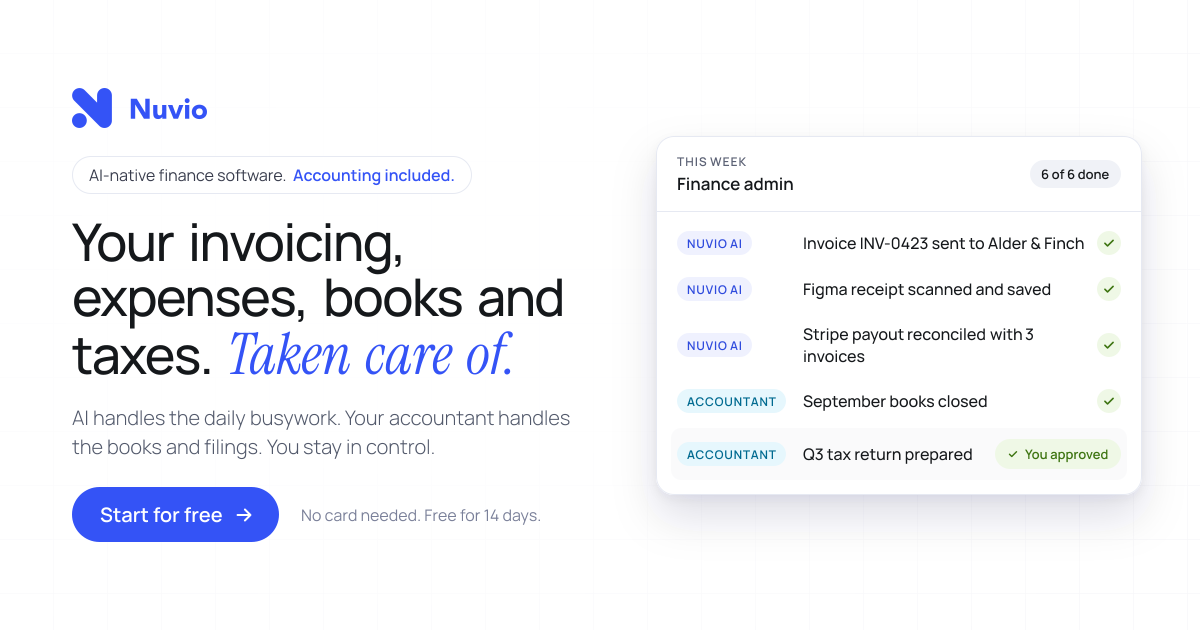
Nuvio is AI-native finance software for founders and small business owners, described on its homepage as your invoicing, expenses, books and taxes taken care of. It pairs an AI-driven workspace with accounting services: the software automates invoicing, receipt and invoice scanning, expense categorisation and bank reconciliation, while an accountant who already knows Nuvio looks after bookkeeping, year-end accounting and tax filings included in the plan. The product is positioned as one platform for finance and accounting rather than a tool you have to coordinate with a separate accountant. Nuvio states it is trusted by 1,200+ founders and small business owners and reports 60% less financial admin time on average. Users can start for free with no card needed for 14 days. The product is built around a specific problem: you started a business, not a second job managing its finances. Nuvio illustrates a founder's day broken up by finance admin interruptions, such as finding a receipt, exporting transactions or waiting for an answer, and notes that each task looks small but together they keep pulling the owner away from the business. A second coordination problem is described too: normally you have to find financial software, then find an accountant, then persuade them to work together. Nuvio aims to remove both kinds of friction by connecting the daily work, the answers and the accounting support in one place, so there is less for the owner to coordinate personally. Nuvio handles the recurring document work. You create and send invoices and track what is outstanding, and Nuvio follows up on overdue payments automatically. The site walks through an example invoice to Kestrel Labs: sent on Oct 3, past due with an alert on Oct 17, a follow-up sent by Nuvio on Oct 20, a second follow-up on Oct 27, and payment received on Oct 29. That means the owner does not have to keep every unpaid invoice in their head. On the expense side, Nuvio scans invoices and receipts and extracts the details, filling in fields such as supplier, invoice date, total amount, tax and tag, which the interface labels as AI-filled. Users review the records instead of typing them in from scratch, and expenses are categorised automatically. AI-powered reconciliation matches bank transactions with invoices and expenses, helping keep records reconciled without checking every line by hand. Nuvio shows this as a matching view in which bank transactions, including a Stripe payout, invoices from Kestrel Labs and Harbor & Pine, and an AWS expense, are paired against the corresponding invoices and expenses until all four transactions are reconciled. From there the workspace gives a running picture of the money: paid this month, outstanding, and the forecast low point, shown in the site example as $38,420 paid, $21,450 outstanding and a January forecast low of $31,200. The stated goal is that you can see what is paid, what is outstanding and where your cash is heading without assembling the picture yourself. Nuvio includes an AI finance assistant that answers questions in the user's own words rather than requiring report-building. The homepage suggests prompts such as which invoices are still unpaid, how expenses changed this month, and a request to show the cash flow forecast. In the example answer, the assistant lists four unpaid invoices totalling $21,450 with one overdue, breaks expenses down by category such as contractors, software and travel while comparing them month over month, and projects net flow and cash balance for the next four months. The same assistant can work with the user's own AI agents, so supported financial questions and tasks can be carried out from tools the user already uses; the page names ChatGPT, Claude, Grok Bot and Hermes. Accounting is included rather than sourced separately. Nuvio matches each customer with an accountant who already works in the platform, and the accountant takes care of bookkeeping, year-end accounting and tax filings as specified in the plan. Records reach the accountant's workflow directly, including invoices, categorised receipts, matched bank transactions and expenses, with no exports and no email threads. Setup follows three steps outlined on the site: connect bank accounts and bring in invoices, expenses and transactions in one sitting, with the example showing business checking, savings and company card accounts connected and 1,284 transactions imported; meet the matched accountant and confirm the accounting services included for your business; then get back to the business while Nuvio and the accountant handle the work. A weekly update summarises what was handled, such as receipts scanned, transactions reconciled, follow-ups sent and books kept up to date, and flags only what needs your decision, such as approving a tax return. The outcomes Nuvio emphasises are time and visibility. The site claims 60% less financial admin time on average and describes founders who stopped guessing and started seeing: analyses that used to take hours now take seconds, cash flow, income and expenses are viewable on a single page, financial data is visualised for readability, and users can filter and review income and expenses to take proactive action. Customers quoted include business owners, a general manager, a physiotherapist and an entrepreneur, and the page reports a 5.0 out of 5 rating from six customer reviews. The division of labour is stated plainly in three lines: the AI handles the daily busywork, the accountant handles the books and filings, and the owner stays in control. Typical use cases described on the site include sending an invoice and letting Nuvio chase it with escalating follow-ups until payment arrives; scanning or importing a supplier receipt so the supplier, date, total, tax and category are captured as an expense; letting the AI match a Stripe payout against several invoices and an AWS charge so the bank feed stays reconciled; asking in plain language which invoices are unpaid and how expenses changed month over month; checking a cash flow forecast before making a decision; and approving a prepared tax return or closing the books with the matched accountant. The product also suits owners who prefer to work from an AI agent rather than a dashboard. Nuvio is aimed at founders, owners and small business teams; the site cites 1,200+ founders and small business owners and quotes owners, general managers and practitioners at small companies. Its stated connections include bank accounts and cards for transaction import, plus AI agents such as ChatGPT, Claude, Grok Bot and Hermes. Pricing is subscription-based with accounting bundled in: users start for free with no card needed for 14 days, and the plan specifies the year-end services and tax filings included for the customer's country and business type, with that scope confirmed before subscribing. A 15-minute demo is also offered. In short, Nuvio positions itself as one place where daily financial admin is automated, financial questions get answered immediately, and the accounting and tax work is already covered by an accountant who knows the platform, so a founder can spend less time on the books and more on the business.
The Arcade Controller Pro is a compact all-button arcade controller from 8BitDo, described by the company as built for serious fighters with full control for every match. It is an all-button fight controller with no stick, designed for competitive fighting games, and it combines on-device settings, deep customization, and long-session comfort. The unit pairs a compact button layout with a 1.47-inch built-in display, five programmable buttons, hot-swappable mechanical switches, RGB lighting, and a magnetic wrist rest. It works with Switch, Switch 2 and Windows, over 2.4G wireless, Bluetooth, or a wired USB-C connection, and it is available to pre-order on Amazon in the US and on the 8BitDo eShop worldwide. 8BitDo positions it as hardware for players who want every input within natural reach and full control over how the controller behaves during a match. The Arcade Controller Pro is explicitly built for competitive fighting games. 8BitDo states that it is the presenting sponsor of Street Fighter League Americas and Street Fighter League EMEAA 2026, and the company says it proudly supports the community that brings every match to life. The design responds to the realities of that environment: matches are decided by fast inputs and sudden movements, play sessions can run long, and cabling has to survive high-pressure play. Compared to the original 8BitDo Arcade Controller, the Pro features smaller buttons and tighter spacing, creating a more compact layout that keeps every input within natural reach and that the company describes as comfortable and easy to control through long play sessions. A metal locking mechanism keeps the USB-C cable firmly in place so it stays secure during fast inputs, sudden movements and high-pressure matches. The result is a controller shaped around the demands of competitive play rather than around a traditional joystick. The button system is the core of the product. Five programmable buttons, labeled P1 through P5, can be fast-mapped directly on the controller, and 8BitDo notes that the added P5 button expands control options while leaving more room for natural left-hand movement. Each of those buttons can be replaced with a flat lock cap to prevent accidental presses, and five lock caps are included and stored inside the magnetic wrist rest. Dynamic button labels instantly switch between Switch and PC button layouts, with illuminated labels that change to match. Improved round button caps can be installed from any orientation, which makes them quick to fit and easy to replace, and they are held firmly beneath the tempered glass faceplate. A dedicated capture button lets players take screenshots instantly on Switch. Settings and monitoring happen on the device itself. The 1.47-inch display works with built-in Ultimate Software so players can view inputs, check battery status, and adjust essential settings directly on the controller, described as clear, immediate, and always within reach. The display covers input monitoring, SOCD settings, button mapping and RGB lighting, so players can see every input in real time and change how the controller responds without leaving the hardware. An independent control panel keeps essential controls separated from the action buttons; with its turn-and-click dial, players can switch connection modes, adjust volume and display settings, or activate Tournament Lock. SOCD cleaning is also listed among the controller's special features, and SOCD modes can be switched as part of the customization options. The hardware is designed to be opened and reworked. The controller ships with hot-swappable 8BitDo Core Green low-profile linear mechanical switches, co-developed with Kailh for fast actuation, quiet operation and a smooth feel, and the hot-swappable PCBA means switches can be changed without soldering. Three spare switches and a switch puller are stored inside the controller. A quick-release tempered glass faceplate lifts when the release button on the back is pressed, giving access to the internal components with the additional switches. The magnetic wrist rest supports a more natural hand position on a desk or on a lap, attaches securely when needed, and removes easily for a more compact setup, while also housing the lock caps. Dual USB-C ports let players connect the cable from the top or the side for charging and wired play, choosing the route that fits their setup, reduces cable clutter and gives more space around their hands. Overall, the Arcade Controller Pro works as a self-contained control surface. On-device settings through the display and the independent control panel handle everyday adjustments, while 8BitDo Ultimate Software V2 goes deeper on a computer, letting players customize button mapping, create macros that assign a long sequence and action to a single button, switch between different modes of SOCD, and adjust lighting modes and RGB colors. Connectivity covers 2.4G wireless for Windows, Bluetooth for Switch, and wired play for Windows and Switch, and 8BitDo describes the wireless performance as low-latency for responsive, consistent play without the cable. The practical benefits follow from those choices. A tighter button layout keeps inputs within natural reach during long sessions, and the magnetic wrist rest supports a more natural hand position whether the controller sits on a desk or on a lap. Fast-mapping on the controller means button changes are made in the moment, while replaceable lock caps guard against accidental presses on buttons a player does not want to trigger. The cable lock system protects against disconnects during fast inputs and sudden movements, and dual USB-C ports let players route cabling away from their hands. Spare switches and a switch puller stored inside the controller mean replacements are on hand, and a 3000mAh rechargeable battery provides 15 hours of usage via Bluetooth or 2.4G wireless with RGB off, with a 4-hour charging time. Concrete usage scenarios match the way the controller is presented. It is aimed at competitive fighting game matches, where every input needs to be within reach and cabling has to stay locked in place. Long practice sessions are addressed by the compact layout, the wrist rest and the ability to lock unused buttons. Players who move between Switch and PC can rely on dynamic button labels that change to match the active layout, and a dedicated capture button handles screenshots on Switch. On a desk, the wrist rest and the choice of top or side USB-C routing keep the setup tidy; on a lap, the wrist rest can be removed for a more compact arrangement. Tournament play is covered by Tournament Lock on the independent control panel. Supported platforms are Switch (3.0.0 and above), Switch 2 (20.1.1 and above) and Windows 10 (1903) and above. Connectivity options are 2.4G wireless for Windows, Bluetooth for Switch, and wired for Windows and Switch. The controller measures 301 x 201 x 16 mm and weighs 1090g, and it uses a 3000mAh rechargeable Li-ion battery rated at 15 hours of usage via Bluetooth or 2.4G wireless with RGB off and 4 hours of charging time. In the box are the Arcade Controller Pro, a 2.4G adapter, the magnetic wrist rest, three additional switches, a switch puller, five lock caps for the programmable buttons, a cable and a manual. It is available in a new White Edition, described as a clean white finish ideal for a sleek and minimalist desk, and pre-orders are offered on Amazon in the US and on the 8BitDo eShop worldwide. Taken together, the Arcade Controller Pro is an all-button arcade controller built around competitive fighting games, combining a compact layout, on-device display and settings, programmable buttons with lock caps, hot-swappable switches, a quick-release tempered glass faceplate, a magnetic wrist rest and dual USB-C ports with a cable lock, so players can swap, configure and tailor their arcade experience.
N8N Chat UI is a no-code builder for designing and customizing AI chat widgets that connect to n8n workflows and can be embedded into any website. It is built for n8n users, agencies, SaaS teams, and businesses that want a chat experience matching their brand without writing HTML, CSS, or JavaScript. The site describes a simple flow: design a mobile-friendly chat experience with a live preview, connect it to any n8n workflow, and embed it anywhere with a simple copy-paste. The product positions itself as an upgrade to the default n8n chat widget, adding deep customization, streaming, voice, file uploads, flexible layouts, and a JavaScript API for advanced integrations. The product exists because, in the words of the site, n8n's chat widget "definitely gets the job done — but just barely." Three specific complaints are called out. First, the generic interface: the default chat UI looks very basic. Second, limited customization options: customization is described as extremely limited, making it difficult to match your brand. Third, technical expertise required: further modifications require knowledge of HTML, CSS, and JavaScript. That combination leaves teams with a chat experience that works technically but does not represent their brand and cannot be changed without engineering help. N8N Chat UI addresses each point directly by putting appearance, layout, and input options into a visual builder that requires no coding or CSS knowledge, while still exposing options like a JavaScript API for users who want to go further. The core of the product is easy customization with instant setup. A widget configuration area lets you design widgets with your own branding and see changes live as you make them, then add the result to any website with a simple copy-paste. No technical skills are needed. The chat bubble itself is adjustable: you can modify its size, position, colors, and custom icon, choose a border radius style (circle, rounded, or none), set a custom icon URL, custom icon size, custom icon border radius, color of internal icons, bubble size in pixels, right position, bottom position, and toggle options such as a draggable bubble and auto open bot window. The site also lists a bubble, tooltip, window, footer, and advanced set of customization areas in the builder, and states the widget is mobile-friendly by default and works with no coding or CSS knowledge required. Display is flexible. You choose how your widget appears — as a floating bubble or embedded directly in your page content — using either an in-page or a popup widget type. The site emphasizes that this fits perfectly with your site's layout, so the widget can be a persistent floating launcher or a component placed within the page body. The three-step flow begins with selecting a type (for example, popup), then customizing, connecting, and embedding. Responsive and modern design is a stated feature: the widget is described as looking and functioning great on any device — desktop, tablet, or phone — with a clean, modern, and always user-friendly design. Beyond appearance, the widget adds richer interaction options. File upload support lets users send files directly through the chat, with you controlling which types of files are allowed and setting limits on size and quantity. Voice chat lets users record and send audio messages directly from the chat widget, enabling a voice-driven chat experience. Real-time chat streaming can be added with zero configuration: enable it in n8n and your widgets automatically support streaming, so responses arrive progressively instead of appearing all at once. Functionally, the product sits between your n8n workflow and your website. You build the interface in the N8N Chat UI builder, connect it to any n8n workflow, and embed the generated widget into any website. A JavaScript API is available for advanced integrations beyond the copy-paste path. The site also introduces a newer capability: customization with natural language. By connecting Claude or any other AI tool to the product's MCP server, you can customize your widget using natural language instead of clicking through settings, with documentation linked for connecting to Claude Desktop. That gives two routes to the same outcome — a visual no-code builder and an AI-assisted configuration path. The stated benefits are practical. You get a widget that matches your brand perfectly without coding or CSS knowledge, mobile-friendly behavior by default, and changes visible immediately through live preview before you embed. Because setup is copy-paste, publishing a new look does not depend on a developer. The customer section summarizes consistent feedback as easy to use and customize, looks professional, saves time, and works everywhere — reflecting the combination of on-brand design, fast setup, and cross-device behavior. Typical scenarios follow from those capabilities. A business can place a branded assistant on its website that answers through its existing n8n workflow. A team that wants a persistent entry point can use a floating, draggable bubble that optionally opens the bot window automatically, while a team that wants the chat inside the page can embed it in page content. Support flows that need attachments can accept files through the chat with controlled types, sizes, and counts. Voice-first experiences can let visitors record audio messages instead of typing. Teams building chat for clients or products can wire up a JavaScript API for deeper integration, and users who prefer describing changes can adjust the widget through an MCP-connected AI tool like Claude. The target audience named on the site is n8n users, agencies, SaaS teams, and businesses, and the site reports that 2,803 users have already built their widgets. Pricing is presented as a freemium-style entry with credits: you can start designing your widget now with 100 free credits, and a promotional banner advertises a lifetime license at $59 (from $149) plus 2,500 free credits. The product is delivered as a web-based builder, and it interoperates with n8n workflows, Claude and other AI tools through the MCP server, and any website that can host an embed. Overall, N8N Chat UI is a focused layer on top of n8n: it keeps your existing workflow logic while replacing the plain default chat interface with a customizable, mobile-ready widget. Its value proposition is straightforward — design a beautiful, on-brand AI chat widget without code, connect it to n8n, and embed it anywhere, with voice, file uploads, streaming, and an API available when you need more.
WhoIsCooking is a Mac app that shows the temperature of your chip and tells you which AI agent is heating your Mac. It lives in your notch, or in the menu bar if you prefer, and displays the hottest chip sensor reading next to overall CPU and GPU load. Under that headline it lists the agents and apps that are currently working, each with a CPU percentage and a note about what that agent is doing, such as Claude Code running ffmpeg and python, Codex CLI running a cargo build, Cursor acting as editor and agent, or Chrome with fourteen tabs open. It is made for people who run AI coding agents and other heavy developer work on an Apple Silicon MacBook and want to know at a glance what is cooking the machine. The problem it addresses is a familiar one for anyone using agentic coding tools: Claude Code, Codex and Cursor start builds, tests and renders that turn a MacBook into a stove. When several agents run at once, the machine gets hot and starts throttling, and it becomes hard to tell which of the many running processes is actually responsible. The usual system view shows dozens of cryptic processes rather than the agent sessions a developer actually thinks in, so people either wait for the heat to pass, kill work they still need, or simply accept a slow and noisy machine. WhoIsCooking closes that gap by naming the agent behind the heat and offering a way to cool the Mac without stopping the work. The primary readout is a temperature. WhoIsCooking shows the hottest chip sensor, for example 92°C, together with CPU and GPU percentages and a status line indicating that the machine is hot and throttling. This answers the first question most people have when a MacBook gets warm or a fan spins up: how hot is it really, and is it being pushed hard? Because the figure comes from the chip sensors rather than an estimate, it reflects the machine's actual thermal state. From that same view, a single button invites you to cool down your Mac. Instead of listing processes, WhoIsCooking groups work by agent. An agent session and everything it started, including builds, tests, dev servers and renders, appears as a single line rather than eighty cryptic processes. Each row carries the CPU percentage the agent is consuming, a short description of what it is running, and a cool-down control. The app recognises Claude Code, Codex CLI, Gemini CLI, Cursor, Aider, Copilot CLI, Ollama and LM Studio, and it also covers Xcode builds, ffmpeg, Docker and your browser. That means the list maps onto how a developer actually works: one line per agent rather than a wall of unrelated subprocesses. Cooling is the core action. One click moves busy work onto the Mac's efficiency cores. The job keeps running, a little slower, and the Mac drops about fourteen degrees; the site illustrates the same render at 64°C before and 50°C after. Because the work is moved between cores rather than suspended, the agent continues to make progress. A Full speed control puts the power back instantly whenever you want the power back, and quitting the app always restores full speed. WhoIsCooking is explicit that cooling is not killing. Nothing gets frozen or closed unless you ask for it. Your terminal and your apps stay usable the whole time, so a long build or a render can continue while you keep working in the same session. If you do want something gone, quitting a process is an explicit choice rather than a side effect of cooling. This separates it from approaches that pause or terminate workloads in order to reduce temperature. The app also watches for work that runs away. You get a nudge when an agent burns CPU for five minutes straight, or when it leaves dev servers running after its session ends. Those are the two cases where a machine keeps running hot long after the developer has walked away or moved on to something else, and the nudge points at the specific agent responsible so it can be dealt with. Underneath, WhoIsCooking reads the chip sensors every twenty seconds and only looks at processes while it is open or while the Mac is hot. Idle, it uses about 0% CPU and 14 MB of memory, so monitoring the temperature does not itself become another source of heat. It sits in the notch or the menu bar, appears on hover, and needs no account or cloud service: the reading and the control are local to your Mac. It runs on Apple Silicon Macs, M1 to M5, on macOS 14 or later. The temperature sensors it reads exist only on Apple Silicon, so on Intel Macs you can see CPU use but not temperature. The outcome is a cooler, quieter Mac without losing work. According to the site, cooling takes a machine from 64°C to 50°C on the same render, roughly fourteen degrees, while the job continues. Instead of guessing which process to kill, you can see the offending agent, cool it, and keep the session running. The runaway nudges catch the leftovers that would otherwise keep the machine warm, and Full speed returns the power in one click when you need it. All of this is visible from the notch, so checking costs a hover rather than a switch to another app. Concrete scenarios follow directly from the heat list the app displays. A developer running Claude Code that is executing ffmpeg and python at 184% can see that this single agent is the heat, cool it, and let the render finish on the efficiency cores. Someone running a Codex CLI cargo build at 91% can keep the build going while the Mac drops in temperature. A Cursor session acting as editor and agent at 62%, or a browser with fourteen tabs at 23%, shows up as its own row so the source of load is obvious. Local model users running Ollama or LM Studio, and anyone building with Xcode or running Docker containers, are also recognised in the same list. WhoIsCooking costs $5 as a one-time purchase with no subscription, and it requires an Apple Silicon Mac on macOS 14 or later. It is signed with an Apple Developer ID and notarized by Apple, so macOS opens it without warnings. The takeaway is simple: WhoIsCooking answers which AI agent is cooking your Mac, then cools it down without stopping its work, for a one-time $5 price on Apple Silicon hardware.
Strawberry is a desktop browser with built-in AI companions: AI teammates that work alongside you inside the accounts you are already signed into. Rather than opening a separate chatbot, you browse as usual while a companion researches, drafts, transcribes and clicks through repetitive work on your behalf. You can hire one of Strawberry's official companions or create your own, teach it your preferences and workflows, and share it with your whole team. The product is aimed at fast-growing companies and at people in sales, recruiting, marketing, consulting, executive and founder roles who want hours of browser work compressed into minutes. Most AI tools stall at the edge of real work. Strawberry's site points to three common frustrations: assistants that struggle to work in your tabs, tools that are limited to app connectors, and workflows where everyone works in isolation. A chatbot can answer a question about something you paste into it, but it cannot see the page you are on or take the next step in the tool you are already using. Because Strawberry is a browser, it has access to far more context than a chatbot. It understands what you are looking at and working on, which is what allows it to give better answers and, more importantly, to take actions on your behalf. The FAQ states it plainly: any work that can be done in a browser can be done with Strawberry. The core unit of Strawberry is the Companion. In Strawberry you can hire or create AI Companions; companions learn your preferences and workflows and can start working for you 24/7. Official companions ship with a defined job to be done. Sales Sally gets 100 qualified leads with outreach written in your voice and ready to send. Talent Theo returns 10 strong candidates, each researched and scored against what your team needs. Executive Ellis delivers a brief every morning, replies drafted in your voice and follow-ups that do not slip. Marketing Martin finds what worked for you, then produces posts in your voice for every channel. Consulting Cora turns every client call into a proposal and starts every kickoff with the research already done. If none of those fit, you can create a teammate with its own look, built around your process and schedule. Research is where the browser foundation pays off most visibly. Because a companion can use the web the way you do, Strawberry notes that there are 1.8 billion websites and that it can use them all, so companions can research hundreds of leads in parallel, source profiles on LinkedIn and pull results into the tools you already use. The site shows a companion filling a Google Sheet with a company shortlist and a fit rating while the user watches. Workflows illustrated on the site span Gmail, Slack, Google Calendar, Linear, HubSpot, Notion, LinkedIn and Google Sheets: a companion can add a lead to HubSpot, create a task in Linear, save meeting notes in Notion or queue a follow-up. The same capability covers sourcing candidates, updating CRMs and pulling data into sheets. Strawberry also covers the work that surrounds a meeting. Bring Strawberry with you into meetings and it takes notes, summarizes the transcript and extracts action items and follow-up tasks. It works with all video conferencing tools and does not require adding a meeting bot to the call. Separately, companions can create branded slide decks, posters, infographics and dashboards based on any source on the web, including sources behind login walls. Two further features make the companionship persistent rather than one-off. Work on Autopilot lets you set up recurring tasks, so if something can be done in a browser it can be automated. Superhuman Memory means Strawberry memorizes details, habits, people and projects so that every chat has full context, and useful knowledge and preferences carry into the next task so work builds on what came before. Strawberry describes its foundation as five layers coming together in one place. The Browser is where your everyday browser becomes the place to work with AI, use your tools and access your team's shared workspace. Tools connect the apps your work runs on so companions can help across them. Context brings project files, notes and reference material together so companions work from the right information. Memory carries knowledge and preferences into the next task. Team lets teammates and AI companions share work so everyone can contribute and build on what is already done. Getting started is designed to be quick: install the desktop app for free, bring your bookmarks, passwords and Chrome extensions over from your old browser, and meet your companion, exploring personalized use cases together. The outcome Strawberry sells is time. The Product Hunt listing frames it as an AI browser that saves your team more than 100 hours a week, doing hours of work in minutes. Users quoted on the site report easily 10+ hours saved, 270+ leads sourced with no manual work, and profiles that were 90% spot on. Beyond raw speed, the pitch is about momentum: research, outreach and data pulls are described as the work that used to kill momentum, and companions run in the background while you do other things. Because a companion can be shared with the whole team, the benefit compounds across people rather than staying with one power user. Concrete scenarios named on the site include sourcing very niche roles, where a recruiter at Zapier described using Strawberry for sourcing and called the Ashby connection the cherry on top. They include finding potential customers on LinkedIn and adding them to a Google Sheet, transcribing meetings and turning notes into tasks in Linear or records in HubSpot, producing channel-ready marketing posts in your voice, converting client calls into proposals for consulting engagements, and running routine browser work on a recurring schedule. The FAQ summarizes the range: it can research companies, source leads on LinkedIn, update CRMs, transcribe meetings, create slide decks, pull data into sheets, draft emails and run routine browser work. Strawberry is positioned for teams, with hundreds of teams already using it, including Lovable, Tandem Health and ElevenLabs, as well as for individuals in sales, marketing, recruiting, consulting and founder roles. It runs as a desktop app for macOS and Windows and lets you choose among the best search engines in the world, with Google Search as the default. Pricing is freemium. The free plan includes 500 credits per month, the Intern plan includes 6,000 credits at $20/month, Part-time includes 25,000 credits at $85/month and Full-time includes 75,000 credits at $250/month, with top-ups at $10 per 1,000 credits. Regular browsing does not use any credits; credits are used when chatting with companions or when companions are taking actions. On security, you choose per app and per action what companions may do without asking. Passwords, history and cookies are stored locally and encrypted on your device, and passwords are never exposed to Strawberry or LLM providers. Strawberry states that it meets SOC 2 requirements and GDPR, and that your data is not sold to advertisers, data brokers or anyone else. In short, Strawberry treats the browser as the place where AI can finally do real work: companions that live in your tabs, learn your context, act inside the accounts you are already signed into, and can be hired, created and shared across a team. The value proposition is straightforward: hours of research, outreach, note-taking and admin compressed into minutes, with you in the driver's seat on what runs automatically.
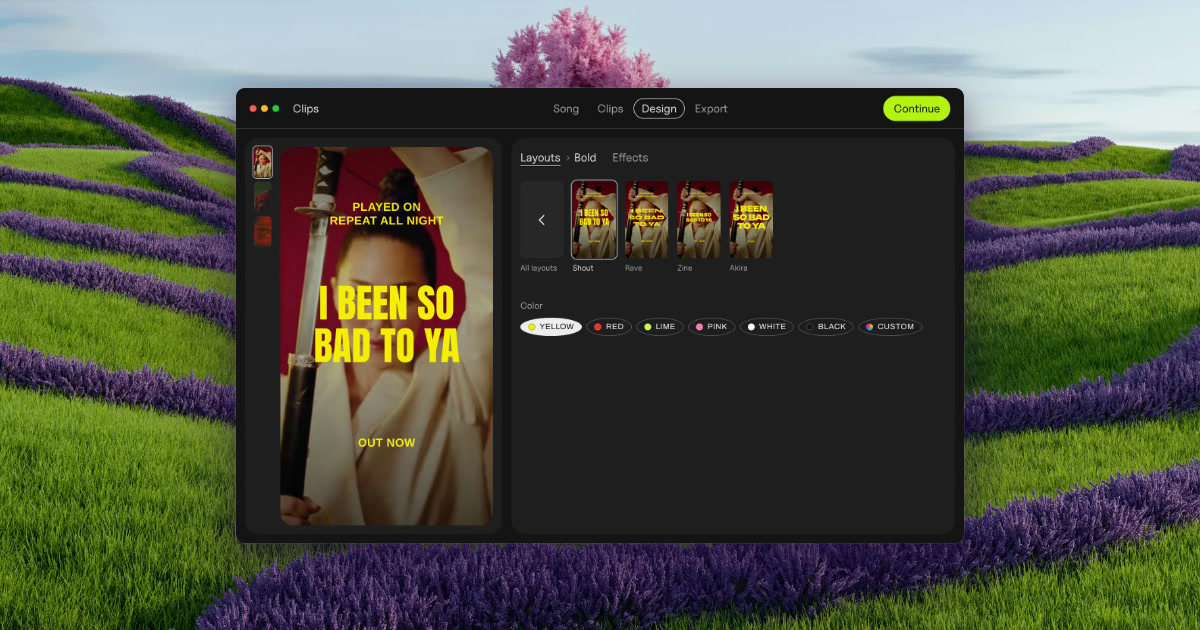
Clips by Plastic is a lyric and lip-sync video maker for Mac, built for music artists who want to promote a finished song with vertical video ads. You drop in a song and Clips finds its tempo and every part — verses, pre-chorus, chorus and bridge — then cuts each part and its catchiest snippets into its own vertical video, on the beat, with the lyrics synced word by word. From there you choose a layout, add a hook line on top, pick one of 54 effects, and export every part on every backdrop at once. The files come out named by song, part and backdrop, ready to upload to Ads Manager. Clips is aimed at artists promoting their own releases, and at labels and studios making videos for a roster or for clients. The problem Clips was built around is stated plainly on its own site: making fifteen videos takes all evening, so you cut two and pray. Rather than guessing which section of a track is the part that actually sells it, Clips lets an artist produce a video for every part of the song and then test them. The site describes the workflow as test first, then spend: run every part for a week with a few dollars a day each, let strangers pick the winner, and put your budget behind the part that wins. In the site's own worked example, the intro beat the chorus on cost per result, which is exactly the kind of finding a guess would have missed. The app was built by Kai Williams, a music artist with 30K monthly listeners on Spotify, who says he built Clips while promoting his album because cutting the same song fifteen ways was eating the time he wanted for music. The first step is dropping in a finished song. Clips finds the tempo — shown in the interface as BPM, for example 124 BPM on a three-minute-fifty-two-second track — and detects every part of the arrangement, listed as Verse 1, Pre, Chorus, Verse 2, Chorus and Bridge in the site's example. Each detected part then becomes one clip, cut on the beat; the product's own illustration shows a Chorus of 16 beats, cut on the beat. You then pick the parts you want to turn into videos, so a single song can yield a whole set of separate vertical clips instead of one long edit. There is no timeline to work on, which is the point of the design: the arrangement and cutting work that would normally consume an evening is done for you once the song is imported. The next step is the lyrics. Clips syncs the words to the music and can present them either word by word or line by line, both on the beat, and the interface exposes a simple Word / Line switch for that choice. You can also add a hook line on top — a short phrase that sits above the lyric treatment throughout the clip, shown in the site's mockups as a repeating line over the synced lyrics. Combined with a layout choice, this is what gives each clip its shape: a vertical frame, a lyric treatment that moves with the music rather than against it, and a hook that carries the catchiest fragment of the song. Because the sync is handled automatically, the artist does not have to hand-time individual words against a waveform. Clips ships 54 effects to give each batch a look that matches the release rather than a template. The site names a set of them — Paper, Glow, Vertigo, Riso, Xerox, Tape, Bitmap, Lines, Heatwave, Drift and Negative — and describes the concept as the same chorus rendered 54 different ways. A Strength control, set by dragging, determines how strong the effect is applied, with values like 3 shown in the interface. Effects are applied on the beat, tied to the detected BPM, so visual changes land with the music. On top of that, backdrops can come from your own footage or photos: Clips animates stills, and the site notes that one phone clip is enough for a batch, or you can download free high-quality vertical videos from Pexels that match the mood of the song. The fourth step is export, and it is where the batch approach shows. Clips exports every part of the song on every backdrop at once — the site's headline claim is 15 ads at once — with a progress indicator counting up from 0 of 15 videos cut. Output is vertical video at 1080 × 1920, or square at 1080 × 1080. Each file is named by song, part and backdrop so that the batch is identifiable and ready for Ads Manager without renaming by hand. The site frames the whole journey as ads in minutes, from a finished song to a full batch, with no timeline involved at any stage. The overall approach is a fixed four-step pipeline rather than a general-purpose editor: drop your song, pick the parts, add your hook, export. Everything runs locally — Clips works offline and your unreleased song never leaves your Mac, which the site answers directly when asked whether an unreleased song is uploaded anywhere. There is no cloud round-trip and no subscription machinery: the site promises no subscription, no credits and no caps. That combination of an offline Mac app and a batch pipeline is what separates Clips from a video editor, where the same job is done by hand, and from cloud-based ad makers, as set out in the product's comparison table. The stated outcome for users is speed and evidence. Instead of spending an evening cutting a couple of videos and hoping, an artist gets a full set of on-beat, lyric-synced vertical ads in one export and can then let performance data decide where the money goes. The site's example week shows cost per result for each part — intro, verse 1, pre, chorus, verse 2, bridge — with the intro winning at $0.21 and the chorus landing at $0.63, and the conclusion that you should put your budget behind the winner. Because every part and every backdrop is exported in one pass, testing more variants costs almost nothing in extra time, which is the core benefit the product is selling. Concrete use cases named on the site include launching a release by uploading the whole batch to Ads Manager on day one and letting it run through day six, then keeping the winner on day seven. Artists without footage are covered: photos work, Clips animates stills, and a single phone clip is enough for a batch. Artists between releases can use the free version, which does not expire, to try the app on an old song. Labels and studios can produce videos for the artists they manage, sign or work for under the Label / Studio license, which covers client and commercial work. Pricing is straightforward. The free version costs $0, includes every feature and unlimited exports, adds a small Clips tag on exports, and has no time limit. The Artist license is $99 paid once, removes the Clips tag, covers up to 3 of your own Macs and includes free updates. The Label / Studio license is $299 once, covers up to 10 Macs for your team, allows client and commercial work, and adds priority email support. A bundle with the DOT app is $125 once and unlocks both apps for up to 3 of your own Macs with free updates. A 30-day refund is offered with no questions, and the license key comes with the receipt. Requirements are macOS 13 or later on Apple silicon or Intel, with lyric sync best on macOS 26; Clips is Mac only today. In short, Clips turns one finished song into a batch of on-beat, lyric-synced vertical videos in minutes, so an artist can test every part of the release and spend behind the one that actually sells it — offline, paid once, with no subscription.
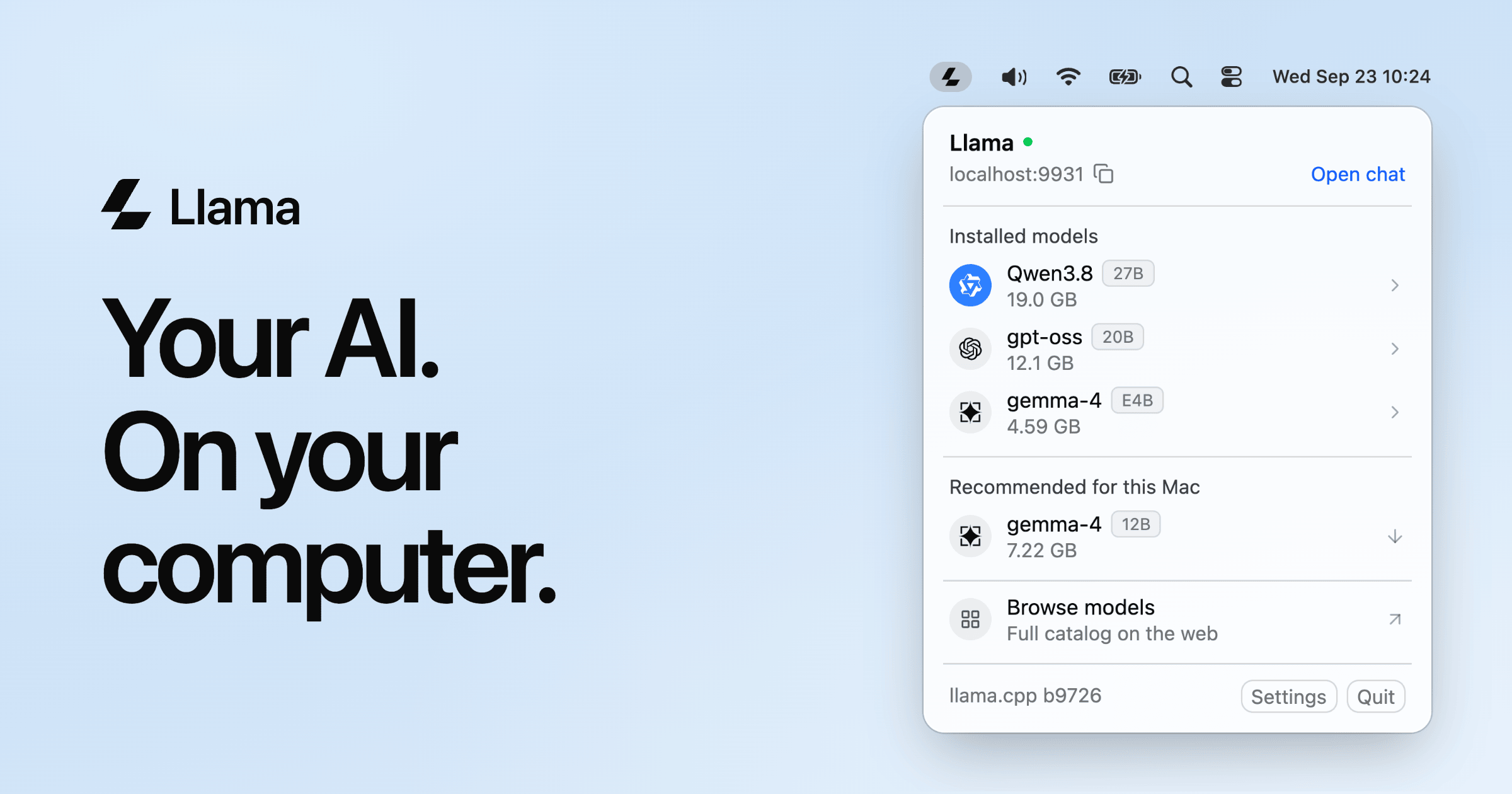
Llama is a small app for Mac and Windows that runs the latest open models directly on your computer, built by the llama.cpp team and Hugging Face. On a Mac it lives in the menu bar; on Windows 11 it sits in the system tray. From there you can open a chat in your browser, browse and install models, and let your other applications talk to a local server. It is free, open source, works offline, and the download is only about 1 MB. The product is aimed at anyone who wants to chat with AI and use AI inside their own apps without depending on a cloud service — from people who simply want a private assistant on their machine to developers who need an API their tools can call. The problem Llama addresses is that running AI locally used to mean reading forum threads about settings, and local AI has a reputation for eating disk space and memory. At the same time, cloud assistants require accounts, API keys, and usage bills, and they send your work off your machine. Llama's stated approach is to give you both halves of what OpenAI offers — a chat surface to talk to and an API to build on — except everything runs on your own computer, with models you choose. The app is positioned as something you can set up in one click rather than configure, while still exposing the full set of llama.cpp settings for people who know what they are doing. The first capability is chat. Clicking "Open chat" in the menu opens a chat with any installed model in your browser — described as like ChatGPT, but on your computer — with nothing to set up. The product shows a simple example of dropping in a lease-agreement.pdf and asking it to summarize the document and flag anything unusual. Because the model runs locally, the conversation happens on your own machine rather than on a remote service, which is the basis of the privacy claim that Llama is yours to keep and works offline. The second capability is a local API. Your apps connect to the server running at localhost:9931, and it speaks the OpenAI API, so coding agents, editors, chat apps, and scripts just work. Llama documents that the endpoints are OpenAI- and Anthropic-compatible, with support for streaming, tool calling, structured output, and vision. If you already use llama.cpp, your models show up automatically. There is also a llama command line, with commands such as llama cli and llama serve, and the API can be reached from your other devices over Tailscale. Changing the base URL is all that is required for code that already works with OpenAI — no API keys and no usage bills. The third area is model management. Models are downloaded once and used everywhere, and Llama recommends models that fit your specific Mac or PC, installing them with one click while picking the settings for you. The menu lists installed models with their sizes, offers a set of recommendations, and links to the full catalog on the web. Guidance is given by memory: Gemma 4 for a Mac with 16 GB of memory or more for everyday questions, writing, and images; GPT-OSS for 24 GB or more for step-by-step reasoning from OpenAI; and Qwen 3.8 for 32 GB or more, which is described as strong at code, reasoning, and long documents. Each model is stored once in the Hugging Face cache, shared with llama.cpp and other tools. Under the hood, Llama checks your computer and sets up each model to run well on it, based on how llama.cpp actually works — you only pick which model to talk to. The automatic choices shown include quantization (the highest precision that fits in memory), context size (only sizes that fit in memory), image input (on for models that understand images), speculative decoding (on for models that support it), and batch size (larger on machines with 32 GB or more). Every llama.cpp setting is still present in one plain-text file for users who want control. Resource use is deliberately minimal: the app is a native Mac app with a 1 MB download and a 4 MB installed footprint, nothing is loaded when idle, models load when something asks for one, and they unload after five minutes idle. The benefits follow directly from those design choices. Because the server is local, there are no API keys and no usage bills, and the app works offline. Because each model is stored once in a shared Hugging Face cache, disk usage is kept low; the product illustrates this with a comparison of 57 GB on disk for three separate apps each carrying their own engine and model versus 19 GB with Llama, where a chat app, a coding agent, and your own app all share one engine and one model copy. For developers shipping apps, there is nothing to bundle: the app talks to Llama over the API and a one-click link installs the model it needs, so there is no engine to ship and no gigabytes in the download, and users keep one copy of each model for all their apps. Concrete use cases described in the content include chatting with a document such as a PDF lease agreement to summarize it and flag unusual clauses; connecting coding agents to the local OpenAI-compatible endpoint so they work without keys or bills; pointing editors and chat apps at localhost:9931/v1 because they are OpenAI-compatible; calling the API from your own code with any OpenAI SDK; using the llama command line for CLI and server workflows; reaching the server from other devices over Tailscale; and distributing an app that installs its required model with a one-click link instead of shipping an engine. Llama is distributed as a download for Mac and for Windows 11, with a command-line version for Linux installed via a curl script. It is also available through package managers such as Brew (brew install --cask llama-app) and Winget, and it can be built from source by following the llama.cpp build instructions. The product is free and open source, hosted on GitHub, and the site notes that it is yours to keep. Model recommendations are framed around available memory on the machine rather than around paid tiers. The takeaway is straightforward: Llama packages a llama.cpp-powered local AI server into a tiny menu bar or system tray app, so one install gives you a private chat interface and an OpenAI-compatible API that all your apps can share. Free, open source, offline-capable, and configured automatically, it is aimed at making local AI something you simply run rather than something you have to assemble.
AgentGrid.io describes itself as a shared drive for collective intelligence: a shared workspace where humans and AI agents work on the same live artifacts. Those artifacts are explicitly named on the site — docs, reports, slides, apps, and designs — and they are held together by shared context, controlled access, and full version history. The product is built for people who already work with agents such as Claude, GPT, Codex, Hermes, OpenClaw, Cursor, or Grok Bot and who need the output of that work to live somewhere everyone can reach. Instead of exporting a result and passing it around, the artifact itself becomes the meeting place where every participant, human or agent, reads the same draft and builds on what came before. The promise on the homepage is direct: bring everyone to the same page, where everyone works on the same live artifacts. The site frames the problem in a before-and-after contrast. In the old way, every handoff meant another copy: humans and agents worked from different versions, and nobody could say which one was actually current. Context got scattered across tools, and the familiar symptom is spelled out on the page as emailing v26_final_FINAL.docx back and forth between people and bots. AgentGrid.io positions its new way as one file that is everyone's source of truth: agents and people work on the same artifact, in the same place, with one history, one owner per change, and no version to chase down. That distinction matters because collaboration between humans and agents breaks down not when the work is hard but when the artifact forks — when a person and an agent each hold a slightly different copy and the shared context that made the work coherent disappears. AgentGrid.io is explicitly agent-agnostic. The site says it is built for Claude, GPT, Codex, Hermes, OpenClaw, Cursor, and Grok Bot, and repeats the invitation that all agents are welcome; the Product Hunt listing also names Muse AI and Instinct. The point is that you do not have to switch tools to participate — you work with your agent anywhere, in Claude, ChatGPT, OpenClaw, Hermes, or any other agent, and you start where you already are. AgentGrid.io then acts as the shared surface where that work lands. The site also states that agents authenticate as agents, which is a deliberate design choice: agent activity is treated as a first-class identity in the workspace rather than being masked behind a human account. Access control is described at an unusually fine grain. The site contrasts granular permissions with team-level access: read, write, modify, and publish can be set per agent and per folder, not just per team. Permissions are described as scoped and revocable, so an agent's reach can be narrowed or withdrawn. A boundary model on the page lays out three ideas: READ, where local context can stay local; APPROVE, where every approval has an owner; and RESTORE, where every revision has a history. Under the heading "Open to ideas. Closed to chaos," the site summarizes the same model as warm collaboration with clear boundaries, and it states plainly that every revision has a history, every approval has an owner, and your work remains yours. Versioning is treated as a universal property of the workspace rather than a feature of one file type. Under the heading "Everything is code," AgentGrid.io states that documents, decks, and designs all version and diff the same way your agents already work. Because every artifact carries one history and one owner per change, a team can see what changed and who or what changed it instead of guessing which copy is current. This is also what lets the workspace avoid the copy-on-handoff pattern: the artifact is not re-exported for each participant, it is edited in place, and the trace of each contribution stays attached to the work rather than living in a chat thread somewhere else. The site describes the workflow in three steps. First, work with your agent anywhere — Claude, ChatGPT, OpenClaw, Hermes, or any other agent — and start where you already are. Second, when the artifact is ready, whether it is a doc, a deck, or an app, ask your agent to share it on AgentGrid.io; the site says the agent "will know how." Third, bring in your team and agents: everyone opens the latest version with the same context, with no copying files and no starting over. Onboarding mirrors this simplicity — the homepage offers a "Start with AgentGrid.io" button, a "Connect your agent" link, and a drop zone where you can drop a file or folder to start. The site articulates a working principle: the artifact is the meeting place, and the conversation lives inside the work. Three supporting ideas are listed. Stay in context: every human and agent sees the current words, sources, and decisions. Keep voices clear: identity travels with each suggestion, approval, and action. Safe to invite: you choose who can read, suggest, edit, publish, or share. Together these describe a model in which discussion does not drift away from the file it concerns, attribution is preserved per contribution, and participation is governed by explicit choices rather than assumptions. The benefits AgentGrid.io states follow directly from that model. Everyone opens the latest version with the same context, so there is no version to chase down and no ambiguity about which copy is current. There is no copying files and no starting over when a new person or agent joins. Each approval has an owner and each revision has a history, so responsibility and change are traceable. And the site closes its boundary section with a simple assurance: your work remains yours. For a team already using agents, the outcome is fewer handoffs, less duplicated context, and a single place where the current state of the work can be found. The artifacts named on the site map onto concrete scenarios. A person working in Claude, ChatGPT, OpenClaw, or Hermes produces a doc, a deck, or an app, then asks the agent to share it to AgentGrid.io so teammates open the latest version with the same context. An illustration on the page shows people and AI agents collaborating on a shared marketing website artifact, with roles attached to participants — owner, editor, agent, and viewer — which indicates a team distributing different levels of access across humans and bots. Reports and designs appear in the same list of supported artifacts, and the permission model supports workflows where someone reviews and approves while another edits or publishes. AgentGrid.io describes its audience in terms of the agents people already use rather than job titles. It is aimed at people and teams who work with Claude, GPT, Codex, Hermes, OpenClaw, Cursor, or Grok Bot and who need a shared place for the artifacts that come out of that work. The Product Hunt listing files it under Artificial Intelligence, Maker Tools, and Vibe coding. The site presents the product as a web workspace reached through a start link at app.agentgrid.io and a connect link for agents. No pricing plans or paid tiers are described in the provided content, and no specific third-party integrations beyond the named agents are listed. AgentGrid.io's core proposition is simple and consistent across the site: a shared drive for collective intelligence where humans and agents work on the same live artifacts. By making the artifact the meeting place, keeping context attached to the work, giving every agent a real identity with scoped and revocable permissions, and versioning every change, it replaces scattered copies with one source of truth. For teams already working with agents, that means less copying, fewer stale versions, and a workspace built for collaboration between different kinds of intelligence rather than bolted onto it.

pawl is a tiny focus companion that lives in the Mac menu bar. Rather than opening another app window and configuring a session, you start a focus timer by pulling on a cat paw. The paw sits in your menu bar and shows how much time is left at a glance, and you can change your focus time, break time, and focus interval by pulling on it. pawl is built for macOS 14 or newer, and the current direct Mac build is only around 7 MB. It is made for anyone who wants a timer that is always nearby without another window getting in the way, and its stated goal is to make starting smaller, turning "i should get to work" into a running timer. The idea behind pawl is stated plainly on its site: sometimes the smallest thing standing between you and starting is one little paw. Starting a focus session is often the hardest part. Conventional timers ask you to open a window, pick a duration, and press start, which adds friction to a moment that already requires willpower. pawl reduces that down to a single gesture. It also addresses the other end of a session: a break can sneak up on you if nothing tells you that focus time is almost done, so pawl provides a quiet heads-up shortly before your focus time ends. And because it lives in the menu bar rather than in its own window, checking how much time is left does not mean switching away from what you are working on. The core interaction is pulling. One little gesture turns an intention into a running timer, and the same gesture is used to configure the session: you can change your focus time, break time, and focus interval by just pulling on the paw. That means you are not locked into a single fixed setup. pawl can work like a pomodoro timer, but the site is explicit that you are not stuck with one specific configuration, so you can adjust the three values to fit the way you like to work. Alongside pulling, there is also a start button available on the clock layout, so a session can be started by clicking as well as by dragging. pawl is designed to live in your Mac menu bar, so your timer is always nearby without another app window getting in the way, and the remaining time is visible at a glance. If you would rather keep it more prominent, you can detach it by clicking the pin icon and keep it pinned as a mini timer. The product also gives you a quiet, configurable heads-up shortly before your focus time ends and playtime is close, so the transition into a break does not arrive unannounced. A reviewer specifically called out that heads-up as a thoughtful accessibility detail that most focus timers do not consider. pawl is built around making your focus companion yours. It comes with eight lovable paws to start: tuxedo, orange tabby, calico, gray tabby, brown tabby, tortoiseshell, siamese, and black & white. You are not permanently stuck with the paw you picked first, so you can switch between the available paws whenever you like. Themes let you set the mood for your focus time and switch whenever you feel like a change of scenery; the site shows the timer in a dark theme as one example. More paws and other variants are planned for the future, including dogs, which the team notes is one of its most asked-about pets. Using pawl follows a short loop. You pull the paw, or click start on the clock layout, to begin a focus session, and then the paw shows the remaining time in the menu bar so you can check it at a glance. Shortly before focus time ends, pawl gives you a quiet heads-up that break time is close. When the focus session finishes, you take your break, and the interval you configured governs how the cycle repeats. Because focus time, break time, and interval are all adjustable through pulling, the same mechanism that starts a session also shapes it, which keeps configuration inside the gesture instead of inside a separate settings screen. The outcomes the product promises are modest and practical: a lower barrier to starting, a timer that stays out of the way, and a break that does not arrive as a surprise. Reviewers describe the effect in their own words. One software engineer called it a "10/10 productivity booster" that is "very cute" and "very feline," while another user wrote that it is so cute they forgot they were working. A student said managing time has never been more fun and engaging and compared it to having your own pet living in your laptop. A reviewer with ADHD said it makes focusing so much more fun and easy to use, and a deaf reviewer highlighted the pre-break heads-up as an accessibility feature most focus timers overlook. One user even reported using it mostly outside of the timer, dragging the paw when missing their cat. Concrete scenarios follow directly from those details. For pomodoro-style work, you set focus time, break time, and interval by pulling, then cycle through sessions and breaks without leaving the menu bar. For study blocks, the same loop applies, and students can claim a 50% discount with a verified student email. For people who find starting difficult, the single pull gesture plus a cute companion removes the setup step. For anyone working in another app, the menu bar placement means the remaining time is always a glance away, and the pin icon detaches it into a mini timer when you want it more visible. And for anyone who would rather not be ambushed by the end of a session, the configurable heads-up warns you before focus time runs out. pawl is currently a Mac-only app that requires macOS 14 or newer; the site states that Windows, iPhone, and iPad are not supported right now, though future support is on the roadmap. It costs $9.99 USD once, with no subscription, and is available through a direct checkout and the Mac App Store. Students save 50%, bringing the price to $4.99 USD when verified with a student email. Owners download the latest build from the download page, follow a releases page for version updates and fixes, and can watch a roadmap for what is being worked on or considered. Bugs and questions go to hey@pawl.cat, and a waitlist is available for launch updates. The takeaway is that pawl turns a focus timer into a small, playful companion rather than another window to manage: pull a paw, watch the time at a glance, get a gentle warning before the break, and keep it forever for a one-time price.

Canva Craft is Canva's first state-of-the-art image generation model, developed and trained from scratch by Canva Research, Canva's in-house AI lab. Built specifically for design, it turns prompts into images that work as designs rather than as flat pictures, producing compositions with deliberate hierarchy, alignment, spacing, crisp edges and text that lands where it should. Craft is available to all Canva users globally through Dream Lab inside Canva, and to developers and product teams through Canva's Public API. It is intended for everyone from first-time creators to professional designers, as well as marketers and product teams who need visuals they can edit, refine and reuse. Most image generation models are trained primarily on photographs and generate pixels directly from a prompt. That approach can produce attractive pictures, but it offers little control over how an image is structured, where objects sit, how text reads, or whether the result can be pulled apart and edited afterwards. Canva Craft was designed around a different assumption: that a great deal of visual output is not photography but design work such as posters, social posts, presentations, infographics and menus, where layout, hierarchy and typography matter as much as the imagery itself. The context is significant in scale, with more than a quarter of a billion people using Canva to create over 400 designs every second, and Canva states that delivering frontier-level performance at that scale required breakthroughs in both compute efficiency and inference speed. Craft's core answer to this is a two-stage architecture that separates compositional planning from image rendering. In the first stage, an image planning model interprets the prompt and writes a detailed plan of the composition: which elements appear, their spatial relationships, relative scale, visual hierarchy, and any text that needs to appear in the image. In the second stage, a dedicated image rendering model translates that plan into a high-fidelity image at up to 2K resolution across more than 30 aspect ratios. Because the model reasons about the structure of an image before generating it, it can produce complex layouts with greater accuracy, including legible text, precise object placement and consistent visual relationships. Craft gives users direct control over what ends up in the frame. Canva describes shaping images your way by treating the whole image as an intentional composition of layered elements, and perfecting every detail, with the example of asking for a purple sky, long shadows and a lone tree and getting all three with the emphasis where you wanted it. Output size is flexible too: users can choose from more than 30 aspect ratios or enter their own, to create everything from social posts or stories to posters or banners. Prompts can be written in any language, and Craft can create text in 55 languages, which makes it practical for multilingual campaigns and localized assets. That same structure enables granular editing. Because composition is explicitly modelled, Craft allows targeted changes to individual elements without unnecessarily altering everything else. Craft outputs are particularly well suited to Canva's Magic Layers, which can transform generated images into fully editable design elements. JSON boundary boxing makes it easier than ever to convert images into editable layers with Magic Layers, with more accurate and faster results. Canva also states that this architecture provides the technical foundation for more advanced editing and reference-image capabilities coming in future releases. Craft's training places a much greater emphasis on design than on photographs. Its training data includes millions of human-made templates from Canva's content library, spanning professionally designed posters, social posts, presentations, infographics, menus and typography-rich layouts. Unlike flat images, these templates teach the model exactly how layout, hierarchy and typography fit together, giving it a deeper understanding of the principles behind effective design rather than simply what finished images look like. Following pre-training, Craft was optimised through supervised fine-tuning and reinforcement learning, incorporating feedback from Canva's professional designers to improve instruction following, typography accuracy and overall visual quality. For internal evaluations, Canva's professional designers worked alongside dozens of researchers to assess more than 25,000 pairs of images in head-to-head comparisons with leading models, and when automated evaluations and human judgments differed, Canva sided with the designer. Performance work underpins the model's availability at scale. Through advanced model distillation, Canva reduced the number of inference steps required by Craft to a fraction of the original model, and it developed a custom inference engine optimised for the planning stage, making Craft an order of magnitude faster than its first internal version. These advances underpin Craft-fast and Craft-ultrafast, two upcoming variants designed to deliver high-quality image generation at a fraction of the cost of leading frontier models. On DesignArena, the largest crowdsourced assessor of AI design, Craft debuted as the fourth most advanced image generation model, ranking first globally for People & Portraits out of 87 models and for Landscapes & Nature out of 85 models, second for Abstract & Patterns and fourth for Products. Access is broad. Canva Craft is available starting today to all Canva users globally; to begin, users open Dream Lab in the bottom left panel. Craft is also available via the Public API and the Canva MCP Server, representing Canva's push to develop AI models that extend the reach of its technology beyond its core product. Developers and product teams can build Craft into their own tools, such as marketing platforms, e-commerce sites, ad builders and print services, and Canva notes the API is also the quickest way to test Craft on your own prompts and compare it with other models. Canva MCP, coming soon, connects Craft to AI assistants and automated workflows so agents can create images ready to use in a design, meaning an assistant can make a launch graphic, a product shot or a social post as one step in a bigger task. Safety is built into every stage of how Canva develops and deploys AI. Models undergo continuous testing and rigorous safety evaluations to identify and mitigate potential risks, and alongside visual quality Canva evaluates brand safety, cultural context and the potential for harmful content before release. Like all AI products on Canva, Craft is backed by Canva Shield, Canva's comprehensive approach to AI safety, which includes robust input and output moderation, privacy and safety controls, and reporting tools that allow people to flag potentially harmful or misleading content. The model is built to support a wide range of creative work. For social content and marketing assets it produces posters, social posts, flyers, presentation visuals and ads with layouts, hierarchy and text that are ready to use. For lifestyle and editorial photography it generates realistic scenes featuring people, places, food, travel and everyday moments. For illustration and digital art it covers flat, vector, painterly and hand-drawn styles. For people and characters it handles portraits, groups and fashion, including complex scenes that stay coherent. For nature and environment imagery it produces landscapes, cityscapes, interiors and architecture, and for creative and conceptual work it builds imaginative compositions that bring real and stylised elements together. The outcomes Canva describes are precision and control. Users get photorealistic images that bring together the fine detail, depth and soft transitions of real-world imagery with the thoughtful composition of design: deliberate hierarchy, alignment, spacing, crisp edges and text that lands where it should. Because generated images can become editable layers, the output feeds directly into a design workflow instead of ending as a static file, and because composition is planned first, users can make targeted adjustments rather than regenerating everything. The result is more flexibility for first-time creators and professional designers alike to bring their imagination to life. Craft's target users span marketers, creators and designers who need images that work as designs, along with developers and product teams building marketing platforms, e-commerce sites, ad builders and print services through the Public API. This first version is described as just the start: faster Craft models are already on the way, and Canva plans to keep raising the bar on quality, detail and control to improve things like fine print and technical drawings. In summary, Canva Craft's primary value proposition is that it generates design-ready images rather than mere pictures. By planning composition and typography before rendering, training on millions of human-made Canva templates, and producing 2K output in more than 30 aspect ratios with text in 55 languages, it delivers the precision, consistency and editability that design work demands, available inside Canva through Dream Lab and to developers through the Public API.
Byter is a free Mac menu bar app that measures and displays how much internet data you use, and on which connection. It runs in the macOS menu bar and keeps a separate running total for every Wi-Fi network you join, every phone hotspot you tether to, and every wired connection you plug in. The app's stated purpose is straightforward: to let you know exactly how much data you use, on every network. Alongside the usage totals, Byter shows live speed, offers a one-click speed test, and presents usage charts that range from daily to yearly. It is built for Mac users who want a clear, at-a-glance answer to how much data their machine is actually consuming, without accounts or advertising. The problem Byter addresses is that data consumption on a laptop is usually invisible and unattributed. A Mac can connect to home Wi-Fi, a work network, a coffee shop network, a phone hotspot and a wired connection, all in the same week, and the device itself does not break down how much of your usage belongs to each one. That matters most when some of those connections are metered. Byter's own framing of the problem is that it lets you know exactly what your hotspot bundle went on, which is the kind of question a single, combined usage figure cannot answer. By attributing usage to individual networks, the app turns an opaque total into something you can actually reason about, and it does so continuously in the background rather than only when you remember to check. The core of the product is separate usage tracking for every Wi-Fi network, phone hotspot and wired connection. Rather than pooling all traffic into one counter, Byter maintains an individual record per network, so the total for a hotel Wi-Fi network is kept apart from the total for a tethered phone. This is what makes the app useful in metered situations: when a hotspot has a limited allowance, the relevant number is the hotspot's own total, not the machine's lifetime traffic. The same separation applies to wired connections, so a desk setup that uses Ethernet is accounted for distinctly from wireless sessions. Each connection keeps its own figure, and the result is a per-connection picture of where data actually went. Byter also reports live speed and includes a one-click speed test. Live speed gives a continuous read on how fast the current connection is running at any given moment, while the speed test provides a deliberate check that can be triggered with a single click when you want a defined measurement rather than a running readout. The product is described as letting you see how your connection performs over time, which ties the speed information back to the same per-network structure the app uses for usage. Together, usage totals and speed readings answer two different questions about a connection: how much has been consumed, and how well it is currently performing. Having both in the same menu bar app means you do not need a separate tool to check whether a slow session is a speed problem or simply a lot of traffic. Usage history is presented in charts that span from daily to yearly views. Short ranges show what a day or a week looks like, while the longer ranges make trends visible across months, which is useful for spotting a slow, steady increase rather than a single heavy session. Byter also provides gentle alerts when usage spikes. Rather than waiting until a data allowance is exhausted, a spike alert surfaces the change in consumption as it happens, giving you the chance to see what triggered it while the session is still fresh. Charts and alerts work together: the alert tells you something changed, and the history shows the shape of that change over the selected period, from a single day out to a full year. How the product works overall is defined by two design choices that Byter states explicitly. First, it is a menu bar app, meaning the information lives in the macOS menu bar rather than in a separate window you have to open and manage; the current figure is available where you already look for system status. Second, everything stays on your device. There is no account to create, no sign-in, and no advertising. That combination means the app can be used continuously without adding a login workflow or an ad surface, and nothing about your usage needs to leave the machine to be counted. The privacy posture is not a separate add-on feature but is part of how the product is described from the outset. The benefits follow directly from those mechanics. Because usage is split per network, you can attribute consumption to the connection that caused it instead of guessing from a combined total, which is precisely the hotspot-bundle question Byter sets out to answer. Because speed is shown live and can be tested on demand, a slow connection can be identified as slow rather than merely assumed. Because charts extend to a yearly view, patterns are visible over time rather than only in the moment. Because alerts fire on spikes, unexpected consumption is flagged early. And because everything stays on the device with no account and no ads, using the app does not require handing over data or managing credentials, which keeps the overhead of monitoring close to zero. Concrete scenarios follow the same lines. Someone tethering a Mac to a phone hotspot can look at the hotspot's own usage record to see what the bundle was spent on, rather than inferring it from a carrier statement. A user on a metered or limited Wi-Fi network can keep an eye on that network's total specifically, separate from everything else the machine has done. A user who wants to know how a connection is performing can run the one-click speed test and compare it against the live speed readout. Anyone who notices an unexplained jump in consumption can use the daily-to-yearly charts to locate when it happened, prompted by the gentle spike alert, and a Mac that moves between several networks keeps each one's totals distinct. Byter is aimed at Mac users who want visibility into their data usage, particularly where connections are metered or limited. On the platform side, it requires macOS 14 Sonoma or later and runs on both Apple silicon and Intel Macs; a Windows version is described as on the way. The app is available in 11 languages. Pricing is free, described both as a free Mac menu bar app and as free for Mac, with no account, no ads and nothing stored off the device. Installation is handled through getbyter.com, where the download is offered for Mac users. Taken together, Byter's value proposition is narrow and clear: it tells you how much data you use, on every network, on a Mac. Per-network tracking makes metered connections legible, live speed and a one-click speed test make connection quality measurable, daily-to-yearly charts and spike alerts make consumption visible over time, and on-device processing with no account and no ads keeps the whole thing lightweight. For a Mac user who has ever wondered what a hotspot bundle was actually spent on, that combination is the entire point of the app.
AgentValley is a free, open-source Mac app that lives in the black notch at the top of a MacBook screen and shows every Claude Code agent at a glance. It is built only for Claude Code and only for the Mac, and the makers state it plainly: every agent, sub-agents too, gets its own row and its own little programmer, so you can see who is working, on which model, and who needs you without leaving your app. The app presents each session as a card and each sub-agent as a row under it, grouping sessions by project whichever terminal they run in. It is aimed at Mac-based developers who run Claude Code and want a single, always-visible place to watch their agents work. The problem it addresses is spelled out on the site: each agent reports in its own terminal, line by line, and running a few sessions at once means you end up switching windows just to check on them. Because Claude Code conversations live in separate terminal windows or tabs, a question or a permission prompt can sit unanswered for a long time. The site illustrates this with a comic about an agent that asks to run npm install a minute after a developer leaves for lunch and then waits the whole hour for an answer, and another strip about an Explore agent that needed 214 tool uses to find a file in the very folder that was already open. AgentValley exists to surface that state, who is working, which model they are on, and who is waiting for you, without hunting through windows. Every agent gets a row. In the panel, a Claude Code session becomes a card, and the sub-agents a session starts get rows underneath it. Each row shows the task, the model doing the work and the latest step, for example Read index.tsx or Grep PaymentIntent, and sub-agent rows count their steps too. Sessions appear in one list grouped by project, whichever terminal they run in, and worktrees count as their project. The app deliberately avoids guessed progress bars: if an agent has written nothing for two minutes it is marked quiet, because it may be waiting for you in its terminal or stuck. Each agent is also given a pixel-art mascot drawn from the early days of computing; one of the crew runs your session and phones the others for help, and each project gets a regular, the same one of the crew, every session. Know the moment one needs you. When an agent asks a question or waits for permission, a red count appears beside the notch, and opening the panel lets you read the question or the command. From there you can jump to its app in one click: with Go to the session's tab enabled, Terminal and iTerm2 open the exact tab, and Ghostty does too unless two sessions run in the same folder. With a plugin that you install yourself, you can answer Claude Code from the notch with Allow once or Deny, and the app never answers for you, because Allow happens only when you choose it. Sounds are on from the start: whoever runs the session plays a few notes on their own instrument and says what it needs, a command, an edit, a question or a plan, and a plain chime is available in Settings, along with a single switch that turns sound off. See what each project cost. History opens from the chart button at the top of the panel; you pick a day, a week or a month and can go back to any earlier one, choosing a day for its hours or a project for its sessions. Costs are calculated at API prices, which the glossary defines as what Anthropic charges for each token used without a Claude plan, and the record is kept on your Mac even after Claude Code clears its own old files. The sample history shown on the site breaks a month down by model, Opus, Sonnet and Haiku, and by project, and separates a session's own main agent from its sub-agents so you can see where the spend went. Hand the month over as a PDF. Export PDF writes a statement of work: every project for you, or one project for your team or a client. The report repeats the totals at API prices, draws a bar for each day, and records who did the work and what each model cost. Also in the panel are plan limits, your Claude 5-hour and weekly limits with the time left until reset, off until you turn it on, and token use for the last 5 hours and today with a 12-hour chart. A keyboard shortcut, Ctrl-Option-Command-A, opens the panel from any app; arrows pick and Return jumps. The crew shows up in your terminal too. Claude Code's status line gets the face of whoever runs the session, along with the model, your plan and your limits, and each sub-agent row under the prompt gets its own face, its model and the step it is on. In the terminal the characters hold still: until your first prompt only a coffee waits on standby, and when a limit runs out they go fishing, or take the van for the weekly one. One command from the app's settings sets this up, and with the app closed your limits still show. The crew travels as a font and has been seen in Terminal, iTerm2, Ghostty and Cursor. How it works: it reads, it doesn't touch. AgentValley reads ~/.claude/projects and ~/.claude/sessions, the files Claude Code writes as it works, and looks at Claude Code's processes and each project's .git to show which app and branch a session is in. It reads your Claude Code login from the Keychain only when you turn on Plan limits, and sends it only to api.anthropic.com. It asks GitHub once a day whether there is a new version, and that check can be turned off in Settings. Besides its own settings and updates, it writes only inside ~/Library/Application Support/AgentValley, and nothing in ~/.claude changes unless you put the crew in your terminal. You start that yourself with a command from the app's settings, which sets the status line in ~/.claude/settings.json and adds the font to ~/Library/Fonts, adding one line to Ghostty's config if you use Ghostty; the command that takes the crew out undoes all of it. The only hooks are the plugin's two, and you install the plugin yourself. The outcome is fewer context switches and fewer stalled agents. Instead of cycling through terminal windows to see how things are going, you glance at the notch: working agents show their task, model and latest step, quiet agents are called out, and anything waiting on you raises a red count that you can act on from the panel. Because sub-agents get their own rows, long searches and plans stay visible while they run rather than appearing as silence. Because costs are recorded at API prices on your own machine, you keep a durable record of what each project consumed, even after Claude Code has cleared its own files. Workflows described on the site include running several Claude Code sessions at once across projects such as a web shop, an API, a mobile app and docs, each with its own card; stepping away from the keyboard and being called back by a sound when an agent needs a command, an edit, a question or a plan; answering a permission prompt with Allow once or Deny straight from the notch and then jumping to the exact terminal tab; checking a month of spend by model and by project; and exporting a statement of work for a client or for a team. AgentValley is free and open source, with the code public on GitHub. It needs macOS 15 or later and Claude Code, and it is made for MacBooks with a notch. The download is a DMG, and it can also be installed with Homebrew using the cask morsechimwai/tap/agent-valley. The app is signed and checked by Apple. The site also publishes The Valley Funnies, free comics about working with Claude Code, and asks for sponsorship of the crew. In short, AgentValley turns the MacBook notch into a status board for Claude Code: every agent and sub-agent in one place, with the model, the current step and a clear signal when one of them needs you, plus a local history of what the work cost. It is free, open source and read-only by design, so the main thing it changes is how quickly you notice.
Context Engine is a hosted service at app.contextengine.com that gives your AI agents and your human team members one shared memory. Claude, ChatGPT, Cursor and Claude Code save to it as they work and read from it when they start, while the people on your team open the same memory in the app to read it, ask it questions in plain words and add files of their own. You sign in with your email and there is no password; the free plan requires no card. Its main purpose is stated plainly on the site: nobody has to explain the same thing twice. The context gathered by one tool or one person becomes available to every connected tool and every teammate, instead of staying locked inside a single chat history. The problem Context Engine addresses is that every AI tool starts from nothing. Claude Code forgets what you decided yesterday, Cursor does not know what ChatGPT learned this morning, and you end up explaining the same project and the same rules again in every tool and every session. Multiply that across a team and the gap widens: what one person's AI learns stays in that person's chat history, where the rest of the team cannot see it. Important decisions, customer requests and contacts are made once and then lost. Context Engine positions itself as the memory that AI tools and human teams share, so context accumulates instead of being rebuilt from scratch each time a new session begins. Connecting the tools is the first step, and the site describes it as something you do once. You pick the app you use: ChatGPT and Claude take a few clicks from their connectors, Claude Code takes a single command followed by an Authenticate step, and Cursor uses an Add to Cursor link. Anything else that speaks MCP or HTTP connects with a key, so agents and scripts you build yourself can use the same memory. Each connection reaches only the engines you choose, and for the sign-in connectors there is no key to copy or keep safe. After that, memory continues automatically as you work. What gets saved is described in concrete terms: a decision, a customer's request, a new contact. Each memory carries a type, shows which tool saved it and keeps its history. The site's examples label memories as decision, customer, person, note and file, and show entries such as a card retry limit decided in Cursor, a new finance contact saved by Claude, or a database choice saved by Claude Code. Besides what the agents write, you can drop in files yourself, a whole folder or a .zip, so documents like a pricing review sit alongside the decisions they relate to. Memories are organised into engines, which the site defines as a memory with a purpose. You say in a sentence or two what an engine is for, and your AI tools read that purpose to decide what to save where, so a client's decisions land in that client's engine and your own notes stay yours. You can have as many as you need: one for yourself, one per client or project, or one for a team. There are walls between them, because a connection reaches only the engines you tick, each at Can read or Can read and save. A search across engines labels the engine every result came from, and a memory moved to another engine takes its history with it. When a connected tool starts, it does not begin from nothing: it gets a short brief covering what each engine is for, what happened recently and what changed since its last visit. If it needs more than the brief, it searches the memory, matching meaning as well as exact words rather than only literal terms. The person reads the same memory in the app, so what the tools know is always visible to you. The site is explicit that Context Engine is not a chatbot and does not run your agents. Your AI tools do the thinking, and the product is the memory they share. Context Engine also keeps itself in order without manual sorting. It writes summaries, a short account of each day rolled into weeks and months, from what was saved. It links related memories, so people, customers, decisions and files connect to each other and a map shows how. It catches duplicates, so when a tool tries to save something already there under the same name it is pointed to that memory to update instead of creating a second one. Every change records who made it, with which tool, and what the value was before. People can also ask their memory questions in plain words, and every answer names the memories it came from, so the result can be checked against its sources. The outcomes described are practical. If you build with AI, the decision you made with Claude Code on Monday is known to Cursor on Tuesday, so you stop re-explaining your conventions, your stack and why you chose it. For teams, everyone reads the same memories and gets the same answers whichever tool they use, and when someone leaves, what they saved stays in the engine, still credited to them. For people working across several clients, the site suggests one engine per client and a connection of its own for each, and notes that in Claude Code a project-scoped connection keeps each client's repository to that client's memory, so nothing crosses between them. Invitations work on any plan at no cost per person, with owner, admin, member and viewer roles, and you can see every tool that reaches an engine and cut one off in a click. Security and privacy are treated as part of the product. Every engine gets its own database, its own search index and its own running copy of the service on Cloudflare, so it never shares a table with anyone else's data. Your content is sent to models only to answer you; it is not used to train anything, not sold and not used for advertising. Support opens an engine only when you approve a request, for the time it names, and every visit is logged, with a legal or safety duty the one exception. Export gives you one ZIP of Markdown and JSON that opens without the product, deleting an engine is scheduled a day ahead so you can export first, you can choose the EU at setup to keep its database and files there, and two-step sign-in is built in. Enterprise puts Context Engine on your own server for your organisation alone. Pricing is per engine, never per person, and people are free on every plan. Free is $0 forever with 1 agent per engine, up to 3 when friends join, 1 GB of memory and no card required. Pro is $12 per month or $99 a year for 10 agents and 25 GB per engine. Unlimited is $39 per month or $299 a year for every agent you run and 100 GB per engine. Enterprise starts at $6,000 per year on your own server, run by Relote, with single sign-on for your own apps, updates and support included. Every plan lets your AI tools read and save as much as they need; what a plan sets is how many agents connect and how much memory the engine holds, and when memory is full a new memory is refused with the reason while nothing stored is deleted. Relote built and runs Context Engine. In short, Context Engine is shared memory for AI-assisted work rather than another assistant. Your agents keep doing the thinking, and the service makes sure the decisions, people, customers and files they produce stay in one place that every connected tool and every teammate can read, question and take with them.
Resend Inboxes is described on its product page as "the inbox for agents." It lets you create shared inboxes, connect your own agents, and build workflows around email. The product is built for developers and teams who want to handle real email inside their own product or process rather than in a separate tool: you can create inboxes programmatically, receive email, and work with conversations through the Inbox API, while a web inbox view lets a team read threads, assign conversations, and pick up where someone else left off. Agents can also be connected to an inbox and given access to conversations, messages, and the tools they need to work with email. The page frames the inbox as the place where work arrives from many directions at once — bounce-rate alerts from support, replies to recruiting threads, incident notifications, launch-volume questions from ops, DNS verification notes, receipts nobody is monitoring. Those messages need a home that a team can share and a program can reach. Resend Inboxes addresses that by combining an email inbox with an API: the same conversations that a person reads in the inbox view are exposed to code and to agents. Instead of building email handling from scratch, a team starts with an inbox that already supports threads, labels, read state, and assignment, and connects it to whatever needs to send, receive, or respond to that mail. The API-first side of the product covers three core operations. Creating an inbox is a single POST: you give your app a dedicated email address and it starts receiving messages in one call, with fields such as the email address, an inbox name, and a from name. Receiving email is a GET: you list conversations as they arrive, then fetch a specific thread and the emails inside it, with a query parameter available on the threads endpoint for search. Replying to a thread is a POST: you can send a reply on an existing thread from your app, an agent, or an automated workflow, and a drafts endpoint (POST /inboxes/:inbox_id/drafts) lets drafts be created programmatically. Responses shown on the page include message objects carrying from, labels, subject, received_at, and read, plus inbox fields such as inbox_id and folder. Inboxes is described as agent-ready: you connect the agents you already use through MCP or skills, giving them access to conversations, messages, and the tools they need to work with email. The page names Claude Code, Cursor, Codex, Grok, and Gemini as agents you can connect. This means an agent can be a participant in the inbox rather than an outside script — it can read what has arrived, work with the thread, and take action on the message based on what it has been told to do. Connecting through MCP or skills keeps the agent in the same environment the team already uses, so an agent's work on email happens alongside the rest of its work rather than in a separate integration. The shared-inbox layer is what makes the product a team tool. Inboxes can be shared across a team, conversations can be assigned to specific people, and anyone can pick up where someone else left off. The screenshots on the page show inbox lists organized by purpose — a support inbox of incoming threads, a recruiting inbox where applications sit in groups such as Design, Engineering, Marketing, Success, and Ops — with subjects, senders, relative times, and labels next to each conversation. That structure keeps the ownership of each thread visible instead of letting messages pile up in an address no one owns, and it gives agents the same organized view of the work that humans have. Agentic workflows put routine email work on autopilot. You give an agent instructions, and it handles routine email work triggered by webhooks while the team stays in control. The page's examples of instructions include keeping the inbox organized by labeling and triaging new emails, drafting replies, and assigning anything that needs attention; triaging incoming support email, labeling by urgency, and drafting a reply once there is enough context; labeling anything urgent, forwarding invoices to finance, and drafting follow-ups; and labeling candidate conversations, archiving stale threads, and drafting a short next step for the team. The page also shows an "available actions" area for the agent, with an "all actions" view, which indicates the agent operates within a defined set of actions rather than doing anything it likes. Overall, the product combines three layers that are usually separate: an inbox UI, an API, and an agent runtime hook. The inbox is created through the API with a dedicated address; inbound mail lands in it as threads; messages carry labels, subjects, timestamps, and read state; and both humans and agents work on the same threads. Teams assign and share; agents follow instructions and use available actions; and everything can also be driven from code through endpoints for creating inboxes, listing and searching threads, replying, and creating drafts. The page's phrasing — create shared inboxes, connect your own agents, build workflows around email — describes that combination as a single product rather than a set of unrelated tools. The stated benefits follow from that structure. Conversations arrive in one place instead of scattered across personal mailboxes, so nothing sits unassigned. Replies can go out faster because agents draft them and humans review. Routine work — labeling, triage, forwarding invoices, archiving stale threads — happens without someone manually doing it, while the team keeps control over what the agent is allowed to do. Developers avoid building inbox infrastructure themselves, because the inbox, threads, and replies are already exposed as API calls they can call from an app or workflow. The page also positions Resend as delivering mission-critical email for some of the fastest growing teams, with Inboxes extending that into the receiving and replying side of the conversation. The page lists six use cases. For agents, each AI agent gets its own address to receive tasks, approvals, and updates. For support, support email is routed into the product and threads are fetched through the API. For executive assistants, an agent sorts incoming requests, drafts replies, and keeps threads moving. For recruiting, teams and agents share an inbox to track every candidate conversation. For on-call, alerts are collected in one inbox and each one is assigned so nothing sits unassigned. For notifications, receipts, alerts, and updates are sent to one address for the app to process. Pricing on the page starts at $0 / mo, and the free starting point includes up to 3 inboxes, sending and receiving 3,000 emails, connecting your own agents, and no credit card required. A "View pricing" link points to Resend's pricing page under a pay-as-you-go inboxes section, so the entry point is free and further plans are listed there. The technical entry point is a Node.js example using the Resend SDK — constructing a client with an API key and calling resend.inboxes.create with an email address, name, and from name — alongside links to the API reference documentation and a signup flow. Resend Inboxes is best understood as an inbox built for both code and colleagues. It gives developers an API to create inboxes, receive email, and reply to threads; gives teams a shared place to assign and continue conversations; and gives agents a way in through MCP or skills, with instructions and actions that let them triage, label, draft, and route mail while the team stays in control. The value proposition on the page is straightforward: create shared inboxes, connect your own agents, and build workflows around email.

CutBay is an AI video agent that turns ideas, documents, links, and media assets into share-ready videos through a chat interface. Rather than building a video piece by piece on a timeline, users describe the video they want to make, upload their assets, and the agent helps shape the idea into a finished result. The product is aimed at marketers, ecommerce teams, educators, and businesses that need professional video content but do not want to learn complex editing software. Its stated purpose is simple: professional video creation, as easy as having a conversation, with no editing skills required. Traditional video production asks a lot of the person doing it. Timelines must be assembled clip by clip, visuals sourced, voiceovers recorded, subtitles timed, and every change rippled through the project by hand. That work carries a learning curve and requires complicated tools, which puts polished video out of reach for many teams and slows down the people who can use those tools. CutBay's answer is to remove manual timeline editing from the process. Instead of operating software, users describe an outcome in natural language, and the AI video agent takes on the planning, scripting, visuals, voiceovers, subtitles, and editing work behind that request. This matters because video is now a routine format for campaigns, product pages, lessons, and internal communication, and the bottleneck is usually production effort rather than ideas. CutBay's most distinctive capability is that a video does not have to start from a blank timeline — it can start from almost any input the user already has. The site groups these into several entry points. Ideas and prompts are the simplest: describe the idea and the AI finds related stock resources or generates AI images to auto-compose the video. Presentations can be turned into videos with animated charts and graphs, narrations, and captions. Links let CutBay extract information and images from blogs, news pages, Amazon product URLs, or landing pages and turn them into professional-looking videos. Documents — including docs, PDFs, spreadsheets, and online documents — can be repurposed into clear, engaging video content. Finally, users can upload their own clips, images, and brand assets and transform them into publish-ready videos. The value is that existing material becomes reusable in a new format without a rebuild from scratch. Smart templates sit alongside those inputs and give each video a starting structure. The template library is organized around video creation needs such as marketing advertisements, science popularization, brand stories, and data visualization, and the site describes them as smart templates for any video creation. Templates matter for consistency and speed: instead of deciding layout, pacing, and visual treatment from nothing, users begin from a structure designed for the type of video they are making, then let the agent adapt it to their content. Combined with the automation workflow, this is how CutBay moves from a rough idea to something that looks finished without a designer or editor stepping in at every stage. Editing happens in the same conversational surface as creation. CutBay describes this as editing videos as easily as sending messages: the user tells the AI what to change and watches the video update instantly. The site is explicit that this means no complicated tools, no learning curve, and chatting with AI in natural language. Because refinement is conversational, a first draft is not a final commitment — a user can ask for a different visual, a rewrite, a caption change, or another pass, and the agent applies it. This is where the agent framing matters: planning, scripting, visuals, voiceovers, subtitles, and editing are handled within one continuous loop rather than across separate tools, so the conversation becomes the editing environment. For footage that already features a person on camera, CutBay includes a talking head video capability. It automatically removes filler words, silence, and retakes from talking head footage, then enriches the result with captions, B-roll, and motion graphics. That combination addresses the tedious part of editing spoken content — trimming dead air and mistakes — and the polish part — layering in the supporting visuals that keep viewers engaged. Underneath everything is the AI video creation workflow the site describes as reimagining the way videos are created: from a simple idea to a complete video, the AI video agent handles the entire creative process. Users do not orchestrate individual steps; they state intent and the workflow carries it through. The stated outcomes are speed, accessibility, and consistency. CutBay promises professional videos in minutes, and it explicitly removes the editing-skills barrier — no editing skills required — so team members who are not editors can produce video themselves. Because the same agent manages planning through final edit, the output stays coherent rather than being stitched from unrelated parts. Chat-based refinement lowers the cost of iteration: changes are requests, not rebuilds, so teams can respond to feedback and produce variations without starting over. And because videos can be built from documents, links, presentations, and existing brand assets, content a team already owns keeps working in a new format. The site maps its use cases to four groups. Marketers use CutBay for high-impact campaigns, ads, social media content, and marketing report presentations. Ecommerce teams turn product materials or URLs into conversion-focused videos for showcases, special offers, launches, and reviews — an Amazon product URL, for instance, can be turned into a product video. Educators transform lessons, tutorials, and explainers into engaging videos that make learning easier and more memorable, with presentations becoming narrated videos with animated charts, graphs, and captions. Business teams make corporate presentations, pitch decks, onboarding videos, recruiting materials, and internal communications with less effort. Across all four, the pattern is the same: an existing asset or a short description goes in, and a share-ready video comes out. CutBay is built for teams and businesses rather than professional editors — marketers, ecommerce sellers, educators, and business communicators are named explicitly — and it is delivered as an online tool that runs in the browser. The site invites new users to start for free, and notes that no editing skills are required to begin. Its outputs are described as share-ready and publish-ready videos, and it supports inputs ranging from a plain-language idea to uploaded brand assets, presentations, documents, spreadsheets, PDFs, blogs, news pages, product URLs, and landing pages. CutBay is a product of PearlMountain. CutBay's proposition is that video creation should feel like a conversation rather than a software project. By combining an AI video agent that plans, scripts, sources visuals, adds voiceovers and subtitles, and edits, with chat-based refinement and smart templates, it compresses the distance between an idea or an existing document and a finished video. For marketers, ecommerce teams, educators, and businesses that need professional video without a production workflow, that is the core value: turn anything into a video, then shape it simply by saying what you want.

Doneas is an accountability and productivity tool built for solo builders — people working alone on products who need structure to keep shipping. It combines three things: a weekly planning board that locks on Monday, a fifteen-minute daily accountability call with five other builders, and a public progress page that records what you actually shipped. The stated purpose is to help builders stay accountable, stay productive, and turn weekly plans into real progress, so they plan less, focus better, and ship more. Instead of being another place to store ideas, Doneas is organized around one repeating loop — plan on Sunday, lock on Monday, ship Monday through Friday, reflect on Friday — and around a small circle of peers who notice when you go quiet. Doneas opens with a blunt diagnosis: five projects, zero finished. The site names three specific ways solo builders fail — re-planning with AI instead of doing the work, letting every new idea hijack the current one, and having nobody notice when you don't show up — and says most builders have all three. Those failure modes share a common cause: a plan that can change at any moment, and no external party who cares whether it does. Doneas attacks both. The weekly board freezes at Monday noon so the plan cannot quietly shift, and the five-person circle plus a public record make a missed day visible. The point, as the site puts it, is that being seen is the mechanism. The first mechanism is the week. On Sunday you plan: you pull your best tasks from a Later list into the coming week, with the explicit instruction to take no more than you can genuinely ship. Tasks carry tags — Launch, Product and Growth — and sit under the day you intend to work them, with an hours budget shown per day (for example 5h / 5h) and a weekly total such as 9.5h planned against a 25h budget. On Monday at noon the week locks. The board freezes: no shuffling, no "just one more thing" — or if something is added, it wears a badge marking it as a late addition. A countdown shows when the lock takes effect, and next week's draft sits alongside the live week so future tasks have somewhere to go without disturbing the one you committed to. The second mechanism is the circle. Every weekday, for fifteen minutes, the same five builders meet. Each person answers three things: what you shipped, what's next today, what's blocking. In the example shown on the site, builders report shipping Stripe checkout with webhooks included, writing up churn interviews, or recording a demo — and equally, reporting that nothing shipped because a client fire ate the day. The call is small and fixed: five builders, fifteen minutes, the same group for a month, with a replay available. Declared time off never counts against you — say you're away and the day is marked as such, so a planned absence is not a no-show. A missed call, by contrast, is visible to your circle, on the grid, and on your record. Three misses and you're out until you reactivate; twice a year you can let yourself back in, and after that a peer has to vouch for you. The third mechanism is the record. Every task you ship lands on a page with your name on it — doneas.com/@yourhandle. That page shows shipped tasks, focused hours, a Dailies percentage (93% in the example), an on-time percentage (88%), a day streak (27), a project count, and a shipping cadence measured in weeks (12 weeks). A "where the work goes" breakdown splits effort across Launch, Product and Growth (35%, 45% and 20% in the example), and a "recently shipped" list shows individual tasks with the day they were completed. Daily calls get their own twelve-week streak grid. The page also carries a short statement, location, builder number and an "open to chat" flag. The site is explicit that the record contains nothing you type — only what you did. Every section has a switch, so projects, calls or shipped tasks can be hidden whenever you like. Taken together, the product is a four-step loop: Plan on Sunday, Lock on Monday at noon, Ship Monday to Friday, Reflect on Friday. What makes the approach distinctive is the lock and the audience. Most planning tools assume the plan is a document you revise; Doneas assumes the plan is a commitment you make in front of people who will notice if you break it. The lock removes the option of reorganizing instead of executing, the daily call puts a face and a fixed time against your tasks, and the public page converts a week of work into a record that exists whether or not you feel productive. Each part reinforces the others: the Later list keeps distractions out of the locked week, the badge makes late additions visible, and the Friday reflection moves what shipped onto your public page while what didn't gets carried over by hand. The stated benefits follow directly: plan less, focus better, ship more. Locking a week removes the daily overhead of deciding what to work on and the temptation to re-plan. A fixed fifteen-minute call creates a deadline early enough in the day to shape it, and a five-person circle supplies the specific accountability that an audience of strangers cannot. The public record gives builders evidence of progress — shipped counts, focused hours, streaks — at moments when the work itself feels invisible. The miss policy, including the three-strike rule and the peer-vouch reactivation, keeps the commitment meaningful rather than optional, while declared time off means planned breaks are marked rather than treated as failures. Concrete scenarios appear throughout the site. A builder preparing a launch can put a pricing page, a transactional email migration to Resend, churn interviews and a mobile nav fix into one week, tag each as Launch, Product or Growth, and work them inside a daily hour budget. Someone whose new ideas keep hijacking the current one can park them in the Later list and pull only what fits on Sunday. A builder who is traveling can declare time off so the day is marked rather than missed. A founder who wants external pressure — the site quotes one who hired an assistant whose only job was to call every morning and ask what they'd get done — can use the daily call for the same effect. And a builder who wants visible proof of momentum can point people at a public page that lists every shipped task. Doneas is aimed at solo builders, entrepreneurs and indie founders — people building alone who want accountability and a record rather than a team dashboard. Product Hunt lists it under Productivity and Developer Tools. It runs on the web at doneas.com. Pricing is stated plainly: 30 days free, then $25 a month, cancel anytime — and your page stays. Starting a first week is free, with registration through a single sign-up link. The takeaway is straightforward. Doneas does not try to be a better task manager; it tries to make the week you committed to hard to abandon. A locked plan, five people who notice, and a public record of what shipped together form a simple system for turning weekly plans into real progress — plan less, focus better, ship more.
SuperCMO Skills is an open-source collection of agent skills that empower any AI agent — Claude, Claude Code, Cursor, Codex, Hermes and other supported hosts — to generate end-to-end marketing campaigns, including UGC videos, ad videos, product photography and more. The project positions itself as the open-source alternative to closed AI marketing agents. Instead of prompting a video tool from a blank page, you hand the agent a product photo and a brief: it extracts the product details, selects the optimal AI image and video models, casts AI actors, and edits the generated content into finished, campaign-ready assets. It can produce videos of any length while maintaining actor and product consistency, and it runs inside the coding agents teams already use. The familiar problem is that producing ad creative is slow, expensive and fragmented. Brands juggle separate tools for scripting, casting, storyboards, rendering and editing, and each hand-off loses context. SuperCMO's answer is to let an AI agent drive the whole marketing production pipeline from a single starting point. The README states that starting from your product is faster than describing a video from a blank prompt, because the agent can analyze an actual product photo rather than guess from text. The project also sets itself up as the open-source alternative to closed AI marketing agents, and it is licensed Apache-2.0, so the skills can be inspected, used and contributed to openly by the community behind the repository. Installing SuperCMO is designed to be a one-command step. The published command is npx --yes @supercmo/skills@0.1.27 --all, which installs into every detected host and requires uv to be available. Cursor users can run it inside their project with --cursor --project-dir . so the skills land in that project too. A dedicated supercmo-setup skill completes configuration; you can run it directly or simply ask your agent to set you up. During setup you choose how model calls are paid for: bring your own model keys, or sign in and pay per use with SuperCMO's. The repository ships plugin manifests for several hosts (.claude-plugin, .codex-plugin, .supercmo-plugin), a gemini-extension.json, and MCP configuration files such as .mcp.json and server.json, alongside an npx installer package. The skills cover a range of creative formats. UGC video is the flagship: you can ask for something like a get ready with me reel that is snappy and very Gen Z for a t-shirt, attaching the product photo. Cartoon video ads are supported too, for example a cartoon video ad in stylized 3D style promoting a tumbler, described as fun and entertaining, and the repository includes a 30-second cartoon ad sample. Product ad videos are another format, such as making an ad video for an energy drink from a product photo. The Product Hunt description adds image ads and product photos to that list, alongside UGC videos, ad videos and cartoon ads. For every one of these, the agent selects the optimal AI image and video models rather than forcing a single model, and stitches generated clips into finished, campaign-ready assets. Control is built into the workflow rather than bolted on. The README emphasizes that you stay in charge all along: you approve the creator, the concept and the script before anything renders, and you can change any part along the way. The Product Hunt description says the agent checks in with you at every step, and nothing expensive renders until you approve. Every generation also supports a dry_run option, which returns the exact request without making an API call, so you can preview before spending. Consistency is handled through storyboards and anchor references, so the same actor and the same product are maintained across every clip, whether the final video is short or as long as you asked for. The overall approach is a production pipeline rather than a single prompt — a full production studio inside Claude. You provide a product photo and a high-level or detailed brief, and the agent plans the video, writes the script, generates the AI actor, creates storyboards, generates the video clips, stitches them together and delivers the final video. When starting from a product photo, the sequence is explicit: upload the photo and a short brief; the agent analyzes the product, picks the format, casts the creator and writes the script; it then shows you the concept and waits for approval before spending a cent; once approved it generates the storyboards, renders each clip, stitches them together and hands back the finished video. The repository organizes this set of skills as a marketing production pipeline and documents how the skills work together. The outcome is described as more than a random clip. What comes back is a finished, scroll-stopping video delivered at the length you asked for and ready to post, built around consistent actors and products. Because the agent works from your own product photo, the creative reflects the real item rather than a text approximation. Because approvals gate the expensive steps, you do not pay for renders you did not want, and the dry_run option lets you inspect the exact request first. And because the skills are open source under Apache-2.0 with bring-your-own-keys support, teams can run them with their own model accounts instead of being locked into one vendor's workflow. The hosted version removes setup entirely for people who would rather not manage installs or keys. Concrete workflows described in the content include creating a get ready with me UGC reel for a t-shirt with a snappy, very Gen Z tone; making a 30-second unboxing UGC ad for a product from an attached photo; producing a fun, entertaining stylized 3D cartoon video ad for a tumbler; and generating an ad video for an energy drink. The hosted SuperCMO adds a publishing workflow: connect your accounts, approve a post, and it goes out to Instagram (Business account), a Facebook Page, LinkedIn (your profile), YouTube or Reddit, with a calendar holding your scheduled posts and recurring tasks so you can edit or cancel them. A dry_run pass fits any of these when you want to see the exact request before committing budget. SuperCMO is aimed at marketers, founders and small teams who already work inside AI coding agents such as Claude Code, Cursor, Codex or Hermes and want campaign-ready creative without assembling a production stack. The hosted version runs the same skills in the browser with no setup, no keys to manage, and a private workspace per brand — a sandbox where the agent runs code and keeps your files. Publishing integrations named in the content are Instagram Business accounts, Facebook Pages, LinkedIn profiles, YouTube and Reddit. The project ships as an npm package (@supercmo/skills), requires uv, and includes MCP configuration; it is licensed Apache-2.0, publishes a telemetry document, and has its own security and trust, contributing and community sections. In short, SuperCMO Skills turns a general-purpose AI agent into an AI CMO that can plan, script, cast, render and stitch marketing videos and images from a product photo and a brief — openly licensed, approval-gated, and available either as skills you install into your own agent or as a hosted product in the browser.
BAND for Developers is a workspace where local and centrally managed coding agents work together instead of in isolation. Agents join shared rooms, share context, hand off work, and unblock one another, so the developer sets direction and steps in only when judgment is needed. The product spans two surfaces: a terminal or CLI workflow that keeps developers inside the harness they already use, and BAND Desktop, a visual work surface that shows projects, agents, owners, and blockers in one view. It is built for the developer at the keyboard, the lead who owns the team's work, and the engineering or platform leader who owns the agentic SDLC. The problem BAND addresses is coordination. As the site puts it, today every handoff between your agents runs through you, which makes you the middleman. Side-by-side agent tools give each agent its own session or worktree and leave the developer to relay messages, copy and paste context between windows, and check every tab to find out what state the work is in. All-in-one agent platforms solve it differently, by making you switch to the vendor's own agents and workspace. BAND's answer is to take over the handoffs, first for your own agents, then for your team, then across the organization. The page describes this progression as the move to an agentic SDLC: an operating model in which local and centrally managed agents work across R&D. The core unit is the shared room. Agents from different harnesses join the same room and @mention each other to pass context directly, rather than routing every message through the developer. The conversation lives outside any one coding session, so a restart loses nothing. The site notes that when a chat is compacted or a session restarts, open review findings can otherwise drop out of an agent's context, while BAND keeps them as shared work state outside any single session. The room is also where the human side of the work is handled: an agent's question sits beside the work it is blocking, so the developer answers it in place instead of hunting through terminal tabs. Filtering a room by messages, errors, thoughts, tasks, tool calls, and results replaces scrolling through a long transcript. Work runs from one plan and one board. A lead or architect agent writes the plan in the room as text, a diagram, or both, and every agent works from it. Agents then claim work items and move them from To-do to Done, so each item has an owner and the board shows what remains. The Human in the loop column holds only what needs the developer's judgment. The example on the page is a churn-risk alert task, where an agent asks whether to alert at 70% risk and the developer approves a change in one action, after which the alert is set at 70%. Because agents share the same plan and board instead of one board per session, they can split the work and hand it off with the context attached. BAND Desktop presents the work at four levels. Layer one is everything: every room your agents are working in, on one wall, with live activity, task progress, and what is waiting on you. Layer two is a project, showing that project's rooms in a folder with tasks done, open PRs, who is working, and what waits on you. Layer three is the room itself, where you read how agents working together reached a change, filtered to just what you need. Layer four is a single agent, with its sessions, rooms, messages, and cost. Hovering an agent lets you open it, stop it, remove it from the room, or message it in a new chat, so every agent answers to you. BAND describes the workflow in five steps: agents plan, agents split the work, agents talk, agents team up, and agents report usage. On top of individual agents, teams can be reused. Predefined teams such as Feature crew and Bug squad are ready in one click with roles that fit, and you can group agents, give them team guidelines, and hand the same team every new task. Because agents keep working in their existing tools, with the terminal remaining the place where coding work happens, BAND Desktop adds the broader view rather than replacing the editor, terminal, or worktrees. For organizations, BAND governs local and centrally managed agents together. Each agent has its own identity on a BAND account, and API keys are encrypted at rest. Owner, admin, and member roles keep personal, organization, and global scopes apart. A full audit trail records every message, handoff, and decision so you can see how the work was done. Approvals let agents ask a person to approve before they run a command or edit a file, right in the room. Usage and cost are reported across supported agents and harnesses, with sessions, tokens, and estimated cost for every agent and every room, attributed to shared work like rooms, tickets, and features. The outcomes are described per role. Developers keep their existing harnesses, agents ask each other before they ask them, and they come back to decisions rather than terminal tabs. Team leads scale agent work rather than coordination: agents collaborate within and across developers' workflows, shared work is coordinated earlier with less conflict and rework, and leads can see where developers and agents are blocked and where they are needed. Engineering and platform leaders get central control with local flexibility, bringing local and centrally managed agents into one governed way of working, gaining visibility and control without taking flexibility from developers, and seeing usage and cost across supported agents and harnesses. The page also connects each developer's tasks to the team's project and the company goal behind it, and puts agent cost beside that work so leads and executives can judge whether the result was worth it. Concrete scenarios on the page include the churn-risk alert task, where one agent trains the churn model, another exposes the risk score API, another adds an alert banner to the dashboard, and a nightly scoring job is scheduled, with the approval decision surfaced to the developer. Another is the parallel-agent review case, where open review findings survive chat compaction or a session restart because they are held as shared work state. A further scenario is a developer connecting two Claude Code sessions and giving them a real task, or adding a teammate as a contact and inviting their agent into the room so it can be asked for help like any other member of the team. The page also points to a customer story in which Qodo's engineering team wrote up how they built a dark factory with BAND. The page lists the coding agents and harnesses you can bring: Claude Code, Codex, GitHub Copilot, OpenCode, Hermes, NanoClaw, and OpenClaw, plus agents built on frameworks such as LangGraph, CrewAI, Pydantic AI, Google ADK, Claude Agent SDK, Letta, Anthropic SDK, Gemini, AWS AgentCore, Azure AI Foundry, n8n, CoPilot Studio, Agno, Strands Agents, Salesforce Agentforce, SAP Joule, Workday Sana, Oracle, Parlant, and NemoClaw. The stated aim is to connect developers' local agents and centrally managed organization agents across the harnesses you already run, without standardizing on one agent stack. The site invites visitors to download BAND Desktop and read the setup guide, and offers a conversation about a team or a rollout; it does not list pricing on this page. BAND for Developers is, in the site's framing, coding agents meeting teamwork: one room, one plan, one board, and a visible decision queue, with the developer leading and the agents carrying the work between them.

The Brains is a directory of MCP servers built from the public thinking of founders, CEOs and investors. Each entry, called a brain, packages one person's talks, essays, interviews and posts into a searchable server that you can add to an AI client. The site describes the collection as "the smartest brains on earth, in an MCP," and at the time of writing lists 39 brains backed by 8,154 cited sources. You use it by asking a question inside Claude, Cursor, ChatGPT or Codex, such as how Pieter Levels prices a product or what Paul Graham says about fundraising, and the brain answers from that person's own recorded material. The problem it addresses is one of access. The most useful operator advice is rarely in a single document. It is spread across hours of podcast audio, long essay archives, interview transcripts and years of social posts, and finding the specific passage where someone explained a pricing decision or a hiring rule means searching several platforms by hand. General purpose AI assistants smooth those distinctions away: they blend sources, and often they do not tell you where an answer came from. The Brains keeps the material organized per person and keeps the attribution attached to each answer, so you can check the reasoning against the original talk, essay or post rather than trusting a summary. Each brain is presented as its own server with a short profile. The listing shows the person's role and a one-line description of what they built, how many installs the brain has, how many talks and essays and posts are included, and when the brain was last updated. Alex Hormozi's brain, for example, is described as the co-founder of Acquisition.com who built Gym Launch by licensing his gym playbook, with 85 installs, 28 talks and essays, 248 posts and an update seven days prior. Jason Cohen's listing notes 221 talks and essays and 300 posts, while Paul Graham's shows 45 talks and essays and 370 posts. Those counts matter because they tell you how much material sits behind an answer before you install anything. Citation is the defining capability. The site states that every answer cites the talk, essay or post it came from, and the Product Hunt description adds that each answer quotes the source with a link. That means a reply is not just a synthesized opinion but a pointer back to the exact piece of public thinking being drawn on. If you are quoting a founder in a memo, comparing two operators' views on the same topic, or checking whether you remembered a piece of advice correctly, the citation is what makes the answer usable. The description on the site is blunt about this: "Every answer cited." Brains plug into assistants people already use. The site names Claude, Cursor and ChatGPT as the clients you add a brain to, and the Product Hunt description also lists Codex. Setup is described as a single URL per brain, or one URL that covers all of them, so you can install one person's thinking or the whole collection. Because the product is delivered as MCP servers rather than as a standalone chat app, it works inside the tools where founders already draft code, write documents and ask research questions, instead of adding another tab to check. The directory is built for browsing. A search box lets you look up founders or topics, with "pricing" offered as an example query. Filters separate the brains into groups: all, indie hackers (29), AI builders (16), CEOs (16), investors (7), marketers (26), operators (11), health (2) and thinkers (1). Sorting options include most installed, most sources, recently updated and A to Z. The combination lets you narrow by the kind of operator you want to hear from, then order the results by the brains with the deepest archives or the freshest material. Every profile also ships with a suggested question, which shows the kind of thing the brain is good for. Naval Ravikant's reads "I'm a well-paid consultant. How do I stop trading hours for money?"; Marc Lou's asks "What is the smallest version of my startup I could launch this week?"; Greg Isenberg's asks "I can build an app in a weekend. How do I get people to care about it?" These prompts double as examples of scope: the brains are aimed at concrete operating questions, not general trivia. A consumer example sits alongside them, such as Andrew Huberman's question about what to do in the morning and evening to fall asleep easier. Two lightweight community flows sit at the end of the directory. A "Who should be next?" section invites visitors to request a founder, CEO or investor by email, with the note that the most-requested brains get built first. A separate "Are you on here?" section invites the people who have been turned into brains to claim their entry, verify it, fix anything the builders got wrong and add sources. The Product Hunt listing describes the project as unofficial and not affiliated with the people featured, which is why the claim flow exists. The approach is deliberate about scale and boundaries. Rather than training one large model on everything, The Brains builds a separate server per person from material that is already public, and routes each question to the brain you chose. The Product Hunt description says the project is free and open source under the MIT license, with 37 brains at the time of that listing, while the site's own counter shows 39 brains and 8,154 cited sources. The result sits somewhere between a search engine and a panel of advisors: narrow enough that an answer belongs to one person, broad enough that the collection covers indie hacking, AI building, executive leadership, investing, marketing, operations, health and philosophy. For users, the payoff is traceability and speed. Instead of listening to a two-hour interview to find one passage about raising prices, you ask the question and follow the citation if you want the full context. Because answers carry quotes and links, they can be dropped into a decision memo, a board update or a research doc without losing the thread back to the source. And because the collection spans dozens of people, comparing how different operators answer the same question becomes a matter of switching brains rather than rebuilding a research process from scratch. The suggested questions sketch the use cases. Founders use the brains for pricing and offer decisions (Alex Hormozi, Rob Walling), for deciding whether an idea has demand before building (Pieter Levels, Tibo Louis-Lucas, Yahia Bakour), and for launching the smallest possible version of a product (Marc Lou). Marketers ask about growing a LinkedIn audience from zero (Justin Welsh, Ruben Hassid), organic short-form video downloads (Jack Friks), influencer conversion (Blake Anderson, Zach Yadegari) and cold outreach replies (Romàn Czerny). Investors and executives ask Jason Calacanis how to make first angel investments, Alexandr Wang how to keep the hiring bar high, and Shaan Puri how to position a product in a crowded market. The audience is founders, indie hackers, solo operators, marketers, investors and anyone who treats public operator writing as a working reference. Categories like indie hackers and AI builders make that explicit. The integrations are the AI clients named on the site and in the listing: Claude, Cursor, ChatGPT and Codex. Pricing is stated as free, the code is open source under MIT, and the project is described as unofficial and unaffiliated with the people whose material it indexes. In short, The Brains turns public founder and investor material into individually installable MCP servers that answer questions with citations. It is free, open source and built for people who want a specific person's reasoning rather than a blended summary, delivered inside the AI tools they already use.
Notion Auto is the name Notion is giving to the rebuilt agent and model-routing layer inside Notion AI, announced in the October 19, 2026 release titled 'Agents, rebuilt to do more for less.' The release upgrades Notion Agents so they have their own computer and browser, smarter context management, and a new 'Review for me' mode with safety checks, and it introduces Auto, an upgraded model router that matches each task to the right model. The stated purpose is straightforward: let agents work on tasks for up to 24 hours while delivering frontier-quality results at roughly 90% lower cost. It is aimed at people and teams already working in Notion who want AI agents to handle longer, more involved work without having to reason about which underlying model to choose. The release frames the problem in terms of model choice and cost. Notion's own framing is that you should not need a major in models to pick one — the growth of frontier models has turned a simple request into a decision about quality, speed, and price. At the same time, agents that can only run briefly are limited in what they can accomplish, and AI usage scattered across Notion Agent, Custom Agents, and outside AI tools is hard to see and govern. Notion addresses those pressures in one release: a more capable agent harness, a router that makes the model decision automatically, and a single credit system that brings all AI usage together so people and teams can understand what is running and what it costs. The most substantial change is a second rebuild of Notion's agent harness. Notion Agents now have their own computer and browser, which lets them operate beyond the chat surface, and they gain smarter context management so the work they do stays grounded in the right information. A new 'Review for me' mode adds safety checks, giving users a way to have agent output reviewed before it is treated as final. Notion says agents can now work on tasks for up to 24 hours, a significant extension of how long a single task can run, which matters for work that cannot be finished in one short session. Alongside this, chats load up to 50% faster on mobile according to Notion, so starting and checking agent work on a phone is quicker. Auto is described as an upgraded model router. Rather than making users pick a model, Auto matches each task to the right model while balancing quality, speed, and cost, and if it gets stuck it changes course. Notion reports that across 20+ common tasks, Auto delivered results similar to Opus 5.5 and Astra at about 90% lower average cost. The practical consequence Notion highlights is that credits go about 10× further. The framing is 'frontier quality at 90% lower cost,' with the router absorbing the complexity of model selection so the user only sees the task and the result. Notion also lets users bring the AI they already pay for. A ChatGPT Plus, Pro, or Go plan can be connected to a personal Notion Agent, and Bring Your Own Key is now in private alpha for Ent. For teams, Notion has announced an AI Command Center as coming soon: it will show usage by person, feature, and agent, allow spending limits and alerts, and let administrators decide which models and agents their team can use. The stated goal is that teams always know what is running, who owns what, and what everything costs — governance that becomes more necessary as agents take on longer-running, more autonomous work. Notion MCP, which Notion calls its fastest-growing product ever, has been overhauled so that favorite agents can use Notion as a shared brain: finding context, remembering what matters, and making things that can be shared. Memory sync is live today, with skills via MCP coming soon. The release also introduces a new credit system for Notion AI. Because Notion Agent, Custom Agents, and many outside AI tools can now all work in one place, Notion is bringing all AI usage together under a single credit system rather than leaving it fragmented across separate surfaces. Taken together, the release describes a layered approach. At the core, the rebuilt agent harness supplies the environment agents work in — a computer, a browser, and smarter context management — plus the 'Review for me' safety mode and runtimes of up to 24 hours. Above that, the Auto router decides which model handles each task, adjusting course when it gets stuck and optimizing for a balance of quality, speed, and cost. Around that core sit the connection points: bringing a ChatGPT plan or your own key, using Notion as a shared brain through MCP, and watching or limiting usage through the AI Command Center once it ships. A single credit system ties the consumption side together so all AI usage is accounted for in one place. The benefits Notion states are cost, capability, and clarity. Frontier-level results at about 90% lower average cost, with credits going about 10× further, changes the economics of running agents routinely. Agents that can work for up to 24 hours and that have their own computer and browser can take on tasks that previously would have needed to be broken up or handled manually. The 'Review for me' mode and safety checks address the trust question that comes with longer autonomy. Faster mobile chat loading makes it easier to check in on agent work away from a desk. And unified credits plus the coming Command Center give teams visibility into and control over spending. Use cases follow directly from those capabilities. Someone can hand an agent an involved task and let it keep working for hours — up to 24 — instead of restarting it each session. A user who already pays for ChatGPT Plus, Pro, or Go can connect that plan to a personal Notion Agent rather than treating the subscription as separate from their Notion work. External agents can be pointed at Notion through the overhauled MCP so they can find context, remember what matters, and produce things that can be shared. Administrators preparing for wider agent adoption can plan around the AI Command Center's usage views, spending limits, alerts, and model and agent permissions once it becomes available. And everyday work benefits from Auto routing across 20+ common tasks, where Notion reports comparable results to Opus 5.5 and Astra at much lower average cost. The target users described in the release are Notion users broadly: individuals running a personal Notion Agent, teams coordinating Custom Agents and outside AI tools in one place, and enterprise customers, who are the audience for Bring Your Own Key in private alpha for Ent. Mobile users are addressed directly through the faster chat loading. Availability is described as live now for new customers, and AI usage across agents, custom agents, and outside AI tools is being consolidated under the new credit system. Notion points readers to a longer blog post for details on everything new, including that credit system. In summary, Notion Auto packages three ideas into one release: agents that are more capable because they have their own computer, browser, better context management, a safety-checked review mode, and much longer runtimes; a router that delivers frontier-quality results at roughly 90% lower average cost so credits go about 10× further; and a set of controls — bring your own AI, an improved MCP, a coming AI Command Center, and a unified credit system — that make AI usage visible and governable. The promise in the release title is the takeaway: agents rebuilt to do more for less.
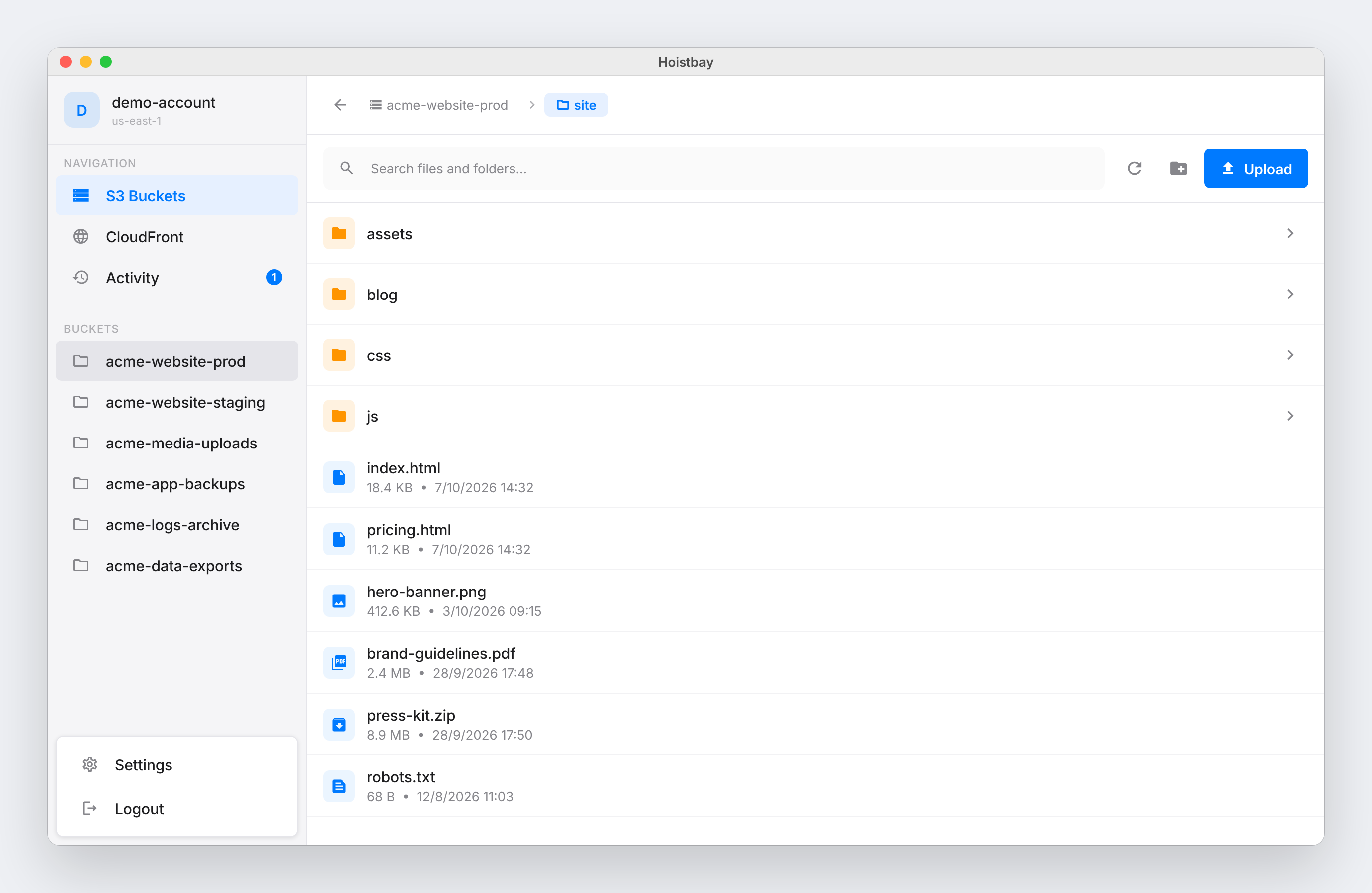
Hoistbay is a free, open-source desktop app for macOS and Windows that handles the repetitive S3 and CloudFront work that follows every release. Inside one window it lets you browse buckets, upload whole build folders with the correct headers applied, download single objects or entire folders, run bulk rename, move, copy and delete operations, and clear CloudFront caches. It is built for developers and teams who publish sites and assets to Amazon S3 and deliver them through CloudFront, and who would rather not click through the AWS console or remember CLI flags. Access keys live in the operating system keychain, there is no backend and no telemetry, and the app talks to nobody but AWS. The jobs Hoistbay targets are the ones that repeat after every release: getting a build folder into a bucket with the right Cache-Control headers, invalidating the CDN so users see the new version, and moving between the AWS accounts that separate production, staging and development. Done by hand, these steps are error-prone. Headers get set incorrectly and a build has to be uploaded again; temporary session credentials or a mismatched bucket region produce a SignatureDoesNotMatch error that is hard to diagnose; long folder listings stop at the first page; and a network hiccup midway through a transfer can fail silently. Hoistbay also addresses a trust problem: any new app asking for AWS keys has to earn that trust, and the product is explicit that it has no servers of its own, so there is nowhere for keys to go except AWS. Header Rules on Every Upload is the core of the deploy workflow. You set per-bucket rules once and Hoistbay applies them automatically to every upload afterwards. In the example shown on the site, `*.js` and `*.css` files get `Cache-Control: max-age=31536000`, while `*.html` gets `no-cache` — the familiar pattern for static assets that can be cached for a long time alongside HTML that must stay fresh. Rules are set by file pattern and cover Cache-Control, Content-Type and Content-Encoding. The practical benefit is that you no longer re-upload a build because the headers were wrong; the rule lives with the bucket and keeps working release after release without anyone having to remember the correct values or CLI flags. Every AWS Account, One Click Away describes the multi-account handling. You save a profile per account and region and switch between them instantly, with the interface showing entries such as prod-infrastructure in us-west-2, dev-sandbox in us-east-1 and staging-testing in eu-central-1. Session tokens work for temporary credentials, and bucket regions are detected automatically, which removes a common cause of SignatureDoesNotMatch errors. For anyone juggling several environments, this means crossing from production to a sandbox no longer involves re-entering keys or editing a configuration file. Uploads, Downloads and Bulk Changes covers moving data. You can drag in files or several folders at once with the folder structure kept intact, download single objects or whole folders, and multi-select objects to rename, move, copy across buckets and regions, or delete — folders included. Clear CloudFront Cache in Seconds sits alongside it: your distributions are listed next to your buckets, you can invalidate `/*` or specific paths after a deploy, and you can watch the invalidation until it reports “Cache cleared”. Both operations feed the same Activity panel, so transfers and invalidations are visible in one place rather than scattered across separate tools. Inspect and Fix Metadata gives you a details pane for any object showing its properties, HTTP headers, tags and versions. Content-Type, Content-Encoding or `x-amz-meta-*` values can be corrected in place, without re-uploading the file. One Activity Panel for Everything collects uploads, downloads, deletes and cache clears with live progress, start and finish times, and a clear success or failure status. Resilient on Flaky Networks means network hiccups are retried automatically up to three times, and anything that still fails is reported per object instead of failing silently. Fixes the S3 Errors You Know addresses specific long-standing annoyances: keys containing spaces or special characters just work through custom Signature V4 signing, bulk deletes send the required Content-MD5, and folders with 1,000+ objects are fully paginated. The overall approach is deliberately narrow and local. Hoistbay has no middleman backend and no analytics; it calls the official AWS regional endpoints over HTTPS using the aws_s3_api SDK and nothing else. Credentials are encrypted at rest using flutter_secure_storage, which leverages each platform's native keystore — the macOS Keychain and Windows Credential Manager — and keys are only read when the app calls AWS. The code is open source under the MIT license on GitHub so it can be audited, and the README lists the exact IAM permissions each feature needs for anyone who prefers least privilege. The app itself is built with Flutter and can be built from source, and the site hosts an interactive demo that is a working replica of the app running in the browser and never touching AWS. The outcome for users is a shorter, more predictable path from build folder to CDN. Header correctness stops being a manual step, so builds do not need to be re-uploaded. Account and region switching stops producing signing errors. Cache invalidation becomes a single click followed by a visible confirmation instead of a console detour. Failed objects are surfaced by name rather than disappearing, and large folders and awkward key names are handled. Because credentials never leave the machine and there is no backend, adopting the tool does not add a third party to your AWS security review. Concrete scenarios map directly to the described features. A developer finishes a static site build and drags the output folder into Hoistbay, knowing that the JavaScript and CSS files will receive the long-lived Cache-Control rule and the HTML files the no-cache rule. After the upload, they invalidate `/*` on the matching distribution and watch until the cache is cleared. A team member downloads an entire assets folder to inspect what is actually live. Someone reorganises objects with multi-select move and copy across buckets and regions. An engineer discovers an object served with the wrong Content-Type and corrects it in the details pane without re-uploading. A freelancer jumps between production and a client sandbox using saved profiles. Hoistbay is aimed at developers and teams working with Amazon S3 and CloudFront, and at anyone who would otherwise operate those services through the AWS console or CLI flags. It runs on macOS (Apple Silicon and Intel, macOS 12+, version 1.1.1) and Windows (Windows 10/11 x64, version 1.1.1), with a Linux client listed as coming soon. It is free and open source, MIT licensed, built with Flutter and released through GitHub, which also hosts the changelog. First launches on macOS require a right-click Open because the app is not yet notarized by Apple, and Windows may show a SmartScreen prompt that can be bypassed through More info and Run anyway. Hoistbay's value proposition is straightforward: it turns the recurring S3 and CloudFront chores after a release — correct headers, cleared caches and the right account — into a single fast desktop workflow, while keeping AWS credentials on your own machine, in your own keychain, with no backend and no telemetry.

Lazy AWS is a keyboard-driven home for your AWS resources, delivered as a terminal application. Instead of moving between browser tabs, it lets you browse, inspect, and act on your cloud resources without leaving the keyboard. The product positions itself as a single terminal window where your account and region stay in view while you move through services, panes, and resource lists. According to its website, the tool covers services such as EC2, ECS, ECR, S3, and Lambda, and lets you run AWS CLI actions after reviewing exactly what will execute. It is aimed at people who already work in a terminal and want a faster, less click-heavy way to look at what is running in their AWS account. The problem Lazy AWS addresses is described on its site as the console shuffle — the constant switching, clicking, and context shifting involved in working with AWS resources through a graphical console. The site frames its value as a small learning curve and a lot less clicking, suggesting a tool that is quick to learn but removes repetitive pointer work. Rather than replacing the AWS CLI, Lazy AWS sits on top of an existing AWS CLI setup and adds a browsable, keyboard-first interface over it. That matters for developers and operators who already know their way around AWS CLI profiles and regions but want a faster way to see what exists in an account, dig into a specific resource, and then take a deliberate action against it. The first step in the product's three-stop tour is finding your bearings. In this mode you switch between services, move between panes, and select a resource, while your account and region stay visible on screen. The demo screenshots show EC2 as an example, with instance, volume, security group, and subnet panes displayed alongside JSON details for the selected resource. Keeping the account and region in view matters because those two pieces of context determine which resources you are actually looking at; having them permanently on screen reduces the risk of acting in the wrong account or region. Switching services and panes from the keyboard means the whole navigation loop stays on the keyboard rather than moving to a mouse. The second stop is going one level deeper. You can filter a list and then open the selected resource's JSON details, with related resources shown right beside it. This is where Lazy AWS differs from a plain list view: the JSON detail pane gives you the full shape of a resource, while the neighbouring panes give you the things connected to it. In the EC2 example on the site, that means seeing an instance together with its volume, security group, and subnet information rather than chasing each one separately. Filtering a list first is the mechanism the product uses to narrow down large resource collections before you commit to opening one. The third stop is knowing what will run. When you open an action, Lazy AWS shows you the account, the target, and the exact AWS CLI command before anything executes, and runs it only when you confirm. This confirmation step is the product's core safety mechanism: it turns an action into something you review rather than something that fires immediately. Because the exact CLI command is displayed, you can see precisely which AWS CLI operation is about to be issued against which target, in which account. That is useful both for people who already know the CLI and for people who are learning it, since the command itself is visible on screen as part of the confirmation step. Lazy AWS installs as a binary. The site lists two installation routes: a curl script that installs the binary to ~/.local/bin, which you add to your PATH if needed, and a Homebrew tap for macOS or Linux. Supported systems are macOS, Ubuntu, Arch Linux, and Omarchy; Windows is not supported, and Debian installs are available without a support guarantee. AWS CLI v2 is a prerequisite, though AWS CLI v2 and credentials are only needed when connecting your own AWS account. You can start with lazyaws --demo to run the installed demo against local sample data with no AWS account or credentials required. To connect your account you use an existing AWS CLI profile — signing in first with aws sso login --profile dev if your profile uses SSO — and then run lazyaws --profile dev --region eu-west-1. The overall approach is therefore to reuse the credentials, profiles, and regions you already have configured rather than introducing a separate authentication or configuration system. The stated benefits are speed and reduced clicking. The site summarises the learning curve as three stops — find your bearings, go one level deeper, know what will run — after which, it says, you know your way around. Because navigation is keyboard-driven, switching services and panes does not require reaching for a mouse. Because account and region stay in view, you keep the context that matters for every action. Because actions require confirmation with the exact CLI command shown, the tool builds a review step into every execution. And because the demo runs on local sample data without credentials, you can evaluate the interface before connecting a real account. Concrete workflows described on the site include browsing a service's resource list and selecting an individual resource; filtering a list to narrow it down and then opening the JSON details of the selection; and reviewing related resources displayed beside a selected resource — for example an EC2 instance next to its volume, security group, and subnet panes. Beyond inspection, the action flow covers opening an action, reviewing the account, target, and exact AWS CLI command, and confirming execution. The demo mode supports a trial workflow with no AWS account, and the profile-plus-region launch command supports working against a specific named profile and region, including SSO-based profiles that require a sign-in step first. Lazy AWS is aimed at developers and cloud practitioners who are comfortable in a terminal and already use the AWS CLI. It runs on macOS, Ubuntu, Arch Linux, and Omarchy and explicitly does not support Windows. Installation is through a curl script or a Homebrew tap, and the tool depends on AWS CLI v2 for connecting a real account. Service coverage shown on the site includes EC2, ECS, ECR, S3, and Lambda. Product Hunt lists it under Amazon, Open Source, Developer Tools, and GitHub, and the service guide is hosted in a GitHub repository. No pricing or plan information is stated on the website. In short, Lazy AWS takes the AWS resources you already have and puts them in one terminal window with keyboard navigation, side-by-side resource and JSON detail panes, and an explicit confirmation step that displays the exact AWS CLI command before it runs. Its value proposition is straightforward: your cloud, your terminal, less console shuffle and a lot less clicking.
Framefields is an open-source, code-first video engine built for coding agents and engineers. It ships as a single npm package that an agent drives with TypeScript to make motion graphics, type, charts, 3D scenes and audio, check its own rendered frames, and export MP4 video rendered on the GPU. The project calls itself the video engine for coding agents and positions itself against bulky creative suites: instead of assembling a timeline by hand in a desktop application, you write a composition as code, preview it in a local WebGPU player, inspect individual frames, and render the finished film deterministically, frame by frame, from the command line or from inside an agent's workflow. Installation is offered through Claude Code with a plugin command, and through Codex, Cursor, Gemini CLI and other agents with a skills command. The obvious alternative is to record a headless browser: lay out a DOM page, animate it with CSS or JavaScript, and screenshot each frame. Framefields documents why that approach struggles. In a headless browser a frame is captured by laying out the DOM and then taking a screenshot, whereas Framefields renders straight to a GPU texture. Timing in a headless browser depends on wall-clock timers that can drift, while Framefields keys everything to the frame number. Text in a browser is rasterised on the CPU, while Framefields evaluates glyph curves per pixel. Memory per worker is listed at 200–400 MB for Framefields versus 2–4 GB for headless Chromium. And 3D, effects and vision come in the package rather than having to be brought in separately. The stated goal is deterministic, frame-accurate output with no Chromium and no browser overhead, so a render produces the same frames every time it runs. The package covers type that stays sharp. Glyph outlines are solved per pixel on the GPU, so text is crisp from 10 px to 10,000 px, and it can be animated letter by letter with After Effects-style selectors and typewriter timing. That makes kinetic typography and large-scale titles practical in code, without the rasterisation softness that appears when huge text is scaled up in a browser. 3D lives in the same frame as 2D: a camera lines up 1:1 with 2D pixels, and the engine supports physically based materials, image-based light, shadows, bloom, ambient occlusion and skinned models loaded from OBJ, FBX, glTF, STL, PLY and VOX. Because the 3D camera and the 2D coordinate space are aligned, type, charts and graphics can be composed directly against 3D content rather than being layered on in a separate pass. More than 50 effects are included: curves, levels, selective colour, 3D LUTs, halftone, film grain, mesh warp, liquify, glass, track mattes and scene transitions. The site illustrates a handful of them — a portrait rendered as a CMYK halftone print, a portrait remapped to black, grey and yellow with GradientMap, hair twirled into a swirl with Liquify, and a zoom blur radiating from the face. Vision runs on the device: detection, segmentation, pose and person mattes through ONNX, which lets a composition pin graphics to a tracked object, cut a subject out of footage, or reframe 16:9 to 9:16 without sending frames to a remote service. Having tracking and mattes inside the same package means the compositing step happens in the same render as everything else. A live preview ships with the package. A local WebGPU player runs the composition itself rather than playing back a proxy, so you can scrub, step frame by frame, and pin notes on the picture for your agent to apply — closing the loop between what the agent rendered and what you want changed. Sound sits on the same clock: soundtrack layers placed to the frame, procedural sound effects on a beat grid, and signals taken from the audio that can drive any property. Charts and Lottie are first-class citizens — line, bar, scatter, candlestick and pie charts are ordinary layers, and Lottie and dotLottie files composite on the GPU with everything else. Finally, the engine includes tests for motion: render a grid of frames to check easing and transitions at a glance, and assert on pixels or frame-to-frame change in Vitest. The overall workflow is code-first and agent-first. You install the package, write a composition — the site's example is a file called film.ts, which can be opened in full — and render it. The site reports that 255 frames at 1920×1080 rendered from film.ts in 2.6 seconds on an Apple M1 Pro with framefields@2.1.1 from npm, and it offers the resulting MP4 for download. Because the composition is code, an agent can write it, run it, look at the rendered frames, and revise. That loop is the product's central idea, summarised as video your coding agent can write, check and ship. Nothing depends on a headless browser, a desktop application or a wall-clock animation timeline; each frame is captured against the frame number and rendered straight to a GPU texture, which is what makes the output deterministic. The stated benefits follow from that design: deterministic, frame-accurate output; much lower memory per worker, listed at 200–400 MB versus 2–4 GB for headless Chromium; crisp type at any scale because curves are evaluated per pixel; 3D, effects and vision available in the package instead of assembled from separate tools; and hardware-accelerated MP4 export directly from TypeScript. The project also frames the package as a replacement for bulky creative suites, with motion graphics, Photoshop-grade VFX, 3D scenes and audio DSP arriving as one npm dependency rather than a stack of applications. Rendering speed is illustrated by the 2.6-second, 255-frame example on an M1 Pro. The repository's examples folder holds longer films built with the engine, each linked to a YouTube video: the Framefields launch film, a Mac keyboard built from 3D primitives, a film called Full Circle, and a dancer that is tracked and composited. Those illustrate the range — brand and launch motion graphics, purely procedural 3D scenes, and footage-driven compositing that depends on the ONNX vision pipeline. The site also names concrete tasks: reframing 16:9 to 9:16, pinning graphics to a tracked object, cutting a subject out, animating charts as ordinary layers, placing sound effects on a beat grid, and rendering frame grids in Vitest to check easing and transitions before committing to a longer render. The product is aimed at AI coding agents and the engineers who operate them: it advertises itself as the video engine built for coding agents, and installs into Claude Code with /plugin install framefields and into Codex, Cursor, Gemini CLI and others with npx skills add gatewai-dev/framefields. The tech named on the site includes TypeScript, native WebGPU in Node.js, ONNX for on-device vision, Vitest for pixel and frame-to-frame assertions, and Lottie and dotLottie support; the package is distributed on npm, with framefields@2.1.1 cited as the version used in the demo render. The project is described as open-source and links to its GitHub repository at gatewai-dev/framefields, where the examples live. The provided content does not list pricing tiers or a paid plan. Framefields makes video something a coding agent can produce end to end: write the composition in TypeScript, preview and annotate it in a local WebGPU player, check frames and assert on motion in Vitest, and render hardware-accelerated MP4 on the GPU without a headless browser or a desktop creative suite.
walkai-talkai is a macOS app that turns any handheld two-way radio into a push-to-talk voice bridge for AI coding agents. You key up on a walkie-talkie, speak a command, and the app transcribes your voice locally on the Mac, types that command into an agent such as Cursor, Claude Code or Antigravity, and then broadcasts the agent's answer back over the radio with a neural voice. It is built for developers, radio users and anyone who wants hands-free control of an AI agent while away from the keyboard. It works with Baofeng, Quansheng, Motorola, Kenwood or any radio that has VOX and an audio jack, running on Apple Silicon Macs with macOS 13 or later. Most work with an AI coding agent happens at a keyboard: you type a prompt, wait for the agent, read the answer on screen and then type again. walkai-talkai changes that loop by making the radio the microphone and the speaker, so the interaction becomes a transmission rather than a chat window. The website presents the product as "built for the field", and it emphasizes that the app types into the exact window you chose even while you are away from the keyboard. Because speech recognition and speech synthesis both run on the Mac, your radio audio never leaves the machine; the internet is used for the license check and, in API Mode, for the AI provider you choose. The app keeps working offline for up to 14 days between license checks, which matters when the station sits somewhere without a reliable connection. On the input side, walkai-talkai treats the radio as the microphone. Audio comes in through a simple cable — a 2-pin K-plug or 3.5 mm connection into the Mac or a USB audio adapter — and OpenAI Whisper running locally on Metal converts speech to text. The app supports Turkish and English, and it shows live waveform monitoring so you can confirm the station is hearing you before you commit to a command. Inside the Station dashboard the live spectrum displays incoming audio in green and your reply in orange, with each message appearing underneath for a few seconds. Because recognition happens on the Mac rather than in the cloud, the audio path stays on the machine from end to end. Once a command has been transcribed, walkai-talkai offers two ways to deliver it. In Target Window mode you pick a target window once — Cursor, Antigravity, Terminal or any app — and every transmission is typed into that window through macOS Accessibility automation, then submitted with Enter and tagged as a [radio command]. Because the app drives the window itself, it keeps working even while you are away from the keyboard. In API Mode the app skips the IDE entirely and calls a model provider directly: OpenAI, Anthropic, Gemini, DeepSeek or Ollama. That makes the radio either a remote control for an existing coding session or a standalone voice front end for a model, without changing hardware. The return path is what makes the loop feel like radio rather than a chat app. Any agent that can run curl can answer by POSTing a short summary to 127.0.0.1:1988/api/reply, and the endpoint is loopback-only, so nothing is exposed to your network. The app then speaks that text using CoreML neural TTS — Kokoro and EMA models running on CoreML and the Apple Neural Engine — for fast, high-quality radio announcements. To open a radio's VOX circuit before the first syllable is spoken, walkai-talkai sends a rising 880 → 1100 → 1400 Hz wake-tone preamble, and it closes the transmission with a roger beep. The result is an answer that arrives as a proper radio transmission rather than a truncated squawk. Seen end to end, the product is a five-step loop: key up, transcribe, dispatch, reply and broadcast. You press PTT and speak; your radio's audio-out feeds the Mac through a cable; Whisper converts your voice to text; the command is typed into the agent and sent; the agent POSTs a short summary back to the local endpoint; and CoreML neural TTS speaks it into the radio's VOX line with wake tones and a roger beep. The Station UI is deliberately calm and focused, with sections for the Station dashboard, Audio I/O, Automation, API settings, Command Logs and Diagnostics, a one-click start/stop for listening, and a switch between Target Window and API mode. Low latency is called out as a core quality of the app, which matters when a reply has to fit between transmissions. The benefits follow directly from that design. You can operate an AI coding agent without sitting at the keyboard, which suits anyone who is moving around a room, a lab or a workshop while a build or a task runs. Because Whisper and the neural voice run locally, the radio audio stays on your Mac, and the loopback-only agent API keeps the reply channel off your network. The app works with radios you may already own rather than requiring dedicated hardware, and it is agent-agnostic: anything you can type into is a valid target, and any agent that can run curl can talk back. Speech recognition and neural voice cover both English and Turkish, and a lifetime license can be moved to a new Mac whenever you want. Concrete setups show how the loop is used. A developer leaves one radio at the Mac and carries the second one, then keys up to ask an agent to look at a problem — the site's example transmission asks the agent to check why a buy button does nothing when clicked. Another developer uses Target Window mode to type a quick instruction into Cursor or Antigravity without returning to the desk, letting the agent work while they are away from the keyboard. In API Mode, the same radio can query OpenAI, Anthropic, Gemini, DeepSeek or Ollama models directly, with no IDE in the path, which is useful when you only want a spoken answer. Radio operators who already run VOX-capable handhelds can reuse their existing Baofeng, Quansheng, Motorola or Kenwood gear, and Turkish-speaking users can work entirely in their own language for both recognition and the spoken reply. Hardware requirements are deliberately modest: any handheld two-way radio with VOX and an external audio port, a standard 2-pin K-plug or 3.5 mm audio cable into the Mac or a USB audio adapter, a second radio so one stays at the Mac and one travels with you, and an Apple Silicon Mac (M1 and newer) on macOS 13 Ventura or later. Pricing is a single lifetime license priced at $19.99 as an early-bird rate against a $29.99 regular price, excluding tax, with any applicable sales tax or VAT added at checkout. Stripe acts as Merchant of Record for every order, issuing the receipt and handling tax, while walkai-talkai provides the software, the license and support. One license activates one Mac, and you can deactivate it and move it to a new Mac whenever you want; free updates are included. In short, walkai-talkai is a narrow, well-defined tool: it turns a walkie-talkie into the microphone and speaker of an AI coding agent on macOS, keeps the audio processing local, and closes the loop with neural voice, VOX wake tones and a roger beep. If you want hands-free, radio-style control of Cursor, Claude Code, Antigravity, a terminal agent or a direct model API, that is exactly the loop it builds.

Tomo for ChatGPT is a learning game that lives inside ChatGPT. It lets a user ask for a Tomo course on any topic, or turn the conversation they are already having into a course, so they can practice what they just discussed. The product is designed for curious ChatGPT users who want to learn through quick questions, instant feedback, and game-like progress without leaving the chat. A course appears as a card in the conversation, and each level is a few minutes of questions. Tomo describes the experience as playing like the Tomo app in the chat, with the same game loop, and the main purpose is to help users engage with a topic and keep its big idea after finishing a level. The problem Tomo addresses is the gap between asking ChatGPT a few questions and actually practicing or retaining what was discussed. ChatGPT can ask a few questions, but Tomo builds a real course with levels, grades every answer, keeps score, and brings the learner back with a streak, both in the chat and in the app. The product is positioned around curiosity and follow-through: a user can ask ChatGPT for a course on black holes, receive a game in the chat, and play quick questions rather than only reading an explanation. The website also frames the value as practicing what was just talked through so it actually sticks, and as turning any chat into a course without leaving the conversation. A central capability is turning any named topic into a Tomo course. The website gives examples such as “Make me a Tomo course on black holes,” “Make me a Tomo course on the history of coffee,” and “Find me a Tomo course about latte art.” Once Tomo is added, the user says what they are curious about, and the course is ready to play in about a minute. The product also supports turning the current chat into a course, which is useful when a user has just worked through an explanation, a discussion, or a topic and wants to practice it. In addition, users can find and play courses that other curious people have already made, which extends the experience beyond topics a user creates themselves. Each level is presented as a few minutes of questions on a card inside the ChatGPT conversation. A question card can show a multiple-choice question, and when the user taps an answer, Tomo grades it on the spot. The feedback includes a one-line explanation of why the answer was right or wrong, so the learner gets immediate context rather than waiting until the end. Finishing a level gives the learner its big idea, and the website shows a finished level with three stars, plus 10 XP, and a takeaway. These details make the course feel like a compact game session rather than a long quiz, and they keep the learning interaction inside the chat where the user already is. Tomo uses a game loop with hearts, combos, and stars. The website calls it the same game loop as the Tomo app: the learner tries to keep their hearts, build a combo, and finish with up to three stars. This structure adds stakes and momentum to short question sets, and it gives users a clear sense of performance at the end of a level. XP is also part of the experience; the finished-level image shows plus 10 XP. Because the game loop is familiar from the Tomo app, the ChatGPT version can feel consistent for existing users while giving new users a simple, recognizable format for practice. A distinctive feature is choosing who teaches the course. The website lists teacher options including a bestie, a professor, a storyteller, a pirate, or an explanation styled like the user is five. Product Hunt metadata similarly says the user can pick a teacher from The Professor to The Pirate. This lets the same topic be delivered in different voices and levels of explanation. Tomo also states that ChatGPT never sees the answers, because Tomo sends each level’s answers only to the game card and never to ChatGPT. That no-spoilers design matters in a chat environment, where a user might otherwise be able to ask the assistant for the answer and undermine the practice. Getting started is described as three steps. First, the user adds Tomo to ChatGPT by opening Tomo’s page in ChatGPT and tapping Install. Second, the user connects or skips: ChatGPT opens Tomo’s sign-in, and the user can sign in to keep their streak or tap “Continue without an account” to play as a guest. Third, the user asks for a course by naming any topic or saying “turn this chat into a Tomo course.” This flow keeps the barrier low because a guest can play, while a free Tomo account adds persistence. The account keeps the user’s streak, XP, and courses, and those carry on in the Tomo app on iPhone and Android. A learner can play a level on the bus and pick it back up in ChatGPT, which connects short mobile sessions with the ChatGPT conversation. The benefits described on the site center on making learning active, immediate, and continuous. Instant grading with a one-line why helps a user understand an answer at the moment they choose it. Hearts, combos, stars, and XP turn a few minutes of questions into a game with clear feedback and a result. Finishing a level leaves the learner with its big idea, which supports retention. The streak and progress sync give users a reason to return and a way to continue across the chat and the Tomo app. The product also benefits from being native to the conversation: users do not have to leave ChatGPT to practice a topic, and they can turn the chat they are already in into a course. Concrete use cases come directly from the website’s examples. A user can ask for a course on black holes and play quick questions in the chat. A user can ask for a course on the history of coffee, then answer a question about the specific region where the coffee plant first thrived, with Ethiopia marked correct and a short explanation. A user can turn a current chat into a Tomo course to practice what was just discussed. A user can search for an existing course, such as latte art, and play a course made by another curious person. The product also fits a cross-device routine: play a level on the bus in the Tomo mobile app, then pick it back up in ChatGPT, or start in ChatGPT and continue on iPhone or Android. Tomo for ChatGPT is free to start and works on the web, desktop, and the ChatGPT app. Playing courses is free, and a new learner gets enough sparks to build a course; building more courses uses sparks from a Tomo account, and nothing is sold inside ChatGPT. A Tomo account is optional for play, but a free account keeps the streak, unlocks every level of a course, and carries progress into the Tomo app. The Tomo app is available on the App Store and Google Play, and the page states a 4.7 rating on both. The product is aimed at curious learners who use ChatGPT and want a game-like way to practice any topic, from a quick guest session to an ongoing routine with streaks and courses. In summary, Tomo for ChatGPT turns ChatGPT into a place to play short, Duolingo-style courses on anything. It combines topic-to-course generation, chat-to-course practice, instant grading, game mechanics, teacher personas, no-spoiler answer handling, and optional progress sync to make learning inside ChatGPT more active and repeatable.

Tower is a Git client for Mac and Windows that gives developers and designers a visual desktop interface for version control. Over 100,000 developers and designers use Tower to be more productive with Git, and the product's stated aim is to make Git easy without giving up any of its power. Instead of typing commands, users drag and drop branches to merge them, undo their last action with a single keyboard shortcut, generate commit messages with AI, and create and review pull requests from inside the app. Tower 18 for Mac adds a terminal-focused improvement: the Tower Command Line Tool can now take you straight to any view in Tower — History, Blame, the Working Copy, Branches Review, and more — with a single command. The problem Tower addresses is not a lack of Git capability but the friction of reaching it. Git is an extremely powerful version control system, yet its command-line workflow can make everyday operations slower than they should be and advanced operations easier to get wrong. Tower's own users describe the trade-off it resolves. Chris Coyier, Co-Founder at CodePen, calls Tower "the perfect level of abstraction away from command-line Git usage — a simple and powerful UI, but without hiding what makes Git powerful." Frances Coronel, Software Engineering Mentor at Thinkful, says that "what took me minutes in the command line now takes seconds with Tower and that's why I'm never looking back." Tower's answer is a visual client that keeps the underlying Git model intact, so users gain speed and clarity without losing access to the operations that make Git valuable. The first pillar of the product, presented as "Git Made Easy," covers the daily operations that most often interrupt a developer's flow. Drag and Drop lets you merge a branch by dragging it onto another branch, replacing a command sequence with a direct visual action. Undo Everything (⌘+Z) reverses your last action with a single keyboard shortcut, which lowers the cost of experimentation because a mistaken operation can be rolled back instead of reconstructed by hand. Stacked Branches support displays a stack of dependent branches side by side, so you can see how the branches in a stack relate to one another. AI Commits generates a commit message from the staged changes, removing the step of writing one manually. Automatic Branch Management handles branch-related housekeeping so that attention stays on the work rather than on branch administration. The second pillar is "All of Git's Power (And None of the Pain)," which makes sure the convenience of a GUI does not come at the cost of Git's advanced capabilities. Pull Requests can be created and reviewed without leaving Tower, keeping the review step inside the same tool where the changes were made. Single-line staging lets you stage individual lines of a changed file, so a commit can contain exactly the change you intend rather than everything in the file. Interactive Rebase lets you reorder and squash commits. The Conflict Wizard walks through resolving a merge conflict step by step. Tower also supports Submodules, Git LFS, Git-Flow, File History, Blame, and Cherry-Pick — the operations that most often send users back to the terminal when a GUI falls short. The third pillar, "Software With Productivity in Mind," is about removing repeated navigation and setup work. Quick Actions lets you search for a Git command, and Single-click cloning clones a remote repository in one click. Quick Open jumps straight to a repository, which matters once you work across many projects. Worktrees lets you manage several Git worktrees of a single repository, and Workflows lets you configure a branching workflow so that the team's conventions are defined once in the app. Automatic stashing & fetching handles stashing and fetching without requiring a separate manual step each time. Tower's overall approach is to sit on top of Git as a desktop client for Mac and Windows while explicitly refusing to hide what makes Git powerful. Rather than replacing the command line, Tower connects to it: in Tower 18 for Mac, the Tower Command Line Tool can take you straight to any view in Tower — History, Blame, the Working Copy, Branches Review, and more — with a single command. That means a user working in the terminal can jump directly into the corresponding visual view instead of navigating the app manually. The same philosophy shows up in the way Tower handles advanced Git concepts such as Stacked Branches, Worktrees, and configurable Workflows, presenting each as a visible, manageable structure inside one application. The stated outcome for users is speed and confidence with version control. Frances Coronel's testimonial frames the benefit directly: what took minutes in the command line now takes seconds. Chris Coyier's testimonial frames the benefit in terms of balance — a simple and powerful UI that does not hide what makes Git powerful. Esteban Torres, Engineer at SoundCloud, highlights that "the new Tower adds a lot of great features that help me go on with my day faster; like the ability to create pull-requests directly from the tool." Daniel Schutzsmith of Amnesty International describes the broader effect: "You should use Tower. It changed the game for me and made Git much more visual for me to understand." Across these accounts, the recurring outcomes are less time spent on routine Git operations, fewer trips outside the app, and a more visual understanding of what is happening in a repository. Concrete workflows follow from those capabilities. A developer merging a feature branch drags it onto the target branch instead of running a sequence of commands, then uses ⌘+Z if the result is not what was intended. Someone preparing a commit stages individual lines of a changed file so the commit contains only the relevant change, then lets AI Commits draft the message from the staged changes. When a merge produces a conflict, the Conflict Wizard guides the resolution step by step instead of leaving the user to edit conflict markers unaided. A developer who wants to clean up history reorders and squashes commits through Interactive Rebase, and a reviewer creates and reviews a pull request without leaving Tower. Someone working across several branches of one repository manages them as Worktrees, and a user in the terminal jumps straight to History, Blame, the Working Copy, or Branches Review with a single command. Tower is also used for both design and code work: Jesse Bilsten, Principal Designer at GoDaddy, says "I utilize Git in both design and development environments — and Tower is the only tool that empowers me in both," and Koen Bok, CEO at Framer, notes that "Tower is a pleasure to use while it retains the full power of Git. I enjoy using it every day for both design and code work." Tower is built for developers and designers — a population the product describes as over 100,000 users worldwide — who want a visual Git client without losing Git's underlying power. It is available for macOS and Windows, with separate Windows downloads for x64 and ARM. Pricing is trial-based: users can download a free trial and try Tower "Pro" for 30 days without limitations. Tower also publishes free email courses, "Learn Git with Tower" (8 emails) and "Tips & Tricks for Tower" (10 emails), alongside a blog covering releases such as Tower 18 for Mac and Tower 14 for Windows. In summary, Tower's value proposition is a Git client for Mac and Windows that makes version control easier and faster to operate without simplifying away what makes Git powerful. It combines drag-and-drop and undo for everyday actions, AI-generated commit messages, full access to advanced Git operations such as interactive rebase, submodules, Git LFS, Git-Flow, file history, blame, and cherry-pick, productivity features like quick actions, worktrees, and workflows, and — in Tower 18 for Mac — a command line tool that takes you straight to any view in Tower with a single command.
shim-cli is an open-source command-line tool that runs on your machine next to Claude Code, Codex, Copilot CLI and VS Code. Its purpose is to show developers what their coding agent actually sends to the model, to find secrets and personal data in that traffic, and to mask those values wherever the client allows a hook to rewrite content. The tool is distributed under Apache-2.0 at version 1.2.1, runs on macOS and Linux, and requires Python 3.10 or newer. It is aimed at developers who use AI coding agents on real codebases and want a local, inspectable layer between the agent and the model rather than a hosted service. AI coding agents read files, run commands and send tool results to remote models, which means API keys, database URIs, customer records and personal identifiers can leave a developer's machine as a side effect of ordinary work. That exposure is hard to see: the agent's request is assembled behind the scenes, and few clients offer a way to inspect or redact it. shim-cli addresses that gap by attaching to the agent itself. It does not require an account, an API key or a network call to shim, and it adds no telemetry, so the inspection happens entirely locally. The product's own framing is deliberately modest: it narrows exposure and is not a data-loss prevention boundary. At the core is a detector that scans the content an agent sends. It recognizes email addresses, phone numbers, credit cards, IBANs, Turkish national IDs, Turkish tax IDs, API keys and secrets, passwords in config and commands, database URIs, IP addresses, MAC addresses and US SSNs, with Turkish licence plates available as an opt-in. IBANs and Turkish IDs are verified by checksum, so a mistyped number is not reported as a finding. Users can also add their own project names or host formats as patterns, extending the detector to identifiers specific to their environment. A `shim demo` command runs the detector on a made-up sentence and shows the before and after, without installing anything, so the behaviour can be evaluated before any change is made. Masking is delivered through a native hook installed into the agent. In Claude Code, when the agent reads a file or a tool result holding a key, an IBAN or an email, the model receives a placeholder such as `` instead of the value. The masking happens before the model reads the content. In Copilot CLI the prompt the model receives is replaced with the redacted text, so the original values never reach it. Codex reports what it found in the prompt and lets it through by default, with an enforce mode that blocks it instead. VS Code reports, and with enforcement on it can stop a prompt or deny a tool call before it runs, though a tool result that has already reached the model is only reported. Visibility is the second half of the product. `shim watch -- claude` runs a local proxy for one command and reports tokens, spend and every secret or personal value that went past. It changes nothing, writes no request to disk and leaves nothing behind. `shim audit` reads the Claude Code session history already stored on disk and counts what reached the model, broken down by kind, by project and by the way it came in, for example a value found in a .env file, in a failed Bash command or in the user's own prompt. It prints no values, keeps nothing and sends nothing. At the end of a turn in Claude Code, a summary shows counts of masked values and flagged items such as an instruction override or hidden text, along with median and p95 overhead. Overall the approach is local instrumentation rather than a gateway in the cloud. shim-cli is installed with uv (`uv tool install --python 3.12 --compile-bytecode shim`) or pipx, which adds shim to ~/.local/bin. `shim install ` previews the hook change with `--dry-run` and then writes it, while `shim doctor ` checks the result and reports any check that is not passing along with a code and a fix. Claude Code can alternatively be connected through the Claude Code marketplace plugin, and users are told to pick one method, not both. Codex requires a trust step in /hooks before the hook runs. VS Code is configured only through a cloned plugin added to `chat.pluginLocations` in user settings.json. The project publishes measurements from its released build: more than 2,300 tests run on every release, a median hook cost of 70 ms including interpreter start, and 727 detector cases graded on exact output. The session summary quoted in the documentation shows 62 ms median and 119 ms p95 overhead. These numbers make the cost of running the hook concrete, since it sits in the path of every file read and tool result. The code is on GitHub under Apache-2.0 and can be read, tested and contributed to. Because shim-cli runs locally and requires no account, the people using it keep control of the inspection. Nothing is uploaded to shim, and the audit output deliberately avoids printing the values it counts. The tool is transparent about its boundaries: a prompt typed into Claude Code or Codex is not masked because neither client lets a hook rewrite it, Codex and Copilot CLI tool traffic is not inspected at all, VS Code masks nothing, and shell commands and file writes in Claude Code are reported or denied rather than masked. Windows is not supported, WSL is not yet verified, and detection is best-effort. A typical use is a developer working in a repository that contains a .env file. They run `shim audit` first to see what past Claude Code sessions already sent, then install the Claude Code hook so subsequent file reads deliver placeholders instead of credentials. A team reviewing an agent session can run `shim watch -- claude` on a single command to see the token count, the spend and the categories of sensitive values involved, without persisting a request. Before rolling anything out, a developer runs `shim demo` to see the detector's output on a made-up sentence, and `shim doctor` afterwards to confirm the hook is wired correctly. Organisations that need the same detection in front of their own product's AI calls can look at the AI Gateway on Enterprise, which adds audit, budgets and roles. shim-cli is for developers and teams using Claude Code, Codex, Copilot CLI or VS Code who want local visibility into what their coding agent sends. It is free and open source under Apache-2.0, with the whole CLI on GitHub. The only stated requirements are macOS or Linux and Python 3.10 or newer; the package is installed with uv or pipx, and the VS Code route needs a git clone of the release tag. In short, shim-cli makes the agent's outbound content inspectable and, where the client permits it, masks secrets and personal data before the model sees them, while showing what a Claude Code session sent and cost. It is a narrow, local, open-source tool that measures its own overhead and states plainly what it does not cover.
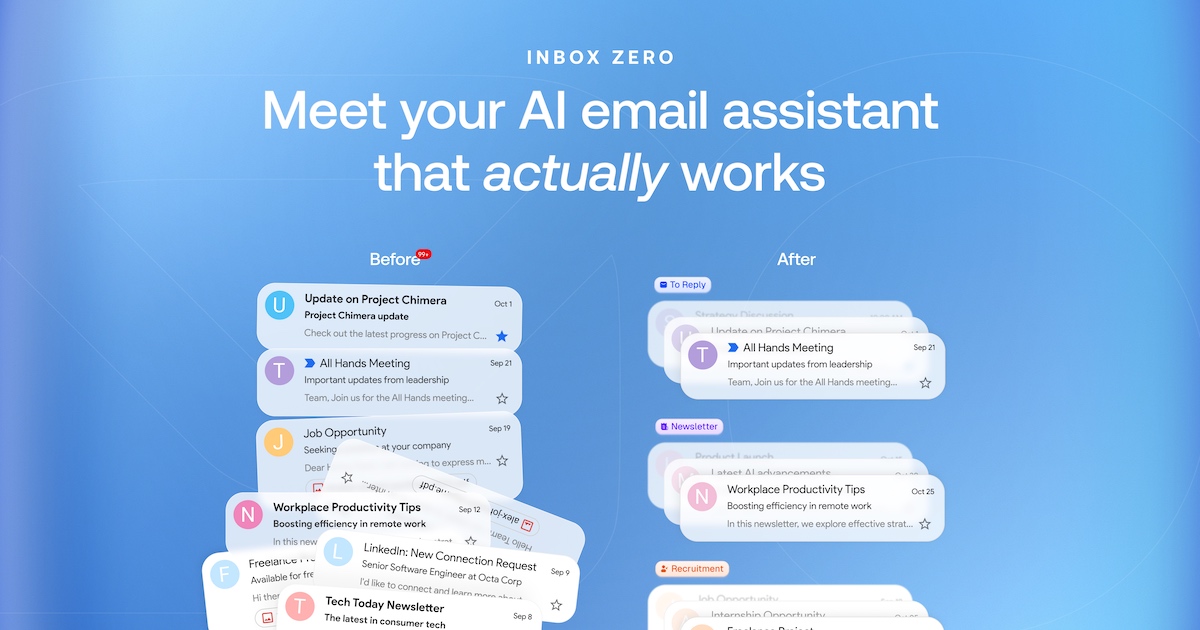
Inbox Zero is an open-source email client for Gmail and Outlook that runs in the browser, in desktop apps for Mac and Windows, and as a native iPhone app. It is built for professionals who want to move through email quickly and get back to real work, and it positions itself as a free, open-source alternative to Superhuman. The core app is keyboard-first: every action has a shortcut, the inbox is split into tabs based on what needs attention, and all of your work and personal accounts sit in one place. AI can be added on top to label every incoming email, draft replies in your voice, and keep the inbox sorted without manual triage. Most inboxes are a single undifferentiated stream, where newsletters, calendar invites, receipts, and messages that genuinely need a reply all compete for the same attention. The result is that important emails get buried, and clearing the inbox becomes a manual, repetitive chore. Premium email clients have addressed part of this with speed, but at a price. Inbox Zero's stated pitch is to let you fly through your inbox while AI does the rest, for half the price of Superhuman, with the promise of getting back an hour a day. Because it connects to your existing Gmail, Google Workspace, or Outlook accounts, there is nothing to migrate and your email stays where it is. The client is designed around the keyboard. Every action has a shortcut, so you can clear your inbox without reaching for the mouse: J moves to the next email, K to the previous one, E archives, H snoozes, R replies, and Z undoes. On top of the individual shortcuts, a ⌘K command box searches every command from a single place, and it works even while you are writing a reply, so you can type a command such as archive, snooze until tomorrow, or add label without leaving the composer. The inbox is also split into tabs, and pressing Tab jumps you from one split to the next, so you can move from To Reply to Newsletter to Calendar in a single keystroke. AI is what turns that fast client into a self-organizing inbox. AI labels every email as it arrives and splits your inbox into tabs like To Reply, Newsletter, and Calendar. If you want a different arrangement, you can describe a new split in plain English rather than configuring rules. The sorting is deliberately selective: Inbox Zero drafts replies only for emails that need one, such as those in your To Reply tab, while newsletters, receipts, and notifications are labeled and left alone. That means the tabs stay meaningful and you are not asked to review AI output for messages that never required a response. For the emails that do need an answer, a draft is already waiting before you open them. Those drafts are written in your style, using context from your past emails and your calendar, so the starting point sounds like you rather than a generic template. From there you can edit the draft, send it, or schedule it for later. The AI layer also covers adjacent work: pre-meeting briefings, an AI meeting notetaker, email digests, automatic filing of attachments, and a knowledge base that can be unlimited on higher plans, giving the assistant more context from your tools. Inbox Zero is also built to replace forwarding when a thread involves other people. You can bring work and personal Gmail and Outlook accounts together into one inbox, reading them side by side or focusing on a single account at any time. Beside any email you can leave a comment and @mention a teammate; those comments are never sent as email, so internal discussion stays internal. Slack alerts tell you when an email needs you, and plans add Slack integration, app integrations, email analytics, team-wide analytics, cold email blocking, and bulk unsubscribe and archive. The approach rests on two pillars: speed and openness. The web and desktop email client is open source under the AGPL license and is published on GitHub with more than 12,000 stars, having been #1 on GitHub Trending and Product of the Day on Product Hunt. Because the code is public, you can see exactly what it does, and you can self-host Inbox Zero if you want total control. The iPhone app is a separate app and is not open source. On privacy, the stated position is that your data stays private with no AI training, and the product is SOC 2 Type 2 certified for enterprise-grade security. The practical benefit is less time in the inbox and more time for what actually matters. Instead of scanning every subject line to decide what is important, you open tabs that already separate what needs a reply from what does not. Instead of starting each response from a blank page, you edit a draft that already reflects your voice and your calendar. Instead of forwarding threads to colleagues, you comment privately beside the email. And instead of paying premium-client prices for the AI layer, you can use the email app free and add AI at what the company describes as half the price of Superhuman. Typical workflows follow the shape of the product. A morning triage starts in the To Reply tab, where each message either has a draft waiting or can be archived, snoozed, or replied to with a single key. Newsletters accumulate in their own split and can be cleared in bulk with unsubscribe and archive, while cold emails are blocked. Someone juggling a work Gmail account and a personal Outlook account reads both in one inbox and switches focus when needed. A team handling a shared thread comments beside the email with an @mention rather than forwarding it, and receives a Slack alert when a message needs attention. Executives and entrepreneurs use pre-meeting briefings before a call, and teams review email analytics to understand how volume and response times are trending. Inbox Zero is aimed at individuals, entrepreneurs, and executives looking to buy back their time, at power users who need integrations and deeper knowledge base support, and at teams and growing businesses handling high email volumes. The email app itself is free on web, desktop, and iPhone. The Starter plan is $18 per user per month on annual billing and includes sorting and labeling of every email, replies drafted in your voice, cold email blocking, bulk unsubscribe and archive, email analytics, and pre-meeting briefings. Plus, at $28 per user per month annually, adds two email accounts per user, an AI meeting notetaker, Slack integration, app integrations, email digests, auto-file attachments, and an unlimited knowledge base. Professional, at $42 per user per month annually, adds team-wide analytics, priority support, and a dedicated onboarding manager. Enterprise covers SSO, SCIM, on-premise deployment, and a dedicated account manager, and AI plans include a 7-day free trial with cancellation anytime. In short, Inbox Zero combines a fast, keyboard-first email client with an AI layer that labels incoming mail, splits the inbox by what needs you, and drafts replies in your voice before you open them. It is free to use, open source on web and desktop, and priced to undercut the premium alternative it is built to replace.
Openbroca is an AI voice dictation app for Mac, built as a native Mac application for both Apple silicon and Intel Macs. Its purpose is stated plainly on its website: talk messy, read clean. You press a shortcut, speak the way you normally do, and Openbroca turns your words into clear, ready-to-send text inside the Mac app you are already using. The product describes itself as the best Typeless alternative for Mac, and it is aimed at people who write in emails, messages, notes, docs and AI prompts and would rather speak a first draft than type it. Everything happens in the field where your cursor already sits, so you can keep editing without switching apps. A personal dictionary, optional Screen Context and translation are included to help you write across apps and languages. The problem Openbroca addresses is the gap between how people speak and how they need to write. The website opens with a demonstration of that difference: a sentence spoken with "uh", "like" and "you know" scattered through it, and the same sentence reading back clean. Most dictation delivers a literal transcript of that mess, which means the speaker still has to go back and edit out the filler, the false starts and the repetition before the text is usable. Openbroca's stated approach is to remove fillers and repetition while keeping your meaning and tone — and to do it without prompt tweaking. That matters because dictation is only a shortcut if the output is ready to send; if every transcript needs a cleanup pass, the time saved by speaking disappears into editing. AI cleanup is the core of the product. After you speak, Openbroca cleans up what you said: it removes fillers and repetition while preserving your meaning and your tone, and it does so without asking you to write or tune a prompt. The website frames the result as clean, ready-to-send text that still sounds like you. The example shown on the site is a short update to a colleague — "Hi Maya, quick update on the launch..." — the kind of message someone would normally dictate loosely and then fix by hand. Because the cleanup keeps tone rather than flattening the text into something generic, the output can be inserted directly into a message or email without a rewrite. The Product Hunt description also notes that all features, including this cleanup, are free to try. Two features work on the accuracy of specific words. The first is a personal dictionary: you add names, terms and preferred spellings, and Openbroca can also learn from corrections you make right after dictation. The preferences screenshot shows the mechanism — spoken-phrase replacements such as "open broker" mapped to "Openbroca" — alongside a "Learn words automatically" option, and the Product Hunt description mentions Typeless dictionary import so existing entries can be brought over. The second is optional Screen Context, which the setup instructions describe as helping Openbroca recognize names and terms on screen. Both features target the same weakness of generic speech recognition: it does not know your colleagues' names, your product names, or the spellings your team uses. Rather than correcting the same words every time, you teach the dictionary once and let the app apply it. Openbroca also supports multilingual dictation and translation. The website states that dictation works in 30 languages with automatic language detection, and that you can choose from 28 output languages for translation. You speak naturally, choose one of the 28 output languages, and Openbroca translates your dictation and puts the result at your cursor. The site lists a subset of the supported output languages — English, Simplified Chinese, Japanese, Korean, Spanish, French, German, Portuguese, Italian, Arabic, Hindi and Thai — and the site itself is localized into Portuguese, Spanish, Korean, Japanese, Simplified Chinese and Traditional Chinese. The translation language is set in Preferences, alongside the microphone and shortcuts. For anyone who writes to people in more than one language, this removes the separate step of dictating in one app and translating in another. How it works overall is deliberately small. Openbroca is a native Swift app with a download of roughly 6.5 MB, and setup involves three things: allowing microphone access, allowing text insertion, and optionally enabling Screen Context. You press ⌥ Space to start or stop dictation, or hold the shortcut while you talk; another shortcut brings back your previous transcript. Speech recognition and text cleanup are cloud-powered, which is why an internet connection is required, and the site states that Openbroca stores no audio. If direct insertion is unavailable, Openbroca copies the text so you can paste it, and you can retry a recording. Recall exists so a good transcript is not lost once it has been inserted. The stated benefits follow from those mechanics. Dictation becomes usable for finished writing rather than only for rough drafts, because cleanup happens before the text reaches the field. The output keeps the speaker's tone, so the result reads like the person wrote it. Work stays inside the apps people already use — the site names emails, messages, notes, docs and AI prompts — so there is no new editor to learn and no copy-paste between tools. The dictionary reduces repeated correction of the same names and terms, and the import path from Typeless lowers the cost of switching. Translation into 28 languages means the same speaking habit works for audiences in other languages. And because the app is small, native, and free to try with all features on the free plan, trying it costs little. Concrete uses shown or described on the site include writing email and messages — the on-site demo is a launch update to a colleague, inserted into Notes — and drafting docs and AI prompts by voice rather than typing. The product page names emails, messages, notes, docs and AI prompts as the places people use it, and the screenshots show the Mac apps involved: Notes, Safari, Messages, Mail, Maps, Calendar, Music and Finder. Translation is a use case of its own: speak in one language, pick one of 28 output languages, and the translated text lands at the cursor. Recall and the clipboard fallback cover the practical cases — reusing an earlier transcript, or pasting the text yourself when an app will not accept direct insertion. Screen Context is for dictation where the correct names are visible on screen. Openbroca is aimed at Mac users who write a lot and would rather speak a first draft. The requirements are explicit: a universal Apple silicon and Intel build running macOS 15 or later. The free plan provides 3,000 text units weekly with all features and no card required, and the site describes all features as free to try. Processing is cloud-powered, so an internet connection is needed, and the privacy page is linked from the processing note alongside the statement that no audio is stored. A Windows version is not available; the site collects a waitlist for release and early-access updates, restricted to Windows availability and early-access updates. On Product Hunt the product is listed under Productivity, Artificial Intelligence and Menu Bar Apps. The takeaway is the sentence on the homepage: talk messy, read clean. Openbroca's value proposition is not more features in a dictation tool but a shorter path from speech to finished text — press ⌥ Space, speak naturally, and get clean text that keeps your meaning and tone in whatever Mac app you are already typing in, supported by a personal dictionary that learns your vocabulary and translation into 28 languages.

The XBOX Nano Controller is Microsoft's smallest Xbox controller, described on Xbox.com as a portable, pocketable, and capable wireless gamepad built to take play to more places. It packs all 18 inputs into a smaller form factor, positioning itself as a real controller that still fits in virtually any pocket. Xbox presents it as an entry-level, rechargeable device that puts a little part of Xbox in your hands and is meant to be a go-to for playing on the go. It is built to work across Xbox consoles, Windows PCs, iOS and Android devices, and select Smart TVs, so the same small gamepad can follow a player between the screens they already use. Full-size console controllers are designed around the living room, and they are not something most people carry around. The XBOX Nano Controller is aimed at the space between a dedicated gaming setup and everyday life, at the moments when a player wants to play somewhere else. Xbox describes the device as fit for virtually every pocket, budget, and whimsy, and frames it as an easy way in: a controller that is great for smaller hands, that can introduce someone to gaming, and that requires no big setup. The promise is that shrinking the hardware does not mean giving up the inputs players already know, so portability comes without a new control scheme to learn. Portability is the centerpiece. The imagery on the product page shows a teenager pulling the XBOX Nano Controller out of a sweatshirt front pocket, and Xbox calls it pocketable and capable. Despite the smaller size it carries all 18 inputs, so the full set of controls is present rather than a stripped-down subset. The controller is shown side by side with the standard Xbox Wireless Controller and in front of an Xbox Series X|S console to make the scale difference clear. Xbox also calls it the company's smallest controller and describes it as built for big adventures, a phrase that ties the small hardware to the full games library rather than to lightweight or simplified experiences. Wireless connectivity is handled two ways. The controller connects to Xbox consoles with Xbox Wireless, and it connects wirelessly to Windows 10/11 PCs, tablets, iOS, Android devices, and compatible Smart TVs using Bluetooth. The compatibility list published by Xbox covers Xbox Series X|S, Xbox One, Xbox on PC, Windows, Android, and iOS. That gives players a single controller that can pair and switch between console, PC, mobile phones, Smart TVs, and more. Because the same device speaks both Xbox Wireless and Bluetooth, players are not locked to one screen: a session on the console in the living room and a session on a phone, tablet, or supported television can use the same hardware, without buying a separate controller for each device. The XBOX Nano Controller can also be personalized. Xbox tells players to make the controller their own by customizing button mapping with the Xbox Accessories app, and the device includes a programmable Action Button for whatever the player wants quick access to. For power, the controller uses an internal, rechargeable battery rather than disposable cells, and it requires a USB-C cable for charging, which is sold separately. The in-the-box contents are listed simply as the wireless controller. Between remappable buttons, an assignable Action Button, and a built-in rechargeable battery, the product is set up to be configured once and then used as a personal daily controller. The overall approach is straightforward: take a full Xbox controller layout, compress it into a much smaller shell, and keep the parts that matter for play. Players pair the device over Xbox Wireless or Bluetooth depending on the screen, adjust the controls in the Xbox Accessories app, assign the Action Button to a task they want within reach, and keep it topped up over USB-C. Xbox emphasizes that there is no big setup required, which fits the idea that the controller should be something a player grabs and uses rather than configures for an hour. The page also notes that the controller should be used with controller-compatible games, which is the practical boundary of what any controller can do; and it notes that exploring games requires an internet connection, with ISP fees applying. The stated benefits follow from those choices. Because it is the smallest Xbox controller and pocketable, players can take play to more places and fit more play into their everyday rather than gaming only where the console lives. Because it keeps all 18 inputs, it does not ask players to relearn controls or work with a reduced layout. Because it pairs over Xbox Wireless and Bluetooth, one controller covers console, PC, mobile, and compatible Smart TV play. Because it is rechargeable, there are no disposable batteries to stock. And because Xbox calls it an easy way in, it works as a first controller that is comfortable for smaller hands and simple to hand to someone else, whether it is gifted, shared, or kept for solo play. Several concrete situations appear on the page. Playing on the go is the headline use: the controller lives in a pocket until a player wants to play. Playing across devices is another: pair and switch between console, PC, mobile phones, and Smart TVs. Sharing and gifting is explicit: Xbox says to gift it, share it, or play solo, and positions it as great for smaller hands and as a way to introduce someone to gaming, especially with no big setup required. The page points to games such as Minecraft Dungeons II, Forza Horizon 6, Grounded 2, Bluey's Happy Snaps, Roblox, and LEGO Star Wars: The Skywalker Saga, and says players can explore games from across four generations of Xbox. Xbox positions the XBOX Nano Controller as an entry-level device, which also describes the audience: players who want a compact controller for play away from the console, families looking for a first controller that suits smaller hands, and anyone who wants to carry a gamepad for mobile, tablet, or Smart TV play. The list price shown is $49.99 ERP, with a note that prices and availability may vary by retailer. It is listed as available 11/4/2026 and can be pre-ordered, with free shipping and hassle-free returns when bought direct from the Microsoft Store, or players can find a retailer. The page also cross-sells Xbox Game Pass, a library of hundreds of games with titles added all the time. In short, the XBOX Nano Controller is about removing friction between a player and a game. It compresses an 18-input Xbox controller into the smallest form Xbox has made, adds Xbox Wireless and Bluetooth for console, PC, mobile, and Smart TV play, and pairs that with customizable button mapping, a programmable Action Button, and an internal rechargeable battery. At $49.99 ERP, it is pitched as the controller you can keep with you, hand to a new player, or use as a compact daily driver.
MeetPaw is a lightweight macOS menu-bar app that puts meetings one click away. It is built for people who use Google Meet, Zoom, or Microsoft Teams and want to create or join a meeting without opening a browser tab, searching through provider pages, or switching windows. From the menu bar, MeetPaw can start an instant meeting, copy the meeting link to the clipboard, and launch the meeting. It also provides a single place to see upcoming meetings, schedule new ones, manage connected accounts, and use system-wide keyboard shortcuts. MeetPaw does not require a MeetPaw account; users sign in to their own Google, Zoom, or Microsoft accounts directly. The product addresses a common source of friction in everyday meeting workflows. Creating a meeting link usually means opening a browser, navigating to a provider, starting a meeting, finding the link, copying it, and then sharing it. MeetPaw is described as removing tabs, digging, and friction from that process. Its purpose is to make the link available immediately, before the user has switched windows. The app is intended for moments when a meeting link is needed quickly and for routine meeting management from the Mac menu bar. Instant meeting creation is the core of MeetPaw. A single click on the menu-bar paw starts an instant meeting with the default provider and copies the link. MeetPaw opens a meeting on the chosen provider, copies the link to the clipboard, and launches it. This works with Google Meet, Zoom, and Microsoft Teams, so the same menu-bar interaction can produce a link for any of the three supported providers. Because the link copies itself, it is ready to paste anywhere. The app also shows a quick paw-walk while it is working, giving a visual indication that the action is in progress. The result is a meeting link in hand with one click. MeetPaw also brings multiple meeting accounts into one list. Users can add up to five Google, Zoom, and Microsoft Teams accounts per provider, according to the FAQ. MeetPaw blends those accounts into a single timeline sorted by time and can filter down to any one account when the user needs to focus. The upcoming meetings list allows the user to join the next call with one click. A heads-up appears 15 minutes before a meeting starts. Entries can be managed directly from the menu bar: swipe to remove and right-click to edit. This account and timeline design is aimed at users who move between several meeting identities and do not want to check each provider separately. Scheduling is handled from the menu bar without opening a browser. The user sets a title, date, time, and guests in one native sheet, picks Google Meet, Zoom, or Teams, and MeetPaw books the event with a ready-to-join link already attached. A live conflict check runs across every connected calendar, so scheduling can account for existing commitments. If plans change, the user can edit or delete the meeting with a swipe, right from the menu bar. This combines event details, provider selection, link creation, and conflict checking in one native workflow. MeetPaw is designed for keyboard-first use. Meet, Zoom, and Teams each get their own hotkey, and the shortcuts work system-wide even when MeetPaw is not focused. The FAQ lists ⌘⇧M for Google Meet, ⌘⇧Z for Zoom, and ⌘⇧T for Teams. One shortcut opens a meeting with the provider the user wants from an editor, a browser, or anywhere else. The app can also be set to launch at login so it is running without the user needing to remember it. The menu-bar paw supports different interactions: a single click, one-finger tap starts an instant meeting with the default provider and copies the link, while a right-click, two-finger tap, or Control-click opens the drawer with upcoming meetings, scheduling, accounts, and settings. Privacy is a central part of MeetPaw's design. Everything stays on the Mac. Account tokens live in the macOS Keychain and never leave the device. MeetPaw talks straight to Google, Zoom, and Microsoft, and to no one else. There are no analytics, no ads, and no servers in between. Users do not need to create a MeetPaw account; they sign in to their own Google, Zoom, or Microsoft accounts directly. The content also notes that MeetPaw is not notarized yet, so macOS Gatekeeper shows a warning on first launch. The documented workaround is to right-click the app and choose Open, or to go to System Settings, Privacy and Security, and choose Open Anyway. This is a one-time step. MeetPaw is free and open source under the MIT license. There is no subscription, paywall, or upsell. Every feature stays free for everyone, forever, according to the FAQ. Development can be supported through an optional Patreon, but that does not gate features. The source code is available on GitHub under the MIT license, and contributions are welcome. The website offers a Download for Mac link and a View on GitHub link, positioning the app as both a ready-to-use menu-bar utility and an open-source project. The overall approach is built around the macOS menu bar rather than a separate meeting website or account portal. The menu-bar paw is the entry point: one click creates an instant meeting and copies the link, while the drawer exposes upcoming meetings, scheduling, accounts, and settings. MeetPaw connects directly to the user's own provider accounts, keeps tokens in the macOS Keychain, and uses system-wide hotkeys for each provider. This combination keeps meeting actions close at hand while the user is working in other applications. The app is lightweight in scope: it focuses on creating, joining, scheduling, and organizing meetings across Google Meet, Zoom, and Microsoft Teams. The benefits follow directly from those capabilities. Users can create a shareable link in one click rather than navigating provider pages. They can join the next call from a unified, time-sorted list and receive a 15-minute heads-up. They can schedule with a ready-to-join link and catch conflicts across connected calendars without opening a browser. They can manage multiple accounts in one place and filter to a single account when needed. Keyboard users can start meetings from any app with provider-specific hotkeys. Privacy-conscious users can keep account tokens local and avoid intermediary servers, analytics, and ads. Concrete use cases include starting an instant Google Meet, Zoom, or Teams link from the menu bar when a meeting is needed immediately; joining the next call from a single timeline that blends multiple accounts; scheduling a meeting from a native sheet and booking it with an auto-generated link; using ⌘⇧M, ⌘⇧Z, or ⌘⇧T from an editor or browser to start a meeting without switching apps; managing up to five accounts per provider and filtering the list to one account; and keeping meeting data local through macOS Keychain storage and direct connections to the providers. MeetPaw is aimed at macOS users who create and join meetings frequently, especially those who use Google Meet, Zoom, and Microsoft Teams and want those actions in the menu bar. It fits users with multiple meeting accounts, keyboard-first workflows, and a preference for open-source software with local privacy. Its primary value proposition is simple: meetings are one paw away, with instant links, a unified timeline, native scheduling, and system-wide shortcuts, all without a MeetPaw account or intermediary servers.
MyLens is an AI workspace built for live, one-on-one presentations at scale. Rather than presenting a single deck to a group, you add your raw sources, say what matters, and invite your audience list; MyLens AI then gives every person a private, live presentation, answers the questions they ask, and tells you how each session went. Its stated purpose is to let every person feel presented to, with each individual getting their own live walkthrough instead of a shared slide deck. The product is positioned for anyone who has to explain the same thing to many people, from sales and customer success teams to HR, founders, educators and leaders. The problem MyLens addresses is stated plainly on its site: no one has time to present 1-1 to everyone. Presenting one on one is described as the best way to share something important, with tailored slides, a live walkthrough, and answers to each person's questions, but it takes hours per person and is impossible to scale by hand. The site makes the arithmetic explicit: presenting to 24 people at 30 minutes each works out to 12 hours, while with MyLens it takes about 20 minutes to set it up once, after which every person in the audience gets their own private, personal presentation. The gap between the value of one-on-one communication and the human cost of delivering it repeatedly is the core problem the product claims to close. Setup begins with the material you already have. MyLens accepts raw sources in many forms, including PDFs, long text, Word documents, slides, YouTube videos, websites, Markdown, audio, images, spreadsheets, Google Drive files and ChatGPT output, and turns them into a clear, visual presentation. The site emphasizes that no deck is needed and you can start with what you have, such as a pricing memo becoming a presentation for each person. Alongside sources, you define the knowledge layer: your goal and tone, an audience overview, and, in the product's own words, what never to say. In the example on the site, the goal is to get new hires productive in their first 30 days and the audience is new engineers and their managers, keeping it practical. From those inputs, MyLens AI creates the presentation, meaning visual slides built from your sources, which the site shows being generated for you. You then choose what the AI may do during a live session, from a set that includes creating a new slide, drilling down, and citing sources. These permissions are the control surface for the presenter: they define the boundaries of what the AI presenter can improvise while it is in front of an audience member. You also manage the audience itself from the same setup, where people are shown as presented, opened, or invited, with a running total of time presented. The presentation itself is delivered live and one-to-one. Everyone opens a private link and MyLens presents to them whenever they are ready; the site shows a private presentation titled 'Onboarding at Acme' that asks the viewer to enter a six-digit code from their invite before beginning. The AI presenter explains each visual, gives every person a private session at the same time, and builds new layers of understanding as needed in real time. When someone is curious, they stop and ask anything, in their own words, right on the slide. MyLens answers from your sources, and when words are not enough it creates a new visual or layer, with the site showing a drill-down infographic about contributor access created for one specific question. After the session, MyLens reports back on how each one went. You can review each audience session individually, seeing time spent, questions asked, and who needs a follow-up, for every person. The dashboard on the site lists invitees with their role, status, session date, duration and session code, alongside totals such as invited, opened, presented and total time. The stated goal is to let you see who is doing well, who is stuck, and what to do next, turning a one-way presentation into a signal about each individual's engagement. The overall workflow is summarized in six steps on the site: add your sources, teach your AI, let the AI create your presentation, choose what the AI may do, invite your audience, and go live. The site describes this as setting it up once and letting the AI presenter do the rest. The framing is that a single setup is reused across the whole audience: from one person to a thousand, each one gets their own personalized presentation, privately. The AI presenter acts as the delivery mechanism, giving every person a private session at the same time, explaining each visual, answering questions live, and building new layers as needed. MyLens frames trust as a core design principle under the heading 'It only says what you'd say.' Every answer comes from the files you added; if the answer isn't there, the AI says so and flags it for you. Every session is private: one person, one code, one conversation. On data, the site states that what you bring stays yours, that it is never used to train AI models, that it is private by default so only your workspace can open your files, and that you can delete it whenever you want. The footer repeats that your data stays yours, private, encrypted, and yours to delete. The promised outcomes follow from that: every person gets a personal, live walkthrough without the presenter repeating it manually, questions get answered in the moment from approved material rather than guessed at, and the presenter ends with a per-person record of who engaged, who asked what, and who needs a follow-up. Because the AI is restricted to your sources and flags what it cannot answer, the presenter keeps control over the message. And because setup is done once, the marginal effort of adding another person to the audience is presented as minimal, with the site's headline promise being to go from one person to a thousand while each one still feels presented to. The site lists six groups it is built for. Sales teams give every prospect a personal walkthrough of their offer. Customer success teams explain renewals and updates to each account, one by one. People and HR teams welcome every new hire with the same careful onboarding. Founders send each investor a private update they can question. Educators and trainers run lessons that answer back, at each learner's own pace. Leaders explain a big change to every person, privately. MyLens is designed to work with the AI tools people already use. The site says you can do the research in ChatGPT, Claude, Cursor, or your own agents and send it to MyLens over MCP, where it becomes a presentation each person gets one on one; MCP servers are listed alongside those tools. Delivery happens through a private link that the audience opens in the browser when they are ready. Pricing details are not published in the extracted page content, which instead offers 'Get started' and 'Request a demo' calls to action and says a first presentation is ready in minutes. In short, MyLens takes the raw material you already have, turns it into a visual presentation, and lets an AI presenter deliver it live to each person privately, answering their questions from your sources, generating new visuals when needed, and reporting back on every session. Its value proposition is one-on-one communication at group scale, with the AI bounded by your sources and by the permissions you choose.
