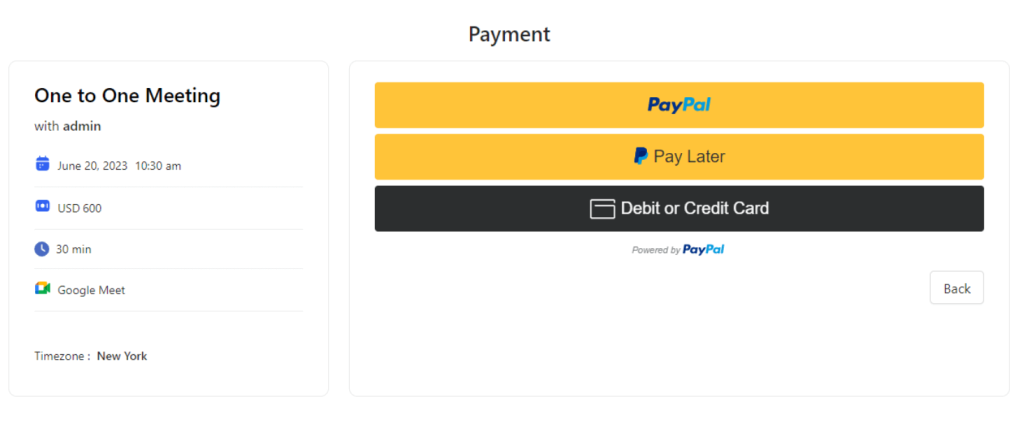
At Timetics, you can use “Paypal” as your payment getaways for bookings and sale meetings. In this documentation, we will be walking through the following topics.
Note: For Paypal payment, you need to install the Timetics Pro plugin.
Enable Paypal
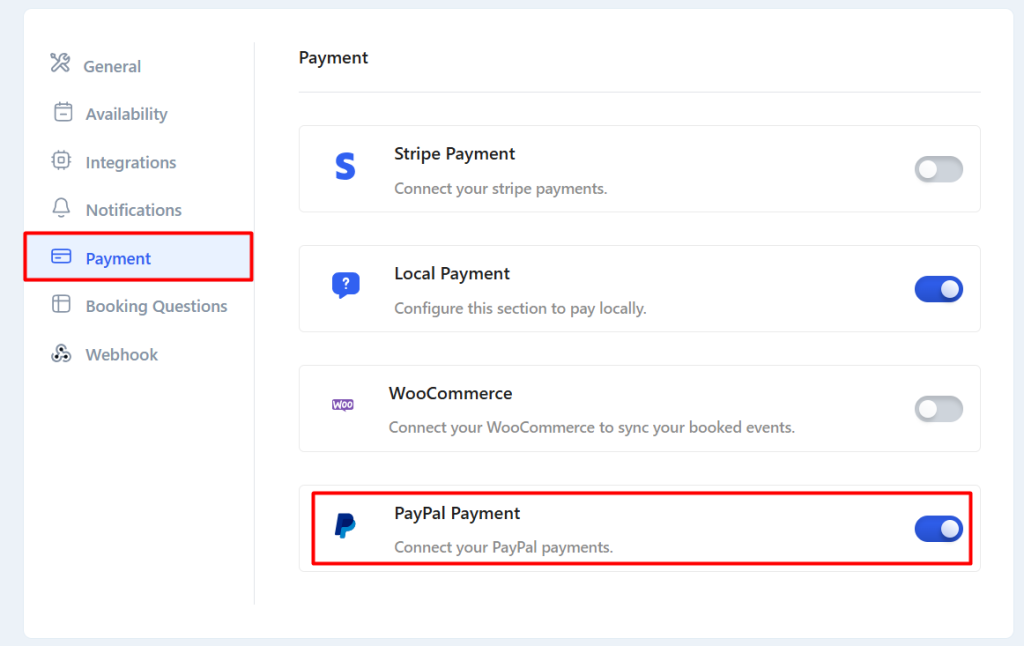
First of all, navigate to Timetics -> Settings -> Payment and enable PayPal Payment (Pro).
Now insert the PayPal Client Id and PayPal Secret Key. If you want to test the PayPal payment with Sandbox, then you need to checkmark the “Test payments with PayPal Sandbox” option and save the changes.
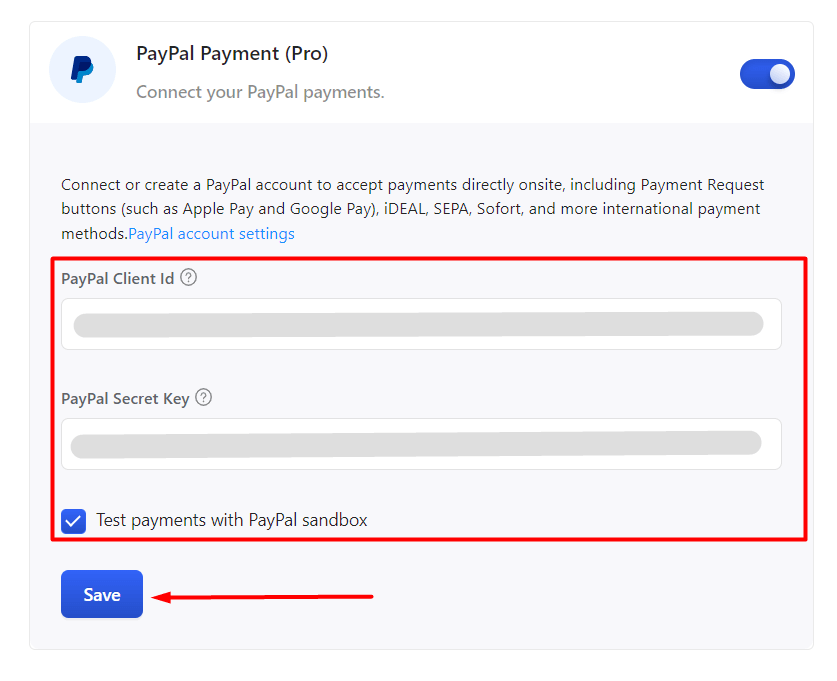
For getting PayPal Client Id and PayPal Secret Key, follow the article.
Frontend view