
Python Spin a Yarn – Spin Your Stories to Life
Welcome to the project on how to create a game called “Spin a Yarn” using the Python programming language and the Tkinter library. In this game, multiple players will take turns adding to a story, with each turn starting from a randomly generated story starter or their own story. The final story can then be saved to a text file for future reference.
Python Spin a Yarn
The objective of this project is to teach you how to create a simple, interactive Spin a Yarn game using Tkinter, a Python library for creating graphical user interfaces. We will cover the basics of GUI programming, event handling, and file handling in Python.
Prerequisites for Spin a Yarn using Python
Before starting this Python Spin a Yarn Project, you should have a basic understanding of Python programming, including data types, loops, functions, and conditionals. You should also have a basic understanding of Tkinter and its widgets.
You also need to have Tkinter and python installed in your computer system. To install Tkinter, type the following command in your terminal
pip install tk
Download Python Spin a Yarn Project
Please download the source code of python Spin a Yarn project from the following link: Spin a Yarn Project Code
Steps to Create Spin a Yarn using Python
Following are the steps for developing the python Spin a Yarn project:
Step 1: Importing Libraries
The first step in creating our Spin a Yarn game is to import the necessary libraries. The Tkinter library is used to create the GUI, while the random library is used to randomly select a story starter. The filedialog library is used to save and open the story in a text file.
# Importing required modules
import tkinter as tk
import random
from tkinter import messagebox, filedialog
Step 2: Creating a Window
The next step is to create a window for our Spin a Yarn game. This is done using the Tk() function from the Tkinter library. We will also set the title of the window and set the size and background color of the window.
# Creating a window
root = tk.Tk()


# Setting the title
root.title("TechVidvan - Spin a Yarn")


# Setting the window size, disabling resizing and setting the background color
root.geometry("925x751")
root.resizable(width=False, height=False)
root.configure(background="#1A5276")
Step 3: Defining Variables and Lists
We will define a variable to store the current player, and a list to store the story starters.
# Variable to store the current player
current_player = 1


# List to store the story starters
story_starters=[
"A ghost haunts a high school, seeking revenge on the students and faculty who wronged them in life.",
"A group of teens are mysteriously transported to an alternate dimension where they must fight to survive against monsters and other terrifying creatures.",
"A group of astronauts are stranded on a distant planet after their ship crashes and must find a way to survive and repair the ship.",
"A group of friends discover a cursed object that brings their deepest fears to life and must find a way to break the curse before it destroys them.",
"A detective is on the hunt for a serial killer who is targeting a specific group of people, but the closer they get to catching the killer, the more personal the case becomes.",
"A young woman discovers a hidden talent for parkour and becomes embroiled in a dangerous underground world of rival teams and high-stakes competition."
]
Step 4: Defining Game Functions
We will define several functions to handle different events in the game, such as starting the game, generating a random story starter, adding a story starter to the main story, and saving and opening the story in a text file.
- start_game(): This function will get the player names and set the current player to the first player.
- generate_story_starter(): This function will generate a random story starter and set the current player to the next player.
- add_story_main(): This function will add the story starter to the main story and set the current player to the next player.
- save_story(): This function will save the story in a text file.
- open_old_story(): This function will open an old story from a text file.
# function to start the game. It will get the player names and set the current player to the first player
def start_game():
   global players


   # getting player names
   player_names = player_names_input.get()


   # check if player names are entered
    if player_names_input.get() == "Enter Player Names separated by comma like this: Player1, Player2, Player3":
        messagebox.askokcancel("Player Names not entered", "Kindly enter the names of the players in the input field")
    else:
        players = player_names.split(", ")

   # setting current player to first player
    current_player_label.configure(text="Current Player: " + players[0])


# function to generate a random story starter
def generate_story_starter():
    story.delete(1.0, "end")


   # getting random story starter
    story.insert("end", random.choice(story_starters))


   # setting current player to next player
    current_player_label.configure(text="Current Player: " + str(players[current_player%len(players)]))


# function to add the story starter to the main story
def add_story_main():
    global current_player


   # increment current player
    current_player += 1


   # add story to main story
    main_story.insert("end", story.get(1.0, "end"))
    story.delete(1.0, "end")


   # setting current player to next player
    current_player_label.configure(text="Current Player: " + str(players[current_player%len(players)]))


# function to save story in txt format
def save_story():
   # open file dialog box to save txt file
    file = filedialog.asksaveasfile(mode='w', defaultextension=".txt")
    if file is None:
        return
    text2save = story.get(1.0, "end")
    file.write(text2save)
    file.close()


# function to open old story from txt file
def open_old_story():
   # if main story is not empty, ask if user wants to save the story
    if main_story.get(1.0, "end") != "":
        if messagebox.askyesno("Save the Story", "Do you want to save the current story? Press Yes or No."):
            save_story()


   # open file dialog box to open txt file
   file = filedialog.askopenfile(parent=root, mode='rb', title='Select a file', filetypes=(("Text File", "*.txt"), ("All Files", "*.*")))
    if file != None:
       # read data from file and add it to main story
        data = file.read()
        main_story.delete(1.0, "end")
        main_story.insert("end", data)
Step 5: Creating GUI
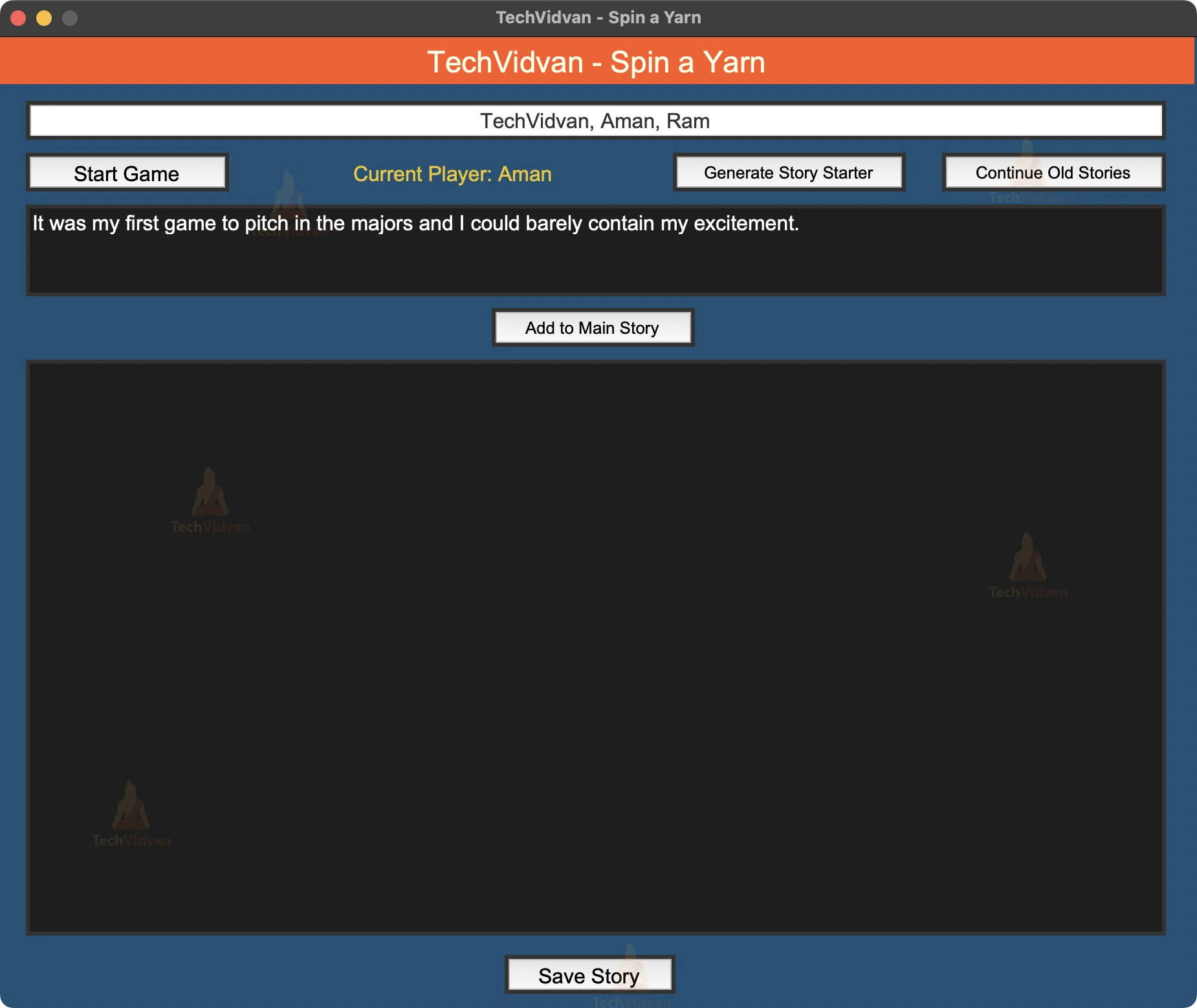
We will create a GUI using Tkinter to make the game more interactive. We will create a title label, an entry box to enter player names, a label to show the current player, and a button to generate a random story starter. We will also add a button to add the story starter to the main story, a button to save the story, and a text box to show the main story.
# Creating title label
title_label=tk.Label(root)
title_label.configure(background="#ff5722", foreground="#ffffe7", font="Arial 23", justify="center", text="TechVidvan - Spin a Yarn")
title_label.place(x=0,y=0,width=923,height=37)


# Creating player names entry box
player_names_input=tk.Entry(root)
player_names_input.configure(background="#ffffff", borderwidth="1px", font="Arial 16", foreground="#333333", justify="center")
player_names_input.place(x=20,y=50,width=881,height=30)
player_names_input.insert(0, 'Enter Player Names seperated by comma like this: Player1, Player2, Player3')


# calling function when we click on entry box
def click(*args):
   player_names_input.delete(0, 'end')
 # calling function when we leave entry box
def leave(*args):
    if(player_names_input.get() == ''):
        player_names_input.delete(0, 'end')
        player_names_input.insert(0, 'Enter Player Names seperated by comma like this: Player1, Player2, Player3')

    root.focus()


# binding entry box with click and leave functions
player_names_input.bind("<Button-1>", click)
player_names_input.bind("<Leave>", leave)


# Creating player names label
current_player_label=tk.Label(root)
current_player_label.configure(background="#1A5276", foreground="#F1C40F", font="Arial 16", justify="center", text="Player Turn:")
current_player_label.place(x=195,y=90,width=310,height=30)


# Creating generate story starter button
generate_button=tk.Button(root)
generate_button.configure(font="Arial 13", justify="center", text="Generate Story Starter", command=generate_story_starter)
generate_button.place(x=520,y=90,width=180,height=30)


# Creating open old story button
open_old_story_button=tk.Button(root)
open_old_story_button.configure(font="Arial 13", justify="center", text="Continue Old Stories", command=open_old_story)
open_old_story_button.place(x=728,y=90,width=173,height=30)


# Creating story entry box. This is where the story starter will be generated and added to main story
story=tk.Text(root)
story.configure(background="#1E1E1E", borderwidth="1px", font="Arial 16", foreground="white", wrap="word")
story.place(x=20,y=130,width=881,height=71)


# Creating add to main story button
add_button=tk.Button(root)
add_button.configure(font="Arial 13", justify="center", text="Add to Main Story", command=add_story_main)
add_button.place(x=380,y=210,width=157,height=30)


# Creating main story entry box. This is where the main story will be displayed.
main_story=tk.Text(root)
main_story.configure(background="#1E1E1E", borderwidth="1px", font="Arial 16", foreground="white", wrap="word")
main_story.place(x=20,y=250,width=881,height=445)


# Creating save story button
save_button=tk.Button(root)
save_button.configure(font="Arial 16", justify="center", text="Save Story", command=save_story)
save_button.place(x=390,y=710,width=132,height=30)


# Creating start game button
start_button=tk.Button(root)
start_button.configure(font="Arial 16", justify="center", text="Start Game", command=start_game)
start_button.place(x=20,y=90,width=157,height=30)
Step 6: Running the main loop
We will run the main loop to keep the GUI running.
# run the main loop
root.mainloop()
Python Spin a Yarn Project Output
Summary
Congratulations on completing the project on creating the Spin-a-Yarn game! Through this project, you have learned how to use the Python programming language to create a text-based interactive game that allows players to spin a yarn and make choices that affect the outcome of the story.
With the knowledge and skills you have gained from this Spin a Yarn project, you can now create your own interactive games and stories or even expand upon the Spin-a-Yarn game to add more features and characters. Keep up the good work!
