- Purchasing a New Domain through ZipWP Cloud
- How to Connect Your Domain and Go Live with ZipWP Cloud?
- What is ZipWP Cloud?
- Understanding the ZipWP Cloud Dashboard
- Connecting a Custom Domain to Your Site (Nameserver vs. CNAME)
- Why is My WordPress Site Not Loading? (Common Causes & Fixes)
- Disk Usage & File Limits (Inodes) Explained
- AI Troubleshooter
ZipWP: All About Your Whitelabel AI Builder Dashboard
In this article, we’ll help you understand everything about your Whitelabel AI Builder settings that you see in your ZipWP account.

This includes how to add your branding and configure security and plugin related settings.
Let’s begin within the first tab – Branding Details!
Branding Details
Within this section, you will find the options to generate the customized version of your ZipWP plugin.

Here’s how the details you provide will be used and displayed to users.
Company Name
This name will be displayed in the plugin’s author/installed plugins section.

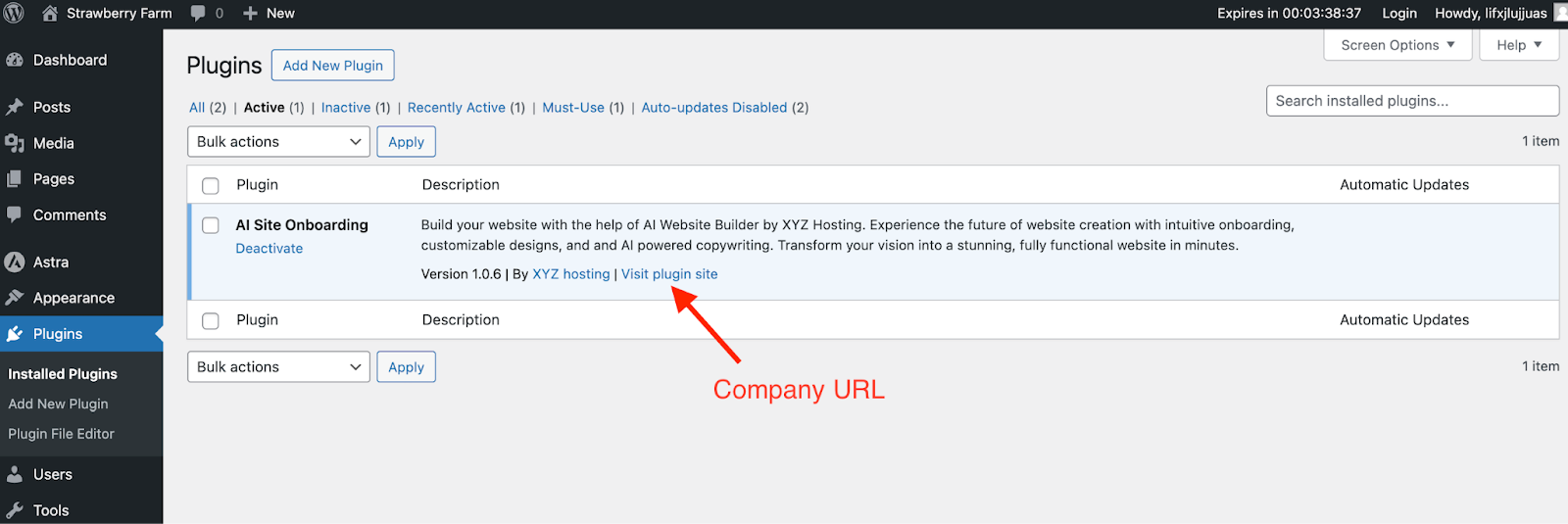
Company URL
This URL will be linked to the “visit plugin site” and author Name to help people navigate to your website if needed.
Company Description
This description is for internal reference only. It will not be displayed to your customers anywhere.
Dark Logo
This version of your logo will be displayed over light backgrounds. Here’s a dark logo for reference.
Light Logo
This logo will be displayed over dark backgrounds. Check out this light version of a logo for reference.
Primary Color
The primary color controls the button color for the AI builder interface.

Primary Hover Color
Primary hover color controls the color of buttons upon hover state.

Secondary Color
The secondary color controls a lot of things like:
Sidebar

That’s all about branding details. Now you will be able to customize the AI builder based on your brand colors.
Next, let’s understand “Plugin Settings.”
Plugin Settings
Within the plugin settings, you can provide the plugin name and description.

It will be displayed in the WordPress admin area.

You’ll also find an additional setting that allows you to automatically delete your custom plugin after the site is generated.
This is especially useful if you don’t want your customers to see the plugin in the ‘Installed Plugins’ section and do not want your users to regenerate the sites with AI builder.

After you’ve added plugin details, you can configure usage and security related settings.
Security
In this section, you will find two main settings. Let’s understand them both.
Max Sites Usage Per User
When people build websites using your custom plugin, you can determine how many times they can regenerate the website.

For example, imagine you set the ‘Max Sites Usage per Number’ as 2.
Now, when people install WordPress and see the AI Builder screen for the first time, they can generate their website for the first time.
After the import is complete, and they’re not satisfied with the design, they can then access the AI Builder again through the Appearance menu and regenerate the website once more.

However, after this second regeneration, the option to regenerate using the AI Builder will be blocked for your users.
Note: The regeneration of designs on the same website will consume the website generation limit assigned to your plan.
Whitelist IPs
To ensure website generation requests only come from authorized servers, you can whitelist your service’s IP addresses.

This prevents unauthorized token generation requests from external servers.
That concludes all the settings related to your host dashboard. We hope you find this article useful. If you need more information, please feel free to contact us.
We don't respond to the article feedback, we use it to improve our support content.


