
Documentation, Reference Materials, and Tutorials for WPCode
Would you like one snippet to show different text everywhere you place it?
In this guide, we’ll walk you through registering shortcode attributes on a WPCode snippet and reading the values you pass in. All you need is WPCode and a snippet you’d like to reuse.
Before you get started, make sure WPCode is installed and activated on your WordPress site.
A shortcode attribute is a named value you hand to a snippet at the moment you place its shortcode. One snippet holding the markup for a book review callout can then produce a different title and author on every page that uses it. You only ever maintain the one snippet.
WPCode asks you to register each attribute name on the snippet first. That way the snippet accepts exactly the values you planned for, and nothing else.
To get started, go to Code Snippets » Code Snippets in your WordPress admin sidebar. Then open the snippet you want to use as a shortcode.
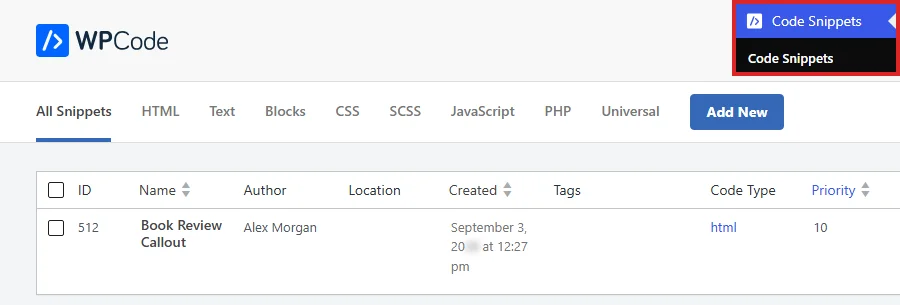
Attributes belong to snippets that run as shortcodes.
Inside the snippet editor, scroll down to the Insertion section. Then choose Shortcode as the insert method.
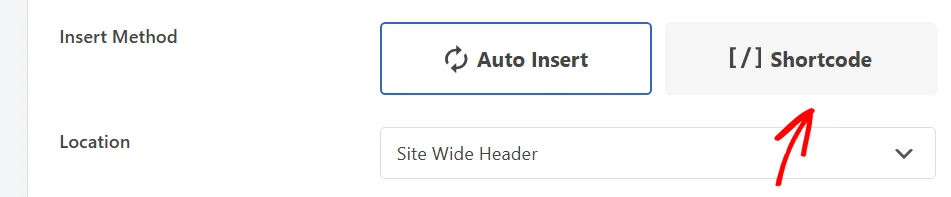
Choosing Shortcode swaps the Location picker for the four rows that control the shortcode.
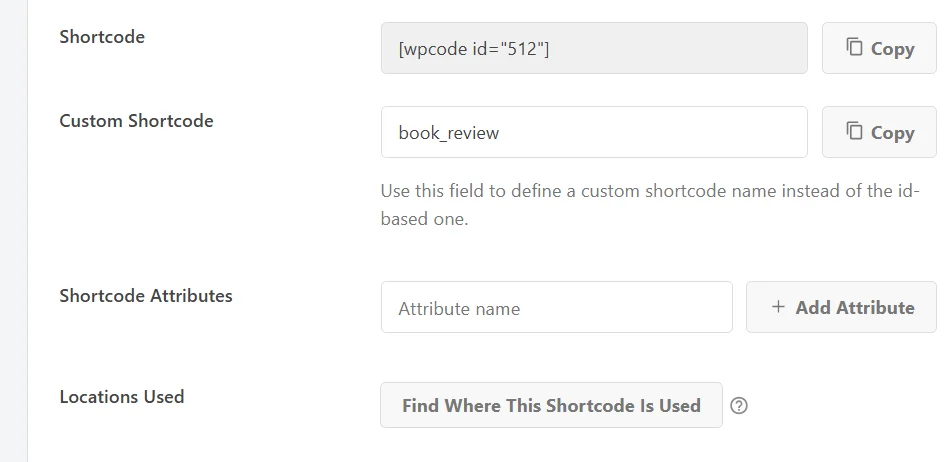
Attribute names use lowercase letters, numbers, and underscores. WPCode lowercases what you type and drops every other character as you type it, so “Book Title” arrives as booktitle.
Next, type a name into the attribute field. Then click Add Attribute.

Each name you add lands in a list under the field, with a delete icon beside it for removing it again. Add one name for every value you want to pass in.

Note: This list is the complete set of attributes the snippet reads. An attribute you write into the shortcode without registering it here is ignored.
With the names registered, WPCode gives you two ways to read their values in your snippet code.
Registering a name also creates a smart tag for it. The tag is the attribute name with an attr_ prefix, wrapped in curly braces, so book_title becomes {attr_book_title}. WPCode swaps the tag for whatever value the shortcode passed, and escapes that value on the way through, which makes this the route we recommend.
Requirements: Smart tags are available in the paid versions of WPCode.
Above the code editor, click Show Smart Tags.
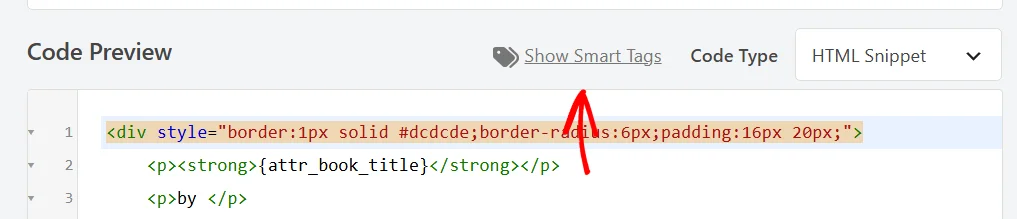
The picker lists every tag this snippet can use. Because your attributes all share the attr_ prefix, typing attr in the search box narrows the list to just them. WPCode groups them under a Shortcode Attributes heading.
In the filtered list, click the tag you want.
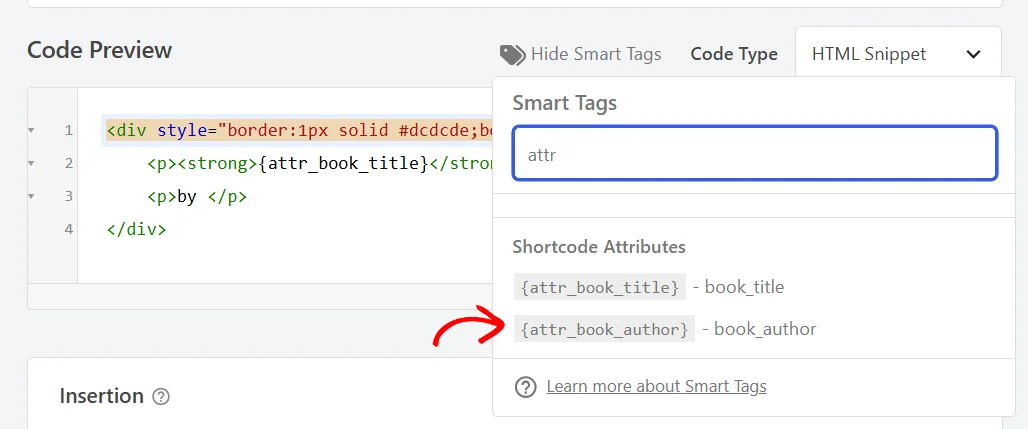
WPCode drops the tag into the code at your cursor. Repeat for each attribute, placing every tag where you want its value to appear.
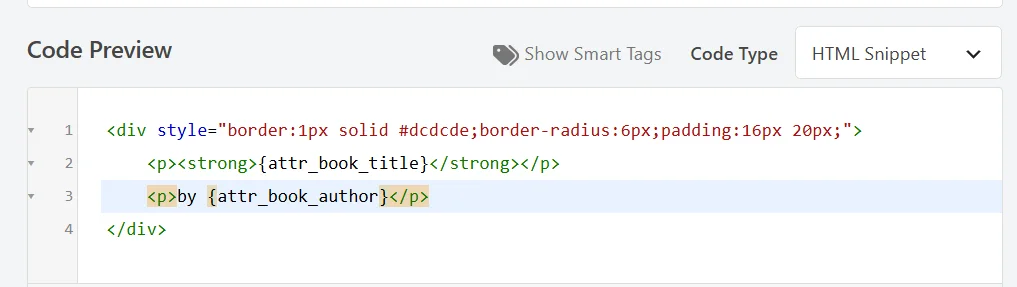
The tags show up in the picker the moment you add an attribute. You can register a name and use it in the same editing session. Smart tags resolve in HTML, Text, JavaScript, and Universal snippets.
PHP snippets read their attribute values a different way, straight from PHP variables.
In a PHP or Universal snippet, every registered attribute arrives as a PHP variable named after it. An attribute called book_title is available as $book_title, and one called book_author as $book_author.
The variable exists as soon as the name is registered. It holds an empty string when the shortcode leaves that attribute out, so there’s no need to test for it first.
Escaping is yours to handle on this route. Pass the value through a function such as esc_html() before printing it.
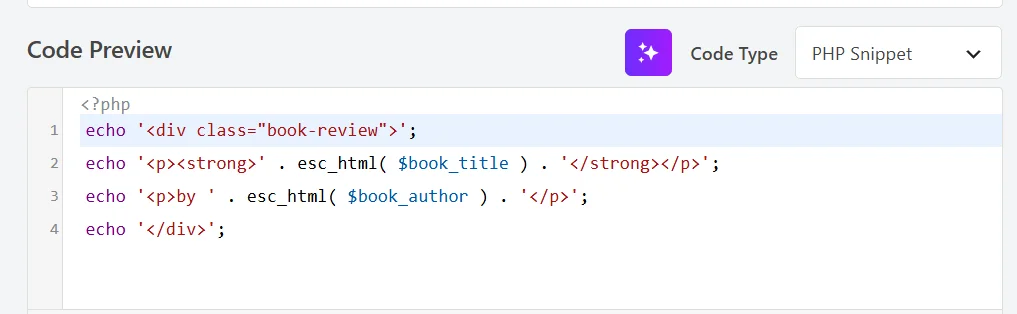
Both routes read the same registered attributes, so a Universal snippet can use whichever one suits each part of its code.
Every value the snippet reads comes from the shortcode you place, so that shortcode is the last piece to put together.
Once the attributes are registered and your code reads them, click Update to save the snippet.
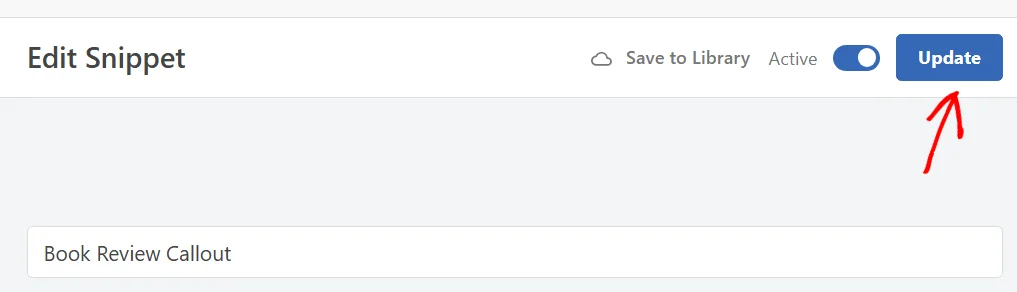
Saving rebuilds the Shortcode field with your attributes already listed as empty placeholders, ready to fill in.
When the field reappears, click Copy to put the shortcode on your clipboard.
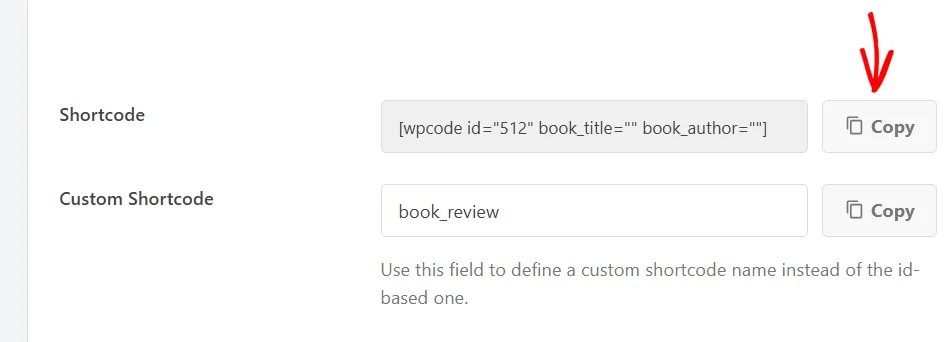
That shortcode goes wherever the snippet should appear, whether that is a widget, a page builder module, or a Classic block. New to placing shortcodes? See How to Add a Shortcode in WordPress for a step-by-step walkthrough.
Each value sits between its own pair of quotes. The snippet ID belongs to the snippet you just saved, so yours will be a different number.
[[wpcode id="512" book_title="Around the World in Eighty Days" book_author="Jules Verne"]]
If you gave the snippet a name in the Custom Shortcode field, use that name in place of the ID. The attributes work in exactly the same way:
[[book_review book_title="Around the World in Eighty Days" book_author="Jules Verne"]]
Requirements: Custom shortcode names are available in the paid versions of WPCode.
In the block editor, WPCode can handle all of that for you instead.
Requirements: The WPCode block is available in the paid versions of WPCode.
WPCode adds a block of its own to the WordPress editor, and it is built around this feature. The block reads the attribute names you registered and shows one field for each of them. The values go into a form rather than between quotes.
To place the snippet, open the post or page where you want it to appear. Then add the WPCode block.
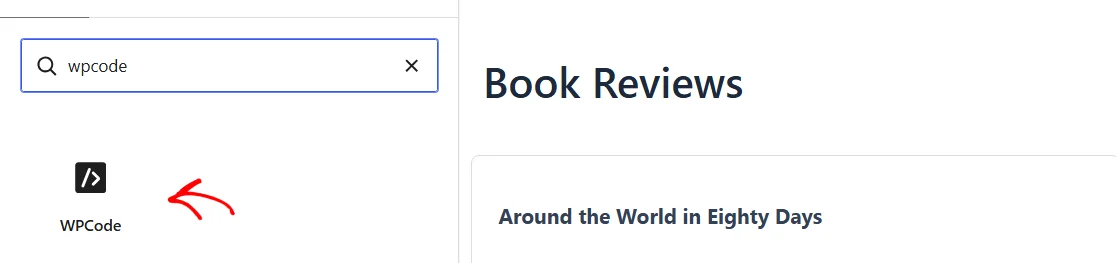
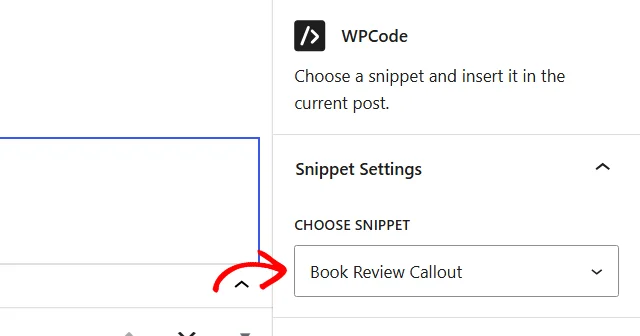
In the block settings on the right, pick your snippet from the Choose snippet dropdown. The block renders that snippet’s output in the editor as soon as you choose it.
Below that sits an Attributes panel holding one field per registered attribute, each labeled with the attribute name. Next, type each value into its own field.
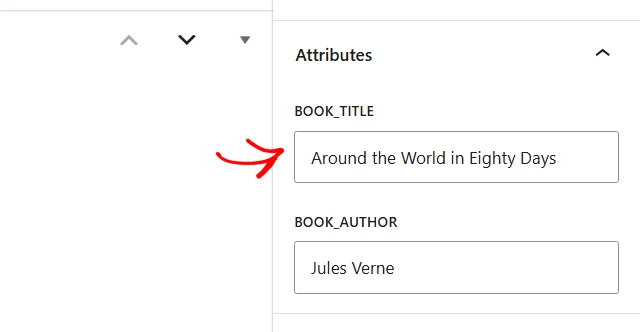
Behind the scenes the block builds the same shortcode from those fields, so what your visitors see is identical either way.
The last step is to see the snippet render for your visitors.
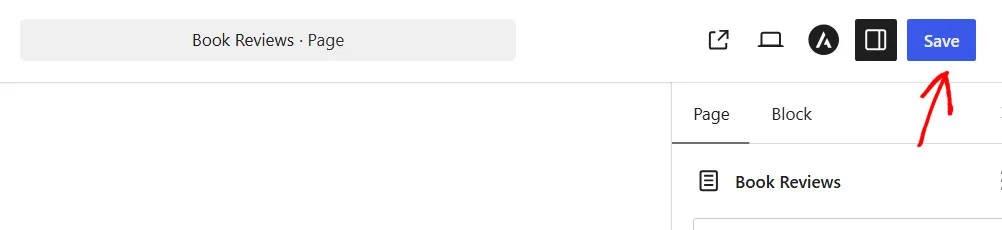
When your values are in place, click Save at the top of the editor.
Now open the page on the front end of your site. Where the snippet sat, it renders with the values you passed in, and any attribute you left out simply comes through empty.

To reuse the snippet elsewhere, place it again with different values. One snippet, as many variations as you need.
That’s it! Your snippet now takes its content from the shortcode instead of having it hard-coded. Next, see our guide to using smart tags in your snippets for what else a snippet can pull in.
Below, we’ve answered some of the most common questions about WPCode shortcode attributes.
Lowercase letters, numbers, and underscores. WPCode lowercases the name and removes anything else while you type, so “Book Title” becomes booktitle and “author-name” becomes authorname. A name made up entirely of other characters leaves nothing behind, and WPCode adds no attribute.
The two routes cover different types. Smart tags resolve in HTML, Text, JavaScript, and Universal snippets. PHP variables are available in PHP and Universal snippets. Universal snippets are the one type that supports both.
The Smart Tags picker is hidden on CSS, Blocks, and PHP snippets, which is why PHP snippets use variables. It does stay visible on SCSS snippets, where an {attr_...} tag is left in place as written rather than swapped for a value. For styling, use a CSS or SCSS snippet, and keep the attribute values in the snippet type that renders your markup.
That attribute comes through as an empty value, and the rest of the snippet renders as usual. The same thing happens when an attribute name is spelled differently in the shortcode than it is in the snippet settings. WPCode reads only the names on the registered list, so the unrecognized one is ignored and the registered one stays empty.
Quotes are what hold a multi-word value together. WordPress reads an unquoted value up to the first space. That means book_title=Around the World passes through as “Around” on its own, while book_title="Around the World" passes the whole title.
Yes. Wrap your text in a matching pair of tags, as in [[wpcode id="512"]]Some quoted text[[/wpcode]]. WPCode makes that text available as the content attribute without your registering anything. In a smart tag snippet, use it as {attr_content}. In a PHP snippet, it arrives as $content, which is set for shortcodes that enclose text.
Yes. WPCode checks the snippet’s status before it renders anything, so set the status toggle at the top of the editor to Active and save. Any conditional logic rules on the snippet are checked at the same point and also have to be met.
Future-proof your website with WPCode Snippets and improve the way you manage code across all your websites.
Copyright © 2026 WPCode. WPCode® is a registered trademark of WPCode, LLC


The WordPress® trademark is the intellectual property of the WordPress Foundation. Uses of the WordPress®, names in this website are for identification purposes only and do not imply an endorsement by WordPress Foundation. WPCode is not endorsed or owned by, or affiliated with, the WordPress Foundation.
