
Documentation, Reference Materials, and Tutorials for WPCode
Would you like to try a change to a code snippet on your live site without your visitors seeing it until it’s ready?
In this guide, we’ll walk you through previewing snippet changes with WPCode’s Testing Mode and publishing or discarding them.
Requirements: Testing Mode is available in the paid versions of WPCode.
Before you get started, make sure WPCode is installed and activated on your WordPress site.
To get started, we’ll switch on Testing Mode so your snippet changes stay hidden from visitors while you check them.
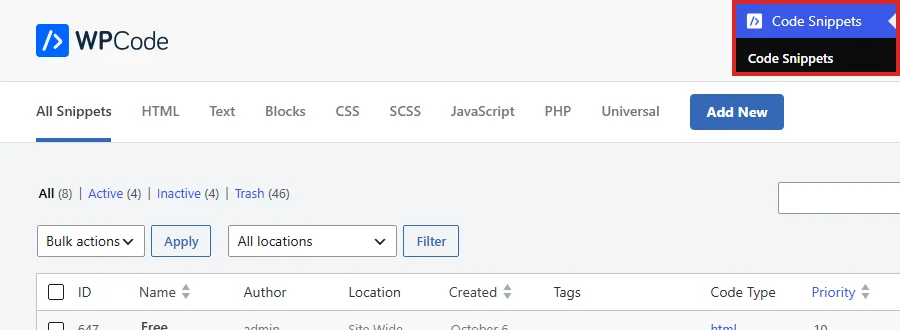
From your WordPress admin sidebar, go to Code Snippets » Code Snippets.
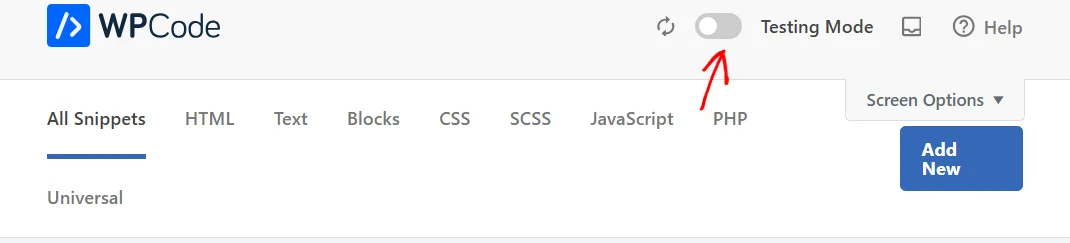
At the top right of every WPCode screen, click the Testing Mode toggle to turn it on.
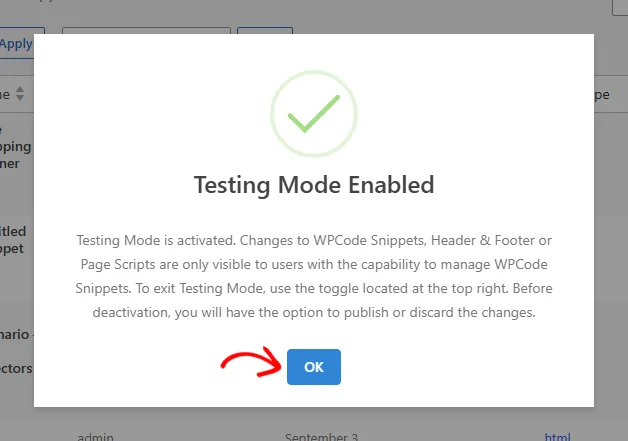
WPCode confirms that Testing Mode is on and explains who can see your changes. When you’ve read it, click OK.
Testing Mode now stays on until you switch it off, even if you log out.
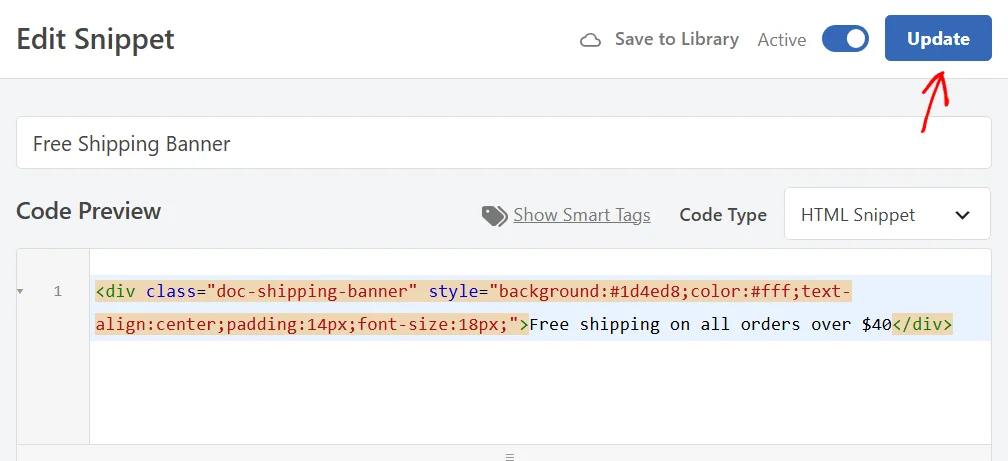
While Testing Mode is on, you edit snippets the same way as always. In our example, we’ve changed a free shipping banner from $50 to $40.
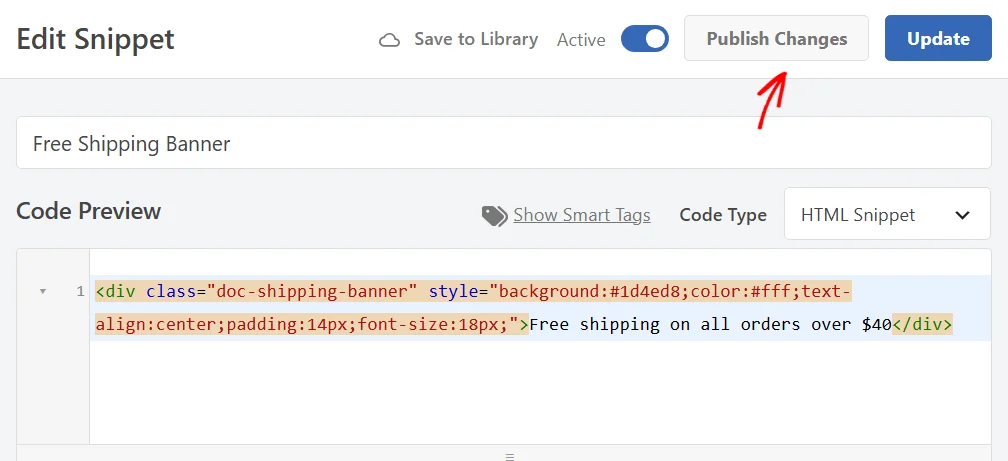
When your edit is ready, click Update at the top of the snippet editor.
WPCode saves your edit as a test version and leaves the live version in place. The editor now shows a Publish Changes button next to Update. We’ll come back to it when you’re ready to publish.
To check your change, open your site while you’re logged in. Admins who can manage snippets see the test version on the front end and in the admin.

Everyone else still sees the live version. Here’s the same page for a visitor who isn’t logged in.

The same applies to your Global Header & Footer scripts and Page Scripts. Changes you save to them in Testing Mode stay hidden from visitors too.
When you’re happy with a change, you can publish it for everyone. To publish just one snippet, use the Publish Changes button in its editor. After you confirm, WPCode publishes that snippet and your other test changes stay in Testing Mode.
To finish testing, switch off the Testing Mode toggle. WPCode lists every change made in Testing Mode so you can review them before you decide. Each item links to its editor.
To make all of your changes live, click Save & Publish Changes.
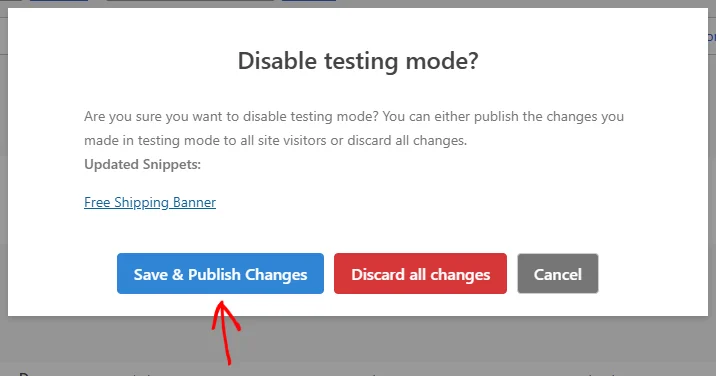
WPCode then switches Testing Mode off. Your visitors now see every change you tested.
If you’d rather keep your live site as it was, click Discard all changes instead. WPCode drops every test change.
To keep testing, click Cancel. Testing Mode stays on.
That’s it! You now know how to test snippet changes privately and publish them when they’re ready. Next, take a look at our guide on PHP error handling and safe mode. It shows how WPCode protects your site while you work on code.
Below, we’ve answered some of the most common questions about WPCode’s Testing Mode.
Every logged-in user who can manage WPCode snippets sees the test version. That includes other admins, not just you. Logged-out visitors and other users see the live version.
First, save the new snippet with its status set to Inactive. Then switch it on from the Code Snippets list while Testing Mode is on. Only admins who can manage snippets see it until you publish your changes.
No. Changes on the Conversion Pixels screen go live as soon as you save them. WPCode shows a note about this on that screen while Testing Mode is on.
WPCode hides the Trash options in the Code Snippets list while Testing Mode is on. When you’re ready to remove a snippet, switch Testing Mode off first.
WPCode deletes them permanently, along with any snippet you duplicated while testing. Edits to snippets you already had simply go back to their live version.
Future-proof your website with WPCode Snippets and improve the way you manage code across all your websites.
Copyright © 2026 WPCode. WPCode® is a registered trademark of WPCode, LLC


The WordPress® trademark is the intellectual property of the WordPress Foundation. Uses of the WordPress®, names in this website are for identification purposes only and do not imply an endorsement by WordPress Foundation. WPCode is not endorsed or owned by, or affiliated with, the WordPress Foundation.
