New to Rust? Grab our free Rust for Beginners eBook Get it free →
JavaScript alert, prompt and confirm: Input alert dialog box guide

I ran each JavaScript alert, prompt, and confirm branch in Chrome 149, including OK, Cancel, empty input, and number conversion. The useful distinction is the value each dialog returns after it closes, because that value determines the next branch in your program.
Alert vs prompt vs confirm
All three methods belong to the browser’s Window object, so you can call window.alert() or alert() because window is the global object in a browser page.
| Method | Buttons or input | Return value | Use it for |
|---|---|---|---|
| alert() | OK | undefined | A message that only needs acknowledgement |
| prompt() | Text field, OK, Cancel | String or null | A short text value in a small script |
| confirm() | OK, Cancel | true or false | A yes or no decision |
These dialogs are modal, so the page’s interface cannot be used until the dialog closes, but a browser can suppress an in-page dialog under some conditions such as a tab switch.
Show a message with alert()
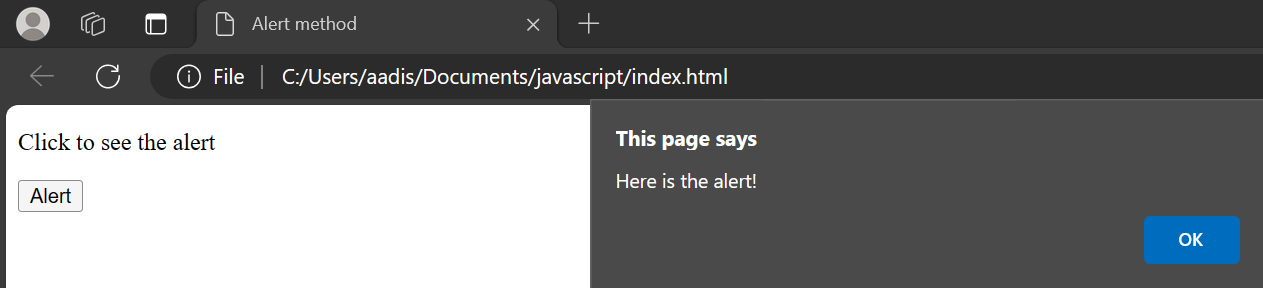
The alert() method displays a message with an OK button and returns undefined, which suits a small demonstration or temporary diagnostic where the user does not need to make a choice.
function showAlert() {
  alert("Upload complete.");
}
The call pauses this page’s script until the user dismisses the dialog, and code placed after alert() runs after OK is selected unless the browser decides not to show the dialog in that tab state.
Add line breaks to an alert
Insert \n inside the string where a new line should begin, since the browser controls the font, size, position, and buttons.
alert("Line one\nLine two");
Collect text with prompt()
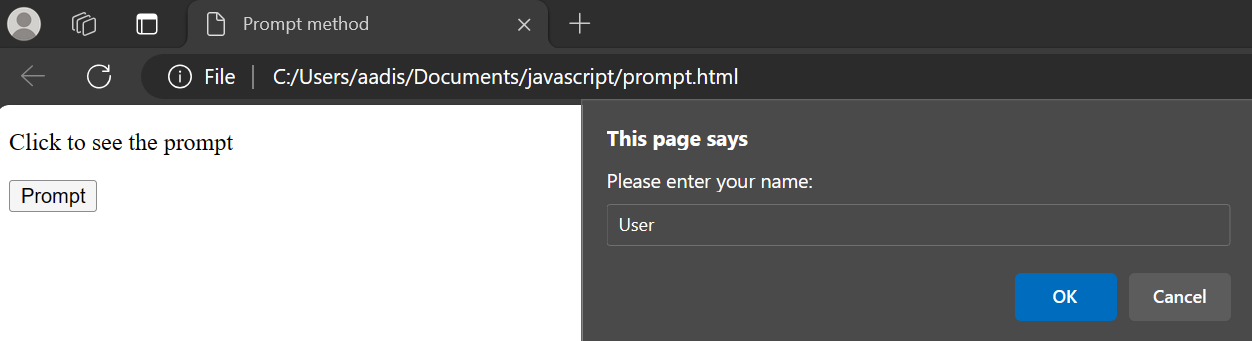
The prompt() method accepts an optional message and default value, returning a string for OK, an empty string for an empty submitted field, or null for Cancel.
Keep null and an empty string separate. Cancel means the user declined the request, but an empty string means the form was submitted without text.
const promptOutput = document.querySelector("#prompt-output");

function askForName() {
  const name = prompt("What is your name?", "");

  if (name === null) {
    promptOutput.textContent = "No name was submitted.";
  } else if (name.trim() === "") {
    promptOutput.textContent = "The name cannot be empty.";
  } else {
    promptOutput.textContent = `Hello, ${name.trim()}.`;
  }
}
This branch checks Cancel before calling trim(), because null has no trim() method. The final branch uses JavaScript string interpolation to insert the submitted name.
Convert prompt input to a number
Prompt input is always text unless Cancel returns null, and Number() converts that text, but the empty string becomes zero and needs a separate check.
const quantityOutput = document.querySelector("#quantity-output");

function askQuantity() {
  const input = prompt("How many items?", "1");

  if (input === null) {
    quantityOutput.textContent = "Quantity entry canceled.";
    return;
  }

  const quantity = Number(input);
  if (input.trim() === "" || Number.isNaN(quantity) || quantity <= 0) {
    quantityOutput.textContent = "Enter a number greater than zero.";
    return;
  }

  quantityOutput.textContent = `Quantity: ${quantity}`;
}
I tested this function with 3, abc, and Cancel, which accepted 3, rejected abc, and kept cancellation separate from invalid input.
Ask for a yes or no choice with confirm()
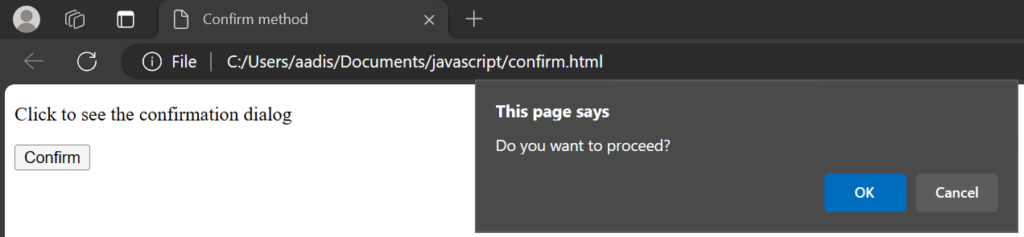
The confirm() method returns true for OK and false for Cancel or Escape. That boolean can feed an if and else branch, or a conditional expression when both outcomes are short.
const confirmOutput = document.querySelector("#confirm-output");

function confirmDelete() {
  const approved = confirm("Delete this item?");
  confirmOutput.textContent = approved ? "Item deleted." : "Deletion canceled.";
}
A suppressed confirm dialog returns false according to the Window.confirm() documentation, so avoid destructive work unless the result is explicitly true.
Why native dialogs are limited
Alert, prompt, and confirm are useful for lessons, experiments, and small internal scripts. They interrupt the page, cannot be styled, give you limited control over focus and labels, and may be suppressed by the browser.
- Use alert() only when acknowledgement is enough.
- Use prompt() only for short text input where a native, single-line field is acceptable.
- Use confirm() only when false is a safe fallback.
- Do not depend on repeated dialogs, because browsers can suppress them.
The browser decides how each native dialog looks, so use a custom page dialog when you need styling, several fields, precise focus placement, or accessible labels.
Use the HTML dialog element for a page interface
The HTML dialog element creates a modal or non-modal component inside the document, while showModal() makes the rest of the document inert and a form whose method is dialog closes the component without a network request.
<button id="open-dialog" type="button">Delete draft</button>

<dialog id="delete-dialog">
  <p>Delete this draft?</p>
  <form method="dialog">
    <button value="cancel">Cancel</button>
    <button value="delete">Delete</button>
  </form>
</dialog>

<p id="dialog-output"></p>

<script>
  const deleteDialog = document.querySelector("#delete-dialog");
  const dialogOutput = document.querySelector("#dialog-output");

  document.querySelector("#open-dialog").addEventListener("click", () => {
    deleteDialog.showModal();
  });

  deleteDialog.addEventListener("close", () => {
    dialogOutput.textContent = `Dialog result: ${deleteDialog.returnValue}`;
  });
</script>
The selected button value becomes returnValue after the dialog closes. Add an explicit close control, choose the initial focus deliberately, and test keyboard dismissal before using the component in a production form.
Browser behavior to keep in mind
MDN documents alert(), prompt(), and confirm() as widely available browser APIs, but a browser may skip displaying them or may not wait under some conditions, and Node.js does not provide these Window methods.
If the decision controls deletion, payment, authentication, or unsaved work, use an in-page interface that you can test and monitor. Native dialogs remain useful when the smallest possible interaction matters more than presentation or workflow control.
Reference the Window.alert(), Window.prompt(), Window.confirm(), and HTML dialog element documentation when you need the exact return and focus behavior.
What does alert() return in JavaScript?
The alert() method returns undefined after the dialog is dismissed. It only displays a message and an OK button.
What does prompt() return when the user clicks Cancel?
The prompt() method returns null when the user clicks Cancel or dismisses the prompt. Clicking OK on an empty field returns an empty string instead.
What does confirm() return?
The confirm() method returns true for OK and false for Cancel or Escape. A browser that suppresses the dialog also returns false.
Can you style alert, prompt, or confirm dialogs?
No. The browser and operating system control their appearance. Use the HTML dialog element or another in-page component when you need custom styling and focus behavior.
Do alert, prompt, and confirm work in Node.js?
No. They are methods of the browser Window object. Node.js does not provide them as global functions.