

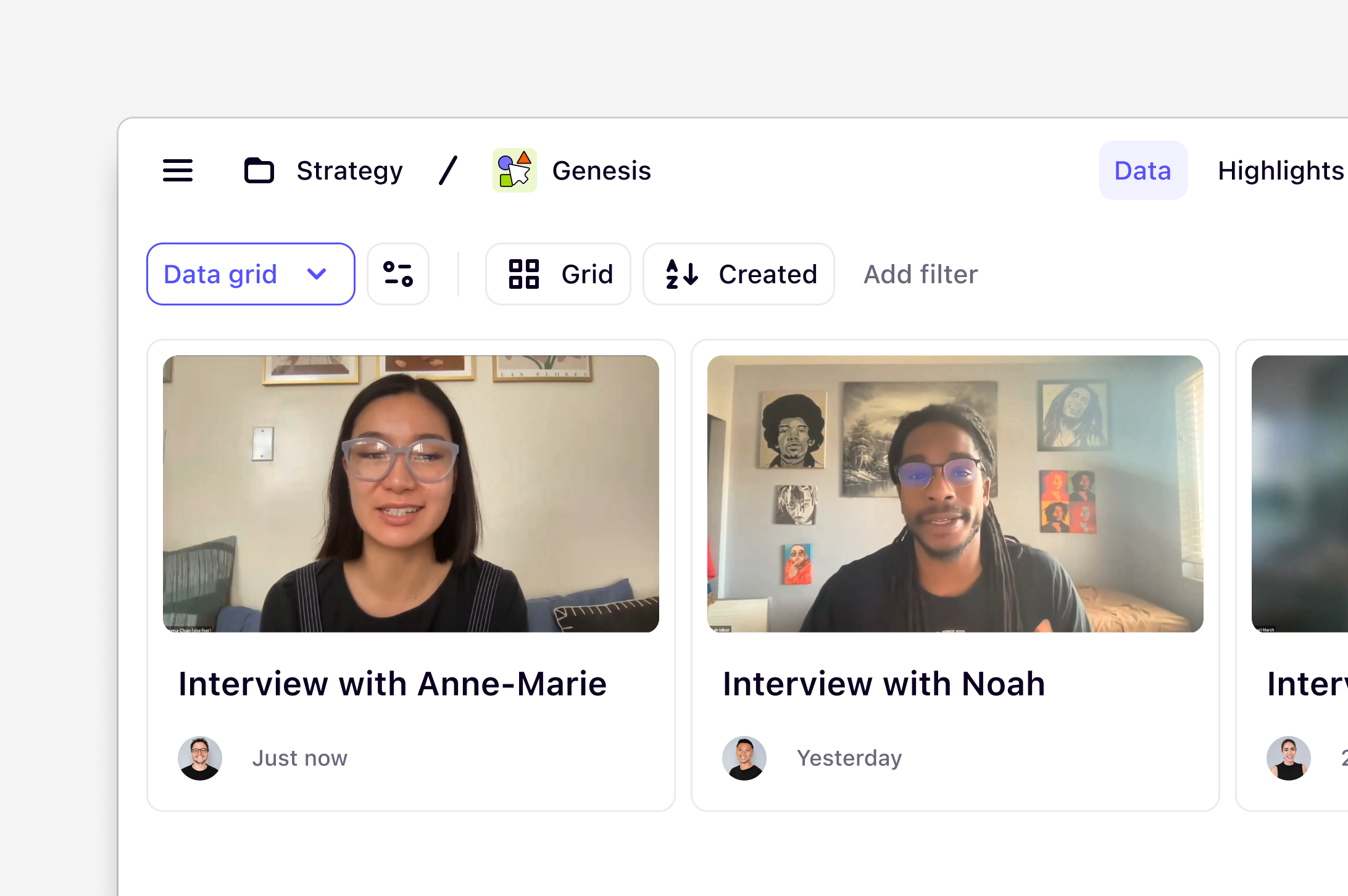
Projects are available on all plansManagers and Contributors (paid seats) can create and edit projectsUsers with view-only access can view and comment on data within projects
Overview
Projects are a space for you to thoroughly analyze high-density data sources such as customer interviews, usability tests, sales calls, or surveys to draw detailed insights. It represents a single study that captures data you want to work with for deeper analysis. For example, a project could contain:- Customer interviews, sales calls, meetings: each data object is a single recording and transcript of a session.
- Usability testing sessions: each data object is a recording and transcript from a session.
- Survey responses: each data object is a completed survey from a participant.
Create a new project
Managers and Contributors (paid seats) can create a new project in a workspace. To create a project:- Navigate to
+ New→ selectProject
Project-level context
You can set the objective and business context for every project to guide Dovetail’s AI. Add keywords to describe what you’re investigating, link existing workspace strategy docs, or create your own docs to add as context. The more specific your context, the more relevant your highlights, tags, and chat results will be.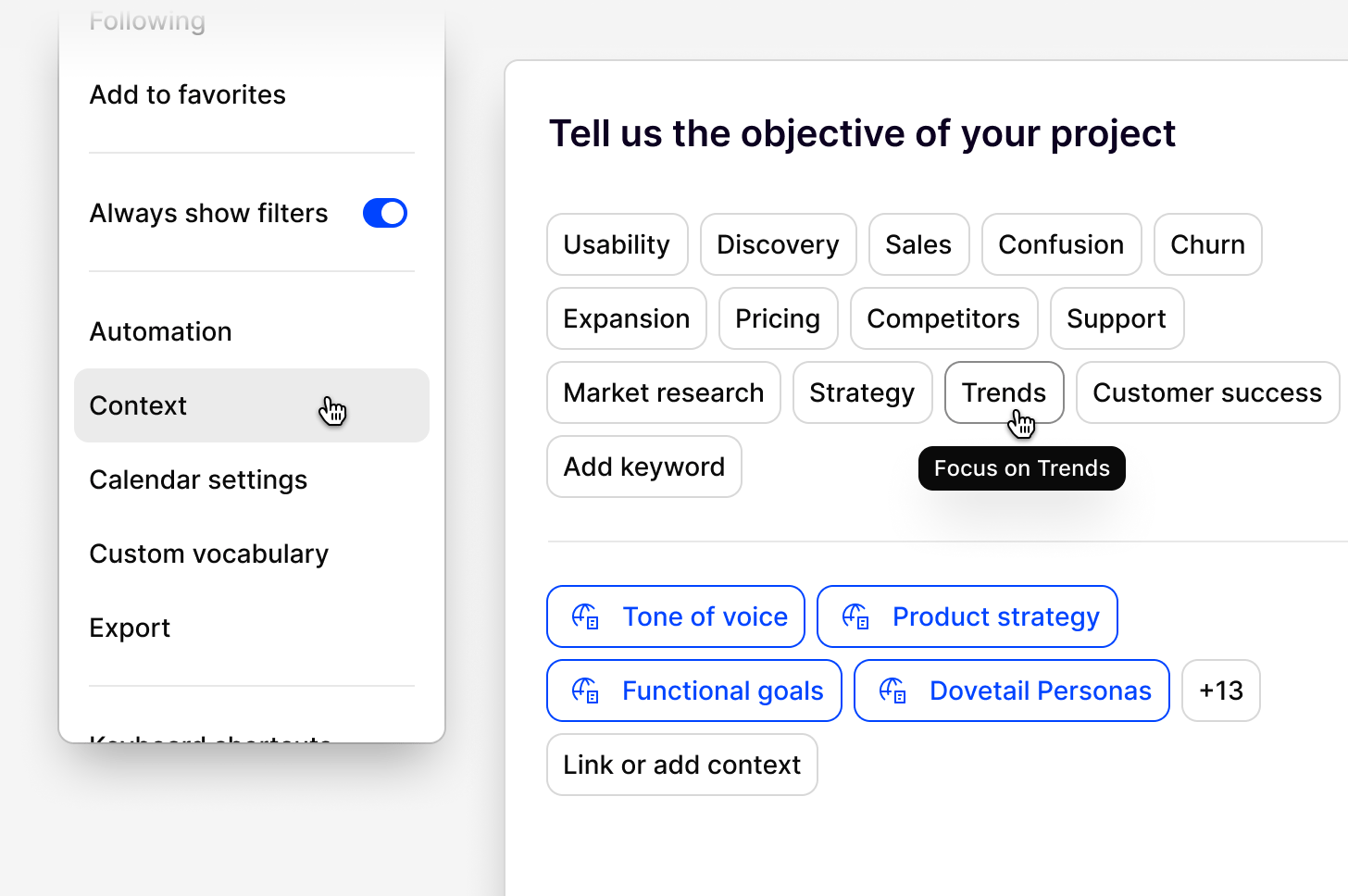
To add context to a project:
- Open your project
- Click the
•••(more options) menu in the top-right corner - Select
Context - Choose from pre-set objective keywords (e.g., Usability, Churn, Satisfaction) or add your own
- Link existing or add new workspace docs to provide more context
- Click
Done
Note: any docs created from the context dialog will live in the Docs tab in a project.
Tips for adding context:
- Select keywords that reflect the core objective of this specific project
- Link strategy docs like product roadmaps, OKRs, or growth metrics to give the AI broader business context
- Any workspace context docs setup will always be shown for you to choose
- The more specific your context, the better your highlights, tags, and chat results will be
Who can add Context to a project
Users with Full access or Can edit access to the project can add context.What is the difference between the Overview page and Context?
The overview page can serve as your project’s landing page. It’s a living section that you can update throughout the life of the project, where your teams can add your research objectives, hypotheses, timeline, what came out of the project, links to related docs, and key findings. It can be used for stakeholders to drop in and quickly get up to speed on what the project is and where it stands. A well-crafted overview will improve search quality and answer relevance throughout your chat conversations. Context is specifically set at the start of a project to shape how the AI classifies your data, directly influencing the quality of your highlights, tags, and also improving what chat can surface. Think of it as the briefing you give the AI before it starts working. The clearer and more specific, the better the results. To learn more about how admins can set AI context across the entire workspace, see Workspace AI context.Configure automation
AI analysis is enabled by default in projects, and you can adjust how it works using Dovetail’s magic automation settings. These settings are configured per project by Managers and Contributors. Magic automation includes features like transcription, summaries, and highlights—but not all of these can be turned off:- Transcription: You can choose a transcription language or set it to auto-detect
- Summaries: Summaries are automatically generated when data is imported, but you can choose from different summary frameworks
- Suggested highlights: This is the only feature that can be fully enabled, set to suggestions, or disabled
Adjust automation settings
To customize automation for a project:- Open your project
- Click the ••• (more options) menu in the top-right corner
- Select Automation
- Transcription language (auto-detect or specific language)
- Summary frameworks
- Suggested highlights behavior
Manage suggested highlights
Suggested highlights are the only automation feature that can be fully turned on or off. To update this setting:- Open your project
- Click the ••• (more options) menu in the top-right corner
- Select Automation
- Under Highlight key moments, choose one of the following:
- On: AI automatically highlights key moments in your data
- Suggest: AI suggests highlights for you to review and approve
- Off: AI highlighting is disabled
Objects that live in projects
Projects contain 6 object types that can help you in your process to make sense of your customer interviews, surveys, and usability tests. You can choose to toggle on or off any of these sections to suit your workflow. These include:- Overview: This is the first thing new visitors will see when they open your project. It’s a great place to describe your project for others, set the background for your research, and provide additional context including goals, hypotheses or assumptions, research plan, timeline and project status.
- Data: Raw data like your recordings, documents and survey responses live as standalone objects in your project.
- Highlights: Highlights live on notes and are used to surface quotes and sections of text that are meaningful.
- Tags: Tags can be used to label and categorize highlights into common themes.
- Docs: Docs live within projects and are where you summarize findings from your project and across other projects.
- Charts: Charts live within projects and help you visualize patterns surfaced in your highlights and tags.
Create, upload, and customize
Use the + button at the top of the project to add content and control which sections your team sees. To do this:- Navigate to
+in the top right corner and toggle on or off what you want to see in your project
Project settings
In the top right corner of your project, you’ll see•••. Click on this to reveal a dropdown menu with several features and options. Here’s an overview of each:
Following: Receive and manage notifications about new docs or comments in the project.
Add to favorites: If you’re on the Professional or Enterprise plan, you can favorite a project for quick, easy access in the side navigation.
Always show filters: Toggle this on to keep project filters visible, or off to hide them.
Context: Set your project’s objective and business context to guide Dovetail’s AI — the more specific the details, the more relevant your highlights, tags, and chat results will be.
Automation: Automate how you work with Dovetail magic features in your project.
Calendar settings: Automatically import Google Calendar or Outlook Calendar events into the right project based on meeting titles, then let Dovetail store, transcribe, and summarize them with AI.
Custom vocabulary: Improve transcript accuracy by submitting custom words or phrases—like company names or industry jargon—that admins can save workspace-wide. This feature is available on Premium plans only.
Update cover: Set a cover image for any doc or project—used as its thumbnail in Browse and list views—by uploading your own or picking from the built-in Unsplash library via the ... menu (recommended aspect ratio: 9:4).
Export: Export data from your project.
Keyboard shortcuts: View available shortcuts.
Move to: Move your project to another folder or subfolder.
Convert to template: To convert a project into a template, you must have Full access to the project and a paid seat.
Archive project: To archive your project, you must have Full access to the project and a paid seat.
Move project to Trash: To move a project to Trash, you must have Full access to the project and a paid seat.
Project Share menu
Share your project with people outside your workspace by creating a web link. On Enterprise plans, this also lets you control how others can access and interact with your data. To open the Share menu:- Open your project.
- In the top right corner, click Share.
FAQs
Can I disable AI completely?
Can I disable AI completely?
AI features are Dovetail’s core functionality, so disabling them at the workspace level is not possible.
What happens to contributors when I duplicate a project?
What happens to contributors when I duplicate a project?
When you duplicate a project, the duplicated copy is treated as a new project owned by you. You’ll be listed as the creator of the duplicated project and the only contributor.Any creators or contributors from the original project will not be carried over to the duplicate.
