


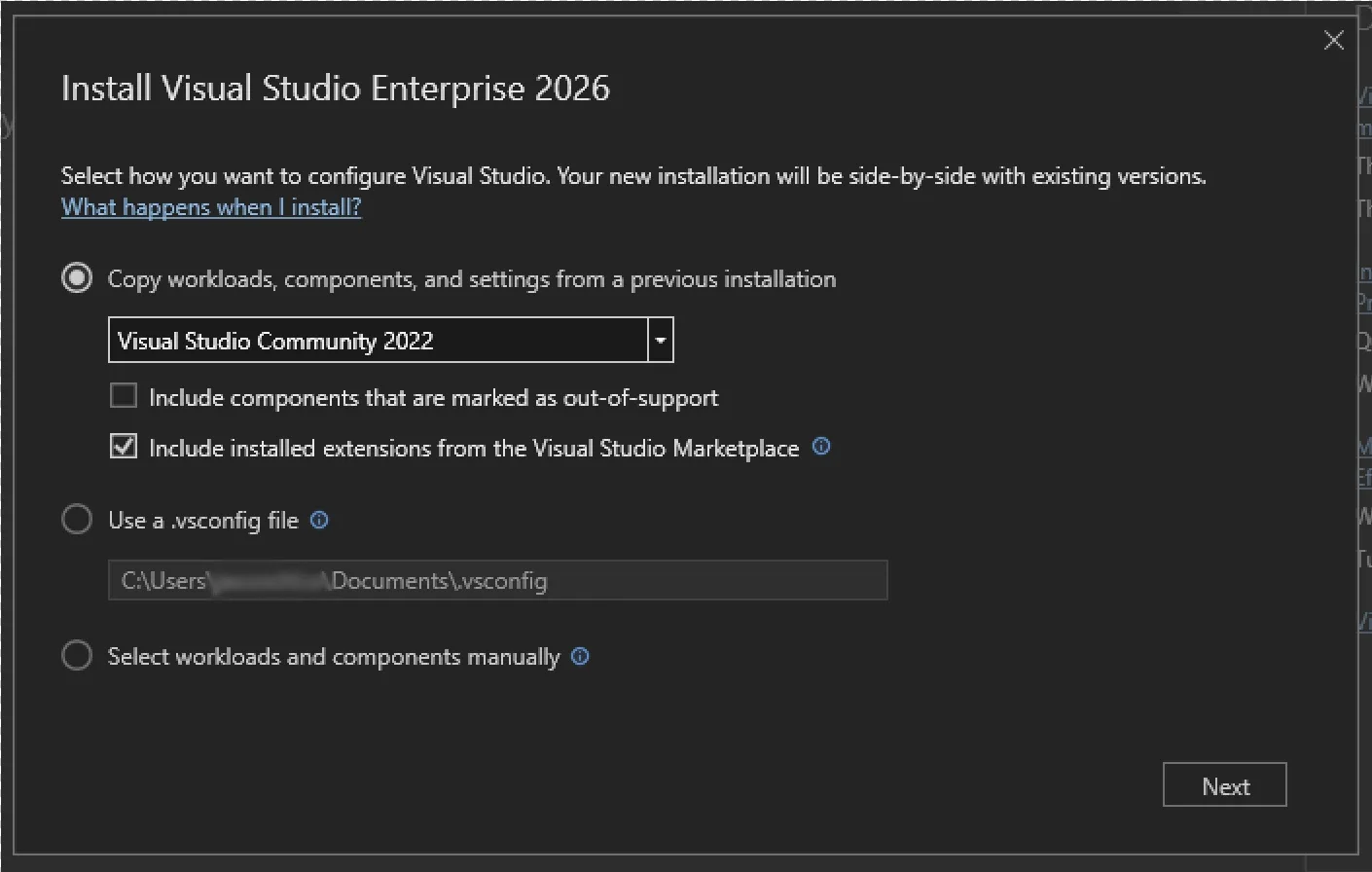
In the past, moving to the next major version of Visual Studio could take hours, sometimes days, to recreate your dev environment the way you like it. Visual Studio 2026 makes it easier than ever to stay current with the latest productivity features, performance improvements, and security fixes all without disrupting your flow. With the new Visual Studio install experience, you can effortlessly recreate your previous Visual Studio 2022 environment. Your workloads, SDKs, toolsets, extensions and settings are automatically copied and configured, so everything you need to build and continue developing your project is ready the moment you open Visual Studio 2026.
With support for multiple toolsets and SDK versions, Visual Studio 2026 lets you update the IDE independently from your project dependencies. Keep your environment modern and secure, while maintaining full compatibility with your existing builds.
Install Visual Studio 2026 from the installer Available tab or download the bootstrapper.
The new install experience
The new Visual Studio Installer is built to make upgrading seamless. It detects your existing Visual Studio 2022 setup and can rebuild it in Visual Studio 2026, including workloads, toolsets, SDKs, extensions, and settings. You’ll spend less time setting up and more time writing code.
If you’re setting up on a new machine, simply import your .vsconfig file (which captures your favorite workloads, toolsets, SDKs and extensions) and pair it with your .vssettings file to recreate your previous Visual Studio environment exactly the way you like it.
Setup Assistant (in-IDE dependency acquisition)
When you load a project in Visual Studio 2026, the new Setup Assistant automatically detects the dependencies your project targets. With support for multiple toolsets and SDKs, you can quickly retarget your project to the latest version, or, if needed, install any specific missing dependencies with just a few clicks.
For C++ developers – the Setup Assistant identifies MSVC Build Tools and Windows SDKs your project targets. You can retarget your project to the latest version or install any missing components with a single click directly in the Visual Studio Installer.
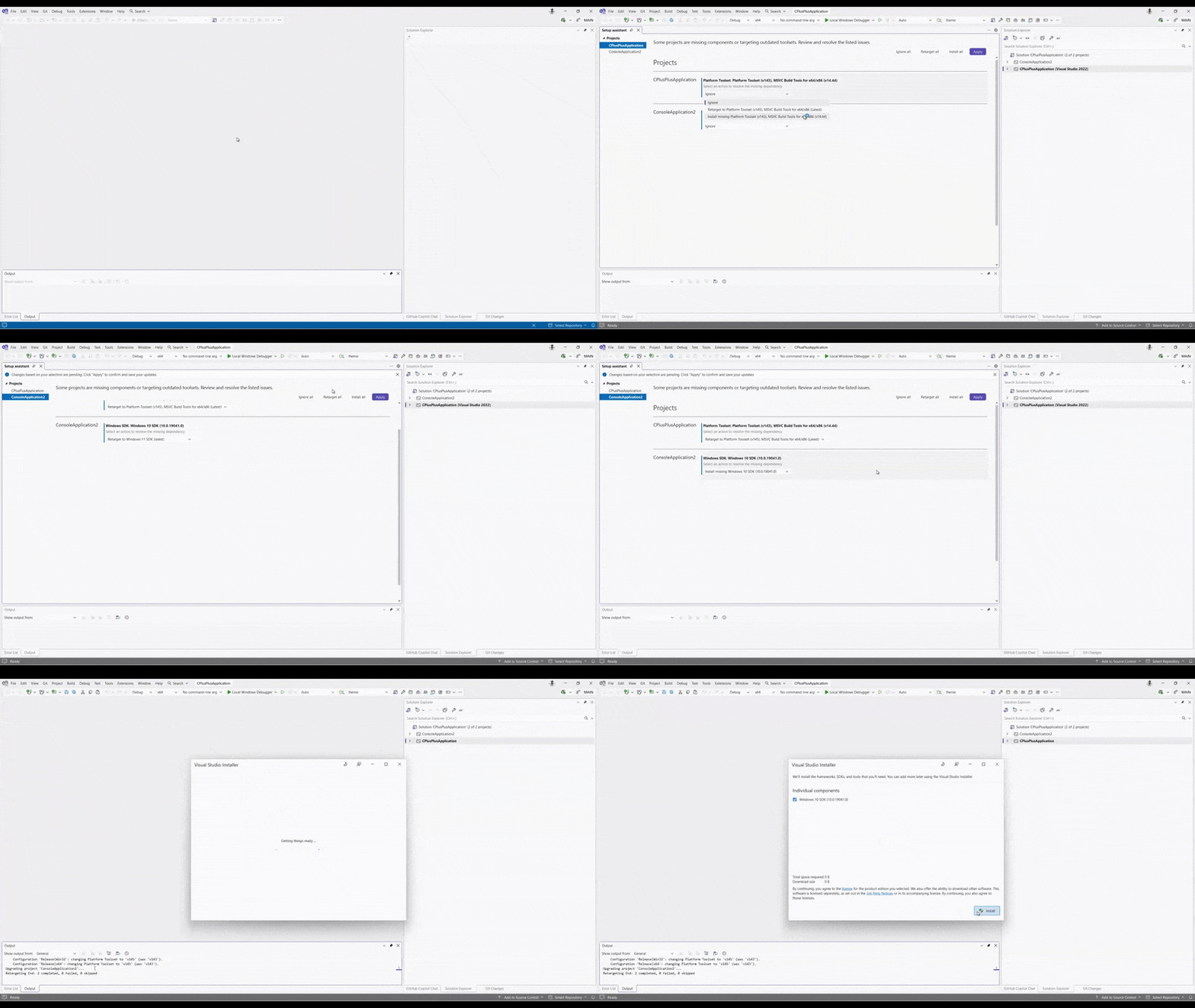
For more details check out the C++ blog post: Blog Post – Upgrading Your Projects.docx
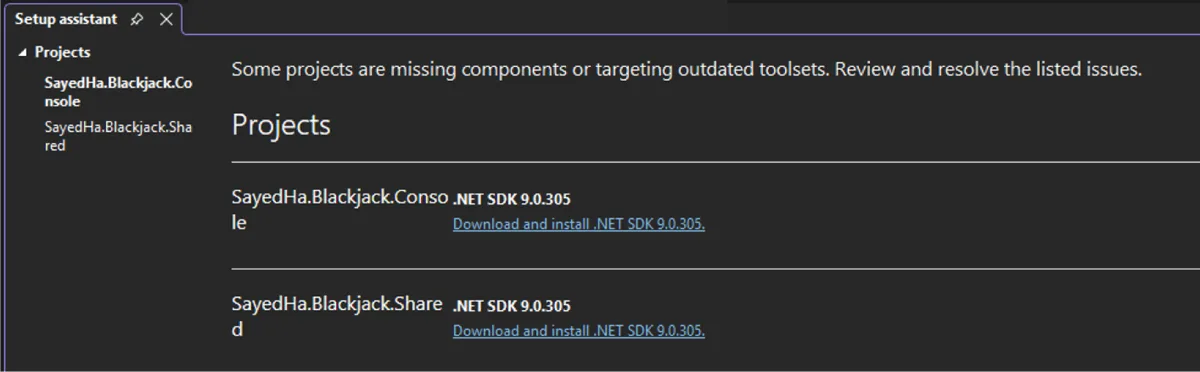
For .NET developers (based on your feedback) – If your project uses a pinned global.json, Setup Assistant provides a link matching the pinned .NET SDK, for quick installation in your browser.
GitHub Copilot app modernization now built into Visual Studio
The GitHub Copilot app modernization agent is an AI-powered tool in Visual Studio that helps you upgrade your projects to newer versions and migrate them to Azure. It automatically detects outdated dependencies and target frameworks, provides guided recommendations, and makes real-time code changes, so you can modernize your code without interruptions. Migrating to Azure unlocks scalability, security, and operational efficiency for your projects.
How to get started:
Open your project or solution in Visual Studio, then launch the Modernization Agent by right-clicking your project or solution and selecting Modernize, or type @modernize in Copilot Chat with your upgrade or migration request.
When new SDKs or toolsets become available, you can easily retarget your entire solution or specific projects with the Setup Assistant. Simply reopen this tab via Project > Retarget solution, or right click your solution/project and select Retarget solution. This makes it simple to modernize projects.
See live examples
Visual Studio is shipping faster
Visual Studio 2026 will get updates on the Stable channel every month, bringing new features, performance improvements, security and bug fixes to you faster than ever.
Visual Studio Insiders will get updates even faster, helping us iterate with you in real time. With this new cadence and rapid iteration speed you’ll always have the latest.
Always current with Visual Studio 2026
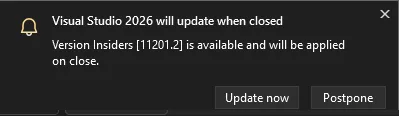
To make updating effortless, Visual Studio 2026 introduces Update on Close. When you finish your session, Visual Studio will download and install updates after you close the IDE, so you’ll always start your next session with the latest features, fixes, and improvements.
This is enabled by default for Community and Team Explorer and on the Insiders Channel. For Enterprise and Professional editions on the Stable Channel, you can turn it on by navigating to Tools > Options > Environment > More Settings > Product Updates and select the “Always update on close” checkbox.
You are always in control
If something doesn’t go as planned, Visual Studio 2026 keeps you in control:
- Improved repair detects and resolves incomplete installations automatically.
- A quick rollback returns you to your previous environment in minutes.
- Side-by-side installs let you keep Visual Studio 2022 and 2026 on the same machine.
You’re always in control, knowing your productivity and stability are protected. Visual Studio provides options to move forward or revert with minimal risk.
When Should You Upgrade?
The best time is now. Visual Studio 2026 is our most performant, reliable, and productive IDE yet with the easiest upgrade experience we’ve ever delivered.
Get faster installs, monthly feature updates, smarter dependency management, and an environment built to keep you focused on writing great code, not maintaining your setup.
Try Visual Studio 2026 today and see how seamless upgrading can be.
Install Visual Studio 2026 Stable from the Installer Available tab or download the bootstrapper.


Isn’t it possible to import the windows layout from VS 2022? Everytime I need to update VS to a new major version I need to re-create my windows layout… Awful.
We’re considering adding that to the settings that are moved over when installing a new major version.
What is synced are Saved Window Layouts, so if you do those then you can easily bring your new VS version into the same window layout state you had previously.
After I installed VS 2026 besides my VS 2022 installation I am currently using no windows layout has been synced. I started with the “default” layout of VS 2026. Exporting windows layouts (settings) to a file in VS 2022 and re-import into VS 2026 gives the usual error that it can’t be imported and just showed GUIDs of windows that couldn’t be found.
Migrating from one VS version to another is not very user-friendly.
Could you explain how windows layouts are synced or why it does not work for me? (both installations are Community Editions, I am logged in with my MS account to both).
Unfortunately, the removal of Service Fabric project (*.sfproj) support from Visual Studio prevents us from switching fully to VS 2026 in my company, although we would love to. Ironically, it was much easier to migrate from VS 2019 to 2022.
And an upgrade and not a side by side like office does when installing a new version over an old one ?
Will it be available one day ?
Yes, the next major version of VS (2027) will be an inline upgrade and not a side-by-side install.
Would like the facility of upgrading / downgrading accross different editions. So say I have enterprise and I want to downgrade to Professional, that should be possible and vice-versa.
In fact when I enter a product key VS should be able to find out that the key that the edition corresponds to is NOT the current one and ask if the user wants to upgrade (or downgrade).
Well you see I have a professional subscription. I downloaded the insiders Enterprise edition. But now that 18.0.0 is out, obviously I need to go back to the stable channel and enter the product...
Love how modern and seamless you guys are trying to make it!!! It’s such a breath of fresh air and such a clean experience, I love it.
*blushing* 🙂
So much foe the theory. In practice the upgrade from vs2022 to vs2026 INSIDER works flawless, to vs2026 GA it does not (yet). Settings are not completely transfered, key bindings overwritten, extensions fail to install. Hope this gets fixed soon, reports already submitted and triaged. Would be great to have an after-install migration option.
Currently VS2026 bootstrap UI only provides 2 options “Install while downloading” and “Download all then install” (this action auto start installation process once d/l task is complete). Bootstrap UI lacking “download all” option. It is not good experience to play around command line parameters to download VS layout of required workload/components for later installation. Can you make it more simpler experience to d/l VS2026 layout image via UI itself?
The command line is not that bad. You download the bootstrapper and you can run this(assuming you want to download vs_enteprise). Put in your directory
vs_enterprise.exe –layout d:\vs2026
> For more details check out the C++ blog post: Blog Post – Upgrading Your Projects.docx
This link points to Microsoft’s SharePoint site, which is not publicly accessible.
I presume you mean Upgrading C++ Projects to Visual Studio 2026
A long time ago, I posted a feedback item requesting the ability to fully move my “Documents\Visual Studio 2022” folder into my dev drive (and definitely off a folder that is supposed to contain my “documents”). To this date, it’s impossible in VS2022. At every launch, VS2022 recreates that ugly folder.
Is that possible now in VS2026?
This request is merely a small kindness. If you’re interested in huge, game-changing feedback, I’ve posted those too.