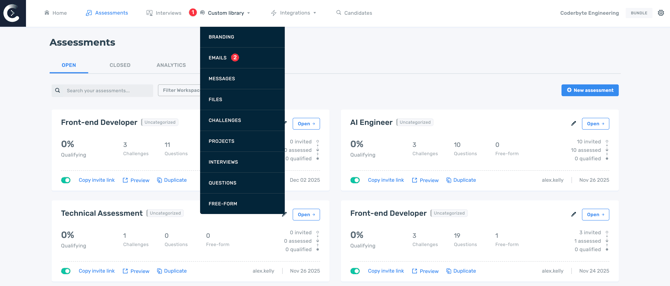
To create and manage email invitations, navigate to Custom library and then to Emails.
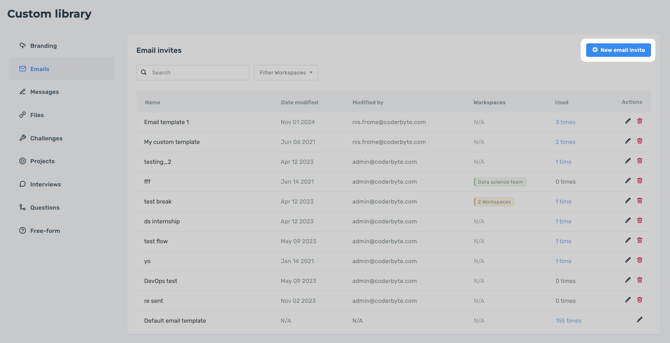
Here you can manage your templates or add a New email invite.
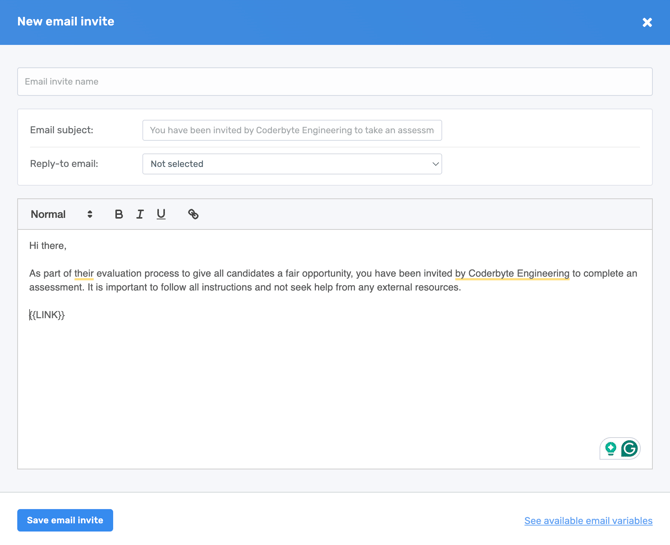
Once the modal appears you'll be able to:
- Add an email subject
- Select a reply-to email from your list of admins
- Add rich text to invite your candidates to take an assessment
- Insert dynamic variables to personalize each message
Email variables
When editing a custom email invitation, you have the option to add variables to pull in information specific to the candidate or assessment. You can see a full list of available variables below:
| Variable | Description |
 |
Allows you to insert a candidate's name when sending an invitation. |
 |
The name of the assessment will be displayed. |
 |
The time limit configured in the assessment settings will be displayed. |
 |
The number of days until the private link expires will be displayed. |
 |
A button is displayed for candidates to start the assessment. |
 |
A hyperlink is displayed for candidates to start the assessment. |
Selecting custom email templates for Assessments
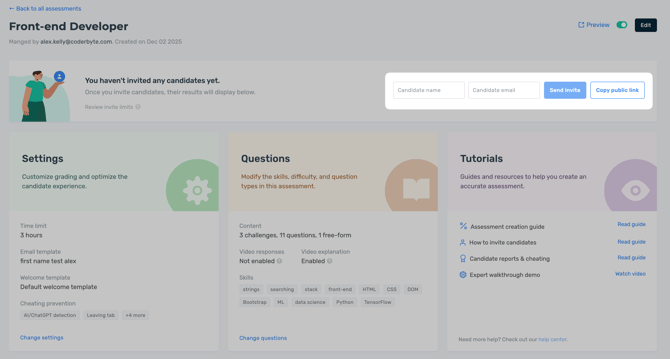
You can pick which email invitation message a code screening assessment uses from the Assessment settings page.
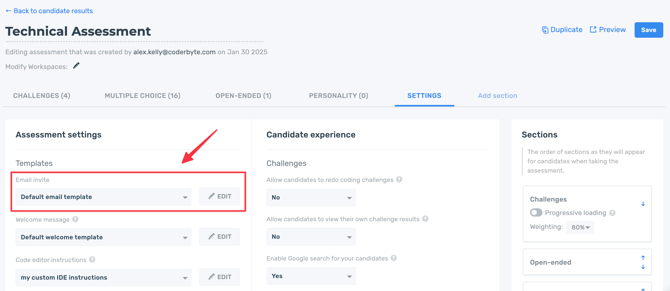
The email invitation will appear when candidates are invited via a private link to the assessment.
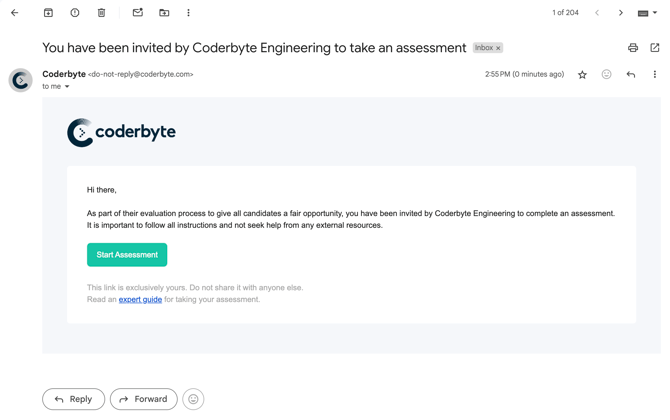
The screenshot above shows BUTTON styling.
If the custom email invitation includes the NAME variable, the candidate invitation page will dynamically change, allowing you to add a candidate's name and email address.