
Each course offers customizable display options. This article details each setting and explains how it influences the presentation of your course, enabling you to adjust them for optimal suitability.
Locating Course Display Settings #
- Navigate to LearnDash LMS > Courses
- Click on the course you want to edit
- Click on the Settings tab at the top of the page
- Locate the section titled Display & Content Options

Course Materials #
Course materials are supplemental resources for your course. These typically include PDFs and other downloadable files, but you can also add images, audio files, or links to external websites.
- Next to Course Materials, toggle the switch on
- Add your materials in the box (HTML is supported)
Course materials are displayed to your users in a separate tab, alongside your main course content.

NOTE: Course materials are shown to all users (even those not enrolled in the course).
You may use the [student] shortcode to show course materials to enrolled users only. Click here to learn more.
Challenge Exam #
The LearnDash Challenge Exam allows users to skip a course by answering a set of questions before starting. If the user passes the exam, the course is automatically marked as complete.
This feature helps users with advanced knowledge fast-track their progress and complete courses more efficiently. It’s a great way to recognize learners who already meet the course objectives.
For detailed steps to create and configure a Challenge Exam, you can find the full guide here: Creating a Challenge Exam
Course Certificate #
You can award a certificate to users upon course completion. Here are a few key considerations:
- A certificate must first be created to appear on the list.
- The certificate becomes available only after the user completes all required steps (lessons, topics, and quizzes) for the course.
- Once available, a button will appear on the course page, allowing the user to download their certificate.
Simply select the certificate that you’d like to associate with this course.

Here’s how it will look to the user:

NOTE: Certificates may also be associated with quizzes.
Learn how to create a certificate
Course Content #

The course content setting controls who can see the list of lessons, topics, and quizzes associated with your course.
This does not affect any content added to the WordPress editor, which is displayed on the course page—that content will be visible to everyone.
- Always visible (default)
Display list to everyone, whether or not they are enrolled in the course. - Only visible to enrollees
Only display the list to users enrolled in the course.
NOTE: If you choose Always Visible, non-enrolled users will see the list of associated lessons, topics, and quizzes but will not be able to access them. Instead, they will see a message stating, “You don’t currently have access to this content.“

Custom Pagination #
Pagination controls how many course steps are displayed at a time before users need to navigate to additional pages. By default, LearnDash follows the settings from the general settings page, but you can customize this for each course individually.
- Toggle the Custom Pagination setting on
- Enter a number for lessons per page
- Enter a number for topics per page
NOTE: This setting applies to both the course content table (displayed on the course page), as well as the course navigation widget for this course.
Custom Lesson Order #
If you disable the course builder, you can set a custom lesson order to control how lessons are displayed. However, if the course builder is enabled, it will always take precedence over these custom settings. Custom ordering will only apply when the course builder is turned off.
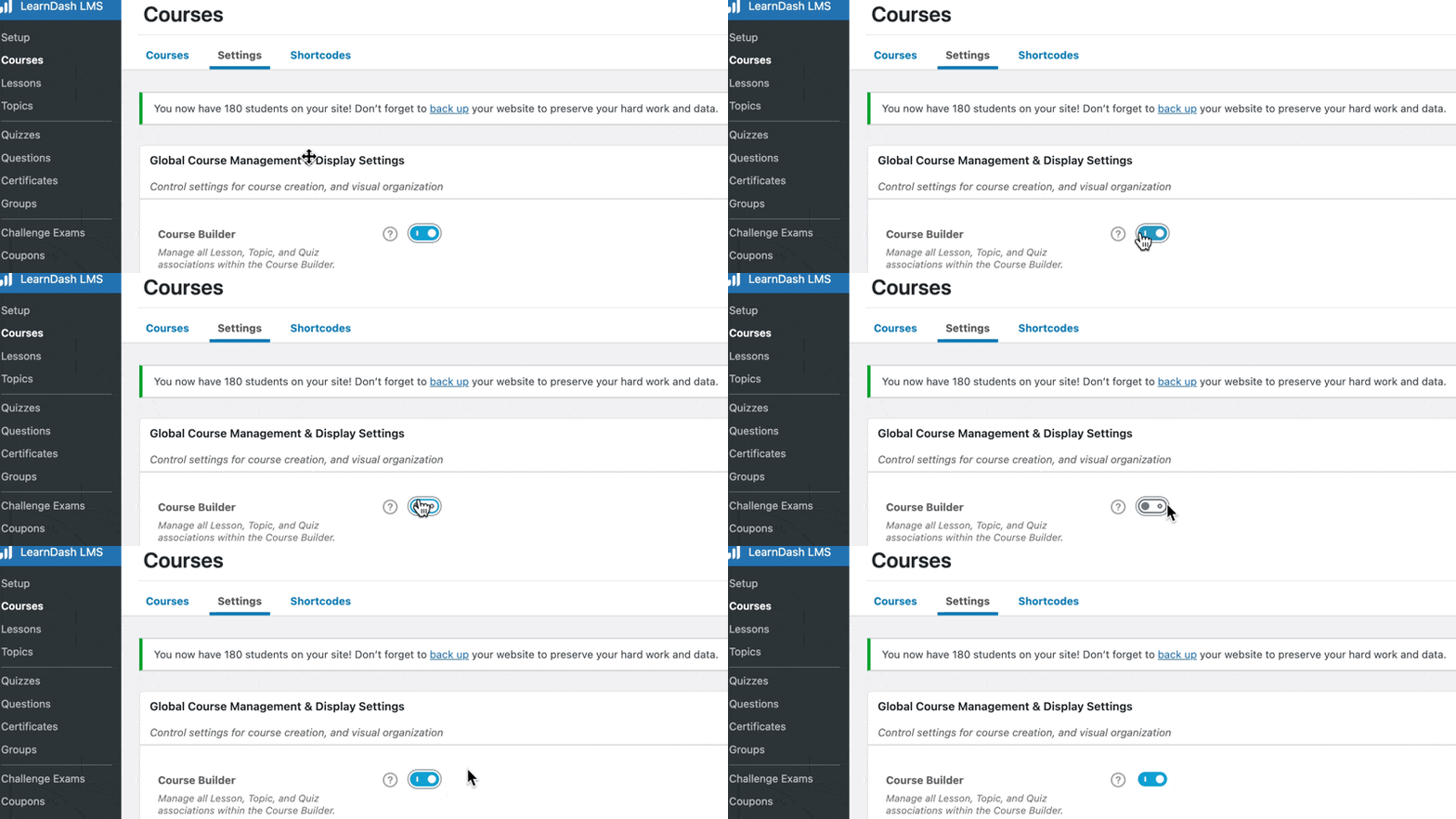
NOTE: The course builder is enabled by default, but if you don’t see it when editing your course, double-check that it’s enabled in your global course settings.
- Toggle the Custom Lesson Order setting on
- Choose a Sort By option
- Date (default)
- Title
- Menu Order
- Choose an Order Direction
- Descending (default)
- Ascending
Custom Lesson Order Options Available: #
LearnDash LMS > Courses > Select the Course > Settings
- Toggle the Custom Lesson Order setting on
- Choose a Sort By option
- Date (default)
- Title
- Menu Order
- Choose an Order Direction
- Descending (default)
- Ascending

How will these settings work with topics? #
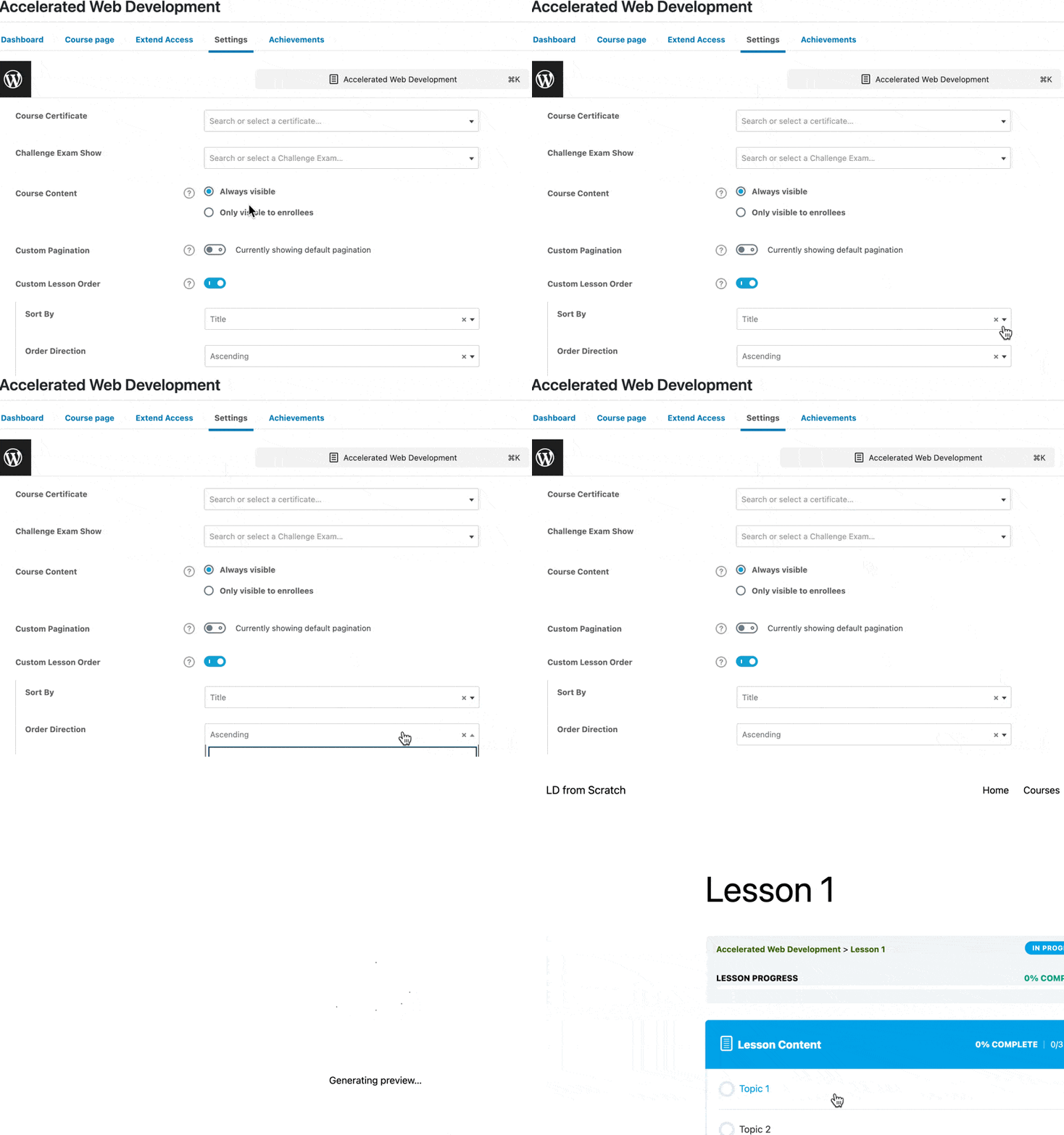
If your lessons include associated topics, they will follow the custom order you configured in your settings. For example, if you choose to sort by “title” in ascending order, your lessons will appear alphabetically. The topics within each lesson will also be sorted alphabetically but only among the topics within that specific lesson.
Course Completion Page #
The Course Completion Page automatically redirects students to a specific page once they finish a course. This feature helps celebrate their achievement and enhances the overall learning experience. You can set a global completion page that applies to all courses. This ensures that every student is redirected to a designated page after completing any course.
For more flexibility, you can also assign a unique completion page to individual courses. When set, this course-specific page overrides the global setting, allowing you to create a more personalized and course-relevant experience.
Once configured, students will be redirected to the selected page upon course completion, where you can display a custom message, certificate, or instructions for their next steps.
Related Topics:
- Enrollment Mode
- Display & Content Options (you are here)
- Access Settings
- Completion Awards
- Course Students
- Course Navigation Settings
- LearnDash Course Grid Settings
