Google Docs is a popular service for managing documents online. This guide will show you how to embed (i.e., display) Google Docs spreadsheets, documents, forms, and presentations into your WordPress.com website.
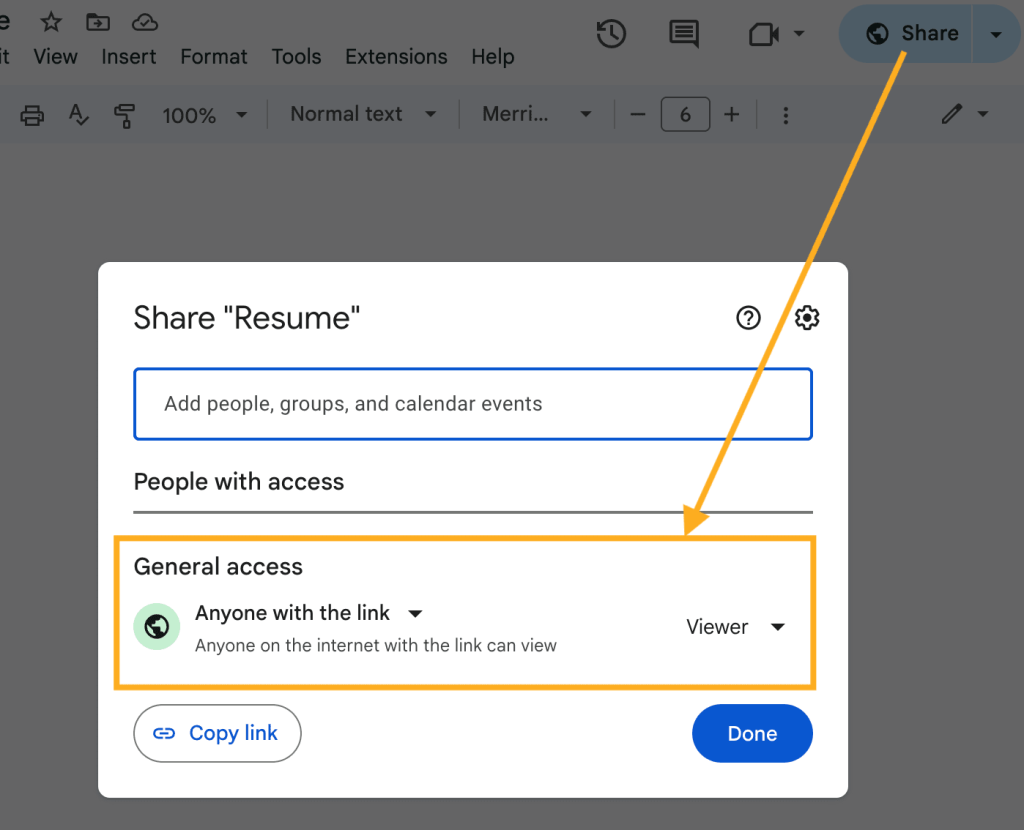
Before sharing any Google Docs file, make sure the document, sheet, slides, or form is set to public. If it is private, you’ll be the only one who can view it.
To change the privacy setting, view the doc and click the “Share” button at the top right corner of the screen to make it visible to anyone:
Google will provide you with a piece of code for you to use to embed any of the following content on your site:
- Google Docs
- Google Sheets
- Google Slides
- Google Forms
To find your embed code for Google Docs, Sheets, or Slides, follow these steps:
- Open your document, sheet, or presentation.
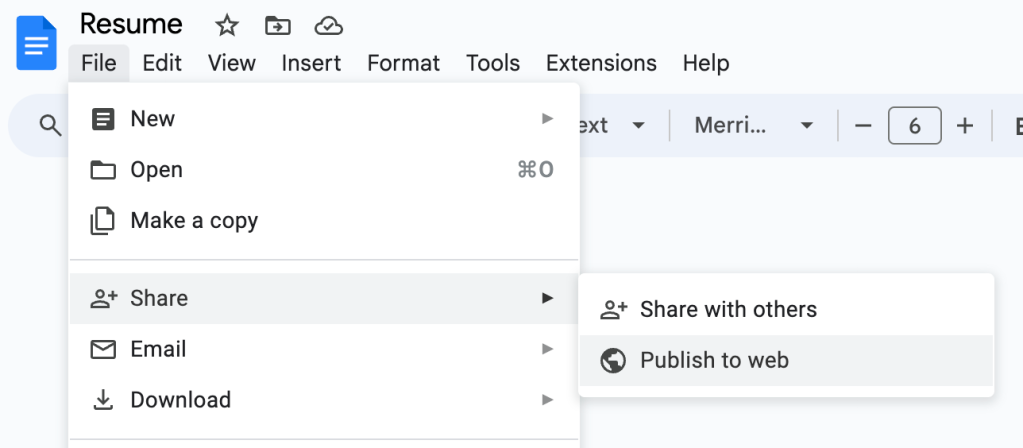
- Click on “File” in the upper left corner.
- Choose “Share” then select the “Publish to web” option:
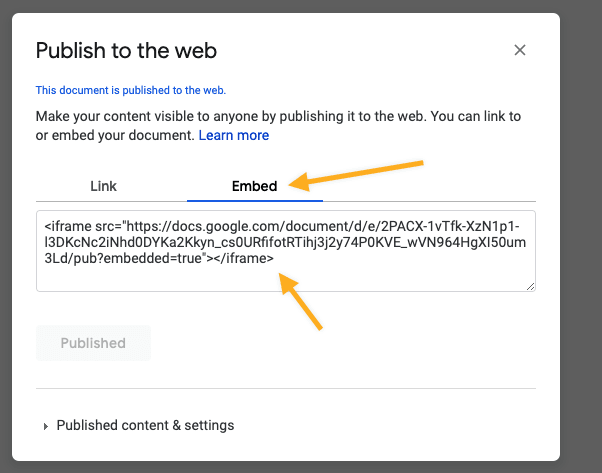
- Click on the “Embed” tab.
- Click the “Publish” button to reveal your file’s embed code.
- Copy the entire code to your computer’s clipboard then follow these steps to add it to your site.
To display a Google Form on your site, take the following steps:
- Open your form in Google.
- Click the ⋮ icon at the top-right corner of the form viewer:
- You will be presented with “More” options. Select the “code tab (represented by the < > symbols.)”Embed HTML” option.
- Copy the entire code that begins with
<iframethen follow these steps to add it to your site.

iFrame code is supported on sites with our WordPress.com Business, and Commerce plans, and the legacy Pro plan. For sites on the Free, Personal, or Premium plans, upgrade your plan to access this feature. Visit our Code guide to learn more.
After copying the embed code for your file or document, take the following steps to insert it on your website:
- Edit the page or post where you want to embed your Google Form.
- Click the + Block Inserter to add a Custom HTML block.
- Paste the full embed code into the block.
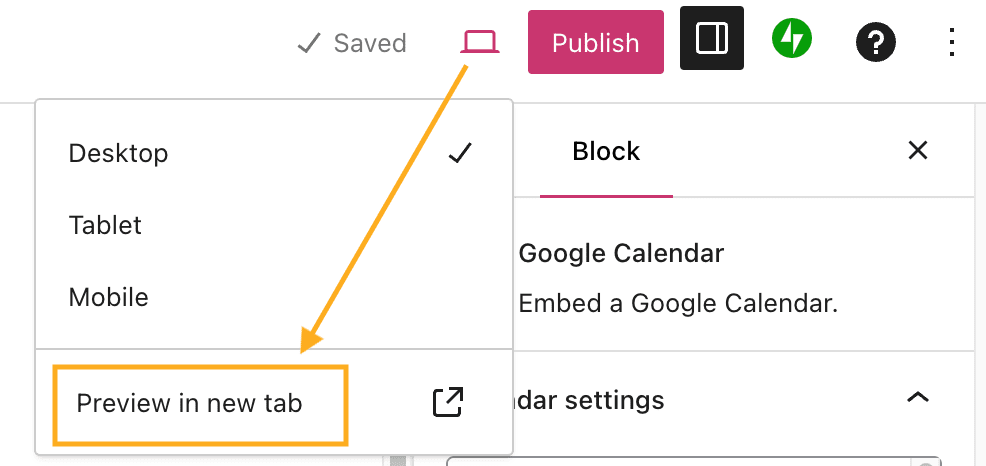
- The file may not render accurately in the editor screen, so use the “Preview in a new tab” option to observe how the file will appear on your actual site: