

Blocks in the WordPress editor contain some advanced settings. This guide will explain how to use these settings.
When you select a block, you will find additional block settings in the right sidebar. If you do not see the sidebar, you may need to click the Settings icon in the top-right corner to bring up the settings. This icon looks like a square with two uneven columns:

The Advanced settings are nested under the “Advanced” section of the block settings at the very bottom.
Note that not every block includes all advanced settings described in this guide. The available settings will vary depending on the theme and the type of block.
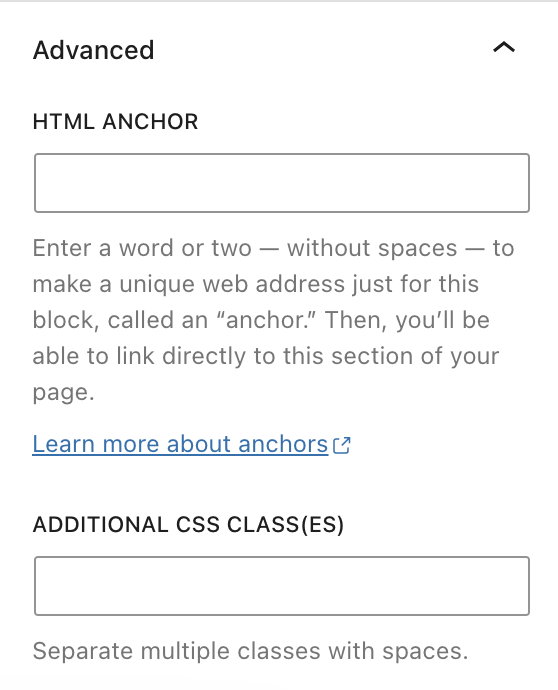
Create an HTML anchor to create a hyperlink or page jump. Check our full guide to learn how to create anchor links.
Add a CSS class to your block, letting you write custom CSS to style the block as you wish. Check our full guide to adding additional CSS classes to blocks.
Pattern overrides let you change specific content in a synced pattern while keeping the same design. This means you can reuse a pattern’s layout and styling but customize the text, images, or other content for each page where you use it.
Learn how to use pattern overrides.
Click on the “Manage allowed blocks” button to set restrictions on which blocks can be added inside certain container blocks, including:
To prevent a type of block from being added to any of these containers, uncheck it from the allowed blocks list and click the Apply button.
Depending on the block, you may have access to additional advanced settings:
- HTML Element: Assign an HTML element to the block.
- Remove top/bottom spacing: Remove any margin from the top or bottom of the block.
- Title attribute: Describe the role of an image on a page.
- Link rel: Add a
relattribute such asnofollow. - Styles – Apply globally: Apply the block’s typography, spacing, dimensions, and color styles to all blocks of that type.

