

When adding blocks of content using the WordPress editor, you can customize how that content looks. This guide will show you how to access each block’s settings and customization options.
The first step is to select the block you want to customize. Select a block by clicking on the block or using List View to find a specific block.
You can then access the block’s customization options in two places: the block toolbar and the block settings:
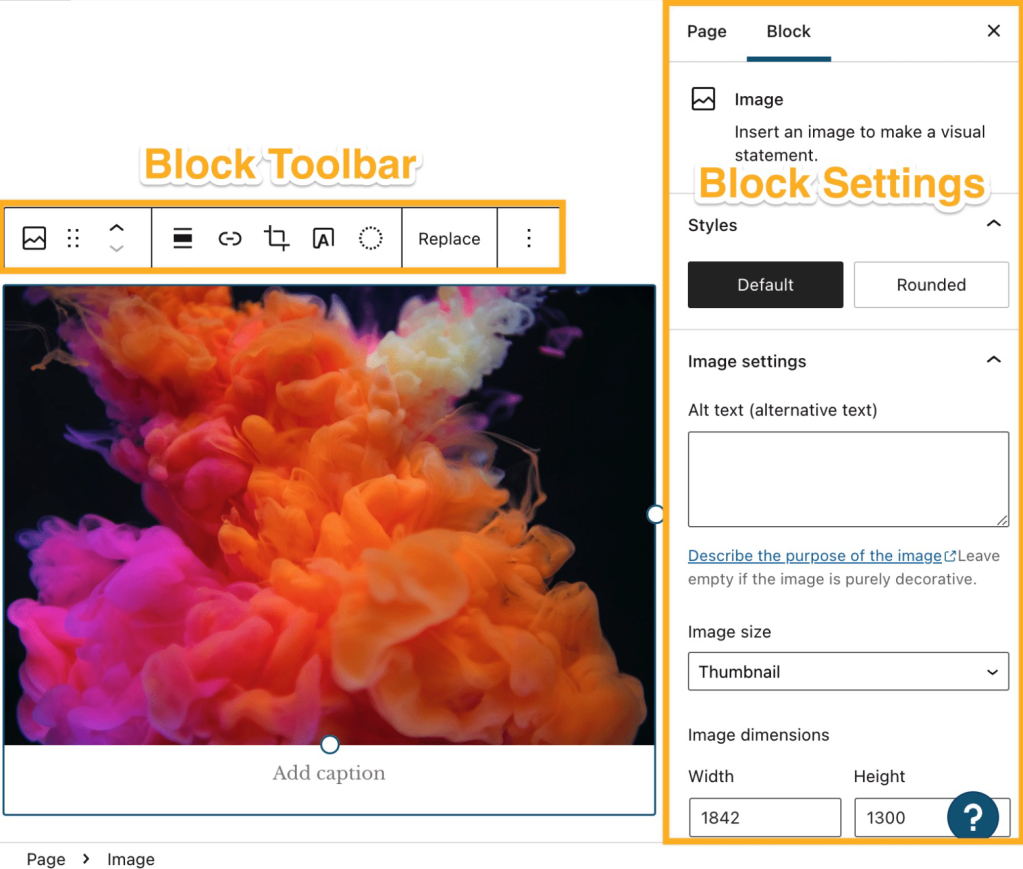
When you click on a block, the block’s toolbar will appear above or below it. The toolbar contains essential options for working with that block:
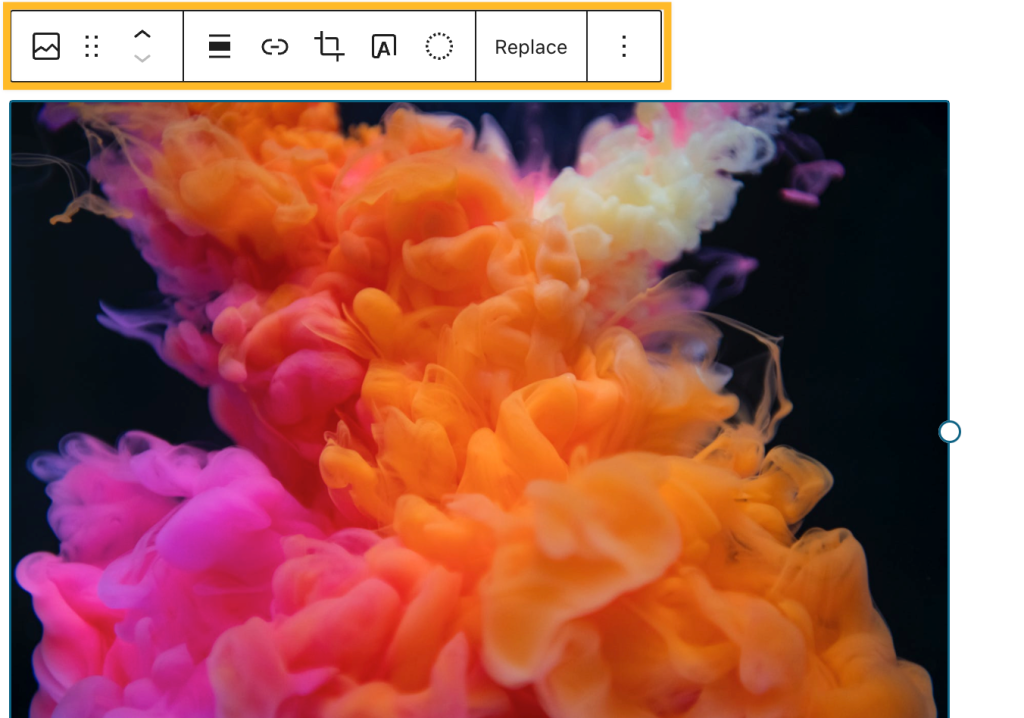
Some options will show in most blocks’ toolbars. These are explained below:

- Transform: Change a block to a similar block type. For example, if you add an Image block and want to change it to a Gallery block, clicking this icon will give you the option. Click here to learn more.
- Drag: Click and hold the icon that looks like six dots to drag the block to another section of the page.
- Move up/down: Click the up or down arrow to move the block up/down one position on the page.
- Alignment: Change the positioning of the block. If available, you will usually find left, right, and center, as well as wide and full width if supported by your theme.
- More Options: The three vertical dots at the end of the toolbar opens a menu with additional settings:
- Copy: Make a copy of the block to your clipboard, which you can then paste elsewhere.
- Cut: Move the selected block to your clipboard, removing it from its original location so you can paste it elsewhere.
- Duplicate: Create a copy of the block directly below the original.
- Add before: Create a space above the current block to add a new block.
- Add after: Create a space under the current block to add a new block.
- Add note: Add a note to collaborate with other authors.
- Copy styles: Copy the Styles used on the block.
- Paste styles: After copying a block’s Styles, paste those Styles onto the selected block.
- Group/Ungroup: Using this option, you can group multiple blocks together – useful for applying colors and padding to a set of blocks. More on Group blocks.
- Lock: Disable the option to move and/or delete the block.
- Rename: Assign a new name to a block as it appears in List View.
- Hide: Remove the block from the public version of the page without deleting it. Hidden blocks can be found in List View with a hidden icon (an eye with a line through it).
- Create Pattern: Save the block with your customizations so you can add it to other areas throughout your site. More on pattern blocks.
- Set as featured image: Specific to the Image block, choose the image as your page/post’s featured image.
- Move to: Click this option, and then click on another section of your page to move the block to that section of the page.
- Edit as HTML: Edit the block content in HTML.
- Delete: Removes the current block from your page.
Each block will also have its own toolbar options specific to that block. For example, the Image block toolbar contains settings to add a link, crop the image, and more:

Hover over the icons in your Block Toolbar to display a tool tip explaining what each icon does:
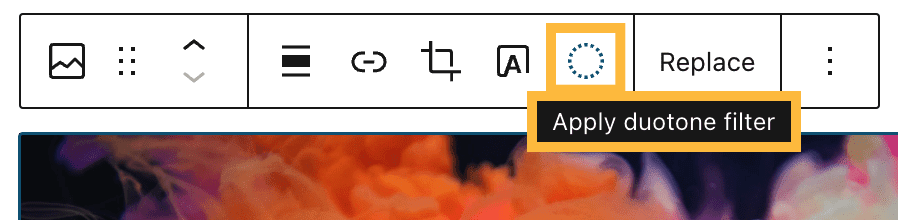
Each block has a guide you can view to learn more about each setting.
By default, the block toolbar will appear directly above or below the block you’re working on:

You can pin the block toolbar to the top of the screen instead, with the following steps:
- While in the editor, click the ellipses (three dots) in the upper right corner of the screen to open the editor preferences.
- Click the “Top Toolbar” option. A check mark will appear next to it to show that it is enabled.
- Block toolbars will now be fixed to the top of the screen:

The Block Settings sidebar contains more customization options for the block you’re working on. Each block has its own settings that you can find in the settings sidebar:

If you do not have the sidebar on the right, click the Settings icon in the top-right corner to bring up the settings. This icon looks like a square with two uneven columns:

Many blocks contain settings for color, typography, dimensions, and advanced block settings. Each block also has a guide you can view to learn more about each block-specific setting.
Many blocks include Styles settings to change the color, typography, dimensions, and more.
In some cases, the style settings will be in the main block settings sidebar. Most blocks will have a separate tab for styles, represented by a black and white circle.

If you have added a block and want to change it to a different type of block, you can use the transform option:
- Select the block you want to change.
- Click on the Transform option, which is the first option in the block toolbar:

- Select from one of the blocks in the Transform To drop-down list.
- If the block you wish to transform to is not shown in the list, it means the block cannot be transformed to this block. Instead, remove the block and add your desired block as a new block.
In this example, we can change an Image block to a different type of image-based block (such as a Gallery or Cover):


