

How to Delete a MySQL Database in cPanel
Continuing with the MySQL series in cPanel, this article focuses on how to delete a MySQL database in cPanel. While web developers use databases to manage large datasets for websites and applications, it sometimes becomes necessary to delete a no longer in-use database.
Requirements
- Server with cPanel installed.
- Login credentials for cPanel with appropriate permissions.
How to Delete a MySQL Database in cPanel
1. Log in to cPanel.

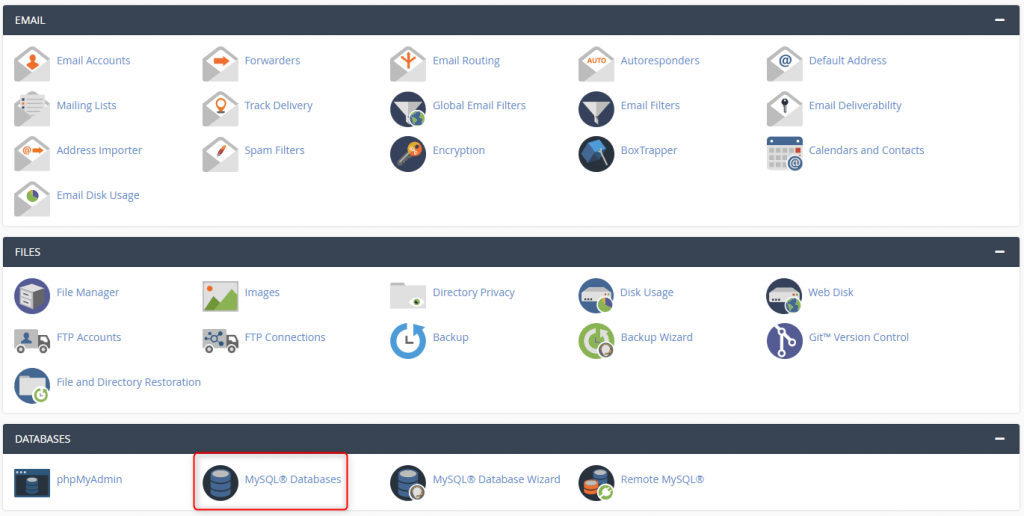
2. In the Databases section, click the MySQL Databases icon.
3. Under Current Databases, click Delete next to the appropriate database.

4. Click Delete Database to confirm the permanent deletion of the database.

5. A message displays affirming the deletion of the MySQL database.

Wrapping Up
Now you are able to delete a MySQL database in cPanel. Liquid Web customers utilizing cPanel servers enjoy 24/7/365 support for the steps in this tutorial and other cPanel functions, allowing you to focus on your websites and applications.
Contact our sales team today if you want to know more about setting up a dedicated server or VPS with cPanel.
