

Checking Your MySQL Version
If you are using MySQL databases, you might need to occasionally check the version of MySQL that is installed on your server. It's easy to check your MySQL version using either cPanel or the command line.
If you are using MySQL databases, you might need to occasionally check the version of MySQL that is installed on your server.
It’s easy to check your MySQL version using:
Using cPanel to Check MySQL Versions
If you aren’t familiar with using the command line interface, use cPanel to check your MySQL version.
- Log into your cPanel account for the database’s domain. If you aren’t sure how to access cPanel, read Getting Started with cPanel first.
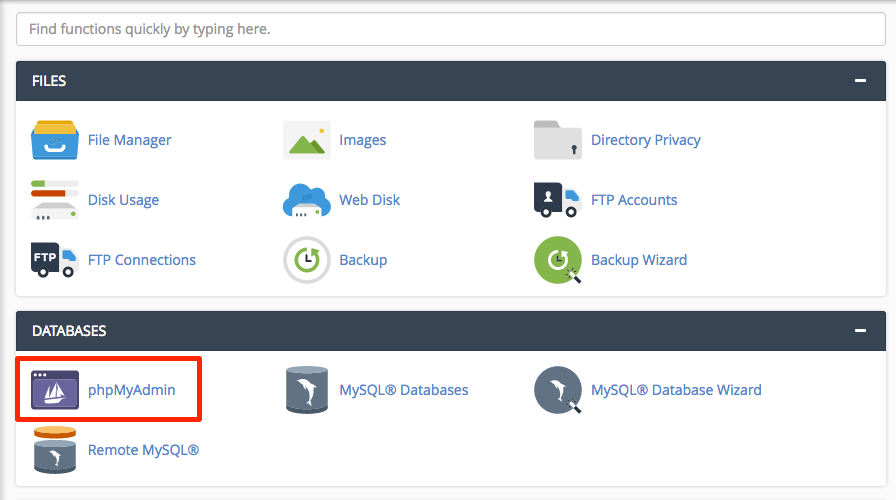
- Scroll down to the Databases section on the cPanel home page and click on phpMyAdmin. This will load your graphical MySQL interface.

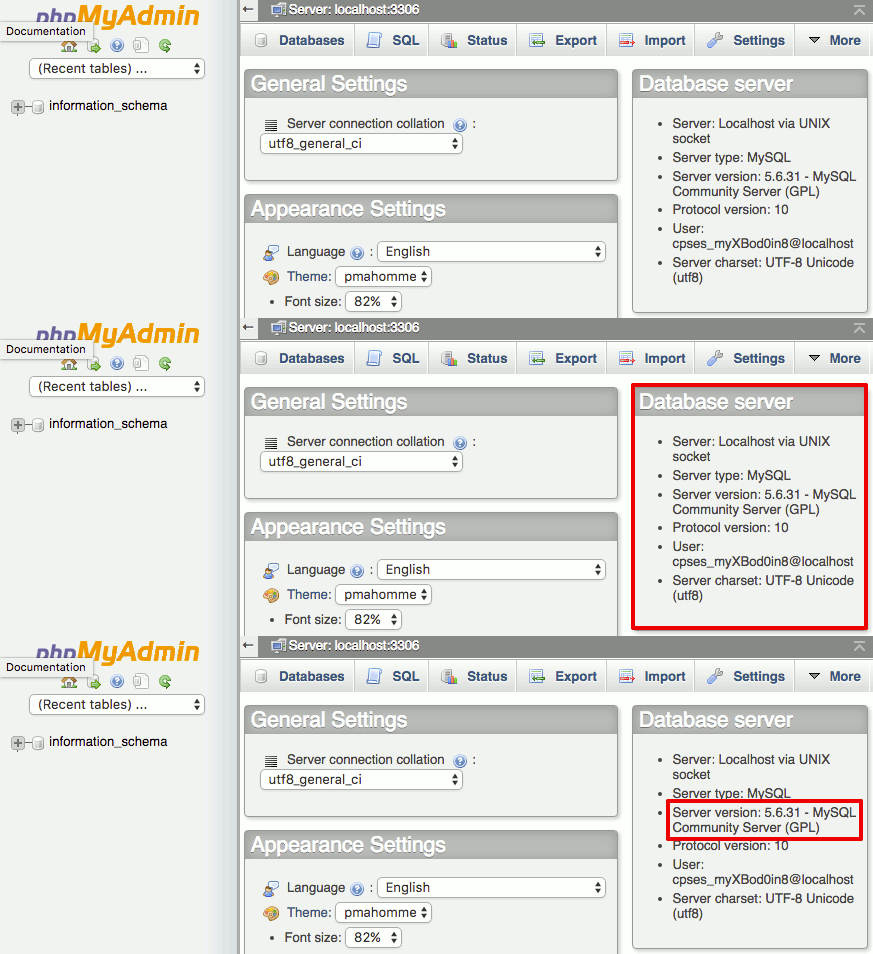
- On the main page of phpMyAdmin, there will be a Database server section on the right hand side of your screen. The MySQL version is listed as the Server version.

Using Command Line to Check MySQL Versions
If you’re comfortable with the command line, it only takes one command to check your MySQL version.
- Using the terminal program of your choice, log into your server as root. If you haven’t logged into your server using the command line before, read Logging into Your Server via Secure Shell (SSH) first.
- In the command prompt, type
mysql -V
This will print the MySQL version on the screen. It should look something like this:
mysql Ver 15.1 Distrib 5.5.41-MariaDB, for Linux (x86_64) using readline 5.1
