Description:
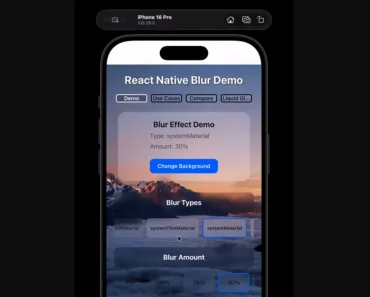
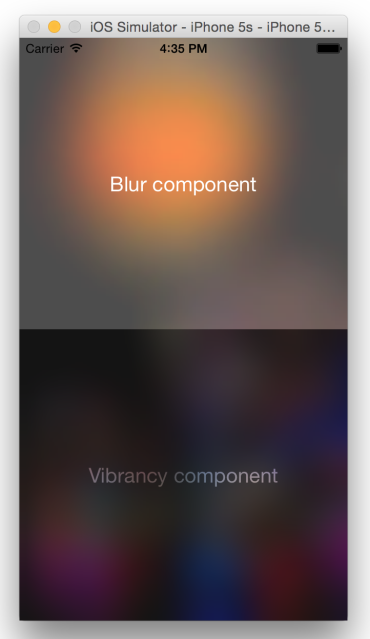
expo-backdrop is a React Native and Expo package with two native blur components. BlurView samples content behind its layer, while GaussianBlurView blurs its own children.
Use it in an Expo development build or a bare React Native app. The native components run on iOS and Android, with platform-specific material and blur controls.
Features
BlurViewsamples content behind its layer.GaussianBlurViewapplies blur to the component’s own children.- iOS includes 21 system materials and a custom
tintColorpath. - Uniform and per-corner radii clip the blur layer and its children.
- Android exposes controls for blur radius, downsampling, blur rounds, and backdrop updates.
Animated.createAnimatedComponentworks with Reanimated styles and values.blurEnabled={false}leaves a tint-only view.
How to use it
Install and build the native app
expo-backdrop contains native iOS and Android code. Use an Expo development build or a bare workflow, then prebuild and run the native project on a simulator or device. If the project has already been prebuilt, run the platform command again after installation.
bun install expo-backdrop
bunx expo prebuild
bunx expo run:ios
bunx expo run:android
Add backdrop blur
Place the content that should appear behind the blur before BlurView in one layout. The component accepts normal React Native children and styles.
import { Image, StyleSheet, Text, View } from "react-native";
import { BlurView } from "expo-backdrop";
export default function GlassCard() {
  return (
    <View style={styles.container}>
      <Image
        source={require("./cover.png")}
        style={StyleSheet.absoluteFillObject}
      />
      <BlurView
        intensity={80}
        tint="systemThinMaterialDark"
        cornerRadius={24}
        style={styles.card}
      >
        <Text style={styles.text}>Hello from behind the glass</Text>
      </BlurView>
    </View>
  );
}
const styles = StyleSheet.create({
  container: {
    flex: 1,
    justifyContent: "center",
    padding: 20,
  },
  card: {
    padding: 20,
  },
  text: {
    color: "#fff",
  },
});
Blur a component’s children
GaussianBlurView applies the blur to its own child tree. Android requires API 31 or newer for this component. The opaque prop controls the edge treatment. Leave it false for fading edges, or set it to true when the blurred content needs solid edges.
import { Image } from "react-native";
import { GaussianBlurView } from "expo-backdrop";
export function BlurredPreview() {
  return (
    <GaussianBlurView blurRadius={12}>
      <Image
        source={require("./cover.png")}
        style={{ width: 300, height: 200 }}
      />
    </GaussianBlurView>
  );
}
Animate a backdrop with Reanimated
Wrap BlurView with Animated.createAnimatedComponent when the blur layer follows scroll state or another shared value.
import Animated, {
  Extrapolation,
  interpolate,
  useAnimatedScrollHandler,
  useAnimatedStyle,
  useSharedValue,
} from "react-native-reanimated";
import { BlurView } from "expo-backdrop";
const AnimatedBlurView = Animated.createAnimatedComponent(BlurView);
export default function ScrollBackdrop() {
  const scrollY = useSharedValue(0);
  const onScroll = useAnimatedScrollHandler((event) => {
    scrollY.value = event.contentOffset.y;
  });
  const backdropStyle = useAnimatedStyle(() => ({
    opacity: interpolate(
      scrollY.value,
      [0, 300],
      [0, 1],
      Extrapolation.CLAMP,
    ),
  }));
  return (
    <>
      <Animated.ScrollView onScroll={onScroll} scrollEventThrottle={16}>
        {/* Screen content */}
      </Animated.ScrollView>
      <AnimatedBlurView
        intensity={90}
        tint="systemChromeMaterialDark"
        cornerRadius={28}
        style={[
          {
            position: "absolute",
            bottom: 40,
            left: 20,
            right: 20,
            height: 80,
          },
          backdropStyle,
        ]}
      />
    </>
  );
}
BlurView API
Set tintColor when a custom color must replace the selected system material. cornerRadii takes precedence over cornerRadius and both values clip the blur layer and its children.
| Prop | Type | Default | Role |
|---|---|---|---|
intensity | number | 50 | Blur strength from 0 to 100. |
tint | BlurTint | "default" | System material over the blur. |
tintColor | ColorValue | Not set | Custom color that replaces tint. |
blurEnabled | boolean | true | Set to false for tint-only rendering. |
cornerRadius | number | Not set | Uniform corner radius. |
cornerRadii | CornerRadii | Not set | Per-corner radii. |
style | ViewStyle | Not set | React Native view style. |
Android-only props
These props tune Android backdrop capture, radius, downsampling, blur rounds, and update behavior.
| Prop | Type | Default | Role |
|---|---|---|---|
blurReductionFactor | number | 4 | Divides the radius mapped from intensity. |
blurRadius | number | Not set | Explicit radius in dp; overrides intensity. |
downsampleFactor | number | 0 | Downsampling before blur; 0 derives it automatically. |
blurRounds | number | 2 | Blur passes per capture. |
autoUpdate | boolean | true | Set to false to freeze a backdrop over static content. |
GaussianBlurView API
GaussianBlurView blurs its child content and accepts these component-specific props:
| Prop | Type | Default | Role |
|---|---|---|---|
blurRadius | number | 0 | Blur strength in iOS points or Android dp. |
opaque | boolean | false | Keeps edges solid when set to true. |
style | ViewStyle | Not set | React Native view style. |
Alternatives and related resources
- React Native Blur View with Liquid Glass Effect
- Create iOS Translucent Headers in React Native with Expo Progressive Blur
- Native iOS Progressive Blur for React Native & Expo
- Expo Blur documentation
- expo-backdrop on GitHub
FAQs
Q: Can I use expo-backdrop in Expo Go?
A: No. The package contains native iOS and Android code. Use an Expo development build or a bare workflow after running expo prebuild.
Q: What is the difference between BlurView and GaussianBlurView?
A: BlurView blurs the content behind the component. GaussianBlurView blurs its own children.
Q: Does expo-backdrop work on the web?
A: No. Both components throw when rendered on web.
Q: Which Android versions support GaussianBlurView?
A: GaussianBlurView requires Android API 31 or newer. BlurView is available on Android.
Q: How do I make the blur follow a scroll animation?
A: Create an animated wrapper with Animated.createAnimatedComponent(BlurView), then pass it a Reanimated animated style.