Discover next-gen
AI tools & startups.
Curated directory of the best AI tools. Submit your project to get high-quality backlinks and traffic.
Why Choose thistools?
thistools is your go-to platform for discovering cutting-edge AI tools and innovative tech products. We curate the best tools from around the world, helping you find the perfect solutions for your productivity, automation, and creative needs.
Daily Curated Picks
Every day, we feature fresh AI tools and startups selected for quality and launch momentum.
Quality-First Curation
We prioritize tools that solve genuine problems and offer exceptional user experiences.
Community-Driven Rankings
Trending lists are driven by real user feedback so the most valuable tools rise.
>> LAUNCHING_TODAY

Skreno is an AI-powered screen recorder that runs entirely in your browser. It records your screen, captures screenshots and records meetings such as Zoom calls, then turns each recording into a shareable link that arrives with a transcript, an AI summary and comments placed on the exact second. Alongside recording, Skreno includes Studio, a recorder and editor that runs in the browser and is included with every plan, with exports up to 4K. It is built for individuals and teams who need to show something on screen rather than describe it in words. The problems Skreno addresses are the small frictions that pile up around explaining things visually. Installing an app just to hit record. Uploading a file, waiting, then pasting a link. Opening an editor just to draw an arrow. Cropping and labelling screenshots by hand. Chasing feedback across five threads. On engineering and support teams the friction is sharper still: a ticket says 'it works on my machine', a developer says 'I can't reproduce it without the error', and a hand-off arrives with no stack trace and no idea where to look. Support teams report that each ticket can take three replies before anyone can reproduce it, and video conversations tend to turn into long meetings when a short recording would do. Skreno's answer is to put recording, editing and sharing in one place in the browser, so the explanation travels with the evidence. Recording is the first layer. Skreno records right in the browser, so there is no app to install before hitting record. Screenshots are captured and labelled automatically, so each step in a sequence is grabbed and annotated rather than cropped and labelled by hand. Annotations can be drawn and marked up while you record, so an arrow or a highlight lands exactly where the point is being made instead of being added afterwards in a separate editor. Screen and camera can be recorded as separate tracks, which gives the editor freedom to choose the layout later. Sharing is immediate. The link is live the second you stop recording, so there is no upload-and-wait step between finishing and sending. Every recording arrives with a transcript, an AI summary and comments, and comments are placed on the exact second they refer to, which keeps discussion anchored to the moment in the video rather than scattered across threads. When typing three paragraphs would be slower than showing it, you can reply with a quick video instead. And when input is needed from other people, the feedback is collected right on the video. Studio is the editing layer, and it runs in the browser. It trims, captions, blurs and polishes, with exports up to 4K and no download required to do the work. A ten-second trim no longer means downloading the raw file first. Captions, blur and backgrounds live in one editor instead of being spread across one app for captions and another for backgrounds. Editors can pick a layout, cut silences, and add animated captions and titles. Because editing happens from the cloud, every edit updates the same link, so nobody has to re-upload the whole recording after a small change. For engineering work, Skreno attaches the technical evidence to the recording. A bug report can come with the console log attached, and a network panel shows three failed requests highlighted with the 500 error response body open, so the person fixing it can see what actually broke. That directly addresses the three familiar lines in a bug thread: 'it works on my machine', 'I can't reproduce it without the error' and 'no stack trace, no idea where to look'. Teams can also install Skreno on their own site with a Web SDK that needs one script tag, and an AI assistant can be connected so it searches your recordings over MCP and acts. Beyond screens, Skreno covers meetings and other people's recordings. The Meeting Notetaker records the call and writes the notes, so a meeting produces a transcript and a recap automatically, and transcripts and AI recaps are generated for recordings. For customer stories, you can send a link, the customer records, and you receive the testimonial. Request links work the same way for bug reports: anyone can record for you, no account needed. The way it all fits together is deliberately simple. Everything happens in the browser from a single starting point, with an optional Chrome extension and an SDK for your own site. Recording produces separate tracks, the cloud editor assembles them into a layout, and every edit updates one link. That link carries the video plus the transcript, AI summary, timestamped comments and, where relevant, the console and network logs. Nothing needs to be downloaded to trim, caption or export, and recordings stay attached to the work they belong to rather than living in a separate folder. The payoff is speed in the places where speed is scarce. Showing something takes minutes instead of meetings. A support ticket can be recorded by the customer directly, so the first reply is closer to a fix. A developer receives the error and the log together, which removes a round of guessing. Feedback lands on the second it concerns, so reviewers do not have to reconstruct context. Edits update the link that has already been shared, so nobody has to redistribute a new file after every change. Use cases span the teams that explain things on screen. Support teams send Request links so customers record the bug themselves, build a library of their ten most repeated tickets, and keep recordings attached to the ticket rather than in a separate folder. Engineering teams use dev logs and the Web SDK to capture what broke. Product and design teams mark up screens and collect feedback on the video. Meetings and calls get a notetaker that records the call and writes the notes. Marketing and adjacent teams collect customer stories by sending a link. Guides and tutorials are produced in the same editor used for everything else. Skreno is aimed at individuals and teams who work in a browser and need to explain, review or report something visual — support, engineering, product and design, meeting-heavy roles and anyone gathering testimonials. Pricing matches that reach: free is a real plan rather than a trial, with no card and no countdown, no watermark on any plan, and no account needed to try it. The full editor is free, Studio is included with every plan, and exports run up to 4K. Skreno's value proposition is the promise in its own line: record once, explain nothing. Record, edit and share in the browser, and let the transcript, AI summary, timestamped comments and technical logs do the explaining that usually costs another round of replies.
Hypervibe is a native macOS application that brings AI coding agents together on one infinite visual board. Instead of juggling terminal tabs and separate windows, you can run Claude Code, Codex, Gemini CLI and a catalog of other command-line agents side by side as nodes on a single canvas. It is built for developers who already work with agentic CLIs and want to see, organize and orchestrate many of them at once, on their own Mac, using the agent subscriptions they already pay for. macOS 14 or later on Apple Silicon is required. The starting point for Hypervibe is a simple observation: don't let a screen decide how many agents you run. Developers adopting AI coding agents quickly hit the limits of the terminal. tmux gives you panes, but as the Hypervibe comparison puts it, it does not tell you which agent is waiting for you, hand a task from one agent to another, or bring every conversation back when you reopen. Terminal tabs multiply, context is lost between sessions, and there is nowhere to plan next to the work itself. Hypervibe keeps the real terminal and adds the board around it: status per console, teams, loops, voice, and a place to plan. Each console on the board is a real terminal. Every one is a full PTY with a controlling terminal, so Ctrl-C, job control and full-screen TUIs behave exactly like iTerm. The agents run as the interactive CLIs you are already logged into, which means you use your own subscription rather than API keys, and nothing falls outside the plan you already pay for. Hypervibe runs the binaries already on your PATH, supports Claude Code, Codex, Gemini, Grok, opencode and a catalog of 34 CLIs, and also accepts any custom executable you add yourself: if it runs in a terminal, it can live in a node. Around those terminals, Hypervibe provides a set of studios and board tools. Live web tiles show a localhost preview with a real Web Inspector docked to the board. A code studio lets you browse the file tree, preview code with highlighting, and pin files as nodes on the board. A markdown studio offers an Obsidian-style vault with a file tree, autosaving editor and a force-directed link graph. A diagram studio turns diagrams of your repo into loose ink figures you can spill onto the board and export as PNG or .excalidraw. A document studio generates documents from the repo with a live preview and exports a real paginated PDF. Kanban, sticky notes, text and checklists sit beside your consoles so you can plan next to the work, and ink and markup let you draw directly on the board or mark up dropped images in place. A live git card shows your branches alongside a GitHub panel for commit, push and pull. Orchestration is where the board goes beyond a pretty desktop. You can line up a whole team in the composer and launch twelve consoles in one action. Consoles can be grouped into teams, with a mission map to keep track, and work can be handed from one agent to another. Loops know when to stop: you can trigger a console on a schedule, on idle or on output, give the loop a goal, and it retires itself once the goal is met. Voice control lets you direct the board by speaking; the voice planner turns spoken instructions into plans and the app speaks short replies back. State and continuity are handled with care. Every workspace is saved on each change, and sessions come back so consoles return exactly where they were, conversation included. A usage pill per CLI and token analytics by day and agent are built from your local session logs. Profiles with isolated homes let you run two accounts of the same CLI side by side. Project memory works at the per-repo and global level, and nothing reaches a console unless you push it. Under the hood, Hypervibe is local-first. State lives on your disk as versioned JSON and speech is transcribed on-device. Only three things talk to the servers: your sign-in, handled by Firebase Authentication; your planner commands with their board context, which the planner service sends to Groq to turn into a plan; and the text of the short replies the app speaks, which the gateway sends to Inworld to generate audio. Your microphone audio and your repositories never leave your Mac. You also have the last word: agents type, but you send. Nothing prepared for you is ever sent for you, a live console only dies by an explicit confirmed action, and each CLI's auto-approval flag is a global opt-in that is off by default. Getting started follows three steps. First, install your CLIs: log in to Claude Code, Codex, Gemini or whichever agents you use, the same way you do today, and Hypervibe runs the binaries already on your PATH. Second, open a repo by pointing Hypervibe at a folder, which becomes a board with workspaces you switch like tabs and presets that lay one out in a single tap. Third, spawn consoles by adding agent consoles as nodes and putting them to work, directing them by voice or keyboard, grouping them into teams, or leaving them on a loop. The outcomes follow from that structure. Because every console is a real terminal, developer workflows, keyboard shortcuts and full-screen tools keep working. Because each agent runs on your own subscription, there is no resold model access and no separate API key bill. Because the workspace is saved on every change, reopening Hypervibe brings back the exact arrangement and conversations you left. Because loops can watch for output, idle time or a schedule, agents can keep working without a human watching each step, and because their goals retire the loops, automated work stops on its own. Concrete scenarios fall directly out of the features described. A developer can run Claude Code, Codex and Gemini CLI side by side on the same repo to compare their output, using profiles with isolated homes to run two accounts of the same CLI at once. A larger effort can be laid out as a team of consoles on a mission map, with handoffs between agents and twelve consoles launched at once from the composer. While agents work, you can keep a live localhost preview open in a web tile with the Web Inspector docked beside it, check the git card and push from the GitHub panel, or generate a PDF document and a repo diagram from the same board. Loops handle recurring or conditional work: a console triggered on a schedule, on idle or on output, given a goal like a specific task to finish, retires itself when the goal is met. Usage analytics track token consumption by day and by agent from local session logs. Hypervibe is for one person working on their own Macs. It requires macOS 14 or later on Apple Silicon, and ships as a direct download rather than through the Mac App Store because real terminals need to spawn real processes that the App Store sandbox does not allow. The Pro plan costs USD 19 per month, billed monthly with taxes calculated at checkout, and can be cancelled anytime with a 14-day refund window on first purchases and annual renewals. Pro includes 10,000 credits every month for the voice planner and spoken replies, unlimited on-device voice dictation, 34 agent CLIs on one visual board, teams, handoffs and automated loops, the documents, diagrams and code studios, and all updates. Credits renew monthly, and if they run out, new voice planner requests and spoken replies pause until renewal while the board, consoles, voice dictation and local commands keep working. Agent subscriptions such as Claude, Codex or Gemini are paid separately to their providers, and Paddle acts as merchant of record. A Discord community run by the makers of Hypervibe is open for showing boards, reporting bugs and shaping what comes next. The takeaway is that Hypervibe turns a pile of terminal tabs into one workspace for AI coding agents. It keeps the real PTY terminals and your existing subscriptions, then adds the board, the teams, the loops, the studios and the voice control that make running many agents at once manageable, all on your Mac and with your repos never leaving it.

Maildun for Mac is an agentic email builder for macOS, released as a free beta. It is part of the Maildun family of email tools: the open source Maildun platform, described on the website as the full email marketing stack for campaigns, sequences and transactional email; Maildun for Mac, a native Mac application for designing emails; and Maildun Platform, a managed version listed as coming soon with the promise "We run it, you send." The home page summarises the whole offering as "Campaigns, sequences, and transactional email. Run it yourself, design on your Mac, or let us host it for you." The Mac app is built for people who want to produce on-brand emails either by hand, with an AI assistant, or over MCP, and it is free to download. Maildun is positioned as email marketing tooling "built in the open." The open source edition is described as the full email marketing stack that you can self-host, read the code of, and help shape, and the site notes it is free to self-host. Rather than pushing teams toward a single closed hosted product, Maildun offers three ways to run the same idea: hosting it yourself, designing on your Mac, or letting the vendor host it for you through the forthcoming Maildun Platform. This matters because email remains a core channel for campaigns, automated sequences and transactional messages, and teams often want control over where their sending stack and their design workflow live. The Mac app gives designers a native place to build those emails, while the open source project and the upcoming managed platform offer a path to actually sending them. Designing by hand is the foundation of Maildun for Mac. The app provides a drag-and-drop editor in which you build an email by adding elements such as a heading and body text, as shown in the product's editor screenshot with the prompt "Write something people want to read." The editor exposes three views — Design, Preview and Code — so you can lay out the email visually, check how it will render, and inspect or edit the underlying code. An "Apply brand" action sits alongside the assistant and an export control in the toolbar. The result is a hands-on workflow in which the person designing the email keeps direct control over layout and copy rather than relying purely on generated output. The AI assistant takes that hand-built design and edits it live. Maildun for Mac lets you connect Claude, ChatGPT, Gemini or Grok using your own API key, so the model you already use can work directly on the email you are building. Critically, the assistant's changes are presented as a proposal that you accept or reject, rather than being applied silently to your design. That review step keeps a human in the loop: you can see what the assistant wants to change, approve it if it improves the email, or discard it and keep your original version. Bringing your own API key also means the choice of model provider stays with you, and the app supports several of the major assistants by name. Beyond the in-app assistant, Maildun for Mac ships with a built-in MCP server. Turning it on allows developer-facing AI coding tools — Claude Code, Codex and Cursor are the ones named — to create and edit emails as well. MCP, the Model Context Protocol, is the mechanism through which those tools talk to the app, and having the server built in means there is nothing extra to install beyond enabling it. This opens a second, more technical route into email production: instead of pointing and clicking in the editor, a developer or power user can ask an agent inside their coding environment to generate or adjust an email, with the resulting changes landing in the Mac app's design. Maildun for Mac also adds organisational features around the design itself. Workspaces per client let an agency or freelancer keep each client's emails separate, so one client's work does not bleed into another's. Brand kits carry shadcn-style component styles, and the "Apply brand" action brings those styles to a design, which helps keep every email visually consistent with the brand it represents. For repeatable layouts, saved sections let you store blocks you use often and drop them into new emails rather than rebuilding them each time. Media can be stored on your own Cloudflare R2 or Amazon S3 bucket, giving you control over where images and other assets live. And when an email is finished, it can be published to maildun.com. The overall approach is summed up in the Product Hunt tagline: "Design on-brand emails by hand, with AI, or over MCP." Maildun for Mac deliberately supports three ways of working on the same design rather than forcing a single path. You can build everything yourself in the drag-and-drop editor; you can hand an existing design to Claude, ChatGPT, Gemini or Grok and let the assistant propose edits; or you can enable the built-in MCP server and let Claude Code, Codex or Cursor create and edit emails through an agent. Whichever route you take, the app remains the place where the email lives, and the assistant's edits always arrive as proposals you accept or reject. Underneath, the wider Maildun project is open source and positioned as something you can self-host, read the code of, and help shape. The stated benefits follow from that mix of control and assistance. Because the Mac app is free and the open source platform is free to self-host, teams can adopt Maildun without a licence fee, and because the project is built in the open they can read the code and help shape it. Designing by hand keeps full control over the output, while the AI assistant speeds up changes without removing the designer from the loop — every suggestion is accepted or rejected rather than applied automatically. Support for MCP means the same email work can be driven from the AI coding tools many developers already use. Brand kits and saved sections reduce repeated work and help maintain consistency across emails, and media storage on your own R2 or S3 bucket keeps assets under your control. Concrete uses described in the material include building a marketing email by hand in the editor — adding a heading, writing body copy, and checking the result in Preview or Code view. Teams running campaigns, automated sequences and transactional email can use the wider Maildun stack for sending, with the open source edition self-hosted or the managed Maildun Platform used once it is available. Agencies and freelancers can organise work by client using workspaces and apply each client's brand kit so their emails look on-brand. Designers who want a faster first draft can ask the AI assistant to edit the design and then accept or reject its proposals. Developers can enable the MCP server and create or edit emails from Claude Code, Codex or Cursor, and finished emails can be published to maildun.com. Maildun for Mac is aimed at people who design emails — in-house marketers and designers, and agencies or freelancers working across multiple clients — as well as developers who want to generate emails from their coding tools. It runs on macOS as a native application and is free. The wider Maildun project is open source and free to self-host, with source code available on GitHub and a managed Maildun Platform listed as coming soon. Named integrations and connections include Claude, ChatGPT, Gemini and Grok for the AI assistant; Claude Code, Codex and Cursor through the built-in MCP server; Cloudflare R2 and Amazon S3 for media storage; and publishing to maildun.com. The Mac app is labelled beta, and Maildun itself is labelled open source beta. Maildun for Mac packages an on-brand email builder, a bring-your-own-key AI assistant and a built-in MCP server into a single free Mac app, and connects it to an open source email marketing stack you can self-host. Its core promise is choice: design by hand, with AI, or over MCP, while keeping the final say over every change.

Cue is a free macOS app that turns your headphones into a focus switch. Put your AirPods in and your Mac turns on your Focus mode, blocks distracting sites and starts a timer in the notch; take them out and it is break time, with your sites coming back. It runs on macOS 14 (Sonoma) or later and the download is built for Apple Silicon, and it is made for anyone who wants to start and stop focusing without opening yet another app. Most focus tools wait for you to open them, pick a mode and start a session manually. Cue takes the opposite approach: it starts when you put your headphones in and ends when you take them out, so there is nothing to remember. The problem it addresses is the friction between deciding to focus and actually being in a focused state: the small habits of opening an app, choosing a timer length and remembering to stop are exactly the moments where distraction creeps back in. Because triggering focus is tied to a physical action you already perform, putting earbuds in, the switch happens automatically and consistently. Cue also notes that macOS has no public way to set a Focus mode, so it sets up its own shortcuts once and switches Focus for you with no more prompts. The core of Cue is the link between your ears and your Mac. When AirPods are detected in your ears, your Focus mode turns on, distracting sites are blocked and the timer starts. The blocker covers social, video and news lists plus any sites you add yourself; you can paste a comma-separated list and Cue splits it. Apps you list are asked to quit while you focus. Both the blocked sites and the quit apps come back when you take a break. Take your AirPods out and, after a 10-second grace period in case you are only adjusting a bud, Focus turns off and your sites return. The break ends after 15 minutes by default, and you can set it anywhere from 5 to 60 minutes in Settings. AirPods Pro, Max, 3 and 4 are the most precise because they report when they are in your ears, but any Bluetooth headphones work, with other headphones starting the session when they connect. Cue lives in the notch: a small dot and a timer sit next to the camera cutout, and you point at it to open it, tap to pin it, and hover to see your day. There is no Dock icon and no window in the way. On Macs without a cutout, such as the MacBook Air M1, iMac, Mac mini and Mac Studio, Cue draws a floating 190 x 32 pill instead, and the same pill floats at the top of the screen when you are plugged into an external monitor. The notch serves as a compact surface for your session: now playing appears with artwork and play, next and previous controls for whatever is playing, from Spotify to a YouTube tab. Notifications from any app land in the notch instead of the corner and tuck away by themselves. Volume and brightness show in the notch rather than as a big box mid-screen. You can give the notch your own colors by picking from presets such as Peach, Lilac, Mint, Sunset and Aurora, or using Mix, which blends three to five colors you choose into three gradient options so you keep the one you like. Battery information appears when you open your AirPods case, showing each bud's battery with one-tap connect. Small islands cover extras such as keep awake, a caps lock indicator and a nudge to unplug at full charge, and a single switch hides the notch from recordings. Two tiny mascot buddies hang under the notch and react to what you do. They run while you focus, nap on your break, dance when music plays and blush when you point at them. New in version 2.6, outside a focus session the buddies leave the notch and roam your whole screen, walking on windows, climbing their sides, hanging from the menu bar and jumping between them. You can pick one up and throw it or click it to cheer. A loop button sprays 20 to 30 buddies out of the notch, and the power button adds ten more per tap up to 60; tap loop again and they all go home. The skin you pick is worn on screen too, with seventeen outfits free from day one and eleven dance moves that change with each phrase and stay smooth on the beat. The buddies also react to your music, volume, notifications, AirPods and face. When they are on the notch they bob to the volume level, cover their ears when it is loud and squint when it is bright. Cue says two roaming buddies cost no more than the notch alone. Cue's approach is built on three steps and one workaround. First, you put your headphones in and focus starts: your Focus mode turns on, sites get blocked and the timer starts. Second, you take them out and a break starts: after the 10-second grace period Focus turns off and your sites come back, with the break ending after a configurable 5 to 60 minutes. Third, you see your day: today against your goal, your streak and the last seven days all appear in one place. Because macOS provides no public way to set a Focus mode, Cue sets up its own shortcuts once and then switches Focus for you with no more prompts. The app is also deliberately private: there are no accounts and no analytics, and your data stays on your Mac. It sends only feedback you write yourself, an optional update check that is off by default, and two anonymous one-time setup signals (opened, ready). It is written in Swift only and is described as light as a feather. The result is a focus routine that starts with a physical habit rather than a decision. You do not have to remember to open an app or start a timer, and you do not have to remember to stop either, because taking your earbuds out ends the session and returns your blocked sites and quit apps. The notch keeps session information, media controls, notifications and system levels out of the middle of your screen, so nothing is in the way while you work. The optional Face Unlock, for Macs without Touch ID, lets the buddies look at the camera while Cue scans your face and wave a welcome back once you are unlocked; Cue itself notes this is for convenience, not security, since a photo of you could open it. Cue also greets you by name and reminds you to drink water and rest, and you can wear any of the seventeen free skins on the notch. Use cases follow the rhythm of a working day. When you sit down with earbuds in, Cue quietly starts a focus session, blocks the social, video and news sites you listed, quits the apps you asked to quit and begins the timer in the notch. While you work, the notch carries what is playing, incoming notifications and your session timer, so the middle of the screen stays clear. If you need to check something, you can take one bud out; the 10-second grace period covers the case where you are only adjusting, so a quick adjustment does not end the session, and then you settle back in. At break time, sites and apps return for the length you configured. At the end of the day you can open the Today tab to see minutes against your daily goal, your streak, your longest session, sessions today and the last seven days. Cue also supports other headphones: any Bluetooth headphones work and Cue tells them apart, with AirPods starting when in your ears and other headphones when connected. Cue is aimed at Mac users who want to reduce friction around focusing, particularly people who already wear AirPods or other Bluetooth headphones while they work. It requires macOS 14 (Sonoma) or later and the download is built for Apple Silicon. It is free: there are no ads, no accounts and no paid tiers, and all seventeen buddy outfits are free from day one. Installation involves downloading the DMG, dragging Cue to Applications and completing a one-screen setup; because Cue is a free hobby app and is not notarized by Apple (which requires a paid developer account), macOS asks you to confirm once through Privacy & Security before it opens. During setup you click Start, enter your password once for the site blocking helper, allow Motion, and turn Cue on in Privacy & Security to Accessibility; Full Disk Access is optional and lets you pick your own Focus modes. The app is written in Swift, and the maker describes it as vibe-coded by one person and Claude. A feedback form accepts feature requests, feedback, bug reports and notes, and an optional email list announces new versions. The site is available in English and Vietnamese. In short, Cue turns a pair of headphones into the simplest possible focus switch for the Mac: in means focus, out means break, with site blocking, a notch timer, media and system controls, playful mascots and a private, account-free design. For anyone who wants focus to start on its own rather than from an app they have to remember to open, Cue makes the transition automatic and keeps everything it needs to show you in the notch.
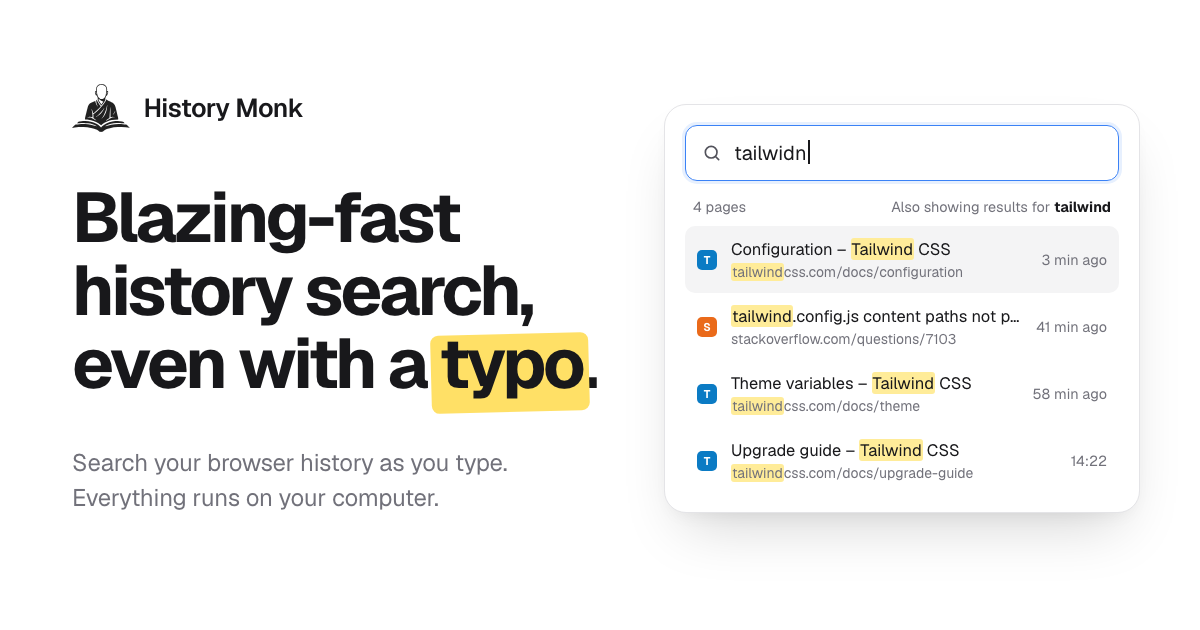
History Monk is a replacement for your browser's built-in history page. Instead of scrolling through days of browsing history, you type a few letters and the page you want shows up. It is aimed at anyone who has remembered visiting a page but cannot find it again, and it handles the full life of that record: searching it, filtering it, exporting it and clearing out the clutter. According to the website, History Monk is searchable 80 milliseconds after it opens, it replaces the browser's history page in Chrome, Edge and Opera, and in Firefox you open it from the toolbar button or with Alt+Shift+H. Everything runs on your own computer. Browsers record everything you look at but give you very little control over that record. The default history view is a long chronological list that is painful to scan, and it accumulates search result pages, sign-in screens, shortened links and pages you clicked exactly once. Most people never clean it because cleaning it would take hours. The website frames the problem plainly: no more scrolling through days of browsing history. It also points out that browsers cannot restore deleted history, for any extension, which is why History Monk pairs bulk deletion with confirmation steps and a protected-sites list. Privacy is the second problem: browsing history is sensitive, so Search, Analytics and Cleanup are run locally. Search is the core of the product. You type part of a title or the name of a site and matching pages appear while you type, with results updating for every letter, no Enter key and no waiting for a page to load. Spelling mistakes are corrected from the words in your own browsing history, so typing "plannig" still finds the planning doc. Power filters narrow the list further: site:github.com restricts results to one site, -site:youtube.com excludes one, title:invoice matches the page title only, url:/pull/ matches the address only, after:yesterday and before:17:30 restrict by date and time of day, and visits:>10 finds pages opened more than ten times. A regular expression can be combined with any of these filters, sort:new orders by best match, newest or most visited, and selected: shows only the rows you ticked. The site counts more than eleven power filters. Terms can be mixed in any order, quotes match an exact phrase, and the site states that 100,000 pages can be searched with no lag. Recently closed keeps every tab and window you close, newest first, next to your browsing history. The last tab you closed sits on top, you can type a word to filter the closed tabs, and clicking one opens it again. In Chrome, the Devices view lists the tabs open on your other signed-in devices — phone, tablet and laptop — grouped by device and newest first, with the time each tab was last used, searchable by title or address and openable right there. The website notes this uses the Chrome sync you already have, needs no extra account, and that Firefox does not share other devices' tabs with extensions. Sites is where bulk deletion happens: tick one site or fifty, using shift-click for a range or Ctrl+A for every site, and press Delete to remove every page from those sites, including older visits you cannot see on screen. You can also right-click any page or link and choose "Delete all history of this site". Deleting a site always asks first, and sites on your protected list can never be removed. Export turns what you have found into a file. Search or filter first, then export just those results, or a whole Cleanup group. CSV opens in Excel and Google Sheets, JSON is ready for your own scripts, and the HTML file is a searchable, sortable page you can keep offline. Every export keeps the same five columns — title, URL, site, last visited and visit count — and the file is created in your browser and saved to Downloads, with nothing uploaded. By group is another way to organise history: each search and the pages you opened from it stay together in one card, covering Google, Bing, DuckDuckGo, YouTube and dozens more with no setup. A group card can reopen the whole search with "Open N pages", which brings every page back in a new tab group, or delete a search and its pages in two clicks, leaving pages you also visited at other times untouched. Cleanup sorts history into 24 groups of removable pages, such as search result pages, duplicate pages, sign-in and callback pages, links with tracking parameters, shortened links, pages visited once and never again, untitled or failed pages, AI chat conversations, cart and checkout pages and webmail and calendar pages. You can look inside a group before anything is deleted, every delete waits for a second click to confirm, protected sites are never touched, and there are one-click deletes for the last hour, day or week. Timeline shows your history one day at a time, newest first, starting a new session after 30 minutes of quiet and displaying the gap for how long you were away. Analytics adds a weekday-by-hour heatmap, a focus score, streaks, rising and fading sites and the terms you search for most, and clicking any cell opens those pages. A weekly digest card summarises the last seven days — pages, top sites, your busiest hour and late-night share — and can be copied as an image or text. Keyboard shortcuts such as Alt+Shift+H to open History Monk from any tab, / to jump to search, arrow keys to move, Enter to open and Ctrl+Enter to open in the background keep your hands on the keys. History Monk's approach is local-first. It reads your browsing history through the browser's history API and searches it inside the extension page, so Search, Analytics and Cleanup all run on your computer and your browsing history never leaves your device. There are no content scripts, so it never runs inside the pages you visit; it only does work while its history page is open, which is why the site says it will not slow down your browser. In Chrome and Edge, site icons come from the browser's icon cache, so showing results makes no web requests. There is no account to sign up for and no third-party trackers or analytics. The only network requests it makes are to verify a licence key and to look up the current price. Hidden sites can be kept out of search, Sites, Analytics and Cleanup without touching the underlying history, and protected sites can never be deleted from any view. The payoff is speed and control over a dataset you already own. Search is ready 80 ms after the page opens and refreshes on every keystroke, so finding a page takes seconds instead of minutes. Typo correction removes the need to remember exact titles, and the filter language turns a flat list into something you can interrogate by site, date, title, URL, visit count or pattern. Bulk delete clears a whole site's history in one action, and Cleanup removes large blocks of junk in a chosen time range while still showing you exactly what will go. Export gives you a portable, reusable record of any slice of your history. Timeline and Analytics show where your time actually goes, and because everything is local with no account, using the product does not create a new privacy problem of its own. Concrete workflows come straight from the product's own examples. You remember the Lisbon flight you looked at yesterday, type a couple of letters, and the page is back. You close a tab by mistake and reopen it from the top of Recently closed. You are shopping for a surprise, so you tick that site under Sites or right-click the page and delete all of its history in one go. You want a record of your pull request pages, so you search site:github.com pull and download CSV, JSON or HTML. Your history has filled up with search result pages, duplicate pages and sign-in screens, so Cleanup shows you the 24 groups, you review a group such as the 1,204 search result pages, and delete them after a confirming click. You start reading something on your phone, open the Devices view on your laptop, and pick it up there. Or you simply open the weekly digest to see pages, top sites, your busiest hour and your late-night share. History Monk is distributed as a browser extension for Chrome, Edge, Opera and Firefox 140 and later. In Chrome, Edge and Opera it replaces the built-in history page, so the History menu and its shortcut open History Monk; in Firefox you reach it from the toolbar button or with Alt+Shift+H. It searches as far back as your browser keeps history — Chrome keeps about 90 days — loading the most recent 100,000 pages in the range you pick, with the first 2,000 searchable before the rest finish loading. It is free for 7 days with no account, and after the trial it keeps working for 3 opens a day; a licence removes the limit and enables deleting from Cleanup. It ships with 28 themes drawn from official palettes, including Nord, Dracula, Catppuccin, Solarized and Rosé Pine, and eight languages: English, Español, Français, Deutsch, Português, 日本語, 简体中文 and हिन्दी. You can also set a 12- or 24-hour clock, date order, row density and text size. In short, History Monk takes the browser's least useful built-in page and turns it into a fast, private tool for finding, filtering, exporting and clearing your browsing history. It searches as you type and forgives typos, it recovers closed tabs and shows tabs from your other devices, it deletes a whole site's history in one action, and it groups the junk into reviewable cleanup categories. Nothing is uploaded, there is no account, and the only network requests are for licence verification and price lookup — which is exactly what a tool built on this much personal data should look like.
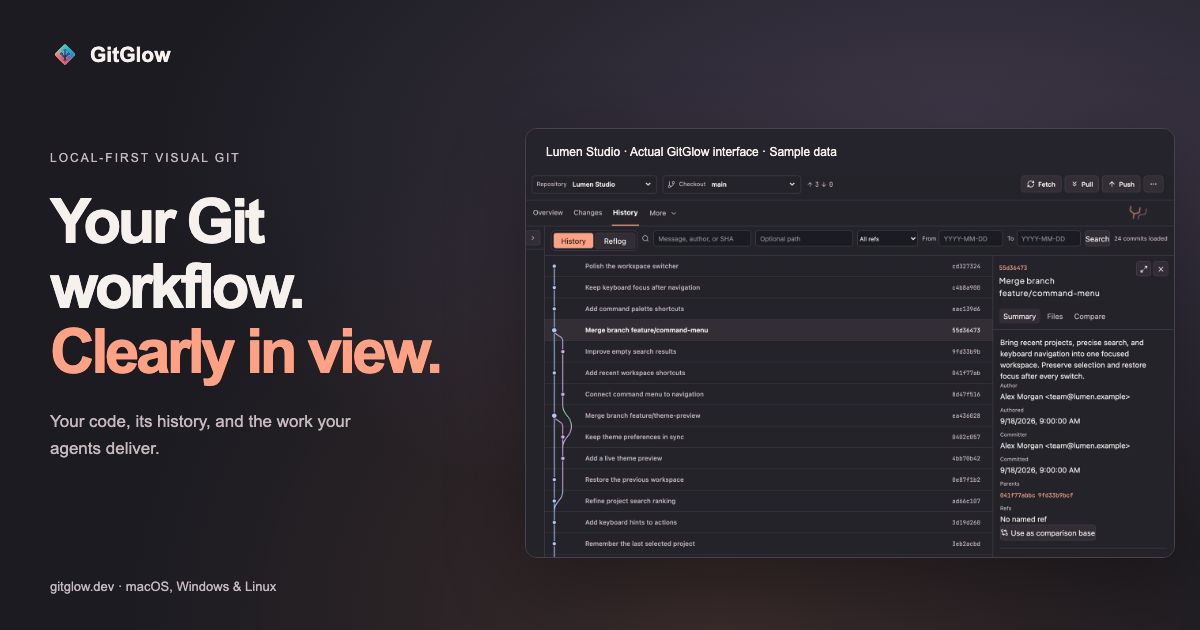
GitGlow is a local-first visual Git workbench for independent developers who want to know what their code and their agents will ship. It brings precise staging, clear commit history, conflict resolution, a checkout-aware terminal, coding-agent review, and release preparation into a single desktop workspace. Instead of switching between separate tools, a developer opens a clone, reviews the current diff file by file, stages precisely, and ships with confidence. GitGlow is available as desktop builds for macOS, Windows, and Linux, and the free tier works with a private local clone without requiring an account. The problem GitGlow addresses is that producing changes is easy, but verifying them is not — particularly when some changes come from AI coding agents. Developers need to inspect what actually changed, decide which parts belong in a commit, and remember what they have already reviewed. GitGlow's review confidence approach is explicit about this: mark files reviewed and run checks, and later edits bring files back to your attention while making earlier results stale. Agent context is also connected to the checkout, so observed and managed runs can carry repository, checkout, event, and attributed-file context into the same Changes workflow. Local private work remains useful on the free tier, covering precise staging, commits, branches, conflicts, history, blame, and reflog without a GitGlow account. Staging in GitGlow is deliberately granular: review files, hunks, or selected lines before composing a clean commit, so only what belongs is staged. This is available on the free tier for a local repository. Building on that, the Pro review confidence feature lets developers mark files reviewed and run an explicit check with timeout and cancellation, keeping results tied to the checkout that was tested. When a file is edited again later, it returns to attention and the previous verification becomes stale. Nearby, checkout-aware terminal tabs let developers run Git, tests, and installed agent CLIs beside the diff; one checkout is free, while concurrent checkouts are part of Pro. History in GitGlow is presented as topology rather than a flat list: explore real topology, compare revisions, and trace file or line history, with core history free and editing features in Pro. Developers work with branches, remotes, stashes, tags, and trusted worktrees — daily actions are free, while managed worktrees are Pro. Conflict resolution focuses on understanding the real operation: GitGlow explains the roles in merge, rebase, cherry-pick, and revert conflicts, and continuation and recovery are free. For people working across several clones, GitGlow keeps registrations, context, and workspaces without flattening local data, with one active repository free and concurrency in Pro; Pro also adds a selected-repository fetch that brings repositories up to date together with clear per-repository results. Agent work is treated as something to be reviewed rather than merely watched. GitGlow follows authentic provider and Git signals across live, observed, and managed runs, with basic observation free and managed controls in Pro. Observed sessions remain owned by their originating Desktop or CLI client: GitGlow monitors supported hook events and independent Git changes, but hides message, approval, and interrupt controls unless the provider exposes a supported channel, while runs launched by GitGlow are Managed and can expose those controls. An Activity Tape lets developers search and replay sanitized operational detail in context, with the latest Replay free and advanced retention in Pro. Through a packaged MCP sidecar, GitGlow gives agents bounded Git context by exposing read tools and reviewed native actions; reads are free and approved writes are Pro. Free MCP access is read-only, and every MCP-originated write waits for native approval in Agent Observatory while the desktop app is open. GitGlow's overall approach is local-first, with an explicit privacy boundary: local status, diffs, history, repository paths, previews, and audit records stay on the device. Optional GitHub, agent-provider, billing, and consented analytics connections have separate, explicit data boundaries. If GitHub is connected, GitGlow sends only the GitHub requests needed for installed repositories through the GitGlow API, and tokens never enter the desktop webview or MCP responses. For agent observability, an encrypted local flight recorder can retain sanitized provider-visible plans and commentary, commands, bounded output and tests, approvals, collaboration, relative paths, statistics, and safe text diff hunks. It excludes raw prompts, full transcripts or final replies, credentials, absolute paths, binary or oversized bodies, and contents or hunks from secret-prone files, and redaction and truncation are always disclosed. GitGlow states that it never exposes or stores hidden reasoning. Pro also extends the workspace beyond the local clone. A GitHub connection lets developers review authorized GitHub repositories, pull requests, issues, workflows, and checks. Release Workspace helps prepare a release you can review by bringing checks, merged work, notes, and tags into one guarded sequence; release publication is available only there, after a fresh guarded preview and explicit final confirmation. Insights explore the shape of the work — activity, commits, graphs, trends, complexity, work types, rhythm, sessions, and exports — with commits and activity free and advanced insights varying by plan. Indie Log turns evidence into a useful work log, written manually or produced as an analysis-only report pack built from selected sources, with manual logging free and managed reports in Pro. The stated benefits follow from these capabilities. Review confidence means knowing what you reviewed and what changed, so verification does not silently drift out of date. Fetching selected repositories together gives clear per-repository results when catching up across a workspace. Precise staging produces clean commits that contain only intended changes. Checkout-aware terminals keep tests and agent CLIs beside the diff they relate to. Agent observability makes agent work reviewable and ties it to the checkout, while bounded MCP context keeps agent access controlled through native approval. Moving between repositories safely preserves context and local data instead of flattening it. Concrete workflows start with onboarding: install GitGlow, open a clone, and create a first reviewed commit. From there, the daily Git loop covers reviewing changes, working with refs, resolving conflicts, and inspecting history. Developers who use coding agents connect supported clients, review events, and open the exact changed files, with repository, checkout, event, and attributed-file context carried into Changes. Developers preparing a ship can run the guarded release sequence in Release Workspace. They can also search the Activity Tape or replay sanitized operational detail when they need to return to the moment that matters, and produce a work log with Indie Log. The documentation additionally covers finding every control — exact button labels, shortcuts, availability, and recovery behavior. GitGlow describes itself as local Git for independent developers. It ships desktop builds for macOS, Windows, and Linux; GitGlow 2.0.5 has been manually checked on macOS, while Windows x64 and Linux x86_64/aarch64 packages are build-validated for version, architecture, payloads, sidecars, and checksums. Pricing is free for private local clones with no account needed, including one active repository or checkout, precise staging, commits, branches, sync, merge, conflict resolution, stashes, tags, topology history, compare, blame, reflog, basic observation, latest Replay, manual Indie Log, analytics, export, read-only MCP, and terminal tabs in the active checkout. Pro costs €2.99/month or €29/year and adds concurrent terminal sessions, review freshness, verification tied to checkout state, multi-repository fetch, guarded history editing, concurrent workspaces, managed agents, advanced Observatory review and Replays, GitHub integration, Release Workspace, managed Indie Log, and MCP writes. AI provider subscriptions and API usage are separate. Taken together, GitGlow is a local-first Git workbench that treats review as the central act of shipping software. It keeps everyday Git free and local, adds confidence and control through review marks, checkout-tied checks, concurrent workspaces, managed agents, GitHub integration, and release tooling in Pro, and gives coding agents bounded, approved access rather than open-ended control. For independent developers who want to know exactly what they reviewed and what will ship, the product's value proposition is simple: review every change and ship with confidence.

Baby Desk is a macOS app that turns your Mac into a full-screen playground for a baby or toddler while your work stays exactly where you left it. The product's own summary is blunt about its priorities: the point isn't the fun, it's the wall. With one Accessibility permission, Baby Desk intercepts input at the system level — before macOS or any other app can see it — so every keypress, click and scroll lands on the play screen instead of on your documents, windows or applications. It is built for parents and caregivers who work on a Mac at home and need a few safe minutes, not a separate device to hand over. A small child's hand on an open keyboard is unpredictable in the most expensive way. The website lists the shortcuts that routinely threaten an afternoon of work: ⌘Q quits the front app, ⌘W closes a window, ⌘Tab switches applications, ⌘Space opens Spotlight, ⇧⌘3 takes a screenshot, and ⌥⌘⎋ can trigger force quit. Media and volume keys, plus every click and scroll, are just as easy to trip. Baby Desk exists to make those inputs harmless: dangerous shortcuts are swallowed whole rather than merely covered up, which is why the product leads with safety rather than entertainment. Input interception happens at the system level. Baby Desk asks for a single Accessibility permission, and that permission is what lets it swallow keystrokes before macOS acts on them. Because interception happens ahead of the operating system and any other app, protection is not limited to one window or one application — it applies across the whole machine while the play screen is on. Multi-display setups are fully covered as well, so an external monitor becomes part of the playground instead of a gap in the wall. The permission is used only while the play screen is active, and a friendly onboarding walks users through granting it. On screen, Baby Desk offers three ways to be completely mesmerized. The first is Starlight Keyboard: every key pops a giant letter or emoji accompanied by its own xylophone note. Those notes are tuned to a pentatonic scale, so even chaotic mashing sounds lovely rather than jarring, and fast mashing earns fireworks as a reward. The second is Sparkle Drawing, where the mouse paints a glowing rainbow trail that lingers on screen. These are real drawings that stay long enough to be admired and then gently fade away, turning random pointer movement into something that looks intentional. The third mode is Balloon Pop. Balloons drift up the screen and any key or click pops them in a burst of confetti. The supply is endless, so the game never runs out and the giggles keep going for as long as the session lasts. Together, the three modes share one underlying idea: the keyboard and mouse still feel responsive and rewarding, but everything they produce stays inside the playground. Nothing typed here can reach a document, a draft or a chat window, and nothing drawn here can alter a file. Getting out of the playground is deliberately harder than getting in. A parent gate requires the secret exit shortcut ⌘⌥⇧L, or alternatively holding any screen corner for three seconds. From there, an optional second factor — Touch ID or a PIN — makes sure a lucky mash can never unlock the Mac by accident. A play timer can be set to 1, 3 or 5 minutes, after which a calm "that's all for today" screen ends the session. A volume cap and dim mode keep the stimulation gentle, and system volume itself is never touched. Baby Desk is honest by design about what it cannot do. No software can intercept the hardware power button, a forced shutdown, or some system trackpad gestures, and rather than pretending otherwise the app shows the exact protection level in force: Full protection when Accessibility has been granted, or a clearly-labeled partial mode without it. There are no surprises in either state, and the app still works in partial mode if the permission is refused. This transparency is presented as a feature in its own right — the product would rather show you what it covers than overstate its guarantees. The overall approach explains why Baby Desk is not on the Mac App Store. The App Store requires sandboxing, and a sandboxed app cannot intercept system-level input, which is the entire point of the product. It therefore ships directly, signed with a verified Apple Developer ID and notarized by Apple, the same way pro tools like keyboard remappers are distributed. The result is a single-purpose utility with a narrow, well-defined job: hold a system-wide wall for a bounded amount of time, then hand the Mac back untouched. Requirements are macOS 13 Ventura or later on Apple Silicon or Intel, with the interface available in English, Korean and Japanese, following your system language. The benefit is measured in ordinary parental currency: minutes. When playtime ends, your desktop comes back exactly as you left it — same windows, same focus, same volume. Input never reached other apps in the first place, so there is no cleanup, no lost draft, no relaunched application and no reopened tabs. The site frames the trade plainly: trade five minutes of chaos for five minutes of wonder. For a working parent, that means the Mac can be shared with a curious toddler without becoming a liability, and a 1, 3 or 5 minute timer gives the session a natural, calm ending. Typical scenarios follow directly from that design. A parent working from home can set the play timer and let a baby mash the keyboard while an important document stays open and untouched. Someone with a multi-display desk can extend the playground across an external monitor, so a child reaching toward the second screen finds the same protected surface. A one-minute session suits a quick distraction, while five minutes covers finishing an email or a call. In every case the wall is the product: the Mac remains a Mac underneath. Baby Desk is aimed at parents and caregivers who work on a Mac and need their machine to survive tiny hands, including users running multi-display setups and those who choose to run in clearly-labeled partial mode instead of granting Accessibility. The interface follows your system language and is available in English, Korean and Japanese. Pricing is a one-time purchase described as yours forever: $1.99 during the launch offer and $4.99 regularly, bought directly from the developer rather than through the App Store. A demo is available on the website to try before buying. Baby Desk's primary value proposition is narrow and clear: it is a wall, not a toy. By intercepting input at the system level with a single Accessibility permission, it swallows ⌘Q, ⌘W, ⌘Tab, Spotlight, screenshots, force quit, media keys and every click and scroll before macOS or any other app can react. Stars, xylophone notes, rainbow trails and confetti balloons keep little hands busy on every display, while a parent gate, optional Touch ID or PIN, a play timer, volume cap and dim mode keep the session controlled. When playtime ends, your work is exactly where you left it.
Onepin is an AI voice production agent that turns any script into voice that is ready to ship — model-matched, validated, and auto-fixed. It sits on top of the text-to-speech models teams already use, handling the models, the cleanup, the pronunciations, and the checks so that every line comes out production-ready. The site describes its role simply: text-to-speech creates voice, and Onepin decides what ships. It is built for teams shipping AI voiceover in several languages, including product videos, dubbing, and courses, and it is free to start with no credit card required. Onepin exists because of a specific gap in modern voice AI. AI voices sound human now, but they still guess names from the spelling, and nobody has time to listen to every line. Addresses, prices, dates, and abbreviations make every TTS model stumble, and mispronouncing a brand, a drug, or a name can make an entire line unusable — it is the first thing generic TTS gets wrong. One wrong name ruins the take. Onepin attacks these failures on both sides of synthesis so that teams producing multilingual voice work do not have to catch every error by ear or listen to each take twice. The first pillar of Onepin is access to every top text-to-speech model in one place. A script flows into 30+ models behind one account, routed line by line. Named providers shown on the site include ElevenLabs, OpenAI, Google, Microsoft, AWS, Cartesia, Murf AI, Deepgram, MiniMax, Inworld, Rime, Fish Audio, and Naver Clova, with more than twenty additional models listed. Because no model wins every language, Onepin benchmarks continuously and picks per run, so the model choice is made for each job instead of being fixed up front. That has a practical operational value: if a provider hikes prices, deprecates a capability, or shuts down, the pipeline does not move. Teams shipping at scale never have to marry one model again, which matters most when the output is going out to customers and legal teams alike. The pipeline then starts by cleaning the text before a single line is generated. Addresses, prices, dates, and abbreviations — described as the most common cause of misreads — are normalized in every language before synthesis, so the model pronounces the script the way it was meant. The site illustrates this with strings such as 3042 becoming thirty forty-two, St. resolved as either Saint or Street depending on context, and NW expanded to NorthWest. Because these cases are fixed before synthesis rather than after, roughly half of voice errors are removed up front, which means fewer regenerations, fewer review cycles, and far less manual correction for anyone producing voice at volume. Pronunciation is the next stage, and it is treated as the highest-stakes one. Onepin uses a 4M word dictionary that teaches how to say the hard words right, in any language. It covers brand and product names, complex medical and drug terms, and hard names in any language. The examples on the site span consumer brands and artists — AbbVie, Versace, Sade, Siobhán, Måneskin, Hermès, Givenchy, Björk, Saoirse, Stromae, Balenciaga, Rammstein, Röyksopp, Moët, Ng, Xóchitl, and Hoegaarden — alongside medical and scientific terms such as semaglutide, esomeprazole, hydroxychloroquine, esophagogastroduodenoscopy, and electroencephalography, each paired with a phonetic transcription. The point is that a single mispronounced name or drug term forces a redo of the whole line, so getting pronunciation right is the difference between a usable take and a wasted one. After generation comes validation. Every line comes back scored on four dimensions: naturalness, word accuracy, clarity, and pronunciation. The same bar is applied in every language, and lines are scored against your bar rather than the provider's, so one standard holds across an entire multilingual project. The site shows this working across locales — a US line, a Spanish line, a Japanese line, a Korean line, and a German line — each returning with its own score. That means a team can review a project by looking at scores instead of listening line by line, and can spot which specific lines need attention before anything ships. The final stage is automatic repair. Misses fix themselves: when a line is flagged, Onepin either regenerates the line or fixes just the word that missed. The example given is a line where Siobhan was misread — the system holds the gate on that line and corrects it, using the same model with new settings, without re-rendering the entire take. The stated outcome is that you always get the best take. Because only the failing word or line is touched, the rest of the approved audio is preserved, which keeps a review workflow from cascading into a full re-record. Overall the method is a single drop-in workflow: you drop in your script, and Onepin handles the models, the cleanup, the pronunciations, and the checks. The site frames it as a three-part flow on screen — select, generate, validate — backed by four pipeline steps: clean, pronounce, validate, and fix. The promise is a script that goes in and production-ready lines that come out, on the voices you already use, without a person having to listen to every line twice. The benefits extend beyond audio quality into how a team operates. Because output quality is scored rather than guessed at, review becomes a matter of checking scores and fixing flagged lines. Because model routing is abstracted, procurement risk is reduced. The site also addresses ownership directly: every output is assigned to you and cleared for commercial use, and Enterprise adds a negotiated IP indemnity, so the audio can legally ship. On the cost side, you buy one credit volume and allocate it across workspaces, reallocating anytime, with seats provided free — a structure designed for multiple teams drawing from a single pool. Use cases named on the site include product videos, dubbing, and courses for teams shipping AI voiceover in several languages, and the demo script panel offers verticals such as Product, L&D, Healthcare, Support, Travel, and Sports. The site also illustrates the kinds of lines where pronunciation decides the outcome: a gaming line — Slough off the poison before it spreads; an audiobook line about the minute inscription above Hawthorne's tomb; an advertising line about booking a stay in Yosemite before the summer rush; an e-learning line about the reign of Louis XIV; and a film line about subtlety never being his forte. Each depends on a name, a number, or a word that generic text-to-speech tends to get wrong. The product also states it is trusted by teams shipping voice at scale, listing HeyGen, Hyundai Motor Group, Sierra, Bland, and Johns Hopkins University. On integrations and commercial terms, Onepin connects to the voice providers it routes across, including ElevenLabs, OpenAI, Google, Microsoft, AWS, Cartesia, Murf AI, Deepgram, MiniMax, Inworld, Rime, Fish Audio, and Naver Clova, with more than twenty additional models reachable through the same account. Access starts free with no credit card required, and the pricing section positions Pro for when you are shipping, with a contact option for larger needs. Enterprise adds the negotiated IP indemnity mentioned above. In short, Onepin is the production layer between your script and shippable voice: it cleans the text, gets the names right, scores every line, and fixes the misses automatically across 30+ TTS models in any language. Its core value proposition is confidence — shipping AI voice you do not have to listen to twice.

ReSO is a generative engine optimization platform that helps brands show up and get recommended in AI search results. It is built for founders, CMOs, and growth teams who want to turn buyer intent expressed in ChatGPT, Perplexity, and Google AIO into visibility, citations, and traffic. The product is pitched as an agentic employee you onboard so that your brand is recommended in the answer when buyers ask AI. Instead of only tracking rankings, ReSO analyzes intent, competitors, content gaps, and technical issues, then turns them into priority actions to improve AI recommendations. The site also invites visitors to check their AI visibility and to run a detailed AI visibility analysis across brand, content, technical setup, and competitive gaps worth $500 at no cost. The problem ReSO addresses is a shift in how buyers discover products. As the site puts it, your buyers are searching on ChatGPT, and in 2026 AI will dictate discovery. B2B buyers increasingly use ChatGPT, Perplexity, or Google AIO to research solutions, compare vendors, and shortlist providers. If a brand is absent from those answers, competitors can influence the buying journey before a prospect ever reaches the website. The FAQ frames the discipline as AI Search Optimization (AISO) and notes that AISO, GEO, AEO, and LLMO are overlapping terms for optimizing visibility in AI-generated answers: AISO focuses broadly on AI search, GEO on generative engines, AEO on direct-answer visibility, and LLMO on large language models. The same FAQ observes that most organizations still cannot clearly say how ready they are for AI search, which makes it difficult to identify gaps, prioritize investment, or measure progress. The core of the platform is a proprietary intent model mapped to real buyer queries on AI. ReSO says LLMs interpret intent, not keywords, and its proprietary model analyzes 30+ intent-driven search variables to decode exactly what customers are looking for. Users can curate a list of 75 high search intent-based prompts, view brand share of voice across the entire awareness-to-conversion funnel, and map visibility against competitors. The features section illustrates the Discovery stage of the buyer journey, described as exploration where people look for the best options, trends, and possibilities before narrowing down what fits their needs, with example prompts such as “Best budgeting apps for managing personal finances?”, “Best fitness trackers for everyday use?”, and “Best tools for automating B2B lead qualification?” Citation Intelligence helps create content that gets a brand mentioned by LLMs. Each piece is built around the signals that influence AI visibility: prompt trends, citation behavior, and content gaps across the category. The approach promises a consistent weekly publishing cadence, a 100% customised content strategy to become a category leader on LLMs, and content created in formats that improve mention potential. The site pairs this with an AI citation chat interface. The underlying logic described in the FAQ is that to be cited by AI search engines, a site needs clear, authoritative answers, strong entity signals, useful source material, and structured content that AI systems can interpret easily. ReSO analyzes which sources AI platforms cite within a category and identifies gaps in content and authority signals. The Technical Engine audits the technical issues that affect how AI systems and search engines access, interpret, and trust a website. It delivers technical edits intended to increase LLM visibility, entity mapping and code-level changes to make the website AI-readable, and improvements to discoverability across search platforms. Alongside these engines, ReSO presents a visibility dashboard: the imagery on the site shows a laptop user dashboard, a competitor gap view, a brand visibility score, and a “new opportunity found” alert. The platform is described as multi-platform search optimization, focused on how a brand shows up across AI search rather than a single engine. The workflow ReSO describes starts with onboarding the agentic employee and checking your AI visibility. From there, you identify the questions your buyers are asking LLMs and where your brand currently appears in those answers. ReSO maps high-intent prompts across the buyer journey, measures your share of voice against competitors, and identifies the content and technical gaps that may be limiting visibility. Those findings are converted into prioritized actions: the pages, topics, and site improvements most likely to increase brand mentions and recommendations. On the content side, pieces ship on a weekly cadence and are shaped by prompt trends and citation behavior; on the technical side, entity mapping and code-level changes are applied so the site is easier for AI systems to read and trust; and throughout, visibility against competitor mentions is tracked. ReSO reports multi-platform search optimization outcomes of 3X traffic increase from LLM-driven search, +38% citation growth month-on-month, +25% signup conversion directly from ChatGPT referrals, and +30% visibility score quarter-over-quarter growth. Three case studies are listed on the site. SMC Global, a publicly listed fintech in India, saw a 132% increase in clicks from ChatGPT, a 162% increase in website clicks (up from 37,200), and a 516% increase in impressions (up from 923,000). An EoR platform in HRTech achieved a 12X increase in citations from LLMs in three months, a 364% increase in blog traffic (from 824 to 3,825 monthly clicks), a 5x increase in AI mentions (up from 10 to 50), and a 41% lift in AI visibility (up from 8%). A US-based LegalTech company recorded a 92% increase in brand mentions (up from 288), 60% total traffic growth (up from 23,400), and 55% impressions growth (up from 2,080,000). The use cases described on the site center on buyer research and comparison. Buyers ask AI for the best budgeting apps for personal finances, the best fitness trackers for everyday use, or the best tools for automating B2B lead qualification, and ReSO aims to make a brand part of those answers. B2B teams use it to appear when prospects research solutions, compare vendors, and shortlist providers. Marketing teams use the weekly content engine to publish material shaped by prompt trends and citation behavior, and the technical engine to remove barriers to being accessed, interpreted, and trusted. Growth teams track whether their brand is mentioned or recommended versus competitors at each buyer-intent stage, and prioritize the biggest visibility gaps. ReSO is aimed at founders, CMOs, and growth teams, and says it is trusted by founders and CMOs across high-growth startups and enterprise; logos shown include SMC Global, Mountmiller, Dhisana, Boundless, Early, 5 Day, Gaia Dynamics, Sprouts, and Strong. The platform positions itself as a replacement for agencies, consultants, and fragmented internal workflows — “replace your SEO agency with an agentic employee” — while working alongside traditional SEO rather than replacing it. Getting started requires no credit card and no commitment, and the site offers a detailed AI visibility analysis across brand, content, technical setup, and competitive gaps worth $500 at no cost for now. Beyond the free visibility check, ReSO directs interested teams to book a call to hire an AI employee that grows their business. In short, ReSO's value proposition is turning AI search from guesswork into a measurable, actionable channel. It combines intent analysis across intent-driven search variables, a curated set of high-intent prompts, a weekly content engine, and a technical audit into one agentic employee, so brands can move from being overlooked in AI answers to being mentioned, cited, and recommended. For founders, CMOs, and growth teams who want to know how LLMs see their brand and what to do about it, ReSO offers both the diagnostic — a free AI visibility check — and the ongoing execution to improve it.
Fluence is a reading app for your phone that turns your PDFs, ebooks, reports and saved articles into something you can listen to, follow along with, and ask questions about. It is built for readers who want to get through long documents without keeping their eyes on a screen — people with reading piles, reports, books and saved articles, and anyone who prefers to listen. The promise is stated plainly on the product's own site: your books and documents, read aloud by a voice you choose. Its main purpose is to make listening to written material a first-class way of reading, with everything happening on the phone in your hand rather than on a remote server, so the app keeps working and your material stays with you. Documents are long, and the moments when you could actually get through them are usually the moments when reading is impossible. That is the gap Fluence addresses. Walking, driving, doing chores or commuting, you can listen even when you cannot look at a page, so a report or a book stops being something that only progresses when you are sitting still. The alternative tools tend to add friction of their own: accounts to create, servers to upload documents to, and subscriptions that keep charging month after month. Fluence is deliberately built the other way around. It does all of the work on the device in your hand — reading the file, making the speech, answering your questions — with no account, no server and no subscription. The result is a reader that still works on a plane, in a car, or anywhere the signal drops. The first thing Fluence changes about reading is that you never lose your place. The sentence being spoken lights up as you listen, so the text and the audio stay in step and your eye can follow every word as it is spoken. A highlighted line is also a foothold: after a distraction you can re-enter the document where the voice is, rather than hunting back through the page. Alongside following along, you can bookmark a line or write a note beside it. Those marks let you treat a listen as active reading — flagging the passage you want to return to and capturing the thought you had while it was being read out. The voice that reads to you comes with the app, so there is no voice pack to pick and nothing to download before you can start listening to your first document. That removes the setup step that usually sits between installing a reader and hearing a page. The voice that ships inside the app reads 31 languages, which means documents written in any of those languages are covered without extra configuration. If none of the available voices suit you, Fluence lets you use your own, made from a short recording you speak yourself. Choosing the voice is not a cosmetic detail — it is the difference between listening to a document with attention and merely tolerating it, and a voice you recorded yourself is one you already recognize. Fluence also lets you ask about what you read. You put a question to the document and get an answer drawn from the document itself, with the app showing you the passages the answer came from. Showing the source passages is what makes this usable for reports, research and non-fiction: instead of taking a summary on trust, you can see exactly where in the text the answer is grounded and read around it. Because the answer is drawn from the document's own passages, the feature works as a way of interrogating a file you have already loaded rather than as a general-purpose chatbot. Any book or document can become one audio file. Fluence prepares the audio for the whole document ahead of time while you do something else, and tells you when it is ready. What you get is a single file to keep, to play in the car, or to send to another app. Turning a document into one finished audio object is a different proposition from pressing play in a reader: the result is yours to carry with you and to hand to whatever player you already use. Preparing the audio is free; saving it out is part of the full version. Everything stays on your phone. Fluence does all of the work on the device in your hand — reading the file, making the speech, answering your questions — so your library, your notes and your recorded voice stay with you, and the app works offline rather than depending on a connection. On the input side, Fluence opens what you already read. It accepts PDF, EPUB, Word, OpenDocument, Rich Text, Slides, Text, Markdown and web articles, so you can bring the files you have instead of converting them into a format the app prefers. Between the on-device processing and the wide format support, the practical effect is that your existing reading pile is usable as it stands. Fluence is made for Android and is distributed through Google Play. Ten documents are free, so you can see how it feels first before deciding. The full version is a one-time payment of €14.99: buy once and it stays yours, on every phone you sign into with the same Google account. There is no subscription attached, which means the cost of listening to your documents does not recur month after month. The free allowance covers ten documents and includes preparing audio, while saving the finished audio file is part of the full version. The outcomes Fluence is built around are practical ones. You keep your place automatically because the spoken sentence is highlighted as it plays. You can listen while your hands and eyes are busy, which is when written material otherwise stalls. You can mark and annotate as you go, so listening still produces something you can return to. You can convert material into a single audio file that travels with you. And you can do all of this privately — offline, with no account and nothing leaving your phone. Together these make the app a way of finishing documents rather than a way of starting them. In daily use, Fluence fits the moments when reading is not possible. A commute is the obvious one: load a report or a book and follow the highlighted text on the screen, or just listen with the phone pocketed. Because any document can be turned into one audio file, the car is another: prepare the audio ahead of time, save the finished file, and play it through whatever you already use. For study and research, following the spoken line while reading, bookmarking the passages that matter and writing notes beside them supports close reading of dense material, and asking the document a question returns an answer with the passages it came from so you can check it against the text. Fluence is for anyone who has more to read than time to sit and read it. That includes people with long reports and work documents, students and researchers working through dense material, readers with a backlog of ebooks and saved articles, and anyone who would rather listen than look at a screen. Because it is an Android app that opens the formats people already have and works offline, it also suits listeners who want their documents and recordings to stay on their own device. Fluence's value proposition is narrow and clear: your books, documents and saved articles, read aloud on your phone by a voice you choose, with follow-along highlighting, answers drawn from the text itself, and finished audio files you can keep. It runs offline, keeps everything on your device, and costs one payment of €14.99 after ten free documents.
Claude Dashboards and Claude Motion are two new beta artifacts inside Claude that let people ask for the finished output instead of building it by hand. Claude Dashboards connects to a company's data platform or CRM and turns a plain language question into a live dashboard that keeps itself current as the underlying data changes. Claude Motion turns reports, charts and walkthroughs into short animations that are written as code, so any word, number or timing can be edited, and the result can be downloaded as an MP4 file. Both features are aimed at work where people need answers and explanations: those asking questions of company data, and anyone preparing an all-hands, a board deck or a product walkthrough who wants their ideas to land better in motion rather than as another static slide. The article frames the problem in two familiar workplace bottlenecks. Asking questions about company data usually means filing a ticket or writing SQL, so people wait, or they skip the question entirely. Ideas that would land better in motion usually end up as another static slide. Claude could already help with parts of this, but the output was something a person still had to assemble. With Dashboards and Motion, you can ask for the dashboard or the animation itself, and see how Claude made it: each chart shows the query behind it, and each animation is built as code you can edit. Claude makes the first version, and you decide what gets shared. Claude Dashboards begins with a connection. You connect your company's data platform, such as Amazon Redshift, BigQuery, ClickHouse, Databricks or Snowflake, and then ask a question in plain language. Claude pulls the answers from your data, builds the dashboard, and keeps it current as the data changes. Dashboards also work with your other connectors, so you can ask for a dashboard of your Salesforce opportunities without setting up anything separate. Each chart shows when its data was last refreshed, which tells you how current a number is before you rely on it. Transparency is built in: click any number to see the query behind it, or ask Claude to explain it in words. The article positions Dashboards as a tool for quick, exploratory questions rather than deep analysis, and gives the example of asking how this week's signups compare with last month's. The illustrated example is a bike share dashboard built from a year of ride data, with trip totals and charts of rides per day and by hour. When a question needs deeper analysis, Dashboards work alongside your existing BI and analytics tools: you can send the dashboard from Claude straight to Amplitude, Grafana, Hex, Mixpanel, Omni, Perplexity, PostHog or Sigma and pick up the analysis from there. Looker, monday.com and Tableau are coming soon as additional destinations. Claude Motion is built for explaining your own work. You can ask Claude to turn a quarterly report into a 30-second explainer for an all-hands, add motion to a chart in a board deck, or make a product walkthrough for customer onboarding. Typing "/motion" in the Claude message box brings up the Motion option. Claude builds an animation from your prompt and it plays like a short video. Because Claude writes code that animates your text, charts, shapes and images, you can change any word, number or timing, either in the editor or by asking Claude to change it. When you are happy with it, you download it as an MP4 file. Motion deliberately does not use a video generation model, so there is no generated footage and no AI-generated people. When you want to take an animation further, you can open it in Adobe, Descript, HeyGen, Higgsfield, invideo, Luma AI or Runway, with Canva and Captions coming soon. Alongside the two new beta artifacts, the article also confirms that Claude Docs, Slides and Design are out of beta and available on every plan, including Free, and that people have made more than 45 million docs, decks and designs in Claude. Artifacts now support CMEK, and admins choose which artifact templates their organization uses. Teams and Claude can work on the same doc, deck, design or dashboard. Slides, designs, dashboards and animations can be shared with people outside your organization, or with anyone who has the link, if your admin allows it. PowerPoint and PDF downloads keep your formatting, and decks go straight to Google Slides as editable files. Docs, decks and designs can also be edited on your phone in the Claude mobile app. The shared idea behind both artifacts is that you ask for the finished thing and then inspect how it was made. Dashboards expose the query behind every number and the time of the last data refresh, so a plain language question still resolves to something you can verify. Motion writes the animation as code rather than generating footage, so every word, number and timing stays editable and the result contains no AI-generated people or generated video. In both cases Claude produces a first version and the person decides what gets shared, which keeps a human in the loop on the output that leaves the organization. The article also notes that Claude Design, which started at its own URL, now works inside every Claude conversation, where it can use your context, files and connectors. The practical benefit is speed on the questions people normally wait for. Instead of filing a ticket or writing SQL, you ask in plain language and get a dashboard that refreshes as the data changes, so the numbers do not go stale after the first screenshot. Instead of another static slide, you get a short animation that can be edited down to the individual word or number. Because the query is visible behind each number, the dashboard can be checked rather than taken on trust, and because Motion output is code, it can be handed to design and video tools without locking you into a single editor. Shared artifacts move beyond the team through links and exports that preserve formatting. The article suggests concrete scenarios. For data: a dashboard comparing this week's signups with last month's, a Salesforce opportunity dashboard, or the illustrated bike share dashboard built from a year of ride data with trip totals and charts of rides per day and by hour. For explanations: a quarterly report turned into a 30-second explainer for an all-hands, a chart in a board deck given motion, or a product walkthrough made for customer onboarding. The getting started section offers example prompts such as "Build a dashboard of this quarter's revenue by region," "Animate how our pricing plans compare for the sales kickoff," and "Turn these notes into a deck for Monday." Suggested starting points are the dashboard you would otherwise wait for, or the report that needs more than a slide. Availability is tiered. Claude Dashboards is in beta on paid plans. Claude Motion is in beta on Team and Enterprise. Docs, Slides and Design are out of beta and available on every plan, including Free. For Enterprise admins, Dashboards and Motion are off by default and can be turned on in Organization settings > Artifacts. Docs, Slides and Design turn on by default on October 15, or can be turned on today. Claude Design's standalone site at claude.ai/design remains available until December 14, with a migration guide for moving team design systems over; one migration on the Artifacts page brings over every design system in your organization, while the originals stay unchanged in the standalone version until it closes. Chats with Claude and comments on standalone projects stay in the standalone version and will not be available after it closes. Claude Dashboards and Claude Motion extend Claude from a helper on parts of a task to the place where the dashboard or the animation is produced. Dashboards answer plain language questions with live, refresh-aware views of company data and show the query behind every number; Motion turns reports, charts and walkthroughs into editable, code-built animations ready to export as MP4. Together they shorten the wait for a data answer and remove the need to settle for another static slide.

Skymir is a native Google Drive sync client built specifically for Linux. It mirrors Google Drive folders to local disk so that your cloud files become real files on your machine rather than a virtual filesystem, and it keeps both sides in sync in both directions. It is aimed at Linux desktop users who need a working Google Drive client on distributions such as Ubuntu, Linux Mint, Debian, and Pop!_OS, where Google's own Drive for desktop application is not available. Alongside syncing, Skymir generates shortcuts for Google Docs, Sheets, and Slides, shows sync status in a GTK system tray icon, and runs a background daemon that keeps everything up to date without user intervention. Google Drive for desktop runs on Windows and macOS only, so Linux users have long been left without a first-party client. Skymir's developers built the product after an accident: a sync run using rclone's bisync feature deleted 1,437 of their Google Docs while they were mirroring twenty years of files. rclone removed the native Docs, Sheets, and Slides as if they were missing files. The team emphasises that rclone is a great tool for bulk transfers, but keeping a working folder in sync with Drive's native documents turned out to be a different job. That experience shaped Skymir's safety-first design, which treats Google's native document formats as shortcuts rather than files that might appear to be missing. Skymir's core is true mirror mode. You can mirror your entire Google Drive, or only the folders you choose, and keep them in perfect sync with local disk. You can edit on either side and changes flow both ways, with full offline access to your mirrored files. Deletions propagate safely to the trash rather than being permanent, giving 30-day recovery on both sides. The app also includes a hard safety rule: a sync that would delete more than half of your files is refused. This max-delete safety is exposed in the General settings tab, alongside options such as sync interval, start-on-login, and exclude patterns. Google's native documents are handled differently. Skymir generates .gdoc, .gsheet, and .gslides shortcut files for every native Google Docs file in your Drive, so they are never treated as missing files. Double-clicking one of these shortcuts in Nemo, Nautilus, or Dolphin opens the live document in your browser, which means you can find and open a Doc the same way you open any other file on your desktop. Sync itself is quick and incremental: saving a file puts it on Drive within seconds, while changes made in Drive on the web, on your phone, or on another computer come down within about a minute. Skymir asks Drive only for what changed since the last check using the changes.list endpoint, so it never rescans your entire Drive. Skymir integrates with the Linux desktop through a native GTK tray icon built as a real AppIndicator3 applet that matches the theme of Mint, GNOME, Cinnamon, KDE, or XFCE. It shows sync status at a glance and provides quick actions: sync now, pause, open folder, and open settings. A Recent Activity window lists downloads, uploads, deletions, and shortcut creations with timestamps. At first-run setup a guided wizard walks you through Google sign-in and then offers two sync modes. Full Drive Sync mirrors your entire My Drive and automatically picks up new top-level folders you create later, the same model as Google Drive Desktop on Windows and Mac. Selective mode lets you choose exactly which folders to mirror, so you can leave large or noisy folders behind. You can switch between the two any time in Settings, and either way only My Drive is mirrored, since shared drives are not supported yet. Skymir was built from scratch on the Google Drive API, and it ships as a .deb package built against glibc 2.35. It installs from the skymir.app apt repository or as a direct .deb download, and runs on Ubuntu 22.04+, Linux Mint 21+, Debian 12+, Pop!_OS, elementary OS, Zorin OS and other Debian-based distributions. It has been end-to-end tested on Linux Mint 22.3, Ubuntu 24.04.4 LTS, Ubuntu 22.04.5 LTS, and Debian 13 "Trixie" across Cinnamon, GNOME, and KDE Plasma. Support for .rpm (Fedora) and Flatpak is planned after launch. A background daemon keeps everything in sync while the tray icon shows status, so the workflow is simply install, connect, and go. For users, the main benefit is that Google Drive behaves like a normal folder on Linux. Your files are real files on disk, not a virtual filesystem, so they are available offline and readable by any application. Local saves reach Drive in seconds and Drive-side changes arrive within about a minute, so working across a laptop, phone, and the web stays consistent. The safety measures, including shortcuts instead of missing files, trash-based deletion with 30-day recovery, and the refusal to run a sync that would delete more than half your files, are designed to prevent the kind of catastrophic data loss that inspired the product. Skymir also avoids vendor lock-in: if you uninstall it, your local files stay on your disk and your Drive content stays in Google Drive, with no proprietary format involved. Typical scenarios include mirroring an entire My Drive to a Linux workstation so that every folder is available locally and offline, and using Selective mode to mirror only the folders that matter while leaving large or noisy folders in the cloud. Because Skymir generates .gdoc, .gsheet, and .gslides shortcuts, users can browse a mirrored folder in their file manager and double-click a Google Doc to open the live document in a browser, which is useful for people who prefer working from the file manager rather than the Drive web interface. Since changes made in Drive on the web, on a phone, or on another computer arrive within about a minute, Skymir suits workflows where the same documents are edited from several devices. The Recent Activity window supports reviewing what was downloaded, uploaded, deleted, or turned into a shortcut. Skymir is aimed at Linux desktop users on Debian-based distributions who need Google Drive access, including people who previously relied on rclone's bisync, Insync, or overGrive. Pricing is a one-time $19 launch price with lifetime updates and no subscription. A 14-day free trial offers full functionality with no credit card and no account registration, just an email address for trial reminders and support replies, with the trial starting on first launch. All features are unlocked during the trial: mirror mode, tray, settings GUI, activity viewer, and the background daemon. One license activates one machine at a time, and you can move between computers at any time by deactivating on the old machine in Settings, License, Deactivate. A 30-day refund policy applies, and email support is available at support@skymir.app. Skymir is an independent third-party application built on Google's public Drive API and is not affiliated with, sponsored by, or endorsed by Google. Skymir fills a gap Google has left open: a native Google Drive client for Linux. It combines true two-way mirroring, double-click shortcuts for Google Docs, quick incremental sync, and a themed GTK tray in a .deb package that costs $19 once. Its safety-first design, with shortcuts rather than missing files, trash-based deletes, and a max-delete guard, targets the data-loss risk that makes sync tools dangerous, while the 14-day trial lets Linux users verify it on their own distribution before paying.
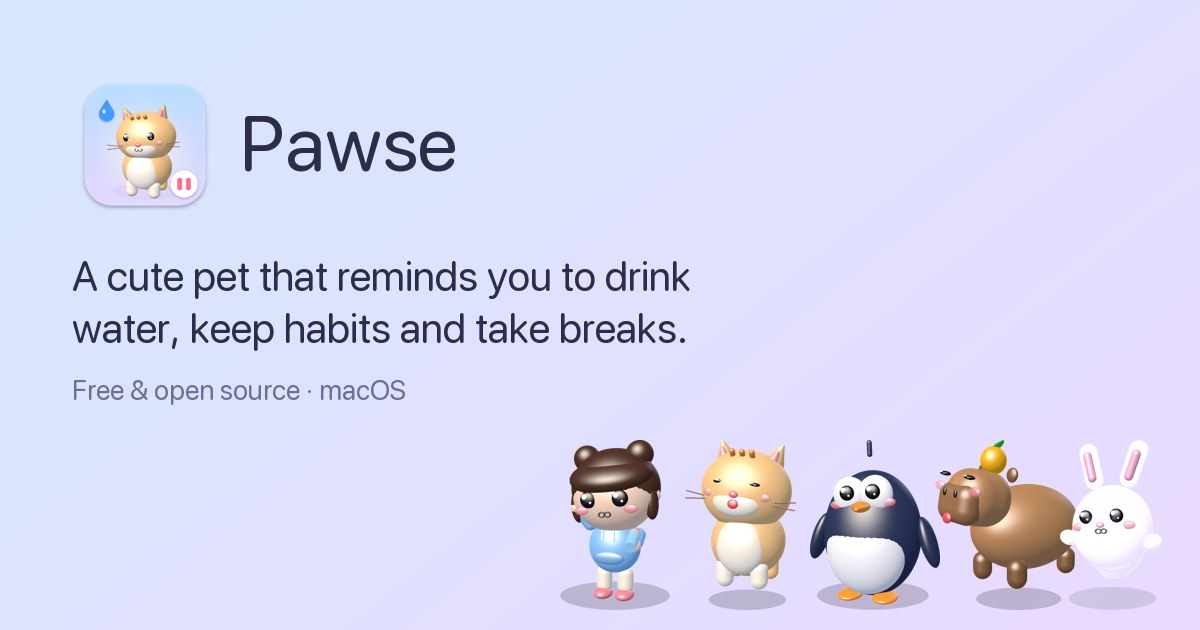
Pawse is a free, open-source macOS menu bar app that reminds you to drink water, keep your habits and take breaks. Instead of firing off a notification, Pawse sends a small 3D pet walking onto your screen to ask you a simple question: "Did you drink water?" or "Did you stretch?" You answer yes or not yet, and the pet reacts — bouncing with joy when you say yes, and drooping, sniffling and floating back a little later when you say not yet. Everything lives quietly in your menu bar until it's time to care, and the app covers water tracking, habit reminders on any interval and screen-time breaks in one place. Most reminder apps rely on notifications, and notifications get swiped away. Banners get muted. Reminders get ignored. Pawse's answer to that problem is character: as the site puts it, it is really hard to say no to someone small and hopeful who walked all the way across your screen just to ask if you're okay. That framing shapes everything about the app — a reminder that has a face, a mood and a voice is harder to dismiss than a grey banner. Instead of adding another alert to silence, Pawse turns hydration, stretching, eye rest and screen-time breaks into small moments you answer directly from your screen. The water tracker is built around a daily goal and a glass size you set yourself. Your pet visits you on your schedule and only during your active hours, and it stops once you hit your goal. A one-click log makes answering trivial: the "Yes!" button records the glass, the counter advances (for example 2/8, then 6/8 glasses today), and the pet reacts. Pawse tracks streaks and shows a month calendar so you can see consistency at a glance. The progress view shows a partially filled glass alongside your streak — the site's example shows a 75% full glass and an 11 day streak, and the sample day-in-the-life ends with 8/8 glasses and a streak that grows to 12 days. Habits can be anything on any interval. Stretch every 30 minutes. Walk every 45. Rest your eyes every 20. You create a habit with an emoji and a goal, and your pet asks about it — and the habit list shown on the site includes drinking water, stretching, resting your eyes, taking a break, fixing posture, going for a walk, breathing and taking a pawse. Each habit has its own interval and its own pet reminder, so a 30-minute stretch habit and a 45-minute walk habit can run side by side. Habit tracking includes streaks and a monthly calendar, and the habit detail view shows the streak and the calendar together, so you can see which habits you are keeping and which ones are slipping. Screen time is measured from active use and it pauses automatically when you step away. After 30 minutes of continuous screen time — adjustable, since the default break rhythm is 30 minutes but can be changed to anything — Pawse shows a calm full-screen break with tips such as the 20-20-20 rule for resting your eyes. Stepping away for 3 minutes counts as a break automatically, so a genuine pause is recognised without you having to log it. The screen-time section includes an hourly chart, auto-pause, a daily limit and 20-20-20 tips. Summaries show figures such as 4h 28m of screen time today and 4 breaks taken, and the screen time area also offers hourly and weekly charts, so you can see when your heaviest screen use happens and whether your breaks are keeping pace with it. Hard block is the optional serious mode. For the habits you're serious about, the pet covers the whole screen and it only unlocks when you say yes — for water, for any habit, or for breaks. Breaks in hard block cannot be snoozed or ended early, which is the point: no snooze, no excuses. It can be enabled per habit, and locked breaks are part of the same mechanism. Because that could be frustrating if something urgent comes up, Pawse builds in an emergency exit: hold Esc for 5 seconds and the screen unlocks, described in the app as the only way out, with a "Done!" confirmation for the habit you completed. Pawse ships with five hand-built 3D pets, each with its own walk, voice and personality, and each with moods you can tap. Momo is the chatty chibi, who has a real voice, offers you a water bottle and takes a big sip when you do. Mochi the Cat has a tail that swishes, ears that twitch and a meow you won't want to ignore. Pip the Penguin waddles in and flaps both flippers when you drink. Yuzu the Capybara is calm, chill, and carries an orange on its head, squeaking softly. Boo is a gentle ghost bunny that floats in with ears streaming. If you want something else entirely, you can drop any .usdz 3D model into Pawse and use it as your pet. Pawse is a menu bar app with one window for your whole day: a Today dashboard, a Habits view and a Screen time view. The Today view gathers water, screen time and habits together so you can see the day at a glance, and the app is designed to live quietly in the menu bar until it is time to care. Privacy matters here: Pawse makes no network requests and has no analytics or accounts, so your history stays on your Mac. The site puts it bluntly: 0 network requests, your data never leaves your Mac. For screen time, Pawse reads only how many seconds ago you last pressed a key or moved the mouse — never what you type or which apps you use. A day with Pawse, as described on the site, starts at 9:00 when Momo walks in with a bottle before your first meeting and asks "Good morning, water?" At 10:30 your 30-minute stretch habit fires and Mochi waits for an answer: "Did you stretch?" At 12:00, after 30 minutes of screen time, break time arrives as a calm countdown with your eyes off the screen. At 15:00, if you answer "Not yet?", Boo droops, sniffles, and floats back a little later rather than nagging. At 18:00 the goal is reached — 8/8 glasses, 4 stretches — and your streak grows to 12 days. That rhythm makes Pawse useful for anyone who spends long stretches at a Mac and forgets to drink water, sits too long without stretching, or needs a nudge to rest their eyes, and it can be turned up with hard block for the habits you're serious about. Pawse runs on macOS 13 Ventura, macOS 14 Sonoma, macOS 15 Sequoia and newer, on both Apple silicon (M1, M2, M3, M4) and Intel Macs, as a universal download of about 5MB. On first launch, if macOS can't verify the developer, you right-click Pawse in Applications, choose Open, and confirm Open. Pawse is completely free, with no ads, subscriptions, in-app purchases or accounts, and it is open source under the MIT licence. The site states the price as $0 forever, and there are no paid tiers or plans to compare — the only cost mentioned anywhere is nothing. The takeaway is simple: Pawse takes the three things people most often neglect at a desk — drinking water, keeping small healthy habits and taking breaks from the screen — and hands them to a small, hopeful 3D pet that walks across your screen and asks. Because it is a Mac menu bar app with no network requests, no accounts and no price, it adds care without adding another subscription or another notification to swipe away. Free forever, open source, and living quietly in your menu bar until it's time to care.
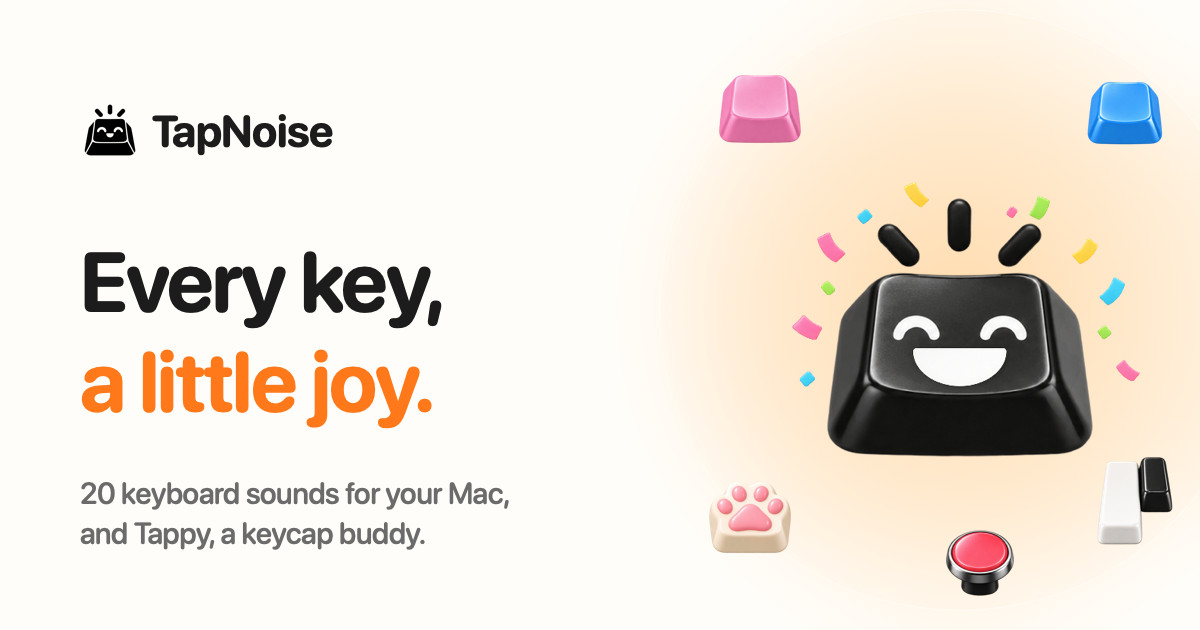
TapNoise is a macOS app that gives your Mac the sound of a dream keyboard. It ships with 20 keyboard sounds, from a deep thock to tiny paws, and adds Tappy, a little keycap character that lives on your desktop and reacts to everything you do. The app is built for Mac users who want typing to feel and sound better, and it also tells you when your AI coding agent is done. It runs on macOS 14 or later and is sold as a one-time purchase for one Mac (Solo) or two Macs (Duo), with no subscription. Most keyboard sound apps play the same clip for every key and every keystroke. TapNoise starts from a different premise: most keyboard sound apps play every key the same, so fast typing ends up sounding like a machine gun. Instead, TapNoise feels how hard you press through the MacBook's motion sensor, and every key plays as loud as you hit it. Every key also gets a take of its own, so fast typing never sounds like a machine gun. Space, Return and Delete sound like the bigger keys they are, and the stereo follows the key, left to right. TapNoise includes 20 keyboard sounds, which the site groups into Keyboards and Fun. The Keyboards set covers Thock, Creamy, Clicky, Silky, Hushed, Bumpy, Pillowy, Clunky, Chunky and Retro, including a deep and heavy thock that sounds like a custom board. The Fun set adds Typewriter, 8-bit, Bubble, Piano, Rain, Paws, Kalimba, Woody, Marbles and Laser. On the website you can pick a sound, click a box and type to hear the real sounds from the app. On a Mac they play under every key, in every app, and you switch sounds with one click from the menu bar, where you also turn TapNoise on or off and set the volume; Tappy, Clean Mode and Guard Mode are there too. Tappy is a little keycap with a face that sits in a corner of your screen, and you can drag it anywhere. It presses along with every key and shows your words per minute underneath. Tappy has moods drawn from what you are doing: Happy when typing along with you, Sweating when you type fast, On fire when you are really fast, Dizzy when someone slaps the Mac, Snacking when the charger goes in, Ears covered when Caps Lock is on, Sleepy when it is late, Asleep when you have been away, Party when you level up, and Bye! when the lid is closing. Every tap is XP: you type, level up, and Tappy unlocks hats to wear, including a party hat at level 2, sunglasses at level 4, headphones at level 6, a beanie at level 8, a chef's hat at level 10 and a crown at level 15. You can keep a daily streak going, watch your typing speed, and get a card of your week to share. Because it reads the MacBook's motion sensor, TapNoise can do more than play key sounds. Type softly and it whispers, hit hard and it clacks: every key plays as loud as you hit it. The MacBook itself has sounds too. Slap it and it says ouch, harder hits are louder. Opening the lid makes the hinge creak like an old door, faster the faster you move it. The charger and USB plugs get their own little sounds: Tappy has a snack when you plug in the charger, and USB gets a happy little chime. Slaps, knocks and pressure need a MacBook with a motion sensor, which means a MacBook Pro with M1 Pro or later, or a MacBook Air with M2 or later, and the lid creak needs a lid angle sensor, found on the same models plus the 2019 16-inch MacBook Pro. The same sensors that make the sounds do real work. Knock twice on your MacBook to pause the music, mute your mic in a call, or answer a waiting AI agent, and three knocks lock the screen. Guard Mode is for leaving your MacBook at a café table: if someone lifts it or pulls the charger, it sounds a loud alarm, and turning it off takes your Touch ID or password, though Force Quit ends Guard and closing the lid may put the Mac to sleep. Lift detection needs a MacBook with a motion sensor; other Macs get the charger alarm only. Clean Mode holds the keyboard and trackpad still so you can wipe them without typing nonsense or clicking anything, with a countdown so you know when it is done, and holding Esc stops it early. A shortcut cheat sheet appears when you hold Command for a second, showing every shortcut in the app you are using, and disappears when you let go. Tappy also acts as a break buddy, reminding you to stretch after a long stretch of work and nudging you when you start hammering the keys. Song Mode lets Piano, Kalimba or 8-bit play the next note of a song with every key, so you can type an email and hear Für Elise. Typing speed shows your words per minute live under Tappy, with your best today and your best ever. Quiet in calls means TapNoise goes silent while any app is using your microphone, so nobody in the meeting hears your thock. For developers, TapNoise puts your AI agent on speaker. If you code with Claude Code, Codex or Cursor, you can look away while it works, because TapNoise chimes when your agent is done or needs you, so you stop checking the terminal. A rising little chime and a Tappy party mean done; two quick taps and a sweating Tappy mean the agent needs you; a falling note and covered ears mean an error. When an agent is waiting, knock twice on your MacBook and its window jumps to the front, or just click Tappy. Connecting takes one click in Settings › Agents › Connect: TapNoise backs up your settings first, adds one small hook, and Remove takes it out again. The cues are made from the keyboard sound you picked, so they sound like part of your Mac rather than another alert, and they stay quiet in calls and follow your volume. It works with Claude Code (done, needs you and errors), Cursor (done and errors) and the Codex CLI (done). Knocking needs a MacBook with a motion sensor, while clicking Tappy works on any Mac. TapNoise is private by design: it hears keys, never words. It learns which key position went down, so it can play the right sound, and it never sees what you type, keeping only counts. From AI agents it hears only done, needs you or error, never your code. There is no account to sign up for and no analytics in the app; your stats, levels and hats stay on your Mac. TapNoise goes online to activate and check your license key with Dodo Payments, and once a day to look for an update, and nothing about your typing is sent. It is also built to be light: on a MacBook Air, typing at full speed uses about 4% of one CPU core and around 30 MB of memory, the motion sensor slows down when you are not typing, and it turns off with the features that use it. TapNoise is free for 3 days with no card, then sold as a one-time purchase. Solo covers 1 Mac and Duo covers 2, and every sound and every tool, plus every update, is included, with 14 days to change your mind. At launch the site lists a discounted price while launch licenses last: US$4.99 instead of US$9.99 for Solo and US$7.99 instead of US$14.99 for Duo, which works out at US$4 per Mac at launch, with the launch discount applied at checkout and no code to type. Standard pricing is listed as US$9.99 for one Mac (Solo) or US$14.99 for two (Duo), plus tax, with no subscription; checkout is handled by Dodo Payments and there is a 14-day refund policy. The license key arrives by email the moment you buy and is pasted into TapNoise Settings, License, Enter Key; a Solo key works on 1 Mac at a time and a Duo key on 2 Macs, and to move it you click Remove from this Mac on the old Mac and then activate it on the new one. Any Mac with macOS 14 or later plays the key, click, charger and USB sounds, with the built-in keyboard or any keyboard you plug in, and Guard Mode sounds its charger alarm. TapNoise is made independently by Rudra Satani, who also makes NotchMind. In short, TapNoise is more than a keyboard sound app. It pairs 20 carefully built sounds with a pressure-aware sound engine, a desktop companion that reacts to your typing and your moods, a set of genuinely useful tools such as Knock commands, Guard Mode and Clean Mode, and agent notifications that call you back when your AI finishes. It is a one-time purchase with no subscription, so every key really does get a little joy.
>> ALL_LOGS
OpenPilot is an open-source, MIT-licensed desktop AI agent that runs locally on your machine and connects to the language model you choose. Rather than bundling its own hosted model marketplace, it acts as an AI harness: you point it at any OpenAI-compatible endpoint—OpenAI, OpenRouter, a local server such as Ollama or LM Studio, or a custom base URL—and it gains practical access to your workspace. Once connected, the agent can create and edit files, run real terminal commands, search the live web, and work through full projects from start to finish. It is built for developers and builders who want an agent that does the work inside their own environment, using their own keys and their own models, without a vendor login or platform tax. The native Windows app is available now, with macOS builds releasing soon. The problem OpenPilot addresses is the trade-off many developers face when adopting AI coding agents: powerful hosted agents often require a vendor account, lock you into a single model provider, and add what the site calls a "platform tax." OpenPilot takes the opposite approach. It describes itself as "a harness, not a hosted model marketplace," which means it supplies the tooling and the agent loop while you supply the intelligence. Because you bring an OpenAI-compatible endpoint and your own API key, you can swap providers without rewriting your workflow, keep usage tied to the keys you already pay for, and avoid being locked to models that may change, deprecate, or become more expensive. The site frames the product simply: "Own the harness. Bring the model." The agent's core capability is working directly with files. Across a workspace folder that you designate, OpenPilot can read, write, edit, grep, and glob. When you ask for a full project, it scaffolds the structure by writing files such as package.json, src/index.ts, and src/routes/users.ts, then refines the result through follow-up instructions with actions like edit_file. The site's own example shows a short sequence of write_file and edit_file calls ending with "4 files · project ready." Because the agent operates in place, you can keep iterating on the same project—adding routes, adjusting configuration, or extending existing code—rather than regenerating everything from scratch each time. File and shell access are scoped to the workspace folder you open, and the Product Hunt listing notes that you approve sensitive actions as the agent works. The terminal is a first-class tool in OpenPilot rather than a simulated code snippet. The agent can run real shell commands in your workspace, which means it can install dependencies, start servers, and run test suites. Output from those commands—including stdout—streams back into the chat, so you can watch results appear as the agent works instead of waiting for a summary. The site illustrates this with an npm test run that reports passing auth and user specs and a total of twelve tests passed. This matters because many real development tasks are not about writing code alone; they depend on feedback loops—installing a package, seeing a build fail, reading the error, and fixing it. By streaming command output back into the conversation, OpenPilot keeps that loop inside one place. OpenPilot also reaches beyond the local repository. With live web research powered by TinyFish, the agent searches and fetches pages in real time when documentation, APIs, or error messages live outside your codebase, then grounds its answer in what it actually read—the site shows an example of searching for a Node fetch timeout, fetching a docs page, and returning a cited answer plus a fix. Alongside research, the agent supports skills and long-term memory. Skills are reusable playbooks you can drop in, and preferences can be persisted in an AGENTS.md file. The agent loads these into context, and it can update memory when you ask it to. The example AGENTS.md content captures the idea: prefer TypeScript strict mode, use pnpm in this repository, and never commit .env. This gives the agent durable, project-specific guidance instead of forcing you to repeat the same instructions in every conversation. When the built-in toolset is not enough, OpenPilot supports the Model Context Protocol (MCP). You can connect MCP servers and flip them on per chat, extending the agent with the systems you already run—databases, browsers, or internal APIs. The site illustrates the configuration with an mcp.json file that defines a server named docs with a command. Because MCP servers are toggled on a per-chat basis, you can keep the agent's available tools scoped to what a given task actually needs rather than loading every integration at once. Underneath everything, OpenPilot is a bring-your-own-model harness. Setup follows three steps described on the site: add a model, open a workspace, and describe the outcome. To add a model you paste a base URL, an API key, and a model id—no account with OpenPilot is required. The settings example shows a model definition with a name, a baseUrl such as https://api.openai.com/v1, an apiKey, and a modelId. You can use cloud APIs or local OpenAI-compatible servers, with named examples including OpenAI (api.openai.com), OpenRouter (openrouter.ai), local options like Ollama and LM Studio running on localhost:11434, or your own custom gateway base URL. Then you open a workspace folder, which is where the agent receives filesystem and shell access, and finally you describe the outcome you want—build, fix, research, or automate—and review the tool trail as the agent works. OpenPilot also tracks token usage, showing session and lifetime views in the app, which helps you keep an eye on consumption against your own keys. The practical benefits follow from that design. Because there is no OpenPilot account or vendor login, there is one less credential and one less dependency in your toolchain. Because you supply a custom base URL and API key per model, you can move between providers without rewriting how you work, and you can stay portable across the models you already pay for. The token usage views give visibility into what your sessions cost. The agent is a local Electron app, so it runs on your machine, and its MIT license means the source is open—the project is on GitHub for anyone who wants to inspect it. Together these choices add up to ownership: you keep your keys, your models, and your machine. In practice, OpenPilot fits workflows where an agent needs to touch a real codebase. Scaffolding a project is the clearest case: ask for a full project and watch the file tree fill in, then refine with follow-ups. Running the development loop is another: the agent installs dependencies, starts servers, and runs tests, streaming output back into the chat so you can react to failures. Researching outside the repository is a third: when docs, APIs, or errors live elsewhere, the agent searches and fetches pages and returns a grounded, cited answer. Automating repetitive workspace tasks is a fourth, since the agent has both filesystem and shell access in the folder you opened. And when you need more, MCP servers let you extend the agent with the systems you already run, such as databases, browsers, and internal APIs. Each of these plays out inside the folder you chose, with you reviewing the tool trail and approving sensitive actions. OpenPilot is aimed at people who want the agent without the platform tax—developers and builders who refuse vendor lock-in, and who are comfortable supplying their own model endpoint and API key. The download section notes that the native Windows app is available now: a 64-bit installer and a portable executable, requiring Windows 10 or later (x64). macOS builds for Apple silicon and Intel are listed as coming soon. The Product Hunt listing describes the product as a free, MIT-licensed desktop AI agent, with Windows available now and macOS in early beta. Downloads link to the project's GitHub releases, and the site offers a getting started guide, FAQ, and changelog for further detail. OpenPilot's core proposition is straightforward: an open-source desktop AI agent that does real work in your workspace—creating and editing files, running terminal commands, searching the live web, and extending through MCP—while running on a model you choose and control. Own the harness, bring the model, and keep your keys, your models, and your machine.
Together Link is a free, open-source tool from Together AI that connects the coding agent you already use to open models running on Together AI. Instead of switching editors, terminals, or chat apps, you keep the harness you already know — Claude Code, Claude Desktop, Codex in the ChatGPT app, ChatGPT Desktop, OpenCode, or Pi — and point it at open models such as Kimi K3, GLM 5.3, MiniMax M3, and DeepSeek V4.1 Flash. It is aimed at developers and teams who want to run their everyday coding work on affordable open models while keeping their existing login, settings, history, and habits exactly where they are. Together Link is currently in beta. Coding agents have become the place where a lot of development work actually happens, and most of that work runs on closed frontier APIs priced per token. Together Link starts from a simple observation on its own site: open models cost a fraction of closed frontier APIs per token, so moving a team's everyday coding work onto them cuts the bill by more than half. At the same time, open models such as GLM 5.3, Kimi K3, DeepSeek V4.1 Flash, and MiniMax M3 are described as handling real coding work at frontier level, and because they ship with open weights they are fully in your control. Together Link exists to make that swap practical without asking anyone to leave the tool they already use. Auto Router is the default in Together Link, and it is the setting that decides which model handles a task. When you set the model to Auto, the router reads the first task in each session and weighs it on the way through: quick work goes to a low-cost model such as GLM 5.3, while harder problems are sent to a more capable one. If you use an Anthropic API key in Claude Code or Claude Desktop, the router routes between Opus 5.5 and GLM 5.3. The site frames the trade-off in three phrases: per-session routing, lower cost, and frontier when needed. You are never locked into the router, either — you can also pick a model yourself, right from your agent's model menu. Getting started is deliberately minimal and is described as one paste, six agents, and no config edits. You install it in one quick command, then run Together Link in your terminal to launch your agent. The site lists six supported harnesses: Claude Code, Claude Desktop, ChatGPT Desktop, Codex, OpenCode, and Pi. OpenCode support requires version 2 or later, and Pi support requires version 0.80.8 or later. Each harness launches with its own command, such as togetherlink claude. Existing configuration files are left alone rather than rewritten. Together Link prints a receipt for every session. Every proxied session prints its token totals and dollar totals when you leave, so the cost of a piece of work is visible the moment it finishes. A usage report shows the last seven days of spend, and the togetherlink usage command shows your running total. You can also switch back anytime: profiles are reversible, your config is untouched, and a single command takes you back to your own setup. The site states that Together Link cuts coding agent spend by 50-80% compared with running every session on Opus 5.5. Under the hood, the approach differs slightly by harness, but the destination is the same open model lineup. For Claude Code, the gateway translates Claude Code's traffic to Together, you stay signed in, and the session prints its cost on exit. For Claude Desktop, one command installs a reversible profile and reopens the app with the Together lineup in its model menu for Chat, Cowork, and Code alike. ChatGPT Desktop opens on a separate Together Link profile and is turned off with togetherlink chatgpt off. For Codex, one command adds Together as a provider in the Codex CLI on its own profile, switched off with togetherlink codex off. OpenCode already supports Together, so one command adds your key and the router so every open model lands in its model list. For Pi, one command registers Together in Pi's model list so you can cycle between open models mid-session without leaving the terminal. Terminal agents get settings that last only for that session, while Claude Desktop and ChatGPT Desktop use their own profiles that switch back with one command. Longer answers live in the docs, which your agent can read on its own. The benefits come down to three stated reasons to use it. First, you keep the harness you already know: Claude Code, Claude Desktop, Codex in the ChatGPT app, OpenCode, and Pi, with your login, settings, history, and habits staying exactly where they are. Second, you cut agent spend — open models cost a fraction of closed frontier APIs per token, and moving your team's everyday coding work onto them cuts the bill by more than half. Third, you get frontier quality on models you control, because open weights keep those models fully in your hands. Alongside those, automatic routing means the cheap model handles the easy work and the capable model is reserved for hard problems, while the per-session receipt and seven-day usage report make the spending visible rather than surprising. Concrete workflows follow the harnesses listed on the site. A developer writing everyday code in Claude Code can point the gateway at Together, stay signed in, and see the session cost printed on exit. A Claude Desktop user can install a reversible profile and use the Together lineup in the model menu for Chat, Cowork, and Code. A Codex CLI user can add Together as a provider on its own profile while keeping sandbox and approval settings. An OpenCode user can add a key and the router so open models land in the model list beside other providers. A Pi user can register Together in the model list and cycle between open models mid-session without leaving the terminal. A team can watch the usage report to see the last seven days of spend as it moves everyday coding work onto open models and cuts its coding agent bill by 50-80% compared with running every session on Opus 5.5. Getting started requires a Together AI API key, macOS or Linux, and a supported coding agent. Installation runs with curl -fsSL https://link.together.ai/install | bash, and togetherlink configure adds your key. Together Link itself is a free, open-source tool; you pay only for model usage at Together AI's per-token rates. Published model pricing includes Kimi K3 at $3.00 in and $15.00 out, GLM 5.3 at $1.40 in and $4.40 out, MiniMax M3 at $0.30 in and $1.20 out, and DeepSeek V4.1 Flash at $0.30 in and $1.20 out. Switching between models or back to your original setup is a command away, so nothing about the arrangement is permanent. Together Link's core promise is simple: pair your favorite coding agent with affordable open models, keep the harness, login, settings, and history you already rely on, and let automatic routing, per-session receipts, and usage reporting keep costs transparent and down.
Opposable is computer use for phones. It gives AI agents thumbs: Claude Code, Codex, Cursor, any MCP client, or the free agent built into the app can see, tap and type across every app you are already signed into on a real Android phone, the one in your pocket or a private phone rented in the cloud. The agent reads a screenshot and the screen as a list of labelled elements, opens apps, taps, swipes and types, and every call reports what it actually did. Everyday tasks like alarms, calendar, calls and texts run on the phone with no model at all, payments always stop and wait for your Approve tap, and iPhones work in beta through Opposable for Mac. Most of your life runs through phone apps, and none of them have an API. Banking, rides, delivery, messaging and the two-factor prompt in the middle of every workflow are exactly where agents cannot currently go, which is why handing work to an AI usually ends with you copying a code between two screens. Reval Labs is building the layer that lets agents use those apps, on the phone you own and on phones the company runs for you, so an agent can open the banking app, check the amount, read the verification text and stop only for the one tap a person has to make. Getting an agent onto a phone is deliberately small. The Android app shows its address and a token, and the phone becomes a tool in your next session with one command, for example claude mcp add --transport http phone https://.p1.getopposable.com/mcp with a bearer token header. Codex takes a few lines in ~/.codex/config.toml, and Cursor or any other MCP client works the same way. Opposable also ships as a connector for the Claude and ChatGPT apps: install the Android app, turn it on in Settings Accessibility, paste https://getopposable.com/mcp into a custom connector, then sign in, pick your phone and allow access. It is free for 14 days per phone, then part of Pro. No model API key is needed, because Claude Code or Codex think on the subscription you already pay for. Most phone agents send your screen to a model in a data centre. Opposable's own agent runs on the phone it operates, so it keeps working with the laptop closed or with no signal, and the screen never leaves the device. About 40 tasks, including alarms, reminders, calendar, calls and texts, camera, settings, volume, maps and conversions, run with no model at all in 0 to 15 seconds each, and each one checks its own result on the screen. Everything else uses a 1.4 GB screen model that looks at the screen and taps like you do, plus a 0.7 GB answer model that answers questions from web results. On recent Snapdragon phones the vision step runs on the NPU; on a Galaxy S25 it was measured at about a quarter of a second, roughly 16 times faster than on a laptop CPU. Whatever Claude does once on your phone can be saved as a routine and replayed by the phone on its own in seconds. The screen is exposed as both a screenshot and a structured list of labelled elements with their positions, cheap enough to read on every step. The agent acts with simple tool calls such as tap_element, swipe, type_text in any language, launch_app and press_key, and every call reports what it actually did. Alongside MCP there is a plain REST endpoint and webhooks: posting a task to /api/do returns a status, a result and a duration in seconds, which makes Opposable callable from cron jobs, n8n and Zapier. Tasks can be scheduled daily or every few minutes, so the phone wakes, does the work and messages you the outcome. Connections run over USB, over the same Wi-Fi, or from anywhere through the hosted relay, where the phone keeps one outbound connection and there is no port to forward. Money never moves on its own: payments and purchases stop and wait for your Approve tap on every plan, and Pro lets you approve or deny from the phone's notification. The approach is model-neutral and phone-local. The same surface, one Android app with its own MCP server, a REST API, and a relay that reaches any phone, can be driven by Claude, Codex, OpenAI-compatible endpoints or the on-device agent, so you choose the brain without changing the hands. Because the phone's model runs locally, inference keeps working with no network and no screen data leaving the device, and because the phone only dials out, it can be operated on mobile data without exposing it to the internet. Pricing follows the same split: everything that runs on your phone is free, and you pay for what is annoying to host yourself, namely the relay, approvals and sync. The practical benefit is that you can close the laptop instead of carrying it around half-open. A task handed to the phone is done locally and only the result comes back, so agents keep working on routines, scheduled checks and app-only workflows that were previously out of reach. You keep control of the consequential moments: the agent does the twenty taps, you make the one that matters. Pro adds an audit log of everything your agents did, and recipes backed up and shared across up to three phones, with automatic recipe repair when apps update listed as coming. Power covers up to ten phones with an audit log across phones, a shared recipe library for a small team and priority recipe repair, both coming. Recorded, unedited runs show what this looks like in practice. In one demo, Claude Code over MCP turns on dark theme and sets a five-minute timer in 50 seconds across 17 tool calls. In another, the agent opens Chrome, goes to Wikipedia, reads the Apollo 11 launch date and crew, and returns 16 July 1969 with Armstrong, Collins and Aldrin for $0.44 and 118 seconds. A third run uses the on-device model to open Clock and the Stopwatch tab with no network calls for inference. Day-to-day examples from the site include reading the two-factor text the moment it lands and typing it where it is needed, opening the banking app to check the amount and stopping before paying, replying in chat apps in your voice with the whole thread in mind, booking a ride and sending the driver's ETA, reordering last week's grocery basket, and clearing the morning inbox by archiving, replying and moving invites into your calendar. Opposable is built for people who already run agents: Claude Code, Codex and Cursor users, anyone with an MCP client, and teams running agents on several phones. The Android app is a 43 MB APK and needs Android 11 or later; iPhones work in beta when paired with a Mac, and on Windows or Linux a small Opposable Stick, about $8 to $13 with firmware installable from the browser, does the Bluetooth part. The Free plan covers the phone app, its MCP server and REST API, common no-model tasks, USB or same-Wi-Fi use, unlimited tasks and recipe replays, and the free on-device agent. Pro is $8/mo, $79 a year with founding members at $5/mo for life, and adds the hosted relay, scheduled tasks and webhooks while your laptop is closed, payment approvals from notifications, an audit log, and recipes backed up and shared across up to three phones. Power is $29/mo for up to ten phones. If you have no spare phone, cloud phones start at $19/mo with Cloud Starter, $49/mo for an always-on phone and $149/mo for three; some banking apps refuse to run on virtual phones, while your own phone has no such limits. The takeaway: Opposable gives AI agents thumbs on a real phone, so the apps that never had an API become part of the workflow, free where it runs on your device and paid where you want remote access, approvals and control.
OpenVids is an open-source, agent-first AI video editor for macOS and Windows. Instead of assembling a film by dragging clips onto a timeline from the first frame, you describe the film you want and AI agents do the assembly work: they build the chapters, cut the timeline, add motion and sound, and review the render. The product is described on its own site as free and open source, and it is distributed as a downloadable desktop application with a build for Apple Silicon Macs and a build for Windows, alongside a public source repository on GitHub. Its stated premise is simple: you direct, and the agents edit. The problem OpenVids sets out to solve is stated directly on the site: "Every project starts with a story. Then the timeline grows faster than the story does." As the page puts it, you lose the thread somewhere around clip two hundred — the story that was clear at the start becomes buried under the growing volume of clips, cuts and edits required to finish it. The team behind OpenVids says they wanted the story to stay visible the whole way through, and that goal shapes the structure of the editor rather than being an afterthought. Instead of treating the timeline as the only source of truth, the product keeps the story itself visible as a first-class part of the project. The central capability is agent-driven editing by description. The site's own summary of the product is that you describe the film, and agents build the chapters, cut the timeline, add motion and sound, and review the render. This means the first pass at an edit is generated from a description of the film rather than from manual clip placement. The agents act on the project in more than one dimension: they organise content into chapters, perform the cuts that make up the timeline, generate motion elements, add sound, and then review the rendered output. The writing on the page frames this as "You direct. Agents edit." — direction is the human contribution, and the mechanical editing work is delegated. Chapters and story structure are kept explicit in the product. The landing experience itself is built as a chaptered film, listing segments such as Cold open, The problem, Meet OpenVids, Feature tour, In the field and Outro, each with its own timecode. The same idea appears in the navigation as a Story Graph area, which sits alongside Media and Edit rather than being hidden inside them. Because the story is represented as named chapters with timecodes, it stays legible even as the number of clips grows — which is precisely the thing the site says a conventional timeline makes difficult. Crucially, agent output is not a black box you are locked out of. OpenVids states that "every change lands on a timeline you can take over." So the agents' edits are recorded as real timeline changes that a human editor can subsequently pick up and modify directly. This is what separates an agent-first editor from a one-shot generative tool: the result of the agents' work is an editable project, and the site's feature tour describes showing the workspaces as one continuous workflow, implying that moving between agent-generated structure and hands-on editing is not a separate mode but part of the same flow. Motion and sound are handled as distinct concerns with their own place in the interface. The navigation lists Motion and Sound as separate areas, and the agent summary explicitly includes adding motion and sound to the timeline. The landing page illustrates this with media entries such as Title_Reveal.motion, a motion asset shown with its own duration, indicating that motion elements are tracked as items in the project just as footage is. Treating motion and sound as first-class, agent-addressable parts of the project is what allows a description of the film to result in something that is not merely cut but finished — with titles, movement and an audio layer rather than picture alone. Review and rendering close the loop. The site says the agents review the render, and Render is listed as its own area in the interface alongside Edit and Sound. The page also lists Licenses as a top-level area, and the demo project is annotated with a version marker (V1), a frame rate (24 FPS), a resolution (3840 × 2160) and the descriptors RESEARCH, OPEN MOVIES and CC BY. The landing page's imagery is drawn from open movies including Sintel, Big Buck Bunny and Tears of Steel from the Blender Foundation, shown under CC BY. Media management is visible too: a Media panel in the demo reports a count of 23 assets, with 1 missing. Overall, OpenVids works by inverting the usual relationship between description and timeline. Rather than beginning with an empty timeline and building a story clip by clip, you start with a description of the film; agents translate that description into chapters, cuts, motion and sound; the result is reviewed and rendered; and every one of those changes is written onto a timeline that remains yours to take over. The unique approach, as the site frames it, is being agent-first: agents are the primary operators of the edit, and the human's role is direction — deciding what the film is, with the option to step in and edit the timeline directly at any point. The stated benefit follows from that approach. If the story stays visible the whole way through, you are less likely to lose the thread as the project grows — the failure mode the site describes around clip two hundred. Because agent edits land on a takeable-over timeline, you get the speed of delegating assembly without giving up control of the final cut: you can direct, let the agents build and revise, and then take over the parts you care about. And because the product is free and open source, the editor itself, not just its output, is something users can download, inspect and build on. In practical terms, the workflow the site describes plays out as follows. You begin a project with a description of the film you want to make. Agents build the chapter structure — something like a cold open, the problem, an introduction, a feature tour, a field section and an outro — and cut the timeline accordingly. Motion elements such as a title reveal are added, and sound is layered in. The render is produced and reviewed, and the whole thing arrives on a timeline you can take over, with the project's media assets tracked in one place. From there you can keep directing further revisions, or edit the timeline directly. OpenVids is built for macOS and Windows. The site offers a direct download for macOS on Apple Silicon (the .dmg build labelled v0.5.4) and a Windows build (the x64 setup executable, also labelled v0.5.4), plus a link to view the source on GitHub. The product is described as free and open source, and no paid tier is described on the page — the emphasis is on the download and the repository rather than on plans or subscriptions. The interface organises the work into named areas including Agents, Media, Story Graph, Edit, Motion, Sound, Render and Licenses. You direct; the agents edit. That single line captures what OpenVids is: an agent-first, open-source video editor that turns a description of a film into chapters, cuts, motion, sound and a reviewed render — all landing on a timeline that stays under your control, so the story remains visible from the first clip to the last.
AgentSDR is an open-source, self-hosted AI SDR workspace that runs outbound across email, LinkedIn and WhatsApp from a single place, and pairs that outreach with an AI CRM. Teams use it to build sequences, import and enrich lead lists, contact prospects on the channel that fits, and let AI read and classify every reply before an answer is drafted from their own knowledge base. Rather than renting several separate outbound subscriptions, they keep leads, campaigns and conversations in one workspace that they run on their own server with their own model key. The Product Hunt listing positions AgentSDR as the open-source AI SDR workspace that replaces Clay, Smartlead, HubSpot "and many more." The landing page makes the same point visually with a wall of familiar tools — Smartlead, Clay, Instantly, HubSpot, HeyReach, Attio, lemlist, Salesforce, Apollo.io, Pipedrive, Expandi, Close, Outreach, Lusha, Salesloft, Hunter, Waalaxy and folk. Outbound work is normally scattered across sending tools, enrichment tools and a CRM, and each one needs its own subscription, its own data import and its own login. AgentSDR's answer is to put reach, triage and measurement in one workspace: sequences on email, LinkedIn and WhatsApp inside each channel's limits, every reply classified by AI with the answer already drafted, and replies, meetings and customers measured by channel in a single view. Email is the first channel. Sequences run from your own Google Workspace mailboxes, connected through a service account with domain-wide delegation, and they can be multi-step. Any CSV or XLSX column can be used as a {{merge field}}, and {A|B} spin text lets one step read differently per lead. Each mailbox carries its own daily cap (30 by default), sending window and signature, and several campaigns can share the same pool of mailboxes, which are assigned round-robin. List hygiene is handled at send time with one-click unsubscribe and automatic bounce suppression. AgentSDR deliberately does not record opens or clicks, so reply rate is the engagement metric to watch rather than open or click rates. LinkedIn runs through Unipile and can spread sending across several accounts. A typical sequence is an invite, an accept message and three follow-ups. Pacing stays inside LinkedIn's limits: 30 invites a day on premium accounts and 5 on free, with a randomised 30–60 second gap between invites and sending only inside each account's working hours; an account that hits LinkedIn's own limit pauses for the day. Search batches can pull up to 400 leads a day per account into campaigns. Every LinkedIn reply lands in one thread view with an AI draft already prepared, so nothing depends on remembering to check a separate LinkedIn inbox. WhatsApp is the third channel, and it is built around calling. Linking your number through Unipile and installing the AgentSDR Call Recorder Chrome extension lets you dial a lead from AgentSDR; the extension places the call inside WhatsApp Web and records both sides. The recording goes to your own storage bucket and your chosen model transcribes it. Unanswered leads can be called again after 1, 2 and 4 days, and messages sync as well, with a 24-hour warm-up for new numbers and a limit of 25 new chats a day per number. WhatsApp calling relies on WhatsApp Web's English interface. The AI CRM and inbox is where the three channels converge. Every reply is classified as Interested, Customer, Not interested or Other — or into stages you define yourself — and the answer is drafted from your knowledge base and held for approval. Every follow-up step in a reply sequence is drafted for review too. The inbox is keyboard-first: J and K move, Enter opens, and ⌘K jumps anywhere. Autonomy is deliberately narrow. The AI can move a lead forward in the pipeline on its own when it is confident, but a backward move, a low-confidence classification and every new Customer are held for a person. Drafts wait in "Action required" until someone sends them, as written or edited, and analytics track how many drafts went out as-is, edited or discarded, along with the override rate for labels a person changed. Underneath the channels sits one database of people and companies, shared by every channel. You import CSV or XLSX, add your own columns (text, number, date, select) and match duplicates on email or LinkedIn. Enrichment tables go further: a column can call an API, run a formula, ask your model or pull from Apollo, and the finished table can be turned into a campaign directly. Every AI call — classification, reply drafts, transcription and AI table columns — runs on your own OpenRouter key, pinned to the provider you chose, with fallbacks turned off so data only goes where you decided. Leads, conversations and call recordings live in your Postgres and your own storage bucket; recordings are reached only through short-lived signed links, and provider keys are encrypted at rest with AES-256-GCM. There is no hosted AgentSDR service in the middle. Deployment is the other half of the design. AgentSDR is free and open source, and you run it yourself. The quick start is a clone, a copy of the example environment file (database URL, auth secret, encryption key), and docker compose up — after which the app answers on localhost:3000 with Postgres, schema, app and scheduler in place. It needs a machine that runs Docker and PostgreSQL 16 or newer, though the Compose file brings its own database. Because it is a TypeScript Next.js app on Postgres, adding a column type, an enrichment provider or your own channel is ordinary application work, and issues and pull requests are welcome on GitHub. One deployment can also hold several organizations, each with its own leads, inboxes and connected accounts, fully separate from the others; teammates sign in with their own accounts and are invited as owners, admins or members. The benefits follow from that combination. Replies, meetings and customers are measured by channel in one analytics view, so you can see which channel actually brings conversations in, alongside counts of interested, customer, not interested, other and unclassified replies, funnel stages, drafts sent and the override rate. Guardrails run on every channel — daily caps, sending windows, warm-up for new numbers and Do Not Contact honoured everywhere — which keeps sending behaviour inside the limits the channels themselves enforce. Because the AI proposes rather than sends, the human stays in the loop: low-confidence classifications wait for review, and drafts sit in a queue until someone approves them. And because leads, conversations, recordings and model keys stay on your infrastructure, your data is not handed to a third-party SaaS vendor. Concrete workflows follow the channels. A sales team imports a CSV of leads, enriches company data in a table with an AI column, and creates an email campaign from that table, letting the mailbox pool pace itself under daily caps. A founder runs LinkedIn outreach across two accounts with an invite, accept message and three follow-ups, and answers replies from the unified thread view. A rep places WhatsApp calls from AgentSDR, gets a transcript written by their own model, and queues retries for the leads who did not pick up. An agency runs several organizations in one deployment, each with separate leads, inboxes and connected accounts. Throughout, the AI CRM keeps a priority queue of conversations waiting on a person, follow-ups that are due, and drafts to review. AgentSDR targets sales and go-to-market teams, founders doing their own outbound, and agencies running campaigns for multiple clients — anyone who wants multi-channel outreach and an AI-assisted CRM without per-seat or per-contact fees. The integrations it connects are your own accounts: Google Workspace for email mailboxes, Unipile for LinkedIn and WhatsApp accounts, OpenRouter for every AI step, and Cloudflare R2 for call recordings, plus optional lead enrichment integrations for emails, phones and company data in Tables (Hunter, Lusha, RocketReach, Snov, FullEnrich, LeadMagic, Findymail, ZeroBounce, Apollo and others). The stack is Next.js 16, React 19, TypeScript, Postgres, Drizzle, Tailwind 4, Bun and Docker. Pricing is simply free and open source: no seats, tiers or per-contact fees — you pay for your server, the accounts you connect, and your own AI usage. The takeaway is that AgentSDR turns outbound into one owned system: reach on email, LinkedIn and WhatsApp inside each channel's limits, triage where every reply is classified and every answer drafted, and measurement that shows replies, meetings and customers by channel. Because it is open source and self-hosted, your leads, conversations, recordings and model key never leave your infrastructure, and you can change how it works.
Refs is a video reference library built for AI agents and the people who direct them. It gathers 3,032 films — launch films, motion pieces and explainers that moved people — and turns each one into measured analysis an agent can actually use. Instead of a mood board of links, Refs publishes cut-by-cut measurements, a 15-plate blueprint and a runnable prompt recipe for every film, so tools like Claude Code, Codex and Cursor can study what already worked and plan a new film from real references. Browsing is free, and the library is designed for marketers, motion designers, founders and developers who want their agent to plan a launch film from the real thing rather than from a vague description. Every creative brief runs into the same wall: language is a poor way to describe motion. Telling an agent to make a punchy 15-second launch film leaves out the timing, the shot lengths, the cuts per minute, the type treatment and the sound, so the model fills the gaps with guesses. Refs starts from the premise stated on its own homepage — Claude is only as good as the references you give it. By measuring successful films frame by frame and writing the findings down as structured plates and prompts, Refs gives an agent something concrete to reason from. The result is that Claude copies the method of a film that worked, never the footage, which keeps the output original while grounding it in evidence rather than vibes. The core of Refs is a measured archive. Each film in the library is broken down shot by shot, with shot boundaries found frame by frame so you can click any shot and jump straight to it. Every entry carries its own numbers: a shot index such as 01 / 10, cuts per minute (for example 36), and average shot length (for example 1.5 seconds). A cut map runs beneath the player, and you can hover a film to play it or move across it to scrub through its cuts; on a phone you simply tap. Scrub-anywhere playback makes it possible to compare pacing across many films quickly, and search runs across the whole archive, so you can pull up every film studied from a given company or explore by keyword. Beyond measurement, each film is written up as a 15-plate blueprint — a structured document of what the film does and how it does it. The plates cover hook, beats, shots, type, colour, sound and script. Specific plates named on the site include Format, which describes what the film is in one breath; Card, which gives length, pace, shots and sound at a glance; Hook, which breaks the first two seconds down frame by frame; and a final plate titled Make it yours, which shows how to swap the story but keep the method. The blueprint is a flip-through deck rather than a static report, with 15 plates per film, so an agent or a designer can walk from the hook to the edit in a defined sequence and see the decisions in the order they were made. Refs also groups films by format and publishes formulas: the patterns that the strong films of one format share. Named formulas in the library include The Price of Regret, The Music-Led Motion Showreel, The Dark Staged Product Reveal, The Live-Drawn Paradox, The Fifteen-Second Service Rescue, The Sonified Chart Relay and The Capability Proof Montage. Each formula is backed by a set of films — the site lists, for example, eight films under the dark staged product reveal, ten under the music-led motion showreel and seven under the live-drawn paradox. In total Refs reports 28 formulas across the archive, which gives an agent a way to reason about a whole format rather than a single example. Every film also comes with a prompt recipe that Claude can run. The recipes are written as concrete, executable instructions rather than descriptions. One example published on the site opens: Use Remotion to create an original 15-second, 60 fps motion-design showreel for {{PRODUCT}}, then lists timed beats — 0–1.9 s a point grows into the mark inside faint circular guides; 1.9–3.4 a full-screen shape wipe reveals a huge product title; 3.4–5.6 a warm-ivory process chart — and continues through the piece. Because the recipe is parameterised with placeholders such as {{PRODUCT}}, the structure travels to your own product while the timing and craft stay intact. You paste the recipe into Claude Code and make it yours. Refs connects to an agent through an MCP server. One command adds it: claude mcp add --transport http refs https://refs.video/mcp --header "Authorization: Bearer $REFS_KEY". The site notes that the same integration works with Claude Code, Codex and Cursor. Once connected, the agent has a search tool — the transcript on the homepage shows refs.search_videos being called with queries such as founder launch, kinetic type, silent demo, three.js and terminal — and can pull blueprints and formulas back into its context. As the FAQ puts it, Claude can then search the archive, pull blueprints and formulas, and plan your film from real references. That is the whole workflow: ask for a film, let the agent study what already worked, then build. The distinctive move is that Refs does not host the videos. Every film plays from its original post and stays its maker's; Refs publishes only its own measurements and analysis, and credits and links every source. That keeps the library respectful of the original work while still letting an agent study it, and it also means the blueprint teaches method rather than footage — as the site says, Claude copies the method, never the footage. In practice that produces original work grounded in evidence: instead of a generic AI video, you get a plan shaped by timed beats, measured pacing and structural plates drawn from films that demonstrably reached an audience. The most obvious use case is a launch film. A team asks Claude for a launch video, the agent searches Refs for founder-led launches or dark staged product reveals, reads the matching blueprints and formulas, and returns a plan with timed beats and a prompt recipe that can be built in a tool like Remotion. Other workflows follow the same shape: planning a motion design showreel, structuring an explainer, building a 15-second service rescue spot, or reverse-engineering why a competitor's teaser feels fast. Because browsing is free, designers also use the archive directly — scrubbing films, reading cut maps and comparing cuts per minute — to learn pacing by eye before they ever open an editor. Refs is aimed at people who plan and produce films with AI: founders and marketing teams making launch videos, motion designers and editors studying pacing, and developers who already work inside Claude Code, Codex or Cursor. The archive is free to browse forever and includes every film playable from its source, cut maps, hover-scrub, the numbers behind each film, the first plates of every blueprint and full archive search. Pro is $10 a month billed yearly, or $16 monthly, and opens all 15 plates of every blueprint, a runnable recipe for every film, formulas across films of one format, and the Refs MCP for Claude Code, Codex and Cursor with 1,500 credits a month. A Product Hunt launch code, PRODUCTHUNT, takes 50% off a year of Pro. The takeaway is simple: agents write better films when they are given better references, and Refs is the reference library built for exactly that. It packages 3,032 films, 67,695 measured shots and 28 formulas into blueprints and prompt recipes an agent can search and run, so make me a launch film becomes a plan drawn from work that already moved people. Same Claude — better references.
Odyssey-3 is a foundation world model that generates embodied environments from a prompt and predicts in real time how those environments change as a person or an agent takes actions or introduces events, using previous observations and the latest inputs. It is described as a learned dynamical system, implemented as an autoregressive diffusion transformer, that predicts how objects move and interact through space and how situations evolve over time. The model learns representations of physics, dynamics, and cause-and-effect from a broad dataset of visual observations, and developers use that knowledge both to simulate environments and to train policies for different physical systems. The research preview is available now, and physical AI developers who want to build with Odyssey-3 are invited to get in touch for access. The team behind Odyssey-3 comes from a decade spent building driverless cars, where predicting the world was essential to determining what a car should do next. The founders started Odyssey to pursue that idea far beyond the roads and to build a general-purpose technology that could bring learned world knowledge to all machines and tasks. Physical accuracy has been made a central focus of the research, on the reasoning that a foundation model for physical intelligence must learn to predict how the world actually behaves. In the team's own framing, with Odyssey-3 that idea is now being realized. Odyssey-3 generates embodied environments in real time and predicts how they change as a person or agent takes actions or introduces events. You can move through the environment or introduce an event during generation and observe how the model responds. The current preview provides first-person and third-person navigation alongside independent camera movement, giving different ways to interact with and inspect the model's predictions. The stated design goal was to enable dynamic, open-ended interactions with an environment that responds as the user acts. Odyssey-3 Pro sets a new state of the art on Physics-IQ Verified's video-to-video benchmark, achieving 66.1, the highest reported score. Physics-IQ, a benchmark from Anates Labs and DeepMind, tests physical behavior across fluid dynamics, optics, solid mechanics, magnetism, and thermodynamics by asking models to continue videos of real physical experiments and comparing their predictions with what actually happened. Odyssey-3 Pro also scores 54.7 in image-to-video. Reported video-to-video scores are 51.8 with base prompts, 61.6 with prompt enhancement, and 64.4 best-of-8 for the Odyssey-3 480p series, and 63.4 with prompt enhancement and 66.1 best-of-8 for Odyssey-3 Pro 720p. On image-to-video, Odyssey-3 records 41.0 with base prompts, 48.8 with prompt enhancement, and 52.8 best-of-8, while Odyssey-3 Pro records 50.0 with prompt enhancement and 54.7 best-of-8. Odyssey-3 also improves the measured tradeoff between physical accuracy and generation cost, making it possible to generate more simulations within the same compute budget. Resolutions are 832x480 for Odyssey-3 and 1280x720 for Pro. WorldMark measures control-following, visual quality, and world memory. In Odyssey's evaluation, using the benchmark's own captions and the mean of its 13 reported metric scores, Odyssey-3 ranks first in first-person stylized environments with 77.2, third-person real environments with 79.0, and third-person stylized environments with 76.3, and places third in first-person real environments with 80.6. The company notes that these results measure specific properties of generated worlds, and that applying the model to a physical system also requires evaluating the behaviors that matter for that machine and its tasks. Odyssey-3's learned world knowledge can be applied to different systems by training an action decoder or policy on paired observations and actions. These learned components translate that knowledge into the controls required by a particular machine, letting developers adapt the foundation model to a new body or task. With only tens of hours of robot demonstrations, Odyssey-3 completed manipulation tasks such as "Pour the cereal into the bowl" and "Close the screwbox" and showed recovery behaviors absent from those demonstrations, including reorienting a gripper after a missed grasp and retrieving a dropped object in an unusual position. Flexion has built humanoid control policies on Odyssey-3; the resulting policies exceeded the performance of the tested VLA baselines under environmental changes and continued to perform tasks under lighting changes that caused those baselines to fail. Odyssey-3 was also adapted to drive a car on real roads in India, training a driving policy on just 20 hours of driving data while keeping the Odyssey-3 backbone frozen. The policy uses the model's visual representations to predict waypoints ahead of the car, allowing it to drive in closed loop, and was demonstrated with instructions such as "Take the first roundabout exit" and "Drive along the road". Separately, Odyssey-3 was adapted to generate observations for particular sensor arrangements: in an early experiment using the front three cameras of an autonomous-driving dataset, an Odyssey-3 training checkpoint produced driving sequences with three camera views generated together after just 100 training steps. Odyssey-3 can also help train agents. An agent is an AI system that pursues a goal by observing its surroundings, choosing actions, and using what happens to decide what to do next. A world model can provide the environment in which those decisions are made, giving a way to study how an agent responds to changing conditions and whether it can complete a task inside a world whose behavior is learned. In Odyssey's task-completion demonstration, an agent receives a natural-language goal and pursues it inside Odyssey-3, observing the generated world as it works toward the task. Odyssey-3's training data combines internet video with time-localized, schema-verified event annotations, gameplay recordings with time-aligned keyboard and mouse inputs, and simulated rigid-body interactions with captions and metadata. Together these sources connect diverse observations with descriptions of what happens and, where available, the actions that produced it. The model is built as a multi-step video diffusion transformer, using temporally resolved prompts and controls to guide how the world unfolds. It is then extended autoregressively through teacher forcing and causal masking, training it to continue from preceding observations and predict future states conditioned on action inputs. Finally, a post-training pipeline combines distribution-matching and adversarial distillation to produce a distilled variant of Odyssey-3, a few-step model capable of real-time interaction. Odyssey believes world models will power increasingly capable physical AI, generate environments in which other intelligences can train, and enable new kinds of human experiences. Developers building robots, humanoids, self-driving cars, drones, or any other autonomous system are invited to explore how foundation world models can accelerate their work. The research preview lets people prompt an environment, act within it, and see how the world model responds, while API access is available by getting in touch with the team. In summary, Odyssey-3 is presented as the company's most powerful foundation world model, combining real-time, prompt-driven environment generation with strong physical accuracy results on Physics-IQ Verified and WorldMark, and with demonstrated adaptation to robot arms, humanoids, vehicles, multi-sensor data generation, and agent training.

Phonable is smarter voicemail for iPhone. When you cannot pick up, callers hear your greeting and get a text back; if they leave a message, you get a transcript and an AI summary within seconds. It is built for iPhone owners who are not always able to answer the phone, whether they are in a meeting, on the road, mid-workout or away for the weekend, and it works alongside your existing number rather than replacing it. You keep your own number, no new SIM is needed, and the service is free to start, so the product's main purpose is to handle the calls you miss on both ends of the conversation. Phonable exists because a missed call leaves both sides hanging. As the product describes it, carrier voicemail has not changed in decades: a beep, a message you never get round to, and a caller left wondering. Phonable takes care of both ends of the call. Instead of a caller being greeted by a generic carrier beep and never knowing whether their message was received, Phonable speaks to them with a greeting you chose and follows up with a text, while you receive the message already transcribed and summarised. The result is that nobody is left guessing what happened after a call went unanswered. Text back, so callers are never left guessing. The moment you miss a call, Phonable sends a short text on your behalf, even when the caller hangs up without leaving a voicemail. Templates include "In a meeting", "Driving" and "Back on Monday", or you can write your own. The system is considerate by default: each caller receives at most one text per hour, so someone who tries twice is not flooded with messages. Because each mode has its own text, what callers read always fits where you are, whether that is driving, at the gym or away for the weekend. Texts use the SMS credits in your plan and are not sent to landlines or to countries that Phonable does not support yet. Visual voicemail, summarised. There is no more dialling in and pressing 1. Every voicemail appears in the app with the recording, a full transcript and a one-line AI summary, so you know what the message is about in seconds. The AI summary arrives as a notification before you have even opened the app. You can skim the transcript or listen to the recording at the speed you like, and reply in one tap by calling back or sending a message straight from the voicemail. Greetings that sound just right. If you are not a fan of recording yourself, you can type what you would like to say, pick a voice and a tone, and Phonable speaks it naturally; if you prefer your own voice, you can record it in seconds. The listed AI voices are Sarah (soft and reassuring, American), George (warm and trustworthy, British), Laura (bright and upbeat, American), Lily (clear and polished, British), Brian (deep and composed, American) and Charlie (casual and friendly, Australian). Any of those voices can be used in any tone: Professional, Friendly, Calm or Energetic. Modes are new in 2.0 and give you one tap for every situation. A mode pairs what callers hear with the text they get back. You can switch from Workday to Driving in one tap, keep a mode on for a while (an hour, three hours or until tomorrow morning), or let it switch on by itself with a schedule that picks the days and hours. The modes shown include Workday ("Sorry I missed your call. I'm in a meeting and will call you back within the hour."), Driving ("I'm driving right now and can't pick up. I'll get back to you as soon as I've parked."), Gym ("Mid-workout, can't pick up! I'll call you back within the hour.") and Weekend ("Thanks for calling! I'm away until Monday. For anything urgent, send me an email."). Modes and scheduled switching are available on the Basic and Pro plans. How it works: Phonable uses conditional call forwarding, a standard feature of mobile networks. You keep your number, your SIM and your phone, and Phonable only steps in when you do not answer. The flow has four steps. First, you miss a call, in a meeting, on the road or out of signal, and the calls you do not take are forwarded to your Phonable line. Second, the caller hears your greeting, either your own recording or a natural AI voice reading the words you typed. Third, the caller gets a text back telling them why you could not pick up and when you will get back to them. Fourth, you get the gist, with any voicemail transcribed and summarised and the summary landing in your notifications. Forwarding covers three situations: when you do not answer (it rang out while you were busy), when you are busy (you are already on a call, or you tap decline) and when you are unreachable (flight mode, a flat battery or no signal). Setup shows you exactly what to dial and walks you through three quick steps that take about a minute, and you can switch back anytime. When you do answer, nothing changes: the call connects as usual and Phonable is not involved. The little things are done well too. Every call appears at a glance in one timeline, by name, and if someone hung up without leaving a message you can still see that they got your text. Callers show up with the name from your contacts rather than a bare number. Phonable is private by design: your contacts stay on your iPhone and are never uploaded, and the company states that it never sells your data. You can upgrade to a dedicated Phonable line that only handles your calls, and the app has a calm design that follows your iPhone's light and dark mode. The benefits and outcomes are straightforward. The core promise is that you stop leaving callers hanging and you stop dialling into voicemail to find out what was said. Callers know you got the call and what happens next, and you know what a message is about in seconds, with the gist delivered to your notifications before you open the app. Replying takes one tap, so returning a call or sending a message happens straight from the voicemail. Because texts are limited to one per caller per hour, the automatic follow-up stays considerate rather than spammy. Typical use cases map directly onto the modes. In a meeting, Workday mode tells callers you are in a meeting and will call them back within the hour. On the road, Driving mode explains that you are driving and cannot pick up and that you will reply once you have parked. Mid-workout, Gym mode says you cannot pick up and will call back within the hour. Away for the weekend, Weekend mode tells callers you are away until Monday and suggests email for anything urgent. When you are unreachable, whether through flight mode, a flat battery or no signal, conditional call forwarding still sends the call to Phonable, and when you are already on a call or tap decline, the caller still receives a greeting and a text. Plans and availability. Phonable offers Test Drive, a free plan that includes greetings, voicemail and text backs, a monthly allowance of voicemails and texts, up to two modes and a shared community line. Basic, billed monthly or yearly, is for everyday use with more voicemails and texts every month, up to five modes and modes that switch on a schedule. Pro, also monthly or yearly and marked most popular, includes the most voicemails and texts, unlimited modes on a schedule, AI voice greetings and a dedicated line that is only yours. Prices are shown in the App Store in your local currency, yearly billing saves 20% and you can cancel anytime in your App Store settings. Phonable is available as an iPhone app through the App Store. Phonable takes the awkwardness out of the missed call: callers get an answer and a text immediately, while you get transcribed, AI-summarised voicemails in your notifications, all without changing your number. Missed calls, handled.
Busabase is an open-source (MIT) database and workspace built for AI agents and the people who work alongside them. It keeps business records, documents, skills, and apps in one shared place so that what an agent produces stays as data your team can reuse, instead of disappearing into a chat window. The product calls itself the general system of record for AI agents, and it is aimed at teams and individuals who already run agents such as Claude Code, Codex, Cursor, or their own custom agent and want the output of that work to land somewhere durable. Busabase can run on your own machine as Busabase Desktop, on your own server through Docker, or in Busabase Cloud. The problem Busabase addresses is that agent work keeps evaporating. Teams already use AI, and the work gets done, but it scatters across personal chat windows and leaves when people do. The site contrasts a scenario without Busabase — Amy drafting a quote in ChatGPT, Ben cleaning a customer list in Claude, Chris finishing a data cleanup script in Cursor before leaving the company, Dana recording a meeting decision in Gemini — with a scenario where the same output lands in one team workspace as customers, quotes, meeting notes, an app, and a skill. The stated consequences of the scattered approach are that results stay in a chat log nobody finds again, every session starts from zero, and when someone leaves, their work goes too. Busabase's answer is to keep AI work in the company rather than in chat histories, so the next task can build on the previous one. Busabase organises work into Bases. The Data Base holds customers, projects, and inventory in tables with fixed columns, so every agent reads and writes the same fields rather than free-form text. The Knowledge Base is described as the team's shared memory: answers you can find, with a source, that someone checked. A record in Busabase carries its body, its sources, and its review history, which is what separates it from a pile of unstructured notes accumulating in different tools. Because the structure is fixed, an agent writing into a Data Base produces something a person can open tomorrow, and a person editing a record produces something the next agent can read. The Apps Base collects your internal tools, called AirApps, in one place and builds them on the same data, so every screen shows the latest version — the Busa CRM template, for example, presents pipeline, deals, and follow-ups from the same underlying records. The Skills Base lets you save a workflow once as a skill, and any agent can run it next time, which turns a single successful run into a repeatable capability. Playbooks are written-down descriptions of how your team does things; agents check them before every task and follow them instead of improvising. Layered together, these Bases turn isolated agent output into assets the whole workspace shares. Busabase does not ask teams to switch tools. You connect the agents you already use — Claude Code, Codex, Cursor, n8n, or your own agent — through Agent Skills, MCP, OpenAPI, or the CLI, and any agent that can call a REST API can work with it; the documentation suggests pasting the SKILL.md file and going. You can also talk to a connected agent right inside Busabase, or connect 40+ external agents over Agent Skills, MCP, and more, with Claude Code, Codex, and OpenClaw named as examples. Either way, they read and write the same workspace. Every write is on the record: each change carries who made it, what changed, and a full history, and for the writes that matter you can hold the change for a person to review. Rejected work never enters your canonical data, and every decision — approve, request changes, or reject — stays attached so the record remains explainable later. The mechanics are described in three steps. First, connect your agents: an agent like Claude Code, Codex, Cursor, n8n, or your own connects through Agent Skills, MCP, OpenAPI, or the CLI, then runs a task such as logging today's customer calls and updating the CRM. Second, every write is on the record, with the change carrying who made it, what changed, and a full history, and important writes held for human review. Third, reuse it next time: the Data Base, Knowledge Base, Apps Base, and Skills Base are read by the next agent, a teammate, or an AirApp, so nobody starts from zero. This loop — connect, record, reuse — is the product's core methodology, and it applies whether Busabase runs on a laptop, a company server, or in the cloud. The benefits follow from that loop. Agent output stops being ephemeral and becomes typed data, documents, skills, and apps that survive sessions and staff changes. Because every change keeps its source and its full history, teams can explain later what happened and why, and because review is built in, the writes that matter can wait for a person. Individuals get a private, local place where data stays in a folder on their computer, with no usage tracking and continued offline operation. Teams get one workspace where the rules agents follow, the data they touch, and the agents themselves all live together. And because every screen reads the same data, internal tools built as AirApps always show the latest version rather than a stale export. Use cases are grouped into eight kinds of work you can start keeping today. Customer support keeps Q&A and product facts, where agents draft the reply and a person approves it. Marketing holds CRM contacts, campaign records, social posts, and creative assets in one place. Content manages briefs, drafts, and published pieces moving through one pipeline. Team memory stores decisions, meeting notes, and context the next agent can read. Operations tracks projects, to-dos, and supplier details in one place. Research gathers market signals and monitored sources, verified and adding up over time. Product catalog keeps SKUs, specs, pricing, and relations searchable and managed in one place. Compliance covers access reviews, vendor checks, and a complete audit log. A worked example on the site shows a content calendar of scheduled social posts with visuals, platform, copy, and status, read from a Products base and written to a Content base. Deployment is a deliberate choice rather than a default. Busabase Desktop runs on your machine with data staying in a folder on your computer, no usage tracking, and offline operation. Self-hosting via a Docker image deploys the same engine inside your company network so data never has to leave it, and the project offers a security page for teams heading into a security review. Busabase Cloud is for teams that want to work together right away with nothing to install. Pricing follows: the open-source engine is free forever, and Cloud starts free with one space you own, three seats per space, 5,000 records per space, 1 GB of attachment storage, and one self-hosted connection online. Plus costs $10 per seat per month billed $120 per seat annually and adds three spaces you own, ten seats per space, 20 GB of attachment storage, and OpenAPI, webhooks, and MCP. Pro costs $20 per seat per month billed $240 per seat annually and adds unlimited spaces, unlimited seats, 100 GB of attachment storage, and priority support over WhatsApp, WeChat, or email. In summary, Busabase is an open-source, local-first database and workspace that gives AI agents somewhere to put their work. Data, docs, skills, playbooks, and apps share one structure with a full history behind every change, agents connect through the tools they already speak, and important writes can wait for a human. Start local for free, and add Cloud when the team is ready.
AI Room Makeover helps you preview changes in a photo of your real room before buying furniture, painting or remodeling. Upload a room photo, describe the change, and optionally add product or material reference images. Generate a visual preview of new furniture, wall colors, flooring or a room style while keeping the original space as close to the source photo as possible. A free tier is available, with optional one-time credit packs.
offstage is a tool for macOS that gives your coding agent its own Mac desktop. It provides Claude Code, Codex and opencode with a second, logged-in macOS account to work in, so that GUI work runs behind your session instead of on top of it. Simulators, Xcode UI tests and the app your agent just built open on that account's desktop, while your windows, keyboard and mouse stay yours. It is free and MIT licensed, built for Macs on Apple Silicon with Node 20 or newer, and the helper account takes a single setup command. The problem it addresses is focus theft by computer-use agents. Coding agents do more than edit files: they run test suites, boot simulators, drive headed browsers and open the applications they have just built. Every one of those actions normally needs a real display, a real window server and real input, which on a single-user Mac means your screen. Faced with that, you either watch the agent take over your desktop — windows flashing, the pointer moving on its own, focus pulled away from what you were doing — or you avoid running that work as often as you would like. offstage's answer is to stop sharing one desktop: it gives the agent a second macOS account that is logged in at the same time as yours, so both desktops exist simultaneously and the agent's work happens somewhere that is not your screen. At the centre of offstage is command routing. Before anything runs, offstage reads the command and sends it to the cheapest place that keeps it off your display. Commands that need a real Mac desktop — xcodebuild test, xcrun simctl, XCUITests, open -a, osascript, or a built .app — go to the second macOS account, which has its own desktop, window server and input; this is the reason offstage exists. Headed browser work, signalled by flags such as --headed or headless: false, or by cypress open and WebGL and GPU flags, goes to a Linux container with a virtual display if Docker is installed — a real display, just not yours. Commands that never open a window, such as npm test, vitest, headless Playwright and Puppeteer, run right where they are, because wrapping them would only cost time. And a fourth class — installers, a .pkg, a .dmg or hdiutil — runs nowhere at all: both accounts share one machine, so offstage refuses these and no flag overrides that refusal. Agents drive offstage through MCP tools. offstage_route tells the agent which lane a command would get, and offstage_run executes it there. For testing an app with a GUI, the agent uses offstage_session_launch, which waits until the app registers and returns its pid; then offstage_session_screenshot, decide, offstage_session_input, and another screenshot to confirm. Coordinates are points, not pixels, so a pixel coordinate is divided by the screenshot's scale. offstage_session_quit closes the app when the agent is done. A status of "skipped" means nothing ran anywhere, and the agent is instructed to surface the fix line from diagnostics and stop rather than re-running the command outside offstage. A "refused" status means offstage will not run an installer on any lane, and the decision to run it belongs to the user. Isolation is enforced rather than assumed. The daemon posts input to its own session only and never to the global input stream that feeds your screen; if its session is ever the one on the console, it refuses to send input at all. In testing, the window server's own log showed every synthetic event landing in the helper session and none reaching the console. The helper account is an ordinary second user, so it cannot write to your files and can read only what macOS lets any other local account read. Where an agent needs access to a project the helper account cannot otherwise reach, offstage session share grants read-only access to that folder — one folder at a time, reversible with unshare — and each run writes its output to its own artifacts folder. offstage's approach is deliberately not virtualisation. It is a second user account on the Mac you already have, with no guest OS and nothing to boot. It takes about 3 GB of disk, where the macOS VM image the project measured was a 68.8 GB download. The trade-off is that both accounts share the Mac's CPU, memory and disk. Setting the helper account up happens once, and it needs sudo and one click, so the agent cannot do it: install the CLI with npm i -g @viraatdas/offstage and run offstage doctor to learn which lanes work on this Mac and how to fix the rest; run sudo offstage session setup --create, which creates an ordinary account called computeruse and builds a small Swift daemon for it, granting Screen Recording and Accessibility if your terminal has Full Disk Access and otherwise naming the two toggles to flip, printing the whole root script before running it; switch to the account once using the user menu in the menu bar and then switch back, which starts the daemon and leaves the account logged in behind yours until the Mac restarts; and optionally share a project folder. offstage session status exits 0 when the account is ready. The agent can then connect itself: an MCP install line for Claude Code, a config block for Codex in ~/.codex/config.toml, or an entry in opencode.json. Anything that can run a shell command can use the offstage CLI instead — offstage route -- and offstage run -- are the same code path as the MCP tools. The benefit is that the agent gets a genuine macOS desktop while you keep yours. GUI test runs no longer steal focus, move your pointer or cover your screen, and you can carry on watching a video or working while an Xcode UI test grinds through a simulator on the other account. Because the second account is a real account rather than an emulation layer, the agent sees the same window server and input model as a normal user. Because input cannot reach the console session, the agent cannot click on your screen even by accident. Because folder sharing is read-only, handing the helper account access to a repository does not give it write access to your work. And because headless commands run in place, the tool does not slow down the parts of the agent's work that never needed a display. Typical scenarios follow the lanes. A developer asks Claude Code to run an Xcode UI test or boot a simulator: the work lands in the computeruse account, and the app under test opens on that account's desktop. An agent finishes building an app and needs to try it: it launches the app in the helper session, takes a screenshot, issues input, screenshots again to confirm, and quits the app. A Playwright or Cypress run needs a headed browser or WebGL: if Docker is present, it runs in a Linux container with a virtual display. A macOS automation step uses open -a or osascript, again off the developer's screen. Ordinary test suites such as npm test or vitest run in place. Developers who want the behaviour to stick paste the provided instruction into their project's AGENTS.md or CLAUDE.md, so the agent connects offstage itself and keeps GUI work off the screen from then on. offstage is aimed at developers on Apple Silicon Macs who run coding agents such as Claude Code, Codex and opencode and who want those agents to be able to do GUI work without hijacking a desktop. It works with those three agents through MCP, and Claude Code also as a plugin. Anything else that can run a shell command can use the offstage CLI, which runs the same code path. It requires Node 20 or newer, adds a small Swift daemon for the helper account, and uses a Linux container with a virtual display only for headed browser work and only if Docker is installed. offstage is free, MIT licensed, and open source, with the source published on GitHub. In short, offstage separates the question of whether an agent may use a desktop from the question of which desktop it may use. It hands the agent a real, logged-in macOS account of its own — one that boots no VM, costs about 3 GB of disk, and cannot post input to your session — so computer-use work keeps happening, and your screen, keyboard and mouse stay exactly where they belong.
Liquid Inference is an LLM router built around a single promise: the lowest price for every prompt. You send an ordinary chat request and providers compete to answer it, so your request is completed at the lowest price that still satisfies the requirements you set. It is aimed at developers, engineers and teams who reach large language models through an API, from someone wiring up a single coding agent to organisations pushing large volumes of inference, and its purpose is to turn model access into a competitive market rather than a fixed rate card. Signing up is free with an email address, and you receive an API key to use with one base URL. The problem it addresses is that inference is normally bought at list price. Conventional access means choosing a vendor and accepting whatever rate card that vendor publishes, even though the underlying capacity is supplied by many providers whose costs and spare capacity change constantly. Providers drop their prices when they have spare capacity, but under a published rate card that movement never reaches the buyer. Liquid Inference moves that dynamic into the request path. Instead of negotiating contracts, you let providers bid for each individual prompt and you pay only for the tokens the model produces. Because routing rules constrain model, region, speed and minimum quality, the competition happens strictly inside boundaries you define. The mechanism is an instant auction for every request, described on the site in three steps. First, providers set their prices: each provider sets a price per token for each model and can change it at any time. Second, the cheapest match answers: you set the rules, covering model, region, speed and minimum quality, and the cheapest provider that meets them answers your request. Third, you pay for what you use: before the model starts you know the most a request can cost, and you are billed only for the tokens it produces, with the cap fixed before the first token. The practical effect is that cost exposure is known in advance instead of being discovered on an invoice later. Routing is yours to control. You choose the model, region, speed and minimum quality, and only providers that meet those requirements compete, which means the auction can never push a request outside your constraints. The site also supports routing rule presets and Auto routing algorithms for teams that would rather not define every rule by hand. Alongside routing sits a price limit on every request: the maximum a request can cost is fixed before the model starts. Together, the two controls make cheapness one dimension of the decision rather than the only one, since quality, geography and latency stay in your hands. The catalogue is broad. Liquid Inference covers hundreds of open- and closed-weight models with full multi-modal support. The site lists model families with their counts and lowest current offers, including GPT with 55 models, Qwen with 53, Gemini with 46, GLM with 31, Deepseek with 28, Gemma with 25, Kimi with 18, Grok with 16, Claude with 16, Mistral with 14, O with 9 and Nemotron with 8, alongside Ernie, Mimo, Llama, Muse, Seed, Doubao, Minimax, Aion, Phi, Nova, Command, Mercury, Hermes, Longcat, Ling, Ministral, Step, Hunyuan, Claw, Fugu, Nex, Reka, Granite, Synth, Laguna, Agnes, Schematron, Solar, Unslopnemo, Remm, Weaver, Sonar, Morph, Inkling and Relace. A live offer board shows the cheapest offers on the book, headed in the example shown by Nemotron: Nano 9B V2 at 0.01 and DeepSeek V3.1 at 0.02 USD per million output tokens. Compatibility is deliberately conservative: one key covers OpenAI and Anthropic APIs. OpenAI Chat Completions and Anthropic Messages are served on one base URL, so your existing code works unchanged. In practice you change the base URL in any client that speaks either API and keep everything else the same; the documented edit is a single line pointing base_url at the router with your Liquid API key. That means the router can be adopted without a rewrite, and the same key serves both API dialects. Because the interface is standard, the product plugs into the AI coding tools teams already use. The site lists Claude Code, Codex, Pi, Oh My Pi, Cursor, OpenCode, Cline, Roo Code, Kilo Code, Goose, Open WebUI, Cherry Studio and n8n as supported clients, together with the OpenAI SDK, Anthropic SDK, Claude Agent SDK, OpenAI Agents SDK, Vercel AI SDK, LiteLLM, LangChain and curl. Fully compatible with agentic coding tools and full multi-modal support are both stated up front, so an agent that already speaks the OpenAI or Anthropic API can be pointed at the router without changes to its internal logic. Transparency sits alongside the pricing model. Billing is itemized, so you can see what every request cost, line by line, and reconcile spend per request rather than per invoice. Under market data, Liquid Inference publishes a public price history: you can download live and past prices for every model and send work when prices are low. On the provider-trust side, an architect tests every provider regularly with standard benchmarks and publishes the results. Customers see a provider's price, speed and measured quality, and the same rules apply to every provider. The platform is two-sided. If you already run models, you can sell inference on them: your software posts a price and changes it whenever your costs do, and when you win a request you are paid for the tokens you serve. Providers set their own price with no fixed rate card, can change it as often as they like, control load by stopping quotes when full, and lower price when they have spare capacity. Winning is on price and quality, since customers see price, speed and measured quality under the same rules. Records are clear, with every job and payment checkable against the provider's own logs. Registration takes four steps: create an account, register the deployment you want to serve, an operator reviews it and lists it, and your agent connects and starts quoting. Registration is free, and Liquid Inference charges its fee to the customer rather than to the provider. For the buyer, the outcome is straightforward: competitive lowest marginal cost on each prompt, a hard price ceiling known before the first token, and the freedom to set constraints on model, region, speed and quality. You get one key and one base URL across OpenAI and Anthropic APIs, itemized records of what each request cost, and public price history that lets you schedule flexible work for the moments when providers are cheapest. Free signup with an email address lowers the barrier to testing, and the first 500 users receive $20 of free inference. The use cases follow directly from those mechanics. Agentic coding tools such as Claude Code, Codex, Cursor, Cline and OpenCode can be repointed at the router so each prompt is served by the cheapest provider that meets your rules, with multi-modal requests handled by the same key. Teams planning a budget can pick a model and a monthly output volume of 1M, 10M, 100M or 1B tokens and read the estimated cost per month from the lowest offer on the book, remembering that input tokens are priced separately. Cost-sensitive batch work can be timed against the public price history. Workloads with regional, latency or quality requirements can specify them and let the market satisfy them. Pricing is usage-based: you are billed per token produced, with input tokens priced separately, and there is no rate card to accept. Signing up is free with email, and the first 500 users get $20 of free inference; referrals earn 20 percent of referred fees as free inference and 10 percent for second-level referrals. On the supply side, registration is free for providers and the platform's fee is charged to the customer. The product is delivered as a web sign-up and API service reached through a single base URL, https://router.inference.ai.exchange/v1, with integrations spanning coding agents, chat UIs, automation tools, SDKs and frameworks. In summary, Liquid Inference turns AI inference into an auction. Providers post and revise prices per token, your routing rules decide who is eligible, the cheapest eligible provider answers each prompt, and a fixed cap tells you the most a request can cost before the model starts. You pay only for the tokens produced, see the cost of every request line by line, and can join the market from the other side to sell capacity on the models you already run. The value proposition is the one in the title: the lowest price for every prompt.
Udon is a control deck for a Mac home server. It turns an Apple Silicon Mac into a home for your files, photos, media, and apps, letting you keep your digital life on hardware you own and manage it all from your browser. It is built for people who want to self-host without leaving the Mac ecosystem: instead of a dedicated NAS, a Raspberry Pi, or x86 server hardware, Udon runs on the Mac you already have. From a single dashboard you can install and run self-hosted applications, manage containers and packages, browse and share storage, open a terminal or the Mac's own desktop remotely, and watch live system activity. An optional AI sysadmin can install apps, check the server, or investigate a problem, and a mobile companion app for iPhone and Android is coming soon. macOS has no dashboard for running self-hosted apps, so anyone who wants to host their own media, photos, or files on a Mac usually falls back to manual SSH work and a container tool such as Portainer, or buys dedicated hardware. Udon adds the missing control layer. A Mac mini idles at a few watts, runs near silent, and still has power to spare for media, photos, and a dozen containers, which makes it a practical always-on home server. Udon exists so that the Mac keeps working as a normal Mac while also serving your files and apps, giving you a single browser-based place to run and monitor everything rather than juggling command lines and separate tools. The AI sysadmin is the feature that sets Udon apart. You can ask it to install apps, check your server, or investigate a problem, and it responds through the dashboard. It is optional and stays off until you turn it on. You choose which AI provider to connect, or run a local model on the same Mac: Udon supports an Anthropic or OpenAI API key, a coding CLI such as Claude Code or Codex, or a local model. By default the assistant asks before every change, and it records its actions in an audit log, so you stay in control of what happens on your machine. This turns routine server administration, which normally requires knowing command-line tools, into a conversation. Containers and Packages let you choose the software your Mac runs. Udon manages Docker images and Homebrew packages in one place, so system utilities installed through Homebrew and containerized applications live under the same roof. It runs standard images from Docker Hub, GitHub Container Registry, or any other registry, on Apple Container (Apple's native runtime) or OrbStack (Docker-compatible). On OrbStack you can also build compose stacks in the visual Composer, which means multi-container setups can be assembled and adjusted graphically instead of by hand-editing configuration. Terminal and Remote Desktop bring your Mac within reach from any browser. You can work on the machine from anywhere, with its terminal and its desktop both available, and your terminal sessions stay open between visits so you can pick up where you left off. Storage and Sharing is the other half of the everyday workflow: keep your files on your own drives, browse and preview them, check drive health, and share folders across your home network as SMB shares. Together these features mean the Mac's files, screen, and shell are accessible without sitting in front of it. The App Store lets you build a photo library, stream your media, or organize documents at home by installing self-hosted apps with their settings pre-filled, or by finding more on Docker Hub and Homebrew. Tailscale lets you take your apps and files with you while your Mac stays home: you connect over your own Tailscale network, and the dashboard gets trusted HTTPS. Activity gives you an at-a-glance picture of how your Mac is doing, following CPU, memory, network, and power use live and showing which processes are running, so you can spot heavy workloads or problems as they happen. Udon installs with a single terminal command, curl -fsSL https://udon.sh/install | bash, and then serves its dashboard in the browser, for example at mac-mini.local:4443. Under the hood it runs containers on Apple Container or OrbStack, and it manages Homebrew packages alongside them. The Mac keeps working as a normal Mac. Udon runs on any Apple Silicon Mac (M1 or newer) with macOS 26 or later, including Mac mini, Mac Studio, MacBook, and iMac; Intel Macs are not supported. Licensing is tied to your Mac's serial number, so there are no accounts to create. The benefit is ownership without administration overhead. Your files, photos, and media stay on your Mac rather than in someone else's cloud, and the dashboard is served over HTTPS while remote access runs over Tailscale, your own private network. If you connect a cloud AI model, it sees what you ask the assistant to work on, which Udon states plainly. Because it is a one-time purchase, there is no subscription to renew, and updates are included. Terminals that persist between visits, live system stats, drive health checks, and the audit log all reduce the friction of running a server at home. Concrete uses follow the apps people host: stream media with Jellyfin or Plex, back up photos with Immich, sync files with Nextcloud, keep passwords in Vaultwarden, block ads for the whole network, archive documents with Paperless, and automate it all with n8n. Udon can also host your development environments and coding agents, which you reach from a laptop or iPad anywhere. The App Store's pre-filled settings make these installs quicker, and compose stacks on OrbStack let the more involved setups be assembled visually. Udon is aimed at people who want to own their digital life and are comfortable starting from a Mac, particularly owners of a Mac mini, which is described as the usual pick for an always-on home server because it is small, quiet, and draws a few watts at idle. It integrates with Docker Hub, GitHub Container Registry, OrbStack, Apple Container, Homebrew, Tailscale, and AI providers including Anthropic, OpenAI, coding CLIs such as Claude Code or Codex, and local models. Udon is free for 5 days with no card required; every feature is included and the trial starts when you install. After that, a lifetime license is $29 one-time (listed at $49, saving $20, 41% off for early supporters), includes every feature and updates, is tied to your Mac's serial number, and comes with a 14-day money-back guarantee. When the trial ends the dashboard locks until you buy a license, while containers keep running and your files and settings stay as they are. Udon's core promise is simple: own your digital life, starting with your Mac. It brings self-hosted apps, containers, storage, monitoring, remote access, and an optional AI sysadmin into one browser-based control deck, so an Apple Silicon Mac can serve your files and media at home while remaining a normal Mac. For anyone comparing it with Unraid, TrueNAS, Proxmox VE, a Synology NAS, Umbrel, CasaOS, or OpenMediaVault, or simply managing things manually with SSH and Portainer, Udon offers a Mac-native, pay-once alternative.

Hark is a personal AI assistant built around a simple promise: whatever you need, let Hark handle it. Instead of adding yet another chatbot to your day, it is designed to take tasks off your plate entirely. You chat with Hark in a single thread for whatever you need — booking a table for a birthday dinner, submitting expenses from email receipts, or doing quick research — and Hark works from the Hark Pro app on browser, iOS, and Android. The company describes Hark as "a new kind of system for getting things done" and states that at Hark it is building the most personal, human-like intelligence in the world. Its purpose is to handle life before you have to. Most productivity tools and AI assistants add work rather than remove it: another app to open, another prompt to write, another set of tabs you still have to manage yourself. Hark explicitly positions itself against that pattern, describing Hark Pro as a personal AI "designed to take things off your plate, not add another chatbot to your day." The everyday problem it targets is life admin — the accumulation of small and large obligations such as planning a trip, collecting home insurance quotes, finding a dentist who takes your insurance, sorting a crowded inbox, auditing spending, or booking a Friday dinner for two. These are exactly the tasks people postpone, and Hark's premise is that a personal AI should remember what matters, think ahead about what you might need, and then get things done across the web rather than just offering advice. Hark's everyday interface is a single conversation thread. You can ask for anything in that thread: book a table, submit expenses from email receipts, or do quick research. What distinguishes it from a stateless assistant is persistent memory — Hark remembers what matters, so its responses are tailored to actually be useful to you rather than generic. For larger, multi-step efforts, Hark provides Projects, which keep bigger undertakings such as job searches or trip planning organized instead of scattered across separate chats. Together, the single thread, persistent memory, and Projects create a structure where small requests and long-running goals live in one place. For anything that requires touching the web, Hark uses Handoff, described as its computer use agent. Handoff can use the internet just like you would, operating from its own secure computer with a full browser that is individual to you. Because it works through a real browser rather than narrow integrations, the range of tasks is broad: it can build websites, do research, place orders, make slides, and, in Hark's words, "you name it." This is what turns Hark from a conversational assistant into one that completes work end to end — placing the order, filling in the form, or running the search rather than telling you how to do it. Because Hark asks you to connect accounts, save logins, and make payments on its behalf, trust is central to the product. Secured by hark applies end-to-end encryption so your data stays safe. Hark describes the arrangement as a vault that absolutely no person has access to, and states that your sensitive credentials stay encrypted, that Hark never sells your data, and that it does not share your data with advertisers. Crucially, Hark also checks in with you before doing something that requires your approval, so you retain a decision point on consequential actions. You can also watch it work, which keeps the automation observable rather than opaque. Hark's Action Buttons reframe the to-do list. Hark suggests and prioritizes actions based on what it knows you have on your plate, and all you have to do is click on one — Hark will then perform that action from start to finish. Examples reflected in the product include managing and sorting your email, auditing what you spend the most on and helping you save money, and finding the cheapest flight from SFO to JFK for the weekend and booking it for you. The value here is the inversion of the usual workflow: instead of you describing a task in detail and supervising it step by step, Hark proposes the task and then executes it. Panels let you build your own custom views. You describe what you want and Hark will build mini-apps completely tailored to you, so you can stay on top of whatever you like. You can also ask your Panels questions to dig deeper into their data, which Hark says unlocks even more from services you already use, such as Strava, Spotify, and Venmo. That combination — describe, build, then interrogate — means Panels are not just static dashboards but interactive, purpose-built tools created on request, extending the value of accounts you already have without you having to assemble anything yourself. Hark's overall approach combines a conversational front end with an autonomous execution layer and a security layer. On top, you speak naturally in one thread, supported by persistent memory and Projects. Beneath that, Handoff supplies an individual secure computer and full browser so actions can be carried out across the web. Around it, Secured by hark provides end-to-end encryption and approval check-ins so you stay in control of sensitive steps. Action Buttons push suggested next steps to you, and Panels let you shape the surface you interact with. All of it is delivered through the Hark Pro app on browser, iOS, and Android. The stated outcome is relief from the weight of unfinished tasks. Hark lets you tap things off your list instead of carrying them, handles life before you have to, and keeps bigger goals — a job search, a trip — organized rather than fragmented. Because Hark remembers what matters and thinks ahead about what you might need, you spend less time re-explaining context. Because it acts through its own browser, the work actually completes rather than returning a list of links to follow. And because credentials are encrypted, nobody has access to your vault, and you are consulted before actions that require approval, using Hark does not mean surrendering control. The examples shown on Hark's website sketch a wide set of concrete scenarios. Travel planning: "Book me a trip to Mexico City next weekend. Find the cheapest flights and a nice hotel in Polanco," or "Find the cheapest flight from SFO to JFK this weekend, and book it for me." Food: "I'm really craving some pizza. Can you order me a Margherita from my usual place?" Household admin: "I've been putting off home insurance quotes. Find me competitive quotes with equivalent coverage, show me a comparison, and make the switch." Health: finding a dentist who takes your insurance and booking a checkup, or finding a spot for an annual physical. Money and inbox: auditing what you spend the most on to help you save, and helping manage and sort your email. Social: "I'm interested in a nice dinner for 2 in my neighborhood this Friday." Hark is aimed at people who want everyday tasks handled rather than merely assisted — individuals managing busy personal and household logistics, travel and appointment booking, inboxes, bills, and spending. It is delivered through the Hark Pro app across browser, iOS, and Android, so the same assistant follows you between desktop and mobile. Sign-up is available with Google or Apple, or by continuing through the standard flow, and doing so constitutes agreement to Hark's Terms of Service and acknowledgement that data will be processed in accordance with its Privacy Policy. Product Hunt lists Hark under Android, Productivity, Artificial Intelligence, and Lifestyle topics, and the site also links to a security page and a manifesto. Hark's value proposition is straightforward: a personal AI that does the work instead of describing it. With one threaded conversation, persistent memory, Projects for long undertakings, the Handoff computer use agent running on its own secure browser, Action Buttons that execute suggestions in a click, customizable Panels, and end-to-end encrypted credentials with approval check-ins, Hark covers the full arc from remembering what matters to getting it done — whatever you need, let Hark handle it.
Paw-Paw is a free desktop pet for macOS that places a small illustrated animal in the corner of your screen, where it reacts as you type and click and naps when you pause. The product is positioned as a cute little companion that stays out of your way and makes coding, writing and working a bit cozier, and according to the official site it runs on any MacBook, iMac or Mac mini with macOS 13 or later. Paw-Paw is free with no ads, no subscription and no account required. Both seasons, with all of their Paw-Paws and items, are included at no extra charge and unlock as you play, with one optional paid artist collection available inside the app. The site describes a desktop pet as a small animated character that lives on your screen alongside your other windows, like a tiny companion that keeps you company while you work or study. Paw-Paw is built around exactly that idea rather than around tasks or documents: it does not manage your work, it sits beside it. By reacting to typing and clicking, the pet turns ordinary keyboard activity into progress, so long stretches of coding, writing or studying gain a small, visible reward loop. The makers describe their goal as making work a bit cozier and emphasize that the pet stays out of your way, with no ads, no nonsense and no account needed. Paw-Paw's core interaction is reactive: the pet notices when you type and click and responds on screen. Type fast enough and your Paw-Paw catches On Fire, a state that doubles XP while you keep up the rhythm. Progress is tracked as levels per season track, and the site shows examples such as Season 1 at level 12 with a 0/50 XP bar and a Season 2 track at level 15 with 2× XP. When you pause, the pet naps, illustrated on the site with a zzZ state. Clicking your Paw-Paw makes it talk, offering little cheers for the next small step; one example line shown on the site reads, "Ewe can do it, and I'm not being sheepish about it." Typing, clicking and working are also how you earn random item drops. Paw-Paw is organized into seasons. You start with a choice between Shiba or Sheep, and each season grows on its own track as you type and click, so progress in one season is separate from the other. Clicking any Paw-Paw brings it to your corner. Season 1 holds the original Paw-Paws, while Season 2 introduces many new ones, beginning with Sheep. The site stresses that every Paw-Paw in both seasons is free to discover, and that new Season 2 Paw-Paws and items can arrive without needing an update. Items are the collectible layer on top of the pets. The site states that typing, clicking and working earn random item drops, with more than 100 free items to find, ranging from common sprouts to legendary frog princes, and every item fits every Paw-Paw. To try one on, you click an item or drag it onto your Paw-Paw in the corner, and clicking it again takes it off. In Season 2, gifts arrive as one of three gift balls — pink, purple or orange — and you can wear what is inside straight from the reveal or choose to pick again. The Library's Items page lets you filter by category, search by name and see which season each item came from, using category and origin badges on each item card. Season 2 introduced a brand-new Library window that gathers every Paw-Paw, item and achievement in one place, with a page for each season. The Library now opens on Home, and a short tour shows you around after setup. From a season or collection page you can choose which track earns XP, so you decide where your typing effort goes. The Library also added Open All, which opens a pile of gifts at once, plus a Feedback & bugs entry for sending notes straight from the app. Updates download in the background, and signing in on a new Mac brings your progress along in one step. Paw-Paw can be adjusted to fit your screen setup. In Settings you pick a size — Small, Medium or Large — and you can turn on Mirror Mode. Right-clicking your Paw-Paw, or its Dock icon, opens a menu where you can switch Paw-Paws and items or set its opacity. The pet sits next to the Dock in the bottom-right corner of the screen and moves to the bottom-left in Mirror Mode; you can drag it anywhere, and Reset Position puts it back. Paw-Paw also has its own Dock icon whose right-click menu mirrors the pet menu, offering Open Library, Change Paw-Paw, Click-Through and more. Achievements give the collection another goal: the app pops up notifications such as "Achievement discovered, First Spark" and "Achievement discovered, New Look" as you reach milestones. Alongside these, the site mentions secret Paw-Paw and item pairings to find in the app Paw-Paw is a native macOS app that is downloaded directly, with no App Store and no sign-up required; the download is signed with Apple Developer ID and notarized by Apple. To notice typing and clicking, the app needs macOS Accessibility access, and the site is explicit about what that access does: it counts key presses and clicks, never what you type, and never logs or transmits typed text. The setup guide explains how to grant the permission. Paw-Paw checks its CDN for updates, syncs your progress only if you sign in, and sends usage analytics or crash diagnostics only if you opt in. Accounts are optional and are used only if you want to buy a collection or keep your progress in sync. Pricing is simple: Paw-Paw is free, with no ads or subscription, and both seasons with all of their Paw-Paws and items are included and unlocked as you play. The one optional extra is the Illustrain Collection, Paw-Paw's first artist collection, illustrated by Illustrain: 5 Paw-Paws and 57 items on a level track of their own, bought inside the app for USD 2.99 one time. After purchase you select Earn XP Here on its page to level up the track and unlock its Paw-Paws and items one by one. The app is macOS only for now — a native app for macOS 13 Ventura or later, including macOS 14 Sonoma, macOS 15 Sequoia, macOS 26 Tahoe and macOS 27 — with a universal binary that runs on Apple silicon and Intel Macs, from a MacBook Air to an iMac or Mac Studio. A Windows version is planned for later in 2026, alongside Season 3, multiplayer and a winter holiday special. The benefits are deliberately small and light. Paw-Paw gives a long work or study session a companion to keep you company, and it converts ordinary typing and clicking into visible progress such as XP, levels, On Fire streaks and item drops. Because the pet is always on screen but never in the way, it adds a layer of playfulness to work without demanding attention. Cheering speech bubbles and achievements reinforce small steps rather than big milestones, which suits the product's stated aim of making coding, writing and working a bit cozier. Concrete uses follow directly from how the app behaves. A developer writing code can keep Paw-Paw in the corner and watch it react with each keystroke, building speed to trigger On Fire and double XP. A writer drafting a document gets the same response loop, with the pet napping during thinking pauses. A student studying through a long session can click the pet for encouragement and collect item drops as a light break. Collectors can focus a session on one season or on the Illustrain Collection by choosing which track earns XP, or use Open All to reveal a batch of gifts. And someone with more than one Mac can sign in to carry progress across machines. At its core, Paw-Paw is a free, native, privacy-respecting macOS desktop pet that makes typing feel a little less lonely. Dozens of free Paw-Paws across two seasons, more than 100 free items, achievements, secret pairings and a single optional USD 2.99 artist collection add up to a small, cheerful companion that lives beside your Dock and grows as you work.

Off the Record is a macOS app built by Weird Machines that blocks AI from transcribing your meetings. It reshapes your voice in real time, so the people on the call hear and understand you exactly as usual, while AI notetakers, meeting bots and hidden interview copilots get nothing usable to work with. The product is for anyone who spends their day on Zoom, Google Meet, Microsoft Teams or any other application that uses a microphone, and who wants to decide for themselves when AI is allowed to hear them. Rather than asking other people's notetakers to behave, Off the Record changes the audio itself before it ever leaves your machine, and it does that work entirely on your own device. You stay on the record when you want to be, and off it when you don't. AI notetakers have become a normal part of online meetings, and, as the site acknowledges, they are often useful. The problem is that not every notetaker announces itself. Some run quietly on the other person's computer, with no bot ever joining the call and no notice to anyone on the invite. They do not simply transcribe either; they pick out what was said between the two of you and send it to everyone on the invite. Interviewing has its own version of the same problem: AI copilots hide on candidates' screens, listen to your questions and write polished answers in seconds, which makes it hard to know whether an answer is really the candidate's. As the site puts it, you cannot say no to what you cannot see. Off the Record gives that choice back, letting you keep the lock off when you are happy to be transcribed and turn it on when you are not. The core capability is real-time voice reshaping. A small model running on your Mac alters your voice as you speak, adding small amounts of noise at strategic points that are aimed at speech-to-text systems rather than human ears. The result is that colleagues and friends hear you normally, though they may sometimes notice a slight change, and the site recommends headphones for the best results. Off the Record is honest that the effect is subtle rather than invisible: people still understand every word, live or in a recording. What changes is what a machine can do with the audio afterwards. A demo on the site plays a clip twice, first as original audio and then off the record, so visitors can hear the difference for themselves. Compatibility is deliberately broad. Off the Record works with Zoom, Google Meet and Microsoft Teams, and with any app that uses your microphone, with no per-app setup required. The site backs the claim with unedited output from four widely used speech-to-text engines, including one running live, with names withheld. Across the engines, the protected audio produces nonsense, garbled phrases and, in one live case, no text returned at all, while the intended sentence is simply that the people on this call can understand everything the speaker says, and the robots cannot. Visitors can download a protected sample audio file and run it through any transcriber of their choosing. Voice processing stays on your Mac. Everything happens on your device, and your voice is never sent to Weird Machines or to any cloud service, which the company frames as both a privacy and an ownership point: it stays private, and it stays yours. A menu bar app shows a lock and a processing-on-this-device indicator; clicking the lock takes you off the record. For hiring, Off the Record protects the interviewer's side of a conversation, so a candidate's hidden copilot hears nonsense while the candidate hears the questions as usual. The same protection is being extended beyond meetings with the Off the Record Stick, a device available for pre-order at $59.99 that brings protection to phone calls, since regular calls are not end-to-end encrypted. The Stick works with any phone you can pair a Bluetooth headset with, iPhone or Android, protects calls 100% on your device as you speak, and turns on or off with one click. The approach is different from asking platforms or notetakers to respect a setting. Off the Record does not fight AI notetakers directly; it changes the signal they receive. Your voice is reshaped before it leaves your Mac, which means the protection travels with the audio: because the reshaping happens at the source, a recording carries the same protection, and transcribing it later still gets nothing usable. That answers the obvious question of whether someone could simply listen to the recording. Yes, they can, and that is the point. Humans hear you as usual, live or recorded. What Off the Record stops is AI. Getting started reflects the same simplicity: download it for macOS, open it from the menu bar and click the lock. The benefits follow from that design. You keep speaking normally and being understood, without changing how you present yourself on calls. You gain a way to say no to transcription that you cannot see, including notetakers running silently on someone else's computer and copilots listening in to feed answers. Your voice never leaves your device, so the tool does not create a new copy of your speech in the cloud. Because processing is local, the protection applies both to what is said live and to any recording of it. And because it sits at the microphone level, it covers every app you already use rather than requiring you to switch tools or configure each meeting platform separately. Concrete scenarios are described throughout the site. In an ordinary online meeting, you speak as usual while AI notetakers and meeting bots that transcribe calls get nothing worth sharing with everyone on the invite. In a hiring interview, the interviewer turns protection on so that a hidden interview copilot on the candidate's screen hears nonsense instead of the questions, and every answer is genuinely the candidate's own. On a personal or business phone call, the Off the Record Stick is designed to bring the same protection to calls that are not end-to-end encrypted. Should you want the notetaker to work normally, you simply leave the lock off and stay on the record. The site also positions the tool for company-wide rollouts through its Organization plan. Off the Record is priced in tiers. The Free plan costs $0, needs no account, and gives you 60 protected minutes a week that reset every Monday, with your voice staying on your Mac; the site describes it as a way to try the product on real calls. Pro is $8 per month, or $72 a year, saving 25%, and removes the limits: unlimited protected minutes, up to five Macs, and email sign-in with no password. Hiring is $30 per seat per month, billed yearly at $360 per seat, and gives Pro to every interviewer, lets a team invite members by email and add or remove seats at any time. Organization is custom priced for a team's size, includes everything in Pro for everyone, sets up seats for you, and offers custom terms and invoicing. Prices are in USD, tax may apply at checkout, and you can upgrade anytime from the app. The target users are people in meetings on Zoom, Google Meet, Teams or any mic-based app, interviewers and hiring teams, and organizations rolling the tool out company-wide. Off the Record is, in Weird Machines' words, the company's first machine, not its last, and it targets a narrow, specific job: choosing when AI hears you. It does not pretend to make you invisible to humans, and it does not ask other people's tools to cooperate. It reshapes your voice in real time on your own Mac so that the people you are talking to understand you as usual while speech-to-text gets nothing usable, whether live or from a recording later. With a free tier to test it on real calls, paid plans that lift the limits, an interview-focused plan and a phone-call Stick on the way, it gives control back to the person speaking.

TractionWave is an attention analytics product for advertising and marketing creative. It predicts where attention lands on your ads, thumbnails, and campaign visuals, returning an AI attention heatmap together with ranked hotspots described in plain language. The product is built for the people who make and approve creative — designers, marketers, and agencies — and its stated purpose is simple: test the creative before you spend the budget. TractionWave runs on the web, where you can upload an image and see a result with no account needed, and it also runs inside Figma through a plugin, with a Canva app described as coming soon to the Canva Apps Marketplace. A video workflow and an MCP server extend the same attention prediction to video ads and to AI agents. The problem it addresses is stated plainly on the site: media budgets buy impressions, and attention is not included. Most creative goes live untested, and the usual feedback is an A/B test or falling click-through — both of which arrive afterward, with your money already spent. The alternatives TractionWave sets itself against are a two-week eye-tracking study or a burned A/B budget. TractionWave tells you before instead of after. It is positioned to catch buried calls to action, weak hierarchy and competing focal points while the design is still being edited, so those issues can be fixed before a single impression is bought. The core of the product is the creative evaluation. You upload a static visual as a PNG or JPG — dropping it in or pasting from the clipboard — and TractionWave returns a predicted attention heatmap shown against the original so the two can be compared side by side. Alongside the heatmap you get ranked hotspots, presented in plain language rather than raw data. The tool is described as working on any static visual, including display and social ads, thumbnails, posts, banners, posters, and slides. Once the result is in, the heatmap can be dropped onto the canvas as a layer, which lets you compare versions of a design or show the predicted attention result to your team or a client without leaving the file you are working in. TractionWave is delivered as integrations inside Canva and Figma, so the attention check happens in the editor where the creative is made. In Figma, you connect the TractionWave account from a plugin found under Plugins in Actions, then select frames — or select none to use every frame on the page — and run them. In Canva, you open Apps in the side panel, search for TractionWave, connect your account, pick a page and run it. Each Figma frame or Canva page costs 1 credit, and failed runs are refunded. The workflow is deliberately free of exports, uploads and tab switching: pick the Canva page or Figma frame and send it. One account carries one balance, so Canva and Figma runs spend the same credits as the web app, and every result lands in your workspace history. For video ads, TractionWave returns a heatmap video rather than a slideshow. Attention is blended smoothly from second to second over the full-frame-rate original, and the result is ready to download and share. Ranked hotspots are provided for every second on a timeline, so you can see when the logo, the offer and the CTA actually get looked at across the duration of the ad. This turns video creative review into a second-by-second check rather than a single overall impression of whether the ad is working. The MCP server gives AI agents what the site calls eyes for attention. You connect TractionWave to Claude, Cursor, VS Code or any MCP client by pasting the server URL at https://compute.tractionwave.com/mcp and signing in. A single tool, predict_attention, lets your agent send a screenshot or design and get ranked hotspots plus a heatmap back, so it can check a layout before it ships. Sign-in uses OAuth — no API keys — with your client opening a TractionWave consent page the first time and refreshing its own tokens afterward. Every connected agent is listed in your workspace with when it was last used, and disconnecting one stops its access immediately. Overall the product follows a three-step method. First, open the panel in Canva or Figma while you are editing the ad, post or campaign visual. Second, run the analysis with one click, which sends the current page or frame for evaluation. Third, read the heat: a predicted attention heatmap plus ranked hotspots in plain language, which you can drop onto the canvas as a layer. Under the hood, a diffusion model trained on interaction data predicts where attention lands on your creative, delivering eye-tracking-style insight in seconds instead of recruiting a panel or waiting weeks for a study. The benefits follow directly from that speed and placement. You can protect the spend by finding out whether the CTA, offer and logo actually get seen before a single impression is bought. You get evidence in seconds rather than a two-week eye-tracking study or a burned A/B budget. And you avoid adding new tools, because it runs inside Canva and Figma where the creative is made — analyze, adjust, re-run, publish. TractionWave also states that your image is used only to generate your analysis, that designs are never used to train or improve any model, that your work stays yours, and that deleting your account removes it permanently. Use cases follow the creative formats the product supports. Marketers can pretest display and social ads, thumbnails, posts, banners, posters and slides before committing budget. Designers can compare versions by dropping the heatmap onto the canvas as a layer and presenting that comparison to a team or client. Video teams can review per-second hotspots to confirm the moments a logo, offer or CTA is actually looked at. Teams using AI agents can have an MCP client call predict_attention on a screenshot or design so a layout is checked before it ships. Agencies running volume can work across many client visuals using the same credit balance and workspace history. TractionWave is aimed at designers working in Figma and Canva, marketers responsible for media budgets, teams shipping creative every week, agencies running volume, and AI agent users. Integrations include the Figma plugin on Figma Community, the Canva app listed as coming soon to the Canva Apps Marketplace, and MCP clients such as Claude Code, Claude app, Cursor and VS Code. Pricing is pay-per-evaluation with no subscription: 1 credit equals 1 evaluated visual. The free tier offers 2 evaluations — 1 watermarked with no account needed and 1 more, watermark-free, when you sign up. Starter is $18 for 10 credits ($2 per credit), Growth is $95 for 100 credits ($1 per credit) with priority processing and 5 images on us, and Scale is $185 for 400 credits ($0.50 per credit) with priority processing and 30 images on us. Paid packs include full-resolution, watermark-free output, and credits never expire. TractionWave's value proposition is narrow and clear: media budgets buy impressions but not attention, so the attention check belongs before the spend, not after. By predicting where people will look with a heatmap and ranked hotspots, and by delivering that prediction inside Figma, Canva and AI agent workflows, it lets you catch buried CTAs, weak hierarchy and competing focal points while the creative is still editable — and pay only for the evaluations you use.

Clippo is a developer tool for Windows that turns software development into a visual command room. Instead of juggling separate terminal windows, you work on an infinite visual canvas where you assemble a team of AI agents, delegate tasks to them, and watch code progress in real time. The product describes itself as a visual orchestration canvas in which you are positioned as the tech lead and your AI agents work together in parallel. Clippo is built for developers who already use AI coding agents and command-line AI tools and who want a single place to organise, monitor, and review their work. Everything is arranged on the canvas with full freedom to lay out your workspace however you like, so the structure of the screen can reflect the structure of your project. Software development with AI agents often turns into a struggle with dozens of lost terminal tabs. Developers move between windows, copy and paste the same briefings over and over, and lose track of which agent is working on what. Context disappears between sessions, which means re-prompting and burning tokens. Clippo exists to address that specific problem: it brings visibility and organisation to an increasingly parallel, agent-driven workflow. Rather than forcing you to remember what each terminal was doing, the canvas shows everyone working side by side on a single screen, so you know instantly who is coding and who is done without window switching. The product frames itself as replacing the wrestling with terminals with a visual command room that you arrange and control. The core capability of Clippo is running your AI dev team in parallel. You can assign agents to different fronts of a project: one building the backend API, another writing test suites, and another refactoring the frontend. Because the agents are placed on a single canvas, you can see them all working side by side and immediately tell who is coding and who has finished. Clippo works alongside the AI tools you already use every day. The listed compatible tools include Claude Code, OpenAI Codex, Gemini CLI, OpenCode, Aider, and Copilot CLI, as well as local engines such as Ollama and LM Studio. WSL and Docker are supported out of the box. That means Clippo is not a replacement for your chosen agent or model; it is an orchestration layer that organises the tools you already trust while keeping them under one visual roof. Clippo keeps agents aligned with a structured project binder that lives right on the canvas. The binder has three parts. Project holds the overall architecture, stack guidelines, and team conventions. Plan provides a step-by-step implementation roadmap that you can review before execution begins. Walkthrough is an executive delivery report containing diff summaries and verification checklists. The binder is not merely documentation sitting off to the side: you connect a cable from any note to a terminal, and the agent absorbs that context immediately, with no re-prompting needed. This turns your project conventions and plans into live context that every connected agent can read, reducing the risk of agents drifting away from the agreed approach and removing the repetitive briefing loop that usually accompanies multi-agent work. Clippo includes two tools that sit directly on the canvas. ClipSurf is an embedded browser that provides web browsing and eyes for any agent. It is available to both you and your agents, and it lets terminal agents and CLI models that have no built-in web access browse documentation, research solutions online, and test the local web app they just built, live in front of you. Clippo IDE is a visual code editor built into the canvas. With it you can browse project files, review agent-generated code with syntax highlighting, inspect Git diffs, and make quick edits before committing with a single keystroke. Together these tools keep browsing, inspection, and review inside the same visual workspace instead of scattering them across separate applications, and they let you stay in full control of your repository. Persistent memory with local AI is one of Clippo's most distinctive capabilities. Agents no longer lose context between sessions, because Clippo keeps a local memory that learns your project over time. It stores architectural decisions, solved pitfalls, and coding standards. A lightweight local model retrieves relevant memories on demand. Because retrieval is local and selective, this cuts token usage and keeps context across sessions. In practice this means that decisions you made once, such as a convention, a workaround, or a lesson learned, remain available to future agent sessions rather than being re-explained each time. The memory layer is the mechanism behind the stated token savings, and it is also part of why Clippo can describe itself as private: your files, notes, and prompts never leave your PC. The product's overall approach is visual and local. Everything happens on an infinite canvas where you arrange notes, terminals, IDEs, and browsers as nodes, then connect them with cables so that connected agents absorb the relevant context immediately. Because Clippo works alongside existing CLIs and local engines, you choose which agents and models run and how they are arranged. Privacy is central to the design: the content states zero account creation, zero login, and zero tracking, and that your files, notes, and prompts never leave your PC. Clippo also positions itself as lightweight and fast, explicitly contrasting itself with bloated web wrappers that eat up RAM. It opens fast, stays light, and leaves CPU and memory free for compiling and development, a meaningful detail when the same machine is running multiple coding agents at once. Taken together, these capabilities produce a set of stated outcomes. You gain visibility, because instead of lost terminal tabs you see parallel agents on one screen and know who is coding and who is done. You gain alignment, because the project binder and cable-connected notes feed context to agents without repeated briefing. You gain efficiency, because persistent local memory keeps context across sessions and cuts token usage. You gain control, because Clippo IDE lets you inspect agent-generated code, review Git diffs, and edit before committing. And you gain privacy and performance, with no accounts, no logins, and no tracking, in a lightweight application that leaves resources free for compiling. The overall promise is that you step up as tech lead of your own AI engineering team. Several concrete scenarios follow directly from the description. In a multi-front build, you assign one agent to build the backend API, another to write test suites, and a third to refactor the frontend, watching all three side by side on the canvas. In a planning workflow, you write architecture and conventions as Project notes, connect them to the relevant terminals so each agent absorbs the context, and let the Plan roadmap be reviewed before execution. When an agent needs information it cannot reach on its own, ClipSurf lets it browse docs or research solutions online, and it can test the local web app it just built in front of you. Before committing, you open Clippo IDE to review agent-generated code with syntax highlighting and inspect Git diffs. Across sessions, memory retrieval restores architectural decisions and solved pitfalls so returning to a project does not mean starting from zero. Clippo is aimed at developers who work with AI coding agents and command-line AI tools and who want to orchestrate them rather than manage a pile of terminals. It runs on Windows 11, version 22H2 or higher, x64, and is distributed through the Microsoft Store, where it is developed by Thiago Grião. Compatible tools listed in the description include Claude Code, OpenAI Codex, Gemini CLI, OpenCode, Aider, Copilot CLI, and local engines such as Ollama and LM Studio; WSL and Docker are supported out of the box. Pricing follows a free start: the free plan includes a complete workspace with unlimited terminals, notes, Clippo IDEs, ClipSurfs, and Spaces inside it. To work across multiple projects at once, the Clippo Pro add-on unlocks unlimited workspaces through a one-time purchase from the Microsoft Store. The store listing notes that Clippo offers in-app purchases. Clippo's primary value proposition is organisational and visual: it turns an increasingly parallel, agent-driven development workflow into something you can see, arrange, and steer. By placing parallel agents, project context, an embedded browser, a code viewer, and persistent local memory on a single infinite canvas, it removes the tab-chasing and repeated briefing that slow agent-assisted development down. It does so without taking over your choice of AI tools, since it works alongside the CLIs and local engines you already use, and without sending your work to the cloud, with no account, no login, and no tracking. For developers on Windows who want to act as tech lead of their own AI engineering team, Clippo's promise is a command room where the whole team, human and artificial, is on one screen.
Markdoc is a shared editor for Markdown that places a code editor and a rich preview side by side inside a single document. You can type in either surface and the other follows instantly, cursors included, live for everyone in the document. Its purpose is to make Markdown a genuinely collaborative format, where writing, reviewing and publishing all happen in the same place. It is built for people who already work in Markdown and want the presence, comments and version history they expect from modern document tools — writers, developers and teams whose files live in GitHub. Markdown is one of the most durable writing formats there is: plain text, easy to diff, easy to store in Git. Its tooling, however, has traditionally been solitary. Collaborative work in Markdown usually means copying text out into another tool for review, leaving feedback in a separate chat thread or issue, and losing any clean record of who changed what and when. Markdoc addresses that gap by treating a Markdown file as a live, shared document rather than a static blob of text. Collaboration happens on the document itself, comments stay attached to the words they were written about, and versions are captured automatically, so the file remains the single source of truth from first draft through to publication. The core of the product is its two-surface editing model. A code editor and a rich preview sit side by side, and typing in either one updates the other instantly, cursors included. That means a writer can work in the rendered view while a developer works in the source, and both see the same document change in front of them in real time. Real-time collaboration runs across both surfaces, with presence indicators, live carets and selections, and conflict-free merging, so simultaneous edits do not overwrite one another. The editor also works offline and catches up when you reconnect, which keeps writing uninterrupted on an unreliable connection, a plane, or anywhere the network drops out mid-sentence. Review is handled by two complementary features. Comments anchor to specific text and follow those words as the document changes, so a thread stays where it was written even after paragraphs move or text is rewritten; threads can be replied to, resolved and reopened. Suggesting mode turns edits into tracked changes rather than direct modifications: a contributor proposes an edit, and the document owner accepts or rejects each suggestion individually or all at once. Together these give a Markdown file the same review mechanics as a collaborative word processor, without giving up the plain-text format underneath — the source is still the source, it simply now carries a conversation and a decision trail with it. Version history and GitHub-native storage close the loop. Markdoc takes automatic snapshots while you work and lets you name versions when it matters, with word-level diffs and one-click restore, so a bad edit is always recoverable and a good state can be pinned deliberately. Storage is GitHub-native: you can open any Markdown file from a gist or a repository, and publishing creates a real commit on the branch you choose. Markdoc also supports bringing your own agent over MCP, so an AI agent can take part in the same document as a collaborator, and you can publish straight to a gist or a repository file once the work is ready. How the product works overall is defined by keeping everyone on the same document. Both surfaces are backed by the same content, and edits from either side are merged conflict-free, including edits made while offline. Because the underlying file lives in GitHub, publishing is not an export step but a commit: the document you have been editing becomes a change on a branch. That single-threaded approach — one document, two views, one storage backend — removes the copy-paste-and-reconcile cycle that normally sits between writing Markdown and getting it into a repository. The benefits follow directly from that design. Teams stop losing review context because comments travel with the text they annotate, and they stop overwriting each other because merging is conflict-free across both surfaces. Suggestion mode lets an owner keep control of a document without rejecting help outright, since every proposed change can be judged one at a time. Word-level diffs and named versions make it safe to edit freely, knowing any state can be restored in one click. And because publishing is a real commit to a branch, the path from draft to repository is short — no manual formatting pass, no export-and-paste step, and no divergence between what was reviewed and what was shipped. Concrete use cases follow the way Markdown is already used. A team maintaining a README or project documentation can open the file from the repository, discuss changes in anchored comment threads, and accept suggested edits before publishing a commit to the chosen branch. A technical writer and an engineer can co-edit a specification, one working in the source and the other in the preview, seeing each other's cursors as the document evolves. A blogger or newsletter author can draft in Markdown, review with a colleague using comments and tracked suggestions, keep a named version at each milestone, and publish to a gist. Anyone working with an AI agent over MCP can have the agent draft or revise content inside the same document that humans are reviewing, keeping the agent and the people on one shared copy rather than trading files. Markdoc runs on the web and requires a GitHub account. Its integrations are GitHub-centric: gists and repository files for opening and publishing, and MCP for bringing your own agent into the document. The product is priced as free while in preview, with a GitHub account required to get started. Beyond Markdown, GitHub and the two editing surfaces, no further stack details are stated in the available content. For anyone who writes in Markdown and needs other people — or agents — in the document, Markdoc combines live two-surface editing, threaded comments, tracked suggestions, automatic version history and GitHub-native publishing in a single shared editor. The takeaway is simple: Markdown stops being a file you pass around and becomes a document you work on together.
KloudMate is an AI-powered, full-stack observability and SRE-ops platform that brings logs, metrics, and traces together in a single place so engineers can find and fix production issues without jumping between tools. Its headline promise is unified observability with an SRE Copilot built in: rather than treating telemetry as separate silos, KloudMate connects alerts, signals, incidents, and infrastructure context into one investigation flow. The platform pairs a complete observability stack — log management, infrastructure monitoring, APM and distributed tracing, alerting, incident and on-call management, synthetic monitoring, and Kubernetes and infrastructure monitoring — with KloudMate Assistant, an AI module that summarizes, correlates, and guides response workflows. KloudMate is described as built for modern, distributed systems and is aimed at SRE and platform teams who need production visibility from telemetry collection through to incident response. The investigation problem KloudMate targets is simple to state and painful to live with: every signal lives in a different tool, so every incident becomes a manual hunt. Alerts tell you something is wrong, while logs, metrics, traces, incidents, and infrastructure events tell you why — but only when a team can connect them quickly. KloudMate describes three concrete symptoms of this fragmentation. First, signals are scattered: teams jump between dashboards, alert channels, logs, traces, and infrastructure views just to understand what changed. Second, triage takes too long: every incident begins with manual correlation, noisy alerts, and repeated context gathering across tools. Third, costs keep growing: as telemetry volume increases, fragmented observability stacks become harder to manage and more expensive to operate. KloudMate's answer is to bring these signals together and use KloudMate Assistant to surface context, correlations, and next steps during investigation. KloudMate Assistant is the platform's SRE Copilot, designed to move teams from alert to evidence faster. It correlates telemetry, summarizes incident context, highlights likely causes, and guides engineers toward the next useful investigation step. The Assistant's documented capabilities include automatic correlation — connecting alerts with related logs, traces, metrics, infrastructure signals, deployments, and incident activity — and AI-assisted triage, which summarizes what happened, what changed, and which signals are most relevant before engineers start digging. Guided investigation then helps teams identify where to look next using telemetry-backed context instead of guesswork, and the module also works to reduce alert noise by grouping related signals and incidents so teams can focus on the underlying issue rather than every symptom. A representative Assistant output shows an incident summary for a Payment API latency increase after a deployment, listing correlated signals such as an error-rate spike, slow database queries, trace timeouts propagating from the database query layer, and Kubernetes restart events, followed by a suggested next step to review the deployment change and inspect database saturation. The telemetry layer underneath the Copilot covers the three pillars of observability. Logs can be searched, filtered, and investigated with context from services, traces, infrastructure, and incidents, so a log line is never examined in isolation. Metrics monitor service health, infrastructure performance, SLOs, and custom metrics at scale. Traces, delivered through KloudMate's APM offering, follow requests across distributed systems to identify latency, errors, and dependency issues, and let engineers move between related telemetry signals during an investigation without losing service, request, or incident context. The product illustrates this with a checkout trace showing a total duration of 1.84 seconds across 27 spans with one error, breaking down time across a frontend proxy, a checkout API handler, a Redis cart lookup, an inventory API call, a PostgreSQL SELECT for items, a payments API charge, and a Kafka publish — exactly the kind of end-to-end view needed to see where latency actually lives. Beyond raw telemetry, KloudMate covers the operational workflows around it. Alerting lets teams build workflows that connect symptoms to context and route them to the right responder. Incident management and on-call handles routing alerts to whoever is on call, paging them by phone until someone acknowledges, escalating through further steps when there is no response, and keeping customers posted with a status page. The site illustrates this with an incident timeline: an alert page goes to the primary on-call engineer, goes unanswered, is re-escalated to the second step with additional engineers rung by phone, and is finally acknowledged when one of them presses a key on the call. Synthetic monitoring tracks user-facing availability and performance before customers report issues, adding an outside-in check on top of internal telemetry. Kubernetes and infrastructure monitoring gives teams a view of cluster, node, pod, and workload health alongside application telemetry, so infrastructure events — such as pod restarts and OOM-kill spikes — can be read in the same context as service errors. The overall investigation workflow ties the pieces together in five steps: an alert is triggered when KloudMate detects abnormal latency, error rate, resource saturation, or availability impact; signals are correlated as KloudMate links the alert with related logs, traces, metrics, infrastructure events, and incident activity; the Assistant summarizes context by highlighting what changed, what is affected, and which evidence matters most; the team investigates faster starting from a focused investigation path instead of manually searching across disconnected tools; and the response stays connected, with findings, ownership, timelines, and follow-up actions remaining tied to the incident context. The stated benefits centre on consolidation and predictability. KloudMate helps teams consolidate telemetry, alerting, incidents, and investigation workflows into one platform, reducing tool sprawl and lowering operational overhead while keeping observability costs predictable as telemetry volume grows. Being OpenTelemetry native means teams collect telemetry using open standards and avoid lock-in to proprietary agents. Cost efficiency is described as a platform design principle rather than an afterthought, and the platform's production-readiness is framed around real-time signal collection, on-call paging and re-escalation, and a workflow tuned for live incident response. Together these translate into less manual investigation time, one place to look during an incident, and a stack that scales economically with telemetry growth. Concrete scenarios described in the content include investigating a latency regression: an engineer asks why p99 latency on checkout jumped after a specific time, and the Assistant points to the inventory API deployment that landed minutes earlier, notes that the added latency sits on PostgreSQL SELECT spans inside a stock-lookup call, and suggests opening the relevant trace cluster and comparing database statements across versions. Another scenario is a payment API incident where an alert fires on p95 latency breaching its SLO and error rates climbing, and the Assistant assembles an incident timeline covering the deployment, the alert, and the opened incident along with correlated signals and a suggested next step. Other workflows include paging and re-escalating to on-call engineers until an incident is acknowledged, monitoring Kubernetes workloads for restarts and OOM kills, and tracking user-facing availability with synthetic checks. Teams also use KloudMate to consolidate fragmented logging, metrics, tracing, and incident tooling. KloudMate is built for modern SRE and platform teams operating distributed systems in production; the site shows engineers from companies including SprintMoney, Rocketium, Codeifai, Ostrum, Soffit, Microsoft, WeCheer, HealthifyMe, and Smartbox. On the technology side, the platform is OpenTelemetry native for telemetry collection and designed for Kubernetes, covering services, pods, nodes, clusters, workloads, and application telemetry together. The Product Hunt listing notes that KloudMate originally launched three years earlier as an AWS serverless monitoring tool and returns as a full-stack, AI-powered observability and agentic SRE-ops platform, with AI modules comprising Assistant (Answers), Builder (Dashboards, Alarms), Investigator (RCA), and Docs (Documentation). Access to the product is offered through a demo booking and an exploratory demo environment rather than a published self-serve pricing page. KloudMate's value proposition is straightforward: unify the signals that describe production, put an AI SRE Copilot inside the investigation workflow, and let teams move from alert to root cause without switching tools. By connecting logs, metrics, traces, alerts, incidents, synthetics, and Kubernetes and infrastructure context in one platform — and by using KloudMate Assistant to correlate evidence, summarize context, and suggest next steps — it aims to shorten incident triage, cut manual correlation work, and keep observability costs predictable as telemetry grows.

Claude for Google Workspace is an add-on that puts Claude to work directly inside Google Docs, Google Sheets and Google Slides. Rather than leaving a file to ask an assistant for help, users open Claude from the Extensions menu and work with it in a sidebar beside the document, spreadsheet or slide deck they have open. In Docs, Claude drafts from scratch, tightens wording and structure, and delivers changes as suggestions the author applies or dismisses. In Sheets, it builds financial models, analyzes data and pulls in live numbers from data sources. In Slides, it builds slides from a deck's layout, edits whatever is selected and flags overlapping elements. The product is in beta and is aimed at individuals and teams who already run their writing, modelling and presenting inside Google Workspace. Most AI assistance today lives in a separate window. A user copies text or numbers out of a document, pastes them into a chat interface, prompts for a result, and then copies the answer back into the file. That round trip breaks concentration, risks losing formatting, and makes it hard to see exactly what the assistant changed once the text is back in place. Claude for Google Workspace is designed to remove that loop, so that there is no more copying and pasting between apps. By working inside the file, the assistant can operate on the real content, respect the document's existing styles, and present its output as something the user reviews and approves rather than something that simply appears in the middle of shared work. Claude for Google Docs covers three kinds of work. It can draft a document from scratch when there is nothing on the page yet; it can tighten wording and structure in something that already exists; and it can present its changes as a suggestion that the author either applies or dismisses. That last behaviour matters because it keeps editorial judgement with the writer instead of silently rewriting a shared file. In Google Sheets, the same sidebar can build financial models, analyze the data already in the spreadsheet, and pull in live numbers from your data sources. Suggested edits are visible in Docs and changed cells are highlighted in Sheets, so every modification is legible before it becomes permanent. Claude for Google Slides builds slides from your slides layout rather than inventing a look of its own. It edits whatever you have selected, which keeps changes scoped to the element under discussion, and it flags overlapping elements so layout problems are surfaced rather than left for a reader to notice later. New slides are visible before you accept them. Formatting is preserved throughout: Claude builds from your deck's theme, follows your heading styles, and leaves surrounding formatting intact. The result is that generated content looks like it belongs in the file, instead of needing a second pass to repair fonts, colours and heading levels. Beyond the three apps, a set of core capabilities carries across them. Connectors bring in your tools, letting Claude pull context from other systems into the sidebar so answers can account for information that is not in the open file. When a process works, it can be saved as a skill, and a team then runs that same process the same way in Docs, Sheets and Slides. Preferences let you tell Claude how you like a model built or a memo drafted, and it works that way next time. Reference files extend the same idea: you can drop a PDF, a CSV or an Office file into the sidebar and Claude reads it alongside your open file, which is useful when the source material lives outside Google Workspace. The mechanics are deliberately narrow. Installation happens from the Google Workspace Marketplace, or a workspace admin can deploy the add-on to a domain or to selected groups; after that, Claude is opened from the Extensions menu and runs as a sidebar. Inside the add-on, Claude can access only its sidebar and the file you opened it in, plus any connectors you turn on, and Google lists both permissions before you allow access. Workspace admins control who installs it. Editing also runs in the other direction: you can ask Claude to grab a Google file, or paste a Google Docs, Sheets or Slides link into Claude on web or desktop, and on supported setups the file opens beside the chat so you and Claude edit together. That path uses the Google Docs, Sheets and Slides connectors, currently in beta, and access follows your Google Drive permissions. The practical benefit is that assistance arrives where the work already is. Writers keep their heading styles and review changes before they land. Analysts can build and adjust models without exporting data. Presenters get slides that match an existing theme and are warned about overlapping elements. Teams get consistency, because a saved skill runs the same process across three apps. And administrators get visibility, because permission scopes are shown up front and installation is centrally controlled. Underneath it all, the user remains in control of what changes, since suggested edits, highlighted cells and new slides are all presented before acceptance. Concrete scenarios follow the three apps. A marketing team drafts a brief in Docs, asks Claude to tighten the wording, and applies only the suggestions it likes. A finance analyst builds a financial model in Sheets, has Claude analyze the underlying data and pull in live numbers from a connected data source, then checks the highlighted cells. A consultant assembles a client deck in Slides, letting Claude build slides from the existing layout while flagging overlapping elements. Elsewhere, someone drops a PDF or CSV into the sidebar to have Claude read it next to an open sheet, and a team turns a repeated reporting process into a skill so everyone produces the same output. Claude for Google Workspace is in beta on all paid Claude plans and runs in Chrome, Edge and Safari. Installation can be self-service from the Google Workspace Marketplace or managed by an admin who deploys it to a domain or selected groups. Because the add-on surfaces permission details before access is granted, it suits organisations that need to know what an assistant can see. Data handling depends on the plan: for consumer plans, data is handled according to Anthropic's Privacy Policy, while for teams and enterprise plans it is handled according to the Commercial Terms and the Data Processing Addendum. Support is available through the Help Center article on using Claude in Google Docs, Sheets and Slides, or from an Anthropic account team. The takeaway is that Claude for Google Workspace keeps the assistant inside the file instead of beside it. Drafting, spreadsheet analysis and slide building all happen in a sidebar in Docs, Sheets and Slides; connectors, skills, preferences and reference files extend what Claude can draw on; and suggested edits, highlighted cells and previewed slides keep the user in control of what actually changes. It is a beta add-on for paid Claude plans, delivered through the Google Workspace Marketplace, and built for people whose working day already happens in Google Docs, Google Sheets and Google Slides.

Claude Haiku 5.5 is Anthropic's fastest, cheapest, and most capable small model, announced on October 7, 2026. It is designed for high-volume, cost-sensitive tasks and reliably handles quick, repetitive workloads such as summaries, compactions, database queries, and classification requests. The model also pairs well with Anthropic's larger models, Opus 5.5 and Sonnet 5.5, acting as a subagent on coding work. Because it is Anthropic's fastest model to date, it is positioned for speed-sensitive workloads including live customer support and browser use, giving developers a small model they can run often rather than sparingly. The launch addresses a practical problem in production AI: many of the requests that dominate real traffic are short, repetitive, and narrow, yet teams have historically paid frontier-model prices to serve them. Anthropic notes that prompts up to 100,000 tokens make up around 90% of requests to the previous Haiku model, which means the bulk of day-to-day workloads are the kind that do not need a large model. Claude Haiku 5.5 is priced far lower than Haiku 4.5: on average, it now costs around 75% less to run. By footnote, it is priced 90% lower than Haiku 4.5 for requests up to 100,000 tokens and 50% lower for requests over 100,000 tokens. That calculation also accounts for the model's updated tokenizer, similar to those of Sonnet 5.5 and Opus 5.5, which uses slightly more tokens per task. Claude Haiku 5.5 brings substantial benchmark gains over Haiku 4.5 across knowledge work, computer use, reasoning, agentic coding, and visual reasoning. On GDPval-AA v2.1, a knowledge-work evaluation, it scores 1,620 versus 735 for Haiku 4.5, 1,437 for GPT-6 Luna, and 1,840 for Sonnet 5.5. On AA-Briefcase v1.1 it scores 1,578 against 614 for Haiku 4.5, 1,336 for GPT-6 Luna, and 1,824 for Sonnet 5.5. On the OSWorld 2.1 computer-use benchmark (offline subset) it reaches 72.4% versus 15.7% for Haiku 4.5, 48.9% for GPT-6 Luna, and 83.9% for Sonnet 5.5. On Humanity's Last Exam, a multidisciplinary reasoning test, it scores 45.9% without tools and 57.4% with tools, compared with 10.2% and 18.7% for Haiku 4.5 and 56.9% and 64.5% for Sonnet 5.5. On Terminal-Bench 4.0 agentic coding it scores 39.2% versus 0.0% for Haiku 4.5 and 70.6% for Sonnet 5.5, and on FrontierCode 1.1 (Main) it reaches 46.4%, while Chartography visual reasoning lands at 46.4% without tools versus 6.4% for Haiku 4.5. Full evaluation details are documented in the Haiku 5.5 System Card. Haiku 5.5 is the first Haiku-class model to come with an adjustable effort setting. As with Anthropic's other models, users can decide whether to optimize for cost or intelligence by choosing an effort level, with options charted across Low, Med, High, Xhigh, and Max. Anthropic publishes accuracy-versus-cost charts for three benchmarks at each setting: OSWorld 2.1 for computer use, GDPval-AA for knowledge work, and Humanity's Last Exam for multidisciplinary reasoning. OSWorld 2.1 measures how well agents can operate a real computer to finish long, multi-step tasks; GDPval-AA v2.1 evaluates agents on real-world professional work across 44 occupations; and Humanity's Last Exam tests expert-level academic knowledge and reasoning. This effort setting lets teams tune the trade-off between per-attempt cost and task accuracy without switching models or rewriting their workloads. Anthropic reports that Claude Haiku 5.5 shows major improvements across almost all of its alignment evaluations relative to Haiku 4.5, with far fewer instances of misaligned behavior and a lower willingness to cooperate with misuse; a dedicated system card describes the evaluation process and results in more detail. The model's cybersecurity safeguards are more restrictive than Haiku 4.5's but somewhat less restrictive than those applied to other recent models. In cybersecurity, they permit a wider range of defensive tasks than the safeguards for Sonnet 5.5 but still block penetration testing and other techniques more likely to be used by attackers. Its biology safeguards are the same as those for Sonnet 5, Sonnet 5.5, and Opus 5: they allow research biology questions but restrict access to requests judged likely to cause harm. Organizations working on wider-ranging biology and cyber activities can apply to the Life Sciences Verification Program and the Cyber Verification Program. The model's distinct approach is to combine a small footprint with a configurable effort dial and a clear role as a cost-efficient companion to larger Claude models. Anthropic explicitly frames Haiku 5.5 as best suited to more narrowly scoped tasks that might otherwise have been cost-prohibitive with previous versions of Claude, such as compaction, summarization, or subagent work, while Sonnet 5.5 and Opus 5.5 remain better choices for complex agentic coding tasks like those measured by Terminal-Bench 4.0. In practice this means a larger model can lead a task while Haiku 5.5 subagents handle the high-volume supporting steps. Anthropic also improved the value of its wider model range at the same time: Sonnet 5.5's cache reads were halved to $0.10 per million tokens, reducing the cost of Sonnet 5.5 on most agentic tasks by around 20%, and new monthly API credits were introduced for Max and Team subscribers. For users, the headline benefits are lower cost and lower latency at scale. The pricing table shows Haiku 5.5 at $0.01 per million tokens for cache reads on prompts up to 100,000 tokens and $0.05 over that, $0.125/$0.625 for cache writes, $0.10/$0.50 for input tokens, and $0.50/$2.50 for output tokens, against Haiku 4.5's $0.10, $1.25, $1.00, and $5.00. Early customer testing reported results consistent with the performance and cost improvements shown in the benchmarks. Asana measured over a 30% reduction in latency for task completions and up to 2.5x faster inference per agent turn. Box saw Haiku 5.5 score 11 points higher than Haiku 4.5 at about half the latency. The combination makes high-volume work affordable enough to run often rather than selectively. Anthropic and its early customers describe concrete workflows. AlphaSense's Ask in Document feature runs about 8 million calls a week in production answering very specific questions on top of one or a few documents; across 400 queries, Haiku 5.5 scored 0.84 versus 0.76 for Haiku 4.5. Box plans to use it on analytical work that runs at scale, from cost reports to financial summaries and weekly recurring reviews, across large volumes of enterprise content. HubSpot tests models on CRM tasks such as reporting on deals using simulated portals; Haiku 5.5 scored 92.8% averaged over three runs, the best result on that suite, and on a CRM audit task identifying stale but ambiguous records it was fastest to complete the task with the highest hit rate and the lowest false positive rate. Rogo uses it for quick lookups, subagents, and summaries, for example a Haiku 5.5 subagent pulling a segment revenue line from a 10-K while a bigger model builds the deck. Cognition offers Haiku 5.5 as a sidekick in Devin Fusion, holding a top-tier FrontierCode score of 66.2 while cutting cost and latency, available today in the Devin CLI with Opus 5.5 as the lead. Asana deployed it for AI Teammates use cases such as triaging bugs, setting up projects, and searching large portfolios to surface high-risk or overdue work. Claude Haiku 5.5 is available now on all platforms, including Amazon Web Services, Google Cloud, and Microsoft Azure, and developers on the Claude Platform can get started with the identifier claude-haiku-5-5; Anthropic provides a migration guide for details. For developers, Anthropic updated its Claude Python and TypeScript SDKs to add support for computer use and browser use in beta, noting that Haiku 5.5 is especially well-suited to these tasks given its combination of speed, capability, and price. Alongside the launch, Anthropic rolled out a new monthly API credit to Max and Team subscribers for use on the Claude Platform: Max 5x users receive $100 in credits per month, Max 20x users receive $200, and Team subscribers receive up to $500 pooled across their users. Credits can be used on any Claude model and are designed to let users experiment with building tools, apps, and agents that call the API. Claude Haiku 5.5's value proposition is straightforward: it is the cheapest, fastest, and most capable small model Anthropic has released, aimed squarely at high-volume, cost-sensitive work. With large benchmark gains over Haiku 4.5, an adjustable effort setting for tuning cost against intelligence, substantially lower token pricing, and availability across major cloud platforms, it gives teams a model they can run frequently for summarization, classification, lookups, subagents, customer support, and browser and computer use, while reserving larger Claude models for the most complex tasks.
OpenSwarm is a free AI desktop for Mac where many agents work at once. Rather than giving you a single assistant in a single chat window, OpenSwarm gives each agent its own browser, apps and tools, and places the entire swarm on one canvas. You can watch every agent work in parallel, step in whenever you want, and pick up the finished work when it is done. Its stated promise is simple: anything you do on your computer, a swarm can do for you, because the agents use your browser, your apps and your connected tools, so they finish the whole task instead of telling you how to do it. Most AI tools still give you one agent in one chat. That agent works on a single task while you wait, and as OpenSwarm puts it, anything bigger than that ends up back on your plate. The framing is that AI has been bolted onto the computer rather than built into it, so the tool always sits beside the work instead of doing the work. OpenSwarm's answer is an AI-first operating system where agents run the whole machine: apps create themselves, browsers control themselves, and swarms of agents work together. The shift the product describes is from you doing one task at a time to orchestrating dozens in parallel, with you at the helm. The site reports 10,672 people on the waitlist and carries a 'Backed by' link to joinef.com. The first capability OpenSwarm highlights is browsing in parallel. When you ask a question such as 'Find the best food in Berkeley', OpenSwarm opens six browsers at once, and each agent reads its own set of pages. Instead of one agent paging through results sequentially while you wait, several agents divide the reading between them and work at the same time. Because each agent runs its own browser rather than sharing the one you are using, research that would normally be a long serial process becomes a broad, simultaneous sweep. The same behaviour underpins the bigger jobs: the site describes swarms for work that would otherwise require you to open many tabs, read many sources and stitch the answers together by hand. A second capability is apps on request. If you type 'Make me an app for my daily brief', an agent builds the tool for you, and it then sits in your launcher next to the rest. This means the software you need does not have to already exist: you describe the tool you want in plain language, and OpenSwarm produces it as an app inside your desktop. For everyday work this removes the gap between realising you need a small utility and actually having one. The apps land in the same launcher as everything else in OpenSwarm, so they become part of your environment rather than one-off scripts you have to remember, run and maintain yourself. OpenSwarm also ships an agent marketplace: apps that your agents use inside OpenSwarm to find leads, validate problems and more. Lead Finder is an app for finding your next customers with five agents. Problem Validator takes a problem you describe and has agents search Reddit, X, Hacker News and review sites for real people who have it, using six agents. Post Harvester lets you paste a profile, after which agents harvest the posts and turn them into a knowledge base you can talk to, using three agents. Social Footprint Finder takes a name or a handle and has agents find public profiles across the web, again with six agents. Each marketplace app is a packaged, multi-agent workflow: you supply the input, the swarm does the searching, and you get back something structured, whether that is leads, evidence of demand, a browsable knowledge base, or a set of profiles. Beyond individual jobs, OpenSwarm is positioned as one desktop for every team, where you hand the repetitive, multi-step work to a swarm whether you sell, run operations, hire or research. Its sales and outreach example is illustrative: an agent team can find the right people, learn what they care about, and have a first email ready for each one. The prompt shown on the site is 'Find 50 Series A fintech startups in New York and draft a first email to each founder', and the workflow reports progress toward 50 leads. The website groups the same pattern under Operations, Recruiting and Research, treating each as a domain where a swarm can take over the repetitive, multi-step portion of the job while the person stays in charge of direction. The way all of this fits together is consistent across every example. You describe what you want in natural language; OpenSwarm spins up multiple agents; each agent receives its own browser, apps and tools; and the whole swarm is visible on a single canvas. You can watch the work happen, intervene at any point, and collect the finished output at the end. Because the agents operate your browser, your apps and your connected tools, they act inside the environment where the work actually lives rather than in a separate chat box. OpenSwarm describes this as a swarm of agents in the same place you work, with the desktop itself acting as an infinite canvas for parallel work. The stated benefits follow from that structure. Work that used to be sequential becomes parallel, so a task that needed one agent and a long wait is instead split across many agents running at once. Anything bigger than a single question no longer ends up back on your plate; the swarm carries it through to finished output, and you stay at the helm, deciding what to run and stepping in where judgement is needed. Because agents use your actual browser, apps and connected tools, they finish the whole task rather than telling you how to do it. And because capability is packaged as marketplace apps with a fixed number of agents, the work is repeatable, since the same app can be pointed at a new problem the next day. Concrete scenarios appear throughout the site. For research, ask for the best food in Berkeley and six browsers open in parallel, each reading its own set of pages. For tooling, ask for an app for your daily brief and an agent builds it into your launcher. For idea validation, describe a problem and Problem Validator sends six agents across Reddit, X, Hacker News and review sites to find real people who have it. For prospecting, run 'Find 50 Series A fintech startups in New York and draft a first email to each founder', with Lead Finder supplying five agents. For audience research, paste a profile into Post Harvester and three agents turn the posts into a knowledge base you can talk to. For identity checks, give Social Footprint Finder a name or handle and six agents locate public profiles across the web. Text Agents, Call Agents and Verbal Hotkeys are listed as coming soon. OpenSwarm is built for people whose work involves repetitive, multi-step computer tasks. Sales and outreach, operations, recruiting and research are the four team contexts the site names explicitly. The sales workflow shown on the site works with LinkedIn, Crunchbase, HubSpot and Gmail, and the page displays icons for Apple Messages, FaceTime, ChatGPT, Claude, Safari and Calendar alongside the OpenSwarm logo. Pricing is stated plainly: OpenSwarm is described as a 100% free AI desktop for Mac, and joining the free waitlist is the current route to early access. Early-access updates arrive by email and can be unsubscribed at any time, and the site reports 10,672 people already on the waitlist. OpenSwarm's core proposition is that you should not have to bolt AI onto your computer one chat at a time. It is a free AI desktop for Mac where a swarm of agents, each with its own browser, apps and tools, works in parallel on one canvas while you direct and intervene. From parallel browsing and apps built on request to a marketplace of multi-agent apps for lead finding, problem validation, post harvesting and social footprint discovery, OpenSwarm turns the desktop into an infinite canvas for orchestrated work.
ButterShare offers a direct, peer-to-peer file transfer solution that bypasses cloud storage and eliminates file size limitations. This browser-based tool enables users to send anything, from photos and 4K videos to entire folders, directly between devices. Unlike traditional services, ButterShare does not require any signup or account creation, making the process quick and accessible for everyone.The core functionality of ButterShare relies on WebRTC technology to establish an encrypted connection between the sender and receiver. Files are streamed in real-time and written directly to the recipient's disk using the browser's Origin Private File System (OPFS). This direct streaming method ensures high transfer speeds and maintains the privacy of your data, as files do not pass through any third-party servers or cloud storage during a direct connection.ButterShare supports a wide range of devices and modern browsers, including Windows, macOS, Linux, iOS, Android, and ChromeOS. While Chromium-based browsers and Firefox offer the most robust experience with OPFS disk streaming for large transfers, Safari also supports transfers with browser memory constraints. The service is designed for simplicity, featuring a streamlined three-step process: choose files, share a link, and stream directly. This eliminates the need for manual zipping or waiting for upload queues.Security is a key aspect of ButterShare. All data transferred is end-to-end encrypted, with cryptographic keys held exclusively by the two connected devices. Even if a direct connection fails and the transfer falls back to a TURN relay, the traffic remains encrypted. Furthermore, ButterShare supports resumable transfers, allowing sessions to be continued if the connection drops mid-transfer, with checkpoint data stored locally in the browser. This makes it a reliable option for sending large files without interruptions.
ParakeetAI is a real-time AI interview assistant that gives you the right answer while you are still talking. According to the website, it is built for interviews, sales calls, client meetings, or any conversation where freezing up isn't an option. Rather than being only a preparation tool, ParakeetAI works both before and during the conversation: you rehearse ahead of time and then, on the day, it listens to the real interview and drafts your answers live. The product is presented as the "#1 Real-Time AI Interview Assistant" and the "#1 AI Interview Assistant on SimilarWeb," and the site says it is trusted by 1.5M+ people with a 4.86 rating from 340K+ reviews. Its stated purpose is to take you from "what will they ask?" to "I nailed it." The problem ParakeetAI addresses is the familiar moment when your mind goes blank during an important conversation—what the website calls freezing up. That moment is costly in interviews, sales calls, and client meetings, where the answer matters in real time and there is no chance to redo it. Traditional interview preparation is difficult because candidates do not know exactly what will be asked, and even solid preparation can fall apart under pressure. ParakeetAI positions itself as both a rehearsal partner and a live safety net, combining practice tools with in-conversation assistance so that a shaky moment does not become a lost opportunity. Two of the preparation features are the Question Bank and Mock Interviews. The Question Bank lets you browse the questions real candidates were asked, organized company by company and ranked by how often they come up, so you can spend your time on the questions most likely to surface rather than guessing. Mock Interviews take that further by letting you practice out loud against an AI interviewer that asks questions, listens, and follows up on your answers. Afterwards, you can read the transcript back to see how you actually responded. The first mock interview is free, which lowers the barrier to trying the rehearsal workflow. ParakeetAI also bundles a Resume Maker and a Headshots tool. The Resume Maker builds a resume tailored to the role you are chasing, so that when you reach the call the story you tell starts from the right foundation. Headshots turn one photo into studio-quality headshots for LinkedIn and your resume, keeping the same face while giving you a pick of look. Together these two features round out the preparation side of the product: not just what you say, but the materials that represent you before and around the conversation. For technical calls, the site describes Full Coding Support: ParakeetAI listens for coding questions and reads code shared on your screen, then talks the approach through with you while the call is still going. Under the hood, the platform uses a state-of-the-art transcription model for blazing-fast speech recognition, described as a highly accurate model at recent breaking speed. Its AI answers are generated by choosing between the best LLMs available—OpenAI, Claude, and Gemini are named on the page—in order to provide the most accurate responses. The live interface shows a listening timer, an "Auto Answer" toggle, and Clear and Answer controls. A defining part of ParakeetAI's approach is privacy and undetectability. The website promises "real-time answers without distraction or judgment—completely undetectable, completely yours," and then lists five specific invisibility features. It is invisible on screen share, so you can share your screen while ParakeetAI stays hidden from others. It is invisible in the Dock, with no icon or activity indicator. It is invisible in Activity Monitor, with no visible process name or icon. It is invisible to tab switching, so platforms cannot detect that you moved away. And it offers cursor undetectability, so your cursor stays unchanged when hovering, clicking, or adjusting settings. The site states that these are checked on supported platforms. ParakeetAI lists eight platforms where its invisibility has been verified: Zoom, Microsoft Teams, Google Meet, Webex, Lark (Feishu), Amazon Chime, CoderPad, and HackerRank. Each is marked "Verified," and the page notes that the checks were done recently—"Checked 49 days ago"—with an invitation to open a platform and watch the test yourself. These are the environments where interviews, sales calls, and meetings commonly happen, so the verification is meant to reassure users that the assistant remains hidden in the tools they already use rather than only in lab conditions. Overall, ParakeetAI's approach is to run alongside your conversation, not instead of it. It listens, transcribes quickly, and drafts answers while the call is still happening, and it is designed to stay out of sight so it does not intrude on the moment or reveal itself to other participants. The workflow spans the whole arc of an opportunity: build your materials with the Resume Maker and Headshots, study the Question Bank, rehearse in Mock Interviews and review transcripts, then enter the real conversation with live assistance and coding support. Sessions are managed from a dashboard where you can create sessions, see mode, duration, credits used, and state, and save or view transcripts afterward. The stated benefits center on confidence and accuracy. The core promise is getting the right answer while you are still talking, which is aimed at eliminating the freeze-up that derails high-stakes conversations. Testimonials quoted on the page describe it as a "confidence boost," a "game changer," and "like having the ultimate backup when your brain decides to lag." Reviewers also highlight super-fast transcriptions, spot-on AI answers, and a pay-as-you-go model rather than a subscription. Read together, these point to outcomes such as calmer delivery, better-prepared answers, and more polished application materials. Use cases described in the content include job interviews—including technical interviews with coding questions and screen-shared code—plus sales calls and client meetings. The dashboard illustrates sessions set up for roles such as Software Developer, Systems Architect, Machine Learning Engineer, Backend Engineer, Full Stack Developer, DevOps Engineer, Payments Engineer, GPU Systems Engineer, Product Designer, and Site Reliability Engineer, across companies including Anthropic, Microsoft, Apple, OpenAI, Google, Meta, Sumo Logic, Stripe, NVIDIA, Airbnb, and Datadog. Sessions can run in "Interview" or "Regular" mode, with recorded durations, credits used, save-transcript options, and states such as Live, Ready to Start, and Ended. The site says ParakeetAI is used by 1.5M+ people, carries a 4.86 rating from 340K+ reviews, and was named the #1 AI Interview Assistant on SimilarWeb. Its tech stack includes leading LLMs—OpenAI, Claude, and Gemini—alongside a state-of-the-art transcription model. It appears to be available on the web, on mobile (shown "running on mobile"), and as a desktop app, since the interface includes an "Open Desktop App" option. Pricing described in the content includes a Free Plan that lets you "start a 10 min free session or buy credits for full-length calls," and the first mock interview is free; a reviewer notes it is "not a subscription; just pay as you go." A limited-time offer advertises code PH50 for 50% off. In short, ParakeetAI pairs real-time, undetectable AI assistance with a full set of interview preparation tools—a company-ranked Question Bank, AI Mock Interviews, a Resume Maker, and Headshots—so job seekers and professionals can walk into interviews, sales calls, and client meetings with answers ready and confidence intact.
Rool is a private AI machine: a full machine in the cloud, hosted in the EU, that brings your files, ideas, and AI together in one workspace. According to the product, chat is only the surface — behind every conversation sits a complete machine that holds your files, runs software, and keeps your work and memory between tasks. You start with a chat and then build from there, using AI models that Rool self-hosts on infrastructure it manages in the EU to work on the documents, files, and tasks inside your machine. Rool is built for privacy-conscious individuals, teams, and creators who want an AI workspace that stays private to them and to the people they invite, free to get started and available on the web and through mobile apps. The privacy problem behind most AI tools is that your files and conversations live on someone else's terms. Rool positions itself as the opposite: a workspace where your data is not the product. The company states plainly that it sells Rool, not your data — there are no ads, no data sales, and your files and conversations are never used to train AI models. Your machine is private to you and the people you invite, so you keep your files, conversations, and memory in your own workspace and choose who gets access. Rool also emphasises a European home for your work: the Rool Machine is hosted in the EU, and the AI models are self-hosted in the EU as well, bringing the workspace and the AI infrastructure closer together. Product Hunt metadata adds that the data is stored in Finland, under EU law. Inside a Rool Machine you get three things that work together: files, software, and memory. You can write a document, work with your files, or run software directly on your machine. The machine keeps both the results and the context, so they are ready for the next task — you do not start from zero each time. This persistent, full Object Memory is what turns a chat into something that lasts; chat is how you get started, and the machine is what carries the work forward. The free Standard plan includes 1 GB of storage per Machine with Full Object Memory, while Plus offers 2 GB per Machine and Pro offers 10 GB per Machine for heavier workloads. The AI models in Rool are models the company self-hosts in the EU, running on infrastructure it manages. Self-hosting means the models run on Rool-operated infrastructure rather than a third-party AI provider, and the company uses this setup to bring your workspace and its AI infrastructure closer together. You use these models to work on the documents, files, and tasks in your Rool Machine. The free Standard plan includes frontier AI models, and so do the paid plans. Access is metered in AI credits: 240 credits per day on Standard, 1,200 per day on Plus, and 4,800 per day on Pro, with balances that refill hourly up to 1,000, 2,000, and 5,000 respectively. Rool connects to the tools you already use. Built-in connectors and custom MCP servers let you connect external services to your machine and bring those tools into your Rool workspace. Connectors and MCP are listed as features of the Plus and Pro plans. Pro adds priority support from the Rool team, and both Plus and Pro include a custom subdomain for your machine. Pro also raises the number of Rool Machines to five versus two on Standard and Plus, so heavier users can give separate spaces to separate projects or teams. Overall, Rool's approach is to treat a chat as an entry point rather than the whole product. You start a conversation, and underneath it sits a full machine that holds your files, runs software, and keeps your work and memory between tasks. Everything you do happens in a workspace that is private to you and the people you invite, with access controlled by you. AI models, storage, and software all live inside that same machine environment rather than being stitched together from separate third-party services. You can get started free — no card, no trial clock, no pressure — and upgrade only when you need more room. The stated benefits are control, privacy, and continuity. Control comes from owning your workspace on your own machine in the cloud, deciding who gets access, and running AI on your terms. Privacy comes from the absence of ads, data sales, and AI training on your content, combined with EU hosting and EU self-hosted models. Continuity comes from persistent memory: your machine keeps the results and the context of each task, so the next task starts with everything you have already built instead of a blank conversation. Together these make Rool a workspace where your files, ideas, and AI live in one place and stay yours. Concrete scenarios follow directly from how the machine is described. You can write a document and use the AI models to work on it inside the same machine that stores your files. You can run software on your machine, keeping the outputs alongside the documents they relate to. You can connect the tools you already use through connectors and custom MCP servers, so external services feed into your Rool workspace rather than living in separate silos. You can keep long-running work going, because the machine retains memory between tasks. And if you work with others, you can invite specific people into a machine so a small team shares files, conversations, and memory in a workspace that stays private to the group. Plans and access are straightforward. Every machine starts free, and Standard is free forever with 240 AI credits per day, two Rool Machines, 1 GB of storage per Machine, hourly balance refills up to 1,000, Full Object Memory, and frontier AI models included. Plus costs €9 per month and is described as the easy upgrade for everyday work with five times the daily credits: 1,200 AI credits per day, two Rool Machines, 2 GB of storage per Machine, hourly refills up to 2,000, faster hourly refills, a custom subdomain, and connectors / MCP. Pro costs €25 per month for power users who live inside their AI, with twenty times the Standard credits: 4,800 AI credits per day, five Rool Machines, 10 GB of storage per Machine, hourly refills up to 5,000, priority support from the Rool team, a custom subdomain, and connectors / MCP. Rool is reachable through a web signup and through apps listed on the Apple App Store and Google Play, and a pricing page lets you compare plans and AI credits. Rool's takeaway is simple: a private AI machine that keeps your files, software, and memory in one EU-hosted workspace, runs AI models self-hosted in the EU, connects to the tools you already use, and does so without ads, data sales, or your content training AI models. It is AI on your terms, with full control and privacy — free to start, and yours to grow.
Ownfeed is a daily social feed built for indie makers who have shipped a product and want to find the people who need it. You paste your product's URL, and Ownfeed reads that page to learn what the product does and who it is for, writes roughly thirty search terms, and searches public posts across Reddit, X, Bluesky and Hacker News. What comes back is your own timeline of posts from people who need what you built, refreshed every day with posts from the last 24 hours. Ownfeed is explicit that it does not post or reply for you: it finds the posts, and you write the replies yourself. The whole routine is designed to take about five minutes a day. The product begins from a situation most indie makers recognize: you built it, you shipped it, nobody came. Ownfeed illustrates this with a launch post that was removed by a moderator, sitting next to a counter showing ten visitors over the last thirty days. Searching for people to talk to, the site says, eats your whole day. One quoted maker describes spending three hours on Reddit looking for people who might need their app and concluding there has to be a better way. Another asks for a tool that tells them when someone asks for something like their product, because they keep finding these threads a week too late. The framing Ownfeed uses is simple: the people who need your product are writing about their problem today, you just cannot see them. Setup is deliberately reduced to a single step. You paste your product's URL, and that is described as the whole setup. Ownfeed reads the page to learn what the product does and who it is for, then writes about thirty search terms to find your people. There are no keywords for you to configure and no alert inbox to manage. The site shows a working screen that narrates the process: reading the product page and generating thirty search terms, searching four sources, and then picking the ones that matter. Ownfeed states that your first feed is ready in a few minutes, and the interface suggests it usually takes about fifteen minutes. That first feed contains posts from the last 24 hours. Ownfeed searches four sources: Reddit, X, Bluesky and Hacker News. A sample run displayed on the site returned 42 posts from Reddit, 18 from X, 11 from Bluesky and 9 from Hacker News. Every plan includes all four of these sources, starting from the $1 one-day trial. The three-month plan additionally unlocks beta sources, namely LinkedIn, Threads, TikTok, Instagram, YouTube and Product Hunt, which the site says arrive in small daily amounts with no guarantees while they are in beta. Because the sources are public social platforms, discovery happens in the places where people already describe their problems in their own words, rather than in a destination you have to convince them to visit. The filtering step is where Ownfeed's AI does its heaviest work: it reads posts across those platforms and keeps only the ones where your product helps. The output is a daily timeline with views such as Today and All relevant, and individual posts are labelled by type, including Pain point, Looking for a tool, and Mention. Your part is intentionally small. Ownfeed asks you to spend five minutes in your feed each morning and reply to the people you want to talk to. The site states plainly that you write the replies, not an AI, and that this is why they land. There is no alert inbox to work through and no keyword list to maintain. Ownfeed positions itself against a specific set of alternatives with three explicit negatives: no keywords, no alert inbox, no auto-replies. Instead of building query lists and then triaging a stream of alerts, you get one curated timeline per day. And because replies are written by hand from your own accounts, Ownfeed never touches your social accounts, so you reply in your own words, as usual. The site presents this as both a safety choice and a quality choice. It also keeps the scope narrow by design: the feed is not a general-purpose listening suite, it is a list of posts where your product is relevant. The stated payoff is time saved and timing improved. Five minutes in the feed each morning replaces the all-day search that the site describes as eating your whole day, and it removes the need to set up and tune monitoring before you see anything useful. Because the feed is built from the last 24 hours of posts, you can reach people while their problem is still live instead of a week after the thread went quiet. And because the reply comes from you rather than a bot, the outreach stays personal, which is Ownfeed's own argument for why those replies land. Cancelling is also frictionless: every option renews automatically, but you can cancel any of them from Billing in Settings and keep access until the end of the period you have already paid for. Ownfeed's demo feed uses an invoicing product, Tidybill, to show what a day of the feed looks like. The posts it surfaces include a freelance copywriter asking how to chase unpaid invoices without sounding desperate, labelled a pain point; a solo designer looking for a dead-simple invoicing app for around six invoices a month, labelled looking for a tool; a Bluesky post from a freelancer saying the worst part of freelancing is asking to be paid; an Ask HN thread asking freelancers how they deal with late payments; a Bluesky post from someone who switched to Tidybill for the automatic reminders and described their unpaid list dropping from nine to two, labelled as a mention; and a Reddit post from an Etsy seller asking for an invoicing app that sends polite reminders automatically. That mix of pain points, direct requests for a tool, and unprompted mentions of the product is the shape of the feed Ownfeed aims to produce for any product URL you give it. Ownfeed is aimed at indie makers who built something and want to find the people looking for it without spending the whole day searching. Pricing is in USD and tax may be added at checkout. The trial costs $1 for one day and shows you a day of your feed before you decide; $1 is charged today and then $39 per month starts the next day unless you cancel first. The monthly plan is $39 per month and keeps your feed running month to month. The three-month plan is $89 every three months, which the site describes as a lower price, and it adds the beta sources on top of everything in Monthly. All plans cover one product and a daily timeline, and every option renews automatically until you cancel. In short, Ownfeed turns a product URL into a daily reading habit. It reads your page, generates roughly thirty search terms, sweeps Reddit, X, Bluesky and Hacker News, and filters the results down to posts where your product actually helps. You spend five minutes, you pick your conversations, and you reply in your own words. For indie makers whose launch disappeared into the void, that is the difference between searching all day and knowing where your people are already talking.
Knuff is a family check-in app built to make it easy to see how the people around you are doing, even when life gets busy. It is available for iPhone and iPad with iOS 16 or later as well as Android smartphones, and the website says it is for families and friend groups of all ages. Inside the app you create a bubble with your most important people — family, close friends, or neighbors — and share quick check-ins so everyone stays connected wherever life takes you. Knuff was developed to bring people closer together and give them a good feeling in everyday life, whether between grandparents, children, parents, partners, or friends. The problem Knuff addresses is the everyday uncertainty of not knowing whether the people you care about are okay. Traditionally, that means sending messages, making calls, or starting conversations just to confirm that everything is fine — small interactions that add up and sometimes feel like an obligation. Knuff frames its check-in as an answer to exactly that: no more messages, no more calls, just choose a Knuffling, check in, and you are done. The app turns reassurance into a single tap, so everyone in the group stays up to date and can react if someone does not check in as usual. Knuff is not positioned as a replacement for messengers; its FAQ states that it complements existing messengers such as WhatsApp or iMessage. The focus is on knowing how people in your bubble are doing and being informed when someone has been inactive for a long time. Bubbles are the organising principle of Knuff. You can create separate bubbles for family, close friends, or neighbors, and within each bubble every member can see each other's check-in status. The website describes this as private, simple, and reassuring. Privacy is scoped by bubble: your check-ins are always limited to the bubble where they were created, and only members of that bubble can see them, while other bubbles have no access. You do not choose individual recipients for each check-in — instead, a check-in is shared with all members of the bubble it was posted in. To control who receives which check-ins, you create additional bubbles, so each one acts as its own separate group. A bubble is automatically deleted when the last member leaves it. Checking in is deliberately minimal. You tap the hand button in the Knuff bubble or in the Knuff chat, select a Knuffling — one of the little figures that make the process more personal — indicate how you feel, and check in. From there you can optionally expand the check-in with whether you feel good or bad, a personal message, an uploaded photo or video, a picture taken directly through the camera, a voice message, a poll for your group, or your current location. How much you share is up to you. The bubble map then shows at a glance how current each member's check-in is: whoever has just checked in stays outside in the green area, while a member whose last check-in was a long time ago moves further toward the center and the red area. Bubble themes, such as the Sardegna theme shown on the website, let you customise the look of your bubble, and the app also shows member details and reactions. Alongside check-ins, Knuff includes a chat where you can discuss, share pictures, upload videos, and simply stay in good contact with your loved ones. Inviting people happens from inside a bubble: you tap the plus symbol, and people who are with you can scan the avocado to join, or you can invite others by email, WhatsApp, and other channels. Because every bubble is a closed group, the check-ins and shared content stay with the people you chose. The website also highlights that Knuff is international, with an interface available in a long list of languages including English, German, Spanish, French, Italian, Japanese, Korean, Portuguese, Russian, Turkish, Chinese, Arabic, Hindi, and many more, plus a random-language option for trying something new. Knuff's commercial approach is unusual for a mobile app: there are no subscriptions. Core features are free for you and everyone in your bubble. Extras are bought from the Knuff Shop — additional Knufflings, bubble designs, or features that everyone in the bubble can then use — as simple one-time purchases. Features are also made available through Passes with a fixed validity period: a Pass expires automatically, nothing renews without your explicit confirmation, and you are only charged for another Pass when you confirm the purchase yourself. You can extend a Pass at any time, even before it expires, and the additional time is added in full to the current Pass. The Bubble Store lets you expand a bubble with surveys, appointment scheduling, location sharing, or longer video clips; these packs are activated for the entire bubble so all members can use them, they apply only to the bubble where they were purchased or unlocked, and any member of a bubble can sponsor a pack or contribute to unlocking one. Knufflings can be purchased individually and given as gifts, and after purchase they are available in all bubbles without a time limit. Knuff is built in Munich, Germany, by a small independent team, and the website states that data stays entirely in Germany in the team's own German data center — not with US providers like AWS, Google, or Microsoft. The benefit Knuff promises is reassurance without friction. Instead of chasing updates through messages and calls, families and friends get a continuous, low-effort signal that everyone is okay, and they are alerted when someone has been inactive for a long time, so they can react if needed. Because check-ins can carry a feeling, a message, a photo, a video, a voice note, a poll, or a location, they can be as light or as personal as the situation requires. The bubble map makes the state of the group readable at a glance, and the privacy model means that openness inside a group of trusted people does not spill over into other groups. For people who want to stay close without constant conversation, that combination — visible status, simple check-ins, and a private-by-bubble design — is the core value. Knuff's website illustrates its use through a network of example people. A 68-year-old grandmother who lives alone and is recovering from hip surgery values her independence and likes staying connected to family life through small updates. Grandparents living abroad keep in touch with their grandchildren from afar through photos and video clips. A busy mother of three who works from home uses Knuff to know her children are okay and to stay connected with colleagues during the day. A pilot who is often far from home shows his partner where he is and gives her a glimpse of his day without sending a message or starting a conversation, and uses a dedicated bubble to let his football friends know when he is ready for a match. A 19-year-old who has just moved to a new city for university keeps in touch with family and roommates. A 15-year-old checks in quickly when out with friends in the evening, with or without sharing his location. And a child who has started going to school alone reassures her parents by checking in as soon as she arrives. Knuff is aimed at families and friend groups of all ages — grandparents, parents, partners, children, roommates, and hobby groups such as a football team or school friends — and the app is explicitly built for people who care. It is available on the App Store and Google Play, requires iPhone or iPad with iOS 16 or later, and runs on Android smartphones. All core functionality is free; optional extras are bought in the Knuff Shop, and features can be unlocked for a whole bubble through the Bubble Store, either by purchase or by sponsorship. Accounts and bubbles can be managed in the app, where deleting an account is done from the head icon in the top right, then your name, then delete account. Overall, Knuff's value proposition is simple and warm: a private bubble, one tap to check in, and a clear view of how your people are doing — with free core features, no subscriptions, and data kept in Germany.
Figma Agent is an AI agent that lives directly on the Figma design canvas, allowing designers and product teams to prompt, edit, and prototype without ever leaving the canvas. Unlike tools that operate on flat images, Figma Agent works with your real components, variables, and team files, so the work it produces is connected to the same system your team already uses. Figma describes itself as the collaborative canvas for design, code, and AI—a single place where design, code, and AI come together so a whole team can go from first idea to shipped product, from concept to production, in one place. The challenge this addresses is familiar to any product team: design, feedback, and engineering context tend to live in scattered tools, and moving between them breaks momentum and loses detail. Figma positions the canvas as one workspace for the entire product development process, "made so your whole team can go from WIP to ship, together." Rather than exporting a design and pasting it into another assistant, or handing off static screens that ignore the underlying design system, teams can keep teammates and AI agents working in the same space with shared context. On Figma's AI-native canvas, the goal is to generate new ideas, refine them, and align—together—so that ideas no longer have to wait their turn and the flow from idea to review stays intact. Because teammates and agents share the same context, the handoff between exploration and review happens in the file rather than across disconnected tools. The core capability of Figma Agent is prompt-driven creation on the canvas. You can ask the agent to generate layout directions and explore multiple approaches quickly, then refine them. Because the agent operates on your real components and variables rather than flat images, the layouts it produces respect the building blocks your team already maintains, which reduces the cleanup work that typically follows AI-generated output. This makes early exploration faster while keeping the results closer to something production-ready, and it means the agent's output is grounded in the design context your team has already established. Figma Agent also handles bulk editing across screens. Instead of manually selecting and adjusting elements one screen at a time, you can apply changes across multiple screens in a single pass. This is especially useful for design systems work, where a small change—say to spacing, a variable, or a component property—can have wide-reaching effects. The agent can also turn comments into changes, converting feedback left on designs directly into edits, which shortens the loop between review and revision and keeps the conversation connected to the artifact being discussed. Turning comments into changes means review input becomes tangible updates in the same file, rather than a separate list of notes to interpret later. Beyond editing, Figma Agent supports prototyping from a prompt, so you can move from an idea to an interactive prototype without leaving the canvas. Figma frames the agent as a "built-in creative collaborator": you can ask Figma's agent to add motion to designs, document your design systems, implement feedback, and more. Adding motion helps communicate how an interface should feel, documenting design systems keeps that knowledge accessible, and implementing feedback turns review input into tangible updates—all through the agent rather than a separate workflow. The motion timeline and other technical tools described on the canvas support refining how designs behave, not just how they look. Figma Agent extends beyond the canvas through integrations. It can pull context from Notion, Slack, GitHub, and Linear via MCP, connecting design work to the documents, conversations, code, and issues that surround a product. You can also build your own plugins and shaders, extending what the agent and the canvas can do, and save repeatable workflows as skills your team runs with a "/" command. That last capability matters because it lets teams capture their own processes—like a recurring way of implementing a particular kind of feedback or documenting a component—and reuse them consistently. Pulling context from tools like GitHub and Linear keeps design decisions connected to the code and issues they relate to, while Notion and Slack context keeps the surrounding documentation and conversation in reach. The underlying approach is what Figma calls the AI-native canvas: teammates and AI agents work in the same space with shared context, rather than the agent being a separate chat window disconnected from the file. Design context stays connected to the codebase and to agents, so—as Figma puts it—"what you design is what gets shipped." Figma also emphasizes that you "start with design context" and "build with consistency," meaning the agent leans on existing components, variables, and files instead of generating isolated artifacts. The canvas is described as powerfully expressive and incredibly precise, offering the technical tools needed to dial in details—such as precise accessibility and precise padding—while the motion timeline and advanced effects support refining how designs behave. Additional canvas capabilities described in the content include glass depth, brush strokes applied to type, cursor vector editing, variable type, and type on a path. For users, the benefits center on staying in flow. Because prompt, edit, and prototype all happen on the canvas, there is less tool-switching and less context loss between idea, design, and review. Teams can generate and refine ideas together, incorporate feedback faster by turning comments into changes, and keep their output aligned with the real design system. The result Figma describes is a more transparent, open, and honest process: as Francisco Seiz, Senior Design Director at Code and Theory, notes, "Everyone is able to influence, inspire, and give input without ever leaving the design file." Concrete scenarios include generating several layout directions for a new screen and comparing them; applying a design-system change, such as a variable or spacing update, across many screens at once; turning review comments into edits so feedback is addressed in place; building a prototype from a prompt to explore interaction ideas; adding motion to a design to show how it should feel; and documenting a design system so it stays understandable. Teams can also create skills for recurring workflows and run them with a "/" command, and pull in context from Notion, Slack, GitHub, or Linear when a design task depends on documents, conversations, code, or issues. Designers can also turn to Figma's community templates—UI kits, websites, social media graphics, mobile apps, presentations, wireframes, illustrations, portfolios, web ads, and icons—as starting points alongside the agent's generated work. Figma Agent is aimed at design and product teams—designers, and the broader group Figma calls "your whole team"—who work on apps, websites, and products and want to move from WIP to ship together. It is relevant to organizations of significant scale: Figma states that 95% of the Fortune 500 uses Figma, based on data from March 2025, and its logos include Airbnb, Atlassian, Dropbox, Duolingo, GitHub, Mercado Libre, Microsoft, Netflix, Pentagram, Slack, Stripe, The New York Times, and Zoom. Documented integrations named for the agent include Notion, Slack, GitHub, and Linear via MCP. Pricing details are not specified in the available content. Figma Agent's primary value proposition is keeping prompt, edit, and prototype work on the same canvas as your real components, variables, and team files. By connecting teammates, AI agents, design context, and code in one place, it aims to help teams move fast in the right direction—from first idea to shipped product—without leaving the flow.

DevAlly is an AI-powered accessibility compliance platform designed for product teams who ship quickly. Its stated goal is to make a product accessibility conformant fast, helping teams build products for everyone rather than treating accessibility as a one-off audit. The product covers the whole journey from scanning a live product URL through to documented proof of compliance. Central to the platform is the DevAlly AI Agent: when a user describes a user journey in plain English, the agent navigates the app and records that journey, and the platform then audits each stage of it against the WCAG criterion and suggests a fix for every issue found. DevAlly positions itself for teams that want end-to-end accessibility for any stage of product development, and it states that no accessibility expertise is needed to get started. Accessibility is no longer optional, and DevAlly frames the problem in explicitly regulatory terms. According to the platform, the US, the EU and the UK have each set their own accessibility requirements, and the direction is the same: mandatory, enforceable, and increasingly expected by the enterprise customers you are selling to. In the United States, VPATs are required for federal procurement under ADA and Section 508 and are increasingly expected by enterprise buyers, while ADA Title III exposes private businesses to civil lawsuits. DevAlly notes that demand letters, class actions and settlements are rising every year, that thousands of lawsuits are filed annually, and that settlements often exceed $50,000. The company's message is blunt — the market will not wait, and neither should you. Because products change constantly, accessibility requires consistent monitoring rather than a single audit, which is the gap DevAlly's agent is built to close. Teams are told they can own accessibility compliance without slowing down the roadmap: DevAlly handles the auditing, the prioritisation and the documentation, while the team handles the building. DevAlly's workflow is organised into five stages: Scan, Identify, Remediate, Prove and Scale. Scan is the entry point — a team signs up and runs a first automated audit in under ten minutes, with no configuration required, by entering their product URL. Identify then organises what the scan uncovered, prioritising issues by severity and by compliance standard so that necessary fixes come first rather than nice-to-haves. This prioritisation matters because remediation backlogs are usually long; ordering them by regulatory weight and severity lets a team work on the issues with the most legal and user impact before spending time on cosmetic problems, and it means a team without accessibility specialists still knows where to start. Remediate is where DevAlly's AI generates exact, code-level fixes. Those fixes are integrated directly into GitHub and into the team's CI/CD pipeline, so issues are caught before they ship rather than after release. This integration is what separates the platform from a standalone audit report: instead of handing engineers a list of violations to interpret and triage manually, DevAlly produces concrete changes in the same tools and repositories the team already uses, keeping accessibility work inside the normal development workflow. Catching issues before they ship also avoids the compounding cost of fixing accessibility problems after they have reached production and real users. Prove covers documentation. When procurement, legal or a customer asks, DevAlly provides VPATs, compliance dashboards and accessibility statements on demand, so the evidence is ready rather than assembled under pressure. Scale addresses the fact that accessibility erodes as products evolve: continuous monitoring catches regressions before users do, with the stated aim that accessibility stays built in rather than bolted on. Together these stages mean a single platform moves a team from a first scan to ongoing, documented compliance, with each stage feeding the next. The distinctive part of DevAlly is the DevAlly AI Agent and its natural-language approach to testing. Rather than hand-authoring scripts or clicking through a product manually, a person describes a user journey in plain English. The agent navigates the app and records that journey, which DevAlly says saves hours of engineering work. The platform then audits every stage of that recorded journey against the WCAG criterion and suggests fixes for each issue. DevAlly has also introduced an MCP that brings accessibility compliance into the editor, letting a developer ask what is failing WCAG and get the fix without leaving their workflow. Combined with the scan-to-scale workflow, this describes a methodology where testing is described rather than coded, issues are prioritised by compliance weight, fixes are generated and delivered into the development pipeline, and evidence is produced continuously rather than at the end. For users, the promise is owning accessibility compliance without slowing down the roadmap. DevAlly handles the auditing, the prioritisation and the documentation, while the team handles the building. Teams get a first automated audit within minutes of sign-up, fixes surfaced in severity order, code-level remediation delivered into GitHub and CI/CD before release, and compliance documentation available on demand when a buyer, lawyer or procurement team asks. Because monitoring is continuous, accessibility is treated as an ongoing part of shipping rather than a periodic project, and regressions are caught before users encounter them. Typical scenarios follow the platform's own stages. A team entering a new market can run a scan and identify the issues that matter most for that standard. An engineering team can wire DevAlly into GitHub and CI/CD so accessibility issues are caught before they ship. A company facing a VPAT request from a federal agency or an enterprise buyer can use Prove to generate documentation on demand. A product team can use the AI Agent to describe a critical user journey in plain English and have it recorded and audited stage by stage against WCAG. Developers can use the MCP to ask what is failing WCAG from inside their editor and get the fix without leaving the workflow. DevAlly is aimed at product teams who ship quickly, including the engineering, design and compliance functions that need accessibility handled without becoming accessibility specialists. Explicitly mentioned integrations are GitHub, the team's CI/CD pipeline and an MCP for editors. The platform is web-based: visitors enter their product URL or sign up through app.devally.com, with a free start and no credit card required, alongside a Request a Demo path. DevAlly has been featured in TechCrunch, Fortune, The Irish Times, Irish Independent, ThinkBusiness, The Currency, Web Summit, Tech.eu, Silicon Republic, RTÉ and Business Post. DevAlly's core value proposition is straightforward: make accessibility conformance fast and continuous for teams that ship quickly. By combining an AI agent that records user journeys from plain-English descriptions, audits each stage against WCAG, generates code-level fixes, and produces compliance documentation on demand, it aims to turn accessibility from an occasional audit into a built-in property of the product.
Ana is an AI negotiation agent for software purchases, built by Vertice. It runs software negotiations on your behalf: it reads your requirements, builds the strategy, drafts every email and tracks every round, updating the plan the moment a vendor responds. Ana is aimed at procurement buyers and sourcing teams who purchase and renew software, and it specialises in long tail spend — the many smaller renewals that consume time but rarely receive expert attention. By bringing negotiation expertise to every purchase, Ana is built to deliver negotiations at scale and gives buyers hours back on every renewal, while keeping the human team in control of the outcome. Most teams overpay on SaaS renewals because they go in without knowing what a competitive price looks like. Negotiation is a chore rather than the core of the job, and it is the non-value-add back and forth that eats the time procurement teams would rather spend tapping into commercial value. Ana exists to close that gap: it replaces the chore, not the core. Because it handles the data-heavy parts of negotiation — analysing the contract, benchmarking the price, building a strategy and managing the back and forth — buyers no longer need to be expert negotiators to get a good outcome, and they can pursue negotiations at a scale that manual effort would not allow, especially across long tail spend. Ana is trained on the world's largest software pricing dataset. It has been built on thousands of comparable live negotiations, so it knows how vendors price, when they concede, and what it takes to secure the best terms. The dataset behind every negotiation spans 32k+ vendors benchmarked across every category, 2M+ vendor price points powering every negotiation, and $75bn+ of real vendor spend analysed and applied. Vertice states that Ana has negotiated $500 million in spend over more than 4,000 negotiations. Every insight Ana produces is backed by data, which means the buyer can always see the evidence behind a recommendation rather than relying on intuition. When a negotiation begins, Ana analyses your deal and benchmarks it against thousands of comparable contracts across 32,000+ vendors and 2M+ price points. It then builds a negotiation strategy specific to your vendor and your requirements, and drafts the outbound emails with the reasoning explained so you understand what is being asked and why. As your vendor responds, Ana adapts its approach and updates the plan, tracking every round of the negotiation. This is how it helps buyers negotiate a better price on SaaS renewals: it tells you what to ask for and how to ask for it, based on what a competitive price actually looks like. Control stays with the buyer. Ana is designed as a co-pilot, not an autopilot. It drafts every email, includes the reasoning behind it, and waits for your approval before anything is sent. Tone settings and constraints are configured upfront so Ana operates within boundaries you define, and you stay in control of every communication that goes to your vendor. If you disagree with its strategy, you can review, edit or ignore any recommendation before it goes anywhere. Tone, timing and escalation decisions are always yours; Ana handles the data-heavy parts of the negotiation. Ana also provides a deal overview and analysis, so you can always go back and see the evidence for why a purchase was approved — which matters from an audit trail perspective. Overall, the approach is a repeatable loop: analyse the deal, benchmark it against comparable contracts, build a vendor-specific strategy, draft the outbound emails with reasoning, send nothing without approval, then adapt as the vendor responds — with the team reviewing and approving every step while Ana carries the expertise and the execution. Everything lives in one place rather than a tab for email, another for an AI assistant and another for an Excel comparison, so a negotiation and its evidence stay together on the same page. Procurement buyers using Ana achieve measurable outcomes: 18% savings on average and 15 days cut from renewal cycles. Beyond the numbers, users describe it as scalable and as a way to remove the non-value-add back and forth, freeing up time to tap into commercial value they would not otherwise have had time for. The natural, professional wording Ana produces in its emails — described as looking like a human wrote it — means vendor communication does not read as automated, which protects the buyer's relationship with the vendor while the negotiation progresses. Concrete uses include negotiating SaaS renewals, where Ana benchmarks your contract, builds a strategy and drafts the emails so you know what to ask for on every renewal; managing long tail spend, the many smaller purchases that would otherwise go unnegotiated; benchmarking a software purchase before it is signed so the buyer knows what a competitive price looks like; and maintaining an audit trail, using the deal overview and analysis to evidence why a purchase was approved. It is also used by teams that want to run many negotiations at once, where manual back and forth across a large portfolio simply would not fit into the working week. Ana is used by procurement professionals — procurement leads, heads of strategic sourcing, procurement experts and global IT sourcing managers — across companies such as Baringa, Bloomberg, Lenqi and a global security services company. On confidentiality, Vertice states that Ana is trained on Vertice's aggregate dataset, built from years of vendor negotiations across thousands of contracts, and that your individual contract data is not shared with other customers or used to train against your interests. There is no free tier or published pricing on the site; buyers are invited to book a demo or get started directly. In short, Ana's value proposition is that it brings negotiation expertise to every software purchase. It combines the world's largest software pricing dataset with a strategy-and-drafting workflow that keeps the buyer in control, so procurement teams can secure better terms, cut days from renewal cycles and reclaim the hours previously spent on non-value-add back and forth.
Alkera is an agentic data platform that brings data engineering, analysis, and science into collaborative multiplayer workspaces shared by both humans and agents. The product is also known through Databench by Alkera, described on Product Hunt as the open-source, multiplayer workspace for data science, analytics, and engineering. Its stated purpose is to cover an entire data stack within one agentic platform, letting data teams collaborate live alongside teammates and agents in notebooks and chats, run any cell or agent on a laptop, another computer, or a GPU node, launch many agents in parallel to explore ideas, and trace every result back to the data and code behind it. Alkera presents itself with a single headline: 'One agentic platform. Your entire data stack.' The three disciplines it names — data engineering, analysis, and science — have historically been handled in separate tools and by separate specialists. Alkera's stated approach is to place all three in shared, multiplayer workspaces where humans and agents work together rather than in isolation. The platform leans heavily on two related concerns. The first is trust: the Product Hunt description states that every result traces back to the data and code behind it, and the site demonstrates column-level lineage across warehouse, transformation, and analysis layers, plus knowledge entries that display their sources and whether they are human-verified. The second is safety: Alkera demonstrates testing changes safely in sandbox environments, so edits to pipelines can be examined before they are relied upon. The marketing language around the product frames these qualities as confidence and speed for an agentic data stack. The core surface for this collaboration is the notebook and the chat. In the demonstration shown on the Alkera homepage, a user named Priya asks a Signals agent, 'Can you chart monthly revenue by segment for this year?' The agent reports that it used two notebook tools and ran q3-revenue.alknb.py, three cells, finished. A second teammate, Marcus, then asks whether the analysis can be split by region as well; the dbt agent replies that it is adding a region facet to the trend chart and reports editing q3-revenue.alknb.py, one cell. The resulting chart is titled 'Monthly revenue by segment,' uses month, revenue, and segment fields, includes a tooltip and a facet, and renders enterprise, mid-market, and SMB series across the months of the year. Notebooks therefore appear as ordinary files in the workspace with an .alknb.py extension, and both humans and agents can read and modify them in the same live session. Alkera maintains a dedicated features page for notebooks and dashboards, indicating that dashboards are a first-class part of the same workspace. Agents in Alkera are not confined to a hosted environment. The Product Hunt description states that a user can run any cell or agent on their laptop, another computer, or a GPU node, and launch many agents in parallel to explore ideas. The homepage illustrates this with a training notebook that builds a Llama-style model configuration — hidden size 2048, 24 hidden layers, 16 attention heads, and a maximum position embedding of 4096 — wraps it in FSDP with a bf16 mixed-precision policy, and runs a training loop with gradient clipping and a scheduler, charting pretraining loss against tokens for train and validation splits on 8x NVIDIA B200 hardware. The same interface shows which model powers an agent: the chat panel displays Claude Opus with a 'High' setting and an 'Ask first' permission mode, and agent messages carry small indicators of what the agent did, such as using two notebook tools, running three cells, or editing one cell. Trust in results is a recurring theme. Alkera's stated position is that every result traces back to the data and code behind it. The site demonstrates column-level lineage across warehouse, transformation, and analysis, which lets a reader follow a column from where it is stored, through the transformation that produced it, into the analysis that consumes it. The knowledge base behaves similarly: each knowledge entry shows its sources and whether it is human-verified, so a reader can see not just the answer but where it came from and whether a person has vouched for it. Alongside these, Alkera demonstrates testing changes safely in sandbox environments, giving teams a way to try modifications without committing them to the live stack. Together these features form a provenance story in which code, data, and knowledge all carry visible evidence of their origin. Alkera's distinguishing approach is to treat agents as first-class participants in the data workspace rather than as a separate assistant window. Agents are given notebook tools, so they can run cells, edit files, and generate charts directly inside the same document a human is working in. The charting interface shown on the homepage, alkera.chart(revenue).line(x='yearmonth(month)', y='sum(revenue)', color='segment').title('Monthly revenue by segment').tooltip().facet('region'), illustrates the style: concise, chainable methods for line charts, titles, tooltips, and faceting. Because agents act on the notebook itself, their work is visible and reviewable in the same place as a teammate's. The platform is also designed to sit on top of the tools a team already uses. Alkera publishes a plugins and connections reference and lists supported systems spanning orchestration, transformation, analytics databases, lakehouses, data warehouses, query engines, business intelligence, knowledge sources, issue tracking, observability, data ingestion, code and CI/CD, communication, and object storage. The benefits Alkera describes center on confidence and speed. Speed comes from parallel exploration: many agents can be launched at once to investigate ideas, and individual cells or whole agents can be dispatched to a laptop, another machine, or a GPU node, so heavy work does not block the interactive session. Speed also comes from having teammates and agents in the same notebook and chat, which removes the need to hand results between separate tools. Confidence comes from traceability. Because every result links back to the data and code behind it, and because lineage is exposed at the column level, a reviewer can check how a number was produced rather than accepting it on faith. Knowledge entries that display their sources and verification status serve the same purpose for documentation, and sandbox environments allow changes to be validated before they matter. Concrete scenarios are visible throughout the material. A data team can ask an agent to chart monthly revenue by segment for a year and then extend the same chart with a regional break, which is exactly the sequence demonstrated on the homepage. An engineer can run a distributed training job — the FSDP and B200 example — and watch pretraining loss as training progresses. An analyst investigating a surprising figure can follow column-level lineage back through the transformation layer into the warehouse to find where the value originated. A team planning a pipeline change can rehearse it in a sandbox environment first. Anyone maintaining internal documentation can build a knowledge base whose entries show their sources and whether they have been human-verified. And a team with an existing stack can bring Alkera in alongside the orchestration, warehouse, transformation, and business intelligence tools already in use. Alkera is aimed at data teams: data scientists, analytics and data engineers, and the broader group of people who do data engineering, analysis, and science. Its Product Hunt topics are Open Source, Artificial Intelligence, and Data Science, and because Databench is open source, teams can either use Alkera's hosted offering or host Databench themselves from its GitHub repository. Pricing starts free: the site offers a 'Start for free' call to action, the Product Hunt listing mentions a generous free tier, and there is also an option to book a demo with the founders. The platform runs on the web and is designed to connect to the tools a team already uses, with a published list that includes Airflow, dbt, ClickHouse, Databricks, DuckDB, generic SQL, Google Docs, Linear, MySQL, PostgreSQL, Sigma, Snowflake, Tableau, AWS, BigQuery, Confluence, Datadog, Fivetran, GitHub, Hex, Looker, Notion, Redshift, Slack, SQLite, and Trino. Security, privacy, and terms documentation are published at dedicated links. Alkera's proposition is straightforward: one agentic platform covering an entire data stack, with collaborative multiplayer workspaces where humans and agents share notebooks and chats, agents that can run anywhere from a laptop to a GPU node and in parallel, and results that always trace back to the data and code behind them. For data teams that want the speed of agent-assisted exploration without giving up visibility into how results were produced, that combination of multiplayer collaboration and end-to-end traceability is the core value.
Proofsource is an AI intelligence platform that shows whether ChatGPT, Perplexity, Claude and Google AI Overviews name your brand, who they name instead, which sources they cite, and what to fix. Its stated purpose is to make the AI shortlist visible day by day and engine by engine, and then to close the gaps behind every lost answer. The site names four audiences it is built for: growth and brand leaders, writers and search teams, agencies running many brands, and founders and small businesses. Rather than stopping at a visibility score, Proofsource continues through to drafted fixes drawn from your own content, so a gap in an AI answer becomes a change you approve and publish. Buyers now ask AI for a shortlist. An answer engine names three to five brands and moves on, and if your brand is not one of them there is no second page to rank on and no click to measure. Proofsource's own published measurement illustrates how contested that shortlist is: across 947 citations and four engines, 43.5% of the sources AI cited for category questions were comparison pages — listicles, alternatives and versus pages. In the same scan, 387 different websites were cited across just 80 answers, meaning your own site is one voice among hundreds. A separate branded-question read, done by hand, found that only one of four engines described a brand-new company correctly, while the other three answered from what they already believed. The company also published research stating that 0.8% of AI citations point to the brand's own website. These findings explain why Proofsource argues that rank trackers, which measure blue links, do not answer the question of whether an answer engine recommends you. The core visibility layer answers the first question: are you in the answer? For each brand, Proofsource reports mention rate, share of voice and average position per engine, so you can see the share of buyer answers that name you, how large your share of the named brands is, and where you typically appear. Every number carries a 95% confidence range — the site specifies a 95% Wilson interval — so a bad day never looks like a trend. The platform keeps the full text and a screenshot of every answer, which means a visibility claim can be traced back to the actual engine response rather than a summary score. On paid plans the questions are asked every day, because AI answers shift from day to day and a weekly snapshot can miss the day a competitor enters your shortlist. The free trial runs two scans, today and tomorrow, covering 25 questions on every engine for 200 answers in total. Once visibility is measured, Proofsource surfaces who AI names instead of you. Every brand the engines name for your questions lands on a single leaderboard, ranked by answers and broken out per engine, including brands you never thought of as competitors. Any of them can be added to tracking with one click, so the competitive set grows as the engines reveal it, and the leaderboard shows the specific questions where each competitor beats you. The citation layer then explains why: answers are built from sources, so Proofsource lists every page the engines cite for your questions, which cited pages mention you, and which are open to a pitch, a listing or a correction. It flags cited domains and exact pages, listicles that leave you out, and the pages on your own site that engines read versus the ones they skip. In the Tesla example shown on the site, youtube.com was cited in 29 answers, en.wikipedia.org in 24, reddit.com in 20 and tesla.com in 17 — the first naming Tesla outright, the next two naming it partly, and the last being the brand's own site. Proofsource also checks what the engines get wrong about you. Because engines answer from what they already believe, the platform asks about your brand by name, reads the answers, and flags wrong prices, old features and mixed-up identities, with the source behind each claim. An illustrative claim check on the site shows an engine reporting a price the brand retired last year and a free tier that does not exist, tracing it to a 2024 review page, and suggesting an update to the pricing page plus a request for the reviewer to refresh. Profile checks run on the sites engines lean on, and the platform audits crawler access — whether GPTBot, ClaudeBot and PerplexityBot can read you at all. When gaps are found, Proofsource ranks them by likely lift against effort, names the page or source to change, and drafts the fix from your own content for you to approve. The Product Hunt listing describes the final step: agents publish the approved changes, verify that the answers changed, and learn from every change. Proofsource describes one loop from the answer to the fix, summarised as Know, Act, Prove, Repeat. Most AI visibility tools stop at a score; Proofsource continues through what the engines say, why they say it, what to change, and whether the change worked. Onboarding follows a three-step path. First, you tell Proofsource your site; it reads it, works out your category and your competitors, and drafts the buyer questions worth tracking, and you approve every one. Second, the platform asks the engines those questions, keeping every answer with its sources and a screenshot. Third, you get the shortlist and the fixes: where you are named, who is named instead, which sources decided it, and the gaps worth closing first. The site also publishes a methodology page describing how it measures AI answers. For growth and brand leaders, Proofsource offers one number for AI visibility that can be defended in a board meeting, with the questions, engines and confidence range behind it. For writers and search teams, it supplies the questions you lose, the pages the engines cite instead, and drafts grounded in your own site — as the site puts it, search taught you to rank, this shows you how to be quoted. For agencies running many brands, the platform supports unlimited brands on one account, a weekly report per client, and a roll-up of who is winning and losing across the book. For founders and small businesses, the free trial gives 200 answers over two days with no card, so you can see in minutes whether ChatGPT recommends you and then fix the one page that matters most. Because each brand chooses how many questions it tracks, spend can be tied to the brands that earn their place. Concrete workflows follow directly from those roles. A founder can run a free scan before a launch, check whether ChatGPT names the company for its category questions, and start with the single highest-value page to change. A search or content team can look at the citation list, find a listicle that leaves the brand out, and pitch a listing or a correction on that cited page. A brand can run accuracy checks, discover that an engine is quoting a retired price from an old review, and draft a fix plus a reviewer refresh request. An agency can scan each client brand, send a weekly report per client, and roll up the results to see which brands are winning across its whole book. A growth lead can bring a mention rate with a confidence range, backed by the questions and engines behind it, into a board discussion about AI visibility. Proofsource tracks ChatGPT, Perplexity, Claude and Google AI Overviews on every plan, with Grok and DeepSeek available as add-ons on Custom plans. The site's logo strips also display Google AI Mode, Gemini, Microsoft Copilot and Meta AI. The free trial is described as 200 answers, 25 prompts per question, top AI engines, two days, free, and no card, with two scans — today and tomorrow. After that, custom plans start at $64 per brand per month, with the final price discussed on a demo call, and each brand chooses how many questions it tracks. The site also publishes side-by-side comparison pages against Profound, Otterly.AI, Peec AI, Semrush, Ahrefs, Scrunch, SE Ranking, Rankscale and AthenaHQ, covering engines covered, sampling cadence, statistics, fixes and price, with sources for every claim about another product. The shortlist for your category is being written right now by answer engines, and most brands never see it. Proofsource's value proposition is that it makes that shortlist visible — who is named, who is named instead, which sources decided it — and then keeps going with ranked gaps, drafted fixes drawn from your own content, and verification that the answers actually changed. Start free with 200 answers, 25 questions on every engine, and no card, and find out whether AI names your brand.
IrisGo is described on its own website as an AI operating system for solopreneurs — a desktop application that hands off the repetitive admin of running a one-person business so the owner can spend the day building the business instead. It brings several day-to-day chores into a single app: a scheduled daily brief, an inbox triage layer called Radar, a to-do list, and a workflow recorder that lets you show the app a task once and then replay it. The makeers summarise the promise simply: hand off the repetitive admin and spend your day building the business. It is aimed squarely at people running a business on their own, and it runs on Windows and Mac. Running a business alone means every operational task ultimately lands on the same person. The website walks through a single day to illustrate that weight: a morning that begins with checking a calendar and an inbox, 38 unread messages, bills and asks and deadlines mixed in with everything else, errands that never fit neatly into a to-do list, and by the afternoon still more filing and administration. IrisGo's premise is that this recurring work should be handed off rather than merely organised. Instead of adding another dashboard, it automates the recurring pieces — the brief, the triage, the tracking, and eventually the demonstrated tasks themselves — so the solopreneur's attention goes to work that actually needs a human. The product is in free beta, and the team says the makers are in the comments on Product Hunt to answer questions. The Daily Brief is a scheduled task that starts the day for you. In the website's example, a task called "Morning brief" is set to run on weekdays at 8:00. IrisGo reads the user's calendar and unread email, then posts a short brief in chat — for instance, three priorities, two client calls, and an Adobe invoice due today. Because the brief arrives as a chat message rather than a dashboard, the user gets the day's shape in a few lines while doing something else, like having breakfast. The same surface then becomes the place where the rest of the day's work is discussed and handed off. Email triage is handled by Radar. Rather than asking the user to read every message, Radar lifts the bills, asks and deadlines out of the inbox and presents them as cards. In the walkthrough, the inbox has 38 unread messages but only three that need the user: a $120 bill, a client asking for a revised quote by Friday, and a contract renewal deadline on October 9. Each card carries an "Add to To-dos" button, so a single click moves the item onto the user's list without retyping anything. This is the clearest illustration of the product's approach: the app does the scanning and sorting, and the human only makes the decision. To-dos are organised under three simple headings — today, upcoming, and no date — and are ticked off as the user works through them. In the example day, the ticked items are sending the revised quote, paying the Adobe invoice, and replying to Maya, after which the app shows "All clear for today." The list is deliberately plain: it exists to hold the handful of things Radar and the user have decided actually need doing, not to become another backlog. Watch & Learn is the feature behind the tagline "show it once, let it run." The user demonstrates a task in the normal way and IrisGo records the steps. Holding a receipt over the laptop, the user shows the app a single expense report: Record workflow, then a log that reads attach receipt.pdf, type the amount, click Submit. The app watched the task being done the way it is always done and wrote the steps down, and they become available under Workflows in the app. Later, when a new receipt arrives, the user simply says so — "use receipt-2.pdf instead" — and IrisGo replays the workflow, rebuilding the steps with the new vendor, amount and date. The example ends with "Replay complete, 6 of 6 steps replayed," and the user checks the result. Taken together, the product works around a chat workspace as the primary surface: briefs are posted there, Radar items are acted on from there, and new instructions such as a replacement receipt are given there in plain language. Scheduled tasks such as the Morning brief run on a schedule the user defines. Recorded workflows capture a demonstrated sequence once and then re-execute it against new inputs, with the user reviewing the outcome rather than doing the steps again. The website also states plainly what the app can see: data and workflows at the user's consent. The benefits described are time and attention returned to the business owner. The day outlined on the site begins at 8:00 with a brief instead of an inbox, moves at 8:30 from 38 unread messages to three decisions, reaches "all clear for today" by 9:15, and by 4:40 turns a repeated filing task into a replay the user only has to check. Because updates install automatically and the beta is free, there is no maintenance overhead described for getting started. The makers frame the outcome as handing off the repetitive admin and spending the day building the business. Concrete scenarios in the content include the morning routine of a scheduled brief assembled from calendar and unread email; triaging an inbox down to the bills, asks and deadlines that need a person; ticking off a short daily list of items drawn from that triage; filing an expense report from a receipt by replaying a recorded workflow with a new file; and the broader hand-off question the site poses to users — which workflow would you hand off first, invoicing, client onboarding, bookkeeping, proposal follow-ups, or your own? The website also provides short in-app demos covering Daily Brief (0:07), Email Triage (0:10), My Radar (0:13) and Watch & Learn (0:17), plus a 36-second demo on the site. IrisGo for Solopreneurs is built for solopreneurs, and the beta is available for Windows and Mac. The stated requirements before installing are Windows 11 (64-bit) and Apple Silicon Macs, and it is free during the beta with updates installing automatically. The launch was a number one Product of the Day on Product Hunt, the company is backed by Andrew Ng's AI Fund, and the product has been covered by TechCrunch, Fast Company and The Information. The makers — Jeffrey Lai, Arnold Yip and Lman Chu — are in the Product Hunt comments for questions. Overall, IrisGo positions itself as an AI operating system for one-person businesses: a daily brief to set the day, Radar to find what needs a decision, to-dos to carry it through, and Watch & Learn to capture repetitive tasks once and run them again. Its value proposition is not more management software but fewer chores — hand off the repetitive admin, and spend the day building the business.

Wabi describes itself as a new kind of messenger that gets things done. Rather than being only a place to exchange messages, it is presented as a messenger that makes apps and gets things done for you and your friends. It is aimed at people who already coordinate their lives inside group chats: friends organising a trip, housemates or families watching bills and subscriptions, classmates dealing with school, or any circle of people who need to line up plans together. Its stated purpose is to deliver more of what you want to do and less of what you have to, so the coordination work that normally lands on one person in the group is handled by Wabi instead. The problem Wabi addresses is the gap between talking about a plan and actually completing it. A group chat is where the plan is made, but the real work — finding the flight details, tracking what everyone owes, remembering which shows are coming up — usually lives somewhere else and tends to land on one person. Wabi's makers frame their goal as building the OS for the agentic era: software that adapts to your life, gets things done, and makes more room for the people and things that matter. That framing positions Wabi not simply as another chat client with an assistant bolted on, but as a messenger in which the assistant is a working participant producing tools on demand. According to the Product Hunt description, Wabi is a new kind of messenger that makes apps and gets things done for you and your friends. The website's examples show what those apps look like inside a conversation. In one, Wabi messages the group to say that a flight confirmation email has just landed, naming the route as San Francisco (SFO) to Mexico City (MEX) for Sep 30 to Oct 5, and the thread displays the itinerary alongside the conversation. In another, Wabi says, "I've put all your upcoming live shows into one app," and lists Turnstile on Sep 25, sombr on Oct 4 and Disclosure on Nov 12. The pattern is a short message from Wabi with a small app or structured card attached to it. The itineraries and cards shown are not separate products the group has to open; they arrive as part of the message stream, which is the point Wabi is making about getting things done where the conversation already is. The website's headline for this scenario is "Let Wabi handle your next group trip," and Group trip is the use case shown most often in the rotating list on the page. The trip example starts with the flight itself: SFO to Mexico City, departing 09:55 and arriving 14:20, for a stay running Sep 30 to Oct 5. The conversation also carries a trip countdown reading DEPARTURE, 14 DAYS 08 HRS 32 MIN, and a card for Mexico City, labelled CDMX, offering local recommendations. All of this sits in the same thread where the group is talking, so the itinerary, the countdown and the recommendations are visible without opening another service. Money is the second area the product demonstrates, under the heading Bills & subs. The example shows a monthly total of $327.60 and a Subscriptions app inside the chat. In the same conversation Wabi raises a change on its own initiative: "Your Comcast bill went up $41 a month. Want me to try to renegotiate it?" That single exchange captures two behaviours — Wabi watching recurring charges and Wabi offering to take an action rather than only reporting one. Importantly, the offer is phrased as a question, so the group decides whether Wabi proceeds. Tracking subscriptions is also listed as its own use case on the site, separate from bills, which suggests the messenger treats recurring services and one-off bills as related but distinct things it manages. Beyond trips and money, the website lists School, Group pet, Games, Book club, Dinner plan and Live music as situations Wabi is built for. For live music the example consolidates a group's upcoming shows into one app inside the conversation. The revolving list on the page cycles through these same items — Group trip, Bills & subs, School, Group pet, Games, Book club, Dinner plan and Live music — repeating them as the page's central illustration of what Wabi is for, with small icons for each. Across every example the structure is the same: a shared activity or recurring responsibility, and a small app or card held in the chat that carries the information. The example message for live music is as brief as "I've put all your upcoming live shows into one app," which is the clearest statement of the model — Wabi builds the tool and delivers it as a message. Wabi's approach is to be a messenger first and a set of tools second. The descriptions say it makes apps and gets things done for you and your friends, and every example shows Wabi acting inside the conversation: a message from Wabi appears in the thread with a working app or structured information attached. Wabi is shown taking in real-world details, such as a flight confirmation email, and asking for permission before it acts, as with the renegotiation offer. Product Hunt lists Wabi under Task Management, Messaging and Robots, which reflects the combination the product is aiming at — chat as the interface, tasks as the output, and an agent doing the work in between. The benefit Wabi claims is stated plainly in its own copy: more of what you want to do, less of what you have to. Applied to the examples, that means a group does not have to keep collecting show dates by hand, dig out a flight confirmation, or notice that a bill has crept up; Wabi surfaces those things into the conversation and offers to deal with them. Because the tools appear where the conversation already happens, the group does not need to agree on and adopt a separate app for each activity — the app is made for the occasion and lives in the thread. The examples are all social, which indicates the target user is a group rather than an individual: friends travelling together, people sharing bills and subscriptions, students, clubs and friends following live music. Wabi, Inc. is credited as the author of the site, and the page is built as a web experience that is mobile-web-app capable; its metadata also references an Apple app id, pointing to an iOS app. No pricing or plan details appear on the page. The only concrete detail the site gives about how Wabi learns something is the flight confirmation email arriving in the example, and the only action it offers to take is renegotiating the Comcast bill; beyond that, the site keeps its claims at the level of making apps and getting things done. Wabi's proposition is compact: a messenger that makes apps and gets things done for you and your friends, handling trips, bills, subscriptions and the small recurring jobs that groups otherwise absorb themselves. Its promise of more of what you want to do and less of what you have to is the thread that runs through every example on the site.
Redlamp is a native, open-source RAW photo editor for Apple Silicon Macs, built from scratch in Swift and Metal. According to its website, it keeps "Lightroom's workflow" — the panels, slider names, ranges and keyboard shortcuts photographers already know — while rebuilding everything underneath as a native, GPU-first application. It describes itself as an editor, not a catalog: it opens folders of photos and keeps your edits in small sidecar files right next to them, and it never touches your originals. It runs on macOS 26, is currently at pre-alpha version 0.2.6, and the site states that the Mac editor comes first, with iPad and iPhone to follow from the same platform-neutral engine. The website explains the motivation behind the project directly: Lightroom defined how millions of photographers edit, but it is described as "a cross-platform application that doesn't feel at home on a Mac," and one that is tied to a subscription and a cloud. Redlamp's name comes from the darkroom safelight — "the one light you can work by without fogging the paper" — a way of saying you can see and shape your photo freely while the original is never harmed. Redlamp is licensed MPL-2.0, described as compatible with the App Store, and the site says its algorithms are implemented clean-room from published papers. It is free, with no subscription, and support is offered through Ko-fi. The Develop module is presented as "Lightroom's workflow, at home on the Mac." The site says the layout, panel order, slider names, ranges and defaults, and single-key shortcuts all carry over, so there is nothing to relearn, while everything underneath is rebuilt as a native, GPU-first app. Panels listed include Basic, Tone Curve, Color Mixer, Color Grading, Detail and Effects. The site states that Lightroom Classic's shortcuts are implemented as 83 actions on 87 key bindings, that you can find an adjustment (⌘F) by name or by the words people use, and that before and after is available in three layouts, cached so edits never re-render it. Sliders can be clicked to jump, dragged to adjust, Shift-dragged for fine control and double-clicked to reset; clicking the value lets you type one in or drag to scrub. Double-clicking a panel title resets it, and Option-clicking a header turns on Solo Mode. The histogram shows clipping indicators and you can drag across it to adjust Blacks, Shadows, Exposure, Highlights or Whites. The command palette is a central part of the workflow described on the site. ⌘K opens one search for every action, every Develop slider and every picker, and choosing a slider or a picker does not close the palette — it turns into that control, over the photo. ⌘F searches the sliders alone. Pressing Enter on a slider shrinks the palette to a slider bar over the photo; the arrow keys step the value, Shift moves ten times as far and Option moves finer, up and down move to the next slider, and a run of presses counts as one history step. Moving through a picker previews each choice on the photo, Enter applies it, and Esc goes back one level. You can also type a value directly, such as "exposure 0.7" or "temp 5600k", or type something like "x+0.3" in the slider bar. A hint bar always shows the keys that work right now. Responsiveness is framed as a core design principle. The site states that rendering and UI are strictly separated, so the UI never waits on the engine, the disk or the GPU. One fused Metal kernel applies every adjustment, frames arrive as IOSurfaces without a copy, and rendering never waits on the main thread. The site reports interactive renders at Fit in 0.6 to 3 ms on Apple Silicon, a full 26 MP frame at 1:1 in about 13 ms, a full-resolution export render in 45 ms, and opening a raw file in 70–250 ms, all measured on an Apple M1 Ultra with a Release build. Latest-wins scheduling collapses a burst of slider events to the newest, and a full mip pyramid means every zoom level samples the right resolution. Masking is described as "part of the architecture, not an afterthought." Every edit is a layer with its own adjustments plus a mask built from components that add, subtract and intersect, each of which can be inverted. Components include linear and radial gradients drawn directly on the photo, a brush with A and B brushes and Erase, Size, Feather, Flow, Density and Auto Mask plus pen pressure, and Luminance Range and Color Range selections that follow the photo's global edit. AI masks cover Subject, Background, People (including parts such as face skin, eyebrows, eye sclera, iris, lips, teeth and hair) and Sky using Apple Vision's built-in models, with nothing to download. Objects can be selected by hovering to preview and then clicking, dragging a box or brushing, using Segment Anything 2.1; Depth Range comes from a photo's own depth map or an estimated depth map; and Landscape masks cover water, vegetation, mountains, architecture, ground and snow. Mask presets such as Blue Sky, Brighten Subject, Darken Background, Smooth Skin, Whiten Teeth and Pop Eyes compute their masks for each photo. The site says masks are evaluated per pixel inside the same GPU kernel, so up to 16 of them cost well under a millisecond extra at Fit, and that every model runs on the Mac, with photos never uploaded. Colour handling is described as "serious colour science, scene-referred from the start." The pipeline is linear and scene-referred, with a camera white-balance model using Robertson's method and the camera's matrix. The Color Mixer works in OKLCh so hues move the way the eye expects, and some looks are measured against cameras' own renderings — the site notes that Standard v3 sits within ΔE 3.26 of the camera's Provia. Other colour tools include 3-way and individual colour-grading wheels with Blending and Balance, which also tint B&W images for split-toning, and parametric and point tone curves. Treatment switches between Colour and B&W, and Base Looks come with an Amount slider from 0 to 200 plus a browser that renders every look on the photo; six built-in looks and 15 film-style looks built on 3D look tables are listed. In the Detail panel, noise reduction is described as knowing your camera's noise. It scales to each photo's own noise, read from the DNG NoiseProfile tag, otherwise from the camera's calibrated profile at its ISO, otherwise measured from the raw data when the file opens. Luminance and Color controls are provided with Lightroom's controls, and luminance keeps fine texture through wavelet shrinkage and a non-local-means pass in exports. Sharpening is noise-aware: detail is measured on a denoised copy and applied to the untouched image, so grain passes through instead of being sharpened, and Detail moves from an unsharp mask towards Richardson–Lucy deconvolution. Texture, Clarity and Dehaze work globally and inside masks, and highlight reconstruction rebuilds clipped photosites. Recipes bring presets, profiles and LUTs into one open format. One format holds presets, profiles (a recipe's Base Look) and LUTs, and the site says you can type in a Fujifilm-style camera recipe card exactly as it is written. There are 39 bundled recipes in eight groups with hover to preview, import and export of .redrecipe, .cube, .3dl and HaldCLUT files, camera controls for Dynamic Range, Color Chrome and white-balance shift, and a Recipe Lab that checks every look across a 40-image set. Lightroom develop presets (.xmp) can also be imported, with a report of what came across exactly, approximately or not at all. Redlamp uses its own RAW pipeline. LibRaw only unpacks the file; black levels, white balance, demosaicing and colour all happen in Redlamp, on the GPU. The site lists Menon demosaic for Bayer sensors, Markesteijn's X-Trans demosaic, hot-pixel repair before demosaicing, row and column banding correction measured in the sensor's masked margins, and DNG gain maps applied before demosaicing. It states support for Sony ARW, Canon CR3, Nikon NEF, Fujifilm RAF, Apple ProRAW and Pixel DNG, plus JPEG, HEIC, TIFF and PNG. Edits are saved to a small sidecar next to each photo, and the original stays exactly as you shot it. Focus stacking is a separate Stack workspace. Redlamp spots a focus bracket in your folder and offers to merge it with a merge banner. Frames are stacked as demosaiced camera RGB before any edit, so every Develop slider still works on the result, and you can retouch from any frame. Stacks are detected for you, with Auto, Smooth and Detail strategies and a depth map, and the site reports that 25 Canon CR3 frames merge in about 8 seconds. A command-line tool, redlamp stack, does the same from the terminal. The workspace follows a Lightroom-style layout: Navigator, Folders, Recipes, Snapshots and History on the left, the photo with a filmstrip below in the centre, and the histogram, tool strip and Develop panels on the right. Folders are remembered by bookmark, shown as a tree with the number of photos in each, and nothing on disk is moved or changed — the filmstrip follows the disk by itself. The site says Redlamp is built to stay fast with any number of photos: a folder lists without reading a single sidecar, thumbnails decode in parallel on every core, memory is kept within a 128 MB budget and cached on disk in one file per folder, and the filmstrip is built so 50,000 photos cost what a screenful does. The benefits described are practical: photographers keep a workflow they already know, with the same panel layout, slider names and ranges and keyboard shortcuts, while gaining a native, GPU-first app where every slider lands within a frame and the UI never waits on the engine. Because edits are stored in sidecar files next to photos rather than in a catalog or the cloud, the described outcome is that you can see and shape your photo freely and the original is never harmed. On-device AI and optional downloadable models mean photos are never uploaded. Concrete scenarios where the product is used, as shown on the site, include editing RAW files from cameras such as a Sony α7R V, Nikon Z 6, Fujifilm X-T3 X-Trans, Canon EOS R6 and iPhone 12 Pro ProRAW; applying masks such as a linear gradient to darken and cool a sky while a feathered radial gradient warms trees; splitting tones with the colour-grading wheels; working at 1:1 with the Detail panel on a Canon EOS R6 CR3; applying camera-style recipes to Fujifilm raw files; and merging a focus bracket of 25 Canon CR3 frames into a single developing result. Redlamp is aimed at photographers who edit RAW files on a Mac and want the Lightroom workflow without a subscription or a cloud, and at users on Apple Silicon running macOS 26 — the site notes it is a pre-alpha release. It is free, with no subscription, and supported via Ko-fi, so it can also be downloaded and built from source under MPL-2.0. The technology stack listed is Swift and Metal, with an AppKit-based workspace, Apple Vision models and Core ML conversions running locally, all on one platform-neutral engine that the site says will also power iPad and iPhone versions. In short, Redlamp's stated proposition is Lightroom's workflow made native to the Mac: a from-scratch Swift and Metal RAW editor with a familiar Develop module, architecture-level masking, serious scene-referred colour, its own GPU-first RAW pipeline, and no subscription, no cloud and no changes to your originals.

Scumble is a free, open-source desktop editor built specifically for AI inpainting. Rather than moving between a masking tool, a generation workflow and a separate image editor, you select part of a picture, say what belongs there, and the result arrives as its own colour-matched layer. It is made for people who inpaint regularly — retouchers, photographers and AI image makers who already work with models such as FLUX 3, GPT Image or Nano Banana and want one place to run and refine those edits. Scumble works with your own ComfyUI instance or your own API keys, so generation stays on infrastructure you already control instead of a subscription service you do not. The project began as a weekend build. Its maker describes doing a lot of inpainting and repeating the same dance every time: build a mask here, run a workflow there, pull everything back into an image editor, fix the edges, and repeat. That loop is the problem Scumble addresses. Each step is individually reasonable, but together they force constant context switching, and the final blending work — matching an AI-generated patch to the lighting and colour of the surrounding photograph — is exactly the part that general-purpose tools handle clumsily. Scumble's answer is to make the inpainting result a first-class layer inside the editor, so the fiddly part of the process happens where you can see it. Selection is deliberately flexible. You can paint a mask by hand, point at an object in the picture, or simply type what it is, letting the editor work out where the selection should be. Whichever route you take, every result comes back as its own layer that is colour-matched to its surroundings, and the original image is never touched. That last detail matters: because the edit lives on a separate layer, an almost-right generation does not overwrite your base photograph. You keep the pixels you started with, and the AI output sits on top as something you can judge, adjust and combine rather than something that permanently replaces your file. Scumble does not lock you into one provider. It runs against your own ComfyUI setup — local, remote or Comfy Cloud — or against your own API keys for a range of models, including FLUX 3, FLUX.2, GPT Image, Nano Banana, Seedream, Qwen and Ideogram. The API path is handled with a privacy detail worth noting: only the area around your selection leaves your machine, and the answer comes back at full resolution. In practice that means you are not uploading the whole photograph to a third-party service just to change one region of it. Because it is your own ComfyUI or your own keys, you pay the model providers directly, and Scumble takes no cut. Prompting goes beyond a single text box. Boxes in the prompt let you draw where things should go and describe each box individually — a capability the maker lists for FLUX 3 Image and Ideogram 4 — so a single generation can place several described objects into specified regions of the frame. Reference images can be addressed by name inside the prompt as well, allowing instructions such as 'put their cup from @img1 on the sill'. Together these two features let you compose edits with a level of spatial and referential control that a plain inpainting prompt cannot express, while still keeping the workflow inside the same editor window rather than spread across multiple applications. Under the hood, Scumble can be driven not only by a person but by an agent. It ships an MCP server with 105 tools, which means Claude Code or any other MCP client can operate the editor directly. Combined with the layer-based output model, that is Scumble's defining approach: inpainting is treated as a normal editing operation that produces a discrete, colour-matched layer, rather than a one-shot generation you have to redo when it is not quite right. The editor also includes 46 film looks that apply as layers, along with retouch tools, so a generated patch can be graded and blended in the same environment it was created in, without exporting to a different application just to finish it. The practical benefit is time. As the maker puts it, colour-matched layers were possible in Photoshop or ComfyUI before, but in a much more cumbersome way; having it directly as a feature in the layer saves a great deal of that time. Commenters on the launch made the same point from the other direction, noting that the layer-based approach makes AI edits feel more like ordinary photo editing instead of forcing a full regeneration of the image. PSD export extends that logic further: if an AI edit is almost right, you can finish it in another editor rather than generating again. Scumble also keeps accounts out of the equation — no account, no telemetry, and API keys stored in the system's credential store. Scumble fits workflows where a photograph needs a targeted change rather than a wholesale reimagining. A retoucher can paint a mask, replace an object and blend the result via a colour-matched layer and one of the 46 film looks before exporting a PSD. A masked region can be regenerated through an API with only the area around the selection leaving the machine, which suits work on images that should not be uploaded in full. Teams building something like virtual try-on, where garment print and texture must stay clean at mask edges, can keep the AI output on its own layer. And with the MCP server, a developer can let an MCP client such as Claude Code drive the editor programmatically. Scumble is aimed at anyone who inpaints often enough to want a dedicated tool: photographers, retouchers and AI image makers already comfortable with ComfyUI or with provider API keys. Integration is broad on the model side — ComfyUI (local, remote or Comfy Cloud) and keys for FLUX 3, FLUX.2, GPT Image, Nano Banana, Seedream, Qwen and Ideogram and more — while output supports PSD, ORA and TIFF export and pictures of 15,000 pixels and more. On pricing it is free and open source under GPL-3.0. Availability is honest about its stage: version 0.1.x and moving fast, with Windows first — a Microsoft Store listing signed by Microsoft, a GitHub installer and a portable zip — Linux builds coming out of CI, Mac planned, and not every API provider tested live. Scumble's value proposition is narrow and clear: it is a free, open-source desktop editor that treats AI inpainting as a layer-based editing task, running on your own ComfyUI or your own API keys. By returning every generation as a colour-matched layer, keeping the original untouched, sending only the selected area when going through an API, and supporting PSD, ORA and TIFF export, it removes the mask-run-edit-fix loop that makes inpainting tedious. Add a 105-tool MCP server and it becomes something an agent can drive too. For anyone who inpaints regularly, it is an attempt to make the process feel like ordinary photo editing.
OpenBot is a free desktop app that runs a team of AI agents on your own computer. Rather than a single chat window, OpenBot gives you persistent AI teammates: each agent has its own name, instructions and workspace, and agents can send each other messages, hand off tasks and share files while they work. OpenBot connects to Codex, Claude Code, Gemini, Grok, OpenCode, Cursor and Cline, so you can run your agents with the ChatGPT, Claude, Gemini or Grok plan you already pay for, or with your own model. It is available for macOS, Windows and Linux. The usual way to work with an AI assistant is one assistant, one chat, one provider. OpenBot starts from a different assumption: that the AI plans people already pay for should be able to work together as a team on the machine in front of them. OpenBot is positioned as an alternative to Grok Bot, and the site describes it as a free, local, open-source and multiplayer workspace for AI teammates. The problem it addresses is practical. Agent work is fragmented across providers and accounts, an agent loses its context when you close it or switch tools, and everything it touches tends to live on someone else's servers. OpenBot answers those points directly: agents keep their workspace and conversation when you restart the app or move an agent to a different provider, and workspaces, conversations, files and browser data stay on the computer that runs OpenBot rather than on OpenBot's servers. The source code is public on GitHub, so you can read, change and run it for any noncommercial purpose. Agents work as a team. Each agent you create has its own name, its own instructions and its own workspace, so you can describe the agent you want in one prompt, check its instructions and save it. From there the agents act like colleagues rather than tools: they send each other messages, hand off tasks and share files. In the launch example shown on the site, an agent called Research verifies the evidence while Builder checks the rollout path and Launch owns the release, and the user asks the team to prepare the launch plan, tag Research, and keep every decision traceable. The result comes back as a written plan with a workstream table, owners and statuses, plus attached files such as launch-brief.md and launch-metrics.csv. A later message asks the team to turn this into the final launch brief, using @Research's evidence and @Builder's rollout notes and attaching the source files. Because the agents are named and addressable, you can direct work to a specific teammate instead of hoping a single assistant remembers everything. The site also shows an agent handing a task to another agent, who fixes a file, asks a third to review it, and gets the change merged and the issue closed. OpenBot works with the AI plans you already have. Codex signs in with your ChatGPT plan and Claude Code signs in with your Claude plan; Gemini uses a Google AI Pro or Ultra plan, and OpenCode ships free models that need no account at all. Grok, Cursor and Cline are also supported providers. If none of those fit, you can connect any OpenAI-compatible endpoint, or run local models through Ollama or LM Studio. The provider is not a lock-in either: an agent keeps its workspace and conversation when you move it to a different provider, so the same teammate can start a job on one model and continue it on another. In the demo on the site, an agent called Ada begins a billing migration with Codex, which reports that six tables use the billing code and then changes four files and writes the migration, and Ada then continues the work on Claude Code to write the test for that migration. Everything the agents produce is stored on your computer. Workspaces, conversations, files and browser data stay on the machine that runs OpenBot, not on OpenBot's servers; the only external traffic is the prompts your agents send to the AI provider you chose, and the pages an agent opens in its browser. That browser is built into OpenBot: agents can open, read and control pages inside it, which is how they can work through a sign-in screen or a dashboard without you switching windows. OpenBot also lets you queue work. If an agent is already busy, you can send more messages and they wait in a queue that you can pause, resume or cancel, so you can line up the next task without interrupting the current one. And the workspace is multiplayer: you can invite other people to your team and collaborate live with the same agents, which requires an account. OpenBot's approach is to keep the orchestration on your desktop and to treat each model as an interchangeable worker. You download the app, connect a provider, describe the agent you want in one prompt, review its instructions and save it, then send it work immediately. Agents are described as persistent AI teammates, which means an agent is not a conversation you lose when the app restarts: its workspace and its conversation survive restarts and provider changes. Roles, rather than one-off prompts, are the organising unit. One agent can own research, another the build, another the release, and they coordinate by messaging each other and handing off tasks while you steer from the same window. Tasks given to a busy agent simply wait in the queue instead of being dropped. Because OpenBot is free, with no hidden fees and no locked features, the only cost is the AI plan you already pay for. Because it runs locally, your workspaces, conversations, files and browser data remain on your own machine. Because agents keep their workspace and conversation, work can continue across restarts and across providers rather than starting from zero each time. Because agents have names, instructions and their own workspaces, responsibility for a task is visible and handoffs between teammates are explicit. And because the source is public under the PolyForm Noncommercial License 1.0.0, you can read, change and run the code for any noncommercial purpose, although commercial use needs a separate license. OpenBot is explicit that it is a development preview: agents can read and change files, run commands, use the network and control the built-in browser without asking each time, so it advises giving them only tasks you trust and keeping backups. From the material on the site, OpenBot's use cases cluster around multi-step work that benefits from several specialised agents. Launch coordination is one: preparing a launch plan, tagging work, verifying claims and evidence, checking a rollout path, confirming the rollback owner and publishing a release note. Software changes are another: reading billing code, moving tables to their own schema, editing files, writing a migration and then writing the test for it, with a second agent reviewing a change before it is merged and the issue closed. Ongoing operational chores are a third: summarising the support inbox, drafting release notes and checking new sign-ups, all queued up while another agent is busy. Web-based tasks are a fourth, since an agent can drive the built-in browser through a page such as a sign-in screen or a dashboard as part of its work. And for anyone who wants to avoid hosted plans, Ollama or LM Studio plus an OpenAI-compatible endpoint covers the local-model path. OpenBot is aimed at people who already pay for an AI plan and want more than a single chatbot: developers, small product teams and anyone coordinating multi-step work, including teams that want to share the same agents live. It runs on macOS 13 or newer on Apple silicon or Intel, Windows 10 or newer on x64, and Linux on x64 or arm64 as an AppImage. No account is needed to use the app; you only need one to invite other people to your team. Pricing is $0, with no hidden fees and no locked features, and the code is published on GitHub under the PolyForm Noncommercial License 1.0.0, which is not an OSI open-source license because commercial use requires a separate license. OpenBot is, in short, a free and open-source desktop workspace that turns the AI plans you already pay for into a persistent team of local agents, complete with roles, handoffs, shared files, a built-in browser, a task queue and live multiplayer collaboration, all running on your own computer.

Coddy is an interactive platform for learning to code through short, gamified lessons. It covers more than 20 languages and technologies, including Python, JavaScript, TypeScript, React, Next.js, HTML, CSS, Java, C++, SQL, C, C#, PHP, Dart, Go, R, Rust, Lua, Luau, Ruby, Swift, SwiftUI, Verilog, Solidity, Kotlin and Assembly, plus adjacent skills such as AI Prompts, Terminal, Excel, Git, Docker and Kubernetes. Learners write and run real code in the browser, from their first line to a finished project, with no setup required. The product is available on web, iOS and Android, describes itself as free to start, and states that more than 5,540,471 codders have joined. Its stated goal is to make learning to code feel like a game you want to return to every day. The problem Coddy addresses is explained directly by its founders, Barak, Nati and Kevin: 'We built Coddy because learning to code should feel like a game you want to come back to every day, not a textbook you dread.' The Product Hunt description frames the same issue differently, saying Coddy teaches you to code with short, interactive lessons you actually finish. Many beginners abandon traditional courses because the material is long, passive and disconnected from practice. Coddy's response is to break learning into short, interactive lessons built around real coding, and to wrap that learning in game mechanics such as streaks, leagues and rewards that give learners a reason to return each day. It also removes common practical barriers by running everything in the browser and on mobile, so no downloads or environment setup are needed before a lesson can begin. Coddy's core feature is learning by doing. Every lesson is built around a real code editor that runs in the browser, where learners write actual code rather than reading about it. The editor supports running code, viewing a console, and checking work against test cases; the landing page shows test cases passing and failing alongside their expected input and output so learners can see exactly what is correct. The experience is organised into tabs covering Code, SQL, Web, AI Chat and Terminal, which reflects the breadth of the catalogue. A separate Playground lets users write and run code in the browser with no setup, and reference documentation exists for every supported language. The same editor technology can be embedded into other websites through a free, runnable code editor added with a single iframe. Gamification is the second major pillar. Coddy tracks a daily coding habit with a streak counter and a calendar view, and shows how many days remain to keep the streak alive. Streak Freeze items protect the streak, and the interface shows a limited number of freezes remaining, while a Double or Nothing challenge runs across multiple days. Learners also accumulate a score and an energy counter, visible alongside their current language. Goals and Daily Challenges appear in the sidebar navigation alongside Journey, Leaderboard and Profile. Competition is organised through leaderboards such as the Challenger League, where the top seven advance and a promotion zone is displayed. The leaderboard shows ranked learners with their scores and streak length, and the product encourages users to invite friends to earn rewards and compete on global leaderboards. Learning is supported by several reinforcement features. Bugsy, the AI tutor, reads your code and your error, explains what is happening and gives hints, and is explicitly described as never giving the answer. The landing page frames the model as read, listen, test yourself, ask the AI, or look up anything you have already covered. Each lesson can therefore be approached in several ways: an Audio mode narrates lesson content, with playback speed and a named voice; a Quiz lets learners test themselves; Ask AI brings in the tutor; and References let learners look up material they have already covered. Coddy also issues a Certificate of Completion for every course finished. The example certificate names the learner and the course, carries a verified mark, includes a date, and offers a one-click Add to LinkedIn action so the achievement can be added to a LinkedIn profile and resume. The overall approach is a structured journey rather than a flat catalogue. The main screen presents language courses as a path of hexagonal nodes. Completed nodes are marked as done, the current node is highlighted and labelled as a theory challenge, and later nodes are shown locked until earlier ones are finished, with a prominent Continue button driving the next step. Lessons alternate between theory and challenge content, and progress is reflected in the score, streak and energy indicators shown at the top of the journey. Beyond the core journey, Coddy has introduced Spaces: Coding, where users write and run real code from their first line to a finished project; Chess, where users learn the rules, tactics and openings one interactive board at a time; and Math, currently labelled Beta, where users solve equations move by move and draw graphs by hand with every step checked on an interactive board. The stated benefits centre on consistency, completion and proof of skill. Because lessons are short and interactive, the platform's positioning is that learners actually finish them. Streaks, freeze days and rewards are designed to build a daily habit, and leaderboards add social competition and encouragement. Bugsy's hint-only approach is intended to keep learners reasoning through problems rather than copying answers. Certificates give learners a shareable artefact for every completed course, ready for LinkedIn or a resume. Accessibility is part of the value as well: the product is described as available on iOS, Android and Web with 4.9-star ratings, so learners can code anywhere with no setup and no downloads. The product supports a range of concrete scenarios. A complete beginner can start with a first lesson in the browser, use the code editor and test cases to practise, and keep a daily streak going with the support of Streak Freeze on days when they cannot code. A learner preparing for interviews or coursework can follow the path for a specific language such as Python or SQL, listen to the audio version of a lesson, take the quiz, and ask Bugsy for a hint when stuck in the editor. A developer who wants to build a full-stack app can use Coddy Build, which allows chatting, previewing and publishing with AI. A teacher can assign lessons, track progress and grade automatically using the Teachers offering. Anyone who wants to look something up can use the free Tools, Cheat Sheets, Glossary, Git Commands and Visualizations resources, or open the Playground to run code without setup. Coddy is aimed at current and aspiring developers who want to learn to code, supported by the Product Hunt topics that list Android, Education, Developer Tools and Artificial Intelligence. The product also explicitly serves teachers through its Teachers offering, and runs an Affiliate programme that pays commissions on referrals. A dedicated resources section supports learners and developers with Blog, Docs, Playground, Cheat Sheets, Glossary, Git Commands, Visualizations, Certifications and free Tools. On distribution, Coddy is available on web, iOS and Android. Pricing is free to start, with a daily limit on the free tier and paid plans available: the Product Hunt landing page offers visitors a 50% discount on any plan, saved and applied automatically at checkout, and the Product Hunt description states the offer lasts 72 hours. Coddy's value proposition is straightforward: make coding education short, interactive and habit-forming, then make it available everywhere. By combining a real in-browser code editor and test cases with streaks, leaderboards, audio, quizzes and a hint-only AI tutor named Bugsy, Coddy tries to turn daily practice into something learners want to return to. With more than 20 languages, a free entry point with a daily limit, mobile and web apps, and shareable certificates, it targets beginners and developers who would rather build something every day than read a textbook.

Rill is a free browser for Mac where the Claude Code and Codex agents you already use work beside you. It is an AI-native browser built around the coding agents you already have rather than a new assistant of its own. You browse normally, and when something on a page gives you an idea, you press ⌘E to turn what you are looking at into a task for your agent. Rill finds the right project, passes along the context, and the agent works while you keep browsing. Rill is for people who already run Claude Code or Codex on their Mac and want to hand work to those agents from the page where the thought actually arrived. An idea used to mean switching to the terminal. The moment you found something worth acting on — a method in a paper, a release note worth testing, a row in a table of consumer prices, or a page whose look you liked — you had to leave what you were reading, open a terminal, and describe from memory what you had just seen. Rill starts from the opposite position: you say it where you found it. Because the browser already holds the page, the text you selected, the row you pointed at with a click, or the paragraph you highlighted, the request travels with its context attached instead of being paraphrased. Rill also knows where the work goes. Your browser knows your projects, so each request lands in the right one without you having to work out which project a passing thought belonged to. The core gesture is ⌘E on any page. Pressing it opens a small note over the page you are reading, where you write your task or question. Rill finds your projects in your Claude Code and Codex history, and there is nothing to set up — no project list to maintain, no configuration to write. In the demonstrations shown on the site, a task written over an arXiv paper, "Try this method on my data.", is routed to the project longitudinal-study. A task written over the Polars 2.0 release post, "Try this on one lesson.", goes to lessons. A task that carries the page and a single row of a table you pointed at, "Chart this against last year.", goes to newsroom-charts. A task over a type foundry page that carries the page and a paragraph you pointed at, "Make my project pages like this.", goes to portfolio. When the request is not code at all, it goes to the web instead: a note over Wikipedia's article about New York City, "Find a nonstop from SF to NYC, Nov 12 to 16.", is sent on the web, and your agent goes looking in a tab behind yours. You never have to go and check on the work. While you read, agents at work are shown with their model, and tasks in a project are listed where you can see them. When an agent needs something from you, it asks in the corner rather than making you open a terminal to find out. In the site's demonstration, a task on the web for a nonstop flight sends a bubble over the essay being read: "Nonstop from SF to NYC. Needs your answer. Morning or afternoon departure?" with Morning and Afternoon buttons and a Reply box. You can answer it or keep scrolling; once answered, the agent carries on in the same tab. It reports back when it is done — the sample result for the chart task reads "Done · 2 files changed". Alongside the agent work, Rill tidies the parts of browsing that accumulate. Your tabs are sorted by AI into themes, each with a one-line summary — the screenshots show groups such as Music videos, Land and climate, Art collection and Space imagery, and on the start page, Art collection and Understanding music. Your history reads like a journal rather than a list: it shows where you went, what you asked for, and what got done, summed up in a sentence with a ribbon of the day. One example reads "History for Sunday, September 27: 64 pages in six stretches". After a few weeks, every project your agents have touched appears on one map — 38 projects in the demonstration, named by AI into areas such as Research and data, Writing and publishing, Design, Teaching, Home and life, and Tools and code, with the finished ones lit as Done. Talking is also available in beta: hold Fn and say the task instead of typing it, after setting it up once in Settings › Talking. Rill's approach is to make the browser the interface for the agent, on the reasoning that the best interface for agents is just the browser. Setup is three steps. You download Rill and drag it to Applications; you sign in to Claude Code or Codex, using either or both, with Rill walking you through it; and then you press ⌘E on any page. The AI features run the Claude Code or Codex on your Mac, under your own account, so Rill runs on the plan you already have — no new subscription and no API keys. Everything the agent needs about your projects and your context is already present in the browser window you are looking at. The benefit is that the gap between noticing something and acting on it closes. You do not copy a URL, re-describe a table row in words, or try to remember which project a thought belonged to; the page, the selection and the destination travel with the request. You keep reading while the work happens, and you are told — in a bubble beside the page — when you are needed and when the task is finished. Because your tabs are grouped and your history is summarised by day, the browsing you did around the work is legible afterwards rather than lost. And because Rill presents the result in the same window, checking on the agent no longer means leaving what you were doing. The scenarios on the site show the range. You are reading a paper on changepoint methods and send "Try this method on my data." to a project called longitudinal-study; while you browsed the page, the chart got made — a chart titled "July surface water temperature: one step, not a slope" for three lakes. You read a release note worth testing and send it to your lessons project. You point at one row of a table of consumer prices and ask for it to be charted against last year, for a newsroom project. You find a page whose look you like and send it to portfolio with "Make my project pages like this." You ask the same way for something that is not code at all — a nonstop flight from SF to NYC in November — and your agent goes looking in a tab behind yours. Or, holding Fn, you say "Add a dark mode to the customer portal that follows the system setting." and the agent gets to work in the customer-portal project. Rill is for Mac users who already run Claude Code, Codex, or both, and who want to point those agents at things they find while browsing; browsing itself works without either, and Rill also works as a browser without an agent. Without an agent you can ask about a page and get the answer beside it from the agent you already use, compare up to six tabs in a table that quotes each page, and let agents in a project read the web in tabs of their own, without your logins, which you can take over when you want. The basics are covered too: passwords in your Keychain, private windows, and sign-ins brought over from Chrome, Arc or Safari. Privacy is local by design — your history and passwords live on your Mac, history is kept as files for as long as you choose, passwords sit in the Keychain unlocked with Touch ID, and tab sorting and day summaries can be turned off in Settings. New tasks are read-only until you allow edits, and in git repositories each edit can be undone. A task on the web is told to stop before the step that pays, places an order, sends, posts or deletes unless you plainly told it to go through with it, and it cannot type into password, card or one-time-code fields. Rill is free, in beta, and runs on Macs with Apple silicon on macOS 14 or later. Rill's proposition is simple: your browsing and your agents in one window. It is a free Mac browser that runs on the Claude Code or Codex plan you already have, turns any page into a task with ⌘E, routes that task to the right project automatically, and lets you keep browsing while the agent works beside you.

Ghostifier is a data privacy service that finds every company holding your personal information and gets them to delete it. Rather than completing one request form per company by hand, Ghostifier starts from your inbox: after you sign in with Google, it scans your Gmail to identify the companies that email you and builds a list of everyone who has your details. From there it unsubscribes you from mailing lists, opts you out of the sale and sharing of your data, and asks companies to delete what they hold, tracking every reply along the way. It is free to see who has your data, and it works with Gmail. Companies accumulate a great deal of information about you over time. Your name and address are handed over with every account you open and every order you place. What you buy is saved in purchase histories attached to a profile with your name on it. How you browse is gathered to target ads at you. Where you go is collected by apps and sometimes sold. Data brokers add another layer: they collect and sell information about people who never heard from them at all. Exercising your privacy rights normally means hunting down each company and filing a separate request, which is why most people never do it. Ghostifier's approach is to begin from the records already sitting in your inbox, so the work of identifying who holds your data happens automatically instead of manually. The first step is connecting Gmail. You sign in with Google, and the first scan looks back about two years and shows you every company it finds. Ghostifier is explicit about what it accesses: the sender, the subject line, the date and any unsubscribe link in the header. It cannot open your message bodies or attachments, and it does not store your emails. That narrow set of signals is enough to recognize the companies behind the mail you receive. The scan starts right away after a single sign-in, and the result is a list of every company that has your information along with what kind of company each one is. Once the scan finishes, you see the scale of the problem laid out. In the example shown on the site, 412 companies have your data, of which 148 are marketing mail suitable for unsubscribing. Ghostifier also flags companies it will not delete: 108 in the example, including 61 used within the last year and 38 household names. Nothing has been sent at this point, the scan is purely informational, and the free plan covers this discovery step plus unsubscribing from every list that supports one-click unsubscribe. Seeing who has your data costs nothing; asking them to delete it is where the paid plans begin. After you approve, Ghostifier unsubscribes you from every list that supports one-click unsubscribe, tells each company in writing to stop selling or sharing your data, and then asks it to delete. Deletion happens once any waiting period has passed, such as the return window on an order. Each request is tracked to the legal deadline where your state has one, and if a company misses its deadline Ghostifier follows up once. Every request generates a receipt: the letter, when it went out, and what the company said back, kept in the company's own words as proof. Data brokers are handled too. Ghostifier asks 220 registered brokers to delete your details even if they never emailed you, and the dashboard shows how many were asked, how many replied and how many were done or had nothing on file. You stay in control throughout. You see every company and the plan for it before anything goes out, and nothing is sent until you say go; you can also approve each company yourself. The control center lets you pick how much Ghostifier does on its own for each kind of company, using defaults by relationship from the Balanced preset. Marketing-only relationships are handled automatically for unsubscribe, opt-out and delete, with deletion held 48 hours first. Account and updates, and purchases, ask you before unsubscribing or opting out, and are left alone for deletion. Certain categories are never deleted whatever you pick: banks, insurers, doctors, schools and employers; password managers, email and storage, domains and crypto; anything you used in the last year; and household names like Google and Spotify. Those companies can still be asked to stop selling your data, as your settings say. Settings can be changed at any time. Ghostifier's distinguishing choice is its method. Requests are sent from Ghostifier's own address on your behalf, acting as an authorized agent with a signed written authorization you grant once when you pick a plan. The site publishes the deletion request it sends, which cites the California Consumer Privacy Act as amended by the CPRA, notes the 45-day response window, and asks companies to instruct any service providers or third parties they shared data with to delete it too. A separate version is used for data brokers, covering records they gathered from other sources. There is no AI in the loop: every decision follows fixed rules, so behavior is predictable. Autopilot adds a daily check of your inbox, handling companies found later as they appear and following up with companies that keep emailing after you unsubscribe. Payments go through Stripe, and Ghostifier never sees your card. The outcome is a measurable reduction in who holds your data. The dashboard shows counts for Ghosted, meaning companies that have confirmed deletion, and Waiting, plus a Needs you queue for anything requiring your attention, such as a company that emailed you directly to verify the request. A daily activity view over the last three days breaks down requests per day into sent, replies received and completed. Companies confirm in their own words, as illustrated by a confirmation that data was deleted from their systems, and those messages land in your inbox as proof. One user quoted on the site, Jonathan W., describes the emails from companies he never knew had his data confirming deletion as a highlight. Data retention is limited: a list of companies and a few dates, plus each letter and reply encrypted so only you can read them, held until 30 days after a request finishes and deletable sooner. Typical scenarios include clearing out years of accumulated marketing mail by unsubscribing from lists in bulk; reducing the sale and sharing of your data by sending written opt-outs; requesting deletion from online retailers after a waiting period such as a return window has closed; asking 220 registered data brokers to remove records you never signed up for; and keeping the picture current with Autopilot's daily inbox check and weekly summary email so newly appearing companies are handled as they show up. The Needs you queue handles the common case where a company writes to your account address to verify a deletion request, sending you a link or asking for a reply that you complete yourself and then mark done. The site also answers twelve questions in its FAQ, with longer explanations on its data page. Ghostifier is aimed at people who want their personal data reduced without doing the paperwork themselves, particularly those comfortable connecting Gmail and granting written authorization for an agent to act on their behalf. It works with Gmail only, and is delivered as a web dashboard. Payment processing runs through Stripe. Pricing has three tiers: Free at $0 forever, which includes seeing every company that has your data and unsubscribing from every list that supports one-click unsubscribe; Cleanup at $29 one time, adding opt-out and deletion requests to every company found so far, deletion requests to 220 registered data brokers, tracking to the legal deadline with a follow-up, and a receipt for every request; and Autopilot at $59 per year, about $5 a month billed yearly or $8 monthly, which is recommended and adds companies found later handled as they appear, a daily check of your inbox, follow-ups for companies still emailing after you unsubscribe, and a weekly summary email. Upgrading to Autopilot within 60 days counts the $29 Cleanup toward the first year. In short, Ghostifier turns a scattered, manual privacy chore into a single tracked workflow that begins with your inbox: you connect Gmail once, review the companies it finds, approve what should happen, and then watch unsubscribes, opt-outs and deletion requests go out and get answered, with every step recorded and nothing sent without your say-so.
ruOS is a private cloud desktop with an AI team built in. Instead of installing software or waiting for a machine, you sign up and get your own agentic desktop, bound to your account, that starts in seconds with the whole AI stack preinstalled and signed in — Claude Code, a team of AI helpers, and self-learning memory, all ready to go. You ask for research, writing or code and the helpers do it side by side, either while you watch or after you step away. The whole desktop opens in any web browser and reshapes to fit any screen, so the same session works on a Mac, an iPad, a Chromebook or a Linux laptop. Most people who want AI to do real work end up assembling it themselves: installing editors, wiring up agents, keeping contexts straight across tools, and repeating the same explanations to a model that has already forgotten the project. ruOS starts from the opposite position. There is no machine to wait for and nothing to configure — the desktop turns on with its AI helpers already installed and signed in, and everything the AI learns is saved automatically so you never explain twice. Files and AI memory persist across devices, so the desktop is not tied to the laptop you happened to start on. The point is to remove the setup and the syncing, not to add another tool you have to manage. At the center of ruOS is a set of AI helpers that ship ready on the desktop. Claude Code writes and runs code for you. ruflo acts as a team of AI helpers, splitting a big job across several agents that work side by side. ruvector remembers your work, so projects carry their context forward. ruview understands what is on your screen. Codex provides extra coding help, and VS Code, the code editor, is part of the dock. Together they turn a request into finished work: tell it what you want changed and it edits the files, runs the tests, and tells you when it is done. Ask a question and it browses the web, reads the sources, and brings back the answer. ruOS runs as a desktop that streams to any web browser and reshapes to the screen it lands on — the same session on your Mac, iPad, or laptop, with nothing to install and nothing to sync. It fits any window the moment you open it: sharp on a big monitor and comfortable on a tablet, with no fiddling with zoom. Because the desktop is not tied to one machine, you can start work on your laptop and keep going on your iPad. ruOS Lite takes the same idea and removes the wait entirely: it is a real Chrome browser drawn as your ruOS desktop, right inside your web page, opening in about a second with tabs and windows, a dock of apps, and the ruOS app first. It is free and needs no sign-up. ruOS picks up where you left off. Files and everything the AI has learned are saved automatically, so you can come back tomorrow and continue — even from a different device. In ruOS Lite, sign-ins, site data and open tabs are saved and encrypted. VS Code runs from the dock as vscode.dev, with extensions such as 1Password, Bitwarden, Claude and uBlock Origin Lite available when you turn them on. Your AI can drive the desktop too: ChatGPT and Claude see and click it through the ruOS connector, but never your extensions, and payments wait for you. Each desktop is your own — your files, your work, your AI — kept separate and private from everyone else's. The setup is four steps. First, you sign up: enter your email and ruOS sets up a private agentic desktop bound to your account, with no setup and nothing to configure, ready in minutes. Second, your desktop turns on in seconds with the AI stack preinstalled and signed in. Third, the AI gets to work: ask for something and a team of helpers researches, writes, and codes while you watch, or step away and come back to finished work. Fourth, you open it anywhere — the desktop streams to any browser and reshapes to the screen. Under the hood, for developers and power users, it is a real Linux box with the full ruvnet stack and programmatic control already installed. The payoff is that work happens without you operating every step. Hand ruOS a job and it picks the right tool and gets to work; the helpers write and run code, research on the web, remember your projects, and understand what is on your screen, all from one agentic desktop. Big jobs get split across several AI helpers instead of queuing behind one. Because memory persists, you avoid re-explaining the project each time. Because the desktop lives in a browser, your environment follows you rather than being locked to one machine. And because your desktop is private and separate, your files, your work and your AI stay your own. Concrete uses map directly to what you can ask for. Code: tell ruOS what you want changed, and it edits the files, runs the tests, and reports when it is done. Research: ask a question and it browses the web, reads the sources, and brings back the answer. Parallel work: split a big job across several AI helpers that work side by side. Cross-device continuity: start on your laptop and keep going on your iPad. Browser-first sessions: ruOS Lite gives you a Chrome-based desktop with VS Code, Wikipedia and ChatGPT in windows and a taskbar in about a second, useful for trying the environment or working on a Chromebook, iPad or locked-down machine. Developer automation: point an MCP client such as Claude at your desktop and let it drive the machine. ruOS ships an MCP server, ruos-computeruse-mcp, that lets an AI client drive the desktop for real: see the screen, move the mouse and type, run shell commands, trigger system actions, and change the resolution on the fly, using tools such as screenshot, mouse_move, left_click, type_text and key via xdotool, run_shell, system_action and desktop_resolution. You can point a client at the desktop with stdio over SSH, or connect through the hosted address at the quick start page — ChatGPT under Settings, Apps & Connectors, Create; Claude under Settings, Connectors, Add custom connector; and Claude Code with a single command. Resolution presets include 720p, 1080p, 1440p, qxga or a custom width by height, applied server-side via xrandr, with a hosted MCP endpoint on the roadmap. The preinstalled ruvnet stack is one command away too: npx ruflo@latest init wizard for agent-swarm orchestration, npx ruflo@latest swarm init --topology hierarchical to spin up a team of AI agents, npx ruvector for long-term self-learning memory, and npx ruflo to run the ruflo agent runtime. ruOS is built for people who want AI to carry work through to completion without a local setup project — developers and power users who want a real Linux box with programmatic control, and anyone who wants research, writing and code handled from a browser on whatever device is in front of them. It is free to try, since ruOS Lite opens in seconds with no sign-up, while early access to your own private agentic desktop requires a sign-up and the desktop is ready a few minutes later. In ChatGPT, ruOS uses only the desktops and metered entitlements already assigned to your account, and the ChatGPT app and its linked review surfaces do not present pricing, checkout, subscriptions, upgrades or credit purchases. The takeaway is simple: sign up once, and your desktop does the rest. ruOS puts a private agentic desktop in any browser, with an AI team that researches, writes and codes for you while you watch or step away, and keeps your files and memory waiting when you return.
NoteWorthy is a notes app for iPhone, iPad and Mac that writes your titles, summarizes your notes, cleans up your formatting and files everything into the right place. You write the note; the app does the rest. It is made for people who jot things down messily and would rather not spend time tidying, tagging or filing afterwards, because the organizing work happens automatically using AI that runs entirely on the device in your hand or on your desk. Most note apps leave the boring parts to you: you still have to think of a title, decide which folder something belongs in, and turn a rushed brain-dump into something readable. NoteWorthy targets exactly that gap. Instead of asking a cloud model to read your notes, it bundles the intelligence into the app itself, so the same convenience arrives without the note ever leaving your device. The result is a notes app with AI that keeps the AI local: no account to create, no connection required, and not a single note sent to a server. The editing surface is rich text backed by real Markdown. You get checkboxes, headings, bold and italic text, tables and images, and you edit the way you would expect in a normal notes app. Underneath, the note is stored as Markdown, which means it is portable: any note exports as Markdown and opens in any other editor. Six paper colors let you give notes a visual tone, and the app can scan text straight out of a photo so information captured on paper or a whiteboard becomes editable text inside a note. Two on-device features handle messy input. AI Format turns a scrappy line into headings, bullets and checkboxes without changing your wording — it reshapes the structure, not the words. AI Summarize pulls a long page of thinking down to a sentence. Both show you the result before either touches the note, and you can preview it, then copy, insert or replace. Neither uses the network in either direction. On older hardware that cannot run the models, both fall back to fast built-in heuristics. AI Organize is the filing layer. Every note gets a title and files itself into Tasks, Ideas, Info or Personal, and you can create your own labels with a custom icon and color, pinning the ones you use most to the tab bar. One tap on AI Organize tidies the whole library. The filing is stable: run it twice and nothing moves, because it reads what is already stored rather than asking a model to guess again. Matching is based on meaning rather than keyword, and the model can also decide that a note fits none of your labels. Capture does not require opening the app. Select something in Safari, share it, and it becomes a note. Siri and Shortcuts handle the rest: five Shortcuts actions are available, and Summarize and Format work on text from any app. Widgets come in four sizes and include checkboxes you can tick without opening anything. Finding notes works two ways. Inside the app there is keyword search with highlighted matches that you can filter by color. Outside the app, every note is indexed with Spotlight, so system search finds it without opening NoteWorthy at all, and a Spotlight result opens the note directly. Indexing happens on the device, like everything else in the app. Notes also understand what they contain. A date becomes a calendar event, a name links to your contacts, and an address opens in Maps. If you write “remind me before Friday”, the note offers to set a reminder, which arrives as a local notification. All of this detection happens on device and is never uploaded, and nothing happens until you tap it. Privacy here is framed as a property of the build rather than a promise. There is no server to trust, because the app makes no network requests at all. No account, no tracking, no analytics and no uploads of our own. Notes are written to disk with file protection, and an optional app lock asks for Face ID or Touch ID before showing them. The app explains itself on first launch with three screens covering what the labels do, what AI Organize does, and exactly what happens to your writing, then gets out of the way. Two models run on the device. Apple's Foundation Models, running on the Neural Engine, write the words: titles, summaries, the Markdown rewrite and topic extraction, all through Apple Intelligence. A second model, EmbeddingGemma 300M, is a 300M-parameter embedding model, 4-bit, bundled inside the app and run through MLX. It decides where things go by matching a note to a label by meaning rather than by keyword, and being an embedding model it can also say that none of the labels fit. The weights ship inside the app and are never downloaded; Gemma is provided under the Gemma Terms of Use. NoteWorthy is universal across iPhone, iPad and Mac. On iPhone it behaves like sticky notes, on iPad you get a sidebar and a note board, and on the Mac it is a notebook that waits on the edge of your screen, opened from a rail of labels. It requires an iPhone or iPad on iOS or iPadOS 26 or later, or a Mac with Apple silicon on macOS 26 or later, and it is a single Universal Purchase covering all three. Apple Intelligence is needed only for the writing features such as AI Format, AI Summarize and generated titles; without it, writing, filing and search still work. Sync is not available yet: each device keeps its own notes, and you can move one across by exporting it as Markdown. Everything NoteWorthy does today is free, with no ads and no subscription. Two features are announced but not shipped: iCloud Sync, which will put your notes on every device through your own iCloud account rather than a server of theirs, and Shared Notes, which will hand a note or a whole label to someone else over that same private channel. When they arrive they will be a single one-time unlock, and everything that happens on your device stays free. Both are opt-in. The Mac version is in review for the Mac App Store; until it clears, it can be downloaded as a DMG from GitHub and dragged to Applications, or installed with Homebrew using the same notarized build. NoteWorthy is made by Suman Hansada, an independent developer. The app's permissions are deliberately narrow: Photos to import an image and pull the text out of it, Calendar add-only to add an event for a date in a note (it cannot read your calendar), Contacts to link a name in a note to the person, Face ID or Touch ID for the optional app lock, and Camera in the App Clip only to scan text from a photo. In short, NoteWorthy takes the parts of note-taking that people tend to avoid — titling, summarizing, formatting and filing — and moves them onto the device, where they cost nothing, work offline and never leave your hardware. You write the note. It does the rest.
Chunk is a time-blocking app for Mac. It is a native macOS application that lives in your menu bar and puts everything you need to plan a day on one surface you slide between: all of your tasks on the left — smart lists, custom lists, Apple Reminders, recurring tasks and template lists — through to your full calendar on the right, shown as a day, a week, or a month. Instead of keeping a to-do list in one app and a calendar in another, Chunk shows them side by side so you can decide where the day actually goes. Drag a task onto your day and it becomes a block on the timeline, and a live countdown shows how long is left on it. It is built for people who want time blocking to work without extra complexity. Most planning tools force a choice: a task manager that never tells you when the work will actually happen, or a calendar that has no idea what you still need to get done. Chunk closes that gap. Everything a task list and a calendar do separately is placed in one column-to-calendar view, so the plan you make in the morning is the same plan you follow in the afternoon. Users describe having bounced between to-do apps and personal knowledge management systems for years looking for something like this, and reviewers highlight that Chunk gives just enough features to make time blocking work without the extras that usually get in the way. The goal is straightforward: decide where the day goes, then stay with it. The Schedule side of Chunk is a calendar you can actually work with. You create blocks by dragging on the timeline, drop tasks straight from your list onto the day, or apply a recurring template to fill the day in seconds. The same plan can be read as a timeline, a week grid, or a month — slide the layout to the calendar and switch how you look at it without rebuilding anything. Quiet hours can be compressed so the empty stretches do not dominate the screen, and you can export the plan as a PDF or a CSV when you need a copy to share or keep outside the app. Chunk connects to the calendars you already use. It offers full two-way sync with Apple Calendar, Google Calendar, and Outlook, so events appear in Chunk and changes made in Chunk go back to the source. You can drag to move or resize external events directly from Chunk and the change syncs back to the original calendar. A lock toggle lets you freeze external events as read-only whenever you would rather not risk an accidental edit, which is useful when a shared work calendar or an invited meeting should not be moved by mistake. On the task side, smart lists, custom lists, Apple Reminders, and recurring template lists all live in one column. Your Apple Reminders lists appear inside Chunk's task column alongside your own Chunk lists, so you can drag Reminders items straight onto the timeline and schedule them. Because tasks and time sit next to each other, scheduling the work once means seeing it everywhere — in the list, on the day, and across whichever calendar view you are using. Recurring template lists let you build a reusable day, give it a daily, weekly, monthly, or yearly rule, then apply the whole template or drag single blocks onto Schedule. Chunk is designed to stay out of the way while keeping you on track. It lives one keystroke away: click the tray icon or hit ⌘+/ from anywhere — even over fullscreen apps — and Chunk slides in, ready when you are. The panel floats above every other window, including fullscreen apps, so checking your schedule never breaks your flow. A live countdown stays visible in your system tray, and a fullscreen alert fires as each block ends, letting you mark the block complete or reschedule it in a click. Chunk also ships a local MCP (Model Context Protocol) server that connects to Claude Desktop in one click from Settings → AI Integrations. Once connected, you can plan your day in natural language, and Claude can read your schedule, create, edit, or delete events, manage task lists, work with recurring templates, and view external calendars. The MCP server is a local process, so Chunk reads and writes directly to your on-device database, and nothing is sent to any server beyond what Claude itself processes during your prompt. You can disconnect at any time. Your schedule is stored locally on your Mac, and Chunk never keeps your data on its own servers. If you switch on cross-device sync, the plan moves privately through your own iCloud account to your other Macs. Chunk syncs across Macs signed in to the same iCloud account — install it on each Mac and switch syncing on in Settings. Nearby Macs can sync over your local network in one to two seconds, after you allow it the first time; otherwise changes sync through iCloud in around 10 to 30 seconds. Either way, the data travels through your own iCloud account, never through Chunk's servers. Chunk is a native macOS app for both Apple Silicon and Intel Macs and requires macOS 12 Monterey or later. It is aimed at Mac users who want to plan their day in time blocks: professionals running back-to-back meetings, people protecting deep work, and anyone who struggles to stay productive throughout the day. Reviewers have included a working student in real estate and a pharmacist and productivity lover who called it a great app for the ADHD crowd, along with users who say it helps them resist the urge to procrastinate. Integrations cover Apple Calendar, Google Calendar, Outlook, and Apple Reminders. Chunk is free to try for 7 days with no credit card required. After the trial it is a one-time purchase for lifetime access, with no subscription. There is no Windows, Linux, or Android version. Chunk for iPhone is coming soon to the App Store as a separate one-time purchase with a free 7-day trial, syncing with Chunk for Mac through your own iCloud, and Apple Family Sharing is supported at no extra cost. Chunk's promise is simple: one surface for tasks and calendar, blocks you can actually keep, and a countdown that keeps the day moving. Plan your day in time blocks, keep two-way sync with the calendars you already use, and pay once.

AUDR — Agent Usage Detail Record — is an open standard for recording who initiated an agent run and how much each cost, across every system a run passes through. It defines a common JSON schema that any harness, router, or billing system can emit and ingest, so a single agent run can be represented through records that share a common structure. AUDR was drafted at Chargebee, is licensed under Apache 2.0, and is stewarded by Chargebee, with the stated goal of moving cost governance to an independent foundation as adoption grows. It is useful anywhere you need a reliable record of what an agent run consumed and who or what it was associated with. The problem AUDR addresses is that a single agent run touches multiple systems. The application knows the customer and the feature. The router knows the tokens and the cost. The tools know what they executed. As the project describes it, a run can be fully observable at every individual layer and still leave you without a single end-to-end record of who ran it and what it cost. Without a shared way to join these observations, usage data is orphaned from the business context that gives it meaning. The telecom industry solved an analogous problem with the Call Detail Record, an open standard carriers converged on so a call's attributes could be captured and exchanged in a common format, independent of any single carrier's systems. AUDR is built on the same principle: a common record for agent runs that any harness, router, or billing system can emit and ingest to help businesses make sense of the economics at the run level. AUDR works through three rules. The first is a shared run ID, minted by the harness, passed to the router in request metadata, and echoed back, so that every system that touches the run carries the same ID. The second is clear authority per field: the harness owns attribution — customer, environment, initiator — while the router owns usage — tokens, provider. Each fact has exactly one source. A record carries the raw counts that drive cost, such as tokens, tool calls, and seconds of compute, alongside the business context that says whose cost it is: customer, feature, environment. Every layer keeps reporting what it already reports, and AUDR adds the rules that let those reports come together into one record. The third rule is strict merge rules. The sink assembles records sharing a run and span ID, and no component rewrites another's block. Conflicts are rejected, and a correction is a new record, never a mutation. The documentation illustrates this with a sample record in which run.run_id is "run_8f2a1c" (minted by the harness) and span_id is "span_4b91"; attribution includes a customer_id of "acme-corp" and an initiator of "end_user", both sourced from the harness; usage includes llm input_tokens of 1204 and output_tokens of 318, sourced from the router; and the emitter component is "router". One record, one authoritative source per field. Adapters capture records from the runtime you already use. The Core SDK builds, validates and delivers records straight from your own code, available in Python (audr) and TypeScript (@openaudr/audr), and every adapter and sink builds on it. NVIDIA NeMo Relay records completed LLM and tool scopes, with attribution read from the root scope's metadata (Python, audr-adapter-nemo-relay). LiteLLM registers as a callback on the SDK or Router and records completion, Responses API, embedding and rerank calls (Python, audr-adapter-litellm). Merge Gateway wraps the native SDK client and records every response, streamed or not, using the gateway's own token and cost report (TypeScript, @openaudr/audr-adapter-merge-gateway). Vercel AI SDK registers as an AI SDK 7 telemetry integration and records model, tool, embedding and rerank calls (TypeScript, @openaudr/audr-adapter-vercel-ai). Mastra registers as an observability exporter and records model, embedding and tool calls (TypeScript, @openaudr/audr-adapter-mastra). Adapters read identifiers, usage and timings, never prompts or outputs, and every package is Apache 2.0 and published to PyPI or npm. Sinks deliver records to your destination. The flow is runtime to adapter to core client to sink to destination. The Chargebee sink delivers records to a Chargebee site's usage-ingest batch endpoint for usage-based billing (Python audr-sink-chargebee and TypeScript @openaudr/audr-sink-chargebee), and the Lago sink delivers records to Lago's batch event endpoint for usage-based billing (TypeScript @openaudr/audr-sink-lago). Running something else? The core SDK emits records directly from your own code, and any destination can be reached with a new sink. To try it, you register an adapter with the runtime you already use and get a usage record for every model and tool call, including the customer it belongs to; you can write the records to a local file to start, with no account, hosted backend, or pricing configuration needed. AUDR is designed to sit on top of OpenTelemetry, not compete with it. OTel's GenAI semantic conventions provide the foundation for describing model calls and usage, and AUDR reuses them: an AUDR record can be emitted as an OTel span, and the OTel collector is a first-class sink. What OTel does not define is the set of rules needed when usage becomes a durable record — which attributes are required, how attribution is handled when it is missing, how retries remain idempotent, or how corrections are made. Observability can tolerate a dropped span; a usage record cannot, which is why AUDR adds those requirements and delivery semantics on top. FOCUS solves a different part of the same problem: it standardizes the billing data you receive from providers so costs from AWS, Azure and others can be represented in a common schema, while AUDR standardizes the usage you emit when an agent run happens, before that usage is priced. The two are complementary, and AUDR records can be rated by any backend and mapped into FOCUS-compatible cost data, completing the upstream half of an existing standard. The practical benefit is being able to answer concrete questions about agent economics at the run level. Wrap your router, emit the records, and AUDR can help you answer questions such as: How much does this agentic feature cost? What does this customer's agent usage look like, and how much does it cost? What are the unit economics and margins per customer for my agentic features? Which workflows or models are driving our costs? Which power users are driving our costs? AUDR adds nothing in the normal request path: it emits records asynchronously and out of band, so recording usage does not add synchronous work to inference. The one exception is optional pre-flight budget gating, which would make a single check before a run starts. Because the spec carries no prices or rating logic and the SDK has no concept of plans, invoices, or how a customer should be charged, AUDR records what happened and who it happened for, leaving what you do with that data up to you. You can point the records at Chargebee, a competing rating engine, your own, or a warehouse for analytics, and AUDR works the same way. You do not need a billing system to use it: records can be stored locally, sent to your warehouse, fed into an observability system, or used for internal cost analysis or future projections. A billing system is just one possible consumer of the record. Today five adapters, two sinks and the core SDK are published, in Python, TypeScript or both: adapters for NVIDIA NeMo Relay, LiteLLM, Merge Gateway, Vercel AI SDK and Mastra, and sinks for Chargebee and Lago. Support for OpenRouter is in development. The three rules at the core of AUDR are stable — one run ID across every layer, one authoritative source per field, and strict merging with no silent overwrites — and will not change without a major version, while the field set will continue to grow as providers introduce new things to measure. The project invites involvement: read the spec for the full schema, field ownership rules and delivery semantics; write an adapter for a harness or router not yet reached, which the project describes as roughly 200 lines against the shared fixtures; write a sink for a warehouse, ledger or billing system you already deliver usage to; or open an issue with a specific account of where a design decision breaks. Questions can be sent to audr@chargebee.com. In short, AUDR is an open, Apache 2.0 standard that turns fragmented per-layer observability into one joined record of who initiated an agent run and what it cost, giving teams building and monetizing agents a neutral, vendor-independent foundation for understanding agent economics and cost governance.

Fuse AI is a revenue automation platform that uses AI agents to find, qualify, and engage high-intent customers in a given market. The company positions itself as sales superintelligence for modern revenue teams, and the site names sales representatives, founders, RevOps teams, and go-to-market professionals as the people it is built for. Its purpose is to help organizations grow revenue by handling the work around selling: discovering the right prospects, enriching their contact data, surfacing buying intent, and running personalized outreach. Fuse describes itself as open by design, able to replace point solutions or plug into an entire stack to run alongside existing tools from day one. It is backed by Y Combinator and is used by sales and marketing professionals from more than 1,000 startups and enterprises worldwide. The problem Fuse addresses is tool sprawl. As the company frames it, a go-to-market stack should not need a dozen tools, subscriptions, and APIs stitched together, with a separate product handling every step of the workflow. Fuse takes care of web automations, data enrichment, multi-channel outreach, workflows, and AI agents inside a single platform, and it lets teams build unlimited workflows and agents on top. The Product Hunt listing describes the offering as thinking of OpenRouter, Apollo, Clay, and Zapier combined. The stated consequence of the legacy approach is that reps spend their time switching between tabs, cleaning outdated contact data, and managing automation tools rather than selling, and that buying signals get missed along the way. Prospecting and Data Enrichment is the first of the three product areas Fuse highlights. Teams use it to find their ideal customer profile across more than 850 million contacts and to enrich records with better than 90% accuracy. Fuse continuously verifies and enriches data across more than 40 providers, so every record carries the latest available information and reps spend less time fixing stale details. On the site's data accuracy benchmark, Fuse reports 95% accuracy, compared with 82% for ZoomInfo, 78% for RocketReach, and 74% for Apollo. The promised outcome is straightforward: reach the right people with confidence and turn accurate data into action. Multi-Channel Engagement covers outreach. Fuse automates personalized engagement across email, LinkedIn, and phone at scale, so a single workflow can reach a prospect on the channels where they are most likely to respond. The platform benchmarks deliverability, reporting higher open rates across every campaign, audience, and message than the alternatives it compares against, with the goal of turning outreach into conversations. Teams can also track how campaigns perform across audiences, messages, and sequences to see what consistently drives higher open rates, understand which campaigns capture attention, and identify which need improvement. That performance data is meant to help refine messaging and targeting so more opens become meaningful conversations and opportunities. Signals and Account Intelligence is the third product area. Fuse spots buying intent with more than 50 real-time signals across target accounts, and the site frames signals as the difference between acting on intent and missing it, with a call to action asking whether the reader is 30 seconds from never missing a buying signal again. Agentic Search complements this by finding the right prospects through an understanding of intent, context, and the signals that matter rather than simple keywords. It uncovers relevant companies and people across multiple data points, giving teams a faster way to build targeted prospect lists, prioritize the right accounts, and turn searches into actionable opportunities. Automation Ease is how Fuse lets teams build and run powerful workflows without complex setup or technical expertise. Users create triggers, define conditions, and automate repetitive tasks across prospecting, enrichment, CRM updates, and outreach. Because fewer manual steps and less configuration are required, teams can launch workflows faster and keep processes running automatically, from simple actions to multi-step sales workflows. Fuse also exposes this capability to AI agents: a developer or agent adds the Fuse skill and connects over MCP at mcp.fuseai.com, installs it using the documentation's skill.md, and then simply signs in. Product Hunt summarizes the developer-facing pitch as one SDK and one MCP for the entire go-to-market workflow, so unlimited workflows and agents can be built on top without stitching together separate GTM products for every step. Fuse has also extended beyond its own interface. The site announces that Fuse now works inside Claude, giving Claude the ability to automate sales workflows across an organization. The same connection pattern is presented for other agents, with Claude, OpenAI, Cursor, Gemini, and GitHub Copilot all listed as tools that can be given the Fuse skill, and a note that the agent adds the Fuse skill and connects over MCP while the user just signs in. The platform is described as an agentic harness that upgrades a legacy sales stack, and because it is open by design it can run alongside existing tools from day one rather than requiring a migration away from them. For teams already working inside a coding assistant or a general-purpose AI assistant, this means sales automation becomes available from the tools they already use. Fuse also outlines the controls that enterprise IT departments are said to need before saying yes. Access control provides granular permissions over who can build, run, and connect what. Guardrails let administrators set what agents can touch and what needs a human first. A single console controls agent behavior company-wide, and full visibility covers usage and spend across every agent and every team. Infrastructure is described as secure, with isolated cloud environments per agent, and Fuse says there is no lab lock-in, meaning teams can use new models immediately when they launch without migrating to a new AI app. Compliance badges list SOC 2 Type I, described as in progress, along with GDPR, CCPA, and CASA Tier 2. The benefits Fuse claims follow directly from these capabilities. More accurate data is meant to lead to more revenue. Better deliverability is meant to mean more revenue through higher open rates across every campaign, audience, and message. Higher quality signals are meant to mean more revenue by uncovering relevant companies, people, and opportunities automatically. Powerful automation is meant to mean less setup for prospecting, research, enrichment, and outreach. Across the benchmarks section, each capability is tied back to revenue, and the overall promise is less complexity and more pipeline so teams spend more time selling and less time switching tabs. Concretely, the platform supports several common workflows. A sales team can search for the right prospects with AI, go beyond keywords, and build targeted lists of relevant companies and people. A rep or RevOps lead can build a workflow with triggers and conditions that enriches new contacts automatically, updates the CRM, and starts multi-channel outreach without manual steps. A team can monitor more than 50 real-time signals across target accounts to catch buying intent as it appears, then track campaign performance across audiences and sequences to see what drives opens. Finally, developers and AI agents can connect Fuse over MCP and give an assistant such as Claude the ability to run sales workflows across an organization. Fuse is built for revenue teams, including sales representatives, founders, RevOps, and go-to-market professionals, and the site says it is used by sales and marketing professionals from over 1,000 startups and enterprises worldwide. Larger organizations are addressed through a dedicated security and enterprise section. Fuse AI is available as a web application, with sign-in and sign-up through app.fuseai.com, and it exposes both an SDK and an MCP server for programmatic and agent-based access. A public pricing page exists, the primary call to action is to start for free, and a demo can be requested by booking time with the founders. Taken together, Fuse AI is a revenue automation platform that consolidates the tooling around outbound sales into one place. It combines prospecting and data enrichment across hundreds of millions of contacts and dozens of providers, multi-channel engagement across email, LinkedIn, and phone, and more than 50 real-time buying signals, then wraps them in automation that requires little setup. Its distinguishing approach is openness: Fuse can sit alongside an existing stack, and it can be driven by external AI agents through MCP. For revenue teams looking to reduce complexity and generate more pipeline, that combination is the core value proposition.
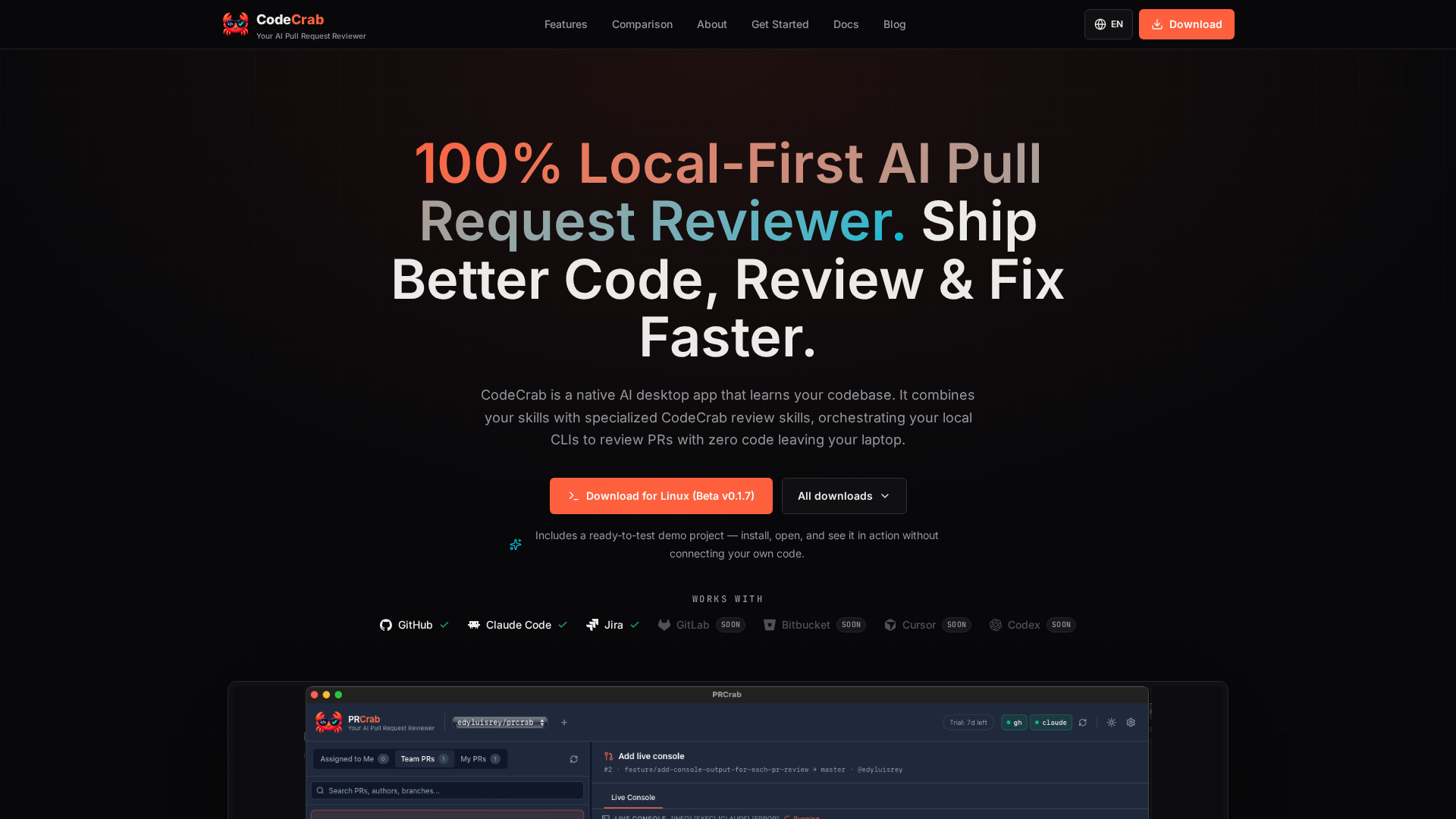
CodeCrab is a native, local-first AI desktop application that reviews pull requests in seconds by orchestrating the CLIs already installed on your machine. It is built for software engineers who review code daily and want to move faster without sending a single line of their source code to a cloud service. The app learns your codebase, combining the skills you already use with specialized CodeCrab review skills, and applies that understanding across three main moments in the development workflow: reviewing a teammate's pull request, responding to feedback on your own pull request, and reviewing local changes before a pull request even exists. Everything runs client-side on your laptop, and the product is currently available as a free public beta for Linux. The problem CodeCrab addresses is the shift in the engineering bottleneck. As AI toolsets generate code at unprecedented speeds, the author of the product — a software engineer with more than 14 years of experience, including years building systems at Google and Pinterest — observed that the primary constraint moved from writing code to reviewing pull requests efficiently. Deep review is hard: reviewers must hold full repository context in mind, evaluate diffs, and catch logic bugs, risky patterns and regressions before approving. Cloud-based review bots add a second concern: to review your code, they require your source to be uploaded and processed on vendor cloud servers. CodeCrab was built initially as a personal tool to perform deep, Staff-level code reviews fast, without uploading sensitive private code to third-party servers. When you open a pull request from a colleague, CodeCrab walks through the diff with you and maps AI observations directly onto the changed lines, so you can catch bugs, risky patterns and regressions before hitting "Approve". The review is not limited to the diff itself: CodeCrab reviews against your entire local repository, including types and the test suite, so its observations account for full codebase context rather than isolated changed lines. Because the review is 100% local-first, it can detect logic bugs and regressions without uploading a single line to the cloud. The live review interface shows a file tree, a diff viewer and inline AI observations, and features clear changed-file tracking with inline observation badges for clean multi-file diff inspection and precision navigation. When a teammate leaves an observation on your own pull request, CodeCrab runs a deep investigation for you. It digs through the code around every comment, connects that code with your project's context, and helps you understand — as precisely as possible — what the observation really means and what the correct solution looks like. The investigation is deep and read-only, covering every reviewer observation on the diff, so nothing changes on your branch while you are still reasoning about the feedback. From there, CodeCrab can propose an assisted fix on your local branch, and that fix is verified against your own test suite before it is applied. The result is a workflow that turns review comments into the right solution rather than a guess. CodeCrab also reviews your local changes before a pull request exists. While you are still working locally, you can run a read-only review of your in-progress changes; CodeCrab detects errors early, investigates every finding as deeply as needed, and helps you apply the right fix while the context is still fresh. Because this happens before anyone sees the diff, the pull request you eventually open ships cleaner, higher-quality code. The pre-push review keeps the same privacy posture as everything else in the app: your local changes are analyzed locally, so you get early feedback without exposing unfinished work to a cloud service. The product describes this as catching bugs before the pull request even exists. CodeCrab is designed to plug into your existing workflow rather than replace it. Connect any repository and CodeCrab learns its rules and patterns, building a per-repo review profile that powers specialized review agents and custom skills. That means reviews are tuned to your codebase, and your own local skills can be reused, combined with CodeCrab's skills, and extended as far as you need. The app integrates with GitHub, Claude Code, Jira and GitLab today, with Bitbucket, Cursor and Codex listed as coming soon. Under the hood, CodeCrab orchestrates your local CLIs: it uses your own GitHub CLI login (gh) rather than requiring org-wide OAuth admin permissions, and it works with your local Claude Code and Cursor setups instead of locking you to a vendor's fixed model wrappers. A Live Execution Console displays real-time stdout and stderr, so the execution pipeline is transparent rather than an opaque black box. Privacy is the product's core promise. CodeCrab uses a 100% on-device architecture with zero-code uploads: your source code never leaves your laptop or passes through external cloud databases, and the product is described as compliance-ready for strict corporate environments where no code may be sent to third-party AI clouds. Control follows from that architecture: CodeCrab is read-only by default and never commits, pushes, or posts public GitHub comments without your explicit permission. When it does propose changes, it runs your native test suite — cargo test, pytest, npm test — before applying them, and it offers 1-click local fixes in the form of verified code patches ready to apply directly to your local branch. The app is a native desktop application with instant, lightweight performance, minimal RAM consumption and instant startup. Economically, it reuses what you already pay for: it connects directly to the tools and subscriptions you already own, such as Claude Code and Cursor, and it gives you full model and cost control so you can choose which AI models to run and control exactly how much you spend on code reviews. These capabilities map onto concrete moments in a day-to-day engineering workflow. In a typical review cycle, a developer opens a colleague's pull request in CodeCrab, walks the diff with inline AI observations mapped to the changed lines, and reaches an approval decision with full repository context rather than a diff-only view. On the other side of the same workflow, a developer whose pull request has received reviewer comments uses CodeCrab to investigate each observation deeply in read-only mode and then apply an assisted fix on the local branch, verified against the test suite. Between those two moments, the pre-push review covers local, uncommitted work so errors are found before the pull request exists. Teams working in strict corporate environments use the same app because no code is uploaded anywhere. And for anyone evaluating the product, the bundled demo project lets you install, open and see it in action without connecting your own code. CodeCrab is a native desktop application, currently distributed as a free public beta, with a Linux download available at Beta v0.1.7 (amd64 AppImage) and additional downloads listed on the site. It is the product of an engineer named Edy, who has more than 14 years of experience, including years building systems at Google and Pinterest, and who describes CodeCrab as initially a personal tool that is now being actively refined during public beta based on real engineering workflows. The product integrates with GitHub, Claude Code, Jira and GitLab today, with Bitbucket, Cursor and Codex listed as coming soon. Its stated points of integration include your local Claude Code and Cursor setups, your local custom skills, the GitHub CLI (gh) for authentication, and native test runners such as cargo test, pytest and npm test. CodeCrab's value proposition is narrow and clear: it brings deep, fast, local AI pull request review to a desktop app that never uploads your code. By orchestrating the local CLIs and subscriptions you already own, mapping observations onto your diffs, investigating reviewer feedback deeply, and verifying fixes against your own tests, it accelerates review without asking you to trade away privacy or control. For engineers and teams who care where their source code ends up, CodeCrab offers the same kind of review acceleration associated with cloud bots, delivered from a 100% client-side architecture.

Pheebs is an open-source telemetry tool built by Eversynced to understand how developers work with AI coding agents and what the models they run are costing them. It installs quietly inside the AI coding agents Claude Code, Cursor, and Codex through hooks, capturing lightweight interaction signals: the shape of the session, not its contents. Hooks and OpenTelemetry go in; honest proficiency reads come out. The product is built for teams that want an evidence-based answer to a simple question — how is AI coding actually being used here, and what is it costing? AI coding agents are fast and their output often looks polished, which makes them very hard to assess by feel. Polished output can hide missing verification. Over-provisioned models can burn budget without anyone noticing. Follow-up prompts spent repairing AI-generated breakage can look indistinguishable from healthy iteration unless someone measures them. The site frames this through a set of observations: model spend that buys nothing, where thousands of dollars of last month's model spend went to a bigger model than the work needed; AI code that ships unchallenged, where a majority of AI-written lines in a payments service shipped with no check; AI edits that never had a test, typecheck, or build run behind them; rework hiding inside the speedup, where follow-up prompts were fixing something the AI broke rather than moving the work forward; enablement skills that either caught on weekly or never caught on at all; and teams that never run tests inside the agent loop at all. On that last point the site is explicit — that is a missing harness, not a skills gap, and Pheebs is positioned to help teams tell which situation applies to them. Pheebs works with three coding agents: Claude Code, Cursor, and Codex. The client sits inside each agent via hooks, and the coverage spans 17 event types, from session_started through artifact_found. Events include session starts and ends, prompts, skill and slash-command expansions, sub-agent spawns, tool calls and failures, compaction, and background tasks. A sample Claude Code stream shows the granularity in practice: session_started with a codebase and model, prompt_submitted with a prompt length and intent label, tool_use_completed entries for an Edit and a Bash test run, context_compacted with a trigger type, and turn_ended with a background task count. Cursor connects through hooks, while Claude Code and Codex connect through hooks plus OpenTelemetry. Every field Pheebs records is deliberately lightweight, and the tool is explicit about what it never captures. Source code and file contents are never stored. File paths and directory structures are excluded, with a repository recorded only as org/repo from the git remote. Prompt text is never stored — a prompt becomes a character count, with an intent label added when the prompt intent classifier is enabled. Command strings are read in process, so npm test is recorded as tool_intent: test_run rather than as text. Names and emails are avoided: a developer is the id behind their Pheebs token, stamped by the backend, or a truncated hash of their git email when no token is set, and a GitHub handle is never looked up. The site sums it up bluntly: no code, no file paths, no stored prompt text — the shape of the session, never its contents. The capture pipeline is documented step by step. First, a hook fires. Second, lightweight fields are extracted: event type, durations, counts, models, and trigger types, with a prompt reduced to a character count and, when the prompt intent classifier is enabled, an intent label — the text itself is never stored. Third, identity and repo are resolved, using the developer id behind the token or a truncated hash of the git email, and the codebase as org/repo from the git remote. Fourth, every event is stored in a local JSONL log, and with a token set it also goes to the backend. Fifth, OpenTelemetry rides along: Claude Code and Codex export native OTel metrics and logs through the Pheebs proxy. The client offers four routes to any backend — self-hosted, or managed by Eversynced — and the local JSONL stays the durable copy either way. Configuration is deliberately minimal: set a base-url and set a token. Both need to be set or nothing is posted, and unsetting either one stops sending. The backend contract is documented, with a reference backend available in the Pheebs repo. POST /ingest carries one event envelope per request. POST /validate-token resolves a token to an identity and its consent flags. POST /classify-prompt takes one prompt in and returns one label, and it is the only route that receives raw text. POST /otel/v1/{signal} is an OTLP passthrough, so no observability credential ever ships in the client. GET /insights is optional and covers what one developer can see about their own work. On top of the raw events, Pheebs renders a proficiency model organized into six competency areas. Models covers which models are in play: model choice, effort settings, plan mode, and autonomy modes. Artifacts covers the reusable config that shapes the agent: skills, sub-agents, slash commands, and context files. MCP covers live connections to external systems such as tickets, databases, browsers, and documentation. Evals covers verification wired into the agent loop: tests, typecheck, lint, build, and review passes. Context management covers deliberate use of the context window, including compaction and the save, resume, and clear lifecycle. Orchestration covers more than one agent at a time: sub-agents, parallel work, worktrees, hooks, and plugins. Each competency is tracked in one of three states. Unobserved means the practice never showed up in the window. Adopted means it showed up at least once. Recurring means it showed up in at least three of the last four active weeks. The coverage index summarizes this per engineer as the share of applicable practices at Recurring. Alongside the competencies sit five judgement signals, split between output side and input side. On the output side, verification coverage is the share of AI edits followed by a verification action — a test run, typecheck, lint, build, or a check against a spec. Pushback rate measures how often the engineer challenges AI output instead of accepting it, a signal the site notes collapses exactly when output looks polished. Refinement-to-repair ratio distinguishes whether follow-up prompts refine intent (healthy iteration) or repair breakage (rework). Wholesale-accept rate captures sessions with no pushback, no repair, and no verification, weighted by lines changed — described as the composite red flag of polished output with no questions asked. On the input side, model-fit rate is the share of sessions whose model class matched the size of the work. Model-fit is the one signal with a price attached. A reporting view shows savings opportunity against list-price spend, contrasting the models used with the work as sized, and it carries a coverage breakdown — complete, incomplete, no telemetry, unpriced — because decisions and figures come from complete sessions only. Three principles govern the approach. Tasks are sized: every task prompt gets a scope, from a one-file change to open-ended design, and a session is judged on its hardest prompt. Misses count both ways: an over-provisioned session burns budget silently, while an under-powered one shows up as repair prompts. And Pheebs is an audit, not a router: it never intercepts a prompt or switches a model on anyone's behalf — it reads the gap and prices it, and the decision stays with the team. Reporting built on top of Pheebs renders the model in several views. A practice adoption funnel shows one bar per competency, split by how many engineers have not acted on it, acted once, or acted week after week, with Unobserved and Adopted flagged as the competencies to be intentional about. A practice heatmap puts every engineer against every competency; a cold column means the team is missing the setup and practice for that competency, which is described as a structural fix, while a cold row calls more strongly for coaching. A per-engineer view shows how much of each competency has become habit and sums it up in a coverage index that can be tracked over time. A signals-by-engineer table lists verification, pushback, refine-to-repair, wholesale accept, and model-fit per person alongside a team median. The guidance is direct: one weak number is a coaching conversation, but a weak column across the whole team is a structural gap. The sample views on the site are labeled illustrative data. Pheebs can be deployed in two ways. Self-hosted means you stand up the backend and telemetry goes from your developers' machines to your own infrastructure — Eversynced never sees it. That option includes the full client with all three agents under Apache-2.0, a documented contract and a reference backend in the repo, raw JSONL you can query with whatever you already use, and no account, no key, and no requests from Eversynced. Managed means Eversynced runs it, along with the reporting on top: the same open-source client pointed at an operated backend, with the proficiency model rendered as reports and dashboards. That is the AI Enablement Assessment service — a 30-day telemetry sprint that ends in an executive debrief and a plan for the gaps, including the model-fit gap priced in dollars from the team's real sessions, with insights tracked over time. Installation is a single npm command, followed by pheebs init for interactive setup across all three agents and pheebs doctor to check the wiring. In practice the product serves teams that want to see where AI budget actually goes, teams diagnosing whether weak AI results are a setup problem or a coaching problem, and individual developers who want their own honest read on their practice. Eversynced runs Pheebs on itself: every Eversynced engineer is instrumented with it, and it powers the measurement layer of the company's AI delivery framework, which is the same reporting that ships with the AI Enablement Assessment run for client teams. The takeaway is that Pheebs turns an otherwise invisible activity — how a team works with AI coding agents and what those agents cost — into measured, priced evidence. It does so without storing the work itself, and it leaves every decision with the team: an audit rather than a gatekeeper.
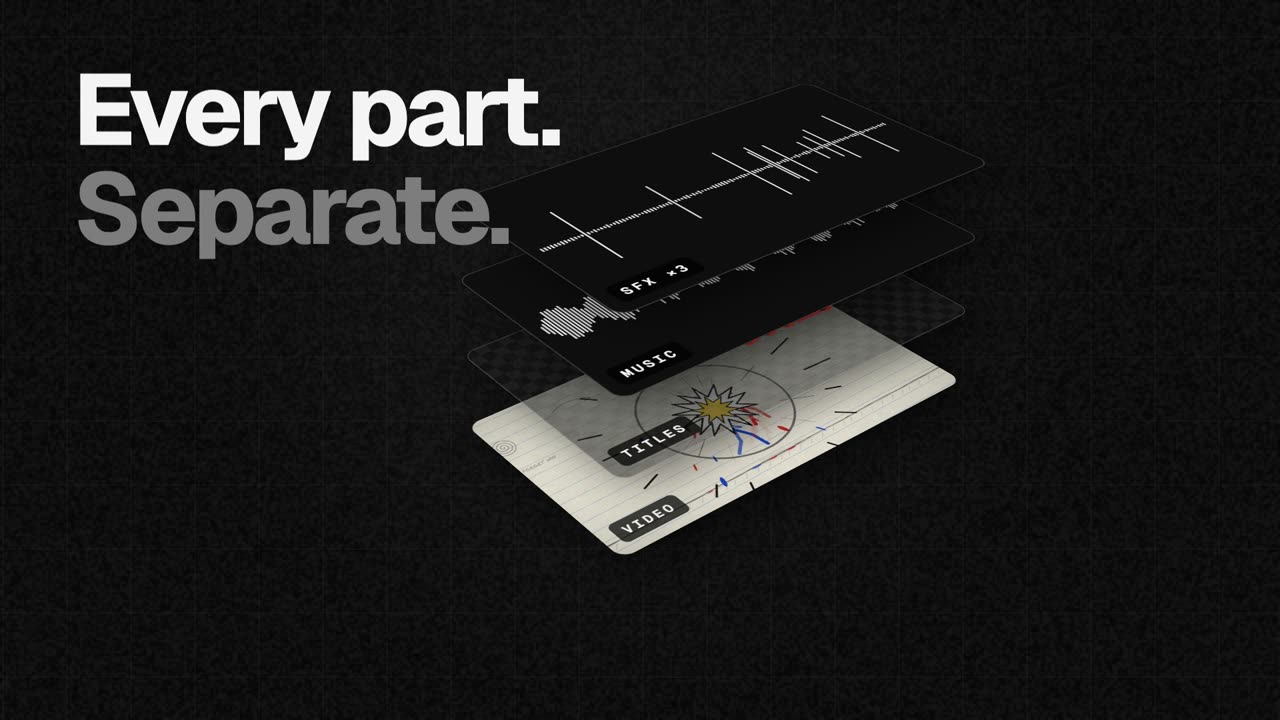
EasyCut is a free video editor that runs entirely in your browser and is built specifically to finish motion videos made by Claude. When Claude designs, animates and scores a video — its own motion, music and sound effects — EasyCut opens it as one project in which the video, the titles, the music and each individual sound effect sit on their own track, lined up and labelled. The tool is for anyone who wants the creative reach of an AI video generator but still needs a real editing timeline to trim scenes, swap music, add captions, adjust timing, add their own brand, and export the finished film in whatever shape a platform needs. The problem EasyCut addresses is that an AI-generated video normally arrives as one finished, flattened file. If you want a different music bed, a shorter title card, a quieter sound effect or a cut that lands half a second earlier, there is often no practical way to change just that element — the usual answer is to regenerate the whole video and hope the new version keeps everything else you liked. EasyCut's answer is to keep every part of the Claude-made video separate. Because each title, scene, image, sound and element is preserved on its own track, you can select anything and ask Claude to change just that part without rebuilding the whole video. That turns an AI video from a fixed output into a starting point you can actually edit. The editing core is a full timeline rather than a trimmed-down AI toy. EasyCut describes itself as a real editor with a magnetic timeline, frame-exact cuts, J/K/L keyboard controls, markers and undo for everything. You can cut, trim and split clips by dragging edges, split at the playhead, and reorder clips by dragging them, with transitions added in one click. Pauses can be removed in one go, or you can cut words by crossing them out directly in the transcript. Auto captions are generated word by word, written on your own computer, and can be saved out as SRT or VTT files for use elsewhere. Audio work is handled with the same level of control. Music can be fitted to the video's length, cut on the beat with its real ending, and there are free music and effects libraries built in, with ducking so music sits under voices automatically. You can record your screen, your camera, or both together with your voice, straight onto the timeline. A Layers panel lists every clip of a Claude video in one place, so you can find all the whooshes and mute or delete them at once, and speed ramps let you slow one moment down or speed it up with easing that moves smoothly in and out of the change. Visual and AI features are included as well. Colour looks, green screen, split screen, blur boxes, shapes and stickers are available to make footage look good, while voice clean-up, background removal and an AI voice all run on your device without uploading anything. Export covers MP4 up to 4K and 60 fps, produced as wide, tall and square versions in one go, plus GIF and audio-only exports. Projects save automatically in your browser as you work and can be moved anywhere as a single file, and a brand area keeps your logo, colours and fonts in one place for every video — a set Claude can use too. EasyCut's distinctive approach is how the Claude connection works. Setting it up takes about one minute, once. You add the EasyCut connector to Claude, and from then on Claude can open the videos it makes straight in EasyCut with every part on its own track. There are two routes. With Claude Desktop you download the EasyCut extension — a 170 KB .mcpb file for macOS and Windows — and press Install when Claude asks to install it, since Claude already has everything it needs to run it. With Claude Code you run one terminal command: claude mcp add easycut -- npx -y easycut-connector@latest. Then you open EasyCut, press Claude at the top, turn it on and choose Allow if the browser asks to let it reach apps on this device. If you are using claude.ai in the browser instead, you ask for the parts as downloads and open them from EasyCut's Claude panel. Claude Code needs Node.js 18 or newer. The practical benefit is that a finished AI video becomes a controllable edit rather than a fixed result: you trim a scene, mute a whoosh, drop in your own track or move the titles, and if you want something changed that only Claude can produce, you select one clip and ask for just that. Everything can then be exported in the shapes different platforms need. EasyCut is free with no trial, no watermark and no account, and nothing is uploaded: cutting, the AI features and the export all happen in your browser on your computer. The only downloads are the AI models, fetched once the first time you use a feature, and anything you choose from the free music and photo libraries. It is deliberately calm by design, with big buttons, plain words and tips everywhere, so there is nothing to learn first. Concrete workflows follow the three steps EasyCut describes. First, you ask Claude for a video — for example, a dynamic 40-second launch video for an app with bold type, smooth camera moves, great music and sound effects, opened in EasyCut. Second, every part lands on its own track: the video, the titles, the music and each sound effect open as one project, lined up, labelled and ready. Third, you finish it your way — trim a scene, mute a whoosh, drop in your own track, move the titles, or select one clip and ask Claude to change just that — and then export in every shape you need. EasyCut is not limited to Claude output either: it is a full editor, so you can add your own videos, photos and music, or record your screen and camera. EasyCut is made for computers; on a phone the screen is too small for a timeline, so it is not a mobile editing app. Browser support is broad but tiered: Google Chrome and Microsoft Edge do everything, including export, while Safari 16.4+ and Firefox 130+ can edit too. Its Claude integration is the headline connection, available through Claude Desktop and Claude Code, with a fallback for claude.ai in the browser. Pricing is simply free — no trial, no watermark and no account — and the site positions it as a finishing editor for AI video rather than a video generator, with the tagline that Claude makes it and you finish it. EasyCut's value proposition is narrow and clear: it is the finishing editor for AI video. Claude makes the whole video — motion, music, sound effects — and EasyCut opens every part on its own track so you can trim it, swap the music and export it, free, right in your browser, with your footage never leaving your computer.
Incredible is an AI that does tasks on your computer. It is a desktop app for macOS and Windows that clicks and types in your browser, files, and apps, exactly like you do, so the busywork gets done while you do something else. Incredible is a personal AI assistant that gets work done directly inside the applications you already use. Rather than only producing an answer you must act on yourself, Incredible performs the action on your machine: you give it a task, and Incredible does the work on your computer, in the same places you would. The company describes the product as "vibe computing" and frames it as a way to control your computer with your voice. The problem Incredible addresses is the gap between getting an answer and getting work finished. As the website puts it, a chatbot writes the answer, but you still have to put it into each app yourself — Incredible puts it there for you. Repetitive work such as building leads lists, summarizing reviews, screening resumes, filing receipts, sending invites, booking meetings, drafting reports, updating a CRM, reconciling a sheet, submitting forms, answering threads, organizing docs, compiling research, and outlining a deck still has to be carried out step by step across many different applications. Incredible is designed to close that last mile by acting on your computer instead of only advising you. The site illustrates the difference with a comparison measured on select repetitive workflows across multiple domains, showing work done on your own, with a chatbot, and with Incredible, while noting results vary by task. The first capability group centers on how you direct Incredible: voice and screen. You hold the activation key and say what you need in your own words, and you can also type the task. When you activate Incredible, it can see the page or document in front of you. That screen context means you can say something like "reply to this" without explaining which email you mean, because Incredible uses whatever is in front of you as the reference point. Voice removes the need to navigate menus for routine requests, and screen awareness removes the need to spell out context that is already visible. The second capability group covers where Incredible works: your browser and your apps. Incredible uses websites the way you do, clicking through pages and filling in forms on the sites you are already signed in to. It opens the apps you already use and moves information between them, so you no longer copy and paste from one app to the next. More than 3,000 apps connect to Incredible directly, and any other app you can open in your browser works too. Because Incredible operates in the same places you do, there is no migration step and no need to rebuild your workflows inside a new tool. The third capability group covers what Incredible actually does and how you stay in control: actions, reminders, control, and privacy. Incredible sends the emails and fills in the forms for you, then tells you when the task is done. You can also tell Incredible what needs your attention and when, and Incredible reminds you at that time with the details you gave attached to the reminder. Crucially, Incredible asks you before anything is sent; you can approve the step or change it first, and you can stop Incredible at any time. On privacy, Incredible only looks at your screen after you activate it — the rest of the time, your screen stays private. The fourth capability group covers files. Incredible can read and update the spreadsheets and documents on your computer, so you stop copying numbers between them by hand. It works with the material already on your machine, reading documents and updating totals, adding slides, and capturing key points so your files stay current without manual data entry. Incredible's overall approach is to learn from what is already on your computer. It learns how you work by watching you do it: you show it a task on your computer, talk through the steps, and let it handle the routine from there — from processing invoices and updating your CRM to editing spreadsheets. It uses your files and the page in front of you as context, so you can give a task without explaining everything first. And it works from what is already there rather than requiring new inputs. The benefits are framed around getting repetitive work done faster and boosting rather than replacing people. The comparison on the site shows workflows moving from work done on your own, to work done with a chatbot, to work completed with Incredible, measured on select repetitive workflows across multiple domains. CellMark, which uses Incredible in its offices in Sweden, France, and the United States, describes the impact in a customer story: "It's not about taking the work away from me. It's about boosting me. We are seeing higher accuracy and better results across the board," says Håkan Enhager, VP Global IT & Digital at CellMark. Concrete use cases span sales, marketing, recruiting, operations, founders, and everyday work. For sales, Incredible can find and reach out to 50 VP of Product at fintech SMEs with personal intros, reading profiles, adding contacts, and sending personalized emails. For marketers, it can read 100 G2 reviews of a competitor and pull out what users complain about. For recruiters, it can screen a folder of 200 resumes against the role being hired for, producing a top 10 ranked with reasons. For operations, it can find every receipt in an inbox this month and organize them for accounting. For founders, it can find the speakers at a conference and invite each one to a dinner. And for everyone, it can turn a long email thread into a meeting with everyone included. Incredible is available as a desktop app for macOS and Windows, and you can download it for either platform or book a demo. Its integrations span more than 3,000 connected apps plus any app you can open in your browser, with the site showing icons for tools across categories such as email, messaging, docs, CRM, and project management. On security and data privacy, the company states that Incredible is SOC 2 Type 2 audited by Sensiba and GDPR compliant, that data is encrypted at rest and in transit, and that there is no training on your data. It also lists operational protections such as protection against malicious code, confidentiality agreements with staff and partners, feedback on every response, and a dashboard of your team's usage, along with a dedicated success team, priority support with an SLA, guidance on setting up your first tasks, and onboarding for your whole team. In summary, Incredible is an AI that does tasks on your computer, clicking and typing in your browser, files, and apps exactly like you do. By learning from how you work, seeing the screen in front of you, and acting inside the tools you already use — with your approval before anything is sent — it moves repetitive, multi-step work from "answer" to "done."
