
Documentation, Reference Materials, and Tutorials for WPCode
Would you like your snippets to greet each visitor by name, or print the current post title without you writing any code? All you need is a snippet to work in and a few clicks in the code editor.
In this guide, we’ll walk you through inserting smart tags into a WPCode snippet.
Requirements: Smart tags are a premium feature, so you’ll need a paid WPCode license to use them.
Before you get started, make sure WPCode is installed and activated on your WordPress site.
A smart tag is a short placeholder wrapped in curly braces, such as {first_name}. When WPCode runs your snippet, it swaps each placeholder for the matching value from your site. That means {first_name} becomes the first name of whoever is viewing the page.
Smart tags save you the trouble of writing the code that looks those values up. They work in HTML, Text, JavaScript, and Universal snippets. A single snippet can hold as many tags as you like.
When a value isn’t available, WPCode replaces the tag with nothing rather than printing the placeholder itself. That happens with a visitor’s first name when nobody is logged in.
To get started, we’ll build a snippet in one of the types that support smart tags.
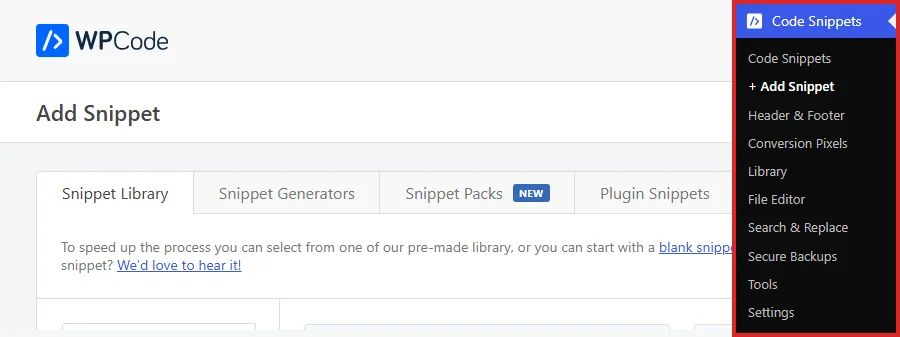
From your WordPress admin sidebar, go to Code Snippets » + Add Snippet.
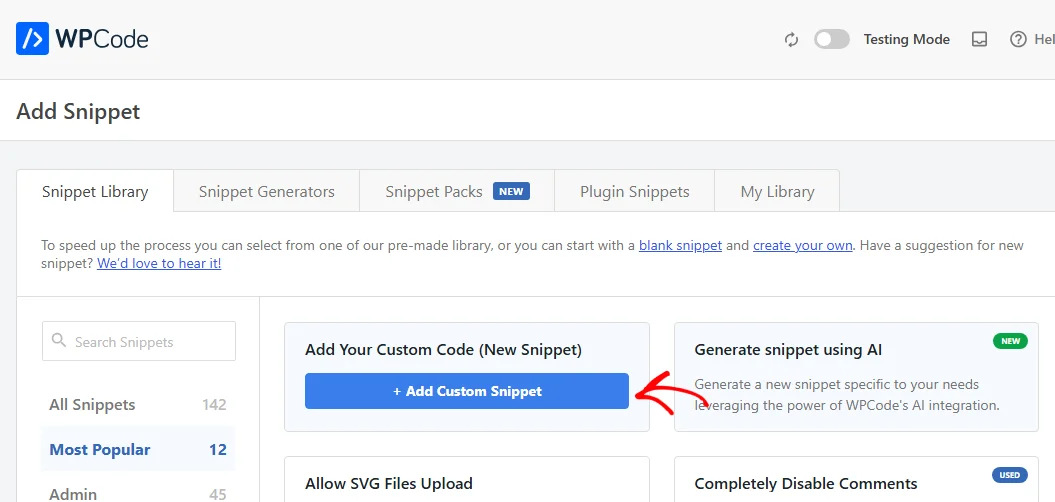
On the Snippet Library tab, hover over the Add Your Custom Code card. Then click + Add Custom Snippet.
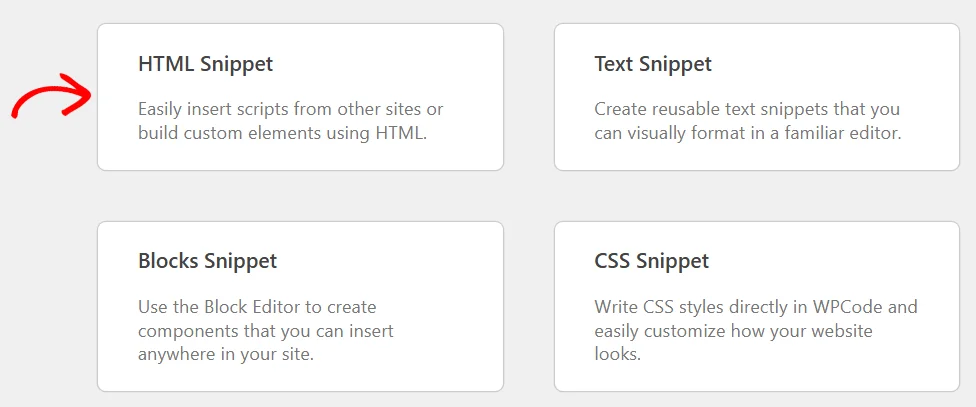
WPCode then asks which kind of snippet you’re building. For this example, click HTML Snippet.
WPCode opens the snippet editor, ready for you to add your code.
Note: Not sure which type fits your code? Our guide on what type of snippet you need walks through all eight options.
WPCode keeps the full list of smart tags inside the snippet editor. That means you never have to type a tag from memory.
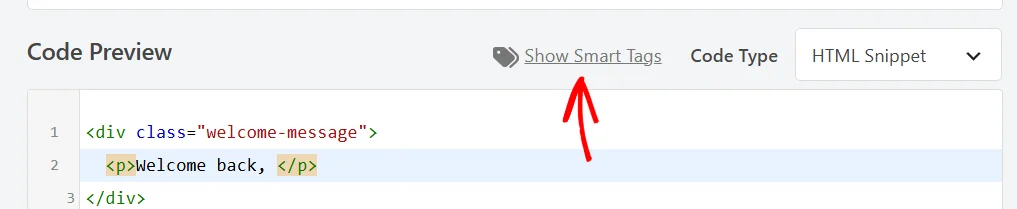
Start by adding your own code. Our example is a short welcome message that greets the visitor by name: <div class="welcome-message"><p>Welcome back, </p></div>
Then click in the code editor at the spot where you want the value to appear. WPCode inserts each tag at your cursor.
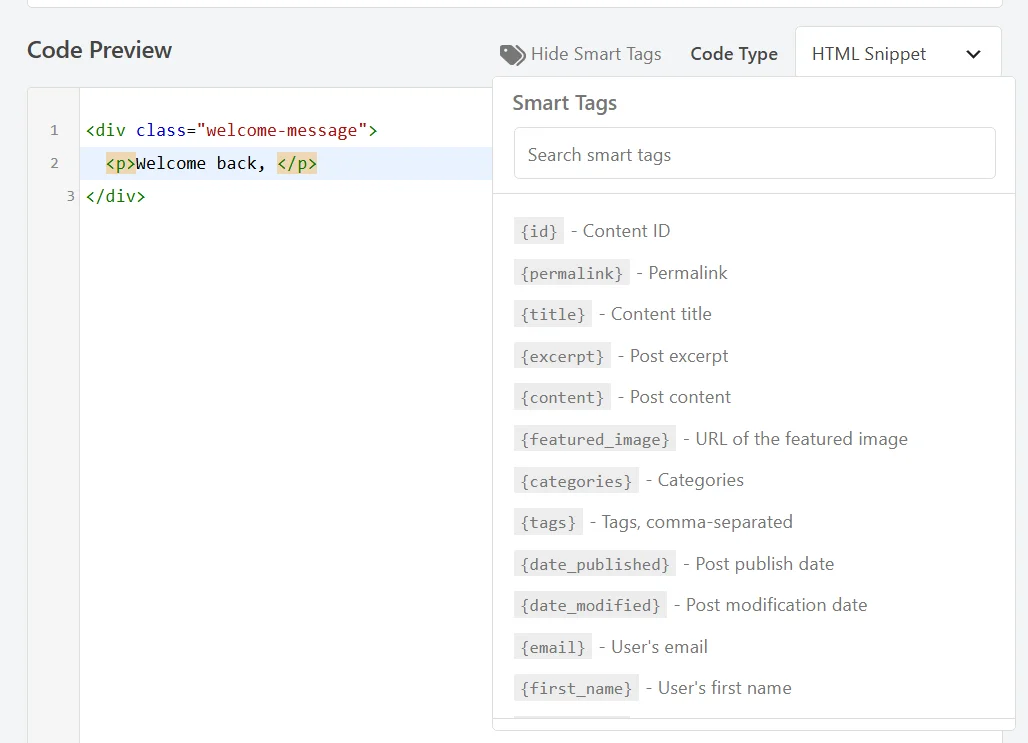
Above the code editor, in the Code Preview row just to the left of the Code Type dropdown, click Show Smart Tags.
The tag picker opens below the button, with a search box at the top and the tag list underneath. The list scrolls, so every tag is reachable from here. Each entry shows the tag itself alongside a short description of the value it returns.
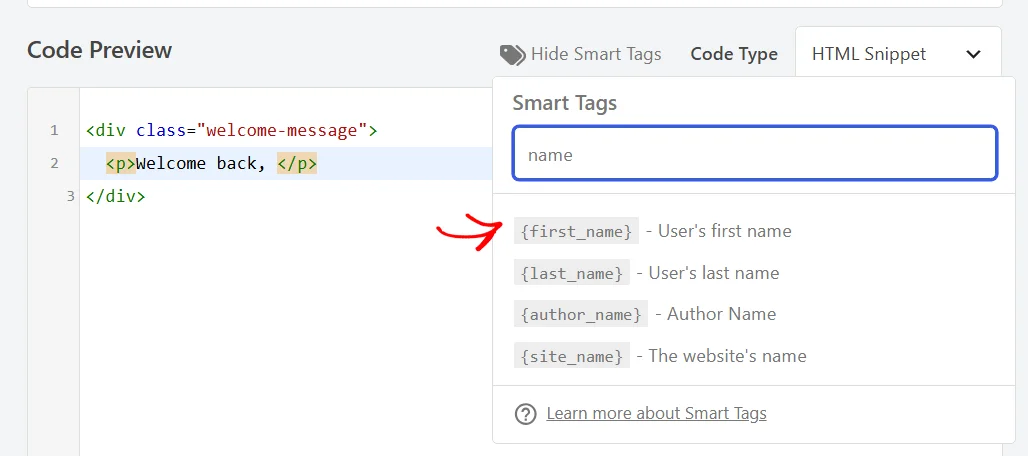
With 23 tags in the list, the quickest way to find one is to type into the search box. Searching for “name” leaves only the four tags that return a name.
Then click the tag you want, such as {first_name}.
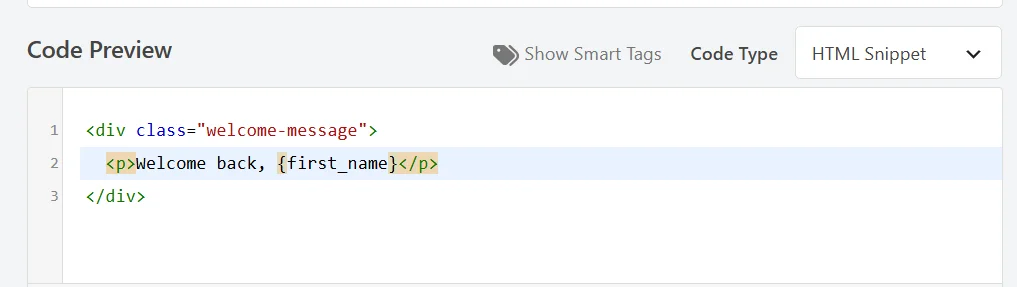
WPCode drops the tag in at your cursor. The picker closes on its own.
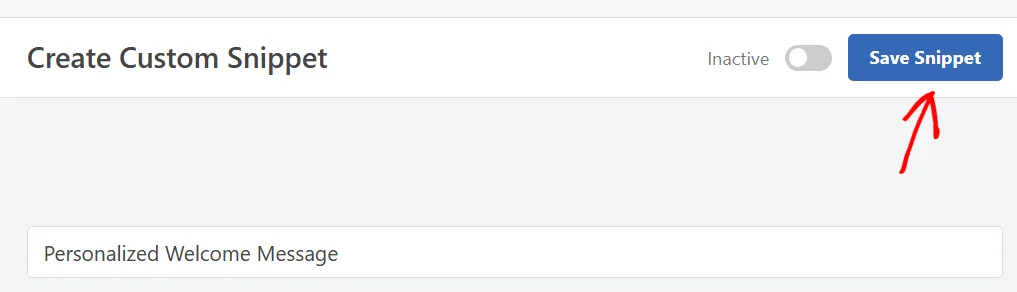
Next, give your snippet a name at the top of the screen. Then, when you’re happy with the code, click Save Snippet.
Your snippet is saved. Once the snippet is active, WPCode swaps each tag for its value every time the snippet runs.
WPCode ships with 23 smart tags, all listed in the picker. Here’s what each one returns.
{id}: the ID of the current post or page.{permalink}: the full URL of the current post or page.{title}: the title of the current post or page.{excerpt}: the excerpt of the current post. When no excerpt is set, WPCode trims the first 55 words of the content instead.{content}: the content of the current post.{featured_image}: the URL of the featured image.{categories}: the categories the current post belongs to.{tags}: the post tags, separated by commas.{date_published}: the date the post was published, in your site’s date format.{date_modified}: the date the post was last changed, in your site’s date format.{email}: the email address of the logged-in visitor.{first_name}: the first name of the logged-in visitor.{last_name}: the last name of the logged-in visitor.{custom_field}: the value of a custom field you name.{author_id}: the ID of the post author.{author_name}: the display name of the post author.{author_url}: the URL of the post author’s archive page.{author_bio}: the biography from the post author’s profile.{site_name}: the name of your website.{site_url}: the home URL of your website.{post_type}: the name of the post type, such as “Post” or “Page”.{login_url}: the URL of your login page.{logout_url}: the URL that logs the visitor out.The picker grows as your site does. If you add shortcode attributes to a snippet, each one joins the list as {attr_yourkey} under a Shortcode Attributes heading. That puts an attribute’s value one click away in your code.
That’s it! You now have a snippet that pulls live values from your site through smart tags. Next, take a look at our complete guide to snippet locations to choose exactly where your snippet runs.
Below, we’ve answered some of the most common questions about using smart tags in WPCode snippets.
Smart tags work in HTML, Text, JavaScript, and Universal snippets. PHP snippets read the same values with regular PHP functions instead, so the picker isn’t shown for them. The button is also hidden for CSS and Blocks snippets. On SCSS snippets the button does appear, so stick to the four types above if you want the tag replaced with a real value.
Yes. In the picker, choose {custom_field} and it arrives in your code as {custom_field="meta_key"}. Replace meta_key with the name of the field you want. WPCode then returns that field’s value for the current post. See WordPress Custom Fields 101 for a step-by-step guide to creating custom fields and finding a field’s name.
WPCode replaces the tag with an empty value. If a visitor isn’t logged in, for example, {first_name} resolves to nothing at all, so your visitors never see the placeholder text. A tag WPCode doesn’t recognize stays exactly as you typed it, which makes a misspelled tag easy to spot.
Yes. WooCommerce, Easy Digital Downloads, Yoast SEO, All in One SEO, MemberPress, and MemberPress Courses each add a group of their own tags to the picker. Those groups appear automatically once the plugin is active on your site.
Yes. The WPCode Page Scripts box on any post or page carries the same picker above each of its header and footer fields. Tags work there in exactly the same way.
Yes. WPCode escapes each value for the place it lands in, whether that’s an HTML attribute, a script block, or the body of your markup. The surrounding code stays valid whatever the value turns out to be.
Future-proof your website with WPCode Snippets and improve the way you manage code across all your websites.
Copyright © 2026 WPCode. WPCode® is a registered trademark of WPCode, LLC


The WordPress® trademark is the intellectual property of the WordPress Foundation. Uses of the WordPress®, names in this website are for identification purposes only and do not imply an endorsement by WordPress Foundation. WPCode is not endorsed or owned by, or affiliated with, the WordPress Foundation.
