
Documentation, Reference Materials, and Tutorials for WPCode
Would you like your CSS and JavaScript snippets to load as real files instead of being printed into the source of every page?
In this guide, we’ll walk you through the Load as file option on a single snippet, and the site-wide setting for PHP snippets. All you need is a paid version of WPCode and a snippet you’d like to convert.
Requirements: Loading snippets as files is available in the paid versions of WPCode.
Before you get started, make sure WPCode is installed and activated on your WordPress site.
WPCode normally prints a CSS or JavaScript snippet directly into the page it runs on. When you switch a snippet to file loading, WPCode writes the code to its own file and enqueues that file instead. It does this with the standard WordPress wp_enqueue_style and wp_enqueue_script functions.
Caching and optimization plugins can then treat the code the way they treat any other stylesheet or script. The file also gets its own URL and its own handle in WordPress, so you can tell exactly which file came from which snippet.
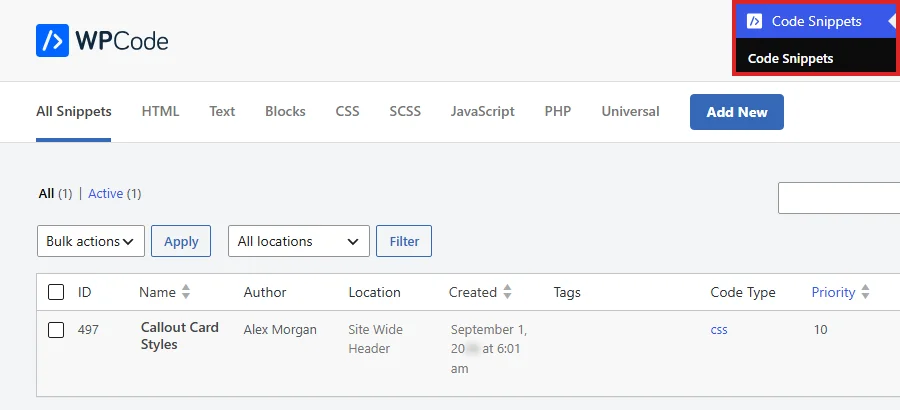
To get started, go to Code Snippets » Code Snippets in your WordPress admin sidebar. The row of links above the list filters your snippets by code type. Then open the CSS or JavaScript snippet you want to convert.
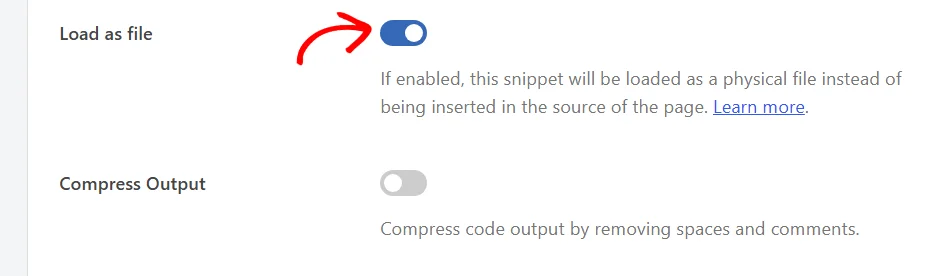
Inside the snippet editor, scroll down to the Insertion section and switch on the Load as file option.
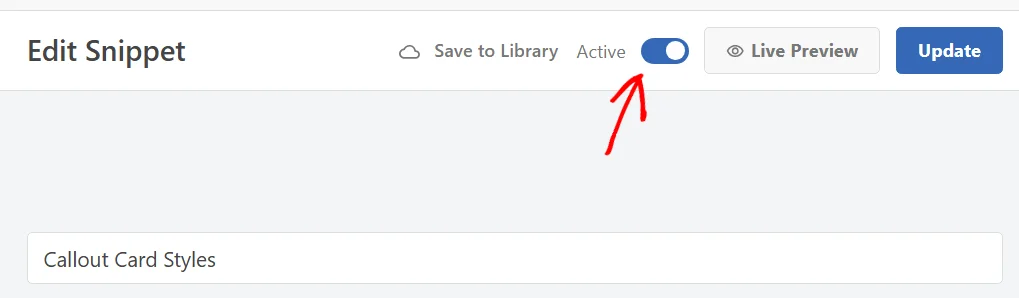
WPCode only generates the file for snippets that are running. At the top of the editor, check the status toggle and set it to Active.
Once both are in place, click Update to save the snippet and generate the file.
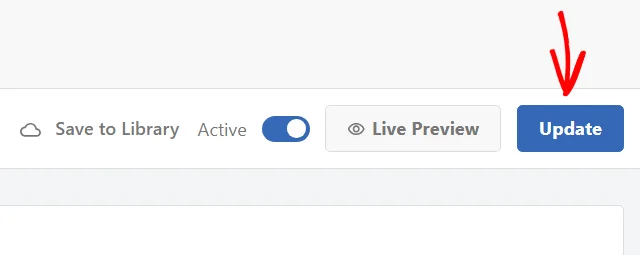
The snippet is now saved, and WPCode has written its file.
After the snippet is saved, a View file button appears next to the Load as file toggle. Then click it to open the generated file in a new browser tab.

The file contains exactly the code from your snippet, served straight from your server.
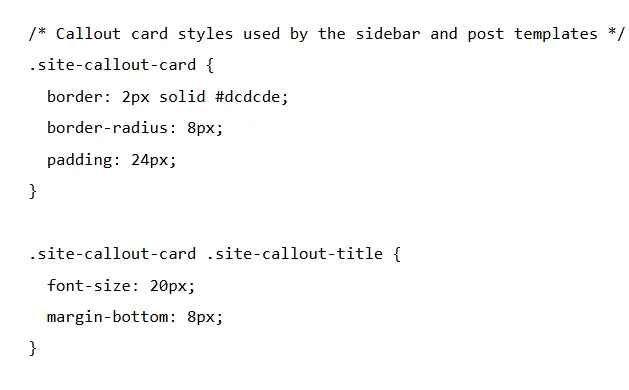
WPCode keeps these files in a wpcode/assets folder inside your site’s uploads directory. It builds each filename by hashing the snippet’s ID.
The names in that folder are long strings of letters and numbers rather than snippet titles. CSS snippets produce a .css file and JavaScript snippets produce a .js file.
Every time you save the snippet, WPCode rewrites the file and updates the version number on the enqueued URL. Visitors then pick up your latest code rather than a cached copy.
Note: The View file button is greyed out while a snippet is inactive, because the file is only generated for active snippets.
Once the file exists, WordPress treats it like any other enqueued asset.
Because the file goes through the normal WordPress enqueue system, WordPress gives it a handle. WPCode builds that handle from the snippet’s ID, in this format:
wpcode-snippet-[snippet-id]
A snippet with the ID 34 is therefore enqueued as wpcode-snippet-34. WordPress prints that handle in the id attribute of the tag it outputs, so a CSS snippet shows up in your page source as id="wpcode-snippet-34-css". That gives you a reliable way to match a file loading on your site back to the snippet that produced it.
The URL carries a version number as well, taken from the time you last saved the snippet.
The snippet’s ID appears in the ID column of the snippets list. It also appears in the snippet_id parameter in your browser’s address bar while you’re editing it.
PHP snippets work differently. WPCode covers them with one site-wide setting that applies to every active PHP, HTML, and Universal snippet at once. Loading them from files keeps their code out of the database at run time, and gives PHP opcode caches a real file to work with.
To find it, go to Code Snippets » Settings in your WordPress admin sidebar.
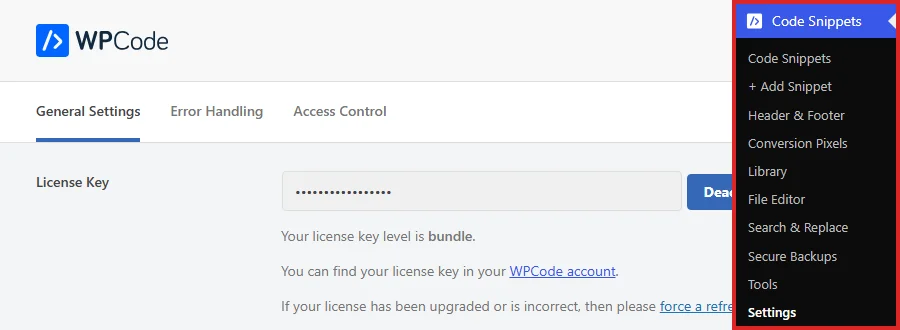
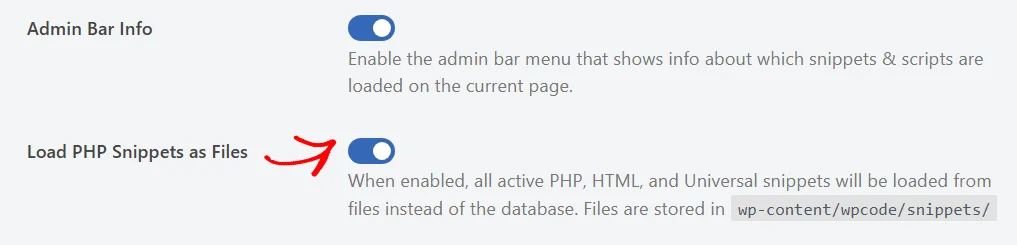
On the General Settings tab, scroll down and switch on Load PHP Snippets as Files. The description under the toggle names the folder WPCode will write to, which is wp-content/wpcode/snippets/.
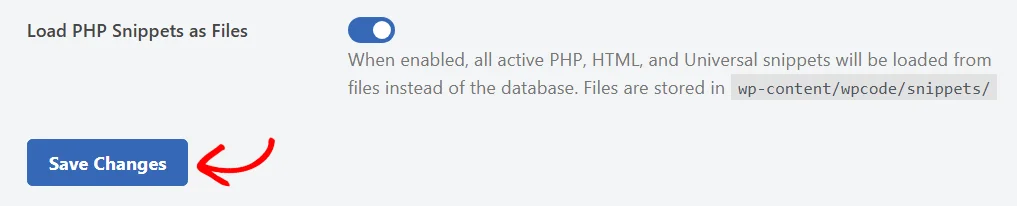
At the bottom of the panel, click Save Changes. WPCode then writes a file for every active PHP, HTML, and Universal snippet on your site. It also writes an index file that records which snippets are loaded from where.
Note: Switching this setting back off removes the files WPCode created, and your PHP snippets go back to running from the database.
That’s it! Your snippets are now served as files rather than inline code. Next, take a look at our guide on choosing where your snippets run to control exactly which pages load your code.
Below, we’ve answered some of the most common questions about loading WPCode snippets as files.
CSS and JavaScript snippets go into a wpcode/assets folder inside your site’s uploads directory, which is the same place WordPress keeps your media. PHP, HTML, and Universal snippets go into wp-content/wpcode/snippets/ instead, because some hosts block PHP execution inside the uploads folder. For a tour of where these folders sit on your server, see WPBeginner’s Beginner’s Guide to WordPress File and Directory Structure.
WPCode removes that snippet’s file, and the View file button is greyed out. Setting the snippet back to Active and saving it generates the file again.
Yes. See the Viewing the Generated File section above.
The WPCode editor is the place to change a snippet’s code. WPCode rewrites the file from the snippet on every save, so anything typed into the file itself is replaced the next time you save.
Deleting a snippet permanently also deletes the file WPCode generated for it, so there’s nothing left behind to clean up.
Future-proof your website with WPCode Snippets and improve the way you manage code across all your websites.
Copyright © 2026 WPCode. WPCode® is a registered trademark of WPCode, LLC


The WordPress® trademark is the intellectual property of the WordPress Foundation. Uses of the WordPress®, names in this website are for identification purposes only and do not imply an endorsement by WordPress Foundation. WPCode is not endorsed or owned by, or affiliated with, the WordPress Foundation.
