

Installation
Add to Your Workspace
1
Start installation
Go to Settings > Integrations > Slack in the Adapt web app, or click the Add to Slack button
2
Authorize
Review the permissions and click Allow to add Adapt to your workspace
3
Configure
Select which channels Adapt can access (you can change this later)
Permissions Required
Adapt requests these Slack permissions:Using Adapt in Slack
Your Adapt account
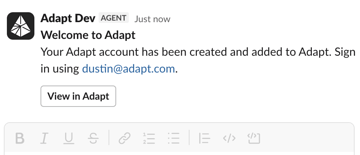
If you do not have an Adapt account, your first direct message to Adapt or@Adapt mention creates one using the email address from your Slack profile. Adapt adds the account to your organization’s workspace and sends you a direct message with a link to sign in.
Direct Messages
Message @Adapt directly for private conversations:Channel Mentions
Mention @Adapt in any channel to get insights visible to the team:Thread Replies
Keep complex discussions organized in threads:Features
File Analysis
Adapt can also generate images from a prompt or edit images you share in a thread. Just ask — the result is posted back into the conversation. Drop files into your conversation for instant analysis: Supported formats:- CSV and Excel spreadsheets
- PDF documents
- JSON data files
- Images and screenshots
Scheduled Reports
Set up automated reports delivered to Slack channels:Quick Actions
Adapt can take actions directly from Slack:Proactive responses
By default, every channel and thread stays in@-mention only mode — Adapt only responds when you tag it, exactly the behavior that already existed. To let Adapt jump in on its own, opt a channel or thread into a different trigger mode by tagging Adapt and describing when it should respond:
Trigger modes can be set at the channel level or overridden per thread. Thread-level settings take precedence, so you can opt a single thread out of a noisy channel — or the other way around.
To change or revert a mode, just tag
@Adapt again and tell it what you want.
Example smart policies
- “Respond to any top-level message announcing that something was shipped, released, or rolled out to production.”
- “Respond when a customer asks a how-to question about pricing or onboarding.”
- “Respond to top-level bug reports, including screenshots, screen recordings, and short messages like ‘broken’ or ‘doesn’t work’.”
“Only reply as a top-level message when you’re tagged. In a thread, reply to messages — but only ones where it’s clear humans aren’t talking to other humans.”Smart mode is most powerful when paired with skills and automations: the policy decides when to wake Adapt up, and the skill decides what to do once it’s awake.
Best Practices
When to Use Slack vs Web App
Tips for Better Responses
Be specific about data sources
Be specific about data sources
“Check HubSpot for…” or “Look at our Snowflake data for…”
Include time ranges
Include time ranges
“Last week”, “Q4 2024”, “Past 30 days”
Request specific formats
Request specific formats
“Show me a table”, “Summarize in bullet points”, “Create a chart”
Use threads for follow-ups
Use threads for follow-ups
Keep related questions in the same thread to maintain context
Channel Configuration
Adding Adapt to Channels
Invite Adapt to channels where you want it available:- Go to the channel
- Type
/invite @Adapt - Adapt can now respond to mentions in that channel
Restricting Access
Control which channels Adapt can access:- Go to Settings > Integrations > Slack in the web app
- Select Manage Channels
- Choose allowed or blocked channels
Troubleshooting
Adapt isn't responding
Adapt isn't responding
- Make sure Adapt is invited to the channel
- Check that you’re mentioning @Adapt correctly
- Verify the Slack integration is connected in Settings
Adapt can't access my data
Adapt can't access my data
- Ensure the relevant integration is set up (e.g., Snowflake, HubSpot)
- Check your organization’s permissions
Messages are slow
Messages are slow
- Complex queries take longer to process
- Large file uploads require more analysis time
Next Steps
Set Up Integrations
Connect data sources for richer Slack responses
Automations
Automate reports to Slack channels
