
What you see
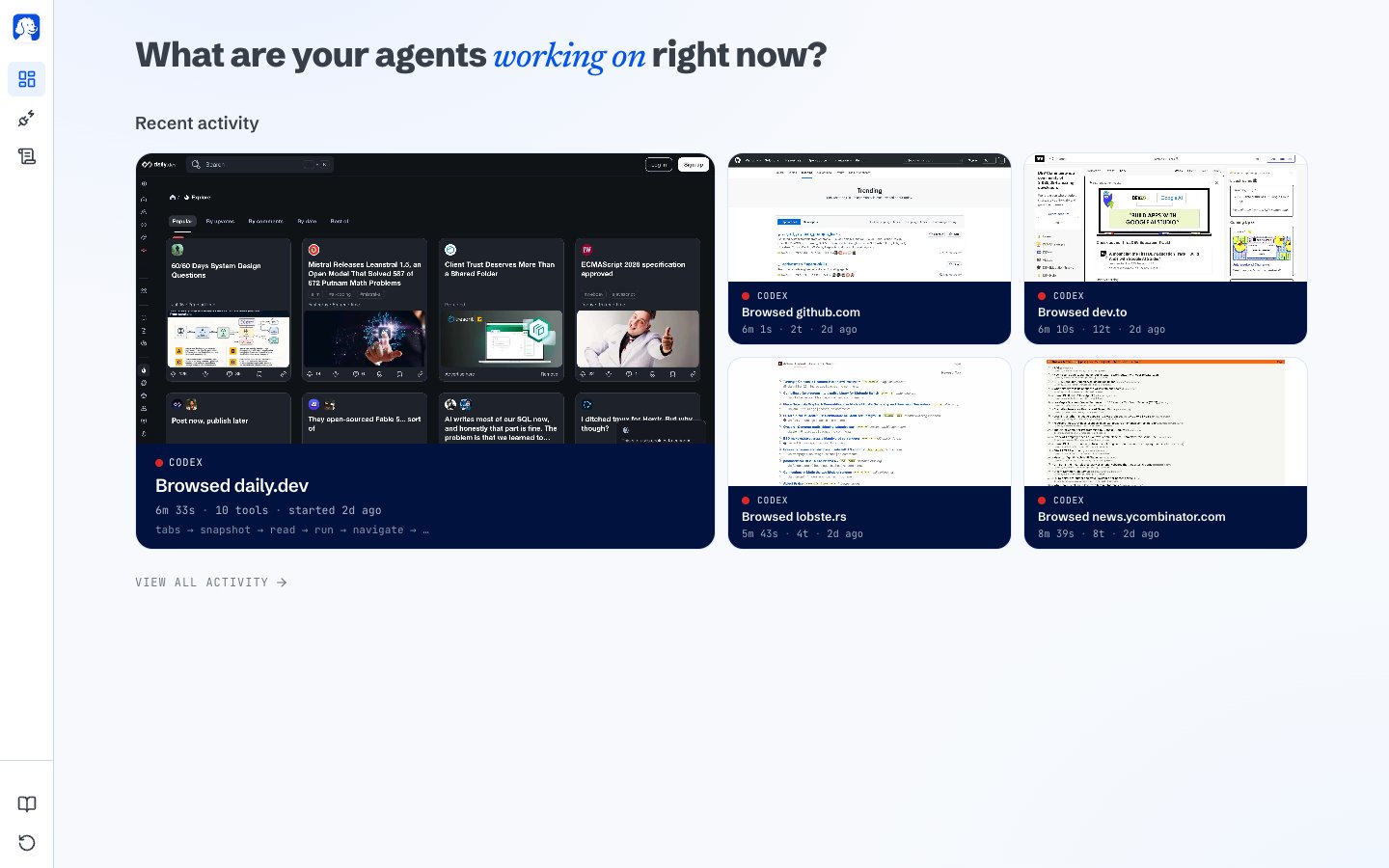
The dashboard: live activity on top, recent sessions below.
- Running now shows a live card for every AI that is actively working. It only appears when at least one AI is running.
- Recent activity shows the sessions your AIs already finished, newest first. Click any of them to open the full story.
Running now
Every live agent gets its own card at the top of the dashboard. Each card carries:- A live preview of the browser tab your AI is looking at right now, updating as it works.
- A LIVE chip and a pulsing dot so you can tell at a glance which agents are actually doing something.
- The site title, the AI’s name, and a short trail of the last few actions it took (like
tabs → read → navigate). - A tab-count chip in the corner so you know how many tabs this AI has open.
- Two buttons at the bottom of the card:
- Watch switches your active tab to the one the AI is working in, so you can look over its shoulder.
- Stop ends the session. If your AI went off the rails, one click cancels the run.
Recent activity
Once a session finishes, it moves down into Recent activity. The most recent (or any still-live) session takes the big lead tile on the left. Four supporting tiles show what’s after that. Anything older stacks in a compact typographic list below. Each tile is clickable and takes you straight to the full session view, where you can read every action step by step or hit View Session Replay to watch the whole run like a video. The home page holds the twelve most recent sessions. To see everything, click View all activity at the bottom of the section and you’ll land on the full audit list.Where to next
How BrowserClaw works
A guided walkthrough from install to your first AI-driven session.
Your stuff stays yours
What BrowserClaw records, what it doesn’t, and where everything lives.
