

Users
An Administrator or User Administrator invites new users via email. Users sign in to Connect AI with a username and password (or use their company’s SSO if enabled on the account). Administrators can then assign the appropriate role or roles to the new user. If Just-in-Time (JIT) provisioning is enabled, a user account is created automatically the first time the user signs in through SSO, without a manual invitation. The new user receives a default Query system role and default connection and workspace permissions, which an Administrator or User Administrator can modify later. See Users and Roles and User Provisioning and SSO for details.Roles
A role is a collection of administrative privileges, as well as permissions to access resources. Roles adhere to the following guidelines:- Any role can be assigned to any user.
- Every role has specific permissions.
- When a role is assigned to a user, the user gets all the permissions associated with that role. A user with multiple roles has all the permissions associated with each of them. Permissions are additive. A user’s access is the union of every permission from all their assigned roles, so the most permissive grant always applies. Roles never remove or override access granted by another role. For example, if a user has role_1 and role_2, with role_1 having Select permission for a data connection and role_2 having no access to the data connection, role_1 takes precedence, and the user has access to the data connection.
Permissions
Permissions are more granular levels of access that make up roles. You can assign the following entity permissions:For the purposes of permissions, an entity is a data connection (for example, Salesforce1) or a workspace (for example, MyWorkspace). Entities are displayed with the connection logo, and workspaces are displayed with a folder icon.
- Select: The user can select rows from tables in an entity.
- Insert: The user can insert rows into tables of an entity.
- Update: The user can update rows in tables of an entity.
- Delete: The user can delete rows from tables in an entity.
- Execute: The user can execute stored procedures in an entity.
Assign Permissions by User
You can grant entity permissions on a per-user basis from the Edit User page, or to multiple users at once by defining an access role on the Edit Role page. The permissions coexist additively; that is, assigning a user to a role never removes a user’s direct permissions.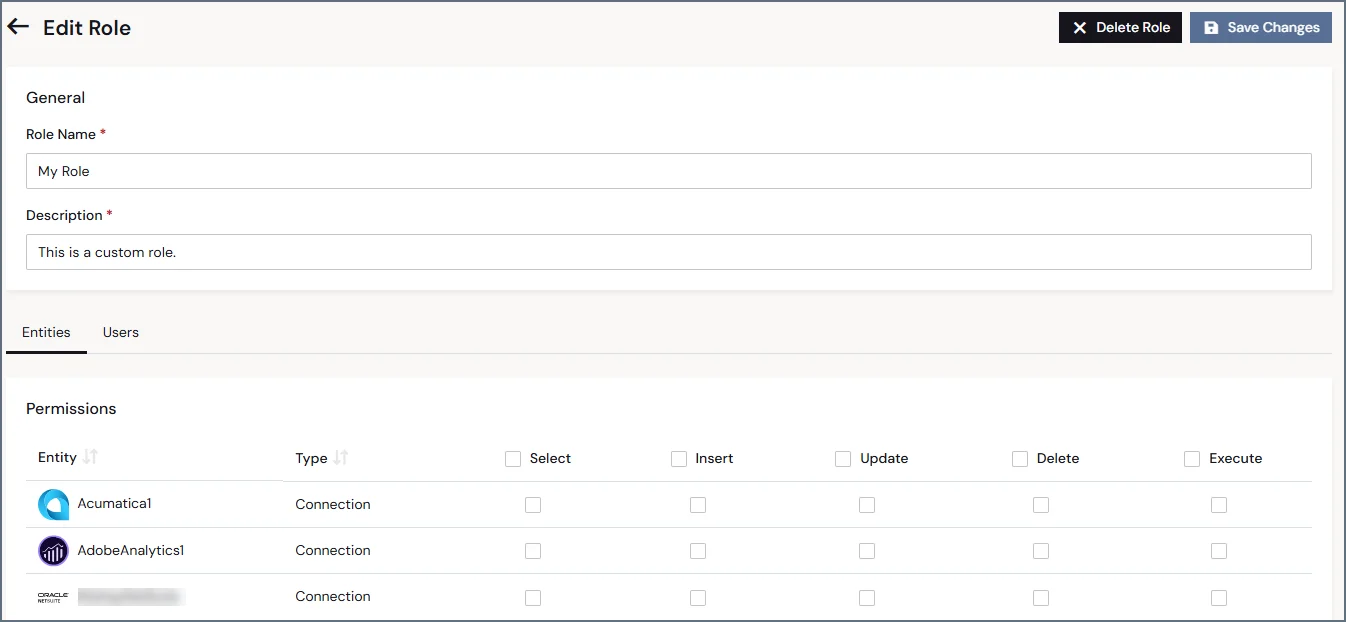
Assign Permissions by Entity
You can also assign permissions on an entity basis via the Edit/Add Connection page or via the Workspace page. For example, in the Permissions tab of the Edit Acumatica Connection page, you can grant permissions on the connection to multiple users at once. All users can select data, but only three users can insert data: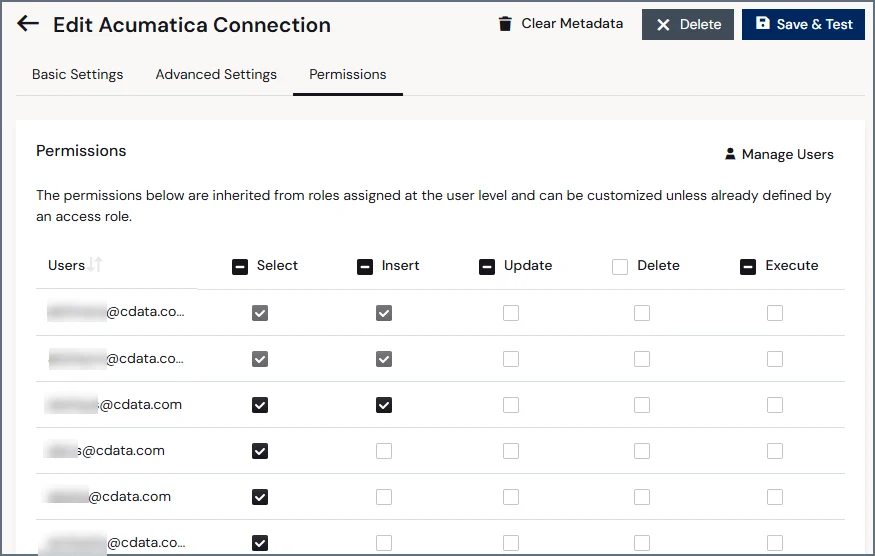
Workspace Access and Source Permissions
When a workspace contains an asset that originates from a source connection, access to that asset is governed by the workspace permission rather than the source connection permission. A user who has access to a workspace can access the assets in that workspace regardless of whether they have access to the underlying source connection (either through per-user permissions or through a role). This workspace-scoped access applies even when the workspace is added to a toolkit and exposed to an AI through a custom MCP endpoint. In other words, if a user has been granted access to a workspace, they can access the assets in that workspace through the custom MCP endpoint even if they do not have access to the source connections those assets come from.Authentication Patterns
Service Account (Shared) Authentication
By default, all users on an account can access data from a data source using a service account, or shared authentication. Use service account authentication for read-only data sources that do not contain user-specific permissions or systems that lack per-user authentication. For example, if you have a connection to Salesforce with a service account (shared authentication), all user accounts can access the data from the Salesforce account created for that Salesforce connection. Query permissions can be customized for each user to restrict available operations, but all users access the same data under these restrictions.Per-User Authentication
Certain data sources support the ability to force each user on an account to log in to a connection with their own login credentials. Use per-user authentication to comply with regulatory requirements or for data that varies by user. Per-user authentication ensures that users can only access the data from accounts that they need to access. Furthermore, when a connection is configured in this way, it only counts as a single connection slot toward your account maximum. If a data source supports per-user authentication, an Authentication Model section appears under the Authentication section of the connection settings. Select either Shared Authentication or Per-User Authentication.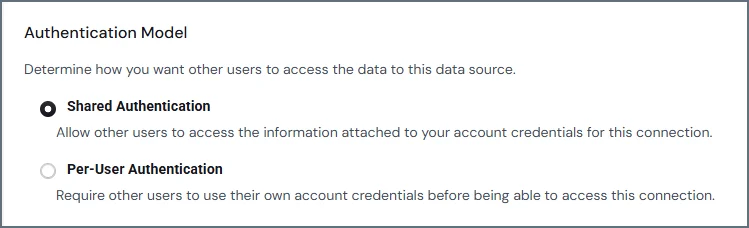
The following restrictions apply to this feature:
- Only Administrators can toggle a data source between Shared Authentication and Per-User Authentication, but users of all roles can log in to a per-user authentication connection with their own credentials.
- Per-user authentication is not supported when using the OData API. To connect a data source to the OData API, you must use shared authentication.
- Caching is permitted only with shared authentication, not per-user authentication. See Caching for details.
