
Document360 provides two purpose-built ways to add FAQ sections to your articles: FAQ Templates and the AI FAQ Generator. Both use accordion-style formatting, letting readers expand and collapse individual questions, but they differ in how content is added and managed.
For a fully custom collapsible block not limited to FAQ formatting, see Accordions. While FAQ Templates and the AI FAQ Generator also create accordion-style sections, Accordions let you manually customize the heading and content of each section, making them suitable for any type of collapsible content.
When to use FAQ
- Use FAQ Templates at the end of how-to articles to address common follow-up questions you already know readers will have. The structure is consistent and easy to maintain.
- Use the AI FAQ Generator on long, content-rich articles where you want to surface likely reader questions without writing them manually.
FAQ templates
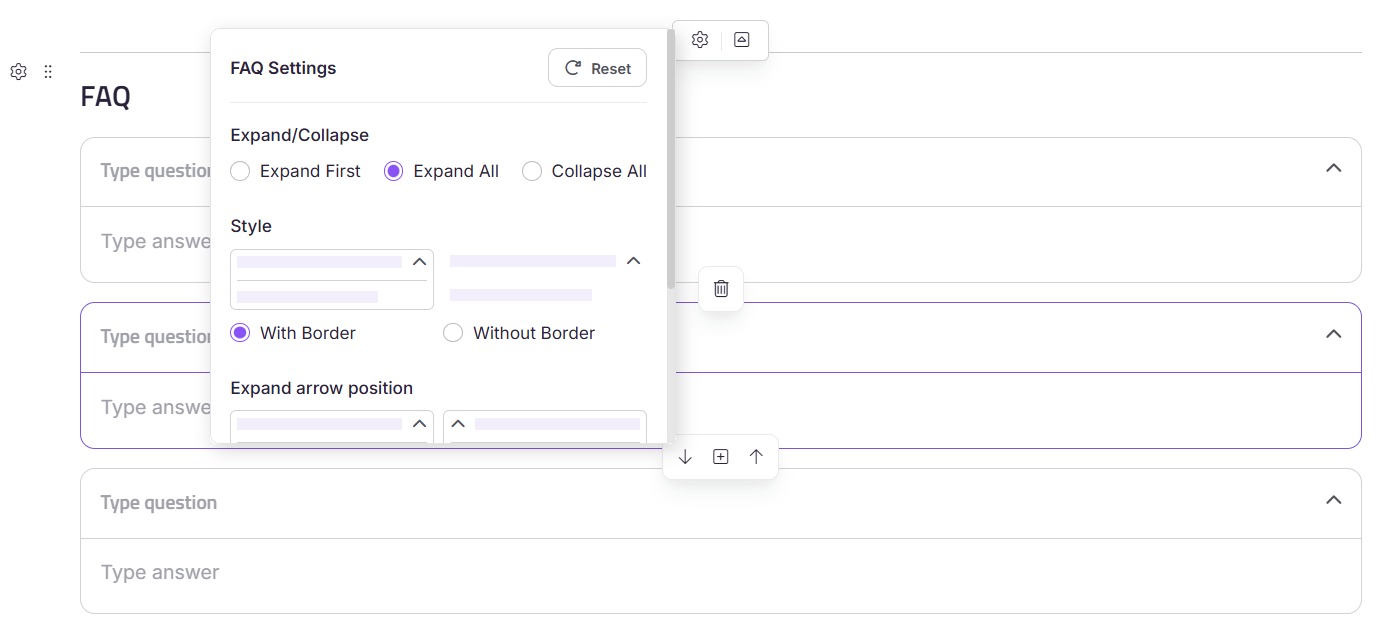
FAQ templates insert a predefined FAQ structure with three accordion items. You fill in the questions and answers manually.
- Navigate to the desired location in the article.
- Type
/FAQand press Enter. - Three FAQ accordion items are inserted. Click each one to fill in your question and answer.
AI FAQ generator
The AI FAQ Generator automatically creates FAQ based on your article content.
Prerequisites:
- You must have purchased the Eddy AI content suite.
- The AI writer suite must be enabled in your Document360 account (enabled by default upon purchase).
- The article must contain a minimum of 150 words.
To generate FAQ:
- Navigate to the article in the Advanced WYSIWYG editor.
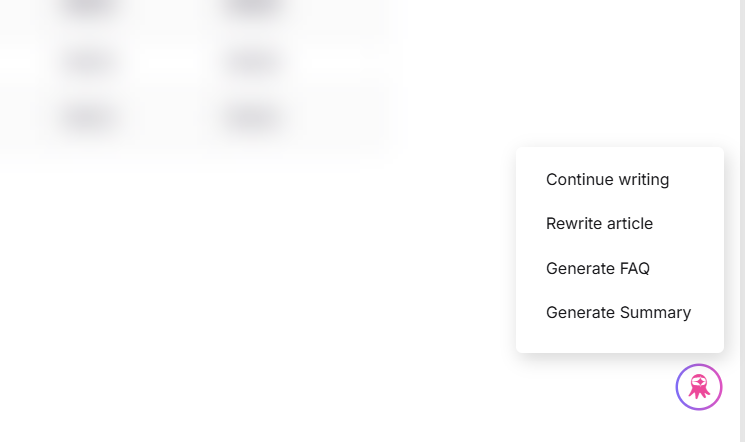
- Click Eddy AI at the bottom right of the editor.
- From the options, click Generate FAQ.
Eddy AI generates FAQ and places them at the end of the article. You can add content below the FAQ section after generation.
Managing FAQ items
These actions apply to individual FAQ items, whether they came from an FAQ template or the AI FAQ Generator.
Adding a FAQ item
- Hover between any two FAQ where you want to add a new one.
- Click the Add FAQ (+) icon that appears.
- Fill in your custom question and answer.
Reordering FAQ items
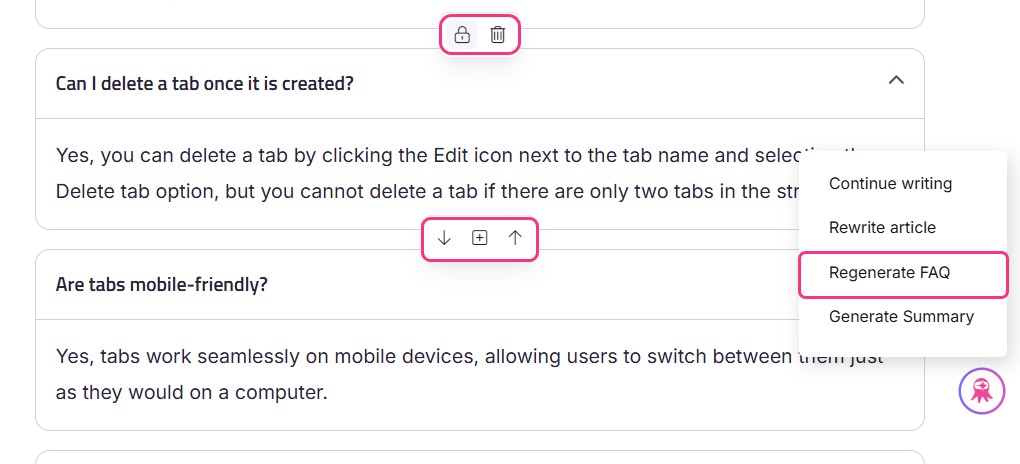
Each FAQ item has a set of controls that appear when you hover between items. Use these to reorder FAQ within the block without deleting and recreating them:
- Move up (↑) — moves the selected FAQ one position up in the list. Use this to prioritize a question or bring it closer to the top.
- Move down (↓) — moves the selected FAQ one position down in the list. Use this when a question would make more sense appearing later in the sequence.
- Add FAQ (+) — inserts a new blank FAQ item directly below the current one.
Deleting a FAQ item
- Click the FAQ item you want to remove.
- Select the Delete icon that appears above it.
This removes a single question and answer. To remove the entire FAQ section instead, see FAQ block options below.
Locking FAQ
Locking protects specific FAQ from being overwritten during regeneration. The Lock icon only appears when the FAQ or the article content has been generated using Eddy AI.
To lock a FAQ:
- Click the Lock icon next to the FAQ you want to protect.
- The FAQ is marked with a lock badge, indicating it is safeguarded from changes.
- You can still edit locked FAQ manually at any time.
To add new FAQ while keeping existing ones locked:
- Lock all existing FAQ.
- Click Regenerate. Eddy AI generates additional FAQ without altering the locked ones.
FAQ block options
Click the FAQ section to access the following options. Availability depends on how the FAQ block was created.
| Option | Description | Available on |
|---|---|---|
| Settings | Opens FAQ Settings for this specific article. | Both |
| Expand/Collapse | Shows or hides all FAQ answers in the editor. | Both |
| Regenerate | Generates new FAQ based on the current article content, without altering locked items. | AI FAQ Generator only |
| Delete | Removes the entire FAQ section. | Both |
To customize the FAQ section title, click the title directly and edit it to better fit your article.
Project-level FAQ settings
You can customize how FAQ appear across your entire knowledge base.
- Navigate to Settings () > Knowledge base site > Article settings & SEO.
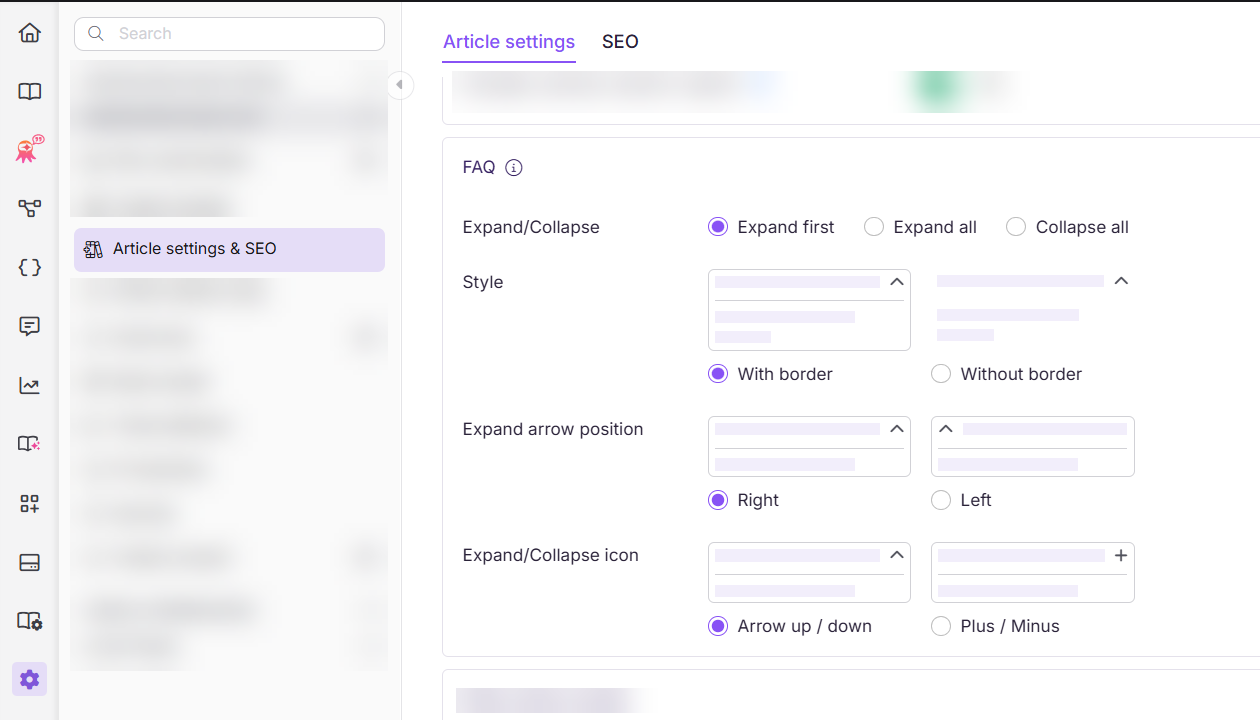
- In the Article settings tab, expand the FAQ accordion.
You can also access FAQ settings at the article level by clicking the Settings icon on the FAQ block. Changes made here apply to that article only and override the project-level settings.
To reset all settings back to their defaults, click the Reset button at the top of the FAQ Settings panel.
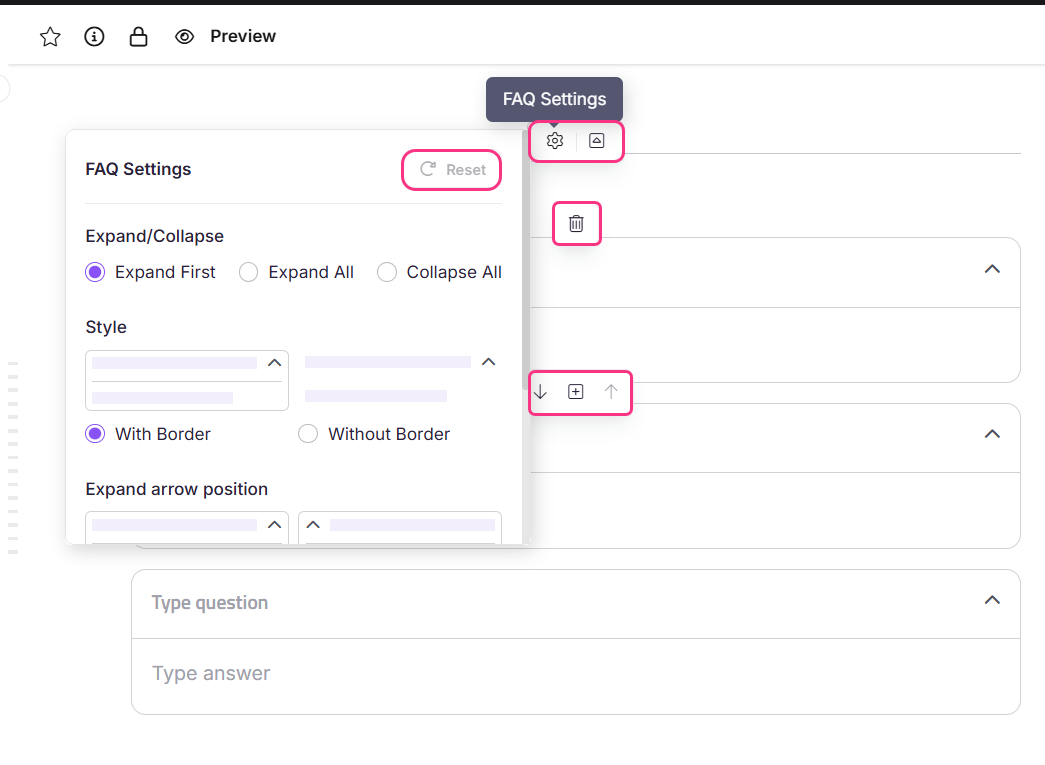
Expand/Collapse
Controls how FAQ items appear when a reader lands on the article.
| Option | What it does |
|---|---|
| Expand first | Only the first FAQ is expanded by default. Readers expand the rest as needed. Use this when you want to give readers a preview without overwhelming them. |
| Expand all | All FAQ are expanded when the page loads. Use this when readers are likely to read through all the answers. |
| Collapse all | All FAQ are collapsed by default. Readers must click each one to reveal the answer. Use this on articles with many FAQ to keep the page compact. |
Style
Controls the visual appearance of the FAQ border.
| Option | What it does |
|---|---|
| With border | Draws a border around all sides of each FAQ item. This is the default and works well for most articles. |
| Without border | Shows only a bottom border on each FAQ item, giving a cleaner, more minimal look. |
Expand arrow position
Controls where the expand/collapse arrow appears on each FAQ item.
| Option | What it does |
|---|---|
| Right | Places the arrow on the right side of the question header. This is the default. |
| Left | Places the arrow on the left side of the question header. |
Expand/Collapse icon
Controls the icon used to indicate that a FAQ can be expanded or collapsed.
| Option | What it does |
|---|---|
| Arrow up/down | Uses a chevron arrow that points up when expanded and down when collapsed. This is the default. |
| Plus/Minus | Uses a plus sign when collapsed and a minus sign when expanded. Use this for a more compact, form-like appearance. |
Settings configured here apply project-wide. Article-level settings override project-level settings for that specific article only. Use the Reset button in the FAQ Settings panel to restore all options to their defaults at any time.
Best practices
- Always review AI-generated FAQ before publishing. The generator produces between 5 and 10 questions based on content depth, but not all may be relevant or accurately answered.
- Lock FAQ that have been manually refined before regenerating, to avoid losing edits.
- Keep FAQ questions concise and written from the reader's perspective. Start with "How do I," "What is," or "Can I" phrasing.
- Use project-level settings to establish a consistent FAQ style across all articles, then use article-level settings only when a specific article needs a different behavior.
- Avoid duplicating content between the article body and the FAQ section. FAQ should complement the article, not repeat it.
FAQ
What is the difference between FAQ Templates and the AI FAQ Generator?
FAQ Templates insert a blank structure that you fill in manually and can be placed anywhere in the article. The AI FAQ Generator automatically creates questions and answers from your article content but always places them at the end of the article.
What is the difference between FAQ and Accordions?
FAQ Templates and the AI FAQ Generator are purpose-built for question-and-answer content and share project-level expand/collapse and style settings. Accordions are a general-purpose collapsible block with no predefined structure, useful for any collapsible content, not just FAQ. See Accordions for a full comparison.
