
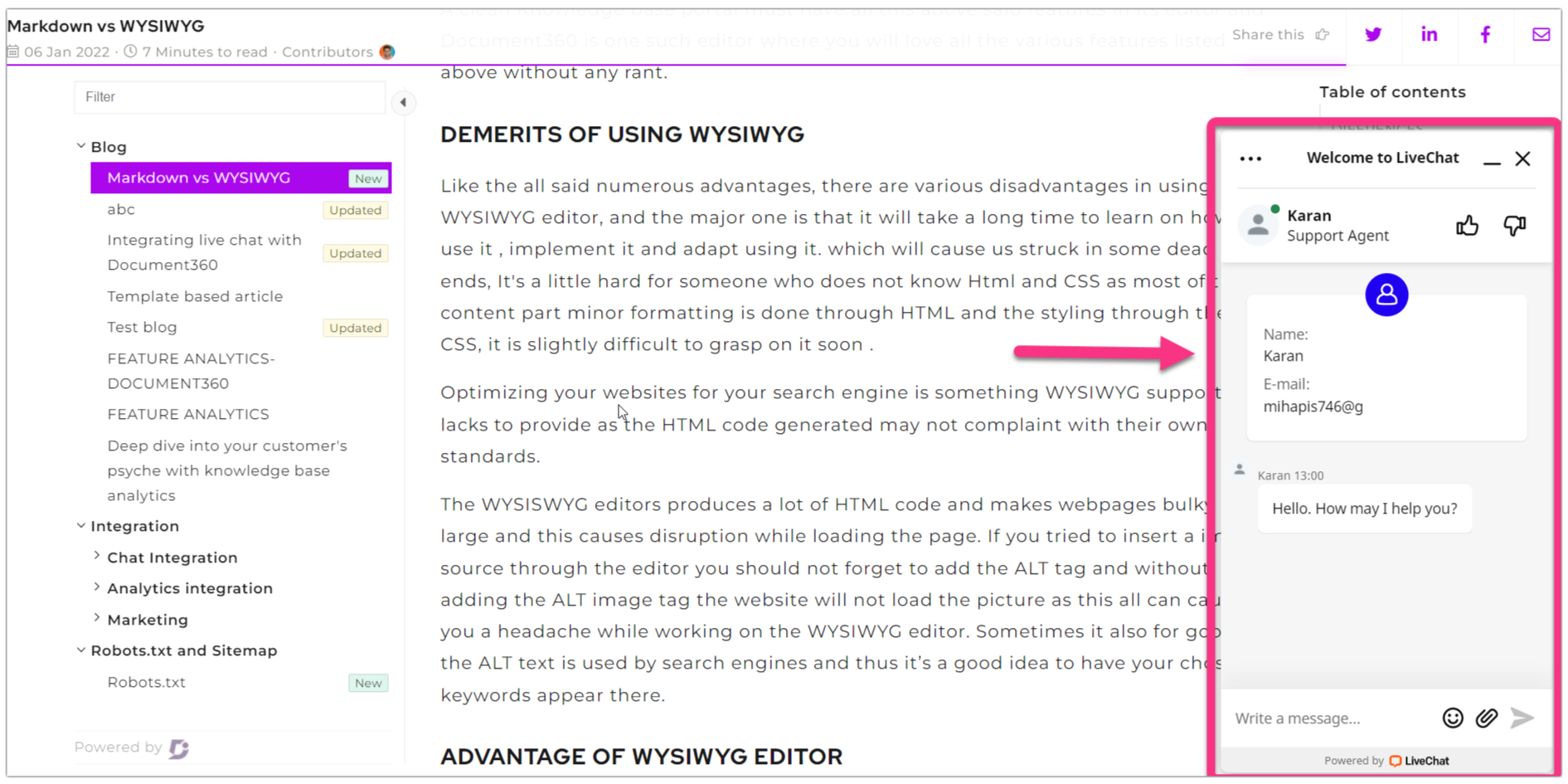
LiveChat is an AI-powered online customer service tool that makes real-time communication easy. Integrating LiveChat with your Document360 knowledge base lets customers get instant support while browsing your content, without having to leave the page. Your support team can handle multiple chats at once, reducing costs and improving customer satisfaction. You can also deploy bots to screen conversations and handle common queries automatically.
Before you begin
- You need a LiveChat account.
- You need your LiveChat ID. See How to find your LiveChat ID below.
How to find your LiveChat ID
The LiveChat ID is a unique code obtained from the LiveChat application. It is required to connect LiveChat with Document360.
Existing LiveChat user
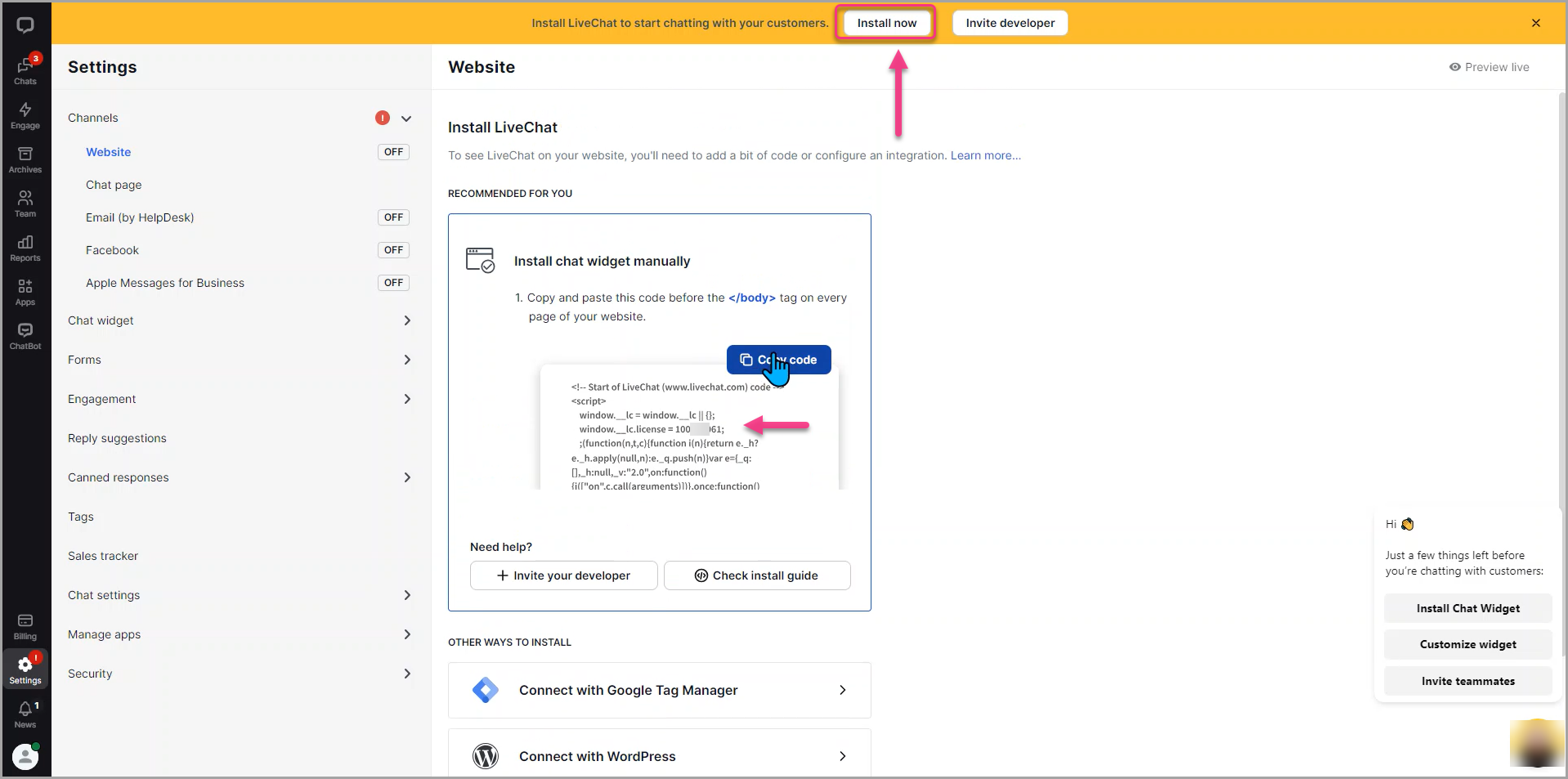
- Access your LiveChat dashboard and click Install in the top bar.
- In the Install chat widget manually section, find the LiveChat ID in the snippet code. It is identified by the prefix
window.lc.license=.
New LiveChat user
Your LiveChat ID is provided during the initial setup of your LiveChat account. Copy it during the installation process.
How to integrate LiveChat with Document360
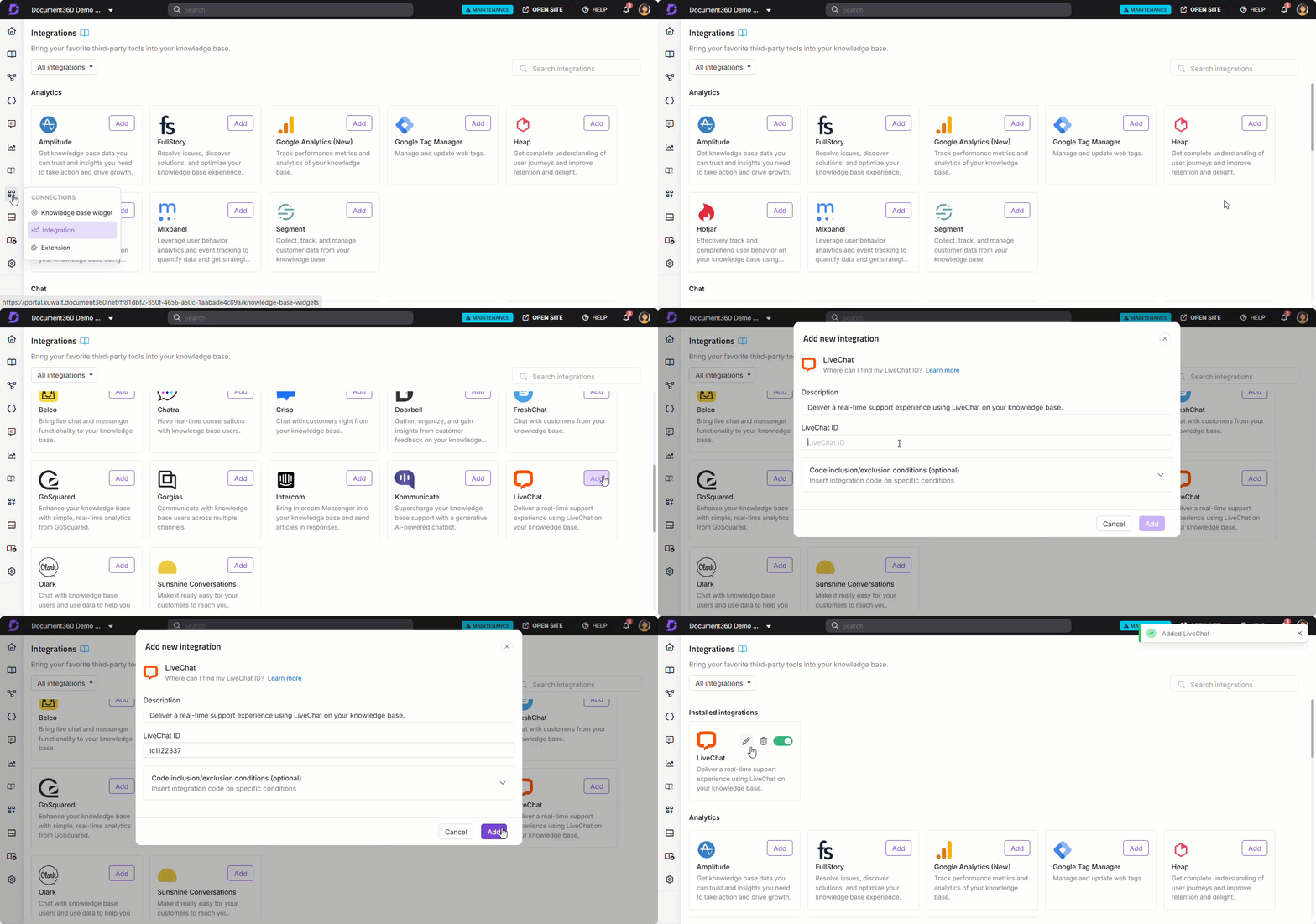
- In the Document360 portal, navigate to Connections () > Integrations () in the left navigation bar.
- Select LiveChat from the list of integrations and click Add. The Add new integration panel appears.
- Add a Description and enter your LiveChat ID.
The LiveChat ID is a unique code obtained from the LiveChat application. It is required to connect LiveChat and Document360 in the knowledge base portal.
- Optionally, expand Code inclusion/exclusion conditions to control when the integration runs based on IP address, Workspace, or Language.
- Click Add.
After setup, open your LiveChat account to view and reply to chats from your knowledge base visitors.
With LiveChat, you can deploy bots to screen conversations in your knowledge base chat box, helping to resolve common queries automatically and reduce the load on your support team.
Best practices
- Deploy bots to handle common knowledge base questions. Set up LiveChat bots to answer frequently asked questions automatically, so your support team only needs to handle more complex conversations.
- Use the multi-chat capability to improve response times. LiveChat lets a single agent handle multiple conversations simultaneously, reducing wait times for readers who need help.
- Use Code inclusion/exclusion conditions to control where the widget appears. If the LiveChat widget should only appear on certain workspaces or for specific languages, configure conditions to limit where the integration runs.
- Monitor chat transcripts to identify content gaps. Common questions coming through LiveChat that don't have a good article to reference are signals that new content is needed in your knowledge base.
- Test the chat widget after integration. Open your knowledge base site in a new browser tab and confirm the LiveChat widget loads and responds correctly before announcing it to your users.
FAQ
What is the LiveChat ID?
The LiveChat ID is a unique identifier obtained from the LiveChat application. Existing users can find it in the LiveChat dashboard by clicking Install and locating the value next to window.lc.license= in the Install chat widget manually section. New users receive it during the initial account setup.
Can LiveChat bots handle questions automatically?
Yes. After integrating LiveChat with Document360, you can deploy bots to screen conversations in the chat box. Bots can handle common queries automatically, helping to resolve reader questions without requiring an agent to respond.
Can a single agent handle multiple chats at once?
Yes. LiveChat is designed to let a single agent manage multiple conversations simultaneously, which helps reduce costs and keeps response times low even during busy periods.
Can I limit which workspaces or languages the LiveChat widget appears on?
Yes. When adding or editing the LiveChat integration, expand Code inclusion/exclusion conditions and add conditions based on IP address, Workspace, or Language. See Code inclusion and exclusion conditions for full details.
What can I do after completing the LiveChat integration?
After setup, open your LiveChat account to view and reply to chats from your knowledge base visitors. You can also configure bots, review chat transcripts, and monitor how readers are using the chat widget to identify opportunities to improve your knowledge base content.
