
/ in the input area to open the autocomplete menu, use arrow keys to navigate, and press Tab or Enter to select.
Built-in Maestro Commands
Maestro provides built-in slash commands that are handled internally (not sent to the AI agent):Skills Enumeration
The/skills command displays all Claude Code skills available in your project. Skills are extensions that provide domain-specific knowledge and capabilities to Claude Code.
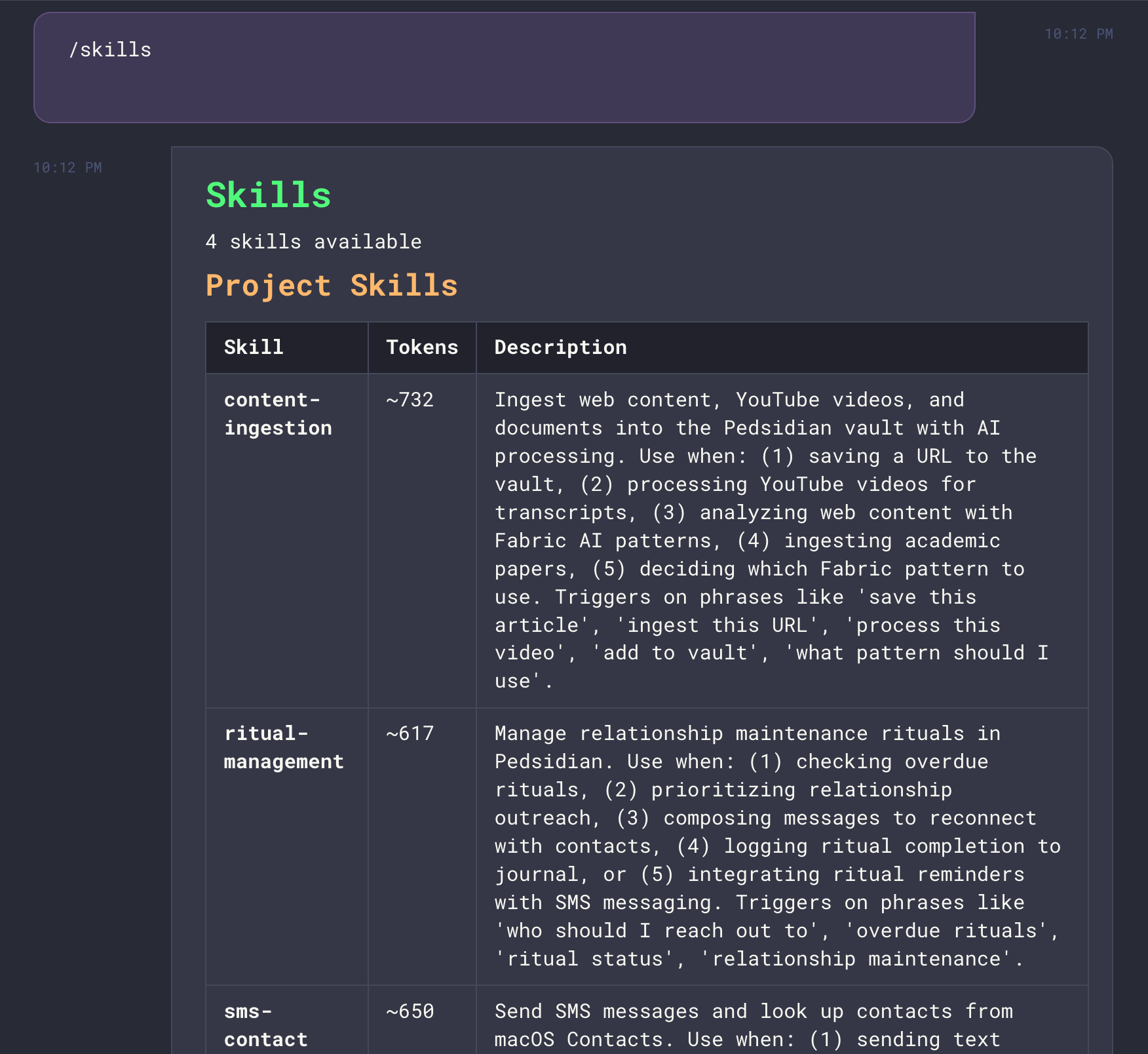
- Project skills:
.claude/skills/<skill-name>/skill.mdin your project directory - User skills:
~/.claude/skills/<skill-name>/skill.mdfor personal skills
The
/skills command is a Maestro feature that reads skill files directly - it doesn’t invoke Claude Code’s native /skills command (which requires an interactive terminal).Custom AI Commands
Create your own slash commands in Settings → AI Commands. Each command has a trigger (e.g.,/deploy) and a prompt that gets sent to the AI agent.
Commands support template variables that are automatically substituted at runtime. These same variables also work in core system prompts.
Conductor Variables
Agent Variables
Path Variables
Auto Run Variables
Date/Time Variables
Git & Context Variables
Example: A custom
/standup command with prompt:
Passing Arguments to Commands
Any text typed after a slash command is treated as arguments and included in the prompt sent to the agent. Explicit placement with$ARGUMENTS: Use $ARGUMENTS in your prompt to control exactly where user input is inserted:
/plan user authentication flow sends: Create a plan for: user authentication flow
Automatic appending: If your prompt doesn’t contain $ARGUMENTS, any trailing text is automatically appended after the prompt:
/commit fix the login bug sends:
Spec-Kit Commands
Maestro bundles GitHub’s spec-kit methodology for structured feature development:
See Spec-Kit Commands for the complete workflow guide.
OpenSpec Commands
Maestro bundles OpenSpec for spec-driven change management. These commands help you propose, implement, and archive changes systematically:
See OpenSpec Commands for the complete workflow guide and directory structure.
Agent Native Commands
When using Claude Code, Maestro automatically discovers and displays the agent’s native slash commands in the autocomplete menu. These commands are sent via thesystem/init event when Claude Code starts and appear with a “Claude Code command” label to distinguish them from Maestro’s custom commands.
Supported in Batch Mode
Claude Code runs in batch/print mode within Maestro, which means only certain native commands work. The following commands are supported:
Additionally, any custom commands from Claude Code plugins/skills (e.g.,
/commit, /pdf, /docx) are fully supported and will appear in the autocomplete menu.
