Overview
The ScrapeGraphAI app for Make.com lets you connect any automation scenario to ScrapeGraph’s v2 API — no code required. Fetch pages, extract structured data with an AI prompt, run web searches, kick off multi-page crawls, and schedule monitors, all as native Make modules.ScrapeGraphAI on Make
Install the app from Make’s marketplace
ScrapeGraphAI Dashboard
Get your API key
Installation
- Open your Make.com workspace and go to Connections.
- Search for ScrapeGraphAI and click Install.
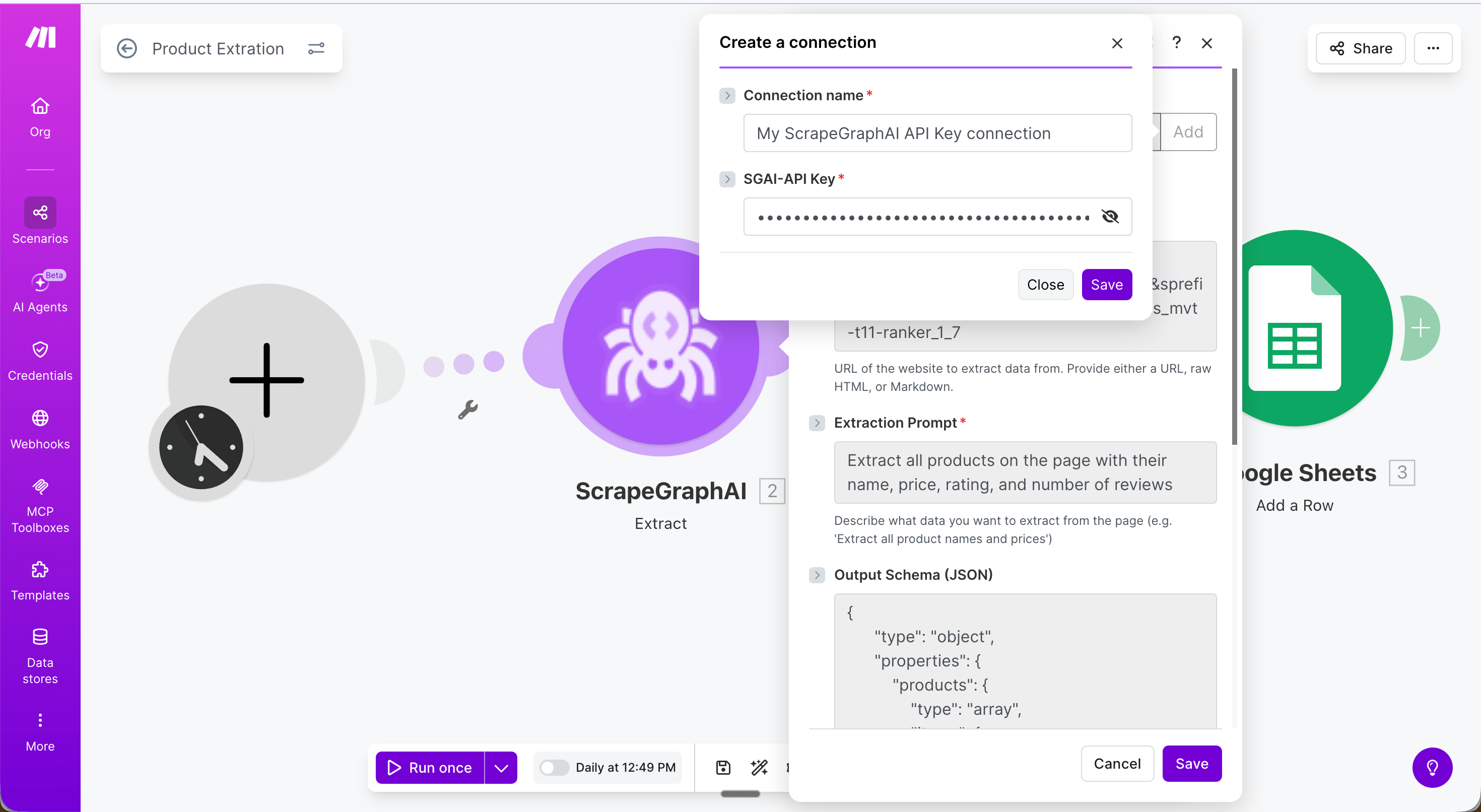
- When prompted, enter your
SGAI-APIKEYfrom the dashboard. - Click Save — the connection is shared across all modules in your scenario.
Example: Extract product data into Google Sheets
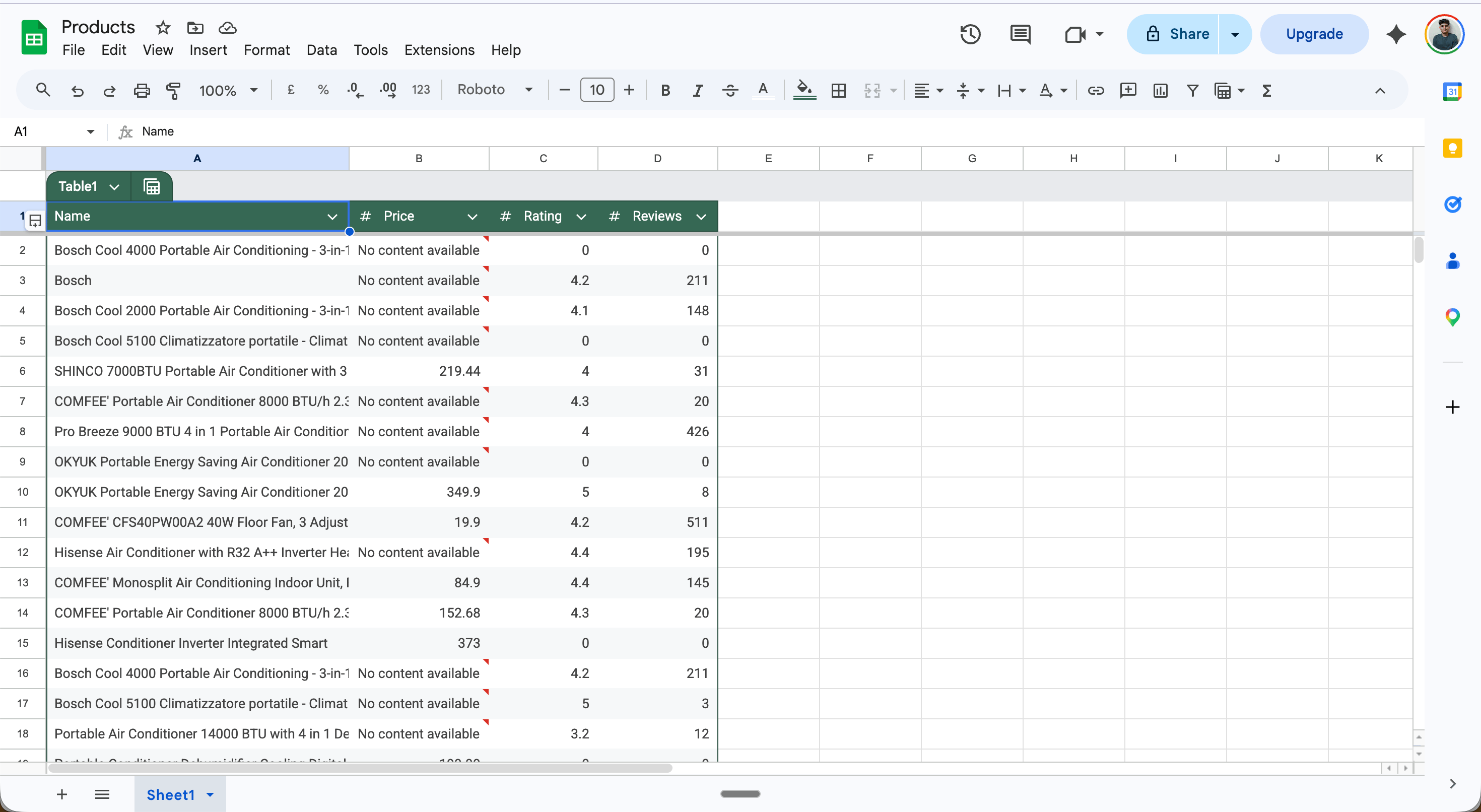
This scenario runs daily, extracts all products from an Amazon search page, and saves each one as a row in Google Sheets — no code required. Full scenario flow: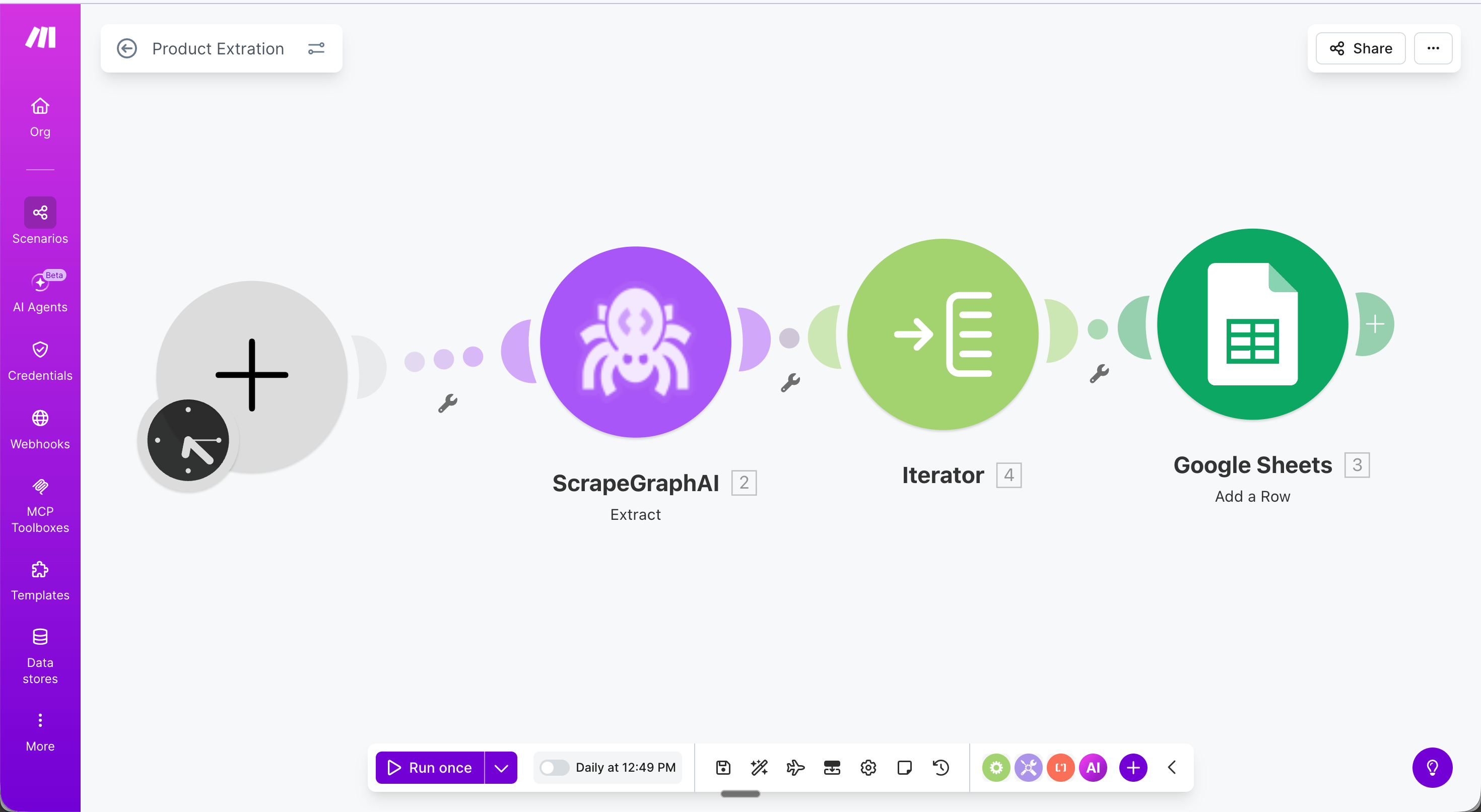
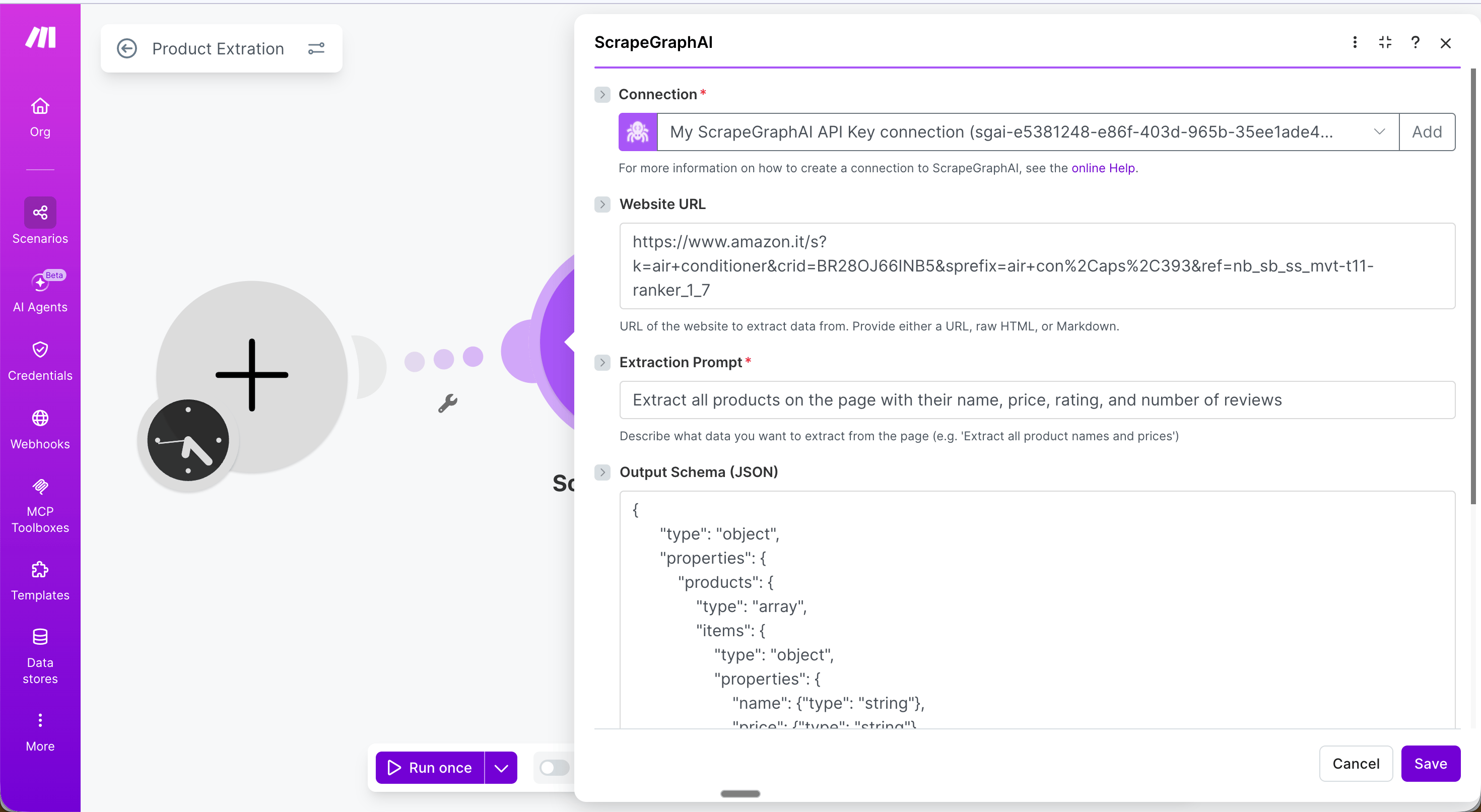
- URL: The product listing page to extract from
- Extraction Prompt:
Extract all products on the page with their name, price, rating, and number of reviews - Output Schema (JSON):
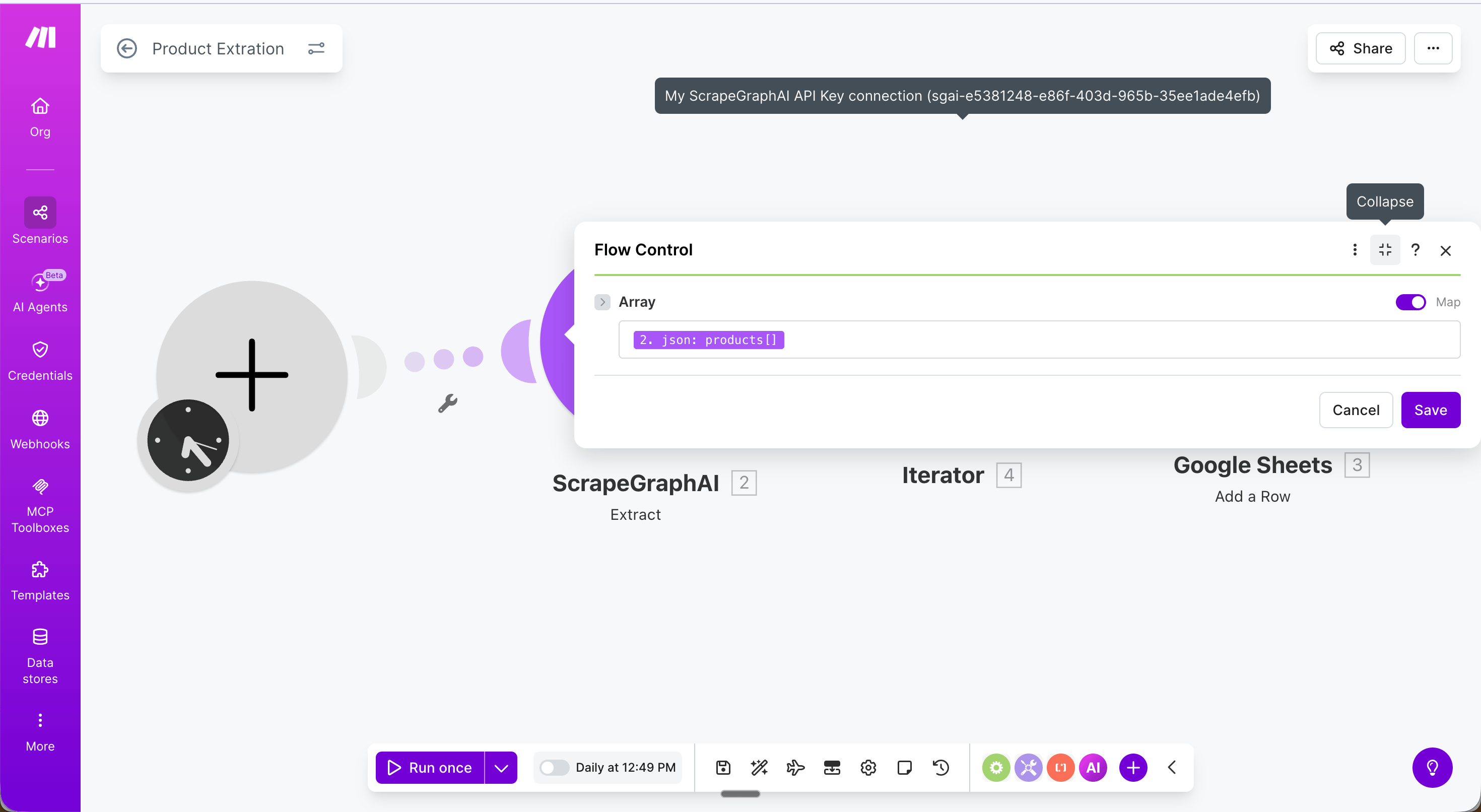
{{2.json.products}}. This loops through each product and passes it to the next module one at a time.
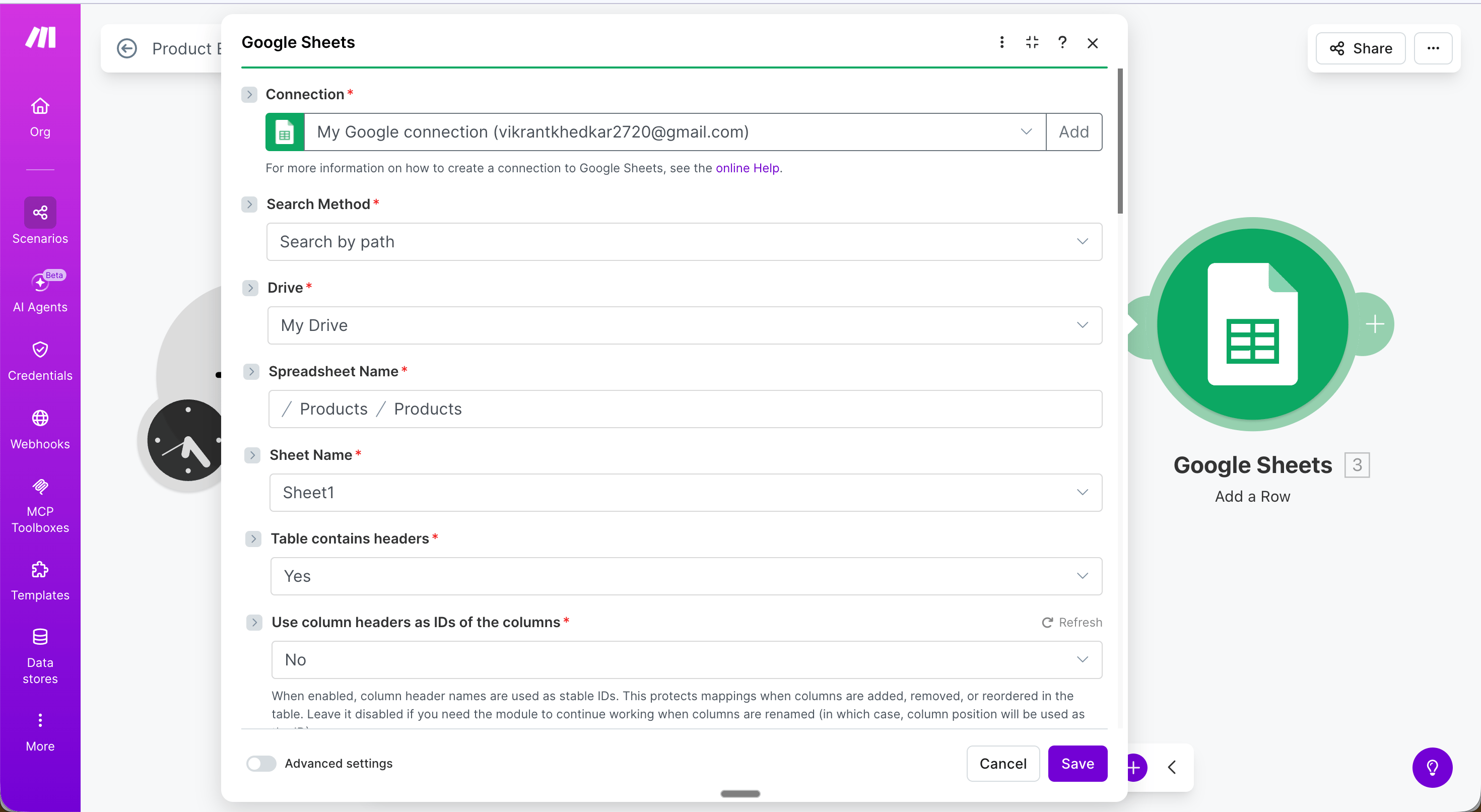
- Name →
{{value.name}} - Price →
{{value.price}} - Rating →
{{value.rating}} - Reviews →
{{value.reviews}}
Modules
Scrape a URL
Fetch a URL and return its content in one or more formats: Markdown, HTML, links, images, a plain-text summary, or branding elements.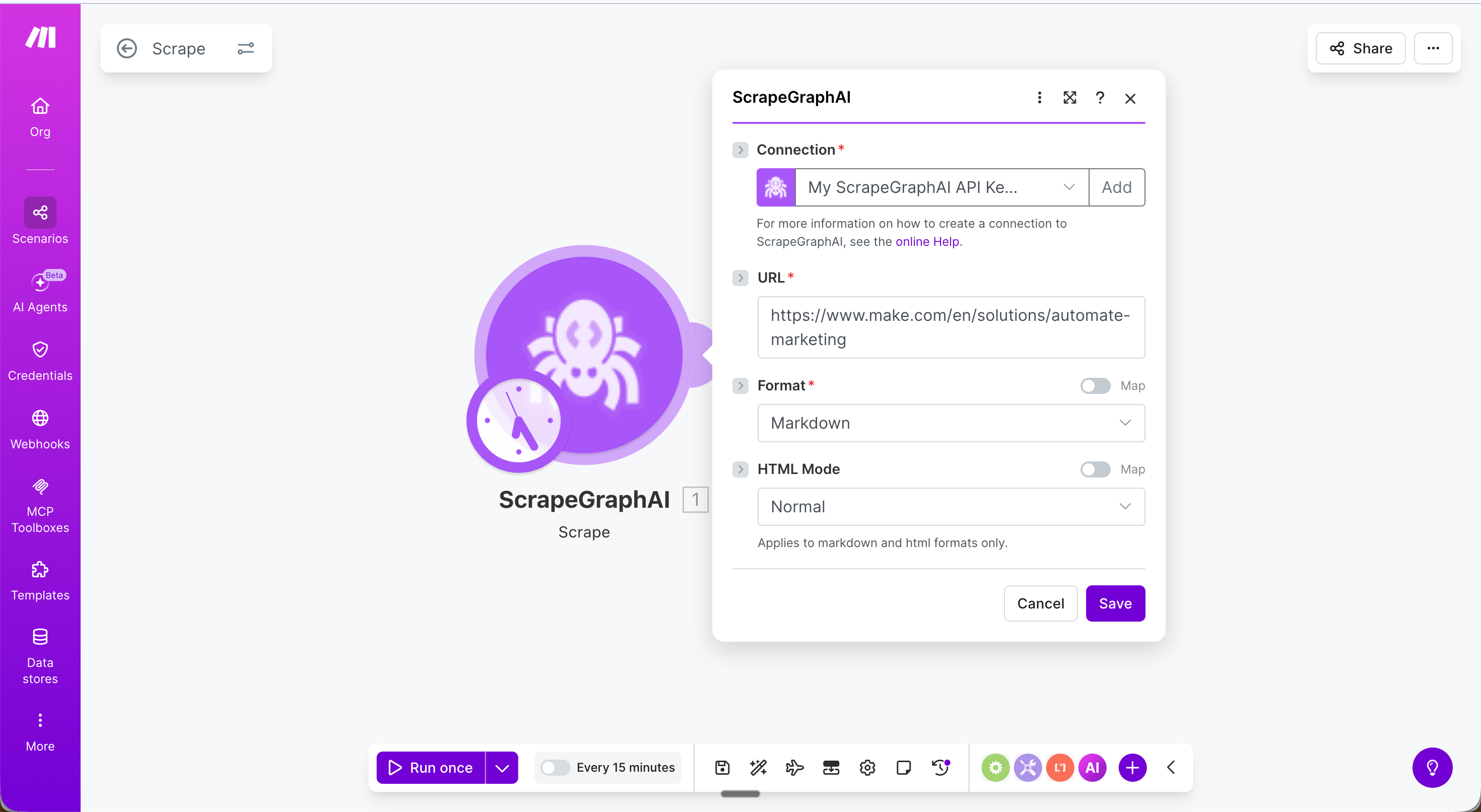
Extract data from URL
Send a URL, raw HTML, or markdown to ScrapeGraph and get back structured JSON — driven by a natural-language prompt and an optional JSON schema.Search web
Run a web search and get page content returned inline — optionally with AI extraction applied to each result.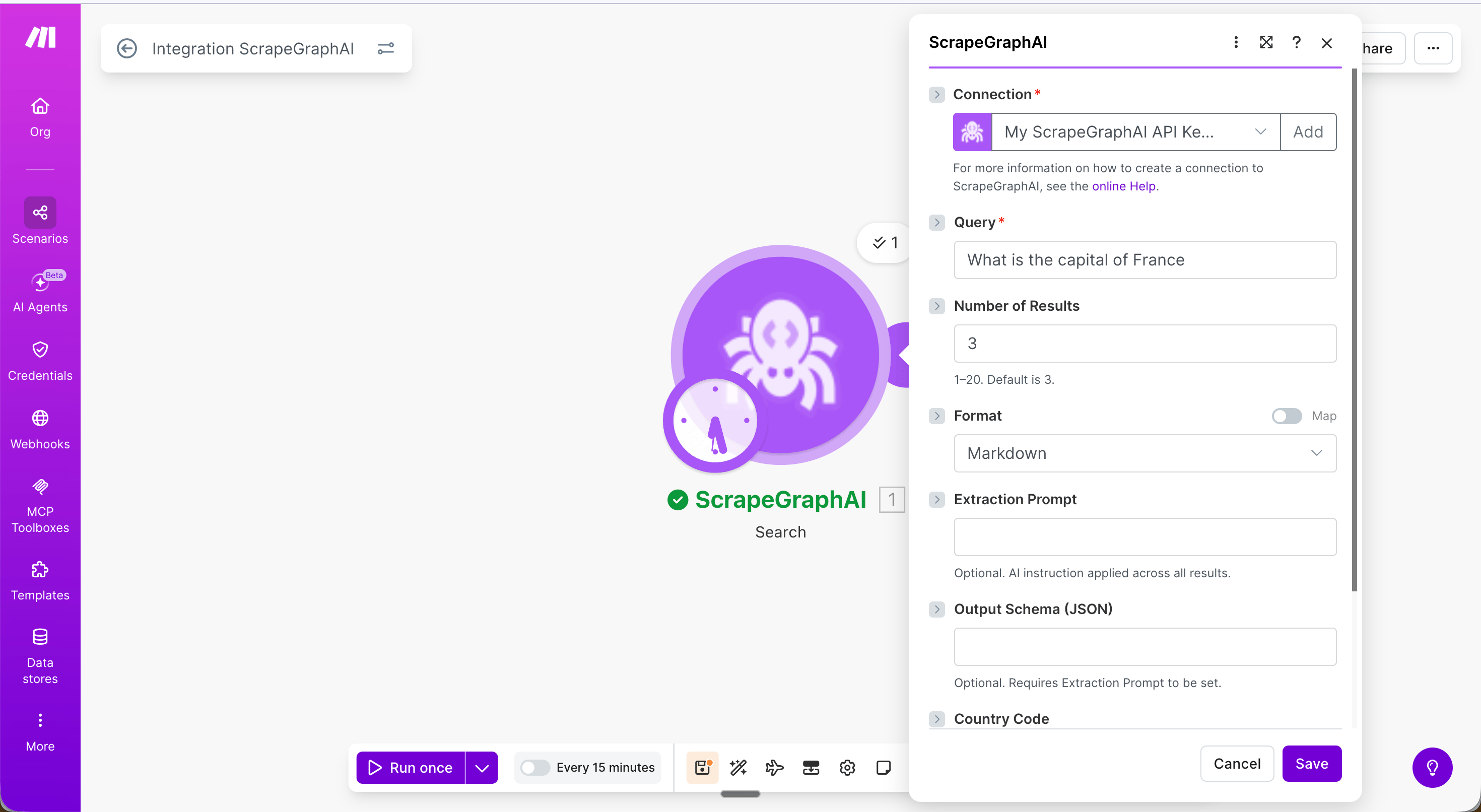
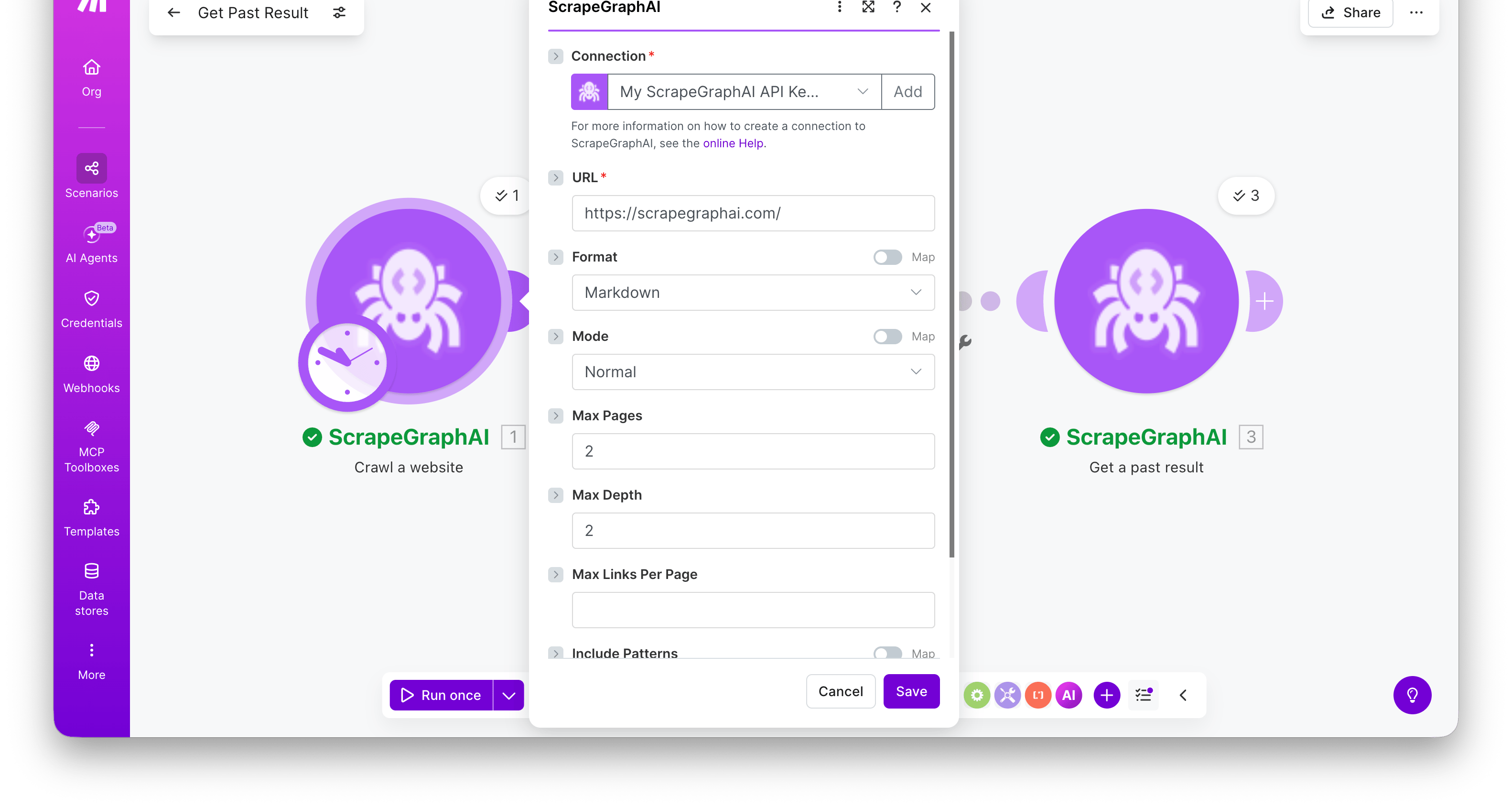
Crawl a website
Start a multi-page crawl from an entry URL. The module polls internally and returns the completed crawl in a single bundle — apages array with one entry per crawled page, each carrying a scrapeRefId you can pass to Get a past result to fetch its full content.
Output:
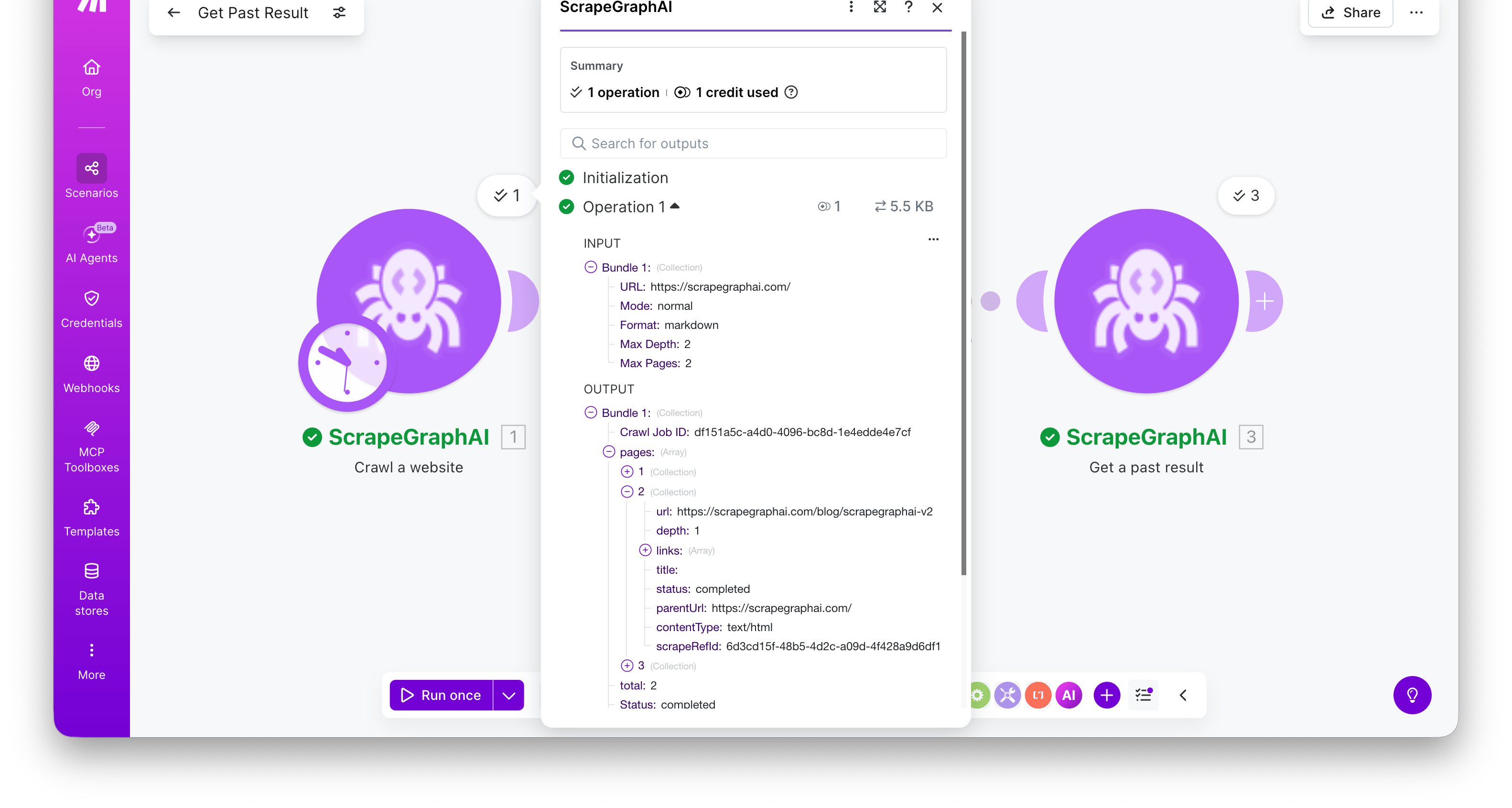
Crawl Job ID, a Status of completed, and a pages[] array. Each page has url, depth, title, contentType, status, and scrapeRefId.
Create monitor
Schedule ScrapeGraph to fetch a URL on a recurring cron schedule and detect changes between runs.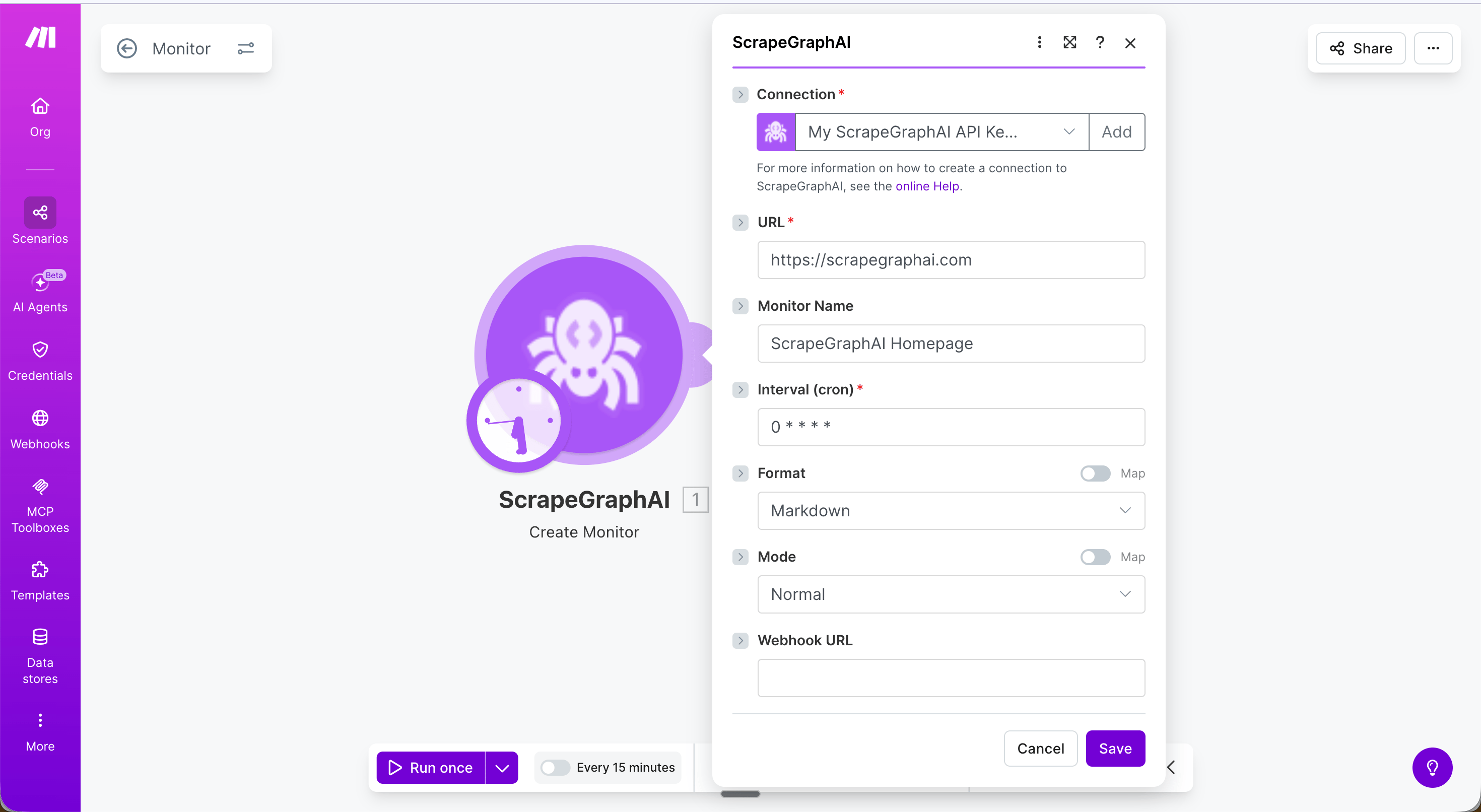
Common cron expressions
Run Create monitor once manually to set up the monitor, then use Get monitor activity in a separate scheduled scenario to fetch what changed.
Get monitor activity
Fetch the latest activity ticks from an existing monitor.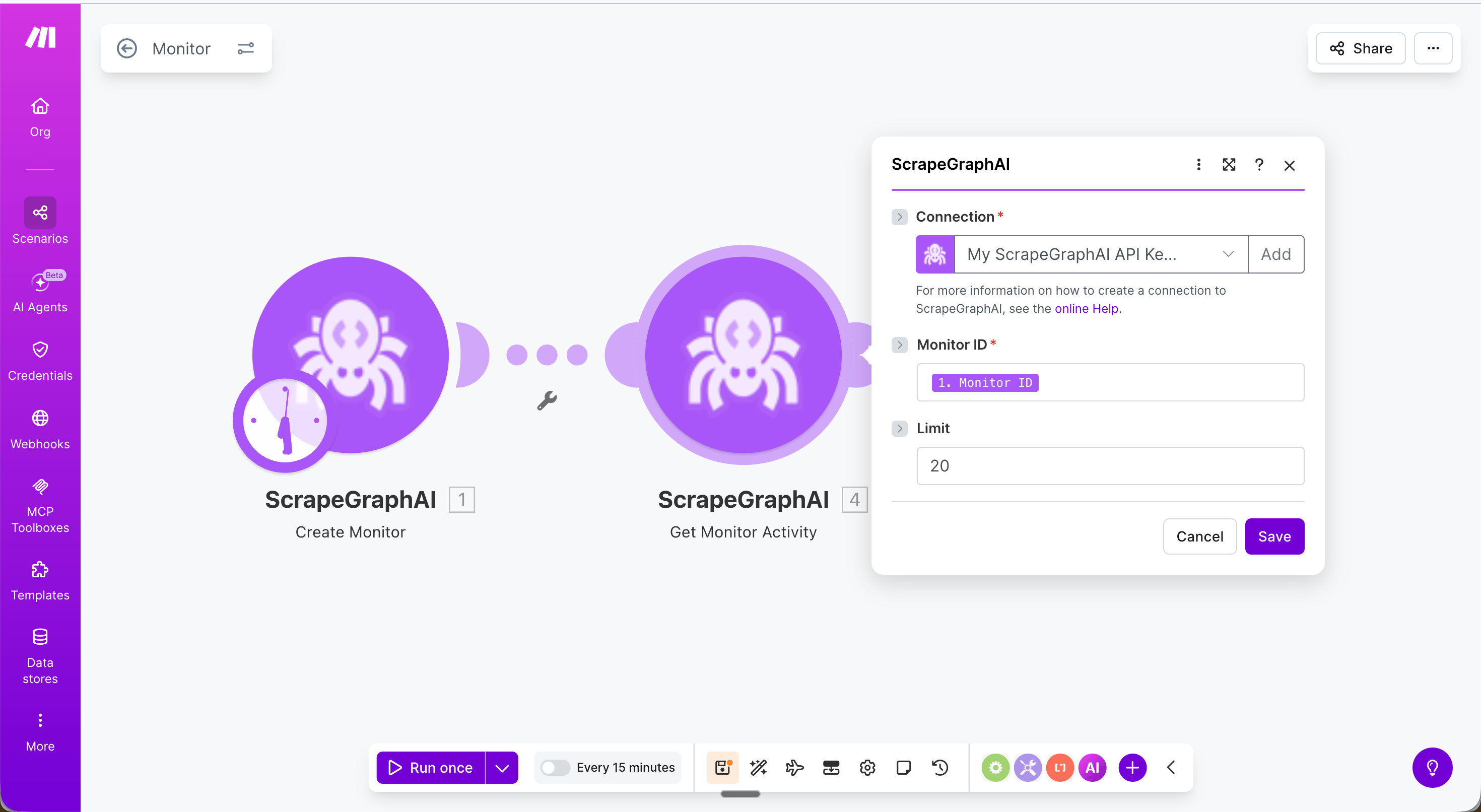
Returns a
ticks array where each entry has changed (boolean), diffs, status, and createdAt.
Update monitor
Edit an existing monitor’s interval, format, webhook, or fetch config without deleting and recreating it.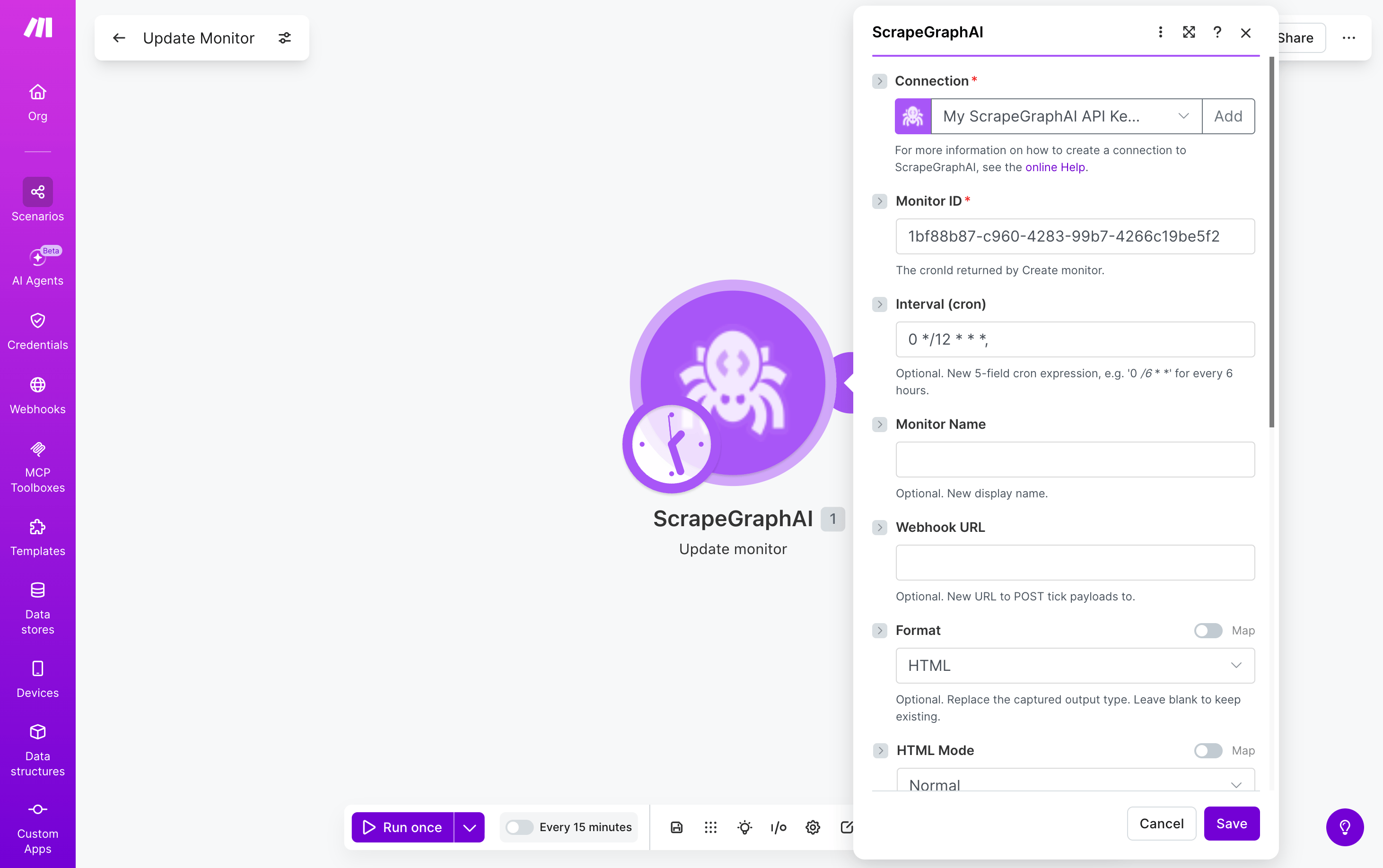
Any field left blank is left unchanged on the monitor. Returns the updated monitor record.
Get a past result
Fetch a stored job result by its ID. Most useful for retrieving the full content of a crawled page using thescrapeRefId from Crawl a website.
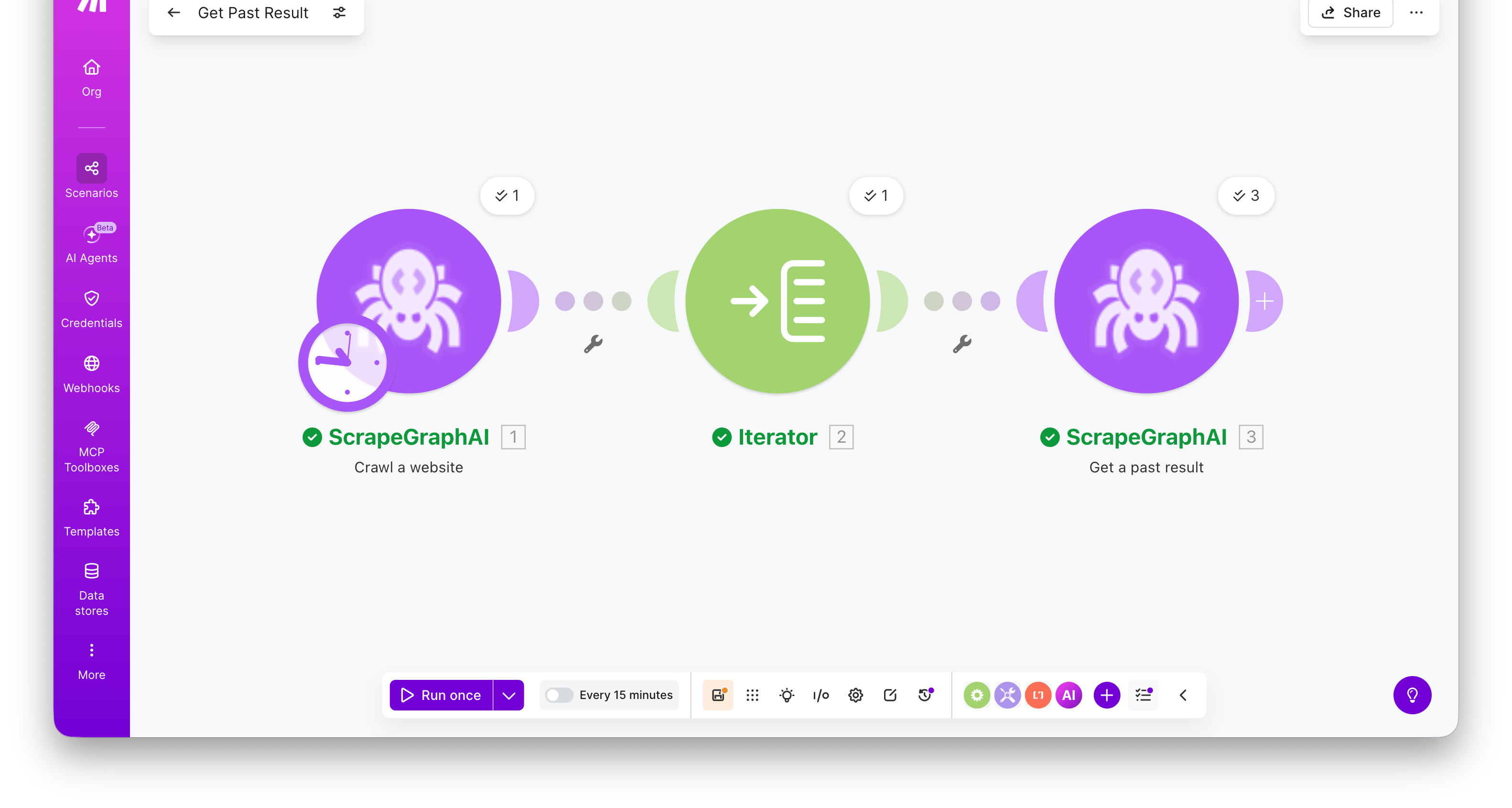
Returns the full stored entry —
result (the original response payload), metadata (content type and other run details), params (the inputs the job was run with), service, status, and createdAt.
List past results
Browse recent ScrapeGraphAI jobs filtered by service type. Search-style module — emits one bundle per entry, ready to fan out into downstream modules.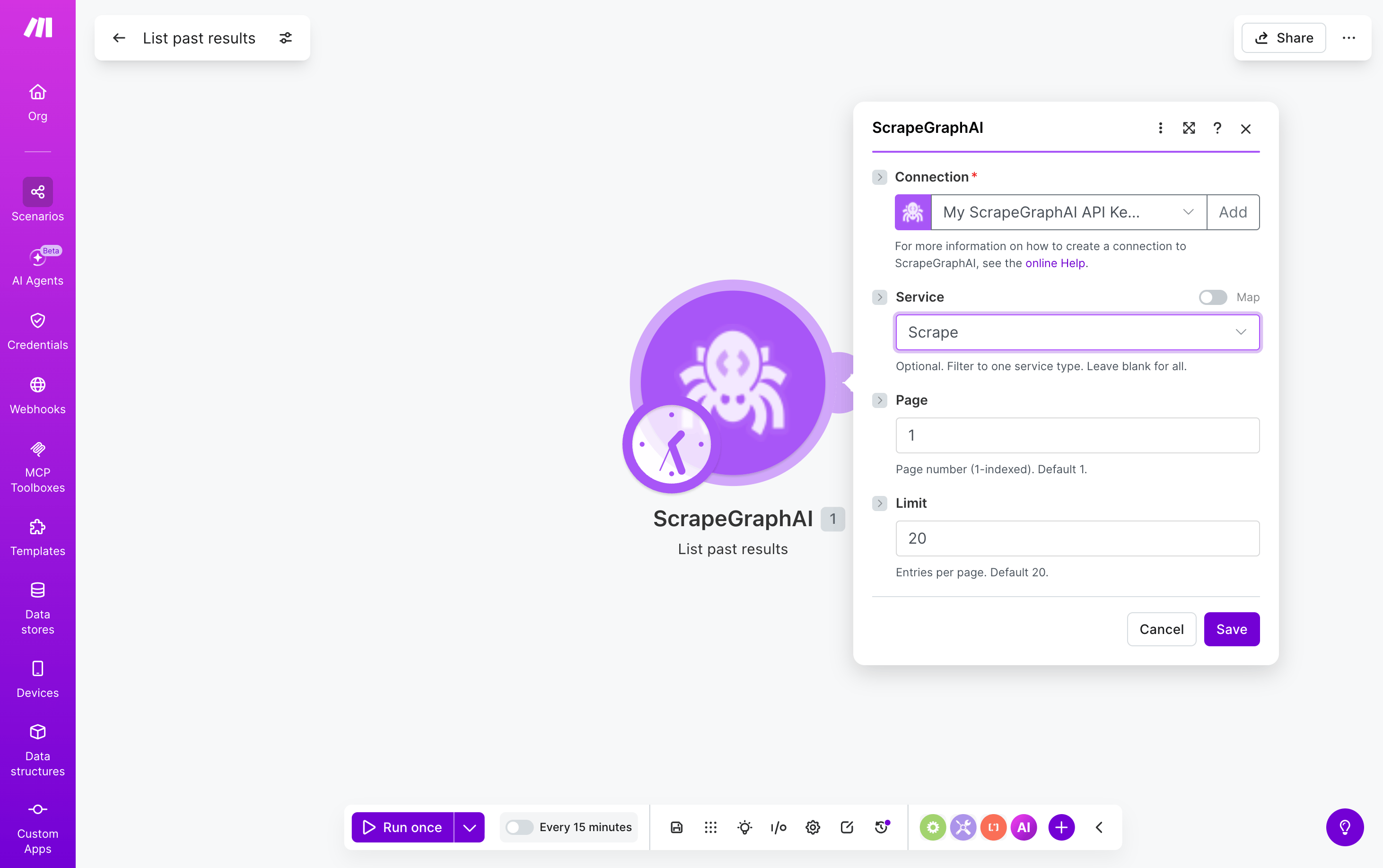
Each emitted bundle has
id, service, status, url, createdAt, and other run metadata. Pipe a bundle’s id into Get a past result to retrieve the full stored payload.
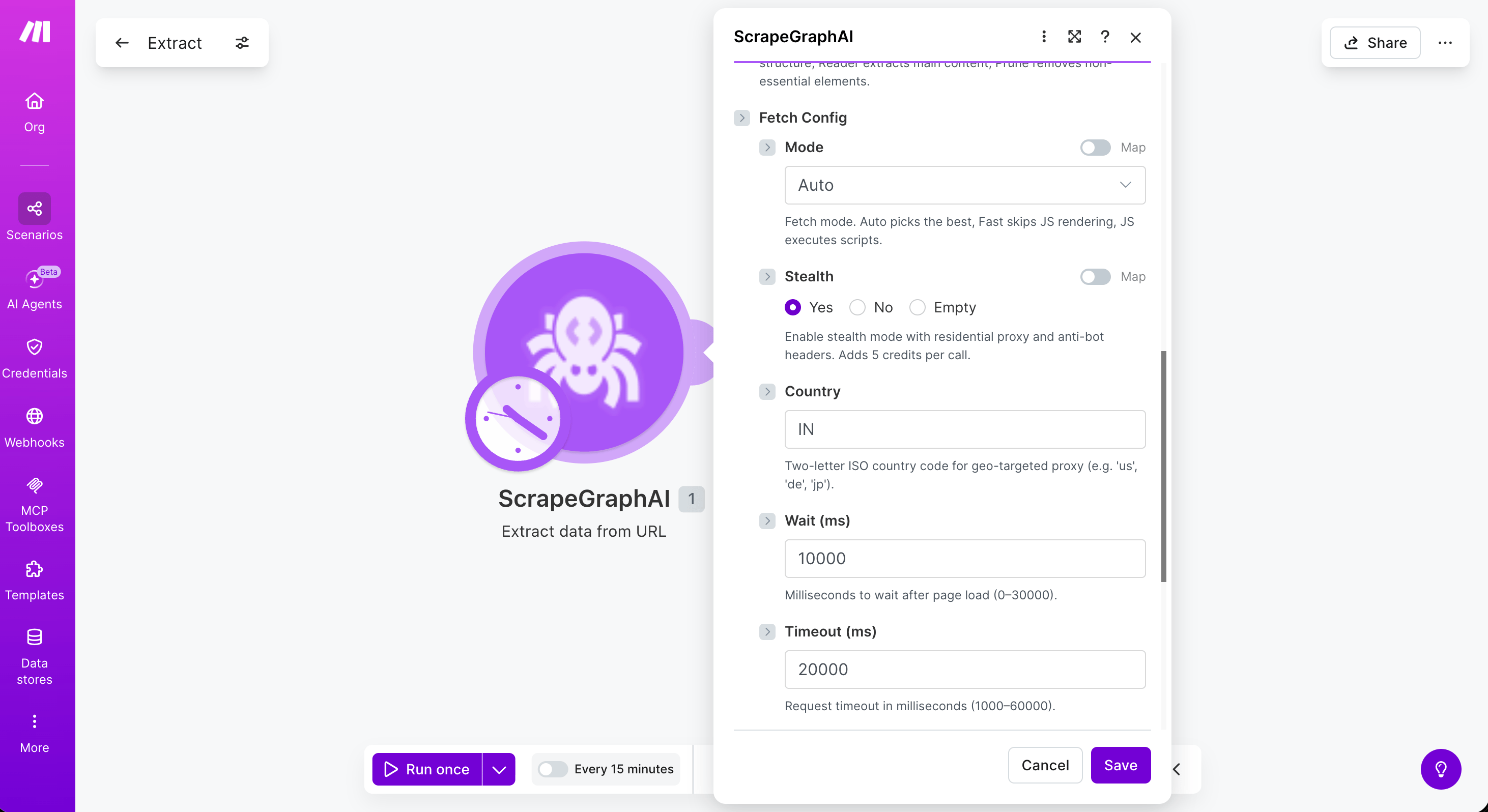
Fetch Config
Five modules — Scrape a URL, Extract data from URL, Search web, Crawl a website, and Create monitor — accept an optional Fetch Config collection that controls how each page is fetched. Leave it empty to use defaults.