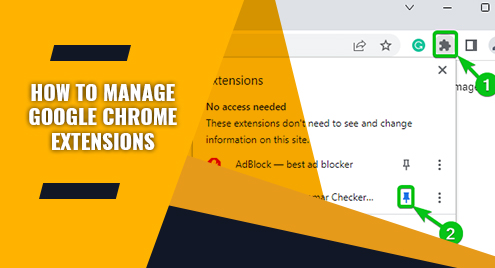
In this article, I am going to show you how to add new extensions to Google Chrome, pin extensions to Google Chrome to quickly access them, and remove extensions from Google Chrome.
Table of Contents
- Adding Google Chrome Extensions from Chrome Web Store
- Adding Google Chrome Extensions from Third-Party Websites/Services
- Pinning Google Chrome Extensions
- Listing Installed Google Chrome Extensions
- Enabling/Disabling Google Chrome Extensions
- Removing Google Chrome Extensions
- Conclusion
Adding Google Chrome Extensions from Chrome Web Store
To add an extension to Google Chrome from the Chrome Web Store, visit Chrome Web Store.
Then, type in a keyword in the search bar and press <Enter>.
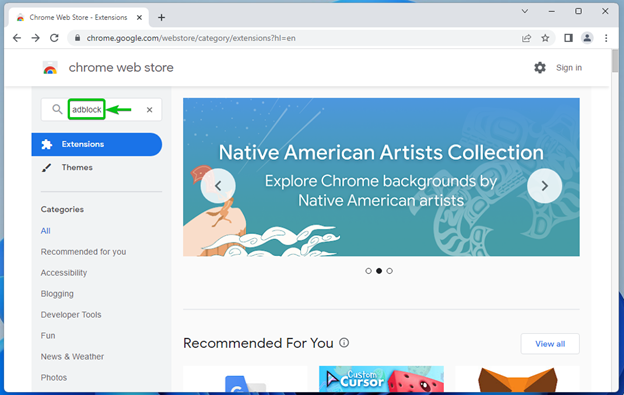
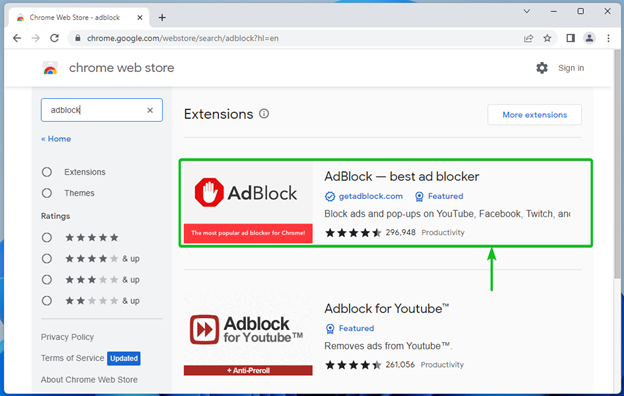
All the extensions that matched the keyword should be listed.
Click on an extension that you want to add to Google Chrome.
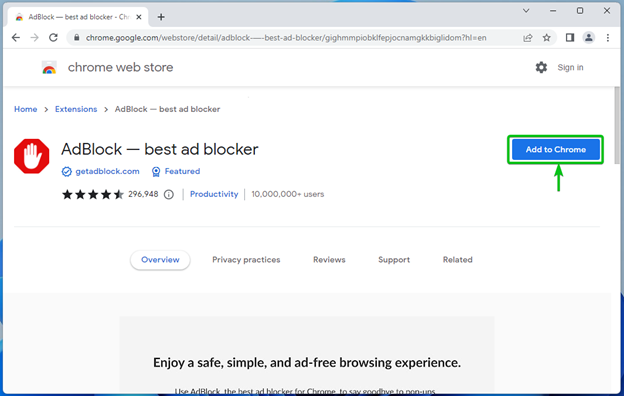
A dedicated page for the extension should be opened. Here, you will find a lot of information about the extension that you are interested to add to Google Chrome.
Click on Add to Chrome to add the extension to Google Chrome.
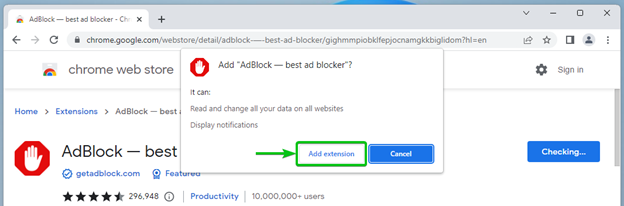
Click on Add extension.
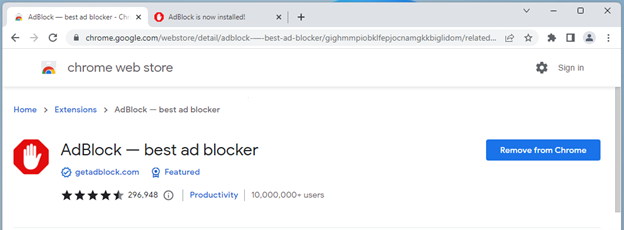
The extension should be added.
Adding Google Chrome Extensions from Third-Party Websites/Services
Some Google Chrome extensions are hidden from the Chrome Web Store on purpose. So, they do not show up in the search results. If you want to add them to Google Chrome, you will have to do so from their respective official website.
For example, the Grammarly Google Chrome extension is hidden from the Chrome Web Store. If you want to add Grammarly to Google Chrome, you will have to get it from the official website of Grammarly.
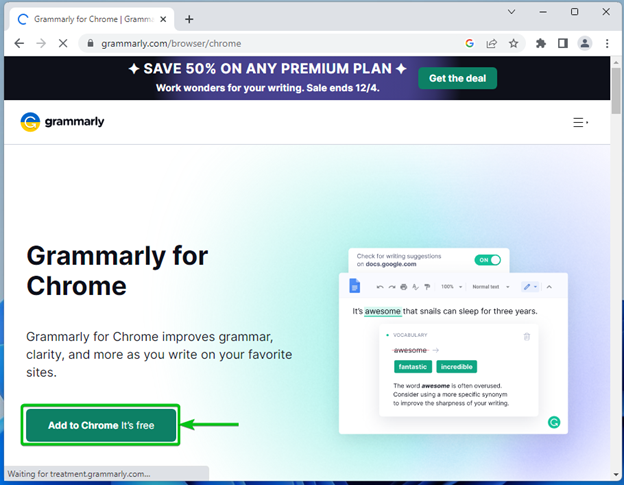
Once you visit the official Google Chrome extensions page of Grammarly, click on Add to Chrome.
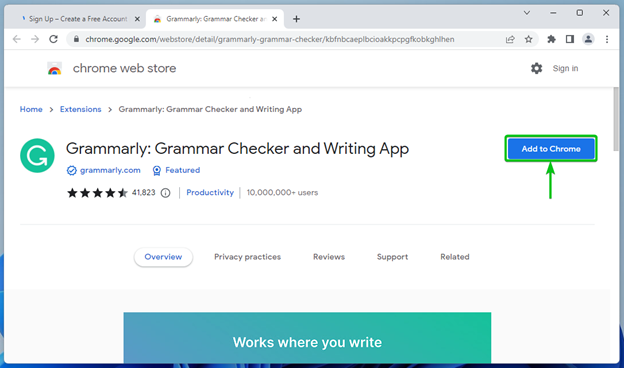
You will be taken to the Chrome Web Store.
Click on Add to Chrome to add Grammarly to Google Chrome.
Click on Add extension.

The extension should be added.

Pinning Google Chrome Extensions
You can pin the extensions that you have added to Google Chrome to quickly access them.
To pin extensions, click on  from the top-right corner of Google Chrome and all the added Google Chrome extensions should be listed[1]. To pin an extension from the list, click on
  [2].
[2].
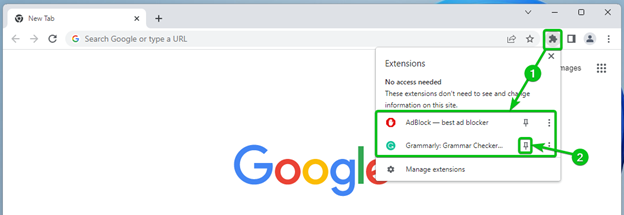
Your desired extension should be pinned to Google Chrome.
Once the extension is pinned, you can click on it from the top-right corner of Google Chrome to quickly access it.
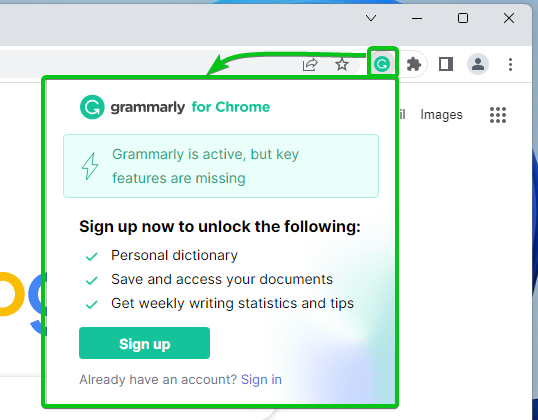
To unpin an extension, click on from the top-right corner of Google Chrome[1]. From the list of available extensions, click on  to unpin an extension of your choice[2].
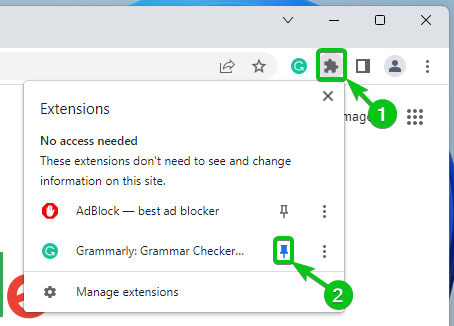
The extension should be unpinned.

Listing Installed Google Chrome Extensions
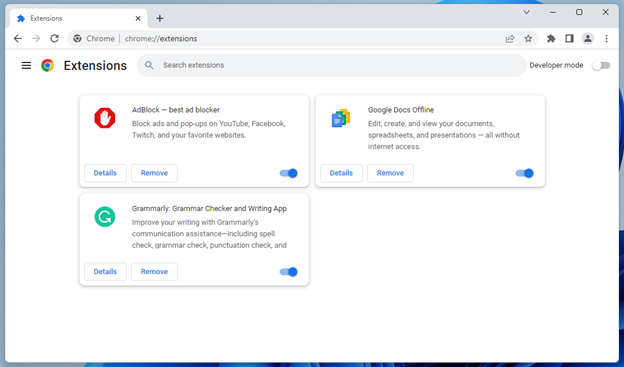
To list all the installed Google Chrome extensions, open Google Chrome and click on  > More tools > Extensions.

Or visit chrome://extensions from Google Chrome.
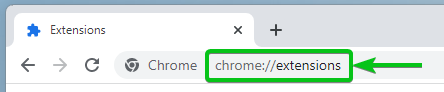
All the extensions that you have added to Google Chrome should be listed.
Enabling/Disabling Google Chrome Extensions
When the marked toggle button is blue, an extension is enabled.
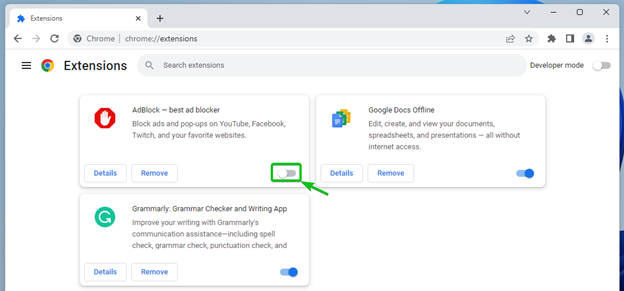
To disable an extension, click on the respective toggle button.

The extension should be disabled (the toggle button should be grayed out).
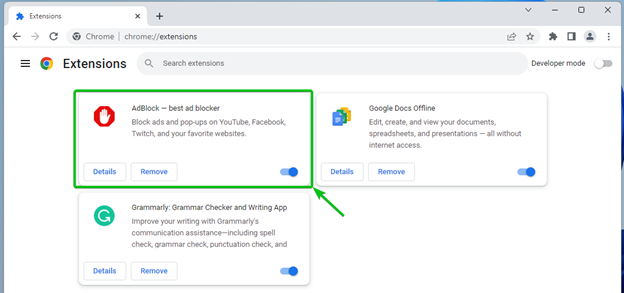
To enable the extension again, click on the toggle button.
The extension should be enabled again.
Removing Google Chrome Extensions
To remove a Google Chrome extension, click on Remove.

Click on Remove to confirm the action.

The extension should be removed from Google Chrome.

Conclusion
In this article, I have shown you how to add new extensions to Google Chrome, pin extensions to Google Chrome to quickly access them, and remove extensions from Google Chrome.

