.svg)
Narrate Powerpoint 100x faster with Murf
Say goodbye to tedious narrations! With Murf PPT plugin, create fast, natural voice overs from speaker notes while keeping animations and transitions intact in your PowerPoint Presentation.
.webp)
Why Murf is the Top Choice for PowerPoint Narrations?
All in one Voiceover creation
Create, edit, and sync voiceovers without leaving PowerPoint. Murf's plugin eliminates the need for exporting speaker notes, using separate tools, or manual imports, streamlining your workflow and saving time.
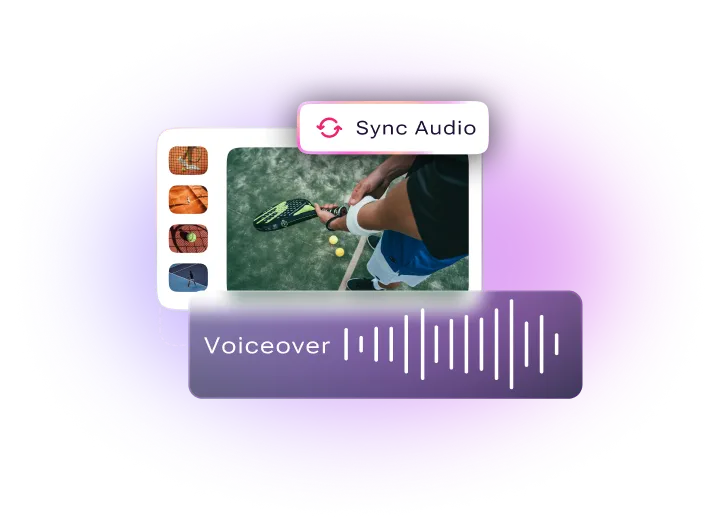
Retains All PowerPoint Features
Maintain all PowerPoint features while adding voiceovers. Murf's integration keeps your animations, transitions, and slide timings intact, ensuring your presentations remain dynamic and engaging.
.webp)
Effortless Studio-Quality Content Creation
Produce professional voiceovers and engaging videos in minutes. Save 100+ hours with automated updates, delivering high-quality content that maximizes digital impact efficiently.
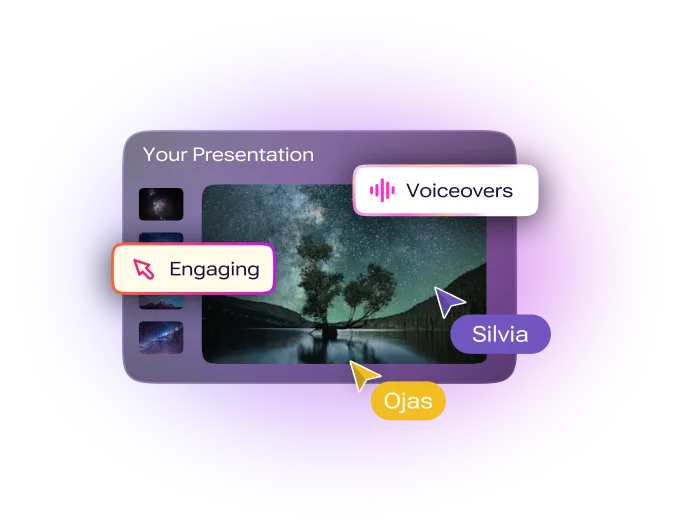
How does Murf Enhance PowerPoint narrations?
How to Add Murf Voices to PowerPoint?
1
Download and install the Murf plugin from the Murf website.
2
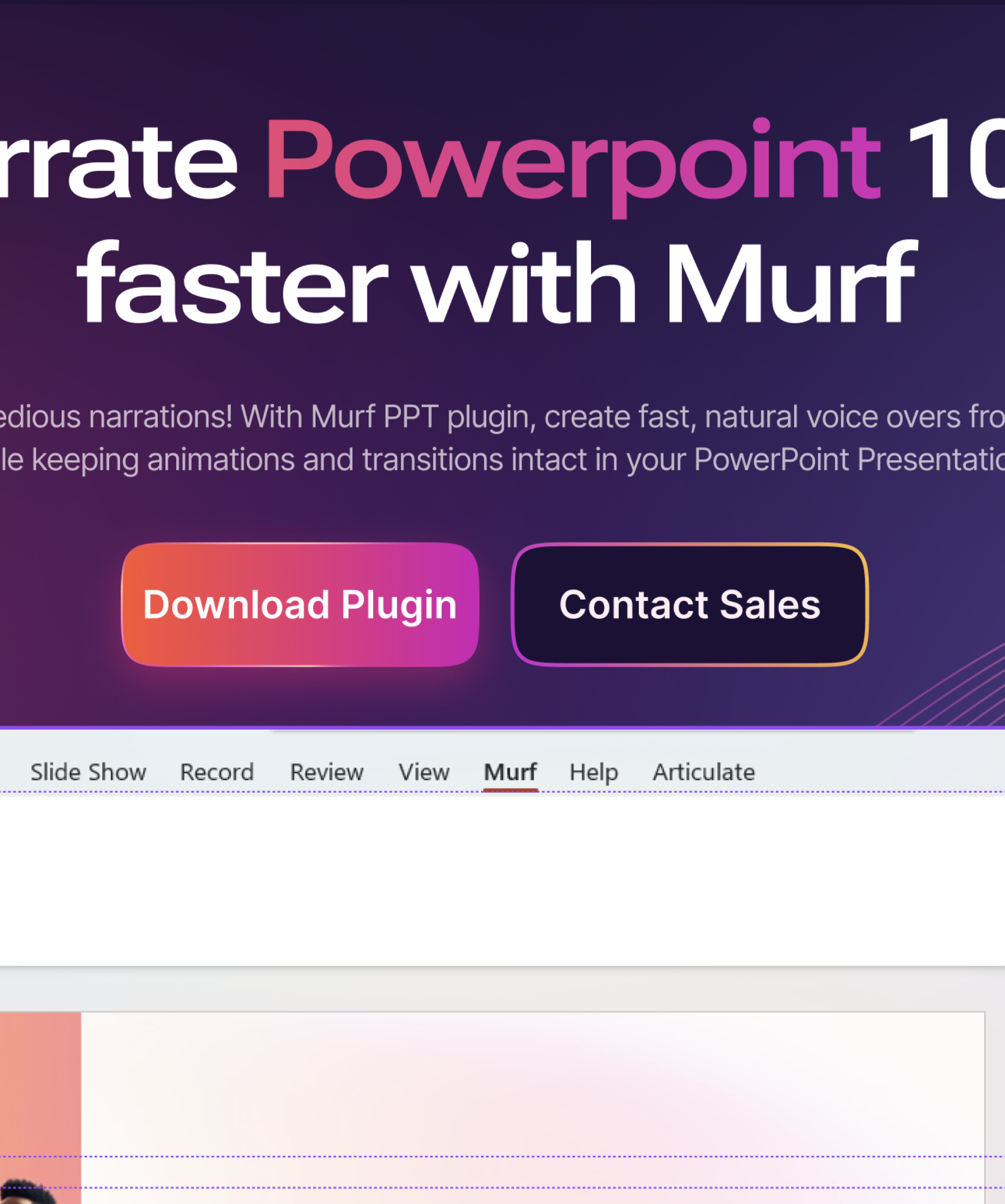
Open PowerPoint, navigate to the Murf tab, and log into your Murf account.
3
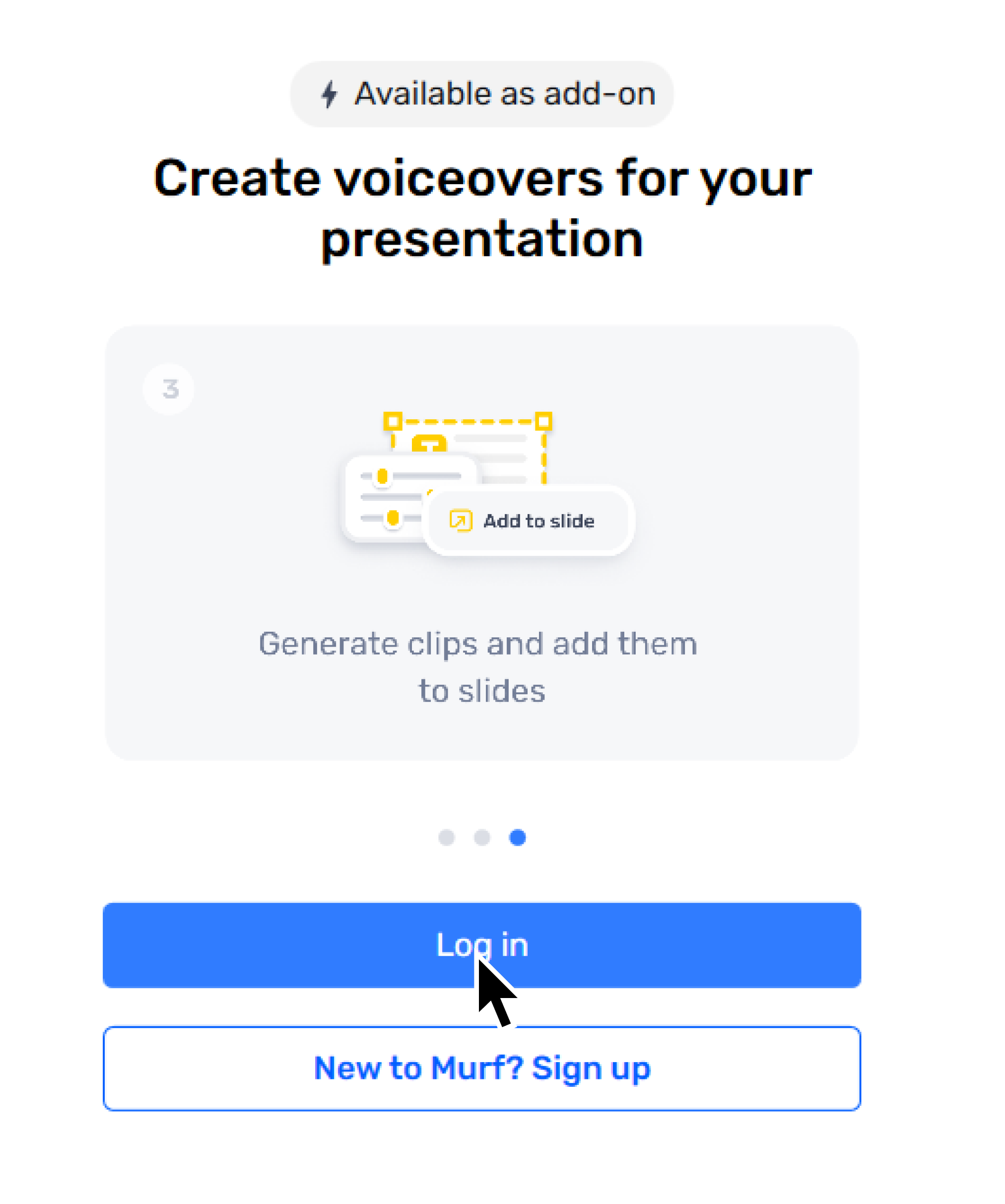
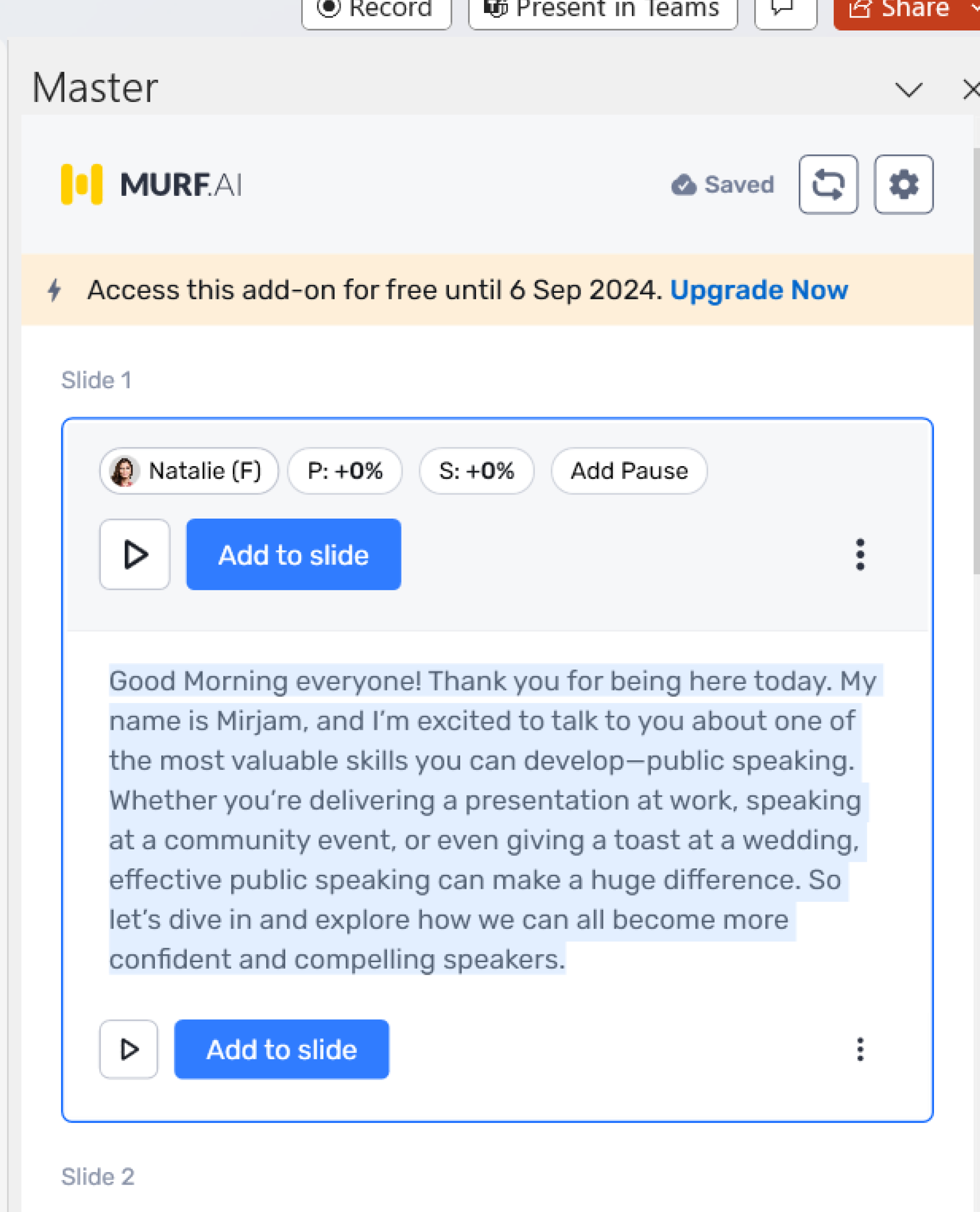
Allow Murf to automatically organize your slides into blocks and sub-blocks based on content and speaker notes.
4
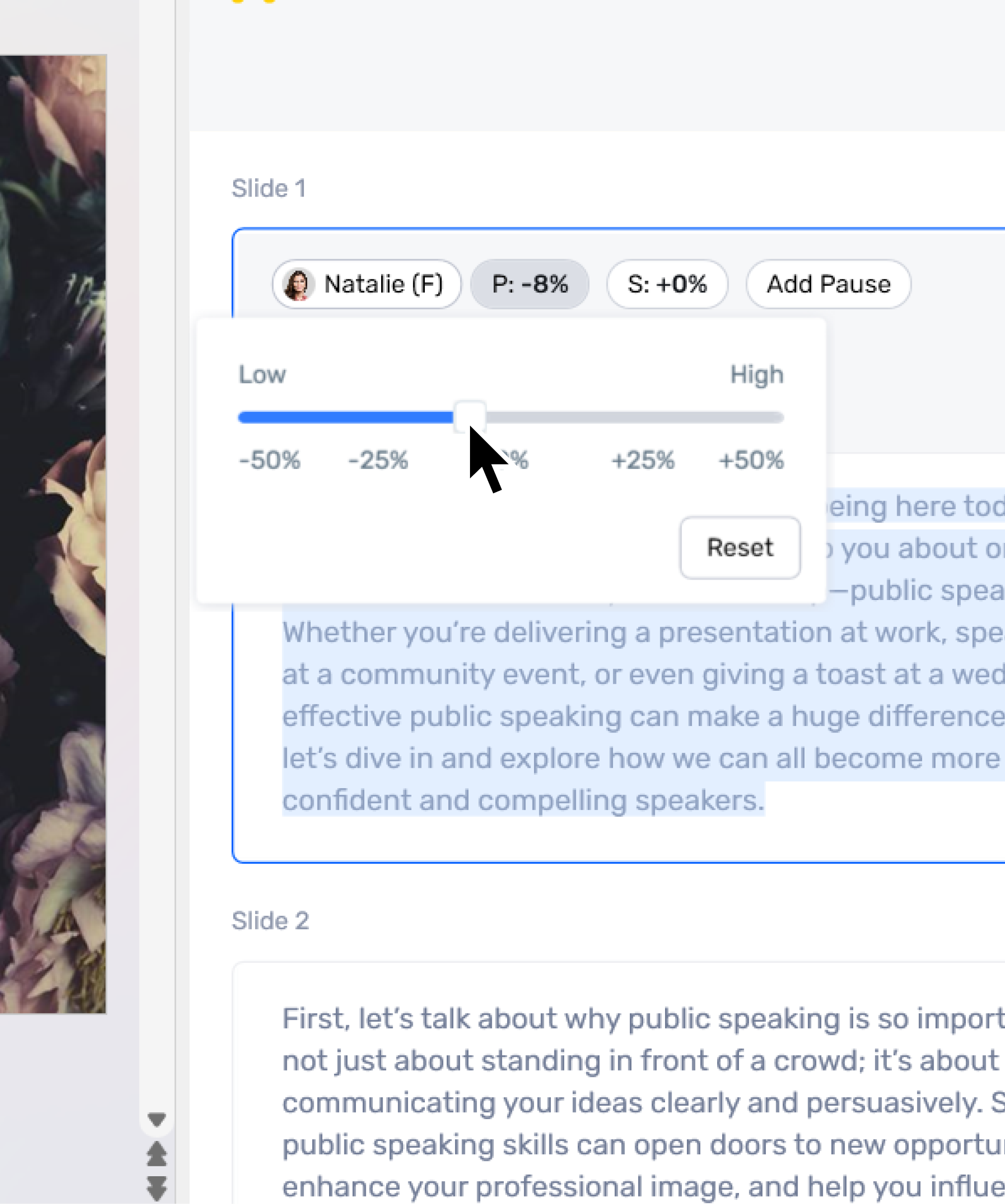
Customize voice options for each block or sub-block, including language, tone, speed, and pronunciation.
Applications of Narrated Presentations
Corporate Presentations
Create narrated presentations that enhance engagement and consistent messaging across new employee onboarding, internal communications, or even sales presentations.
Product Demos, Investor Pitches and Startup Presentations
Leverage storytelling to enhance understanding. Establish an emotional connection using narrations in demo presentations. Be time efficient when pitching to potential investors.
E-learning, Training Modules and Webinars
Provide flexibility for learners to absorb material at their own pace by utilizing powerpoint narrations that improve engagement by making content more interactive.
Frequently Asked Questions
What versions of PowerPoint are supported by the Murf AI plugin?
.svg)
For details on which versions of PowerPoint are compatible with our plugin, please refer to our compatibility guide.
Can I use Murf AI to add narration to PowerPoint without the internet?
An active internet connection is necessary to use the plugin as it needs to sync and fetch data from Murf Studio.
How do I update the audio in my PowerPoint slides using the plugin?
To update the audio, click "Update in slide" in the plugin interface. This will replace the existing audio files in your slides with updated versions.
Is the plugin available for all Murf subscription plans?
PowerPoint integration plugin is currently available exclusively to our Business and Enterprise customers as an add-on. Users on other plans can install and preview the plugin but cannot add audio to their slides.
What customization options are available for voiceovers in the plugin?
The plugin offers extensive customization options for voiceovers, including the ability to choose your preferred voice style, and adjust the speed, pitch, pauses and pronunciations.


