
Download AnyClient – Free FTP, SFTP & WebDAV Tool
Overview
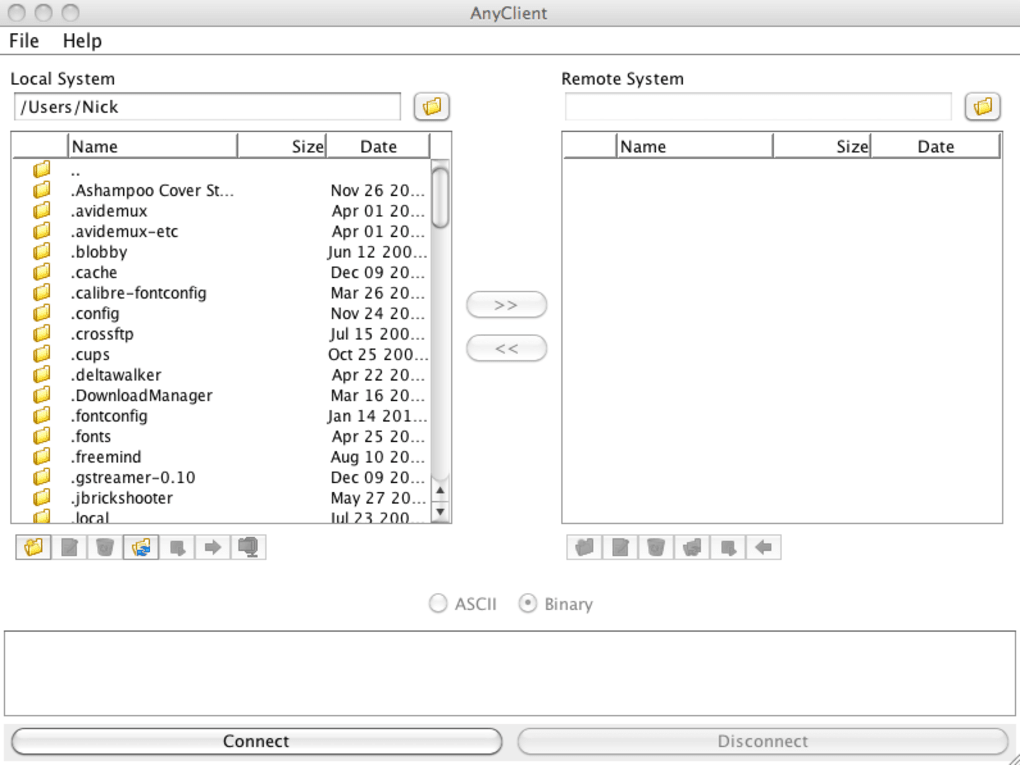
AnyClient is a lightweight, platform‑independent file‑transfer utility that aims to keep the core experience simple, fast, and completely free. Whether you need to push website assets to an FTP server, synchronize a backup folder via SFTP, or interact with a cloud storage provider that speaks WebDAV, AnyClient offers a single interface that covers all three protocols without demanding a steep learning curve. The application can be launched directly from a web browser as a hosted service—ideal for occasional users who prefer not to install anything—or downloaded as a standalone executable for Windows, macOS, or Linux when you need offline access and higher performance. While it lacks the deep configuration options found in premium clients such as FileZilla Pro or WinSCP, AnyClient shines in environments where speed, reliability, and zero cost outweigh the need for granular preferences. The UI is stripped down to the essentials: a Site Manager for storing connection details, a quick‑connect button, and a dual‑pane file explorer that mirrors the remote and local file systems. Security is baked in, with native support for FTP over TLS (FTPS), SSH‑based SFTP, and encrypted WebDAV (HTTPS). In short, AnyClient delivers the core functionality you expect from an FTP client while staying true to its “free and easy” promise.
Key Features
- Support for FTP, FTPS, SFTP, and WebDAV/HTTPS protocols.
- Cross‑platform binaries for Windows, macOS, and Linux.
- Web‑based version that runs in any modern browser without installation.
- Simple Site Manager for storing multiple connection profiles.
- Drag‑and‑drop file transfer between local and remote panes.
- Automatic resume of interrupted uploads and downloads.
- Secure connections with TLS/SSL encryption for FTP and HTTPS for WebDAV.
- Zero‑cost licensing – completely free for personal and commercial use.
- Lightweight footprint – starts in under 2 seconds on a typical laptop.
- Basic file operations: rename, delete, create folders, and change permissions (where supported).
Installation & Usage Guide
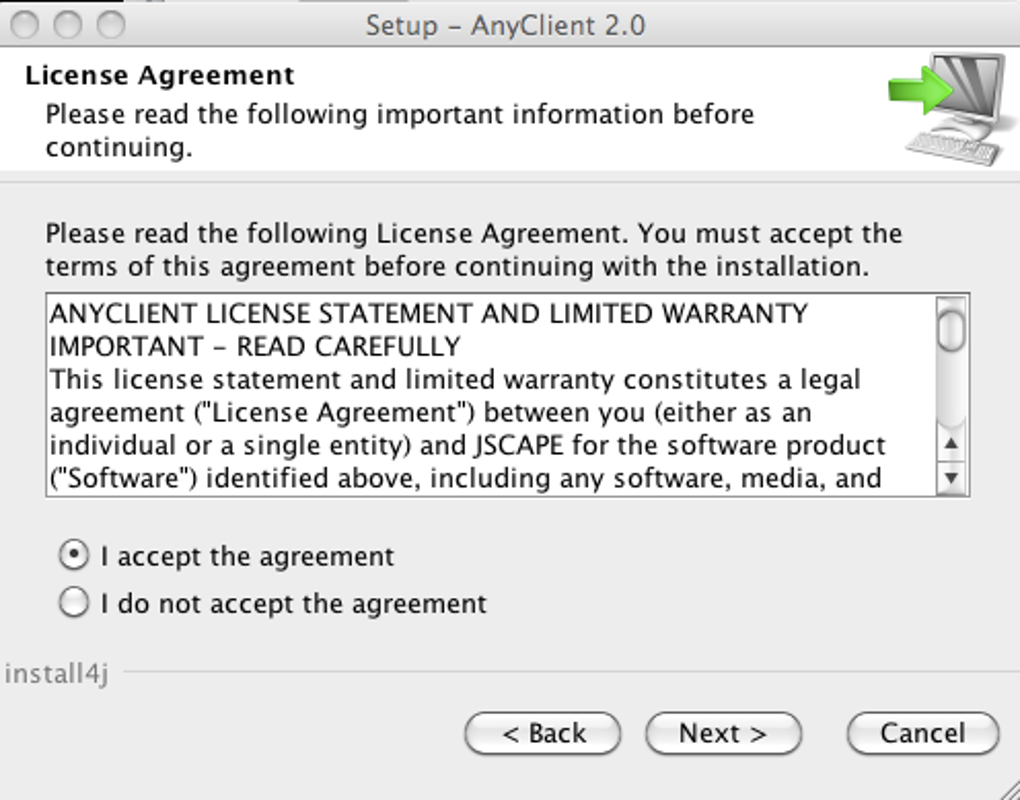
Getting AnyClient up and running is intentionally straightforward. Start by visiting the official AnyClient download page and selecting the installer that matches your operating system. For Windows users, a standard .exe installer will guide you through a typical “Next‑Next‑Finish” flow. macOS users download a .dmg package, drag the AnyClient icon into the Applications folder, and launch it from Launchpad. Linux distributions provide a .tar.gz archive; extract the contents, make the binary executable (chmod +x anyclient), and run it from a terminal or create a desktop shortcut.
Once installed, launch the application and you’ll be greeted by the main window. Click the Site Manager button or choose File → Site Manager to add a new connection. Fill in the required fields: Host (or URL), Port (default 21 for FTP, 22 for SFTP, 443 for WebDAV), Username, and Password. Choose the appropriate protocol from the dropdown list, optionally enable “Use TLS/SSL” for FTPS or “Use SSH key” for SFTP if your server requires it. Save the profile and hit Connect. AnyClient will establish a secure session and populate the remote pane with the server’s directory listing.
From here, transferring files is as easy as dragging a file from the left (local) pane to the right (remote) pane, or vice‑versa. The status bar at the bottom shows real‑time progress, transfer speed, and estimated time remaining. For users who prefer keyboard shortcuts, F5 refreshes the remote view, while Ctrl+R re‑connects using the last saved profile. Because AnyClient does not store any hidden preferences, you can safely delete the application folder after use without worrying about leftover configuration files. The web‑based version follows the same workflow: simply log in, add a site, and start transferring—no download required.
Pros, Cons & Compatibility
Pros
- Completely free, with no hidden fees or trial periods.
- Supports the most common file‑transfer protocols (FTP/S, SFTP, WebDAV/S).
- Cross‑platform availability for Windows, macOS, and Linux.
- Lightweight and fast startup—ideal for quick uploads.
- Secure connections by default, reducing the risk of credential exposure.
- Web‑based option for instant access from any device.
- Intuitive drag‑and‑drop interface reduces the learning curve for beginners.
Cons
- Lacks advanced configuration options such as custom transfer queues, scripting, or detailed logging.
- No built‑in site synchronization or differential backup features.
- Interface is minimalistic; power users may miss visual cues like transfer charts.
- Cannot store or manage SSH keys directly; must rely on external agents.
- Limited support for remote file permissions beyond basic read/write toggles.
Compatibility
AnyClient runs natively on the following operating systems:
- Windows 7, 8, 10, 11 (64‑bit)
- macOS 10.13 (High Sierra) and later (Intel & Apple Silicon)
- Linux distributions with glibc 2.17+ (Ubuntu, Fedora, Debian, etc.)
The web version works in any modern browser that supports HTML5, including Chrome, Edge, Firefox, and Safari. Because the application does not rely on proprietary libraries, it maintains consistent behavior across platforms, ensuring that a transfer started on Windows can be resumed on macOS without compatibility issues.
Frequently Asked Questions
Is AnyClient truly free for commercial use?
Yes. AnyClient is released under a free‑use license that permits both personal and commercial deployments without any subscription or hidden fees.
Can I use AnyClient to transfer large files (e.g., >2 GB)?
Absolutely. AnyClient supports resumable transfers, so large files can be paused and resumed without data loss, provided the server also allows partial transfers.
Do I need to install additional software to use SFTP?
No extra components are required. AnyClient includes an embedded SSH client, so SFTP connections work out‑of‑the‑box on all supported platforms.
How secure is the web‑based version of AnyClient?
The web version runs over HTTPS, encrypting both the login credentials and the data transferred between your browser and the AnyClient servers. It also never stores your passwords; they exist only for the duration of the session.
Can I manage multiple sites simultaneously?
Yes. The Site Manager lets you create an unlimited number of profiles, and you can open separate windows for each profile to work with multiple servers at the same time.
Conclusion & Call to Action
AnyClient delivers exactly what its name suggests: a straightforward, no‑cost solution for everyday file‑transfer tasks. If your workflow revolves around uploading website assets, backing up documents, or syncing with a WebDAV‑enabled cloud service, AnyClient removes the friction of complex menus and hidden settings. While power users may eventually outgrow its feature set, the application’s speed, cross‑platform support, and built‑in security make it an excellent first‑line FTP client for freelancers, small businesses, and students alike. Ready to experience hassle‑free file transfers? Download AnyClient now, install it on your preferred device, and start moving files securely—free of charge.
AnyClient earns a solid four‑star rating for its ease of use, protocol coverage, and zero‑cost model. The lack of advanced options keeps the UI clean, but also limits its appeal for enterprise‑level power users. Overall, it’s a reliable, secure, and genuinely free tool that fulfills the core promises of an FTP client without unnecessary bloat.








