
Download Dism++ – Free Windows Optimization Tool
Overview
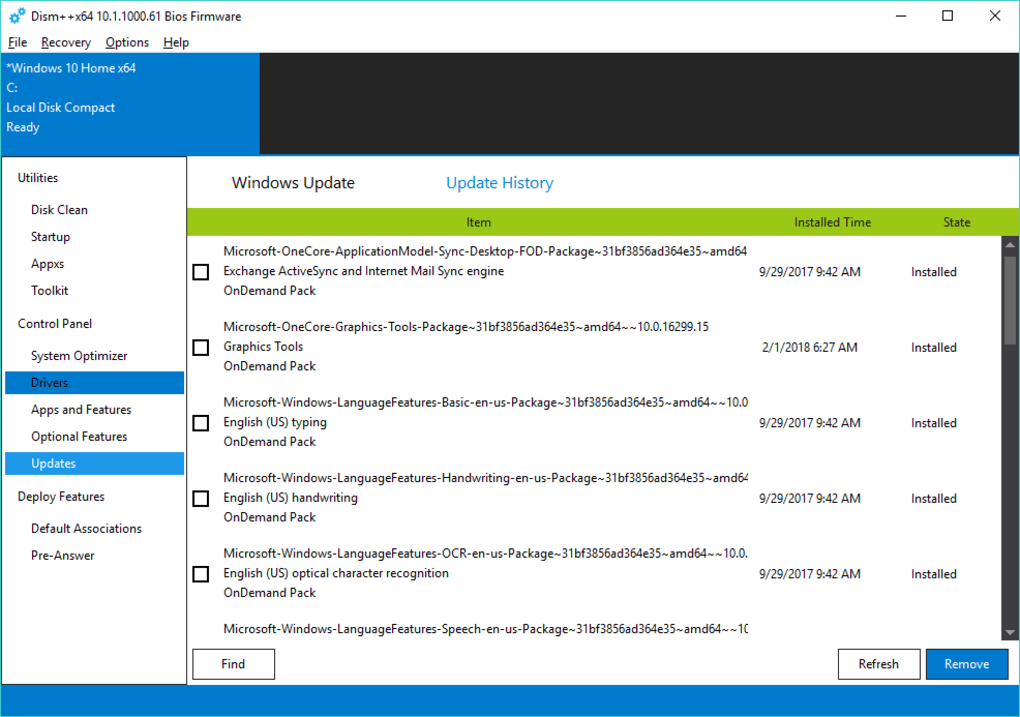
Dism++ is an open‑source utility that brings the power of Microsoft’s Deployment Image Servicing and Management (DISM) tool to a friendly graphical user interface. Created by the indie Chuyu Team, this free Windows application lets both system administrators and power users mount, edit, and repair Windows image files without ever typing a single command in a console window. While DISM itself is a robust command‑line solution for adding, removing, and updating Windows features, drivers, and packages, its steep learning curve has kept many users away. Dism++ removes that barrier by offering a clean, three‑pane UI that groups the most common tasks—Utilities, Control Panel, and Deployment Features—into easily accessible sections. Whether you need to clean up temporary files, back up your system, manage startup apps, or tweak Windows feature sets before a fresh installation, Dism++ provides a one‑stop shop for advanced Windows maintenance. The software is compatible with Windows 7, 8, 8.1, and 10, making it a versatile companion for legacy PCs and modern workstations alike. Although it is free, Dism++ is maintained actively on GitHub, meaning you receive regular updates, bug fixes, and community‑driven enhancements. The tool is especially valuable for users who want granular control over their operating system, but it does demand a responsible approach—incorrect changes can lead to system instability. Overall, Dism++ is a powerful, secure, and free way to bring professional‑grade image servicing to any Windows PC.
Key Features of Dism++
- Graphical Frontend for DISM: Full access to DISM’s capabilities without using the command line.
- Utilities Panel: Clean temporary files, create system backups, and manage startup programs and installed apps.
- Control Panel: Enable or disable Windows features, install or remove drivers, and apply cumulative updates.
- Deployment Features: Import and export application association settings, making it easy to replicate configurations across multiple PCs.
- Image Mounting: Mount .wim or .esd files, edit them directly, and then unmount with changes saved.
- Component Cleanup: Remove unused system components and language packs to free up disk space.
- Batch Processing: Apply the same operation to multiple images or drives with a single click.
- Open‑Source & Community Driven: Source code available on GitHub, allowing transparency and community contributions.
- Multi‑Version Compatibility: Works on Windows 7, 8, 8.1, and 10, supporting both 32‑bit and 64‑bit architectures.
- Secure Updates: Automatic checks for newer releases ensure you always have the latest security patches.
Each feature is designed with a focus on reliability and ease of use. For example, the Utilities panel not only removes junk files but also offers a visual breakdown of how much space each category consumes, allowing you to make informed decisions. The Control Panel mirrors the native Windows “Turn Windows features on or off” dialog, but with additional options like bulk driver installation and offline servicing of images. The Deployment Features section is particularly handy for IT professionals who need to standardize application file‑type associations across a fleet of machines. Because Dism++ is open‑source, you can audit the code for security concerns or even contribute a new module if you have a unique use case. All of these capabilities are packaged into a lightweight installer that occupies less than 10 MB on disk, making it an unobtrusive addition to any system.
Installation, Compatibility, and How to Use Dism++ Effectively
Installation Process: Download the latest release from the official GitHub repository or the project’s website. The installer is a standard .exe file that supports both silent and interactive installations. Run the installer with administrative privileges—this is required because Dism++ interacts directly with system files and the Windows Component Store. Follow the on‑screen prompts to choose the installation directory (the default location is C:\Program Files\Dism++) and optionally create a desktop shortcut. After installation, launch Dism++ from the Start menu or the shortcut; the program will request elevated permissions the first time it runs.
Operating System Compatibility: Dism++ has been rigorously tested on Windows 7 SP1, Windows 8.1, and Windows 10 (versions 1507 through 22H2). It works on both 32‑bit and 64‑bit systems, though the 64‑bit version is recommended for modern hardware due to better memory handling. The tool also supports Windows Server editions (2012, 2016, 2019) for administrators who need to service server images.
Getting Started: Once the UI appears, you will see three main tabs: Utilities, Control Panel, and Deployment Features. Begin with the Utilities tab if you want to clean up your current installation—click “Clean Temporary Files” to remove %TEMP% data, Windows Update caches, and other disposable files. Use the “Backup System” button to create a restore point before making any major changes; Dism++ saves the backup as a .wim file that can be restored via the “Restore System” option.
Modifying Windows Features: Switch to the Control Panel tab to view a hierarchical list of all Windows components. You can enable a feature by checking its box and clicking “Apply,” or disable it by unchecking and applying. For driver updates, click “Import Drivers,” select the folder containing .inf files, and let Dism++ integrate them into the mounted image. The “Install Updates” button fetches the latest cumulative updates from Microsoft’s servers and injects them into the image, ensuring that new installations are up‑to‑date from day one.
Working with Images: To service an offline image, click “Mount Image” and browse to a .wim or .esd file (commonly found on Windows installation media). After mounting, the image appears as a virtual drive in the Explorer view, and all the same UI controls become available for that image. When you’re finished, click “Commit Changes” to save modifications, then “Unmount Image” to finalize the process.
Best Practices: Always create a backup before altering system components. Use the “Log” window to monitor actions and spot any errors early. If you’re unsure about a particular feature, consult the built‑in help or the online wiki. By following these steps, you can safely harness Dism++ to clean, optimize, and customize Windows installations without risking system stability.
Pros and Cons – An Unbiased Look at Dism++
Pros
- Free and open‑source, with regular updates from the developer community.
- Provides a full graphical interface to DISM, eliminating the need for command‑line expertise.
- Supports a wide range of Windows versions, from Windows 7 to Windows 10 and Server editions.
- Powerful image‑mounting capabilities allow offline servicing of Windows installation files.
- Built‑in backup and restore functions reduce the risk of accidental system damage.
- Clean, intuitive UI with three logical sections that streamline common maintenance tasks.
- Batch processing and automation features save time for IT professionals.
- Small installer footprint (under 10 MB) and low system resource consumption.
Cons
- Steep learning curve for beginners; the tool is aimed at advanced users and administrators.
- Lack of official commercial support—reliance on community forums for troubleshooting.
- Occasional compatibility quirks with newer Windows 11 builds (still under development).
- Some features require manual driver or update files to be sourced externally.
- Potential for system instability if changes are made without proper backups.
Overall, Dism++ earns a solid four‑star rating for delivering professional‑grade DISM functionality in a user‑friendly package. Its free, open‑source nature and robust feature set outweigh the drawbacks related to its advanced‑user focus.
Frequently Asked Questions
Is Dism++ really free, or are there hidden costs?
Dism++ is completely free. It is released under the MIT license, and all features are available without any paid upgrades or subscriptions.
Can I use Dism++ on Windows 11?
Official support for Windows 11 is still in beta, but most core functions (image mounting, cleanup utilities) work. The development team is actively adding full compatibility.
Do I need an internet connection to use Dism++?
An internet connection is only required when you download updates, drivers, or the latest version of the software. All offline image‑servicing tasks can be performed without connectivity.
How safe is it to modify Windows features with Dism++?
Modifying Windows features is safe as long as you create a backup first. Dism++ includes a one‑click backup tool that saves a restore point, minimizing the risk of rendering the system unusable.
Can Dism++ be used on a corporate network?
Yes. Because Dism++ runs locally and does not require a persistent internet connection, it complies with most corporate security policies. However, always verify with your IT department before deploying any system‑level tool.
Conclusion – Should You Download Dism++?
Dism++ stands out as a rare blend of professional capability and user‑friendly design in the Windows optimization space. If you are an enthusiast, IT administrator, or power user who wants granular control over Windows image servicing, driver integration, and system cleanup, this free, open‑source tool is a perfect fit. Its three‑pane interface simplifies complex DISM commands, while the built‑in backup and logging features protect you from accidental missteps. Though beginners may find the learning curve steep, the comprehensive documentation and active community mitigate most challenges. By downloading Dism++ today, you gain a secure, regularly updated toolbox that can keep your Windows installations lean, fast, and fully customized.
Ready to take control of your Windows system? Download Dism++ now and start optimizing your PC with confidence.








