
Screenshots



App details
- Version
- 4.2
- Size
- 116.69 MB
- Updated
- June 9, 2025
- Requires
- Mac OS X
- Language
- English
- License
- Free
- Developer
- Eclipse
- Category
- Mac OS
About Eclipse
Download Eclipse SDK 4.2 – Free Java IDE for macOS Cocoa
Overview
Eclipse SDK 4.2 for macOS Cocoa is a mature, open‑source integrated development environment (IDE) that has been the backbone of Java development for more than a decade. Although newer releases exist, version 4.2 remains popular on legacy Mac machines that still run the classic Cocoa framework. The SDK bundles a powerful workspace, a robust compiler, and a rich ecosystem of plug‑ins that extend the IDE beyond Java to languages such as C, C++, Python, Ruby, Rust, and many more. Its modular architecture lets developers tailor the environment to the exact needs of a project, whether that’s building a simple command‑line tool or a complex enterprise application. Because Eclipse is released under the Eclipse Public License, you can download, use, and modify it without any licensing fees, making it an attractive choice for students, startups, and seasoned professionals alike. The 4.2 release is fully compatible with macOS 10.6–10.9 and runs natively on the Cocoa UI, delivering a responsive, native‑look experience that integrates smoothly with macOS features such as the Dock, Finder, and system notifications. In short, Eclipse SDK 4.2 provides a secure, stable, and extensible platform for Java developers on macOS who need a reliable, free development tool that can grow with their coding ambitions.
Key Features and Extensibility
- Rich Java Development Tools (JDT): Advanced code completion, refactoring, static analysis, and built‑in debugging for Java SE, EE, and ME.
- Plug‑in Marketplace: Thousands of plug‑ins are available through the Eclipse Marketplace, covering languages like Python, PHP, C/C++, and emerging tech such as Rust and Scala.
- Workspace & Project Management: Separate workspaces keep settings, preferences, and source trees isolated, allowing multiple projects to coexist without conflict.
- Version Control Integration: Native support for Git, SVN, and CVS with visual diff tools, commit history, and branch management.
- Build Automation: Seamless integration with Maven, Gradle, and Ant, enabling one‑click builds, dependency resolution, and continuous‑integration pipelines.
- UI Customisation: Themes, perspectives, and toolbar layouts can be customised or extended via the Eclipse 4 (e4) UI framework.
- Cross‑Platform Consistency: While this release targets macOS Cocoa, the same plug‑ins run unchanged on Windows and Linux, preserving team productivity across operating systems.
- Secure Update Mechanism: The built‑in update manager validates signatures and checksums, ensuring that downloaded plug‑ins are authentic and free from tampering.
Beyond the core feature set, Eclipse 4.2 offers a powerful API that lets developers create their own tooling. Whether you need a domain‑specific language (DSL) editor, a visual modelling tool, or a custom code generator, the Eclipse Rich Client Platform (RCP) provides the building blocks. This extensibility is why many large enterprises still rely on Eclipse for internal tooling, despite the rise of newer IDEs. The combination of a solid Java foundation, a thriving plug‑in ecosystem, and a flexible UI makes Eclipse 4.2 a timeless development companion for macOS developers.
Installation & First‑Run Guide
Getting Eclipse SDK 4.2 up and running on your Mac is straightforward, even for beginners. Follow these steps to ensure a smooth installation:
- Download the package: Visit the official Eclipse archive page and locate “Eclipse SDK 4.2 for macOS Cocoa”. Click the .dmg file to start the download. The file size is approximately 150 MB, and the download is secured via HTTPS.
- Verify integrity (optional but recommended): After download, open Terminal and run
shasum -a 256 Eclipse‑SDK‑4.2‑macosx‑cocoa.dmg. Compare the checksum with the value listed on the download page to confirm the file has not been altered. - Mount the DMG: Double‑click the .dmg file. A virtual drive appears, showing the Eclipse icon and an Applications shortcut.
- Copy to Applications: Drag the Eclipse icon into the Applications folder. This step makes the IDE available in your Launchpad and ensures it receives macOS updates.
- First launch: Open Eclipse from the Applications folder. macOS may warn you that the app is from an unidentified developer; click “Open Anyway” in System Preferences → Security & Privacy.
- Select a workspace: On first run, Eclipse asks where to store your workspace. Choose a location (default is
~/workspace) and tick “Use this as the default workspace” if you plan to keep it. - Install additional plug‑ins: Go to Help → Eclipse Marketplace… and browse for language support or tools you need. Installation is performed inside the IDE, and updates are managed via Help → Check for Updates.
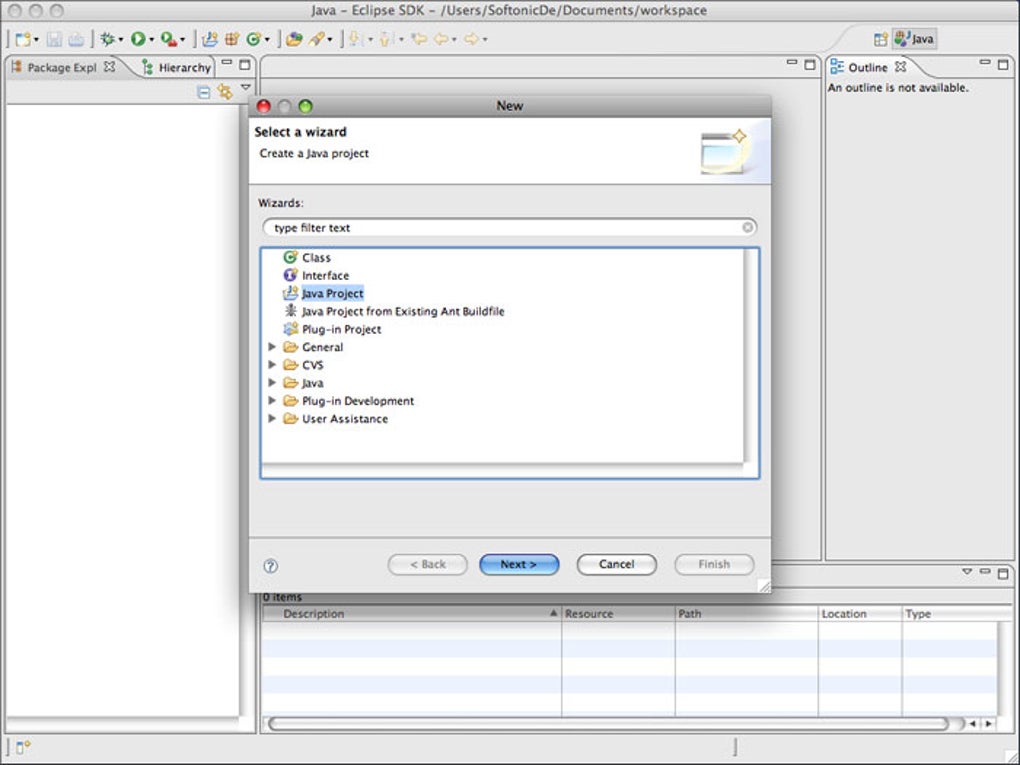
Once installed, you can create a new Java project by selecting File → New → Java Project. The wizard walks you through setting a JRE, project name, and source folder. Eclipse’s automatic build feature compiles your code in the background, and the integrated debugger lets you set breakpoints, inspect variables, and step through execution. For macOS users who prefer the command line, the eclipse executable inside the Eclipse.app/Contents/MacOS directory can be invoked with flags such as -clean to refresh the plug‑in cache. Regularly checking for updates through the built‑in update manager guarantees you receive security patches and the latest plug‑in versions without leaving the IDE.
Compatibility, Pros & Cons
Eclipse SDK 4.2 is engineered for macOS versions 10.6 (Snow Leopard) through 10.9 (Mavericks). It runs natively on the Cocoa UI framework, delivering smooth window handling, native menus, and system‑wide shortcuts. While newer macOS releases (Catalina, Big Sur, Monterey, Ventura) can still launch the IDE, you may encounter UI glitches or need to run the application in compatibility mode. For teams that maintain a mixed‑OS environment, Eclipse’s plug‑in architecture ensures that the same project files can be opened on Windows or Linux without modification, preserving cross‑platform consistency.
Pros
- Completely free and open‑source – no licensing fees for commercial use.
- Extensive plug‑in ecosystem covering over 30 programming languages.
- Robust Java tooling (refactoring, code assist, debugger) that rivals commercial IDEs.
- Native macOS Cocoa UI provides a familiar look and feel for Mac developers.
- Secure update mechanism with signature verification.
- Highly configurable workspace and perspective system.
Cons
- Older UI compared to modern IDEs; some visual elements feel dated.
- Performance can degrade with many plug‑ins installed; memory usage is relatively high.
- Limited support for the latest macOS versions without community patches.
- Initial learning curve for newcomers unfamiliar with Eclipse’s perspective model.
- Documentation for legacy 4.2 version is less abundant than for newer releases.
Overall, Eclipse SDK 4.2 remains a solid choice for developers who need a stable Java environment on legacy macOS hardware. Its strengths in extensibility and zero cost outweigh the occasional UI quirks, especially when paired with careful plug‑in management and regular updates.
Review Summary: Eclipse 4.2 delivers a reliable, feature‑rich IDE for macOS Cocoa users. While the UI feels a bit retro, the breadth of language support and free licensing make it a compelling option for both students and enterprises.
FAQ
Is Eclipse SDK 4.2 still receiving security updates?
The core 4.2 release entered end‑of‑life in 2014, so the Eclipse Foundation no longer provides official patches. However, the community maintains a series of “patch bundles” that address critical vulnerabilities. Users are encouraged to install these via the Eclipse Update Manager or to upgrade to a newer LTS release when possible.Can I develop Android applications with Eclipse 4.2?
Yes. By installing the Android Development Tools (ADT) plug‑in from the Eclipse Marketplace, you can create, compile, and debug Android projects. Keep in mind that ADT has been officially deprecated in favor of Android Studio, so newer Android SDK features may not be fully supported.How much RAM does Eclipse 4.2 need to run smoothly?
A minimum of 2 GB of RAM is required, but 4 GB or more is recommended, especially if you plan to load multiple plug‑ins or work with large Java projects. Adjust the-Xmx setting in the eclipse.ini file to allocate more memory if you experience sluggishness.
Is it possible to sync my workspace across multiple Macs?
Yes. Store your workspace folder in a cloud‑synced directory such as iCloud Drive, Dropbox, or OneDrive. Eclipse will automatically detect changes when you open the workspace on another machine. Just ensure the Eclipse version and installed plug‑ins are identical on each device.Can I use GitHub Copilot or AI code assistants inside Eclipse 4.2?
Third‑party AI extensions are available for newer Eclipse releases, but support for 4.2 is limited. Some developers run a separate AI assistant in their browser and copy suggestions into Eclipse, or they upgrade to a newer Eclipse version that offers native Copilot plug‑ins.Conclusion & Call to Action
Eclipse SDK 4.2 remains a trustworthy, free development platform for macOS users who need a solid Java IDE with extensive language support. While the UI reflects its 2012 origins, the underlying architecture is still robust, and the plug‑in marketplace ensures you can adapt the IDE to virtually any programming workflow. If you run a legacy Mac or manage a mixed‑OS team, downloading Eclipse 4.2 gives you a secure, customizable environment without any licensing costs. Ready to boost your productivity? Download Eclipse SDK 4.2 for macOS Cocoa now and start building your next Java masterpiece today.
Guides & Tutorials
How to install Eclipse
- Click the Download button above.
- Once redirected, accept the terms and click Install.
- Wait for the Eclipse download to finish on your device.
How to use Eclipse
This software is primarily used for its core features described above. Open the app after installation to explore its capabilities.
User Reviews
No reviews yet. Be the first to share your experience.
You may also like
more
DiffusionBee
Generate unique art with this app DiffusionBee is a free and accessible artifici...

Excire Foto Light
Organize your snapshots Excire Foto Light is a free-to-download AI -powered phot...

Topaz Photo AI
Photo enhancement tool with AI Topaz Photo AI is a premium AI image editor for P...

anonymoX
Surf anonymously with Firefox anonymoX for Firefox is an add-on that gives you f...

DownThemAll
Download Them All! Downloading anything or everything on a webpage can be a labo...
.webp)
DuckDuckGo Privacy Essentials
A free program for Mac, by DuckDuckGo, Inc.. DuckDuckGo Privacy Essentials is a...
