Today I took 30 minutes to save hours

UPDATE – 1/6/2011 : Since writing this post I have bundled this entire reset process into a single windows batch file. In addition to restoring my database, I also have to remove temp files from my server, so it was time to go command line with all of this.

Here the contents of my batch file.

### DELETE TEMP FILES
del /q /f /s Z:_FavoriteClient_GIT_webappinvoices* /f /s

### RESTORE DATABASE
sqlcmd -S "localhost" -i Z:_FavoriteClient_GIT_sqlrestoreBackup.sql

To use this in a .bat file, copy and paste the text into Notepad, then save as “restore.bat”.  Remember, you will need to wrap your filename.bat with quotes, otherwise Notepad will save the file as filename.bat.txt.

* The contents of restoreBackup.sql is listed below.


One of my favorite pastimes as a programmer is writing code that writes code, aka workflow automation.  It’s not something I do on every project, but I’ve been doing a lot of SQL Server development recently, and I’ve been having a lot of fun using the INFORMATION_SCHEMA views to build VO classes, forms representing tables, or just finding what tables have a specific column.  Today I took a 30 minute trip to the SYS side and wrote a tsql script that will save me hours.

The web application I’m working on is a payment processor made up of five steps.  In order to test I have to setup multiple sales for multiple clients, then log in as three different admin users to push the transactions through the system.  This gets my test transactions to the proper testable state.  The process of setting up testable transactions takes over 30 clicks, and once I hit step 3 of the wizard, my test transactions are completed in a way that I have to re-setup the test data ( 20 GOTO 10 ).

I thought about a handful of options, and ended up going with this solution.

  1. Setup all test transactions in web application by hand ( get the data ready )
  2. Take a full database backup ( freeze the data )
  3. Use TSQL script to drop all connections to my app’s db, then restore the database to the “testable” state from step 1 ( reset the DB )

Here is my TSQL script

[sql]
DECLARE @sessID int,
@dbName varchar(50),
@userName varchar(50),
@backupFile varchar(200)

SET @dbName = ‘DA413’ — your database name
SET @userName = ‘DA413’ — sql user account to look for
SET @backupFile = ‘D:DBBackupDA413.bak’ — path to SQL backup file

— use a cursor to store all session_ids
DECLARE session_cursor CURSOR
FOR
SELECT session_id
FROM sys.dm_exec_sessions
WHERE original_login_name = @userName

— open cursor and grab first row
OPEN session_cursor
FETCH NEXT FROM session_cursor INTO @sessID

— loop through session_ids
WHILE @@FETCH_STATUS = 0
BEGIN

— kill it
— using EXEC because the sproc kill does not like @variables
EXEC(‘kill ‘ + @sessID)

— get the next session_id
FETCH NEXT FROM session_cursor INTO @sessID
END

— cursor cleanup
CLOSE session_cursor
DEALLOCATE session_cursor

— restore backup
USE master
RESTORE DATABASE DA413
FROM DISK = @backupFile
GO
[/sql]

A few notes about this script :

  • I only need to disconnect my web application’s database user, not any user
  • I’m using the latest full backup, and not a specific database snapshot
  • The SPROC kill doesn’t like @variables as input, so use EXEC
  • Your web server doesn’t know the user was disconnected, so you’ll have to log back into your application.
  • If you use this technique, be sure to RERUN your backup if you add anything to the database ( EX : new table column, stored procedure, etc )
  • If you’re not the only person connected to this database, make sure you don’t disconnect anybody else using the same database name

This solution is perfect for me because I have full control over my code, database, and server.  It’s also great because I can test my application, run a single sql script, and 10 seconds later I can test my application again.  While this solution is perfect for me, it’s probably best used as reference for others.  However, this technique of rolling back the database could be applied to any software application using SQL Server for it’s datasource.

Hope this helps somebody.

Read flashlog.txt using AIR2 and NativeProcess

I’m sure you know by now that the Flash Platform is a great choice for making great front end applications to databases, or web services.  However, did you know with the release of AIR2 you can now use Flash or Flex to make gui front ends for existing programs or processes on your machine?  That’s right, AIR2 brings us a new feature called NativeProcess which let’s you communicate with existing programs or processes running on your machine.

Native Processes: Launch and communicate with native “out-of-band” processes. Bundle your own native executables, or call executables that you know are already on the machine. This feature requires that your application be installed with a native installer rather than though a .AIR file (we provide tools for building native installers).

  • Types of installers:
    • OS X: DMG
    • Windows: EXE
    • Linux: Debian and Red Hat Package Manager

See Christian Cantrell’s blog for the rest of the AIR2 new feature list.

I really enjoy building small apps for myself that are either fun or help with workflow.  Recently I was on an HTML5 project that required me to upgrade all my browsers to the absolute latest versions.  Well when I upgraded Firefox to 3.6, I could no longer use my Flash Tracer add-on, which caused a big workflow issue with my current Flex project.  While I know there are plenty of debug alternatives to Flash Tracer, I thought this would be a perfect chance to take AIR2’s NativeProcess out for a spin.  It also gave me a simple demo app for my talk at 360Flex about AIR.

So here’s what the simple logger app looks like.

AIR2's NativeProcess allowed me to build a simple flashlog.txt readerWith AIR2’s NativeProcess, you can build all sorts of cool new AIR apps like a flashlog.txt reader

Now that you’ve been blown away by my design skills, let’s walk through what, how, and where to get this app.

WHAT

AIR2, cross platform ( mac, win ), flashlog.txt reader.

HOW

Cross Platform – to take advantage of NativeProcess, your application must be installed as a native installer.  After you build your application, when you export the release build you select native installer instead of .air file.  When building AIR apps that you want to export as a native installer, you must build your application on the correct platform.  That is, I can’t build the .exe of this application on OS X, only the .dmg installer.

If using NativeProcess, export native installer instead of .AIR

FlashBuilder option for native installer is in export release dialog

Since this app is so small I had no problem storing the OS X and Windows specific code in the same place.  When the app is run I use flash.system.Capabilities.os to determine Windows or MAC.  I know the path to flashlog.txt is now hard coded into Flash Player, but I still have to build the platform appropriate path to flashlog.txt.

MAC – /Users/{username}/Library/Preferences/Macromedia/Flash Player/Logs/flashlog.txt

WIN – C:Users{username}AppDataRoamingMacromediaFlash PlayerLogsflashlog.txt

To grab the current username I parsed the results of File.userDirectory.url.  The last piece to setup is the path to the executable used by NativeProcess.  On OS X I’m using tail, which lives at /usr/bin/tail.  For Windows7, Powershell should live at C:WindowsSystem32WindowsPowerShellv1.0powershell.exe.

TIP : On OS X, you can use the “which” command to locate a program ( EX : which tail ).  On Windows, use the “where” command to locate a program ( EX : where powershell.exe ).  You will want to know this if the paths in this app doesn’t work for you.

Read flashlog.txt – to read flashlog.txt on OS X I’m using NativeProcess + tail.  On windows I’m using NativeProcess + Powershell’s Get-Content cmdlet.  Now that we know platform and paths, it’s time to setup our NativeProcessStartupInfo which will contain the executable we’re going to use, plus any required arguments.  In order to setup your NativeProcessStartupInfo object, you will need to know how to use the nativeprocess via command line first.  Using OS X’s tail as the sample, you can read the contents of flashlog.txt by running this in Terminal.

tail -f /Users/{username}/Library/Preferences/Macromedia/Flash Player/Logs/flashlog.txt
tail -f shows you the contents of a file as it changes

I can run tail in Terminal, or in an AIR application using NativeProcess

Here is the equivalent AS3 setup for running the same command via NativeProcess.  The executable is set to a File which points at tail.  The arguments required by tail are stored in a Vector<String>.

[as3]
var nativeProcessStartupInfo:NativeProcessStartupInfo = new NativeProcessStartupInfo();
nativeProcessStartupInfo.executable = new File(&quot;/usr/bin/tail&quot;);

var processArgs:Vector.&lt;String&gt; processArgs = new Vector.&lt;String&gt;();
processArgs.push(&quot;-f&quot;);
processArgs.push( &quot;/Users/&quot;+user+&quot;/Library/Preferences/Macromedia/Flash Player/Logs/flashlog.txt&quot; );

nativeProcessStartupInfo.arguments = processArgs;
[/as3]

Now that the startup info is set, it’s time to setup our NativeProcess listeners, then start the process.

[as3]
var process:NativeProcess = new NativeProcess();

// add listeners
process.addEventListener(NativeProcessExitEvent.EXIT, onNativeProcessExit );
process.addEventListener(ProgressEvent.STANDARD_OUTPUT_DATA, onStandardOutput );
process.addEventListener(ProgressEvent.STANDARD_INPUT_PROGRESS, onStandardInput );
process.addEventListener(IOErrorEvent.STANDARD_ERROR_IO_ERROR, onIOError );
process.addEventListener(IOErrorEvent.IO_ERROR, onIOError );

process.start(nativeProcessStartupInfo);
[/as3]

And that’s all there is to it, the important bits of reading flashlog.txt using AIR2’s NativeProcess.  NativeProcess has me excited because it opens a whole new world of apps that can be built.

I wrote this app for personal use and my 360Flex talk.  If you have interest in seeing more AIR2 samples, have a look at http://www.delicious.com/ericfickes/360FlexDCLinks+air2.  I put together a bunch of links supporting my talk on HTML and AIR which should keep you busy for a while.

WHERE

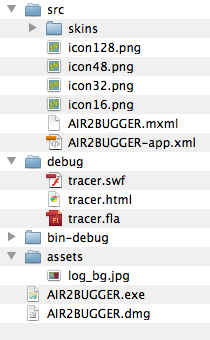
Contents of AIR2BUGGER_src.zip

Click me to download the full source AIR2BUGGER

OS X DMG INSTALLER WINDOWS EXE INSTALLER

Weird, that bat file path doesn’t jive from the toolbar

I just noticed something when running some batch files on Windows 7. If I launch the file from Windows Explorer, the path in the command window matches the location of the batch file.

Bat file path and cmd paths match when you double click it

The paths, they match!

However, I typically launch my batch files from a toolbar on my taskbar that points to the same folder.  The batch file still works, but the path shown in the command window is weird.  I have no idea how an Adobe Version Cue path could get injected, but it does.

Launching a bat from a toolbar injects a path to Adobe Version Cue?

Weird paths

To capture both shots of the command window I had to hit Pause.  These aren’t faked, they’re just completely random.

XCOPY script maker utility

Here is an old utility project I started a few years ago to help make XCOPY scripts.  It’s an HTA ( HTML Application ) so it currently only runs in Internet Explorer.  Normally I wouldn’t release IE only code, but XCOPY is a windows only utility, and this is really just a quick and dirty little tool. Usage is simple :

  1. Open with Internet Explorer
  2. Point and click through the options
  3. Click the ‘Make Script’ button

From here you can paste the xcopy script directly onto the command line, or into notepad and Save As “yourfile.bat”.

UPDATE: I can no longer upload the raw hta file to wordpress so I created xcopierHTA.pdf which contains the raw source code.  Copy and paste the code from this PDF into a text file and save as “xcopier.hta”.  Then run the HTA as normal in IE.

Download xcopierHTA.pdf

XCOPY maker in action

XCOPY maker in action

How to find files quickly using the DIR command

How to find files quickly using the DIR command.

Here’s a quick way to find files on your windows machine using the command line, instead of the built in search functionality.

  1. Drop to a command line.
  2. CD your way to the folder you want to search.
  3. Type “dir /S *your file name here*
  4. Hit enter.

So if you wanted to find that hot track on your mp3 drive but don’t know where it’s located, you could do something like this : “dir /S *humps*.mp3”