

Download MRGetScreen – Free Screen Capture Tool with Basic Editing for Windows & Mac
MRGetScreen is a lightweight yet effective screen capturing app designed for users who need to take quick screenshots and make minor edits. Whether you're managing a personal blog, creating tutorials, or documenting software issues, this free tool offers essential features like full-screen and region-based captures, resizing, annotation tools, and border effects. Available for both Windows and Mac, MRGetScreen provides a straightforward experience without the complexity of advanced screen recording software. While it lacks an undo function and session persistence, its simplicity and free access make it a solid choice for basic screen capture needs.
Simple & Effective Screen Capture with Built-in Editing Tools
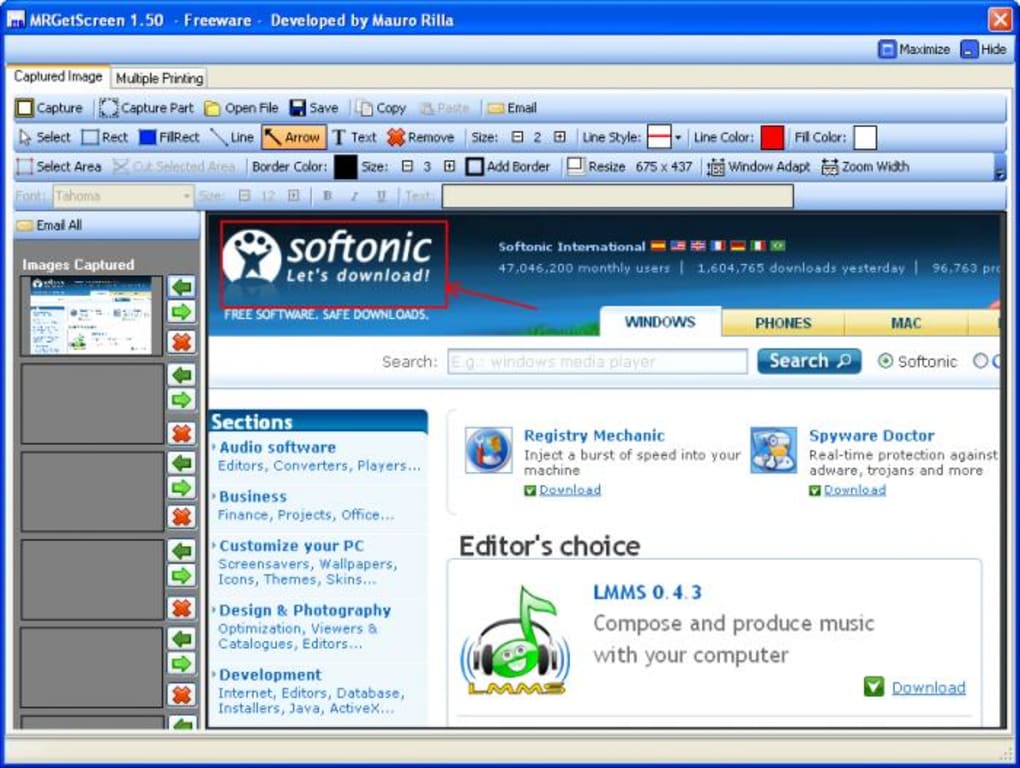
MRGetScreen stands out as a streamlined solution for users who need to capture and annotate screenshots without the overhead of bloated software. The app allows you to capture your entire screen or select a specific region with just a few clicks—ideal for creating blog visuals, troubleshooting guides, or sharing feedback. Once captured, the image appears in the main interface, where you can begin editing immediately. The built-in editing tools are intuitive and cover the essentials: resize the image, draw lines, add arrows, insert rectangles, and include custom text.
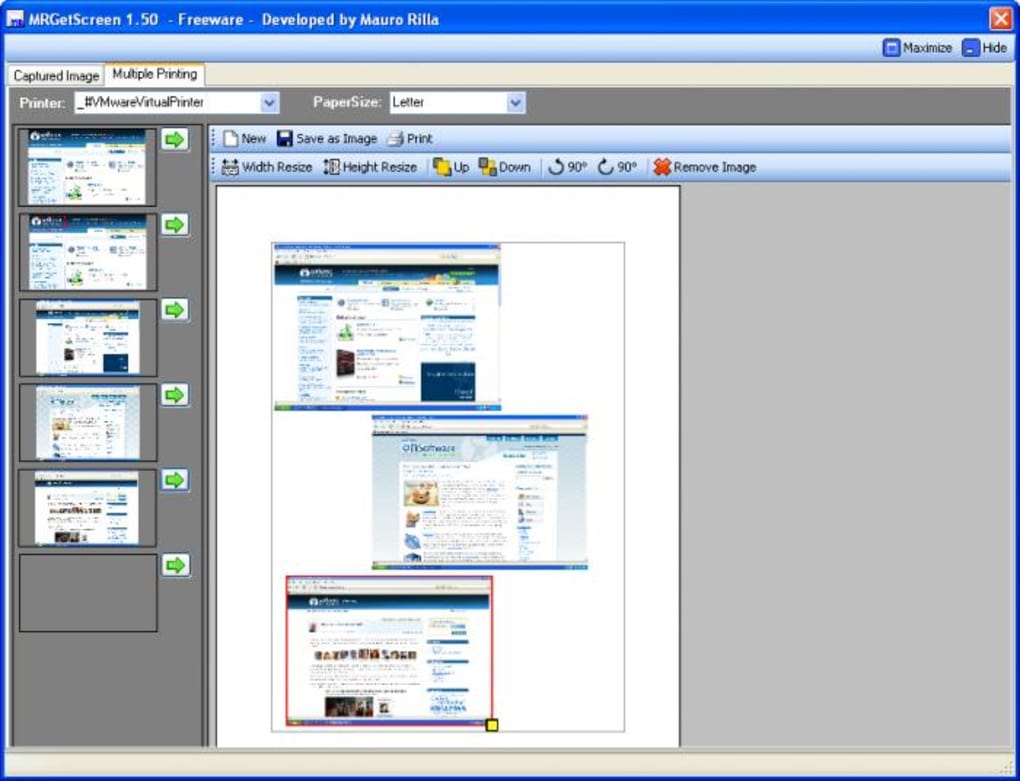
One of the most appreciated features is the ability to work on multiple screenshots simultaneously. The sidebar displays recent captures, allowing you to switch between them easily and apply edits across several images. This is particularly useful when creating step-by-step visual guides. However, it’s important to note that these captures are not saved between sessions—each must be manually exported as a JPG or PNG file. While this may seem limiting, it ensures the app remains lightweight and fast.
The interface, though functional, feels slightly cluttered due to multiple toolbars that house the annotation tools. While this layout provides quick access, it can be overwhelming for first-time users. The text tool, in particular, requires a bit of practice—adjusting font size and positioning isn’t always intuitive. Despite these minor drawbacks, the core functionality is solid and delivers what it promises: fast, no-frills screen capture with basic editing capabilities.
Easy Installation & Intuitive Usage for All Skill Levels
Downloading and installing MRGetScreen is a breeze, making it accessible even for users with minimal technical experience. The software is available for both Windows and Mac, and the setup process takes less than a minute. After downloading the installer from the official site, simply run the file and follow the on-screen prompts. No additional software or dependencies are required, ensuring a clean and secure installation.
Once installed, launching the app opens a minimal interface with clear options: capture full screen, capture selected region, or open a previously saved image. The capture shortcut is customizable, allowing you to assign a key combination that fits your workflow. This is especially helpful if you’re frequently taking screenshots during content creation or documentation.
Using MRGetScreen is straightforward. Click the capture button, select your desired area, and the image loads instantly into the editor. From there, you can use the toolbar to add arrows to highlight important areas, draw borders to emphasize sections, or insert descriptive text. The resizing tool lets you scale images without distorting proportions, which is crucial when preparing visuals for web use. All changes are applied in real time, and you can preview your edits before exporting.
Exporting your final image is simple—just click the save button and choose your preferred format: JPG for web use or PNG for transparent backgrounds. The app supports batch processing through the sidebar, enabling you to edit and save multiple screenshots in one session. This makes MRGetScreen a practical tool for bloggers, educators, and support teams who need to generate consistent visual content quickly and efficiently.
Compatibility & Key Features You Should Know
MRGetScreen is designed to run smoothly on both Windows and Mac operating systems, making it a versatile choice for cross-platform users. It supports Windows 7 and later, as well as macOS 10.12 and above. The app is lightweight, consuming minimal system resources, so it won’t slow down your computer even during extended use. This is particularly beneficial for users working on older machines or those with limited RAM.
Here are the standout features that make MRGetScreen a reliable tool for everyday use:
- Full-screen and region-based capture – Capture your entire screen or a custom-defined area with precision.
- Real-time editing tools – Add text, arrows, lines, rectangles, and borders directly on your screenshots.
- Multiple image management – Use the sidebar to open and edit several captures at once.
- Export in JPG or PNG – Save your edited screenshots in widely supported formats.
- Lightweight & fast – Minimal resource usage ensures smooth performance across devices.
While the app is free to download and use, it doesn’t include advanced features like screen recording, cloud sync, or OCR (text recognition). However, for users who only need basic screenshot capture and editing, MRGetScreen delivers excellent value. Its clean design and lack of ads or in-app purchases make it a trustworthy option for personal and professional use alike.
Pros & Cons: Is MRGetScreen Worth It?
Before deciding whether MRGetScreen is the right tool for you, consider the following pros and cons:
Pros:
- Free to download and use with no hidden costs.
- Simple, intuitive interface perfect for beginners.
- Supports both Windows and Mac platforms.
- Offers essential editing tools like text, arrows, and borders.
- Enables multi-image editing via the sidebar.
Cons:
- Lacks an undo function, making mistakes hard to recover.
- Recent captures are not saved between sessions.
- Text tool can be tricky to use effectively.
- No support for advanced formats like PDF or WebP.
- Doesn’t offer screen recording or cloud integration.
Frequently Asked Questions (FAQ)
Is MRGetScreen free to download?
Yes, MRGetScreen is completely free to download and use. There are no trial periods, subscription fees, or in-app purchases. You can access all core features without paying a single cent.
Does MRGetScreen support Mac and Windows?
Yes, MRGetScreen is available for both Windows (7 and later) and macOS (10.12 and above). It runs smoothly on modern desktop systems and doesn’t require high-end hardware.
Can I edit multiple screenshots at once?
Yes, MRGetScreen includes a sidebar that lets you open and edit multiple screenshots in a single session. However, these captures are not saved between sessions—you must manually export each file.
What file formats does MRGetScreen support?
The app supports saving screenshots in JPG and PNG formats. These are ideal for web use, blogs, and documentation. Unfortunately, it does not support PDF, WebP, or other advanced formats.
Does MRGetScreen have an undo feature?
No, MRGetScreen does not include an undo function. Once you apply an edit, it cannot be reversed. This is one of the app’s main limitations, so it’s recommended to save a backup copy before making changes.
Final Verdict: A Solid Choice for Basic Screen Capture Needs
MRGetScreen is a reliable, free screen capture tool that excels in simplicity and ease of use. While it lacks advanced features like screen recording, cloud storage, or an undo function, it delivers exactly what it promises: fast, clean screenshot capture with basic editing capabilities. It’s perfect for bloggers, educators, and casual users who need to create visual content without the complexity of professional tools.
If you’re looking for a lightweight, secure, and straightforward app to take and annotate screenshots on Windows or Mac, MRGetScreen is worth downloading. Its minimal design, fast performance, and lack of ads make it a refreshing alternative to heavier software. Just remember to save your work manually and avoid relying on the app for complex edits.
Ready to simplify your screenshot workflow? Download MRGetScreen today and start capturing and editing with confidence!








