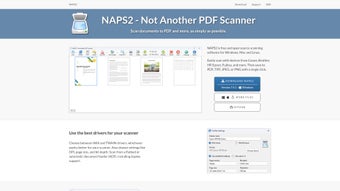

Download NAPS2 – Free, Secure Document Scanning & OCR Tool for Mac & Windows
Overview
NAPS2 (standing for “Not Another PDF Scanner 2”) is a free, open‑source document management application that puts powerful scanning capabilities in the hands of everyday users. Designed with a clean, user‑friendly interface, NAPS2 lets Mac and Windows users quickly turn paper documents into high‑quality PDFs, JPEGs, or TIFF files without the need for expensive proprietary software. The program supports a broad range of scanners from leading manufacturers such as Canon, Brother, HP, Epson, and many others, making it a versatile choice for home offices, small businesses, and students alike. What sets NAPS2 apart is its emphasis on speed and simplicity: you can create a scanning profile in under two minutes, customizing DPI, colour mode, page size, and even selecting between WIA and TWAIN drivers to get the best performance from your hardware. Once a scan is complete, the built‑in PDF preview lets you reorder pages, rotate them, crop unwanted margins, and apply OCR (Optical Character Recognition) in over a hundred languages, turning static images into searchable, editable text. This combination of free pricing, cross‑platform support, and robust feature set makes NAPS2 an essential tool for anyone looking to digitize paperwork efficiently, keep records organized, and reduce clutter on their desk. Whether you need to scan receipts for tax season, digitize old family photos, or convert legal contracts into searchable PDFs, NAPS2 delivers a reliable, secure, and constantly updated solution that rivals many commercial alternatives.
Key Features of NAPS2
- Cross‑Platform Compatibility: Native applications for macOS, Windows, and Linux ensure that you can use NAPS2 on virtually any desktop environment.
- Driver Flexibility: Choose between WIA (Windows Image Acquisition) and TWAIN drivers, allowing you to optimise scanning speed and quality based on your specific scanner model.
- Customisable Scanning Profiles: Create and save profiles with predefined settings such as DPI, colour depth, paper size, and file format, reducing repetitive configuration work.
- Robust PDF Preview & Editing: After scanning, preview pages, rearrange their order, rotate, crop, and delete unwanted pages before finalising the document.
- Multi‑Language OCR: Built‑in OCR engine recognises over 100 languages, turning scanned images into searchable, selectable text for easy data extraction.
- Batch Scanning & Automatic Naming: Scan multiple pages in one session and let NAPS2 automatically name files based on date, profile, or custom templates.
- Secure Export Options: Save scans as PDF, PNG, JPEG, TIFF, or BMP, and apply password protection for sensitive documents.
- Open‑Source & Free: No hidden fees, no trial periods—NAPS2 is completely free, with source code available on GitHub for transparency and community contributions.
- Regular Updates & Community Support: Frequent releases address bugs, add new scanner support, and improve OCR accuracy, all backed by an active user forum.
Installation & Usage Instructions
Getting started with NAPS2 is straightforward, whether you are on a Mac or a Windows PC. Follow these step‑by‑step instructions to download, install, and begin scanning within minutes.
Step 1 – Download the Installer
Visit the official NAPS2 website or its GitHub releases page. Choose the appropriate installer for your operating system: .dmg for macOS, .exe for Windows, or the .AppImage for Linux. Because the software is open‑source and digitally signed, you can download with confidence that the file is free from malware.
Step 2 – Install the Application
On macOS, drag the NAPS2 icon into your Applications folder. Windows users simply run the .exe file and follow the guided wizard—accept the license agreement, choose an installation path, and click “Install”. The installer automatically registers the necessary drivers (WIA/TWAIN) if they are not already present on your system.
Step 3 – Create Your First Scanning Profile
Launch NAPS2 and click “New Profile”. In the profile editor you can set the following options:
- Scanner Selection: Choose your connected scanner from the dropdown list.
- Driver Type: Select WIA for faster Windows scanning or TWAIN for broader compatibility.
- Resolution (DPI): Typical values are 150 DPI for text documents, 300 DPI for photos, and 600 DPI for high‑detail graphics.
- Colour Mode: Black & White, Grayscale, or Colour.
- Page Size: A4, Letter, Legal, or custom dimensions.
- Output Format: PDF (default), JPEG, PNG, TIFF, or BMP.
Save the profile with a meaningful name (e.g., “Invoices‑2024”). You can create multiple profiles for different tasks, such as “Business Cards” or “Photo Archive”.
Step 4 – Scan Your Documents
With the profile selected, click the “Scan” button. NAPS2 will communicate with your scanner, displaying a live preview. Place each page on the feeder or glass, press “Scan” for each sheet, and watch the preview pane populate. The built‑in OCR engine can be toggled on or off; enabling it will automatically run text recognition after the scan finishes.
Step 5 – Edit and Export
After scanning, use the thumbnail view to rearrange pages by dragging, rotate any page with the rotate icons, or crop excess margins with the crop tool. Once satisfied, click “Save”. Choose a destination folder, set a file name pattern, and decide whether to encrypt the PDF with a password. The final file is ready for sharing, archiving, or uploading to cloud storage.
Throughout the process, NAPS2 provides real‑time progress indicators and logs any errors, making troubleshooting simple. The software also supports batch operations, allowing you to scan large volumes without manual intervention.
Compatibility, Pros & Cons
Supported Operating Systems: macOS 10.13 or later, Windows 7 and newer (including Windows 10 & 11), and major Linux distributions via AppImage. While the primary focus is desktop environments, the underlying scanning engine can be accessed by other applications through its command‑line interface, offering developers flexibility for integration.
Pros
- Free & Open‑Source: No licensing fees, with full transparency of source code.
- Easy Profile Setup: Customisable settings can be saved and reused, cutting down repetitive configuration.
- Powerful OCR: Supports over 100 languages, enabling searchable PDFs for multilingual documents.
- Driver Flexibility: Choice between WIA and TWAIN maximises compatibility with a wide range of scanners.
- Robust Editing Tools: Page reordering, rotation, cropping, and batch renaming streamline document preparation.
- Secure Export Options: Password protection and encryption keep sensitive files safe.
- Active Community: Frequent updates and responsive forums help resolve issues quickly.
Cons
- Limited Mobile Support: No native iOS or Android apps; scanning must be performed on a desktop.
- Advanced Features Require Manual Setup: Some power users may need to edit configuration files for niche scanner models.
- UI Simplicity Over Aesthetics: The interface is functional but lacks the polished look of some commercial alternatives.
Overall, the benefits of NAPS2 far outweigh its minor drawbacks, especially for users who value a free, secure, and regularly updated scanning solution. Its compatibility with both macOS and Windows ensures that teams with mixed environments can standardise on a single tool without additional cost.
FAQ & Conclusion
Is NAPS2 really free, or are there hidden costs?
NAPS2 is completely free and open‑source. There are no subscription fees, no trial periods, and no hidden in‑app purchases. All features, including OCR, are available to every user.
Can NAPS2 scan directly to cloud storage services?
While NAPS2 does not have built‑in cloud integration, you can save scanned files to a local folder that syncs with services like Dropbox, Google Drive, or OneDrive, achieving automatic cloud backup.
Does NAPS2 support duplex (double‑sided) scanning?
Yes, if your scanner hardware supports duplex scanning, NAPS2 can detect and use that feature. Simply enable the “Duplex” option in your scanning profile.
How accurate is the OCR for non‑Latin scripts?
NAPS2 leverages the Tesseract OCR engine, which provides strong accuracy for many languages, including Cyrillic, Arabic, Chinese, and Japanese. While results are generally reliable, highly stylised fonts may require manual correction.
Can I use NAPS2 on a Linux machine?
Yes. NAPS2 offers an AppImage for most major Linux distributions, allowing you to run the application without complex installation steps.
Conclusion
For anyone looking to digitise paperwork quickly, securely, and without breaking the bank, NAPS2 stands out as a top‑tier scanning solution. Its free, open‑source nature removes financial barriers, while the extensive feature set—driver flexibility, custom profiles, powerful OCR, and robust editing tools—places it on par with premium commercial products. Whether you’re a student organising lecture notes, a freelancer handling client contracts, or a small business archiving invoices, NAPS2 delivers a seamless, reliable experience across macOS, Windows, and Linux. Download NAPS2 today, set up your first profile in minutes, and enjoy the peace of mind that comes with searchable, well‑organized digital documents.
Click here to download NAPS2 for free and start transforming your physical files into searchable PDFs instantly.








