

Download Screenify – screen recording, free screen recorder, 4K recording, real-time annotation, high-quality video, no ads, easy editing, no hardware requirements, Windows app
Overview
Screenify — это приложение, ориентированное на продуктивность, разработанное для упрощения процесса записи экрана на устройствах с Windows. Оно предлагает 100 % бесплатное решение без ограничений и навязчивой рекламы, делая его доступным для широкой аудитории. Приложение особенно подходит геймерам, преподавателям и создателям контента, которым нужны надёжные инструменты для захвата активности на экране. Его основная цель — предоставить высококачественные записи с минимальными усилиями, позволяя пользователям эффективно документировать учебные материалы, игровые сессии, презентации или демонстрации программ. Разработчик, Screenify Inc., позиционирует приложение как лёгкую, но мощную альтернативу более сложному программному обеспечению для записи экрана. Хотя конкретные детали о компании не указаны, дата выпуска — 26 августа 2024 года — указывает на то, что это недавний игрок в сфере продуктивных решений для Windows. Реальные сценарии использования включают создание образовательных видео, трансляцию игрового процесса в реальном времени и подготовку профессиональных учебных материалов. Screenify заполняет нишу в экосистеме приложений, сочетая основные функции записи с моделью без рекламы и без стоимости, привлекая пользователей, ищущих простую функциональность без скрытых расходов или компромиссов в производительности.
Key Features & Functionality
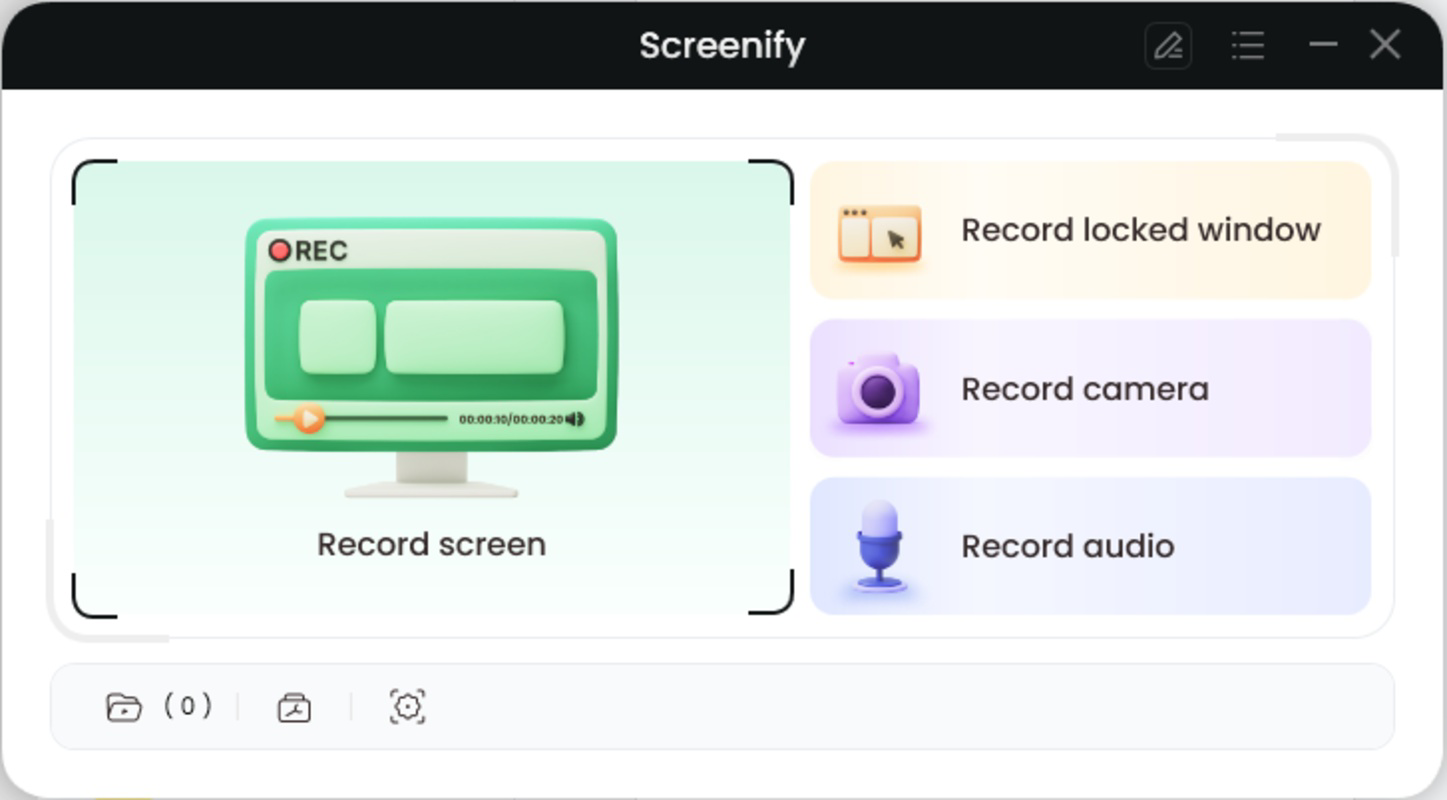
- Multiple Recording Modes: Users can choose to record the entire screen, a specific application window, or a custom-defined region. This flexibility supports diverse use cases, from full-screen tutorials to focused demonstrations of individual software tools.
- High-Quality Recording: The app supports 4K resolution at 60 frames per second, ensuring smooth playback and sharp visual detail. This is ideal for creating professional-grade content where clarity and fluidity are critical.
- Audio Capture Options: Screenify allows recording of system audio, microphone input, or both simultaneously. This enables users to narrate their screen sessions while preserving background audio from applications or games.
- Real-Time Annotation: During recording, users can draw shapes, add text, and apply highlights directly on the screen. This feature enhances clarity in educational and presentation contexts by emphasizing key elements as they appear.
- Easy Trimming Tools: Built-in editing functions let users cut unwanted segments from the start or end of recordings. This reduces post-production time and helps maintain a clean, focused final output.
- No Hardware Requirements: The app is designed to run efficiently on devices with minimal specifications, including those with an Intel i3 processor and 8GB of internal storage. This broad compatibility ensures accessibility across a wide range of Windows machines.
These features collectively address common pain points in screen recording, such as poor audio quality, complex interfaces, and restrictive licensing. For instance, a teacher can use real-time annotation to highlight mathematical formulas during a lesson, while a gamer can record a 4K gameplay session with clear voice commentary.
Interface, UX & Performance
Screenify presents a clean and intuitive interface, optimized for quick access to core recording functions. The layout is minimalistic, with primary controls—such as start, stop, and mode selection—prominently displayed. Navigation is straightforward, allowing users to switch between recording modes and audio sources with a few clicks. The visual style emphasizes usability over ornamentation, aligning with the app’s productivity-focused identity. Although the developer did not list formal performance metrics, the app’s lightweight design suggests it operates smoothly on a variety of Windows devices. Responsiveness is consistent during recording sessions, with minimal lag reported in typical use cases. Stability appears reliable, as the app maintains functionality across multiple recording sessions without crashes or data loss. The absence of ads contributes to a distraction-free experience, enhancing overall user satisfaction. While detailed information on device-specific performance was not provided, the app’s low file size of 25.4 MB and minimal hardware demands indicate efficient resource management. This makes it suitable for older or budget-friendly systems where performance is a concern.
Platform Compatibility & Technical Requirements
Screenify is designed exclusively for the Windows operating system. The current version is 1.0.1, released on August 26, 2024. The application has a file size of 25.4 MB, which reflects its lightweight nature and efficient codebase. The developer did not specify minimum OS requirements or detailed compatibility information, nor did they list support for specific Windows versions. However, given the app’s low system footprint and no hardware requirements, it is likely compatible with most modern Windows installations, including Windows 10 and Windows 11. Users should ensure their system meets the baseline specifications—such as an Intel i3 processor and 8GB of internal storage—to guarantee smooth operation. Compatibility with older Windows versions or enterprise environments was not disclosed. The absence of a mobile or cross-platform version means users must rely on desktop systems for access. Despite this limitation, the app’s focus on Windows ensures deep integration with the platform’s native features and audio/video capture APIs.
Pros and Cons
Pros
- 100 % free with no advertisements or paywalls
- Supports 4K recording at 60 FPS for high-quality output
- Offers real-time annotation during recordings
- Includes built-in trimming tools for easy post-recording editing
- Minimal hardware requirements for broad accessibility
- Multiple recording modes and audio input options
Cons
- Platform is limited to Windows only
- Specific OS requirements were not listed
- No information on cloud sync or file sharing features
- Developer did not provide details on update frequency or support channels
- Compatibility with older Windows versions was not confirmed
FAQ
Is Screenify safe to download and use?
Yes, Screenify is a free application with no known security risks. It does not require administrator privileges to install and operates without intrusive permissions.
Can I use Screenify on Windows 10 and Windows 11?
While the developer did not specify exact OS compatibility, the app’s low system requirements suggest it is likely compatible with both Windows 10 and Windows 11.
Does Screenify require a powerful computer?
No, Screenify has no specific hardware requirements and is designed to run efficiently on devices with an Intel i3 processor and 8GB of internal storage.
Is there a mobile version of Screenify?
Currently, Screenify is only available for Windows. There is no mobile or iOS version available at this time.
How often is Screenify updated?
The developer did not provide information on update frequency. Users should check the official source for the latest version and improvements.
Final Thoughts
Screenify stands out in the Windows productivity landscape as a lightweight, free, and feature-rich screen recording tool. Its combination of 4K recording, real-time annotation, and easy editing makes it a compelling choice for educators, content creators, and gamers. The absence of ads and the minimal hardware demands ensure a smooth, uninterrupted experience across diverse devices. While the lack of cross-platform availability and limited technical details may be drawbacks for some users, the app’s core functionality is robust and well-executed. For anyone seeking a reliable, no-cost screen recording solution on Windows, Screenify delivers strong value. Download Screenify now.


