
Screenshots
App details
- Version
- 10.89.1 | 3.2.1 | 3.1 | 3.0.0 | 2.0.8 |...
- Size
- 380.69 KB
- Updated
- August 5, 2025
- Requires
- Windows 8
- Language
- English
- License
- Free
- Developer
- teddysoft-ltd
- Category
- Windows OS
About Screenrec
Download Screenrec – Free Screen Capture Tool for Windows, Mac, and Cloud Sharing
Screenrec is a powerful, free screen recording and screenshot tool developed by teddysoft-ltd, designed to simplify how you communicate visual ideas across teams, classrooms, or client projects. Whether you're troubleshooting a software issue, demonstrating a workflow, or creating training content, Screenrec enables you to record your screen with ease—no time limits, no watermarks, and no cost. This lightweight yet robust software supports full desktop recording, system audio, microphone input, and webcam overlay, making it ideal for educators, remote workers, developers, and business professionals. With seamless cloud integration, recordings are automatically saved to your private cloud account and instantly shareable via a secure link. The tool is compatible with Windows and Mac systems, and its intuitive interface ensures you can start recording in under a minute. All output videos are exported in high-quality MP4 format, supporting up to 1080p at 120 FPS, ensuring crisp, smooth playback. Unlike paid alternatives like Bandicam, Screenrec offers a fully free experience with no hidden fees or feature restrictions—making it a standout choice for budget-conscious users seeking reliable screen capture functionality.
Key Features of Screenrec: Powerful Tools for Effortless Recording
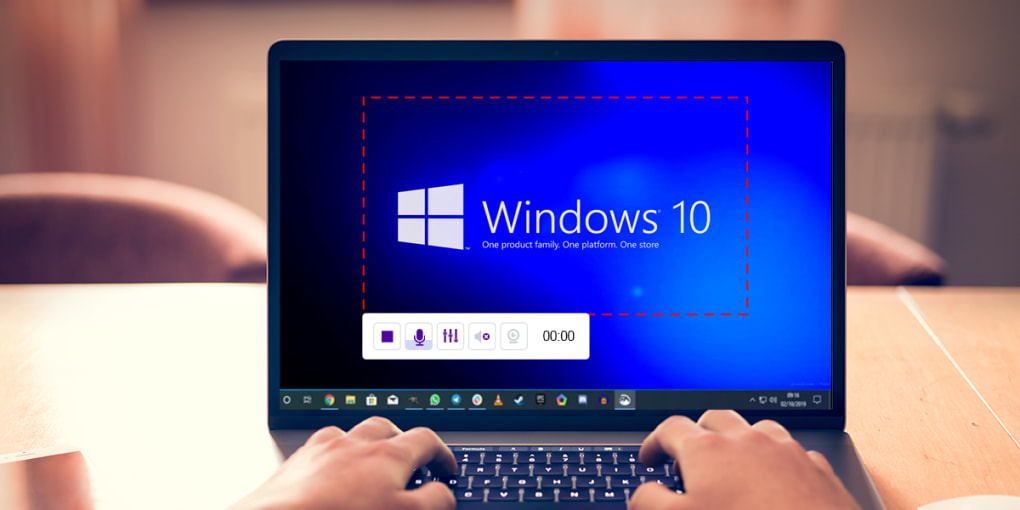
Screenrec stands out in the crowded screen capture market thanks to its smart blend of essential features and user-centric design. One of its most impressive capabilities is the ability to record your entire screen, a specific window, or a custom region—giving you full control over what gets captured. This flexibility is perfect for creating focused tutorials or highlighting specific UI elements during software demonstrations. The tool supports simultaneous recording of system audio, microphone input, and webcam video, allowing you to create rich, engaging content with voice commentary and a personal touch. The facecam overlay feature lets you appear on-screen while recording, which is ideal for building trust and clarity in training videos or client pitches.
Another major highlight is the built-in cloud recording system. Unlike traditional screen recorders that require manual file exports, Screenrec automatically uploads your recordings to your private cloud account. This eliminates the hassle of managing large video files and ensures your content is securely backed up and accessible from any device. The sharing experience is equally seamless—once recording stops, you’re instantly provided with a shareable link, making collaboration effortless. Whether you’re sending a bug report to a developer or sharing a presentation with a remote team, Screenrec streamlines the entire process. Additionally, the app includes basic annotation tools, allowing you to add arrows, text, or highlights directly on your screen during recording or post-production, enhancing clarity and instruction.
For users concerned about performance, Screenrec is impressively lightweight. It runs smoothly even on older or low-spec machines, consuming minimal CPU and RAM. The interface is clean and distraction-free, with all essential controls—record, stop, pause, and settings—easily accessible. With support for 1080p resolution at frame rates from 15 to 120 FPS, the output quality is consistently high, suitable for professional use. The absence of watermarks and time limits makes it a truly unrestricted tool, ideal for long-form recordings or repeated use. Whether you're a teacher creating lessons, a freelancer pitching ideas, or a tech support agent explaining issues, Screenrec delivers a complete, no-frills solution that just works.
How to Install and Use Screenrec: Simple Steps for Beginners
Getting started with Screenrec is incredibly straightforward, even for users with no prior experience in screen recording. The first step is to download the software from the official website. The installer is lightweight and quick to run—typically under 10 seconds on a modern PC. Once downloaded, simply double-click the file and follow the on-screen prompts. The installation process requires no advanced configuration; it’s designed to be plug-and-play. After installation, launch the app, and you’ll be greeted by a minimal, intuitive interface that’s easy to navigate.
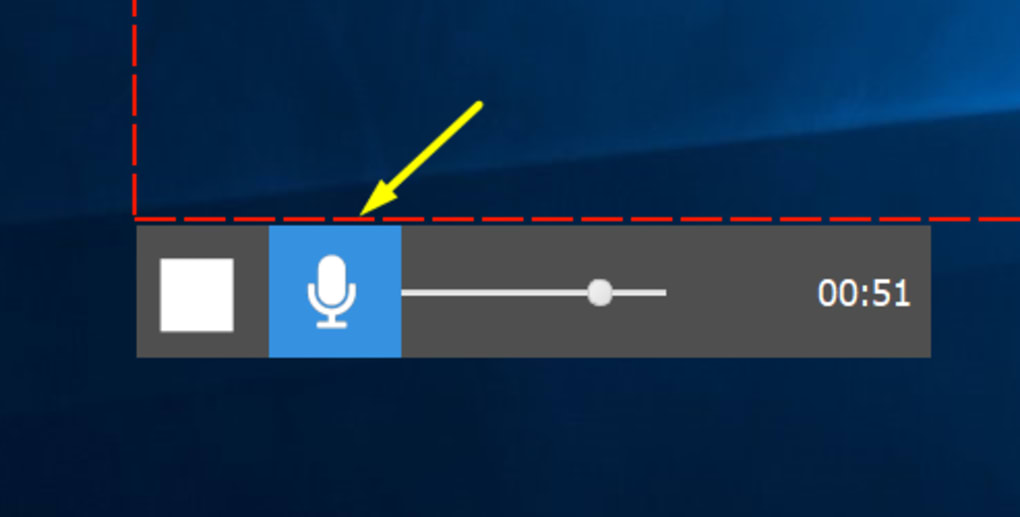
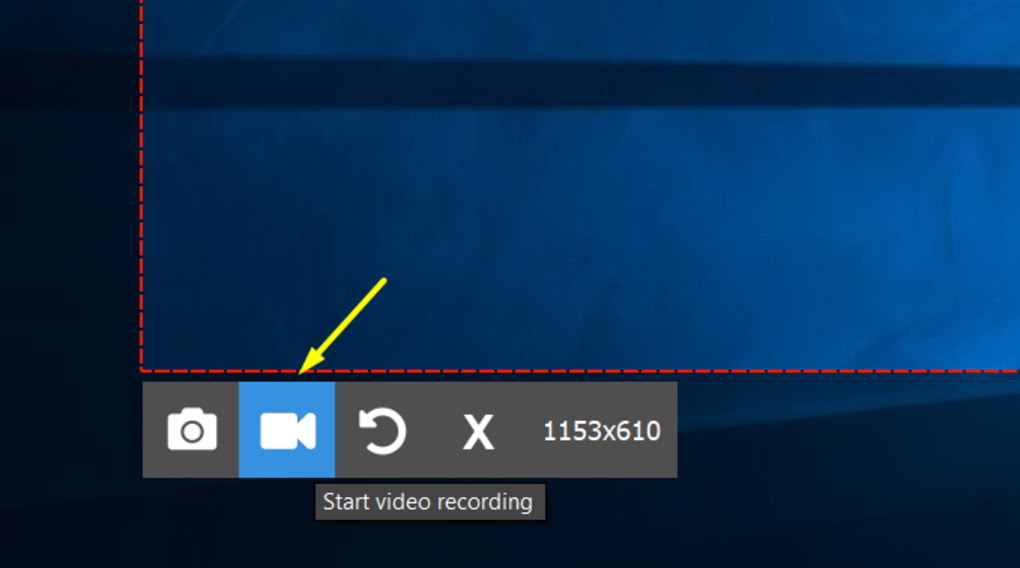
Before recording, you’ll need to set up your preferences. Click on the settings menu to adjust audio sources—choose between system audio, microphone, or both. You can also enable the webcam overlay if you want to appear in your video. Next, select your recording area: either the full screen, a specific window, or a custom region by dragging the selection box. This flexibility ensures you can focus on exactly what matters. Once everything is set, click the record button and begin your session. The app uses a simple three-step workflow: select area → press record → stop and share.
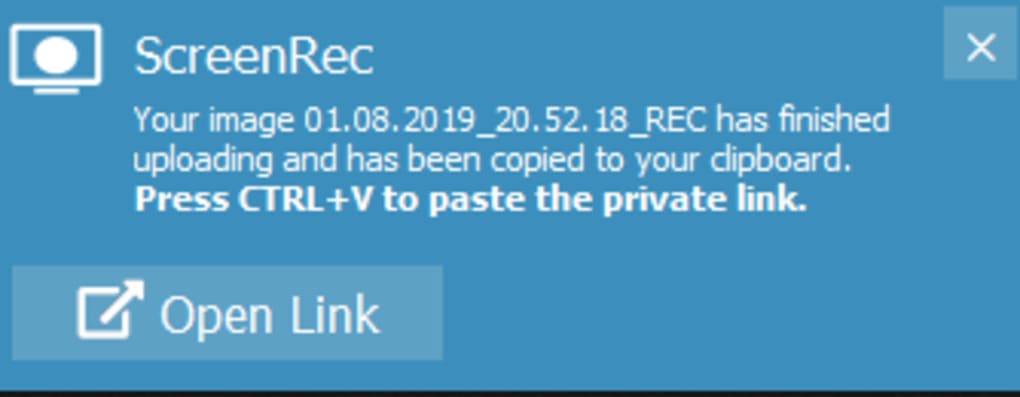
After stopping the recording, Screenrec automatically uploads the file to your private cloud. You’ll then receive a secure sharing link, which you can copy and send via email, messaging apps, or project management tools. No need to export or compress files manually. The entire process—from start to share—can be completed in under two minutes. For users who want to revisit past recordings, the built-in gallery provides a centralized view of all your projects, complete with timestamps and thumbnails. You can easily edit, re-share, or delete recordings directly from this interface. With its minimal learning curve and efficient workflow, Screenrec is perfect for anyone who values speed, simplicity, and reliability in their screen capture tasks.
Compatibility and System Requirements: Works on Windows and Mac
Screenrec is designed for broad accessibility, supporting both Windows and Mac operating systems. It runs smoothly on Windows 7 and later versions, including Windows 10 and Windows 11, ensuring compatibility with the vast majority of desktop users. On Mac, it works on macOS Mojave (10.14) and newer, making it suitable for both older and modern Apple devices. The software is optimized for performance, with low resource consumption that won’t slow down your system during recording sessions—even on machines with limited RAM or older processors.
One of the key advantages of Screenrec is its cross-platform cloud integration. Whether you're using a Windows laptop at work or a Mac at home, your recordings are synced across devices via your private cloud account. This means you can start a recording on one device and access or share it from another without any hassle. The app also supports multiple languages, making it accessible to a global audience. No additional plugins or drivers are required—everything is included in the installer. This makes Screenrec a truly portable solution, ideal for remote teams, educators, and freelancers who work across different platforms.
For mobile users, while Screenrec doesn’t offer native Android or iOS apps, the cloud-based sharing system allows you to view and share recordings directly from your smartphone or tablet through a web browser. This ensures that your content remains accessible regardless of your device. Whether you’re on a Windows desktop, Mac, or mobile device, Screenrec ensures consistent performance and seamless collaboration. Its lightweight footprint and broad compatibility make it one of the most versatile free screen capture tools available today.
Pros and Cons of Screenrec: A Balanced View
- Pros:
- Completely free with no time limits or watermarks
- Supports screen, audio, and webcam recording simultaneously
- Automatic cloud upload and instant sharing via link
- Lightweight and low system resource usage
- Simple, intuitive interface for quick onboarding
- 1080p recording at up to 120 FPS
- Basic annotation and facecam overlay features
- Compatible with Windows and Mac systems
- Private cloud storage ensures data security
- Cons:
- Limited to desktop platforms (no native mobile app)
- No advanced editing tools (e.g., trimming, transitions)
- Cloud storage may require a subscription for large volumes
- Facecam quality depends on webcam resolution
- Basic annotation tools—no advanced graphic features
Frequently Asked Questions (FAQ)
Is Screenrec really free to use?
Yes, Screenrec is completely free to download and use with no hidden fees, time limits, or watermarks. You can record unlimited videos and share them instantly through secure cloud links.
Can I use Screenrec on Mac and Windows?
Absolutely. Screenrec is officially supported on both Windows 7 and later, as well as macOS Mojave (10.14) and newer versions.
How do I share my recordings?
After stopping a recording, Screenrec automatically uploads the file to your private cloud and generates a secure sharing link. You can copy and send this link via email, Slack, Teams, or any other platform.
Does Screenrec support webcam recording?
Yes, you can enable the facecam overlay during recording, allowing you to appear on-screen while demonstrating your screen content.
Can I edit my recordings after capture?
Screenrec offers basic annotation tools during recording, but advanced editing features like trimming or adding transitions are not available. For more complex edits, you may need to use a separate video editor.
Final Verdict: Why Screenrec Is a Must-Have Tool
If you're looking for a secure, free, and efficient screen recording tool that delivers professional results without the price tag, Screenrec is an excellent choice. It excels in simplicity, performance, and cloud integration—making it ideal for educators, remote workers, developers, and business professionals. Its ability to record screen, audio, and webcam simultaneously, combined with instant sharing via secure links, streamlines communication and saves countless hours. While it lacks advanced editing features and native mobile apps, its core functionality is rock-solid and perfectly suited for everyday use.
For those tired of paywalls and watermarks from tools like Bandicam, Screenrec offers a refreshing alternative that’s both powerful and completely free. Whether you're creating tutorials, reporting bugs, or pitching ideas, this software empowers you to communicate visually and effectively.
Download Screenrec today and transform the way you share ideas—fast, free, and secure.
Guides & Tutorials
How to install Screenrec
- Click the Download button above.
- Once redirected, accept the terms and click Install.
- Wait for the Screenrec download to finish on your device.
How to use Screenrec
This software is primarily used for its core features described above. Open the app after installation to explore its capabilities.
User Reviews
No reviews yet. Be the first to share your experience.
You may also like
more
Llama 2
Free-to-use large language model As the new addition to Meta’s arsenal of langua...

NotebookLM
Revolutionizing the note-taking and idea-generation process NotebookLM is an exp...

Github co pilot
AI-inspired software development and coding platform GitHub Copilot is a browser...

Google Gemma
Google’s lightweight AI models Introducing Google Gemma , a family of cutting-ed...

AI Image Enlarger
A free app for Windows, by ai-image-larger. AI Image Enlarger is a free software...

DALL E
AI-driven text-to-image transformation engine DALL·E is a free graphic and desig...
