
Screenshots
App details
- Version
- 1.2.1
- Size
- 185.85 MB
- Updated
- March 7, 2024
- Requires
- Windows 10
- Language
- English
- License
- Free
- Developer
- Philip Patrick Butkiewicz
- Category
- Windows OS
About SharpCut
Download SharpCut – free video cutter tool, fast, no re‑encode
Overview of SharpCut
SharpCut is a lightweight, free Windows program created by developer Philip Patrick Butkiewicz. Its core purpose is to let users extract scenes or individual frames from video files without the need for time‑consuming re‑encoding. By working directly on the source file, SharpCut preserves the original video quality while delivering separate clips or still images in seconds. The interface is intentionally minimalistic: a single timeline, a frame‑by‑frame scrubber, and clear “Cut” and “Export” buttons. This design philosophy makes SharpCut ideal for quick personal edits, such as pulling out a funny moment from a home video, preparing a teaching snippet, or creating short highlights for social media. The tool supports the most common container formats—MP4, MKV, and AVI—along with MP3 audio tracks for those who want to add background music to their cuts. Unlike many all‑in‑one editors that bundle complex timelines and filters, SharpCut focuses on a single, well‑executed function: accurate, lossless cutting. This specialization results in a snappy experience even on older desktop computers, and the program runs entirely offline, ensuring that your media stays private. If you’ve ever struggled with “slow scrubbing” in larger editors or worried about quality loss after export, SharpCut offers a secure, fast, and completely free alternative that integrates seamlessly into a Windows workflow.
Key Features & Simple Installation
Feature List
- Lossless cutting – extracts video segments without re‑encoding.
- Frame‑accurate selection – move one frame at a time for precise cuts.
- Supports MP4, MKV, AVI containers and MP3 audio tracks.
- Option to add background music to exported clips.
- Fast timeline scrubbing designed for low‑end desktops.
- Batch export – cut multiple scenes in one session.
- Portable executable – no installer required, runs directly from a folder.
- Free for personal and commercial use.
Installation & First‑Time Use
Installing SharpCut is intentionally straightforward. After downloading the .zip archive from the official website, simply extract the contents to a folder of your choice. The program is delivered as a portable SharpCut.exe file, which means there is no lengthy setup wizard, registry changes, or additional dependencies. To launch the app, double‑click the executable; Windows will prompt a standard “Open File – Security Warning” the first time, which you can safely allow because the file is signed by the developer.
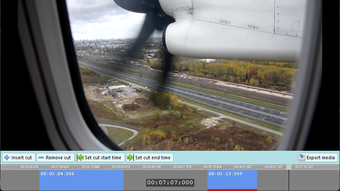
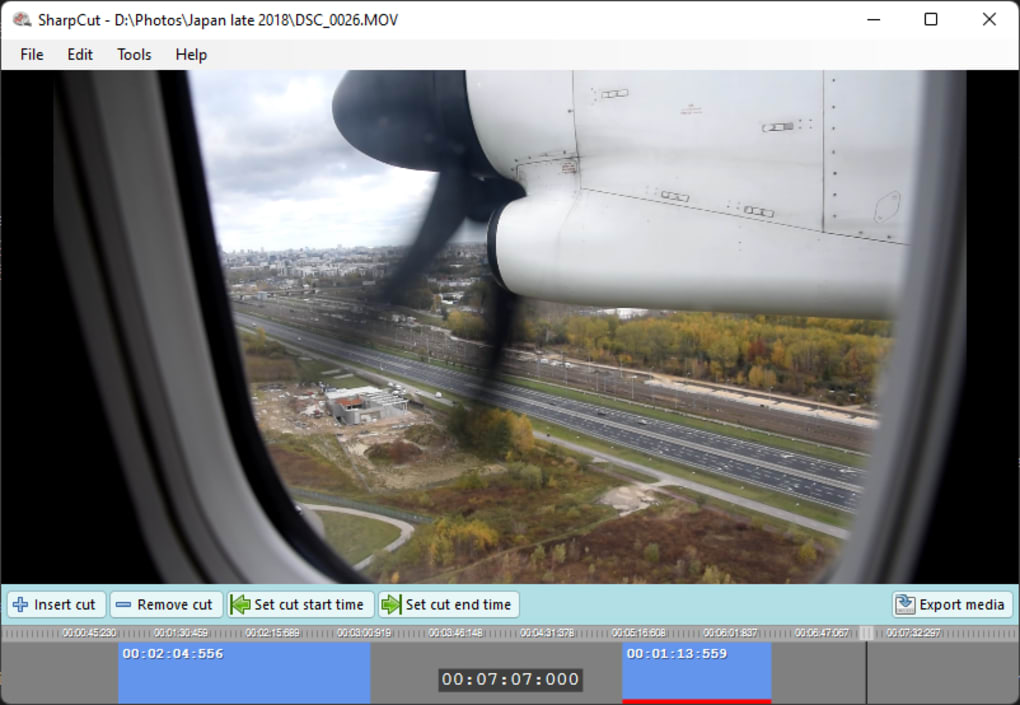
Once opened, you’ll see a clean window with three main panes: the file explorer on the left, the timeline in the center, and a preview panel on the right. Drag an MP4, MKV, or AVI file into the timeline, or use the “Open” button to browse. The scrubber appears below the timeline; you can move it using the mouse or arrow keys for frame‑by‑frame precision. Mark the start point with the “Set In” button and the end point with “Set Out.” If you wish to extract a single frame, pause the preview and click “Capture Frame.” After defining your segment, press “Cut & Save.” SharpCut will ask you to choose a destination folder and file name; the original video remains untouched, and the new clip is saved instantly.
Adding music is equally easy. Click the “Add Audio” icon, select an MP3 file, and adjust the volume slider. The audio track is merged into the final export without altering the video’s native sound track. Finally, the “Settings” menu lets you choose the default output format (MP4 is recommended for universal compatibility) and set a default folder for all cuts, streamlining repetitive workflows.
Compatibility, Performance & System Requirements
SharpCut is built exclusively for the Windows operating system, supporting Windows 10, Windows 11, and legacy Windows 7 (with .NET Framework 4.6 or later installed). The application runs as a 64‑bit process but also offers a 32‑bit binary for older machines. Because SharpCut works directly on the source file without transcoding, it does not require a powerful GPU; a modest CPU (Intel i3 or AMD Ryzen 3) and at least 2 GB of RAM are sufficient for smooth operation. The program uses minimal system resources—typically under 50 MB of RAM and negligible CPU load—making it suitable for laptops, netbooks, and even virtual desktops.
One of SharpCut’s standout technical achievements is its optimized timeline scrubbing engine. Traditional editors often suffer from “abysmal timeline scrubbing performance,” especially when handling high‑resolution footage. SharpCut bypasses this issue by reading only the necessary keyframes and using a lightweight indexing system, which results in near‑instant preview jumps regardless of video length or bitrate. This design also means the application starts up in under three seconds, even on older HDD‑based systems.
In terms of file compatibility, SharpCut relies on the FFmpeg libraries compiled into the executable. This grants native support for the most common codecs (H.264, H.265, VP9, AAC) and container formats (MP4, MKV, AVI, MOV). If a video uses an exotic codec not bundled with SharpCut, the program will display a friendly error message and suggest installing a full FFmpeg build. However, for everyday users dealing with standard MP4 or MKV files, SharpCut works out‑of‑the‑box without additional plugins.
Security is another priority. Because SharpCut does not require an internet connection for cutting, there is no risk of data being uploaded to cloud services. The executable is digitally signed, and the official download page provides SHA‑256 checksums so users can verify file integrity. Regular updates are released on a quarterly basis, delivering bug fixes, new codec support, and minor UI refinements. Users can enable the “Auto‑Check for Updates” option, which quietly checks for a newer version and prompts a safe download if one is available.
Pros, Cons & Frequently Asked Questions
Pros
- Completely free with no hidden fees or watermarks.
- Lossless cutting preserves original video quality.
- Fast, frame‑accurate timeline scrubbing even on low‑end PCs.
- Simple, portable installation—no admin rights required.
- Supports MP4, MKV, AVI and MP3 audio overlay.
- Batch export saves time when cutting multiple scenes.
Cons
- Windows‑only; no native macOS, Linux, Android, or iOS versions.
- Lacks advanced editing features like transitions, subtitles, or color correction.
- No built‑in video preview export; you must rely on external players for final review.
- Occasional compatibility warnings with very rare codecs.
FAQ
Can SharpCut cut videos without losing any quality?
Yes. SharpCut extracts the selected segment directly from the source file, so there is no re‑encoding and the original bitrate, resolution, and codec are preserved.
Which video formats are supported?
SharpCut works with MP4, MKV, and AVI containers. Audio can be added using MP3 files. The underlying FFmpeg library also supports many common codecs, but the UI only lists these three formats.
Do I need an internet connection to use SharpCut?
No. SharpCut is a fully offline tool. An internet connection is only required if you enable the optional auto‑update check.
Is there a limit to the length of the clip I can extract?
There is no built‑in length limit. The only restriction is the size of the original file and the available disk space on your computer.
Can I add background music to the cut video?
Yes. SharpCut provides an “Add Audio” button that lets you import an MP3 file and mix it with the original audio track before exporting.
Conclusion & Call to Action
For anyone who needs a quick, reliable way to split videos without compromising quality, SharpCut delivers exactly what it promises: a free, secure, and ultra‑fast cutter built for Windows desktops. Its focused feature set eliminates the bloat of full‑scale editors while still offering essential capabilities like frame‑accurate selection, batch exporting, and optional audio overlay. Even though it lacks advanced effects, the trade‑off is a lean, portable program that runs on modest hardware and respects user privacy.
If you’re tired of slow scrubbing, unnecessary re‑encoding, or costly subscription editors, give SharpCut a try. Download the latest version, extract the portable executable, and start cutting your favorite scenes in seconds. The developer updates the software regularly, so you’ll benefit from continued improvements without ever paying a dime. Take control of your video library today—download SharpCut now and experience lossless editing at lightning speed.
Guides & Tutorials
How to install SharpCut
- Click the Download button above.
- Once redirected, accept the terms and click Install.
- Wait for the SharpCut download to finish on your device.
How to use SharpCut
This software is primarily used for its core features described above. Open the app after installation to explore its capabilities.
User Reviews
No reviews yet. Be the first to share your experience.
You may also like
more
Llama 2
Free-to-use large language model As the new addition to Meta’s arsenal of langua...

NotebookLM
Revolutionizing the note-taking and idea-generation process NotebookLM is an exp...

Github co pilot
AI-inspired software development and coding platform GitHub Copilot is a browser...

Google Gemma
Google’s lightweight AI models Introducing Google Gemma , a family of cutting-ed...

AI Image Enlarger
A free app for Windows, by ai-image-larger. AI Image Enlarger is a free software...

DALL E
AI-driven text-to-image transformation engine DALL·E is a free graphic and desig...
