
Screenshots
App details
- Version
- 3.9.3 | 3.9 | 3.6 | 3.5
- Size
- 24.26 KB
- Updated
- May 21, 2025
- Requires
- Windows 11
- Language
- English
- License
- Free
- Developer
- Randyrants
- Category
- Windows OS
About SharpKeys
Download SharpKeys – Free Keyboard Remapping Tool for Windows (Secure, Easy to Use)
SharpKeys is a free, secure, and lightweight utility for Windows that allows you to remap keyboard keys instantly. Whether you're adjusting a new keyboard layout, fixing ergonomic issues, or pulling off a harmless office prank, SharpKeys gives you full control over your keyboard’s functionality. This powerful tool modifies your system’s registry to redirect key inputs, so you can customize every key to suit your workflow. With no complex setup and a user-friendly interface, it’s ideal for both beginners and advanced users. You can remap keys like Shift, Ctrl, Alt, Enter, Backspace, and even special function keys. Changes are saved in the Windows registry and take effect after a reboot—making it a reliable solution for long-term keyboard customization. The program is open-source, safe to use, and supports Windows 7 through Windows 11. Best of all, you can reverse any changes with a single click, ensuring you never get locked out. Download SharpKeys today and take full control of your keyboard experience.
Why Use SharpKeys? Customize Your Keyboard for Better Productivity
SharpKeys is more than just a keyboard remapping tool—it’s a productivity booster for anyone who spends hours typing. Whether you’ve switched from a Mac to a Windows PC, or you’re using a non-standard keyboard layout like a Dvorak or Colemak, SharpKeys helps you adapt quickly. The program allows you to reassign any key on your keyboard to another function, so you can create a layout that feels natural and efficient. For example, if you're used to the Alt key being on the left side but your new keyboard places it on the right, you can simply remap the keys so the function remains consistent. This is especially helpful for users with physical disabilities or repetitive strain injuries who need customized key placements for comfort. Beyond ergonomics, SharpKeys is a favorite among IT professionals and power users who want to streamline workflows. Imagine assigning a rarely used key to launch your favorite app or remapping the Caps Lock to function as Ctrl—both common tweaks that significantly improve typing speed. The tool also supports advanced features like remapping modifier keys, function keys, and even special characters. It’s not just about fixing a mismatched layout; it’s about personalizing your system to match your unique habits. And since all changes are stored in the Windows registry, they persist across reboots and system updates. The ability to reverse changes instantly adds a layer of safety, so you’re never stuck with a broken layout. Whether you’re a student, a developer, or a remote worker, SharpKeys empowers you to tailor your keyboard to your needs—without spending a dime.
How to Install and Use SharpKeys: Step-by-Step Guide
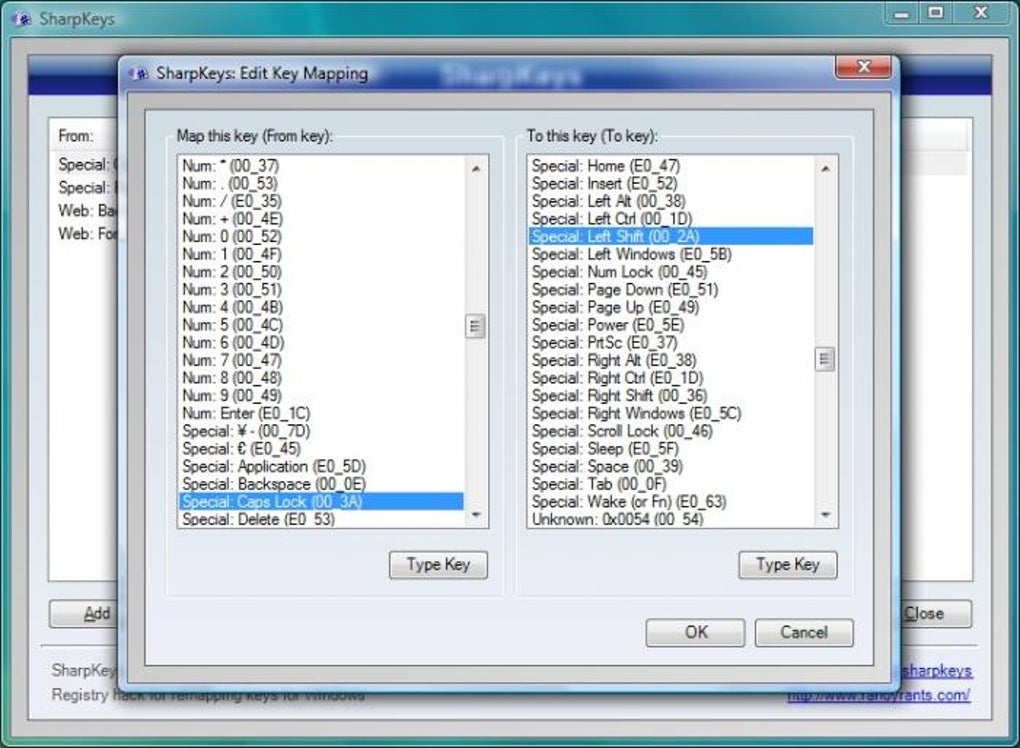
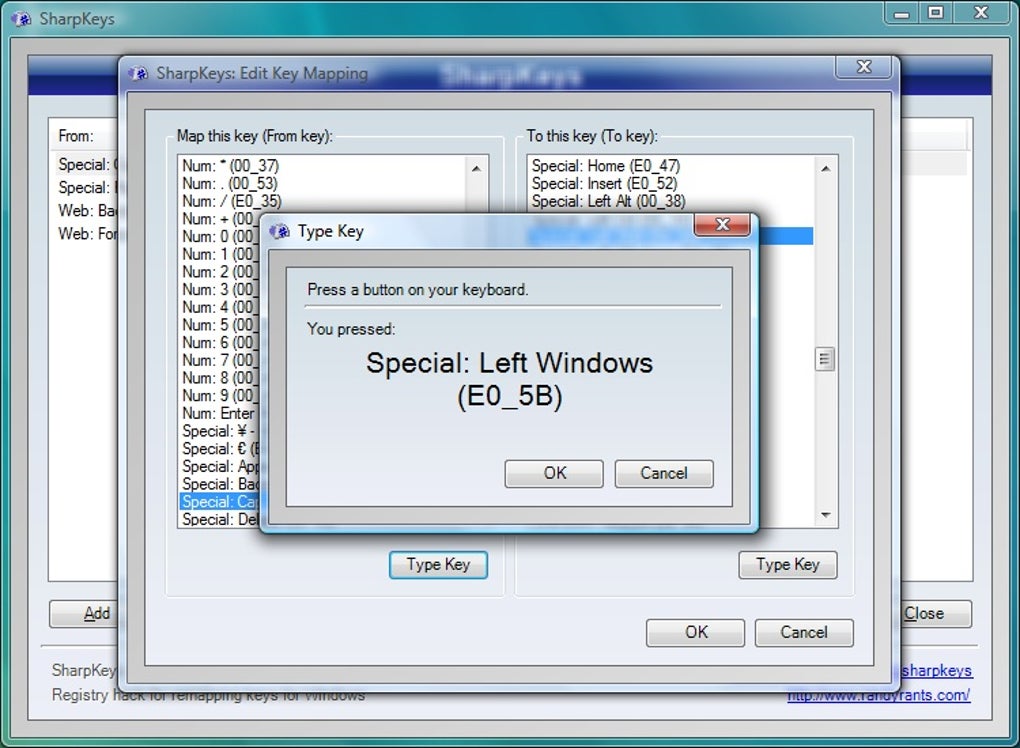
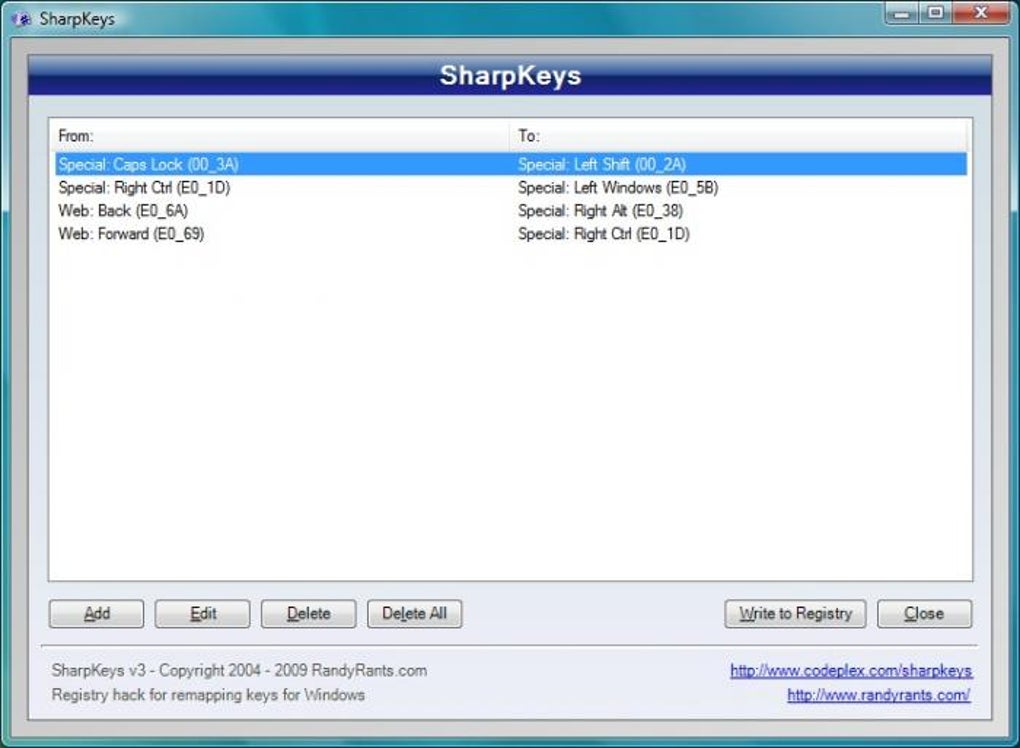
Getting started with SharpKeys is simple and requires no technical expertise. First, download the latest version from the official GitHub repository—ensure you’re using the secure, open-source release. The installer is lightweight and runs without requiring admin rights in most cases. Once installed, launch the application to access the clean, minimal interface. The main window displays two columns: one for the “From” key (original key) and one for the “To” key (new function). To remap a key, click the “Add” button, then use the on-screen keyboard or press the physical key to select the source. Next, choose the target key from the list or press the desired key on your keyboard. For instance, you might map the Caps Lock key to Ctrl by selecting it as the “From” key and Ctrl as the “To” key. After adding your mappings, click the “Write to Registry” button. This action saves the changes to the Windows registry, but they won’t take effect until you restart your computer. It’s recommended to log out and back in or reboot to ensure the new layout loads properly. If you ever want to undo your changes, simply open SharpKeys again, select all mappings, and click “Delete.” Then, write to the registry again to clear the changes. You can also use the built-in “Restore Default” option to reset to the original layout. The tool also includes a registry monitor that lets you view and manage all active remappings. This transparency ensures you’re always in control. Because the tool doesn’t alter system files directly, it’s safe and reversible—perfect for users who want flexibility without risk.
Compatibility, Safety, and Key Features of SharpKeys
SharpKeys is compatible with all major Windows operating systems, including Windows 7, 8, 10, and 11. It runs on both 32-bit and 64-bit architectures and doesn’t require a constant internet connection. The software is lightweight, consuming minimal system resources, making it ideal for older machines or low-spec devices. One of its standout features is its open-source nature—developers can inspect, modify, and redistribute the code, ensuring full transparency and trust. The program supports over 100 key remapping combinations, allowing for complex custom layouts. You can remap standard keys, function keys (F1–F12), modifier keys (Ctrl, Alt, Shift), and even multimedia keys. The tool also includes a fail-safe mechanism: if you accidentally create a layout that prevents access to the keyboard, you can press Ctrl + Shift + Esc to open Task Manager and restart the system, or use the “Safe Mode” option to restore defaults. Additionally, the application logs all changes, so you can review or delete them at any time. SharpKeys is completely free to download and use—no ads, no trials, no hidden costs. It’s safe for both personal and professional use, and many IT departments use it to help employees transition to new keyboards. The program doesn’t install any background services or tracking software, ensuring your privacy remains intact. With regular updates and a strong community, SharpKeys continues to be a reliable choice for keyboard customization.
Pros and Cons of Using SharpKeys
- Pros:
- Completely free and open-source
- Simple, intuitive interface for all users
- Supports full keyboard remapping across Windows systems
- Changes are reversible with one click
- Lightweight and doesn’t slow down your PC
- Safe to use—no malware or system damage
- Great for ergonomic adjustments and accessibility
- Cons:
- Requires a system restart to apply changes
- Only available for Windows (no Mac or Linux support)
- Advanced users may prefer more flexible tools
- No built-in hotkey to toggle remapping on/off
- Interface is basic and not visually modern
Frequently Asked Questions (FAQ)
Is SharpKeys free to download and use?
Yes, SharpKeys is completely free to download, use, and distribute. It’s an open-source tool, meaning you can access the source code, modify it, and share it without any licensing fees.
Can I reverse changes made by SharpKeys?
Absolutely. You can delete all mappings or selectively remove individual remaps. After making changes, click “Write to Registry” again to revert to the original keyboard layout.
Does SharpKeys work on Windows 11?
Yes, SharpKeys is fully compatible with Windows 11, as well as Windows 10, 8, 7, and Windows Server editions.
Is SharpKeys safe for my computer?
Yes, SharpKeys is safe. It only modifies the Windows registry and does not install any third-party software, malware, or tracking tools.
Are there alternatives to SharpKeys?
Yes, alternatives include KeyTweak, Key Remapper, and Microsoft PowerToys (which includes keyboard remapping). However, SharpKeys remains one of the most reliable and lightweight options.
Final Verdict: Should You Download SharpKeys?
If you’re looking for a secure, free, and effective way to customize your keyboard layout on Windows, SharpKeys is an excellent choice. It’s ideal for users dealing with keyboard mismatches, ergonomic needs, or just wanting to optimize their typing experience. While it requires a reboot to apply changes and lacks a modern interface, its reliability, simplicity, and full reversibility make it stand out. Whether you're a student, professional, or tech enthusiast, this tool gives you full control over your keyboard with zero cost. Download SharpKeys today and transform your typing experience—effortlessly, safely, and for free.
Download SharpKeys now and take full control of your keyboard layout with confidence.
- Remap any keyboard key to another function
- Supports all Windows versions (7 to 11)
- Open-source and free to use
- Reversible changes with one click
- Lightweight and safe for all systems
- Registry-based remapping for persistence
Guides & Tutorials
How to install SharpKeys
- Click the Download button above.
- Once redirected, accept the terms and click Install.
- Wait for the SharpKeys download to finish on your device.
How to use SharpKeys
This software is primarily used for its core features described above. Open the app after installation to explore its capabilities.
User Reviews
No reviews yet. Be the first to share your experience.
You may also like
more
Llama 2
Free-to-use large language model As the new addition to Meta’s arsenal of langua...

NotebookLM
Revolutionizing the note-taking and idea-generation process NotebookLM is an exp...

Github co pilot
AI-inspired software development and coding platform GitHub Copilot is a browser...

Google Gemma
Google’s lightweight AI models Introducing Google Gemma , a family of cutting-ed...

AI Image Enlarger
A free app for Windows, by ai-image-larger. AI Image Enlarger is a free software...

DALL E
AI-driven text-to-image transformation engine DALL·E is a free graphic and desig...
