
Download Timepost – Secure Web‑Integrated Time Management Tool
Overview
In today’s remote‑first work environment, teams rely heavily on web‑based project management platforms such as Basecamp, Asana, Trello, Jira, ClickUp, Monday.com, and Harvest. While these tools excel at task assignment, collaboration, and progress tracking, they often fall short when it comes to precise time‑tracking. That’s where Timepost steps in. Timepost is a lightweight, web‑integrated time‑management application designed to bridge the gap between project collaboration and accurate billing or productivity analysis. By connecting directly to up to seven leading web collaboration services, Timepost lets you start, pause, and stop timers without leaving the platform you’re already using. The recorded minutes are automatically pushed back to the source tool, ensuring that your time logs stay in sync with tasks, milestones, and client invoices. In the rare case a web tool fails to capture a session, Timepost maintains a local backup log, guaranteeing that no billable hour is ever lost.
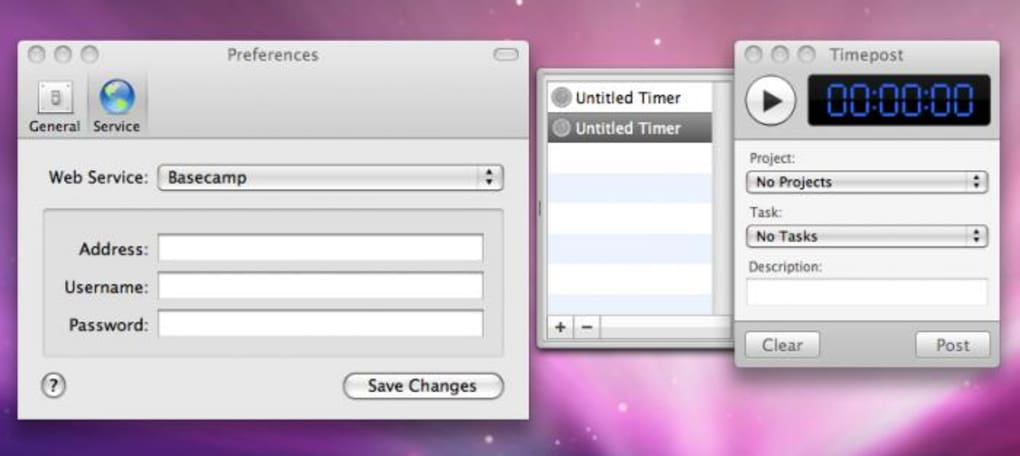
The interface is intentionally minimalistic: after you enter your login credentials for the chosen web app, you simply select the project, pick a task, and hit “Start.” When you finish, hit “Pause” or “Stop,” and the elapsed time instantly appears in the corresponding task entry on your primary collaboration platform. Because Timepost’s sole purpose is time tracking, it doesn’t clutter your workflow with extra features like file sharing or chat—keeping the focus razor‑sharp on accurate measurement. Whether you’re a freelancer billing hourly rates, a project manager monitoring team capacity, or a dev‑ops specialist needing precise sprint data, Timepost offers a secure, reliable, and straightforward solution.
Key Features
- Multi‑Tool Integration: Supports Basecamp, Asana, Trello, Jira, ClickUp, Monday.com, and Harvest out of the box.
- One‑Click Timer Control: Start, pause, and stop tracking with a single button press.
- Automatic Sync: Time entries are pushed directly to the selected task in the connected web app.
- Local Backup Log: A secure local database records every session in case the remote tool fails to save.
- Secure Credential Storage: Uses encrypted local storage (AES‑256) to keep API keys and passwords safe.
- Customizable Project Views: Filter tasks by project, client, or tag before you start tracking.
- Export Options: CSV and JSON export for offline analysis or integration with accounting software.
- Cross‑Platform Availability: Desktop client for Windows, macOS, and Linux; mobile companion apps for Android and iOS.
- Real‑Time Reporting Dashboard: Visual charts showing daily, weekly, and monthly billable hours.
- Offline Mode: Track time without internet; data syncs automatically when connection is restored.
Installation & Usage Instructions
Step‑by‑Step Installation
Windows & macOS: Visit the official Timepost website and click the “Download for Windows” or “Download for macOS” button. The installer is a signed executable (EXE for Windows, DMG for macOS) that passes Microsoft SmartScreen and Apple Gatekeeper checks. Run the installer, accept the license agreement, and choose the default installation folder. The setup wizard will prompt you to create a master password—this password encrypts all stored API keys.
Linux: Timepost provides a .deb package for Debian/Ubuntu and an .rpm for Fedora/Red Hat. Use sudo dpkg -i timepost.deb or sudo rpm -i timepost.rpm. After installation, launch the app from the applications menu.
Mobile (Android & iOS): Open Google Play Store or Apple App Store, search for “Timepost – Web Time Tracker,” and tap “Install.” The mobile app automatically syncs with the desktop client via your Timepost cloud account.
First‑Time Setup
- Launch Timepost and log in using the master password you created during installation.
- On the “Connect Services” screen, select the web collaboration tool you use most often.
- Enter the required API credentials (client ID, secret, or personal access token). Timepost validates the token in real time.
- Choose a default workspace or team, then click “Save.”
- Navigate to the “Projects” tab. Timepost will pull the list of active projects and tasks from the connected service.
- Select a project, then a specific task, and click the large green “Start” button to begin tracking.
Typical Workflow
Once you’re working on a task, Timepost runs unobtrusively in the system tray (Windows) or menu bar (macOS). You can hover over the icon to see the current timer, switch tasks, or add manual entries if you forgot to start the timer. When you pause or stop, Timepost pushes the elapsed minutes to the selected task in your web tool, automatically updating the “Time Spent” field. If you need to edit an entry, click the “History” button to open a log view where each session can be adjusted or deleted. The app also supports “Billable vs. Non‑Billable” toggles, allowing you to separate client‑charged hours from internal work.
For teams, an admin can enable “Shared Timers,” letting multiple users log time against the same task. The dashboard aggregates these entries, giving managers a real‑time view of resource allocation. Export functions let you download a CSV of all logged time for invoicing or payroll purposes.
Compatibility & System Requirements
Timepost is built with Electron and React, ensuring consistent performance across major desktop operating systems. Minimum specifications are modest, making the app suitable for older hardware while still offering a smooth experience on modern machines.
- Windows: Windows 10 (64‑bit) or later; .NET 4.7+ runtime (included in installer).
- macOS: macOS 10.15 (Catalina) or later; requires 4 GB RAM and 200 MB free disk space.
- Linux: Ubuntu 18.04 LTS, Debian 10, Fedora 30 or later; needs libappindicator1 and libnotify.
- Mobile: Android 8.0 (Oreo) or later; iOS 13.0 or later.
Because Timepost communicates via HTTPS with the APIs of supported web tools, a stable internet connection is recommended for real‑time sync. However, the offline mode ensures you can continue tracking when connectivity is intermittent, with automatic reconciliation once the network returns.
Pros and Cons
Pros
- Seamless integration with seven major project management platforms.
- Intuitive one‑click timer eliminates workflow disruption.
- Secure encrypted storage of credentials and local backup logs.
- Cross‑platform support – desktop and mobile.
- Offline tracking with automatic sync on reconnection.
- Exportable reports for accounting and invoicing.
- Lightweight footprint; uses less than 150 MB RAM on idle.
Cons
- No built‑in project management features (purposefully limited).
- Requires API keys for each integrated service, which may be intimidating for non‑technical users.
- Limited customization of UI themes (currently only light and dark mode).
- Free tier offers basic tracking; advanced reporting requires a paid subscription.
Frequently Asked Questions
Is Timepost really free to use?
Timepost offers a fully functional free tier that includes unlimited time tracking, integration with all supported web tools, and basic reporting. A premium subscription unlocks advanced analytics, custom export templates, and priority support.
How does Timepost store my login credentials?
All API keys and passwords are encrypted locally using AES‑256. The master password you set during installation encrypts the credential vault, and nothing is stored on Timepost’s servers.
Can I track time for multiple projects at once?
Timepost allows you to pause a timer and switch to another project instantly. Each pause creates a separate entry, ensuring accurate allocation across multiple tasks.
What happens if my internet connection drops while I’m tracking?
The app switches to offline mode automatically. All time data is stored locally and will be synced to the connected web tool as soon as the connection is restored.
Is there a way to export my time logs for invoicing?
Yes. Timepost provides CSV and JSON export options. You can schedule automatic daily exports or manually generate a report for any date range.
Conclusion & Call to Action
For teams that already rely on web‑based collaboration platforms, the missing piece has always been an effortless way to log billable hours without hopping between apps. Timepost fills that gap with a secure, lightweight, and highly compatible solution. Its one‑click timer, automatic sync, and local backup guarantee that every minute you spend on a task is captured accurately—whether you’re working from a Windows desktop, a macOS laptop, or a mobile device on the go. While the free version is generous enough for freelancers and small teams, the premium tier adds the depth of reporting that larger organizations often need.
If you’re ready to eliminate the hassle of manual timesheets and keep your project management tools tidy, download Timepost today. Experience a seamless, secure, and fully integrated time‑tracking workflow that lets you focus on delivering results instead of fiddling with spreadsheets.
Overall Rating: 4.5 / 5
Timepost stands out for its simplicity and reliable integration with the most popular project management tools. The local backup log is a thoughtful safety net, and the cross‑platform availability means you can stay consistent whether you’re at your desk or on the road. Minor drawbacks include the need for API keys and a limited UI theme selection, but these are outweighed by the productivity gains.








