
外掛說明
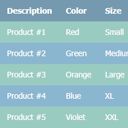
Tabular is a brand new way to create HTML tables for your WordPress website. Each table is created automatically so no manual coding is required. Simply enter table data, or paste in directly from a spreadsheet, choose your table template, and that’s it. You’re good to go!
A full demo will be coming soon but click here to see a live demo of a table generated by Tabular, plus the outputted HTML code.
The generated table code is highly semantic in accordance with recommended web standards and best practices. Tabular does all this for you automatically, leaving you to focus on what data you want your table to display, and how it looks.
Create unlimited tables with Tabular. There is no restriction on the number of tables you can create, or the amount of data added to each table.
Super fast table editor! Edit the data for each table just as you would in any spreadsheet software such as Excel. You can even paste in data directly too for convenience, making editing even faster still. Also, the spreadsheet editor supports an undo function to reduce errors and recover deleted data.
If you have a moment, consider leaving feedback in the comments section. This is really important and helps us continuously improve upon the plugin. Help us to make it even better!
Please also rate Tabular if you find it useful.
Thanks to all our free plugin users for your continued support! 🙂
David – wpgoplugins.com
螢幕擷圖


安裝方式
- Via the WordPress admin go to Plugins => Add New.
- Enter ‘Tabular’ (without quotes) in the text box and click the ‘Search Plugins’ button.
- In the list of relevant Plugins click the ‘Install’ link for Tabular on the right hand side of the page.
- Click the ‘Install Now’ button on the popup page.
- Click ‘Activate Plugin’ to finish installation.
- Under the main Tabular menu click ‘Add New Table’.
- Select your desired table type and click ‘Create Table’.
- Edit the table data and choose a style template.
- Use the [tabular id=”123″] shortcode in a page, post, or text widget to display a table. Replace ‘123’ with the specific ID of the table you want to display.
常見問題集
- Installation Instructions
-
- Via the WordPress admin go to Plugins => Add New.
- Enter ‘Tabular’ (without quotes) in the text box and click the ‘Search Plugins’ button.
- In the list of relevant Plugins click the ‘Install’ link for Tabular on the right hand side of the page.
- Click the ‘Install Now’ button on the popup page.
- Click ‘Activate Plugin’ to finish installation.
- Under the main Tabular menu click ‘Add New Table’.
- Select your desired table type and click ‘Create Table’.
- Edit the table data and choose a style template.
- Use the [tabular id=”123″] shortcode in a page, post, or text widget to display a table. Replace ‘123’ with the specific ID of the table you want to display.
使用者評論
這個外掛目前沒有任何使用者評論。
參與者及開發者


變更記錄
0.1.0, NOVEMBER 1 – 2017
- Initial plugin release!
