
Download Watcher – Parental Control Software for Safe Internet Use
Overview
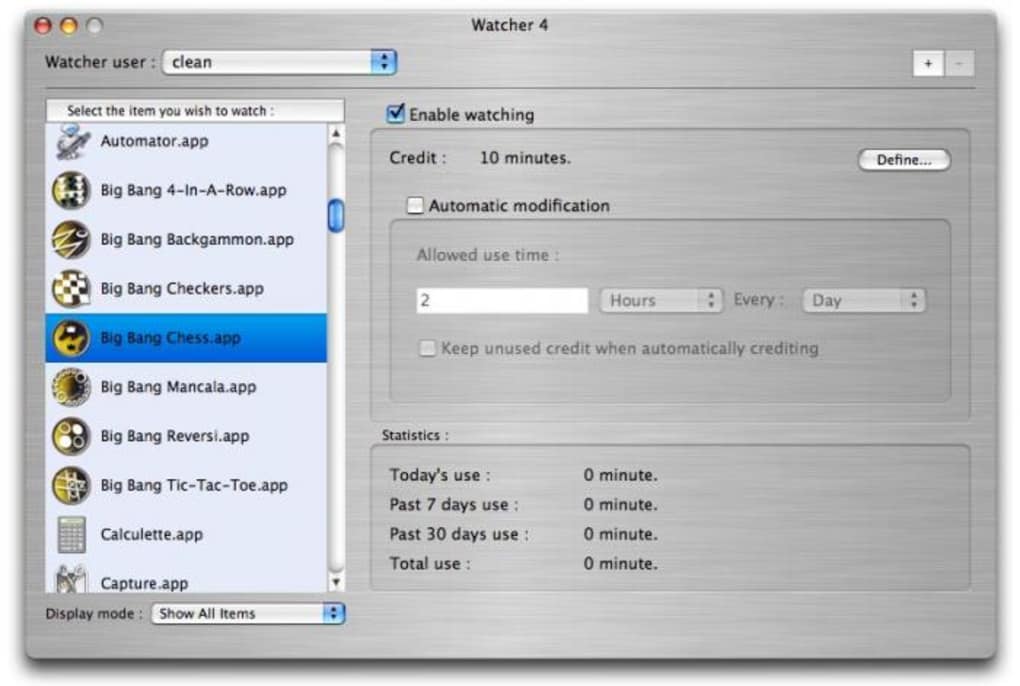
Watcher is a purpose‑built parental‑control application designed to give parents real‑time insight and decisive authority over their children’s internet habits. In today’s hyper‑connected world, kids can easily slip into endless scrolling, online gaming marathons, or late‑night messaging sessions that jeopardise both academic performance and healthy sleep patterns. Watcher tackles this challenge by letting you define clear, enforceable boundaries around computer usage, whether it’s setting daily time‑limits for web browsing, restricting access to messaging platforms, or capping the amount of hard‑drive space a child can consume. The program’s intuitive dashboard provides a visual “credit” system, allowing children to negotiate how they allocate their allotted hours across the week while still keeping parents in the driver’s seat. Instant statistics are available at a glance, offering day‑by‑day, week‑by‑week, or month‑by‑month summaries of activity, so you can spot trends, intervene early, and celebrate responsible behaviour. Configured on a firewall‑protected computer, Watcher operates silently in the background, applying rules without disrupting legitimate work or study sessions. While kids might initially resist the new restrictions, the peace of mind that comes from knowing exactly how much time is spent online—and on what—makes Watcher an essential tool for modern families seeking a balanced digital lifestyle.
Key Features of Watcher
- Custom Time Schedules: Define start‑and‑end times for each day of the week, including separate weekend settings, to ensure computers are only active during approved hours.
- Application‑Specific Limits: Apply distinct limits for web surfing, instant messaging, and gaming, giving granular control over each activity type.
- Disk‑Space Quotas: Set maximum storage allowances per user profile, preventing excessive file accumulation and encouraging responsible file management.
- Credit‑Based Dashboard Widget: A visual widget where children can allocate earned “credits” across the week, promoting negotiation and teaching time‑management skills.
- Real‑Time Activity Statistics: Instantly view yesterday’s, last week’s, or last month’s usage data, complete with graphs and breakdowns by application.
- Firewall Integration: Seamlessly works with existing firewall configurations to enforce rules at the network level, adding an extra layer of security.
- Secure User Accounts: Administrator passwords protect settings from tampering, ensuring only authorized adults can modify limits.
- Automatic Updates: The software checks for and installs updates securely, keeping the control mechanisms current against new apps and OS changes.
- Multi‑User Support: Manage separate profiles for each child, each with its own schedule, quota, and credit balance.
- Exportable Reports: Generate PDF or CSV reports for school meetings, counseling sessions, or personal records.
All of these features are designed to work together in a cohesive ecosystem, ensuring that you, as a parent, retain the final say while still encouraging children to develop healthy digital habits. The credit system, for example, turns enforcement into a collaborative experience—kids can request additional time for a school project or a special event, and you can approve or deny those requests directly from the dashboard. Meanwhile, the disk‑space quota prevents the hard drive from becoming a dumping ground for games, movies, or large downloads that could otherwise slow the computer or cause accidental data loss. The combination of granular scheduling, real‑time reporting, and user‑friendly interfaces makes Watcher stand out from generic “screen‑time” apps that often lack the depth needed for a truly controlled environment.
Installation & Everyday Usage Guide
Getting Watcher up and running is straightforward, even for users with limited technical expertise. Follow these steps to install the software and start configuring your child’s safe browsing environment:
- Download the Installer: Visit the official Watcher website and click the “Download for Windows” or “Download for macOS” button. The installer is signed with a trusted certificate, ensuring a secure, malware‑free download.
- Run the Installer: Double‑click the downloaded file. On Windows, you may be prompted by User Account Control (UAC); click “Yes” to allow the installer to make changes. On macOS, drag the Watcher icon into the Applications folder as instructed.
- Initial Setup Wizard: Upon first launch, a setup wizard guides you through creating an administrator account. Choose a strong password—this protects your configuration from being altered by children.
- Configure Firewall Exceptions: The wizard automatically detects existing firewall settings and offers to add the necessary exceptions. Accept the recommendation to ensure Watcher can monitor traffic without interruption.
- Create Child Profiles: Within the main dashboard, click “Add New Profile.” Enter the child’s name, select the user account on the computer, and assign an initial credit balance (e.g., 10 hours per week).
- Set Time Limits: Navigate to the “Schedule” tab. Use the calendar interface to specify start and end times for each weekday and weekend day. You can also create “fixed” blocks (e.g., no computer use before 7 AM).
- Define Disk Quotas: In the “Storage” section, input the maximum megabytes each profile may use. The system will automatically enforce this limit by restricting file writes once the quota is reached.
- Activate the Credit Widget: Drag the widget onto the desktop or taskbar. Children can view their remaining credits, request extensions, and see a visual representation of how their weekly hours are allocated.
- Monitor Activity: The “Statistics” tab provides real‑time graphs. Use the dropdown to toggle between daily, weekly, or monthly views. Export reports as needed for school or counseling sessions.
- Maintain & Update: Set the software to auto‑update, or manually check for updates via the “Help” menu. Regular updates ensure compatibility with new browsers, games, and operating‑system patches.
Everyday usage becomes second nature once the initial configuration is complete. When your child attempts to launch a blocked application outside of permitted hours, a friendly notification appears explaining the restriction and displaying remaining credits. If they need extra time for a legitimate reason—such as completing a school project—they can submit a request through the widget, which you can approve with a single click. This dynamic, interactive approach transforms the traditionally adversarial “parent‑vs‑child” dynamic into a cooperative partnership focused on responsible digital citizenship.
Compatibility & System Requirements
Watcher has been engineered to run smoothly on the most common desktop operating systems while maintaining a low footprint so it does not impede normal computer performance. Below are the official compatibility details and recommended hardware specifications:
- Operating Systems (itemprop="operatingSystem"):
- Windows 10 (64‑bit) and later, including Windows 11.
- macOS 10.15 (Catalina) and later, up to the current macOS release.
- Processor: Minimum dual‑core 2.0 GHz; Intel i3, AMD Ryzen 3, or equivalent is sufficient. For optimal performance with multiple child profiles, a quad‑core processor is recommended.
- Memory (RAM): Minimum 4 GB; 8 GB is advised for smoother operation when running additional background services such as antivirus or backup utilities.
- Disk Space: At least 200 MB of free storage for the application itself. Additional space will be needed for logs and exported reports.
- Network: An active internet connection is required for license activation, update checks, and remote reporting (if enabled).
- Additional Requirements: Administrator privileges for installation; firewall access to open a single outbound port (443) for secure communications.
Watcher is compatible with most mainstream browsers (Chrome, Firefox, Edge, Safari) and automatically detects popular instant‑messaging clients (e.g., Discord, Slack, WhatsApp Web). The software respects system security policies and integrates with Windows Defender, macOS Gatekeeper, and third‑party antivirus suites without conflict. If you run a mixed‑environment household—some PCs on Windows, others on macOS—Watcher can be installed on each machine independently, while the central dashboard widget provides a unified view of all child profiles across platforms.
Pros, Cons & Frequently Asked Questions
Pros
- Highly granular control over time, application, and storage usage.
- Intuitive credit‑based dashboard encourages cooperation rather than confrontation.
- Real‑time statistics and exportable reports for transparent monitoring.
- Secure firewall integration and administrator‑only settings protect against tampering.
- Cross‑platform support for both Windows and macOS.
- Automatic, secure updates keep the software current with new threats and OS changes.
Cons
- Initial configuration may feel overwhelming for non‑technical parents.
- Limited mobile (iOS/Android) management; primarily designed for desktop environments.
- Children may attempt to bypass restrictions by using portable browsers or external devices.
- No built‑in VPN; relies on existing firewall for network‑level enforcement.
FAQ – Frequently Asked Questions
Can I set different limits for each child?
Yes. Watcher lets you create separate profiles for each child, each with its own schedule, credit balance, and disk‑quota. This ensures that younger siblings aren’t unfairly restricted by an older sibling’s usage patterns.
What happens if my child exceeds the allotted time?
When the time limit is reached, Watcher blocks the specified applications and displays a friendly notification explaining the restriction. The child can then request additional credits through the dashboard widget, which you can approve or deny instantly.
Is the software safe and free from ads?
Watcher is a paid application with a one‑time license fee. It contains no third‑party advertising, and the installer is digitally signed to guarantee authenticity and security.
Can I monitor activity remotely?
Watcher includes optional cloud sync for reports. By enabling this feature, you can access daily or weekly usage summaries from any web browser, giving you peace of mind even when you’re away from home.
Does Watcher work with games that run from portable drives?
Yes. The software monitors process execution regardless of the launch source. If a game is started from a USB stick, Watcher will still enforce the time limit and display the appropriate restriction notice.
Expert Review
Watcher offers a comprehensive suite of parental‑control tools that go beyond simple screen‑time limits. Its credit‑based dashboard encourages dialogue, while real‑time reporting provides transparency. The only drawback is the lack of native mobile management, but for families focused on desktop usage, it delivers exceptional value and peace of mind.
Conclusion & Call to Action
In an age where digital distractions are just a click away, Watcher equips parents with the precise, secure, and user‑friendly tools needed to safeguard their children’s online experience. By combining granular time‑limits, storage quotas, and a collaborative credit system, the software transforms parental oversight from a punitive measure into an educational partnership. Installation is straightforward, compatibility spans the latest Windows and macOS releases, and the real‑time dashboards keep you informed without being intrusive. While the initial setup may require a brief learning curve, the long‑term benefits—reduced screen fatigue, better academic focus, and a clearer picture of digital habits—are well worth the effort. Ready to regain control and give your family the balanced internet usage it deserves? Download Watcher now and start building healthier online routines today.








